AI Influencer Generator Free: Create an AI Influencer for Instagram
Build a free AI influencer for Instagram from scratch. Pick a niche, write a character sheet, generate photorealistic portraits with unlimited image models, keep the same face in every post, animate stills into short reels, and plan a full month of content.
You do not need a photographer, a studio, or a plane ticket to run an Instagram account with a recognizable face. An AI influencer is a fictional creator with a name, a look, a niche, and a posting schedule, built from generated photos and short clips. Making one good picture is easy now. The hard part is making the same person show up in sixty pictures that all feel like one life.
This article lays out a free-first workflow for building that account. You will pick a niche, design a face, write prompts that produce real-looking photographs, keep the character consistent, animate stills into short clips, and plan a month of posts. Every tool mentioned runs on PicassoIA, and the two core image models have no per-image cap, so you can retry a face fifty times without watching a counter.
The whole setup fits in an afternoon. Spend the first hour on the character, the second on the first batch of photos, and the third on clips and a posting plan. After that, a month of content is one batch session a week, not a full-time job.
What an AI Influencer Really Is
A Persona, Not One Photo
A single pretty portrait is a wallpaper. A persona is a pattern. People follow an account because the same face, the same taste in clothes, the same kind of light, and the same voice return week after week. Build the character in five layers:
Face: bone structure, eye color, skin tone, freckles, hair length and color.
Style: the clothes, colors, and accessories she reaches for.
Setting: the cafes, gyms, beaches, and streets she lives in.
Voice: how captions and comment replies sound.
Rhythm: how often she posts, and at what time of day.
When one layer drifts, followers feel it even if they cannot say why. Most AI accounts break on the face layer first, which is why half of this article is about keeping it fixed.
Take Lena, the character used through the rest of this article: a city traveler in her mid twenties who drinks too much coffee, wears camel and cream, and posts slow mornings from small European cities. You can describe her in one sentence, and that is the test. If you cannot describe the account in one sentence, followers cannot either.
Where Free Generators Fall Short
Plenty of free generators give you a few images a day, stamp a watermark in the corner, or reset the face every time you press the button. That works for a one-off avatar. It hurts when you need dozens of portraits of one character, plus edits, plus video. The fix is to pair a model with no per-image cap for volume with a reference-based model for consistency.
💡 What "free" means here:PicassoIA Image and PicassoIA Image Editor Pro are described on their model pages as unlimited, with no per-image cap and no daily quota. That is what makes fifty retries realistic.
Pick a Niche and Design the Face
Choose a Niche With Visual Range
Pick a niche that gives you at least ten different settings. Fashion, travel, fitness, food, and home decor all work because every post can change the backdrop while the face stays the same.
Niche
Typical settings
Easy props to generate
Fashion
Rooftops, boutiques, street corners
Coats, bags, sunglasses
Travel
Bays, old towns, train stations
Straw hats, suitcases, maps
Fitness
Lofts, parks, studios
Mats, bottles, towels
Food
Kitchens, markets, terraces
Plates, glassware, linen
Home decor
Living rooms, balconies
Plants, ceramics, throws
A travel account gives you the widest range of backdrops with the least effort, since a new coastline or old town changes the whole mood of a post while the face stays put.
Check two things before you commit. First, scroll through the top accounts in the niche and note what their best photos share: time of day, crop, color palette. Second, ask whether you can generate it believably. Close-up food and quiet interiors are forgiving. Crowded group scenes and fast sports action are harder, so start with solo portraits and add complexity later.
Write a Character Sheet
Before you generate anything, write a short sheet and paste its face line into every prompt.
Name: Lena Ortiz
Look: mid twenties, oval face, olive skin, light freckles across the nose, dark brown eyes, wavy chestnut hair to the shoulders
Style: linen, denim, cream and camel tones, thin gold jewelry
Niche: city travel and slow mornings
Voice: warm, dry humor, short captions
Copy the look line word for word. Swapping "chestnut" for "brown" is enough to shift the face, so treat that line like a password.
Add a scene bank of ten places she will visit: a corner cafe, a rooftop, a market, a train platform, a bookshop, a hotel balcony, a beach path, a gym, a living room, and a park bench. Ten places times three outfits gives you thirty posts before anything repeats.
A Prompt Formula That Works
Photo prompts behave best in a fixed order: subject, action, setting, light, lens, texture. Here is one built from the sheet above:
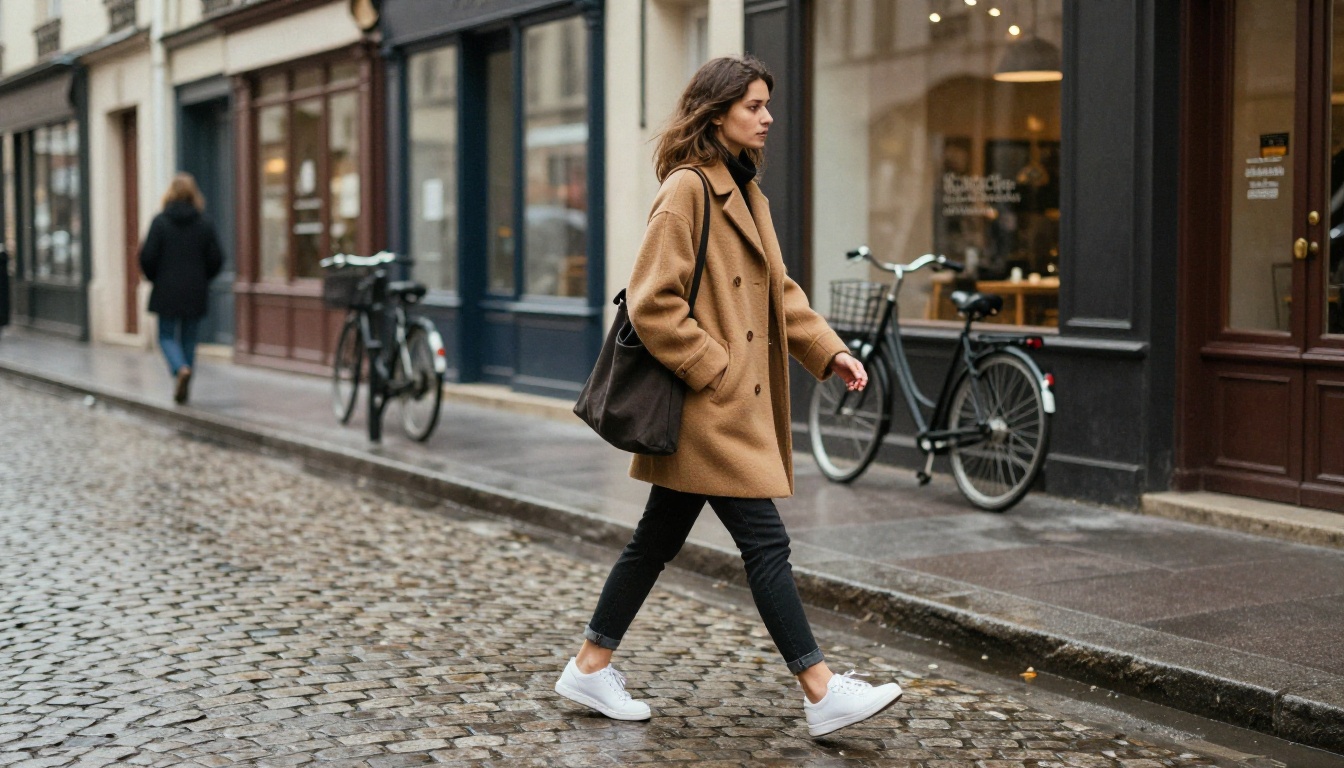
Lena, a woman in her mid twenties with an oval face, olive skin, light freckles across the nose, dark brown eyes and wavy chestnut hair, crossing a cobblestone street in Paris, camel wool coat, white sneakers, soft overcast light, 35mm lens at f/1.8, natural skin texture, film grain, Kodak Portra 400 colors
Words like natural skin texture, visible pores, and film grain push the result away from the plastic look. A lens and aperture, such as 85mm f/1.8, tells the model how much background blur to use.
Change only the scene half of the prompt and leave the face half alone:
Scene
Prompt ending
Cafe
iced oat latte on a marble table, morning light from the left, 85mm f/1.8
Gym
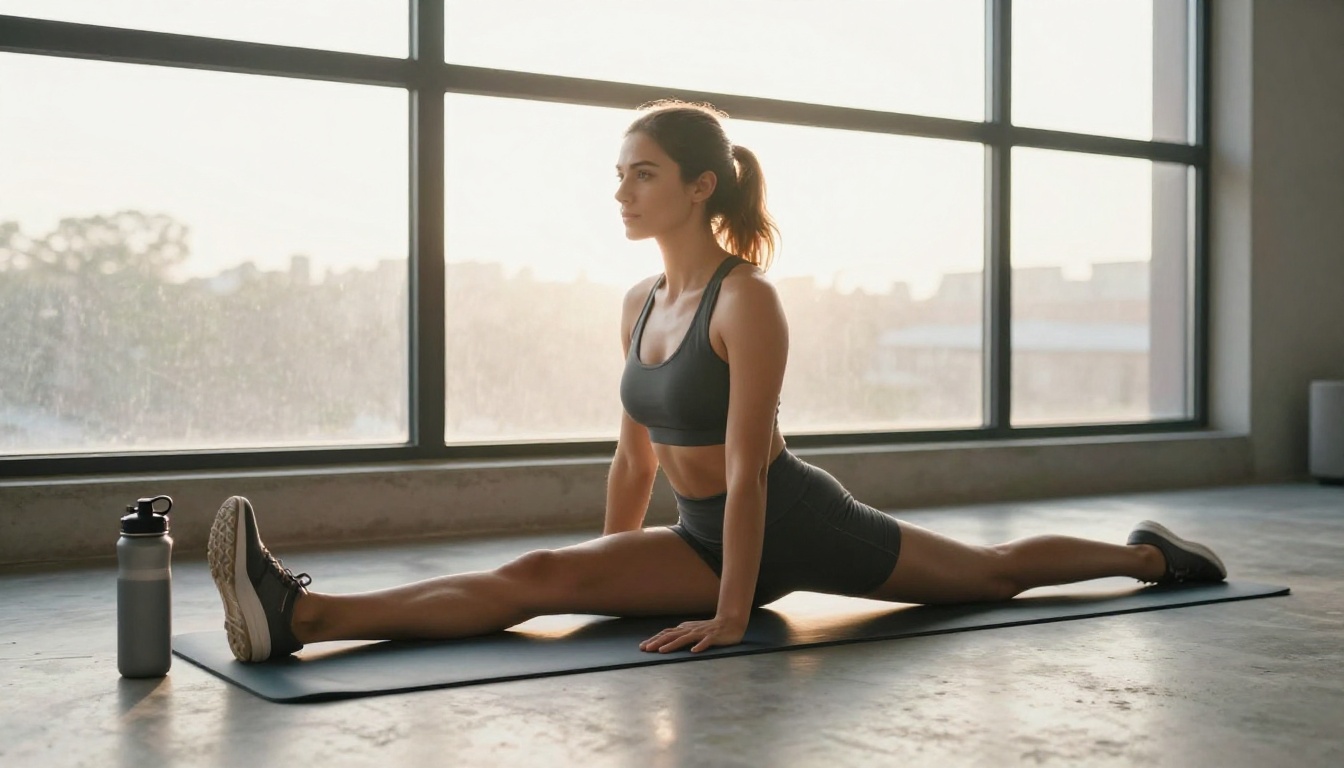
charcoal sports set, stretching on a yoga mat, sunrise through a loft window, 50mm f/1.8
Beach town
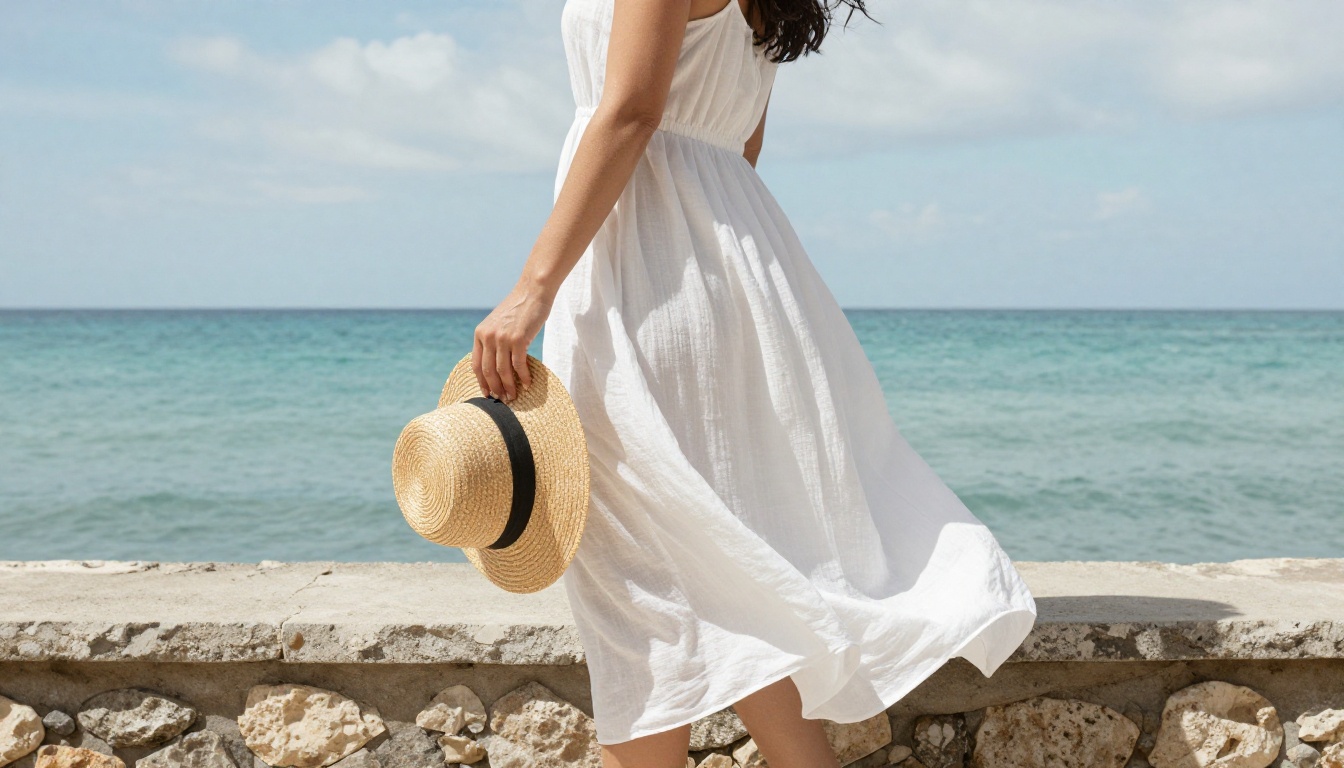
white linen sundress on a stone terrace above a bay, bright midday sun through thin clouds, 28mm f/2.8
How to Use PicassoIA Image
PicassoIA Image is the native text-to-image model on the platform. Its model page lists generation in seconds, seven aspect ratios, and no per-image cap, which makes it the workhorse for an influencer account.
Add one scene: where she is, what she wears, what the light does.
Finish with lens and texture words from the formula above.
Run it, then check the eyes, teeth, hands, and jewelry before anything else.
Keep one scene per prompt. Two actions in one sentence is where hands start to melt.
Set Ratio, Seed, and Format
Setting
Options
Pick this for Instagram
Aspect ratio
1:1, 16:9, 9:16, 4:3, 3:4, 3:2, 2:3
3:4 for feed portraits, 9:16 for stories and reels, 1:1 for grid tiles
Seed
Any integer
Reuse it to recreate an image from the same prompt
Output format
JPG, PNG, WebP
JPG for posts, PNG if you will edit again
Output quality
0 to 100, default 80
90 for final posts
Number of outputs
1 or 2
2, to compare side by side
💡 A seed recreates the same image from the same prompt. It does not lock a face across different scenes. That job belongs to the reference-based tools in the next section.
Generate Variations and Pick One
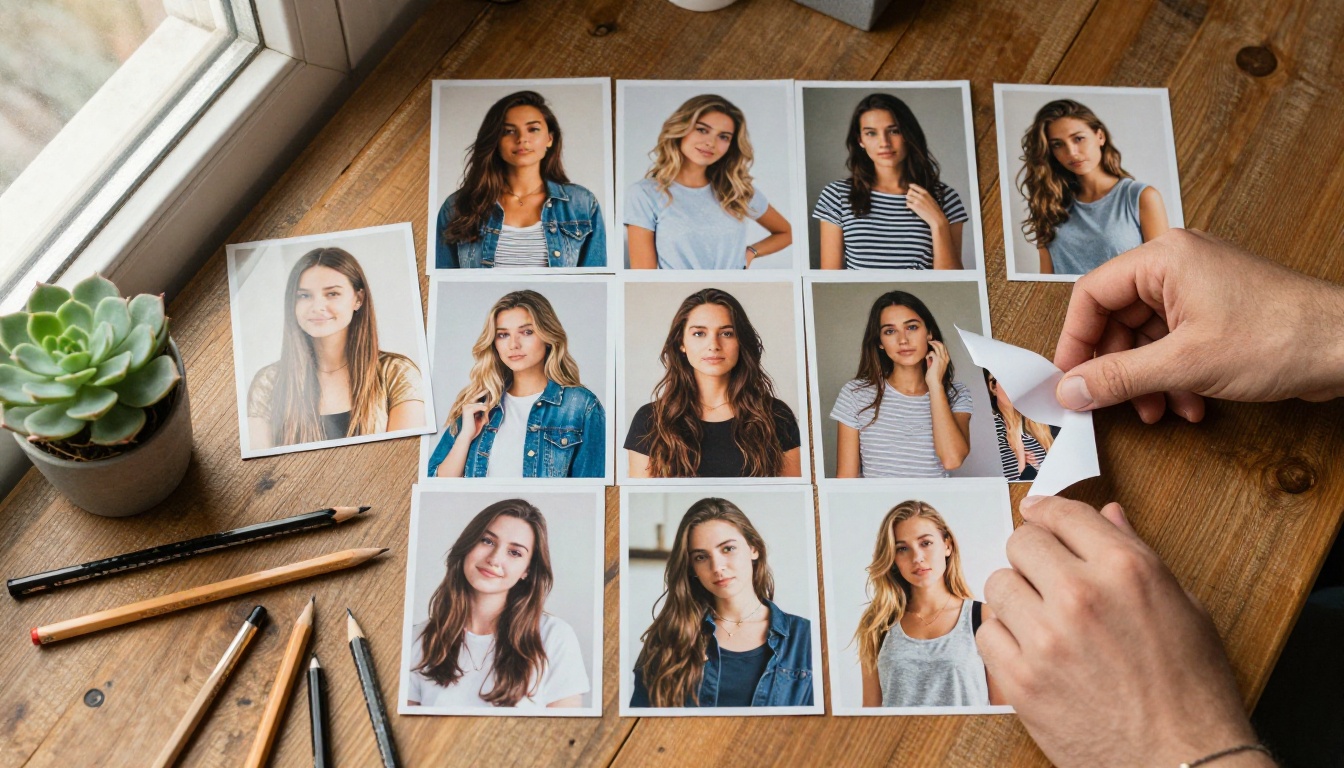
Run the same prompt with two outputs, change one detail, and repeat. After twenty or thirty tries you will have a face that feels like a person rather than a template. Save that image as your anchor. It should still read clearly at thumbnail size, because the Instagram grid shows small squares.
When a result goes wrong, match the symptom to the fix:
Add visible pores, natural skin texture, and film grain, and drop words like flawless
Fingers look wrong
Hide the hand in a pocket, around a cup, or behind a phone
Eyes look off
Remove busy details near the eyes, such as heavy lashes or glasses, and run it again
Keep One Face in Every Photo
Consistency decides whether followers believe the account. Once the anchor exists, switch from prompting to reference-based tools.
Use Ideogram Character
Ideogram Character anchors every generation to a single reference photo. Upload your anchor, describe a new scene, and the face stays recognizable.
Upload the anchor as the character reference image.
Set the style type to Realistic.
Write the scene in plain language, for example: she is ordering coffee on a sunlit terrace, linen blazer, morning light.
Use Turbo rendering for drafts and Quality for the picture you will post.
Use the inpainting option when you want to place her into an existing photo through a mask.
💡 Test the face on five very different scenes before you commit: a gym, a formal dinner, a beach, a rainy street, and a kitchen. If the face holds in all five, you have a usable character.
Swap Outfits With Image Editor Pro
PicassoIA Image Editor Pro takes up to three reference images, and your prompt can call them image 1, image 2, and image 3. A prompt from its own examples shows the idea: dress the model in image 1 with the clothes from image 2 and the hat from image 3, and keep the original background.
Use it for four jobs:
Change a dress or jacket color without touching the face.
Replace the background of a good portrait.
Fix lighting or blemishes in an otherwise perfect shot.
Turn a morning scene into an evening one.
Leave the aspect ratio on match_input_image so the crop does not shift between edits. A prompt for a simple color change looks like this:
Change the jacket in image 1 from camel to deep green. Keep the face, hair, pose, and background unchanged.
Saying what must stay the same matters as much as the change itself.
Reels tend to reach people who do not follow you yet, so a few animated stills are worth the effort. Start from your best photos and add one small movement.
Image to Video Options
PicassoIA Video turns text or an image into video and is listed as free and unlimited. Seedance 2.5 Lite is listed as a free, unlimited generator for clips up to 10 seconds. For a more directed performance, Kling v3 Motion Control animates a character from a photo.
Describe one movement only: slow push in, hair moves in a light breeze, she turns her head and smiles. Three movements in one clip is how faces warp.
Source photo
Motion prompt
Cafe terrace portrait
Slow push in, steam rising from the cup, she glances up from the phone and smiles
Rooftop at golden hour
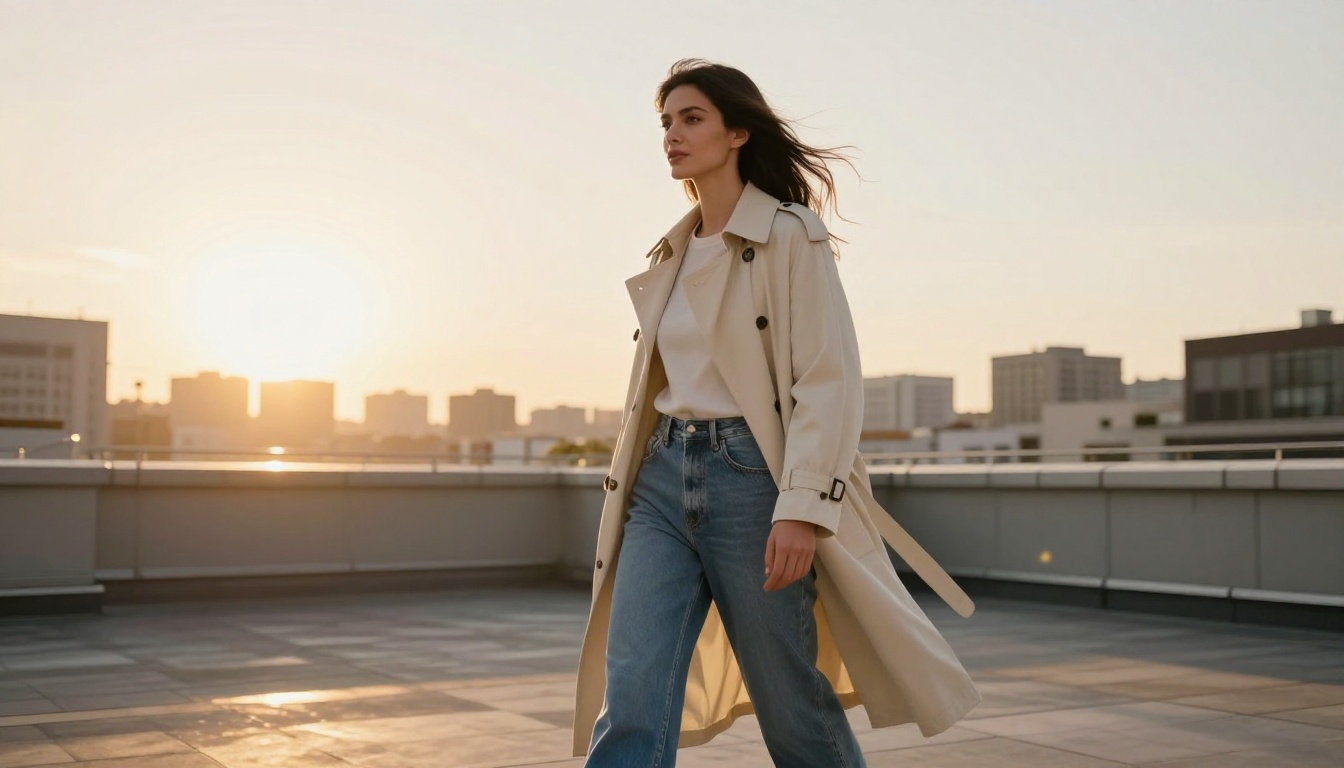
Gentle pan right, the coat moves in the breeze, she walks toward the camera
Gym loft at sunrise
Static camera, she raises her arms in a slow stretch while the morning light shifts
Make Her Talk
Omni Human 1.5 creates a realistic lipsync video from a photo, and Fabric 1.0 makes any photo talk. Supply a short audio line, keep it under ten seconds, and you have a talking reel from a still.
Plan a Month of Posts
A Weekly Posting Rhythm
Generate in batches. One sitting with the character sheet and a list of twenty-eight scenes gives you a month of stills.
Day
Format
Idea
Monday
Carousel of 4 photos
One outfit in three settings
Tuesday
Reel, 5 to 10 seconds
Animated portrait
Wednesday
Single photo
A quiet morning scene
Thursday
Stories
Question sticker about her next trip
Friday
Reel
Talking clip, one line to camera
Saturday
Carousel
Weekend or travel set
Sunday
Single photo
Slow image with no text
Name files by scene and outfit (for example rooftop-coat-03), keep one folder for approved images and one for rejects, and save the prompt that worked next to each file. When a post performs well, repeat the scene with a new outfit instead of inventing something new.
Captions and Bio
Write captions in her voice, short and specific. "Third coffee, first good idea" beats a paragraph about wellness. Two more in the same register: "Wrong train, right city." and "Slow morning, loud playlist." End one post in three with a question that is easy to answer, such as which coat she should wear next. Reply to comments in character, and watch which posts get saved and shared, since those show you which scenes to repeat. Your bio needs one line about what she posts and one line that says she is AI generated.
Mistakes That Give It Away
Plastic skin: add texture words such as visible pores and film grain.
Drifting hands and jewelry: keep hands simple, and regenerate when a ring or finger looks off.
The same pose every time: vary the angle with low shots, overhead shots, and close-ups.
Readable signs and logos: generated text on backgrounds often turns into nonsense, so ask for none.
Editing the look line: copy it exactly, every time.
Hiding that she is AI: Instagram asks creators to label realistic AI content, and followers react better to an honest bio line than to a surprise. Never build a character from a real person's photo without their permission.
Run one last check before every post: zoom to 200 percent on the hands, the eyes, and any background text. Thirty seconds there saves you a deleted post later.
Create Your Own AI Influencer Today
Open PicassoIA Image, paste the look line from your character sheet, and generate your first twenty portraits. Pick the one that feels like a person, move to Ideogram Character to keep the face steady, and animate your favorites with PicassoIA Video. Browse everything else at picassoia.com/en/all-models and start posting this week. The first batch will be uneven, and that is normal: by the fortieth image you will know exactly which words keep her face steady, and the account starts to feel like hers.