Your dog has opinions about dinner time. Your cat has a long list of complaints about the vacuum. Until recently, the only way to hear any of it was to imagine the voices yourself. Now you can upload one photo, add a voice track, and watch your pet deliver the line with a moving mouth, blinking eyes and a head that tilts at the right moment. That is AI lip sync for animals, and it has become one of the most shared kinds of pet content online.
This article walks through how the technology works, which free options are worth a try, how to pick a photo that animates well, and how to build the whole thing on PicassoIA with a photo, a script and a voice. No filmmaking background is needed.
What AI Lip Sync for Animals Does
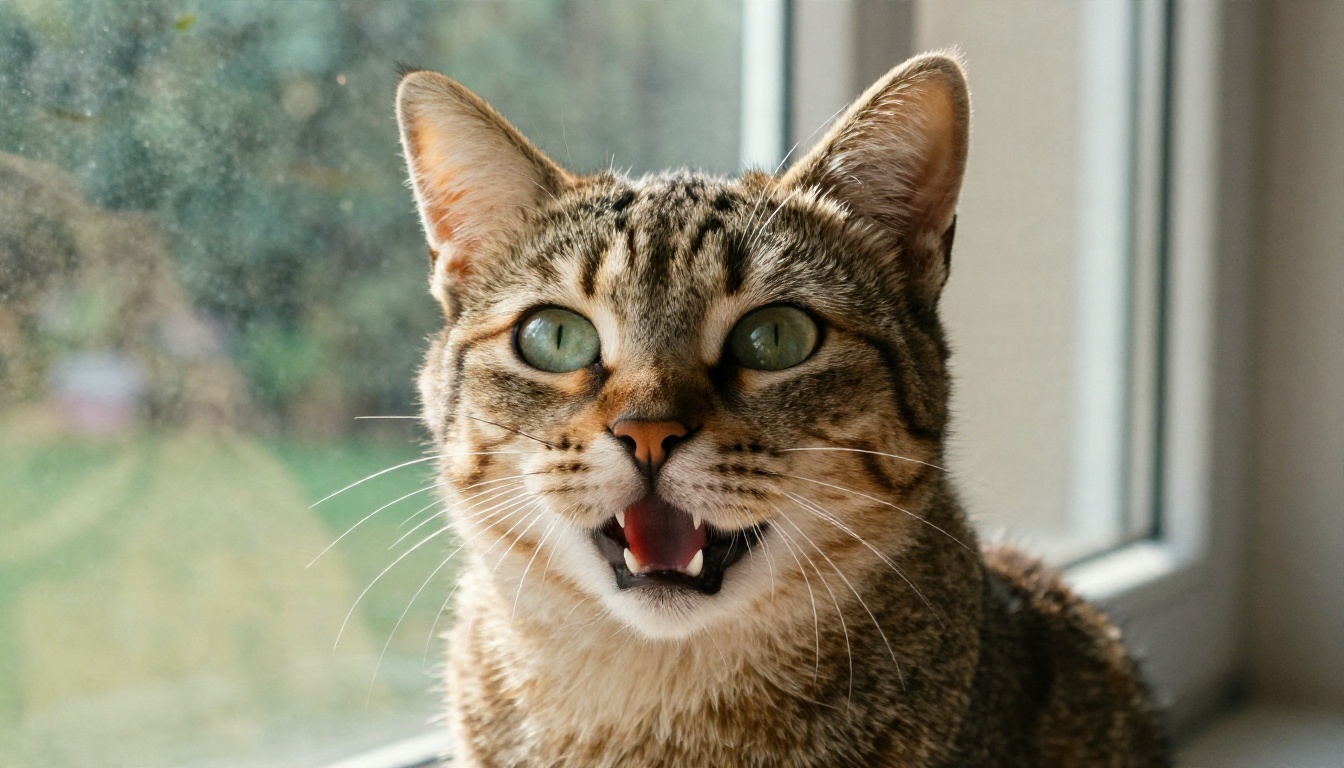
A talking pet video is built from three ingredients: a still image, an audio clip, and a model that connects the two. The model finds the face in your photo, works out where the mouth, jaw, eyes and ears sit, then generates new frames in which the jaw and lips move in time with the sound. Better models also add small head movements, blinks and shifts in expression so the result does not look like a puppet.
Photo to Video in Three Steps
- Upload a pet photo. A clear, front-facing shot works best.
- Add audio. Record your own voice, upload a clip, or generate speech from text.
- Generate. The model returns a short video where your pet speaks the audio.
Older tools only warped the lower half of the face. Current talking-photo models animate the whole head, which is why a cat can now raise an eyebrow while it complains.
Why Animals Are Harder Than People
Human faces have been the training focus of most lip sync models. Animals bring problems that people do not:
- Muzzles and snouts change shape in ways a human mouth does not.
- Fur hides the lip line that the model would normally track.
- Beaks do not have lips at all, so the motion has to be invented.
- Eyes on the side of the head, as with rabbits and horses, break the front-facing assumption.
The good news is that newer models cope with a lot of this, especially for dogs and cats, and the comedic effect often benefits from a little exaggeration.
Free Options Worth Trying
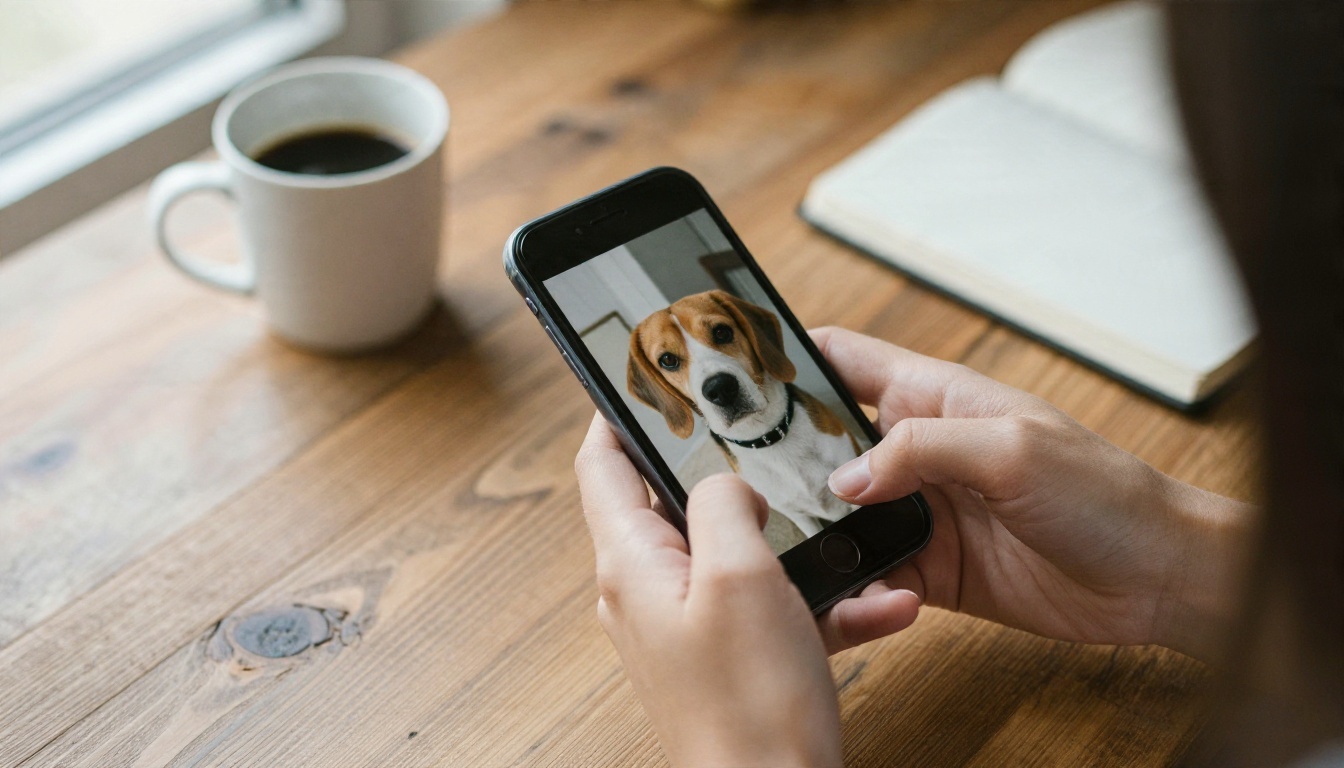
"Free" in this space almost always means a free tier, not unlimited use. Based on a quick look at what is currently on offer in late 2026, here is how the landscape breaks down.
| Type of option | What you usually get | Typical catch |
|---|
| Browser tools such as LipSync.video | Upload a photo and audio, get a talking clip, often with no sign-up | Limited credits, longer use needs a paid plan |
| Editors such as CapCut | A talking photo feature that lets you pick which face speaks when a picture has several | Export settings and some effects can be gated |
| Phone apps for pets | Preset voices, one-tap results | Watermarks, ads, subscriptions for unlimited use |
| Model platforms such as PicassoIA | Direct access to current talking-photo models, with room to choose the one that fits your pet | Free usage depends on the model and your plan, so check current limits |
Free Browser Tools
Browser tools are the fastest way to test whether your photo animates at all. You drop in an image and a voice clip, wait a short time, and get a clip. Expect short durations and a watermark on some exports. For a first experiment, that is fine.
Free Phone Apps
Pet apps are built for speed: pick a photo, pick a funny preset voice, share. The trade-off is control. You rarely get to choose the underlying model or tune the voice, and many keep the best features behind a subscription. Read the export screen before you spend an hour on a clip you cannot save without a watermark.
What Free Tiers Rarely Include
💡 Tip: Free plans often limit clip length, resolution and commercial use. If you plan to post on a monetized channel or use the clip in an ad, check the licence terms before you publish.
Pick the Photo That Animates Best
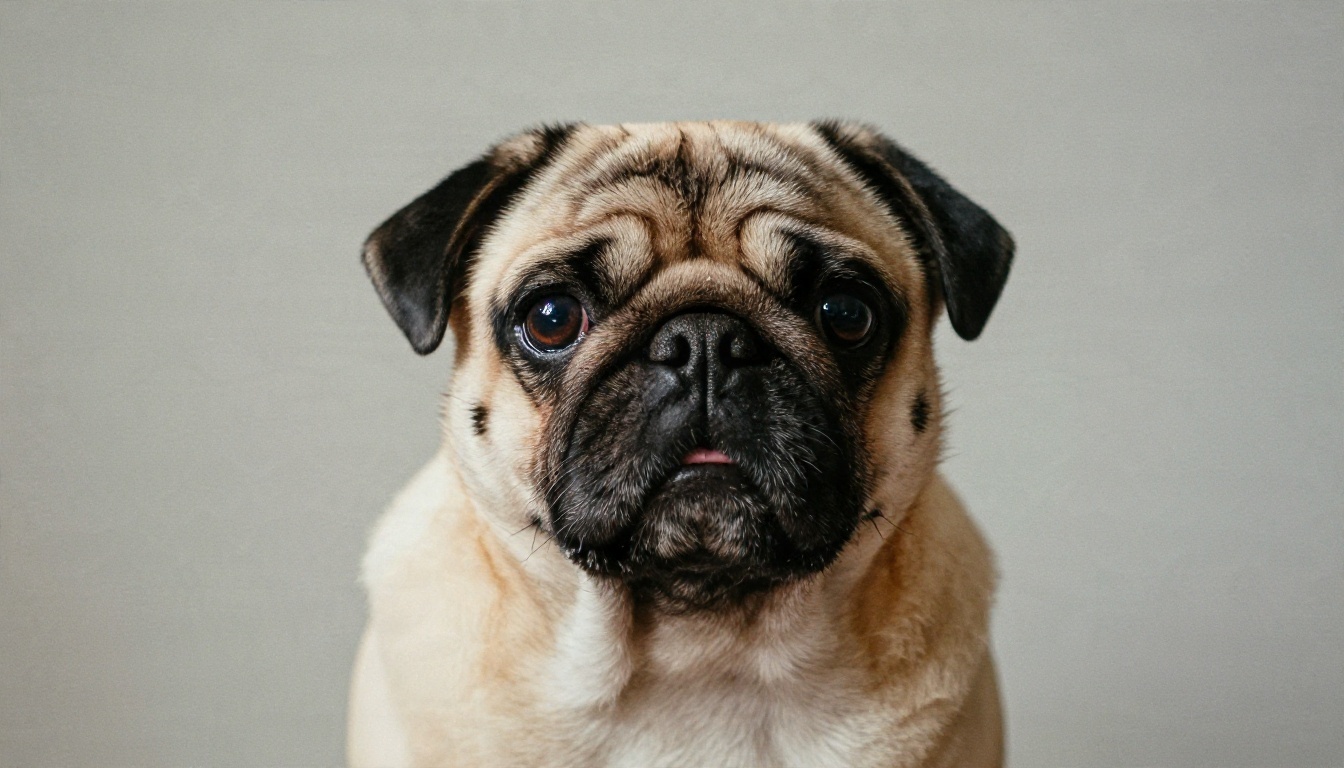
The photo decides about 70 percent of the result. A lazy photo gives a lazy video. Before you upload, run through this checklist.
The Ideal Source Photo
- Face toward the camera, or within about 30 degrees of it.
- Both eyes visible, with the nose and mouth area unobstructed.
- Mouth slightly open or relaxed. A closed mouth works, but a gentle open pose gives the model more to move.
- Even light. Harsh shadows across the muzzle confuse the mouth tracking.
- High resolution, ideally 1024 pixels or more on the short side.
- Plain or softly blurred background, so the model does not warp the scenery with the face.
Photos That Cause Trouble
| Problem | What happens | Fix |
|---|
| Face turned far to the side | Mouth stretches or drifts | Choose another frame or take a new shot |
| Toy or treat in the mouth | Object melts into the jaw | Use a photo without props |
| Heavy motion blur | Soft, smeared lips | Use a sharper frame |
| Two pets overlapping | The model picks the wrong face | Crop to one animal |
| Low-resolution screenshot | Grainy output | Upscale first |
💡 Tip: If your best photo is a little soft, run it through a super resolution model before animating. A sharper start gives sharper teeth, eyes and whiskers in the final clip.
Fixing or Making a Photo From Scratch
Sometimes the perfect pet photo does not exist. The dog was mid-sneeze, or the cat only ever faces away from the camera. In that case you can generate or repair the image first. Nano Banana is handy for editing an existing photo, for example turning a head to face forward or clearing clutter from the background. Seedream 4.5 is a strong choice if you want a brand new, photorealistic portrait of a pet in a specific setting.
Match the Species to the Model
Not every animal behaves the same in a talking-photo model. Here is what to expect by species.
Dogs and Cats
These are the easiest cases. They have expressive faces, forward-facing eyes and a mouth that opens in a way models read well. Pugs, bulldogs and other flat-faced breeds animate especially cleanly because their features sit close together and the camera sees them head-on.
Birds
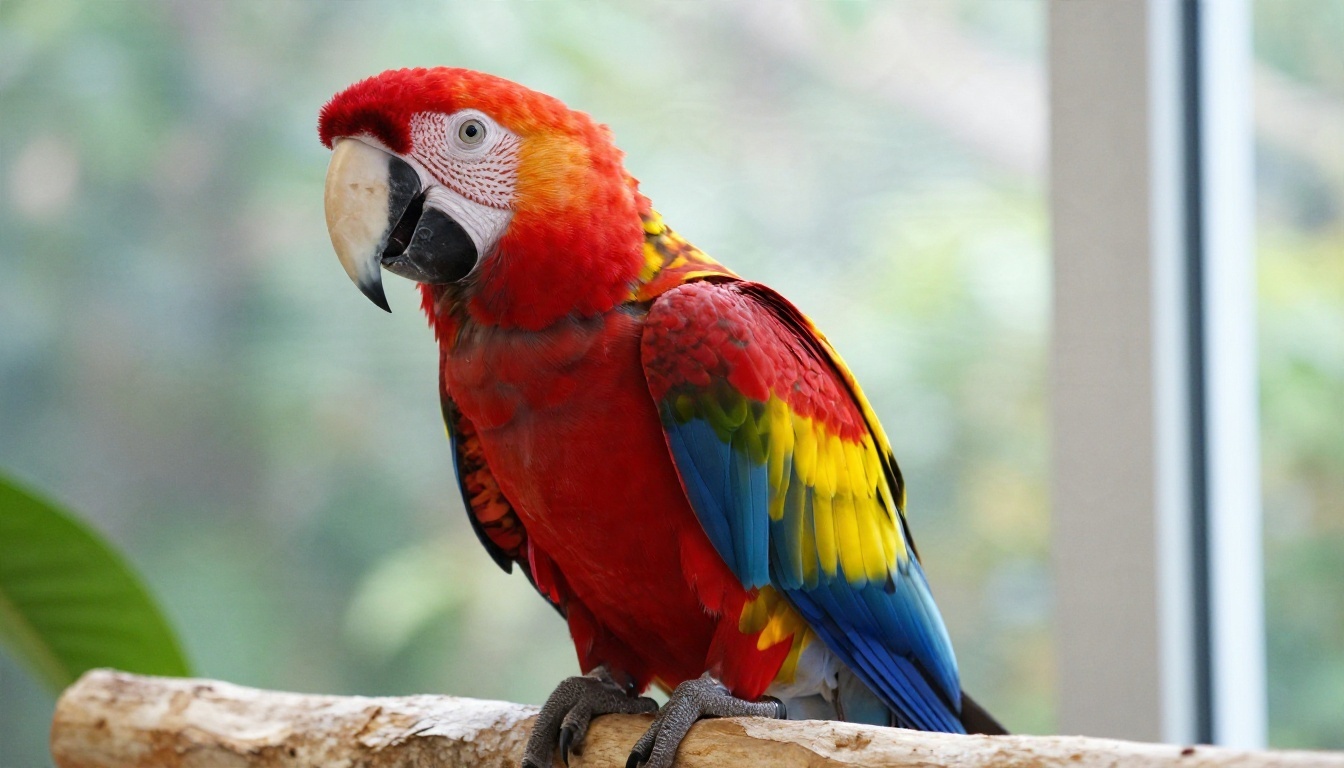
Parrots are a favorite subject for talking videos because, in real life, they already imitate speech. A beak has no lips, so the motion tends to be a simple open and close. Keep the audio short and punchy, and the effect reads as natural.
Horses, Rabbits and Other Side-Eyed Animals
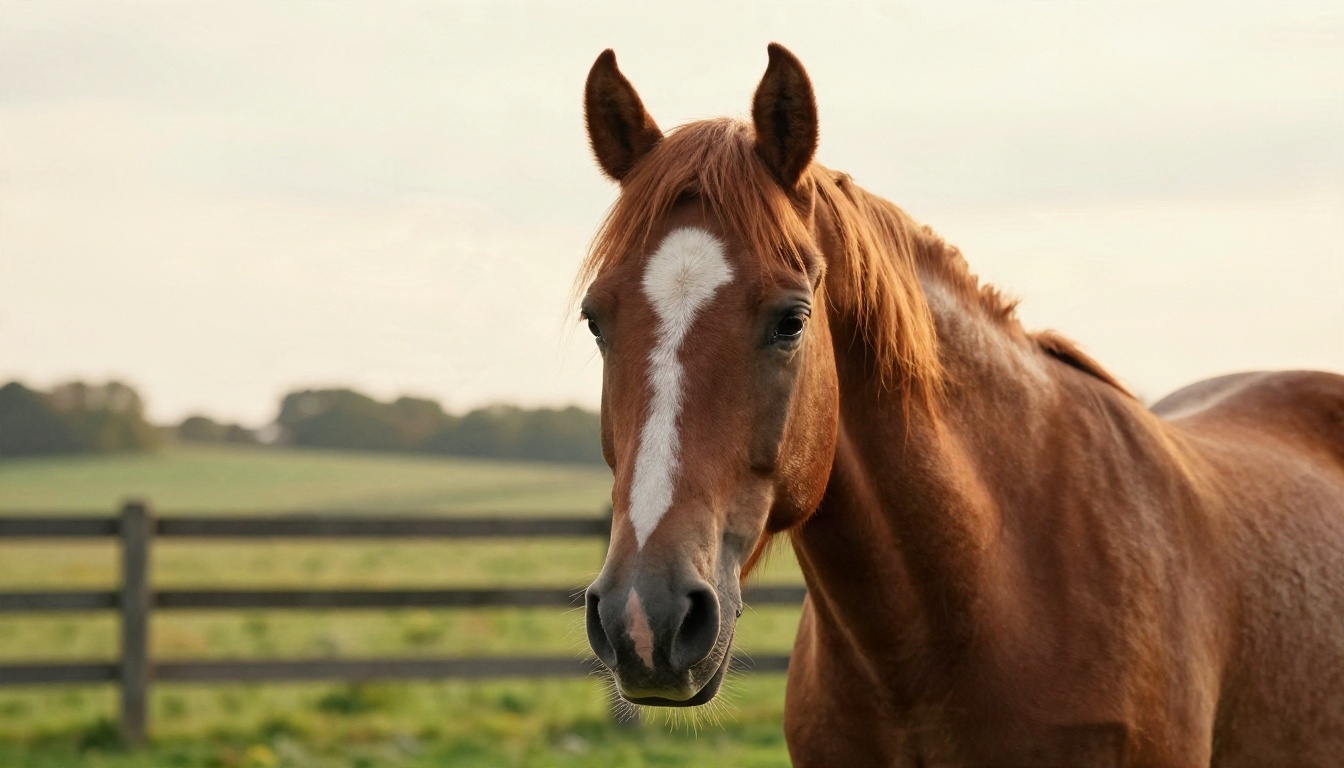
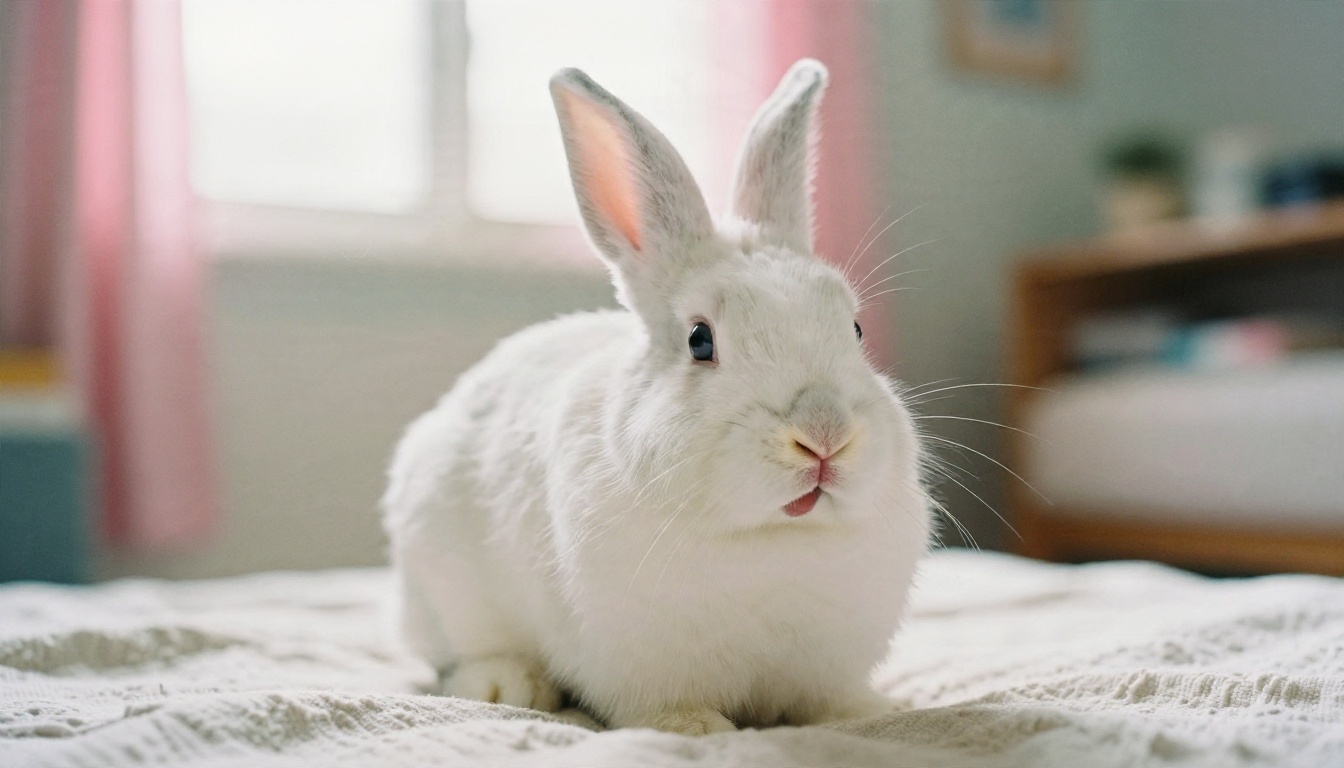
Animals with eyes on the sides of the head are harder. A horse photographed straight on can work well because the face reads as a long, symmetrical shape. A rabbit gives you a small mouth hidden under fur, so results can be subtle. Try a few photos and keep the one where the mouth is most visible.
Reptiles, Fish and Wildlife
Lizards, frogs and even fish can be animated, but the results vary a lot and look more surreal than natural. For these animals, lean into the absurdity: a deadpan voice and a short line sells the joke better than trying for realism.
Choose the Right Voice
A talking pet lives or dies on the voice. The same photo can feel charming, ridiculous or unsettling depending on what comes out of its mouth.
Record Your Own Voice
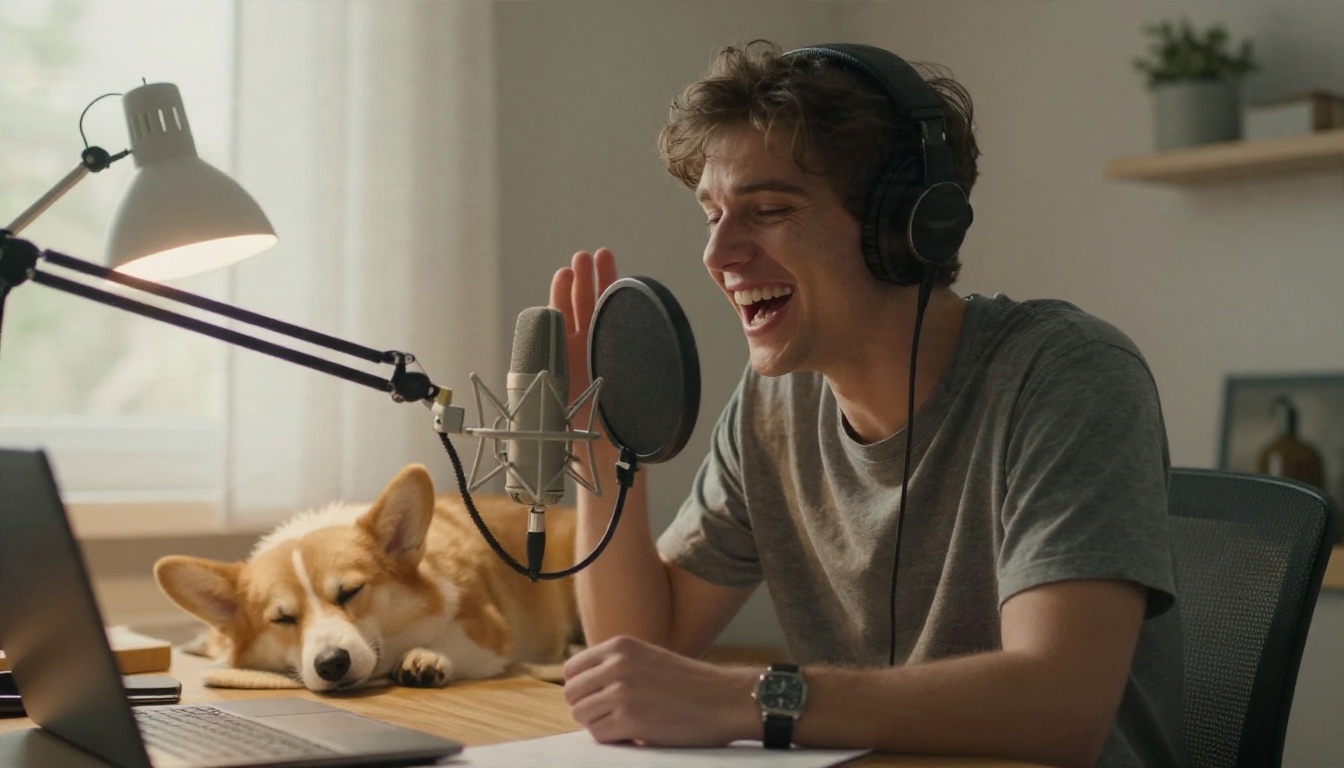
The simplest approach is a phone recording. Speak close to the microphone, avoid background noise, and perform the line. Flat reading sounds dull. A grumpy cat needs a grumpy delivery.
Generate Speech From Text
If you would rather type the script, a text to speech model can read it in any tone you pick. Options on PicassoIA include Gemini 3.1 Flash TTS, which offers a large set of voices across many languages, and Speech 2.8 HD, which is aimed at studio-quality voiceovers. Realtime TTS 2 is another good option for natural-sounding speech.
Voice and Animal Pairing
| Animal | Voice that tends to work | Example line |
|---|
| Large dog | Deep, warm, slightly dim | "I did not eat the sandwich." |
| Small dog | High, fast, anxious | "Someone is at the door. Someone is always at the door." |
| Cat | Dry, tired, unimpressed | "You are late. Again." |
| Parrot | Chirpy, sarcastic | "Nice haircut." |
| Horse | Calm, theatrical | "I regret nothing." |
💡 Tip: Keep clips under 10 seconds at first. Short lines give the model less time to drift, and short videos get replayed more on social feeds.
How to Use Fabric 1.0 on PicassoIA
PicassoIA hosts several talking-photo models in its lipsync category. Fabric 1.0 is built to make any photo talk, which makes it a natural first stop for pets. Here is the process from start to finish.
Step 1: Prepare the Photo
Choose a front-facing image following the checklist above. Crop to a single animal if there are several in the frame, and upscale it if the file is small.
Step 2: Prepare the Audio
Record or generate a clip of 5 to 10 seconds. Trim silence from the start so the pet begins speaking right away, and export it as a clean audio file.
Step 3: Run the Model
- Open the Fabric 1.0 page.
- Upload your pet photo as the image input.
- Upload your audio file.
- Pick the output resolution if the option is offered. Lower is faster for tests.
- Start the generation and wait for the video.
Step 4: Review and Refine
Watch the clip twice, once with sound and once muted. With sound off you can judge the mouth and head motion honestly. If the jaw looks odd, swap the photo for one with a more visible mouth, or shorten the audio and try again.
💡 Tip: Make a quick test with a 3-second clip before committing to a long script. It saves time and credits.
Other Models Worth Comparing
Different models trade speed, realism and flexibility. If Fabric 1.0 does not give you the look you want, try one of these.
| Model | Best for | Notes |
|---|
| Fabric 1.0 | Quick talking photos | Simple photo plus audio workflow |
| Omni Human 1.5 | Realistic full-head motion from a photo | A newer version of Omni Human |
| Omni Human | Animating a still photo into a speaking video | Good for expressive results |
| P Video Avatar | Talking avatar style clips | Useful for repeatable characters |
| Kling Lip Sync | Matching mouth movement in an existing video | Needs a video as input, not just a photo |
| Lipsync 2 Pro | Precise sync on existing video | Video in, synced video out |
Photo Models Versus Video Models
There are two routes. Photo-driven models such as Fabric 1.0 and Omni Human take a still and animate it. Video-driven models such as Kling Lip Sync and Lipsync 2 Pro re-sync the mouth in a clip that already exists. If you already filmed your dog yawning, a video-driven model can match the mouth to your audio. If you only have a photo, start with the photo-driven options.
Add Natural Motion First
For a richer scene, you can first turn the photo into a short moving clip with an image to video model such as Wan 2.7 I2V, then apply a video lip sync model on top. The pet already moves naturally, and the lip sync layer adds the speech. It takes an extra step, but it often looks more alive than a still head with a moving jaw.
Common Mistakes and How to Avoid Them
After a few experiments, the same problems come up again and again.
Using a Moving Shot as the Source
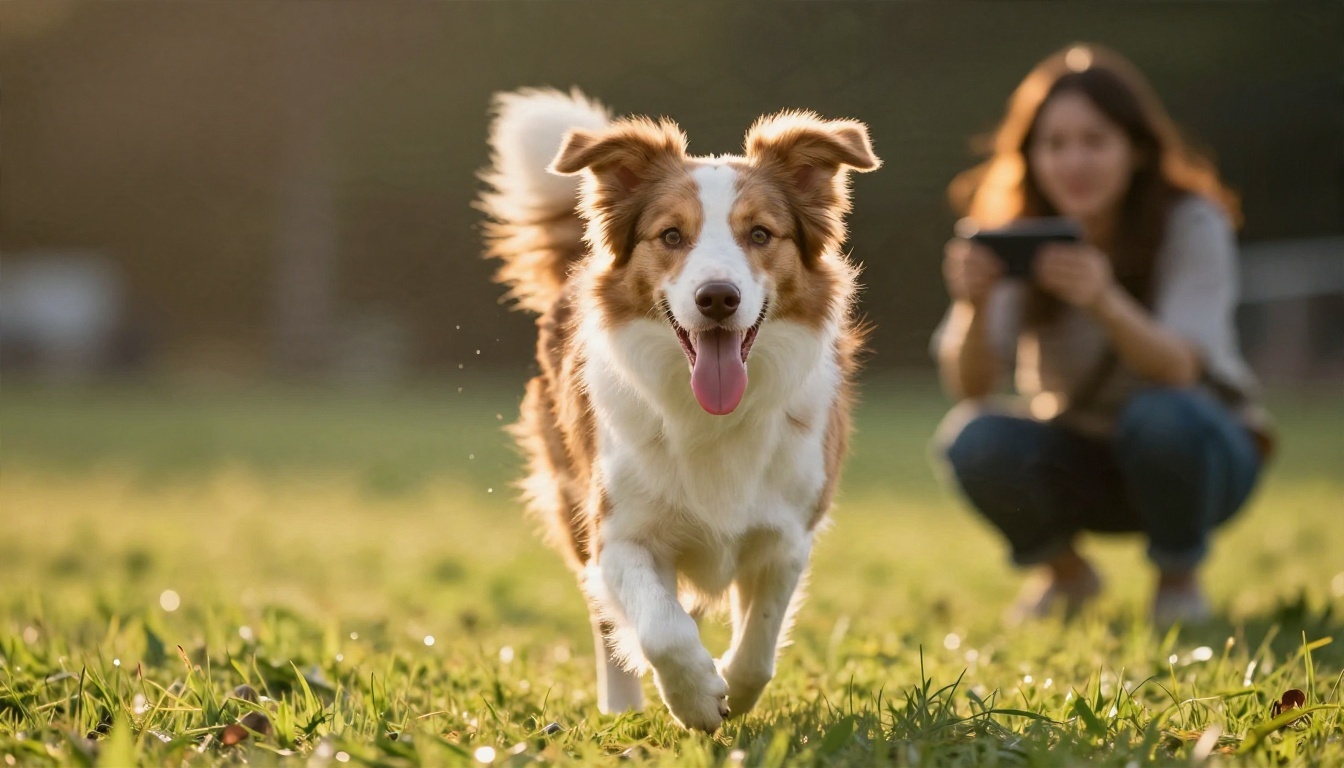
An action photo, like a dog caught mid-run, looks great on a wall but poorly in a talking video. Motion blur and turned heads leave the model guessing. Pick a calm, still frame.
Writing a Long Script
Long scripts drift. The mouth falls out of sync, expressions repeat, and viewers lose interest. Write one punchy line, or split a longer joke into several short clips and join them in an editor.
Ignoring the Audio Quality
Muffled or noisy audio produces sloppy mouth movement, because the model reads the sound to decide when the mouth opens. Record in a quiet room, keep the microphone close, and avoid echo.
Forgetting the Disclaimer on Real People's Voices
Use your own voice or a generated one. Cloning a friend or a celebrity without permission creates problems that no funny pet video is worth. Stay with original voices.
Expecting Perfect Realism
Talking pet videos are comedy. A touch of uncanny weirdness is part of the appeal. If the clip makes you laugh, it has done its job.
Ideas for Your First Talking Pet Videos
Once the workflow is clear, the creative part is the best bit. Here are formats that tend to perform well.
- Pet reviews: Your cat rates the new food bowl on a five-star scale.
- Apology videos: Your dog explains the chewed shoe.
- Birthday greetings: A parrot wishes a relative a happy birthday.
- Morning alarm: Your retriever announces that it is 6 a.m. and breakfast is overdue.
- Gift reveals: A pet announces a surprise to the family.
- Memorial tributes: Some people animate a photo of a pet who has passed, to hear one last imagined message. Treat this one gently and with care for everyone who will watch.
Try Your Own Talking Pet
You now have the whole workflow: a clean photo, a short, well-performed line, and a lip sync model that connects them. The fastest way to get better is to run a few tests. Take one photo of your dog, cat or parrot, write a single sentence, and generate it with Fabric 1.0 or Omni Human 1.5. Compare the two results side by side, then adjust the photo or the voice until the joke lands.
If you want to start from a brand new portrait, create one with Seedream 4.5, add a voice with a text to speech model, and bring it to life. Browse every available model at picassoia.com/en/all-models and make your pet say something worth sharing.


