You have a photo of your grandmother laughing at a wedding in 1994, and you have her favorite song. A few years ago, putting the two together meant a video editor, a lot of patience and a result that looked like a ransom note come to life. Today an AI lip sync video generator free to try online reads the audio, studies the face and moves the lips, cheeks and eyebrows so the person in the picture seems to sing every word. This article shows which models do it best, how to prepare the photo and the song, and how to fix the glitches that ruin most first attempts.
💡 Short version: pick a sharp, front-facing photo, keep the audio under 35 seconds, and run both through Omni Human 1.5 or Fabric 1.0 on PicassoIA. Everything below is about making that first run look good.
What a Lip Sync Generator Does
A lip sync generator is an image-to-video model with one extra skill: it listens. You give it a still picture and a sound file, and it builds a short clip where the mouth shapes match the syllables, the jaw and cheeks follow the rhythm, and the head picks up small natural movements. Some tools also add blinking, eyebrow lifts and shoulder motion so the clip does not look like a puppet.
One photo, one audio file
The recipe is always the same two ingredients. The photo supplies the identity: face shape, skin, hair, clothing, background. The audio supplies the performance: timing, volume, breath. The model does the hard part in between, predicting how that exact face would move while producing that exact sound.
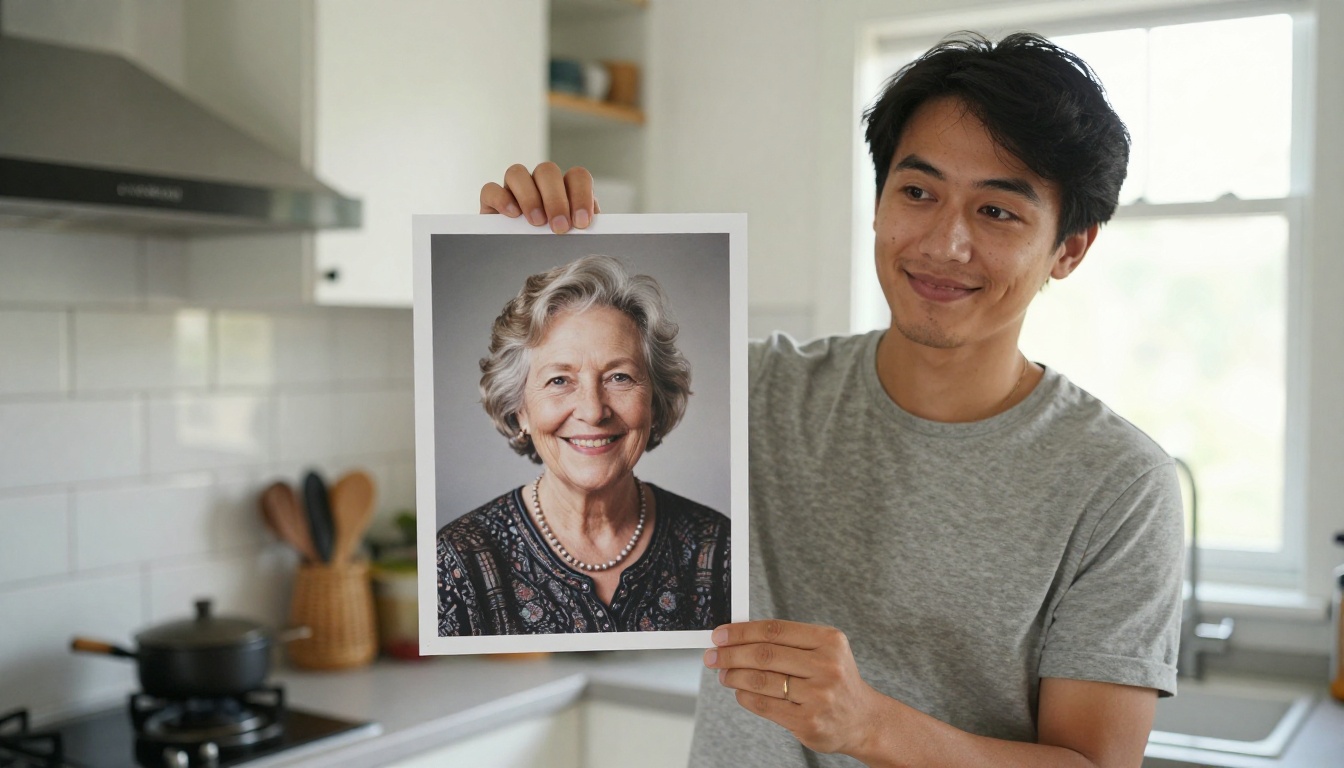
That is why the same tool can make a grandmother sing a lullaby, a company mascot read a product announcement, or an old family portrait say happy birthday in Spanish. Omni Human 1.5, for example, accepts voiceover in English, Spanish, Japanese, Korean, Chinese and Indonesian, and it works with faces, full-body shots and even illustrated characters.
Where "free" actually fits
Free is a moving target in this category. PicassoIA describes Fabric 1.0 as free to try online, with no coding and no camera setup. Allowances change, so check the model page before you plan a big batch. What stays constant is the economics: a singing photo costs a few minutes of waiting instead of a film crew, and your only real expenses are a good source photo and a good audio file.
Why People Make Singing Photos
Singing portraits are not a gimmick that fades after a week. They solve three different problems for three different groups of people, and each group uses the tool a little differently.
Birthdays and gifts
A personal gift works because it has details nobody else could copy. Take the family photo from the wedding, add a recording of the whole family singing, and the result is a clip that gets replayed all evening. Memorial videos work the same way: a portrait paired with a favorite song, animated gently, often lands harder than a slideshow.
⚠️ Permission matters. Only animate faces you have the right to use, and only pair them with music you own or generate yourself. A respectful clip made for a family member is very different from putting words in a stranger's mouth.
Content creators
Short-form video rewards novelty, and a photo that suddenly sings is still a scroll-stopper. Creators use it for intro stingers, character channels, music teasers and reaction formats. The big advantage is repeatability: once you have a character portrait you like, you can swap the audio and produce a new clip every day without ever filming anything.
Musicians and demos
Independent artists use singing photos to preview a track before paying for a shoot. An album portrait, a stylized character or a mascot can perform the chorus as a teaser. It is cheap, fast and gives fans a face to attach to the song while the real music video is still a plan.
Teachers and language tutors have started doing something similar. Record a short rhyme or a vocabulary song, animate a friendly character portrait, and students get a singing teacher who never gets tired. Swapping the audio into another language reuses the same face, so one portrait can serve a whole classroom of students at different levels.
Pick the Right Model
PicassoIA lists 12 lipsync models, and they fall into two camps: tools that start from a photo, and tools that start from an existing video. For singing photos you want the first camp.
Photo to singing models
| Model | You provide | Best for | Notable settings |
|---|
| Omni Human 1.5 | Photo + audio under 35 s | Realistic faces, singing, full-body shots | Optional prompt, fast mode, seed |
| Fabric 1.0 | Photo + audio | Quick spokesperson and singing clips | 480p or 720p |
| P Video Avatar | Photo + typed script or audio | Talking avatars with built-in voices | 30+ voices, 10 languages, up to 1080p |
| Omni Human | Photo + audio | Talking videos from a single photo | Original Omni Human model |
If your goal is the headline use case, a face that sings a real song, start with Omni Human 1.5. Its published examples include a prompt as simple as "A woman sings and strums her guitar" paired with a WAV file, and the prompt field lets you steer scene, camera and body movement. Fabric 1.0 is the faster route when you only need the mouth to follow the audio and you want a clean 720p file.
P Video Avatar is different: you can type the exact words and pick a voice, or upload your own audio. It is the better pick for speaking clips than for songs, but its video_prompt field is handy for describing how the person should look while talking.
Video to video options
If you already have a clip of the person and only want to swap the audio, these models work on video instead of a still:
💡 Rule of thumb: still photo in, singing clip out means Omni Human 1.5 or Fabric 1.0. Moving video in, new audio out means one of the Sync, Kling or HeyGen models.
Start With a Strong Photo
The source photo decides most of the result. A weak photo cannot be rescued by a better audio file, so spend five minutes here before you press generate.
What makes a face sync well
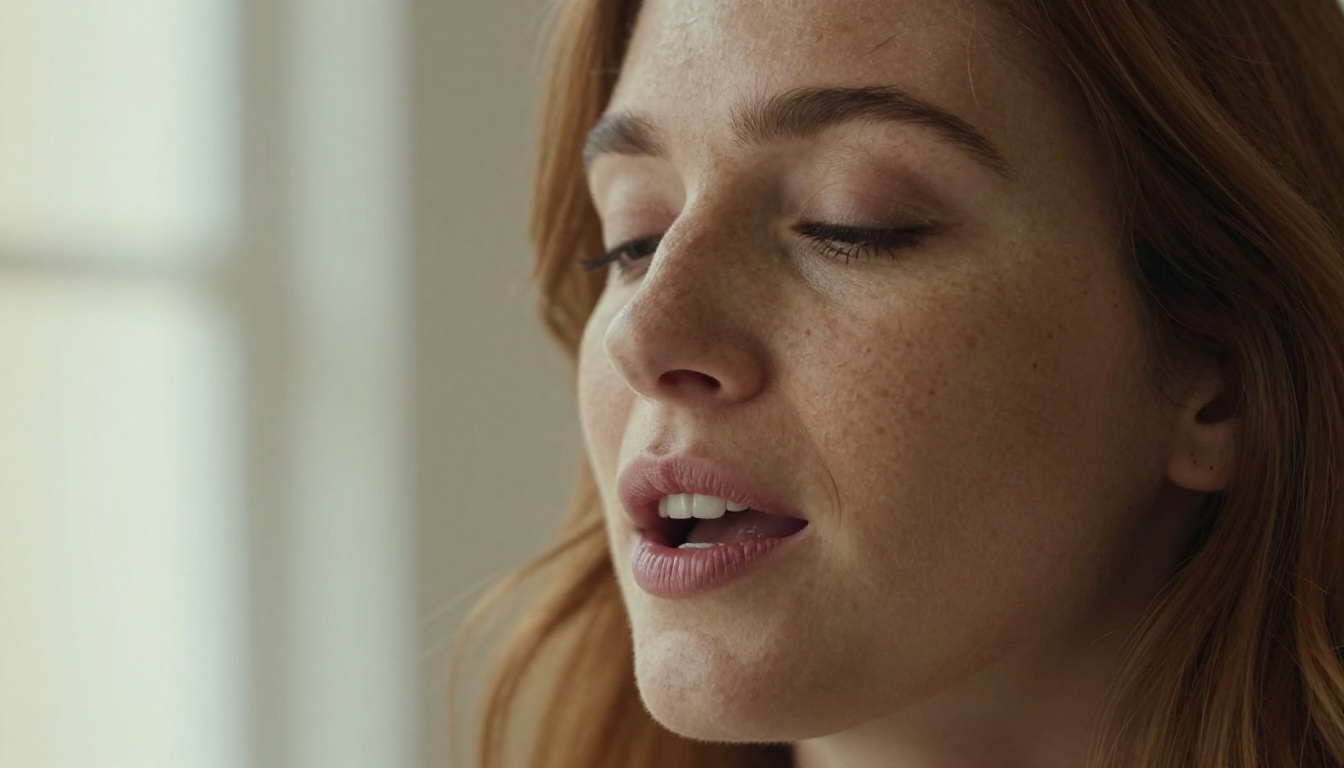
- Front-facing or a slight three-quarter angle. The model needs to see both corners of the mouth.
- Visible lips and teeth. A relaxed, slightly open mouth gives the model more to work with than tight, closed lips.
- Even light on the face. Soft window light beats harsh overhead shadows that hide the jaw.
- Sharp focus on the eyes and mouth. If the face is only 80 pixels wide, the result will look soft.
- Clear space around the head. Hair, hands and microphones that cross the chin confuse the mouth area.
Photos that fail
Group shots where each face is tiny, sunglasses that hide half the face, hands blocking the mouth, extreme side profiles and heavily compressed screenshots all produce rubbery results. If you only have a low-resolution family scan, run it through a super-resolution model first. A sharper face in means a sharper face out.
Old black-and-white portraits deserve a special mention. They often sync beautifully because the contrast is high and the lighting is simple, but film grain and scratches can read as noise. A quick restoration pass to remove dust and sharpen the eyes gives the lip sync model a calmer surface to animate, and the final clip looks far less jittery.
Build the Song or Voice
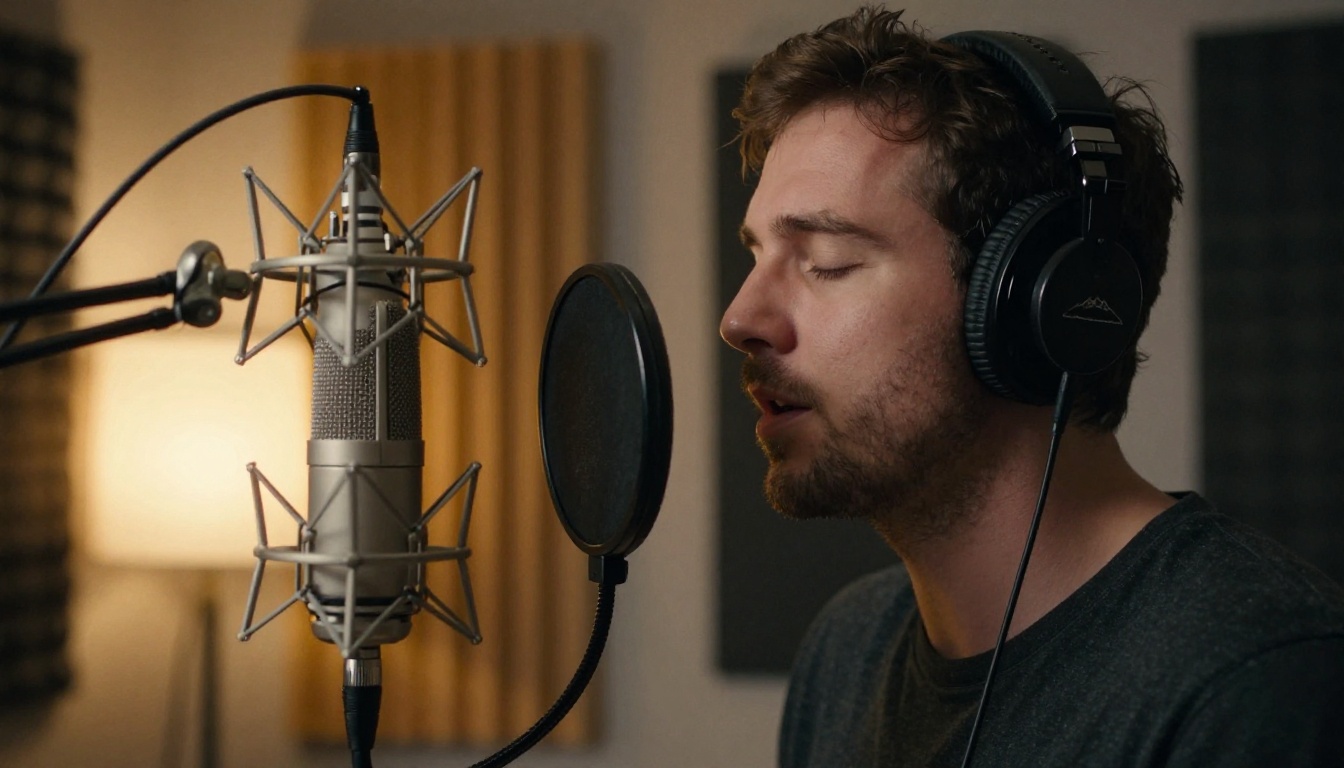
The audio file is the second half of the recipe, and the one most people rush. Clean vocals produce clean mouth shapes. A muddy mix with loud drums and a buried singer gives the model very little to follow.
Write the song
You do not need a recording studio, or even a voice. PicassoIA hosts a full family of music models that produce tracks from a text prompt:
Write short lyrics, name the genre and mood, and generate two or three versions. Pick the one where the vocal sits clearly above the instruments.
Record or generate the voice
If you would rather speak than sing, use a text-to-speech model such as Speech 2.8 HD for studio-quality voiceovers, Gemini 3.1 Flash TTS for 30 voices across 70+ languages, or ElevenLabs v3 for natural delivery. A phone recording in a quiet room also works, as long as there is no echo or background chatter.
Trim before you upload. Omni Human 1.5 rejects audio over 35 seconds, so cut your track to the best 20 to 30 seconds, usually the chorus. For a longer song, split it into chunks, generate each one with the same photo and the same seed, and join the clips in any video editor.
How to Use Omni Human 1.5
Here is the full workflow, from blank page to finished singing clip. The same pattern applies to the other photo models, only the settings change.
Six steps on PicassoIA
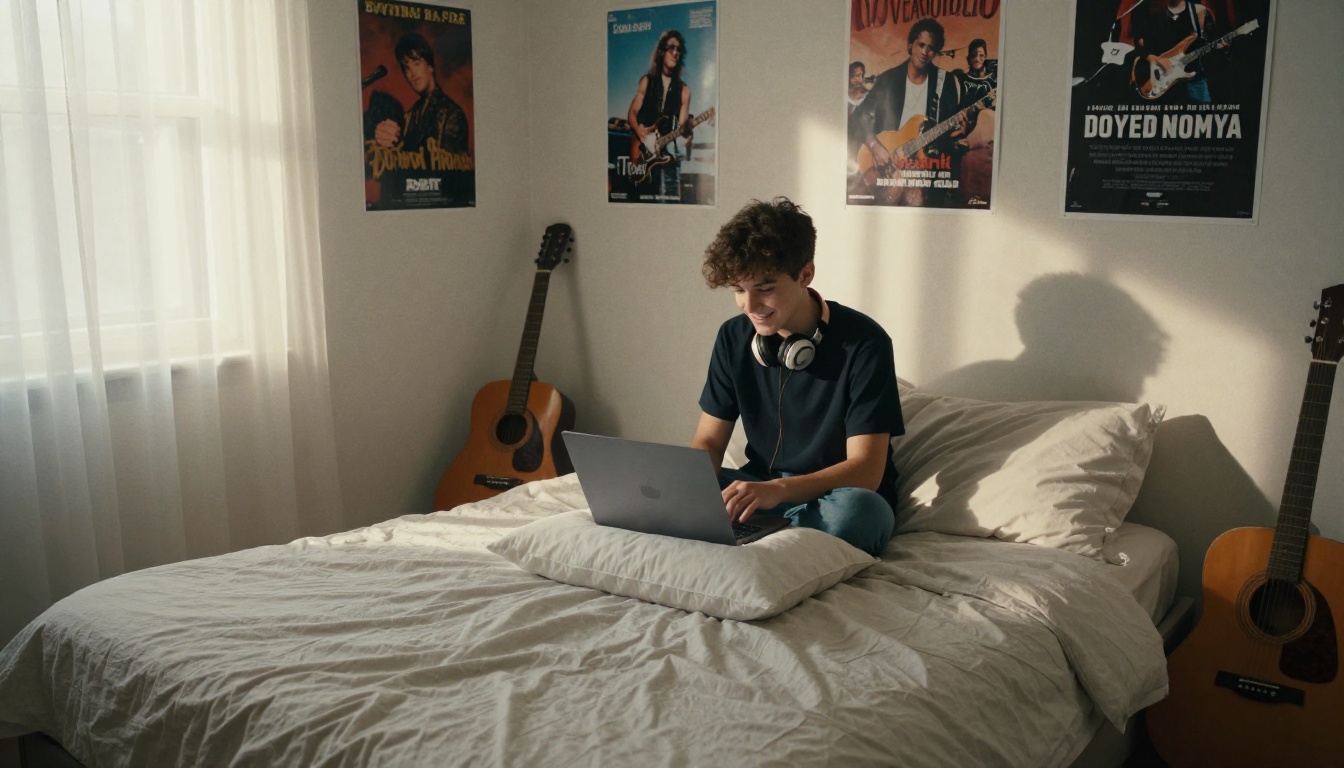
- Open the Omni Human 1.5 page on PicassoIA.
- Upload your image: a clear portrait with a visible face.
- Upload your audio: an MP3 or WAV under 35 seconds.
- Add an optional prompt to steer the scene, such as "She sings softly with a warm smile, slight head movement, camera holds steady."
- Decide on fast mode. Switch it on for quick drafts, off for the best detail.
- Run the generation, review the clip and download it. If you like the result but want a small change, reuse the seed so the rest stays stable.
Prompt ideas to try in step 4:
- "She sings the chorus with her eyes closed, small nods on the beat, camera slowly pushes in."
- "A man sings to the camera with a relaxed smile, shoulders swaying gently, soft indoor light."
- "The child laughs between lines and sings with big expressions, handheld camera feel."
- "Calm, steady shot, minimal head movement, natural blinking." (best for serious or memorial clips)
Keep prompts to one or two sentences. Describe expression, body movement and camera, and leave the mouth to the audio. Over-directing a prompt tends to fight the lip sync instead of helping it.
Expect to wait a few minutes rather than a few seconds. The example generations published on the model page took roughly three to six minutes with fast mode on, so queue your attempts and do something else while they render.
Fabric 1.0 for quick clips
Fabric 1.0 has an even shorter form: upload the image, upload the audio and choose 480p for speed or 720p for the final version. There is no prompt to write, which makes it a good pick when you want a reliable mouth sync and nothing else. Its model page says it reads the audio syllable by syllable, and a published example rendered in about three minutes.
P Video Avatar for typed scripts
P Video Avatar skips the audio step. Type the voice script, choose one of 30+ voices, pick a language from the ten available, and set the resolution to 720p or 1080p. Use the voice prompt for tone and pacing ("warm, slow, cheerful") and the video prompt for how the person behaves while speaking. If you have a recording instead, upload it and the built-in voice is bypassed.
Fix the Usual Problems
Almost every bad result traces back to one of a handful of causes. Use this table before you re-run anything.
| Problem | Likely cause | Fix |
|---|
| Mouth barely moves | Lips hidden, tiny or shadowed in the photo | Use a sharper photo with a visible mouth |
| Generation fails right away | Audio longer than 35 seconds on Omni Human 1.5 | Trim or split the audio |
| Lips drift off the beat | Dense mix with loud instruments | Use a cleaner vocal or a different song version |
| Face warps when the head turns | Extreme angle or occluded face | Use a front-facing portrait |
| Clip feels stiff | No direction on movement | Add a short prompt describing expression and head motion |
| Teeth or lips look odd | Low-resolution source | Upscale the photo first, then retry |
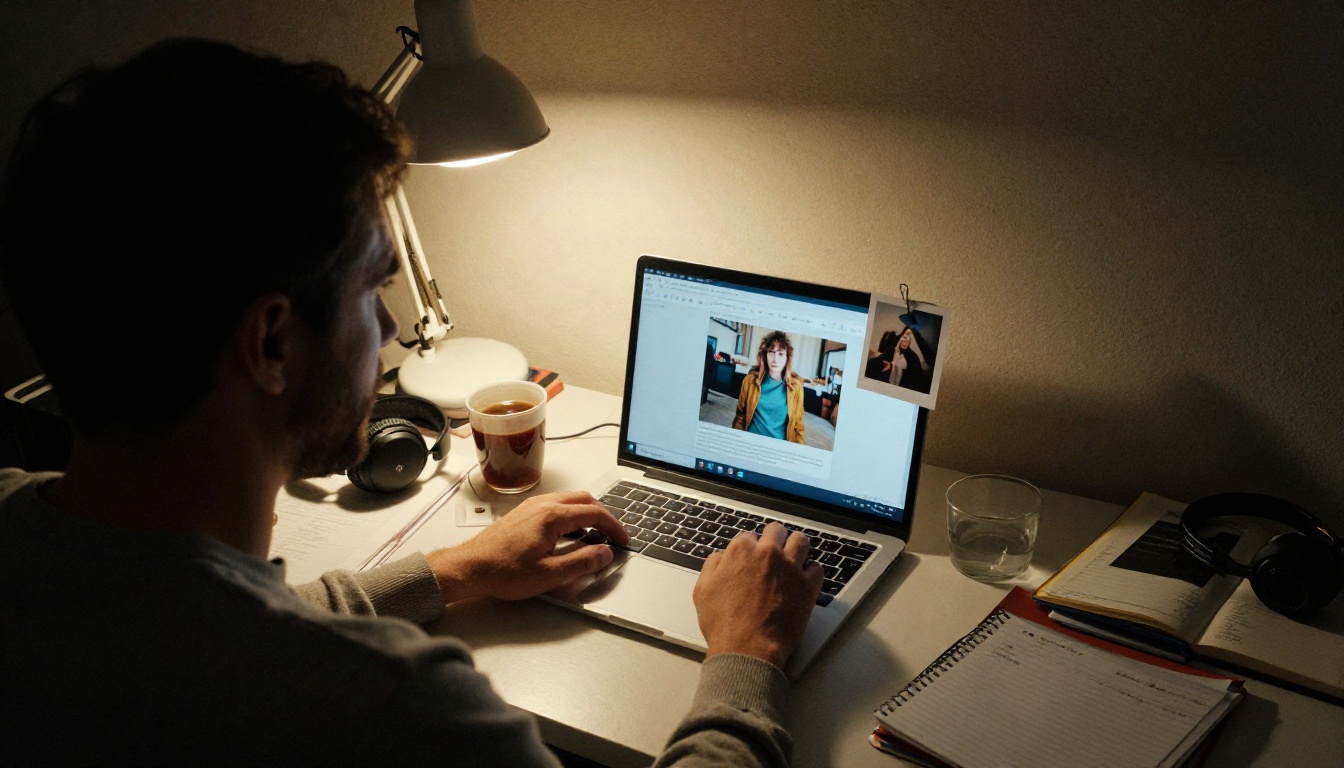
💡 Test small. Run a 10-second excerpt in fast mode or at 480p first. If the mouth tracks well and the face stays stable, spend the longer render on the full 30 seconds at higher quality. You save time on every failed attempt.
A few habits make the difference between a clip that looks acceptable and one people share:
- Keep one character photo per project. Consistency across clips builds recognition.
- Match mood to music. A sad ballad over a grinning portrait feels off, so pick a photo with a fitting expression.
- Add subtle audio polish. A touch of reverb on a dry vocal makes the final clip feel like a real performance.
- Watch the first and last second. Cut any awkward start or end in your editor.
Make Your Photo Sing Today
Everything in this article takes less time than you probably think. Pick one portrait, write or generate a 20-second chorus, and run both through Omni Human 1.5 or Fabric 1.0. Your first clip will not be perfect, and that is fine. The second one, with a better photo and a trimmed song, usually is.
Picasso IA puts the whole chain in one place: image generation for the portrait, music and text-to-speech models for the voice, and lipsync models to bring the face to life. Create a portrait, give it a song, and send the result to the person it was made for. Browse every model at picassoia.com/en/all-models and see what your favorite photo sounds like.


