AI Music Video Generator Free: From Audio, Lyrics or Suno Songs
Three ways to make a music video without a camera or an editor: upload an audio file, paste your lyrics, or drop in a song from Suno. This article compares the free options, walks through the exact steps and lists the settings that keep scenes in sync with the beat.
You have a finished song and no footage. Maybe it is a track you recorded last weekend, a page of lyrics sitting in your notes app, or a Suno song that sounds better than half of what plays on the radio. What it lacks is a video, and a video is what gets a song heard on YouTube, Instagram Reels and TikTok.
Not long ago that meant renting a camera, scouting a location and paying an editor. Now an AI music video generator free to try can build the visuals straight from the sound. There are three realistic starting points: an audio file you already own, lyrics you wrote but never recorded, and a song generated in Suno. Each one needs a slightly different route, and this article walks through all three on Picasso IA, with the exact models, settings and prompts worth using.
The short version: pick an audio-aware video model, give it a strong first frame, keep each clip short, and stitch the clips together. The details below make that work on the first try instead of the tenth.
Three Ways to Make a Music Video
Every project begins in one of three places. Choosing the right one early saves hours, because the tools and the order of steps change.
Start From an Audio File
If you already have an MP3, WAV, FLAC, OGG or M4A file, you are closest to the finish line. An audio-driven model takes the sound, a first-frame image and a short prompt, then generates motion that follows the rhythm and mood of the track.
Audio To Video from Lightricks accepts all five formats directly and also works without an image: describe the scene in text and it builds the visuals from scratch. Wan 2.2 S2V is stricter, since it requires an image, an audio file and a prompt together, but it keeps the subject anchored to your reference frame for the whole clip.
Start From Lyrics Only
Lyrics alone cannot drive a video, because the video model needs sound to follow. So the first job is turning the words into a song. Music models on Picasso IA take your lyrics plus a short style description and return a finished track with vocals. That track then becomes the audio for the video step. A full section on this comes below.
Start From a Suno Song
A Suno song is a normal audio file once you download it, so it follows the audio route. The one wrinkle is length. A song runs for minutes, while video models produce short clips. The fix is to build the video section by section, one clip for each verse, chorus and bridge, then join them in any editor.
Here is how the three routes compare at a glance:
Starting point
What you need
First step
Best video model
Audio file
MP3, WAV, FLAC, OGG or M4A
Choose a first-frame image
Audio To Video
Lyrics only
Text with [Verse] and [Chorus] tags
Generate the song
Music 2.6, then Audio To Video
Suno song
The downloaded MP3
Trim to one section
Audio To Video or Wan 2.2 S2V
What "Free" Really Means Here
Search for a free music video maker and most results turn out to be a trial with a watermark and a 10 second cap. Before you spend an afternoon on any tool, run it through five checks:
Watermark: does the export carry a logo across the frame?
Length cap: can you render a full chorus, or only a teaser?
Resolution: is the output sharp enough for a 1080p upload, or only a preview?
Commercial use: are you allowed to monetize the result?
Queue time: does a free render take two minutes or two hours?
On Picasso IA, Picasso IA Video is listed as a free, unlimited text and image to video model. It produces 5 second clips at 24 frames per second with synchronized audio, at 480p or 720p. Music 2.6 is listed as a free full-song generator, and Seedance 2.5 Lite is listed as a free, unlimited video model for clips up to 10 seconds. Together they handle the song and the footage. The first-frame image comes from any text to image model.
💡 Tip: Limits change over time. Check the current plan details on the model page before you commit to a project with twenty clips.
Use Audio To Video on PicassoIA
Audio To Video is the shortest path from sound to picture, so it is the one to try first. It takes an audio file, plus either an image, a text prompt, or both, and returns a short video where the visuals respond to the sound. A sample generation on the model page finished in about 36 seconds.
Prepare the Audio
Open the model page and upload your track. The model accepts WAV, MP3, FLAC, OGG and M4A, so there is no need to convert anything. Trim the file to the section you want to film, such as one chorus. A short clip renders faster, and if the result is off, a retry costs you seconds instead of minutes.
Clean audio gives cleaner motion. A track with loud, clear vocals and a steady beat gives the model more rhythm to follow than a muddy demo recorded on a phone.
Choose the First Frame
The image you upload becomes the opening frame, so it sets the look of the entire clip. Generate one with a text to image model such as Picasso IA Image or Seedream 4.5. Describe a photograph, not an illustration: subject, location, lens and light.
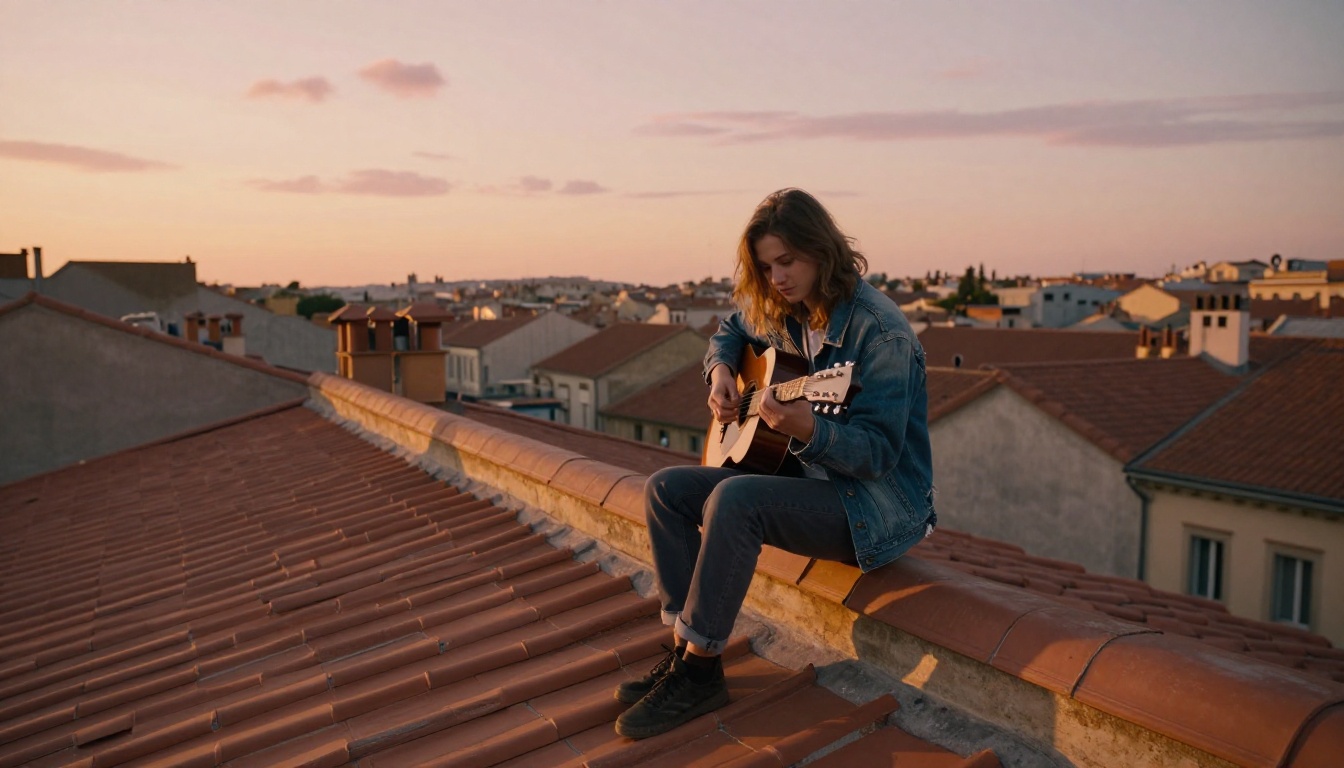
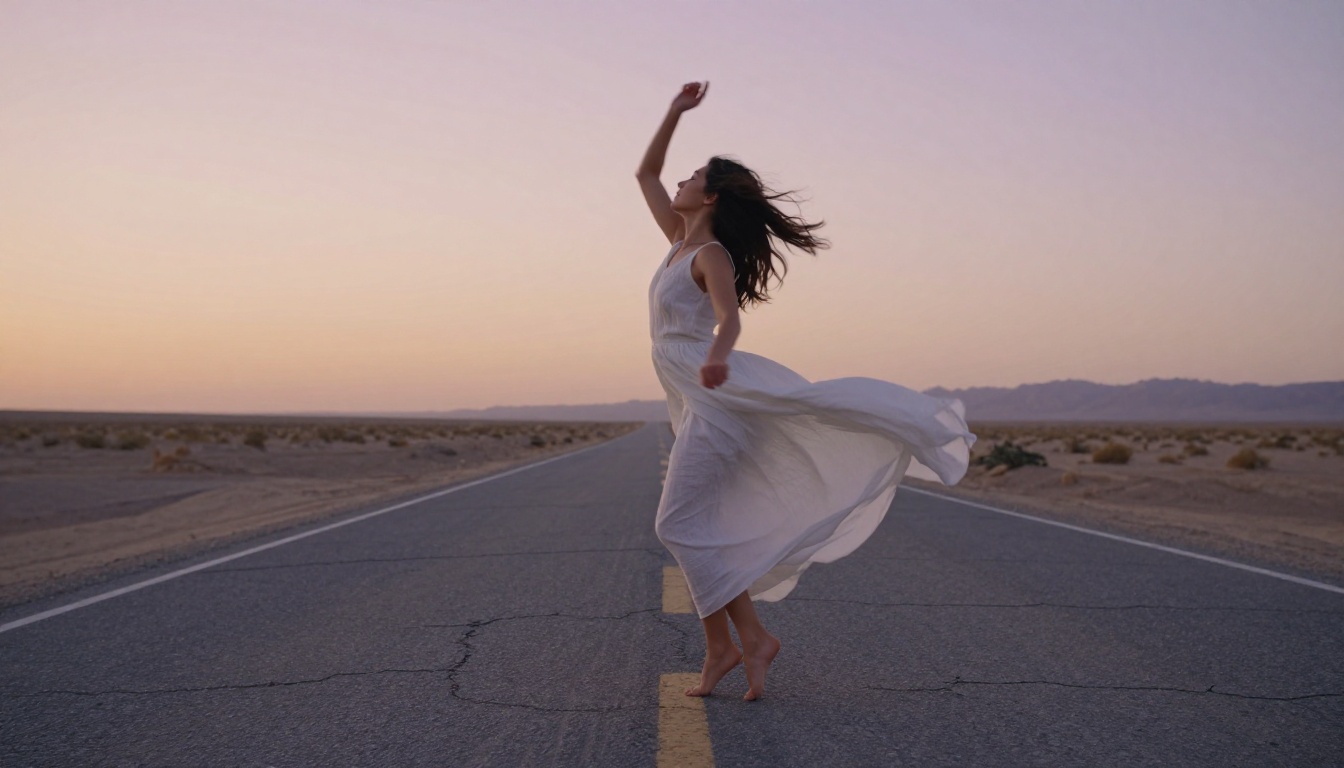
A singer caught mid-note, a guitarist on a rooftop, a dancer on an empty road: all of these work because the pose already implies movement. Keep the frame at 16:9 for YouTube, or pick a vertical ratio for Reels and Shorts.
A first-frame prompt that works well:
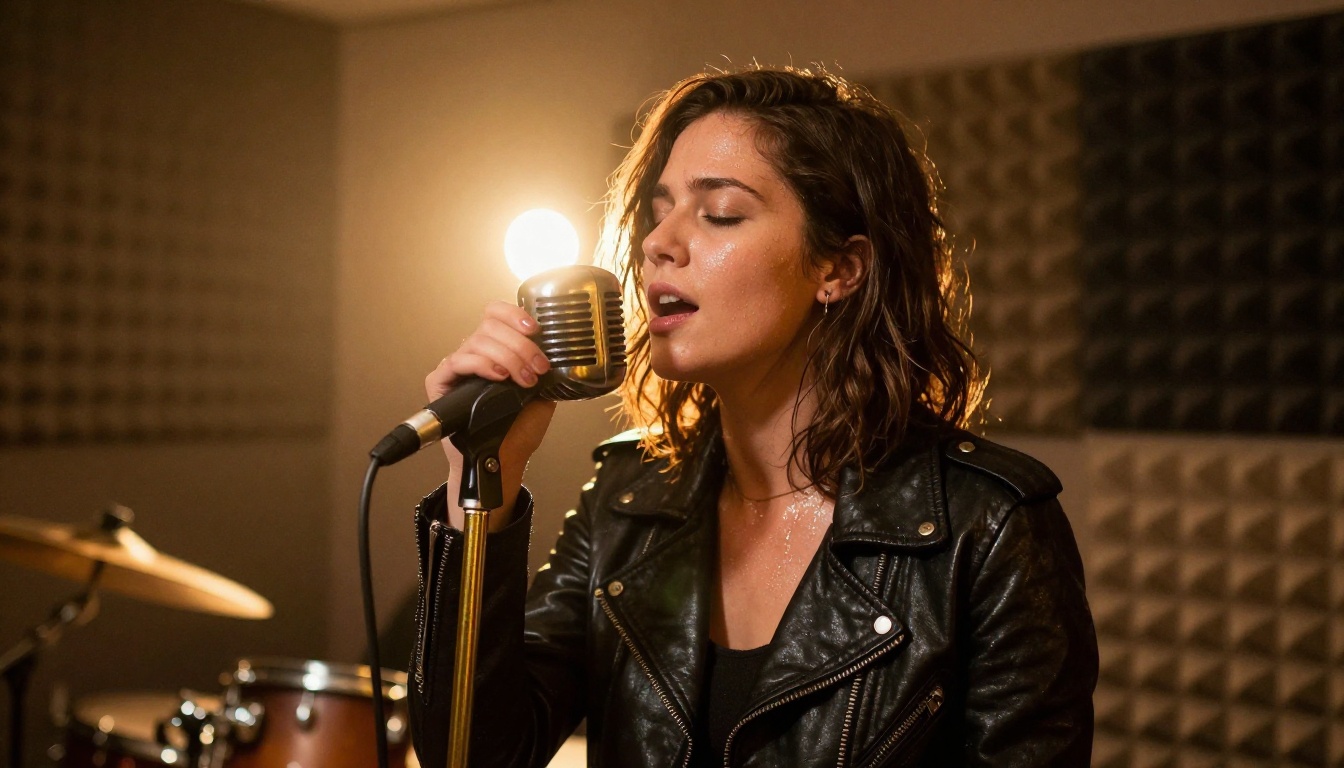
A female singer in a black leather jacket sings into a vintage microphone,
eyes closed, warm tungsten lamp behind her, acoustic foam panels,
85mm lens, shallow depth of field, film grain, photorealistic
Write the Motion Prompt
When an image is attached, the prompt describes how that image should be animated. Keep it to one camera move and one or two actions, in the order they happen:
Singer: "She sings the chorus with her eyes closed, head tilting slightly on the high note. Slow push-in on her face."
Guitarist: "He strums in time with the beat, shoulders moving. Camera drifts left, golden light flickering across the strings."
Dancer: "She spins once, the dress fanning out, then walks toward the camera. Handheld, gentle sway."
Stacking five actions in one prompt is the most common mistake. The clip is short, so give it one idea.
Tune Guidance and Download
The guidance scale decides how strictly the output follows your prompt versus how freely the model reacts to the audio. Raise it if the clip ignores your prompt. Lower it if the motion looks stiff or smeared. The sample on the model page uses 16.88 for a speaking shot, so higher values are clearly within the normal range.
Setting
What it controls
Suggested use
Audio
The soundtrack and the rhythm source
One section of the song, clean mix
Image
The first frame
A 16:9 photographic still of the performer
Prompt
How the image moves
One camera move plus one action
Guidance scale
Prompt strictness against audio freedom
Raise for precision, lower for flow
Download the result, play it with sound, and check whether the motion lands on the beat before you move to the next section.
💡 Tip: If the performer must visibly sing, test Wan 2.2 S2V too. Its sample prompts are as short as "woman singing", and the audio drives the movement. Expect renders to take a few minutes or more.
Turn Lyrics Into a Song First
If all you have is a page of words, the song has to exist before the video can. This is where an AI music model does the work a band would normally do.
Write Lyrics With Structure Tags
Music 2.6 takes lyrics up to 3,500 characters and a style prompt up to 2,000 characters. Structure tags such as [Intro], [Verse], [Pre Chorus], [Chorus], [Bridge] and [Outro] control the arrangement, so the chorus actually sounds like a chorus.
A compact example you can paste in and adapt:
Prompt: Indie pop, warm female vocal, 104 BPM, acoustic guitar,
soft drums, nostalgic summer evening

[Verse]
Streetlights flicker on the old main road
Your jacket on my shoulders, nowhere left to go

[Chorus]
Stay until the morning, stay until the sun
We were only starting, we had just begun
No lyrics yet? Turn on the lyrics optimizer and Music 2.6 writes them from your style prompt. Want no vocals at all? Switch on instrumental mode and the prompt alone drives the track. Output comes as MP3, WAV or PCM, up to 256 kbps at 44.1 kHz.
Pick the Right Music Model
Different models suit different jobs. Here is a quick map of what Picasso IA offers in AI music generation:
Music from a text prompt, handy for background tracks
Generate two or three versions of the song and pick the one whose rhythm is clearest. A strong beat gives the video model something to lock onto.
Bringing Suno Songs Into the Video
Suno is great at producing a song fast. It does not produce the picture. Moving a Suno track into a video takes two moves.
Export the MP3
Download the track from Suno as an MP3 and keep the original file untouched. Then treat it exactly like any other audio file: upload it to Audio To Video or Wan 2.2 S2V.
💡 Tip: Check the terms of your Suno plan before you publish a monetized video. The rules for commercial use depend on the plan, and they are your responsibility, not the video tool's.
Match Visuals to Song Sections
A three minute song needs many clips, and the song itself already tells you where to cut. Trim the MP3 into sections, give each one its own first frame, and keep the visual language consistent across them:
Song section
Visual idea
First-frame image
Verse
Quiet and close, small movements
Singer by a window
Pre-chorus
Camera starts to move
Wider shot, same location
Chorus
Wide and energetic
Rooftop, open road, crowd
Bridge
Slow and abstract
Macro shot of a record or strings
Outro
Return to the opening
The very first frame, pulled back
Generate each clip, download it, and line them up in any editor against the full song. Because every clip was made from the matching audio section, the beat should already sit in the right place.
Picking the Right Video Model
Not every video model reacts to sound. Some animate a picture with no regard for the track. These are the ones worth testing for music:
When the mood matters most: a landscape, a road, a dancer in motion. These do not need exact lip movement. Audio To Video handles them well, and you can add b-roll from Picasso IA Video between the audio-driven shots.
When the singer must sing on screen: a talking or singing face needs real lip sync. Picasso IA lists several dedicated lipsync models, including Omni Human 1.5 for realistic lipsync video from a photo, Lipsync 2 Pro and Kling Lip Sync for matching a mouth to audio in an existing video. Use one of these for the close-ups, and keep the wide shots on Audio To Video.
Fixing Common Problems
Most failed clips fall into three groups, and each has a quick fix.
Motion Drifts From the Beat
The usual cause is a section that is too long or a mix that is too dense. Trim the audio to one clean section, lower the guidance scale so the model reacts to the sound more freely, and describe a rhythmic action in the prompt: nodding, strumming, swaying. Rhythm words give the model something concrete to attach to the beat.
Scenes Feel Random
Ten clips from ten unrelated first frames look like ten different videos. Fix this with a shared style line. Repeat the same lens, light and color words in every first-frame prompt, for example "35mm, warm tungsten light, film grain", and keep the same performer description.
Clips Are Too Short
Video models return short clips, usually a few seconds long. That is a feature, not a flaw. Plan the song as a list of shots, one for each section, and let your editor do the stitching. Cutting between a close-up and a wide shot every four to six seconds is also how most real music videos are paced.
Make Your Own Music Video
You do not need a camera crew, a location or an editor to put a face on your song. You need a track, a first frame and a clear prompt, and the models above handle the rest.
Start small. Pick the chorus of your best song, generate one first-frame image, and run it through Audio To Video. If the lyrics are still on paper, set them to music with Music 2.6 first. Within minutes you will have a clip to judge, and every extra clip after that is easier than the one before.
Open Picasso IA, upload your audio, and make the first video today. Try a different first frame, change one word in the prompt, and watch how the same song looks in a new light.