You have a script, a deadline and no interest in booking a studio. Ten years ago that meant a flat, robotic voice that made listeners reach for the skip button. Today, an AI narrator voice generator can read a chapter, a documentary script or a product demo with believable pacing, breath and emotion. The catch is that the market is crowded, "free" means very different things from one tool to the next, and the default settings rarely give you the best result.
This article walks through what you can realistically get for free, how online narration tools differ, and which voice settings actually change how a recording sounds. Every tool mentioned below is available on PicassoIA, so you can test them side by side without juggling accounts.

What an AI Narrator Voice Does
An AI narrator takes written text and turns it into spoken audio that follows the rhythm of storytelling rather than the rhythm of a screen reader. That difference is the whole point. A good narrator voice pauses at the end of a thought, lifts slightly on a question and slows down when the script gets heavier.
How Text Becomes Speech
Modern text-to-speech models read the full sentence before producing sound. They predict where stress should fall, how long each pause should last and how the pitch should travel from the first word to the last. Older systems stitched together recorded syllables, which is why they sounded choppy. Newer neural models generate the waveform directly, so the output flows.
Three things happen behind the scenes:
- Text analysis: numbers, abbreviations and punctuation are expanded into spoken form.
- Prosody prediction: the model decides pacing, emphasis and intonation.
- Audio generation: a neural voice produces the final waveform at studio sample rates.
You influence the second step the most, which is why the settings section further down matters more than picking the "best" voice.
Where Narration Gets Used
The same technology serves very different jobs, and each one rewards a different voice style.
| Use case | What listeners expect | Typical length |
|---|
| Audiobook chapters | Warm, steady, low fatigue | 20 to 60 minutes |
| YouTube explainers | Clear, upbeat, tight pacing | 5 to 15 minutes |
| Documentary voiceover | Measured, authoritative | 10 to 90 minutes |
| Course lessons | Neutral, easy to follow | 3 to 12 minutes |
| Podcast intros and ads | Friendly, expressive | 15 to 60 seconds |
💡 Tip: Decide the use case before you pick a voice. A voice that sounds great on a 30-second ad can become tiring over a two-hour audiobook.
Free Options That Actually Work
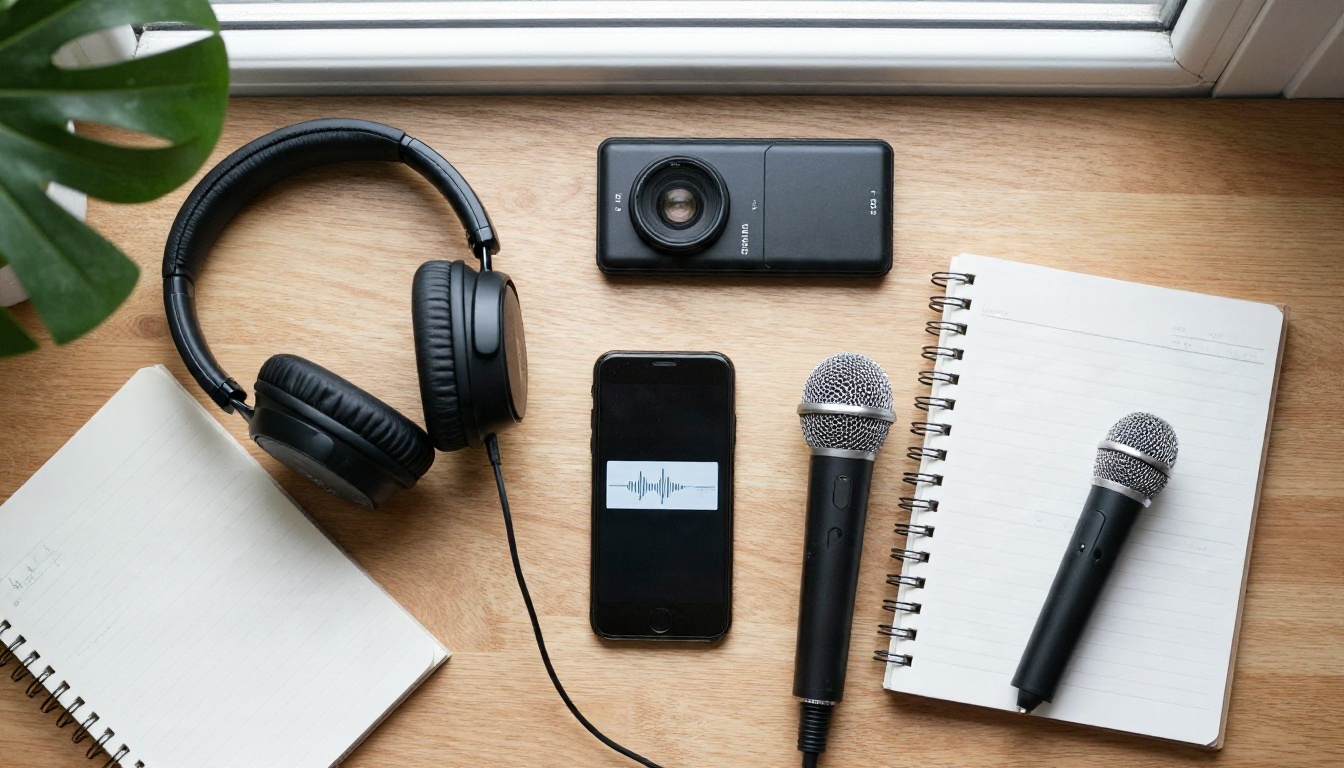
Free is a real option, but only if you know where the edges are. Most free narrator tools fall into three buckets: free trials with a credit allowance, permanently free tiers with tight caps, and open-source models you run yourself.
What Free Tiers Usually Allow
Free access is generally enough for short projects: a 60-second voiceover, a sample chapter, a scratch track to test timing against your video. You will typically see a monthly character or minute limit, a smaller set of voices and slower generation during busy hours.
Open-source voices such as Chatterbox from Resemble AI show how far free technology has come. It supports emotion control and voice cloning, and it sits right next to its faster sibling, Chatterbox Turbo, for quick drafts.
Limits to Check Before Committing
Before you build a project around a free tool, read the fine print on these points:
- Commercial rights. Many free plans allow personal use only. Monetized YouTube channels and paid courses usually need a commercial license.
- Character caps. A 10,000-character allowance sounds generous until you realize a single chapter can run 30,000 characters.
- Audio quality. Some free tiers export at reduced bitrates, which you will hear on good headphones.
- Watermarks or attribution. A few tools require credit in your description or add an audible tag.
- Voice consistency. If a free voice is retired or updated, your next episode may not match the last one.
💡 Tip: Generate a 200-word sample from your actual script, not the demo text. Demo text is chosen because it flatters the voice. Your script will show you the real weak spots.
The tools on PicassoIA group naturally into fast drafting engines, studio-grade narrators and voice cloning systems. Here is how the most relevant ones stack up for narration work.
Fast and Affordable Picks
When you are drafting, speed beats perfection. Flash v2.5 and Turbo v2.5 from ElevenLabs return audio quickly, and Turbo supports 32 languages. TTS 1.5 Mini handles 15 languages with near-instant output, and Speech 02 Turbo is a dependable real-time option.
Use these for timing a video edit, testing a script's flow or producing short social clips where perfect polish is not the priority.
Studio-Quality Narrators
For the final take on long-form content, step up to the high-definition models. Speech 2.6 HD and Speech 02 HD remain reliable choices, while TTS 1.5 Max and Realtime TTS 1.5 Max deliver fast voiceovers with sub-200ms response.
If your narration includes two speakers, such as an interview-style script or a dialogue-driven story, Play Dialog is built for natural back-and-forth audio.
Cloning and Custom Voices
Sometimes you want a narrator that sounds like you, or like a specific character that stays consistent across fifty episodes. Voice Cloning lets you build a custom voice from a sample, and Chatterbox Pro adds natural voiceover quality with emotion control.
💡 Tip: Only clone a voice you own or have written permission to use. A clear, quiet sample of one to two minutes gives the model far more to work with than a noisy phone recording.
Voice Settings That Shape Narration
Two people can paste the same script into the same tool and get very different results. The difference is almost always in the settings and in how the text is prepared.
Speed and Pacing
Speed is the setting beginners change first and should change last. Most narration sounds best between 0.9x and 1.05x of the default rate. Audiobooks lean slower because listeners are relaxed. Explainer videos can run slightly faster because visuals carry some of the load.
Pacing is more than speed. It is also the pause between sentences and paragraphs. If a tool offers pause control, give every paragraph break a little extra room. Silence tells the ear that one idea is finished and another is starting.
Pitch and Tone
Pitch shifts make a voice sound younger, older, brighter or darker. Small adjustments help; big ones sound artificial. A drop of one or two steps can make a voice feel more authoritative for documentaries, while a slight lift keeps a tutorial friendly.
Choose the base voice for tone first, then touch pitch only if something still feels off. Picking a naturally deeper voice almost always sounds better than forcing a bright voice downward.
Emotion and Emphasis
Models such as ElevenLabs V3 and Chatterbox respond to emotional direction. You can nudge a line toward calm, excited, serious or sad. Use this sparingly. A narrator who is excited on every line sounds exhausting within two minutes.
A practical approach: keep the default neutral delivery for 90 percent of the script and add emotion only to the moments that deserve it, like a reveal, a warning or a punchline.
Punctuation as a Control Panel
Your punctuation is the cheapest and most powerful setting you have.
- Commas create short breaths.
- Periods create full stops and a downward pitch.
- Ellipses create a trailing, thoughtful pause.
- Question marks raise the pitch at the end.
- Short sentences speed up the feel of a passage; long ones slow it down.
Spell out anything the model might misread. Write "twenty twenty-six" instead of "2026" if the model stumbles, and add a phonetic spelling for unusual names.

How to Use Speech 2.8 HD on PicassoIA
Speech 2.8 HD is a strong default for long-form narration because it holds a steady, studio-quality tone over many paragraphs. Here is a simple workflow.
- Open the model page. Go to the Speech 2.8 HD page on PicassoIA and find the text input field.
- Prepare your script. Break it into chunks of two to five paragraphs. Shorter chunks are easier to re-record when one sentence needs fixing.
- Paste the first chunk. Check numbers, abbreviations and names before you generate.
- Pick a voice. Choose the voice that matches your use case: warm for audiobooks, neutral for lessons, energetic for ads.
- Set the speed. Start at the default, then test one notch slower or faster on a single paragraph.
- Generate and listen. Use headphones, and listen for pacing problems rather than the voice itself.
- Fix and regenerate. Adjust punctuation, split long sentences and rerun only the weak chunk.
- Export and assemble. Join your chunks in any audio editor and add a half-second of room tone between them.
💡 Tip: Keep a text file of the pronunciations you fix. Reusing it across episodes saves hours and keeps names consistent.
For quick drafts of the same script, run it through Speech 2.8 Turbo first. Once the wording and timing are right, switch to HD for the final render.
Mistakes That Make Narration Sound Robotic
Most "robotic" complaints come from the workflow, not the model.
3 Common Mistakes
1. Pasting an essay and hitting generate. Written text is built for the eye. Spoken text needs shorter sentences, contractions and rhythm. Read your script aloud once. If you run out of breath, the AI will sound strained too.
2. Cranking every slider. Raising speed, pitch and emotion together stacks artifacts. Change one setting at a time, and keep notes.
3. Skipping the listen-through. Always listen to the whole file at least once. Small glitches, such as a swallowed word or an odd stress on a name, are easy to fix and impossible to ignore once the audience hears them.

Which Narrator Voice Fits Your Project
There is no single best narrator. There is only the best match for the listener's situation.
Audiobooks and Long Stories
Listeners spend hours with these voices, so comfort wins. Choose a warm, mid-range voice, keep the pace slightly under default and use a high-definition model such as Speech 2.8 HD or ElevenLabs V3. Record chapter by chapter so you can swap sections without regenerating everything.

Video Voiceovers and Explainers
Video narration has to match what is on screen. Draft with a fast model, lock the edit, then render the final voice and trim to fit. If the video will be published in several languages, Gemini 3.1 Flash TTS and v2 Multilingual make it simple to keep one consistent style across markets. You can also use Dubbing to translate finished videos into more than 90 languages.
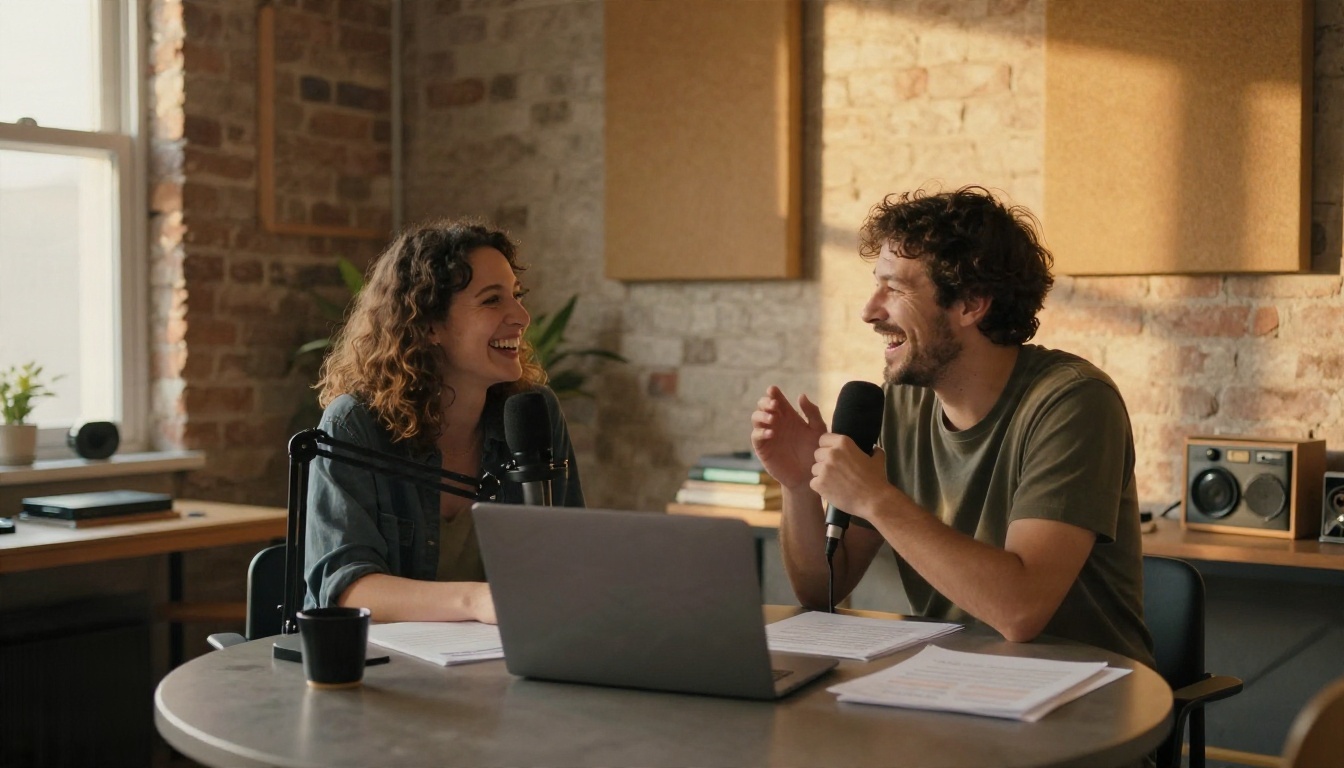
Podcasts and Short Ads
Short formats need personality. Pick an expressive voice, add emotion cues to the first line and keep sentences punchy. For recurring shows, clone a single custom voice so the host sound stays the same from episode to episode.
Try Your Own Narration Today
You do not need a studio, a microphone or a voice actor's schedule to get a professional narration. You need a clean script, a model that fits your project and a few minutes of patient testing.
Here is a simple plan for your first session:
- Pick a 150-word passage from your own script.
- Run it through a fast model such as Speech 2.8 Turbo or Turbo v2.5.
- Run the same passage through a studio model such as Speech 2.8 HD or ElevenLabs V3.
- Compare the two with headphones and adjust only speed and punctuation.
- Commit to the voice that stays comfortable after the second listen.
PicassoIA brings these narrators together in one place, so you can compare voices, adjust settings and produce finished audio without switching platforms. Pair your narration with generated visuals and video from the same workspace, and a rough script becomes a finished piece quickly. Open a model, paste your first paragraph and press generate. Your next audiobook chapter, explainer or podcast intro is a few clicks away.


