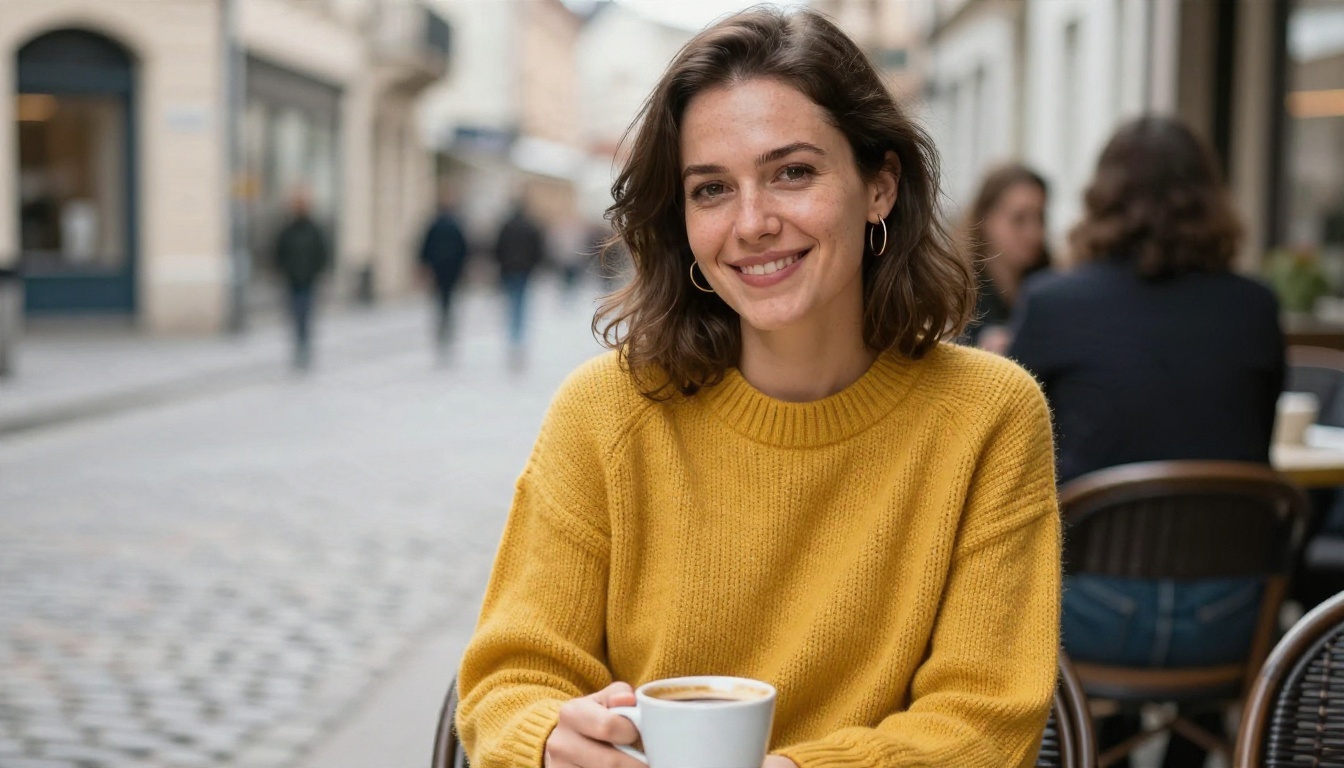
You have a wardrobe full of clothes and still stand in front of it thinking you have nothing to wear. Or you found a jacket online and can't tell whether it will suit you. An AI outfit generator fixes both problems in seconds. You upload a photo, describe a look or pick a garment, and the tool shows you wearing it. No fitting room, no returns, no guessing. This article explains how these tools work, which free online options and apps are worth opening, which models give the most realistic outfit pictures, and the exact prompts that keep the results looking like real photography instead of a cut and paste job.
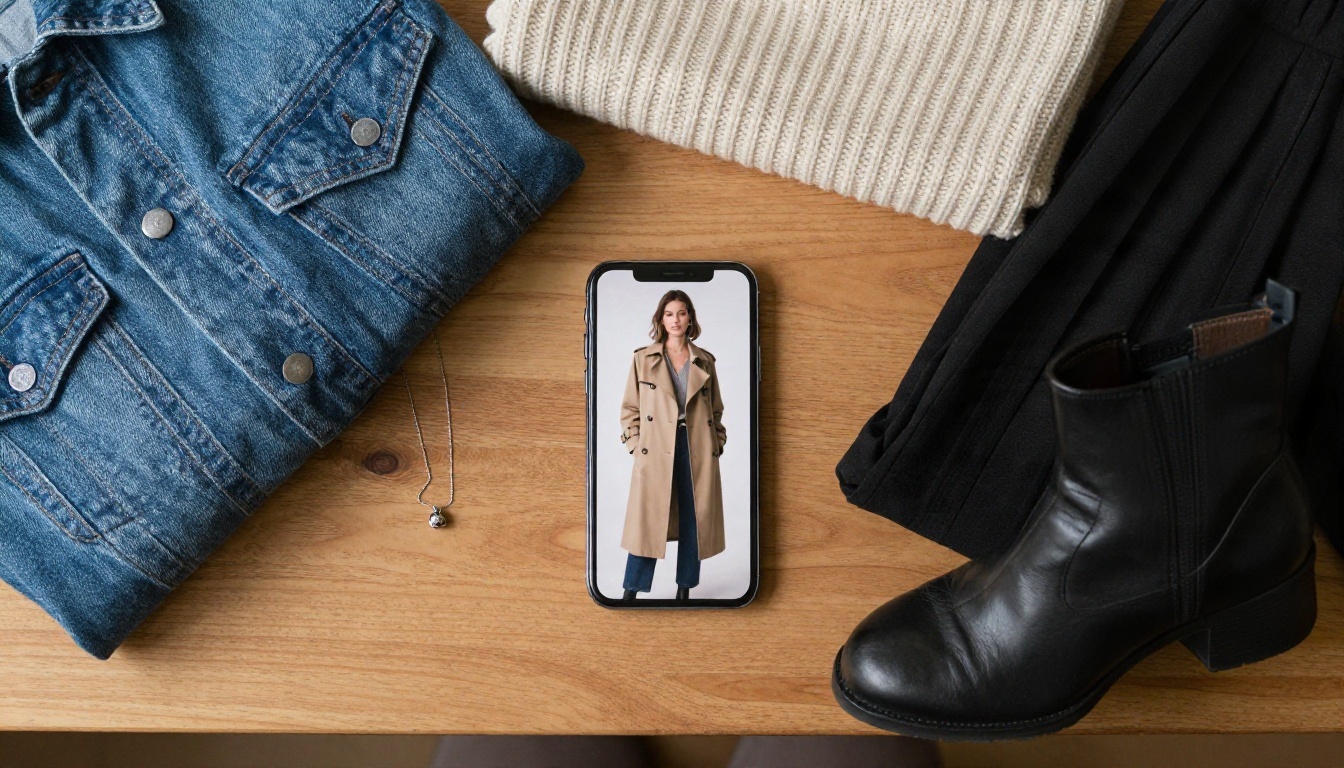
What an AI Outfit Generator Does
The name covers three very different kinds of tools, and mixing them up is the main reason people end up disappointed. Before you pick anything, decide which job you actually want done.
Text to outfit pictures
You type a description such as "oversized camel coat, white sneakers, grey knit scarf, walking in a rainy city" and a text to image model draws a brand new person wearing that look. It is perfect for mood boards, fashion inspiration, social posts and character design. The person is invented, so the result will not look like you.
Photo to outfit (virtual try on)
This is the one most searchers want. You supply a photo of yourself, plus either a text description or a picture of a garment, and the model swaps the clothes while keeping your face, pose, body and background. It is often called a clothes changer or virtual try on. Quality depends heavily on how clean your source photo is.
Closet and styling apps
Some apps skip image generation almost entirely. You photograph the clothes you own, and the app suggests combinations by weather, occasion or color. They are handy for daily planning, though the pictures are collages, not realistic renders. Think of them as a digital closet, not a picture generator.
💡 Quick rule: want to see a look on a made up model, use text to outfit. Want to see it on you, use photo to outfit. Want to organize what you own, use a closet app.
Search for "ai outfit generator free" and you will find dozens of sites. Most of them run on the same handful of image editing models underneath, wrapped in a different interface. What changes is the free allowance, the watermark policy and how many photos you can run per day.
What "free" usually means
Free almost never means unlimited. Typical limits include a small credit balance that refills daily or monthly, lower resolution exports, a watermark on the result, or a queue that makes you wait while paying users go first. Plans and limits change often, so read the pricing page of any site before you build a habit around it.
Names that keep coming up
Several browser tools appear again and again in 2026 roundups. Fotor has an AI fashion generator that people like because it asks for very little setup. MyEdit from CyberLink offers a set of ready made virtual outfit styles. Photify AI gives a free plan with credits and includes clothing change. Magic Hour accepts a photo of a person plus a separate garment image. Pixelcut runs in the browser and suits quick edits. Perfect Corp is known for fast outfit swaps on selfies. Treat this as a starting list, not a ranking, since each tool shifts its free tier from time to time.
| Tool type | Input | Best for | Typical catch |
|---|
| Text to image model | Text prompt | Inspiration and mood boards | Person is not you |
| Photo clothes changer | Your photo + prompt | Seeing a look on yourself | Needs a clean source photo |
| Garment try on model | Your photo + garment photo | Shopping decisions | Garment shot must be clear |
| Closet app | Photos of your wardrobe | Daily planning | Collage, not photorealistic |
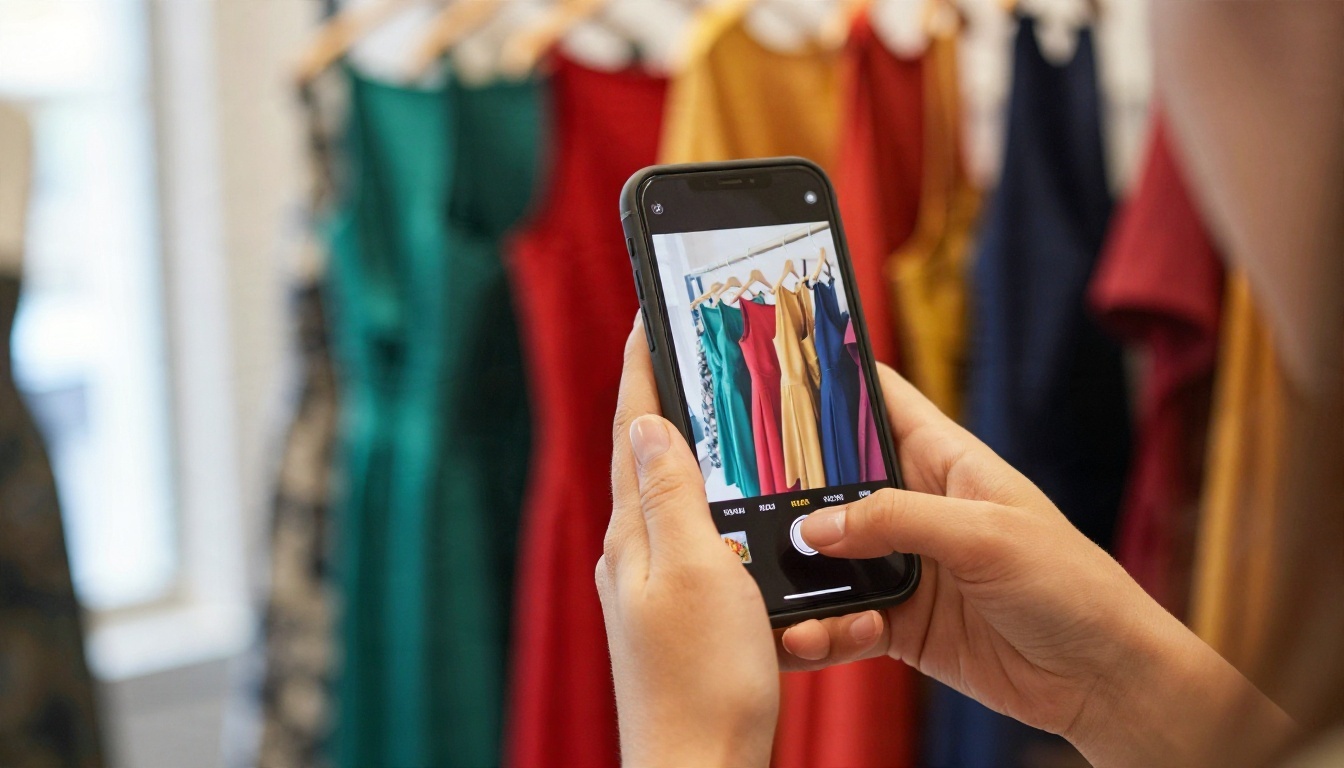
How to Change Outfits From a Photo
Whichever tool you pick, the workflow is nearly identical. Spend two minutes on preparation and the result will look far better than a rushed upload.
Pick the right source photo
The model has to guess what is under the clothes, so give it an easy job. Choose a photo with these traits:
- Full body or at least waist up, with arms visible and not crossed over the torso
- Even, soft lighting with no harsh shadows across the clothes
- Plain or simple background so the edges around your body stay clean
- Fitted or neutral clothing in the original, because a bulky hoodie leaves traces when swapped for a slim dress
- High resolution, ideally 1024 pixels or more on the short side
Run the try on step by step
On PicassoIA, the quickest route is P Image Try On, built specifically for seeing an outfit on a person.
- Open the model page and upload your photo as the person image.
- Add the garment: either a clean product photo or a short text description of the outfit.
- Be specific in the description: fabric, color, length and fit ("black wool turtleneck, fitted, tucked into high waist jeans").
- Run the generation and review the result at full size, not as a thumbnail.
- If a detail is off, change only that detail in the prompt and run again.
💡 Tip: change one thing per run. If you swap the top, the pants and the shoes at once, you cannot tell which instruction caused a strange sleeve.
Fix common artifacts
Three problems show up most often. Mushy hands appear when fingers overlap the garment, so choose a photo with hands away from the body. Altered faces appear when the model is too eager, so say "keep face, hair and pose unchanged." Wrong proportions appear with oversized garments, so describe the intended fit in plain words like "relaxed, hits mid thigh."
Best Models for Outfit Pictures
If you want more control than a single purpose website gives you, pick the model that fits your task. All of the models below are available on PicassoIA in one place, so you can try several on the same photo and compare.
P Image Try On for fast swaps
P Image Try On is the direct answer to "show me this outfit on me." It is tuned for clothing replacement, so it tends to keep faces and backgrounds stable. Start here for shopping decisions and quick style tests.
Nano Banana Pro and Seedream 4.5
When you want a polished editorial look, Nano Banana Pro handles detailed prompts well and keeps text on garments readable. Seedream 4.5 is strong at skin texture, fabric weave and 4K output, which makes it a great pick for lookbooks and social content. If you only need speed, Nano Banana is a lighter option for editing and generation, and Nano Banana 2 Lite is built for fast drafts.
Qwen Image Edit and Flux Kontext
For instruction based edits on a real photo, Qwen Image Edit Plus and Qwen Image Edit 2511 follow sentences like "change the jacket to a navy blazer" very reliably. Flux Kontext Fast does similar edits at high speed, which is useful when you want to cycle through ten colors in a row. GPT Image 2 is another solid option for turning a detailed prompt into a clean image.
Prompts That Give Real Results
A vague prompt like "nice outfit" gets a generic result. A prompt that reads like a stylist's note gets something you can actually use.
A simple prompt formula
Build every outfit prompt from five parts, in this order:
- Garments: each piece with fabric and color
- Fit: slim, relaxed, cropped, oversized
- Setting: where the person is standing
- Light: soft window light, golden hour, overcast
- Camera: lens and distance, such as "85mm, waist up"
Adding photographic words like "Kodak Portra 400, natural skin texture, shallow depth of field" nudges the model toward a real photo look and away from the glossy plastic style some generators default to.
Prompt examples to copy
- Casual: "Full body photo of a woman in a cream knit sweater, light blue straight jeans and white leather sneakers, walking on a quiet tree lined street, soft overcast light, 50mm lens, natural skin texture."
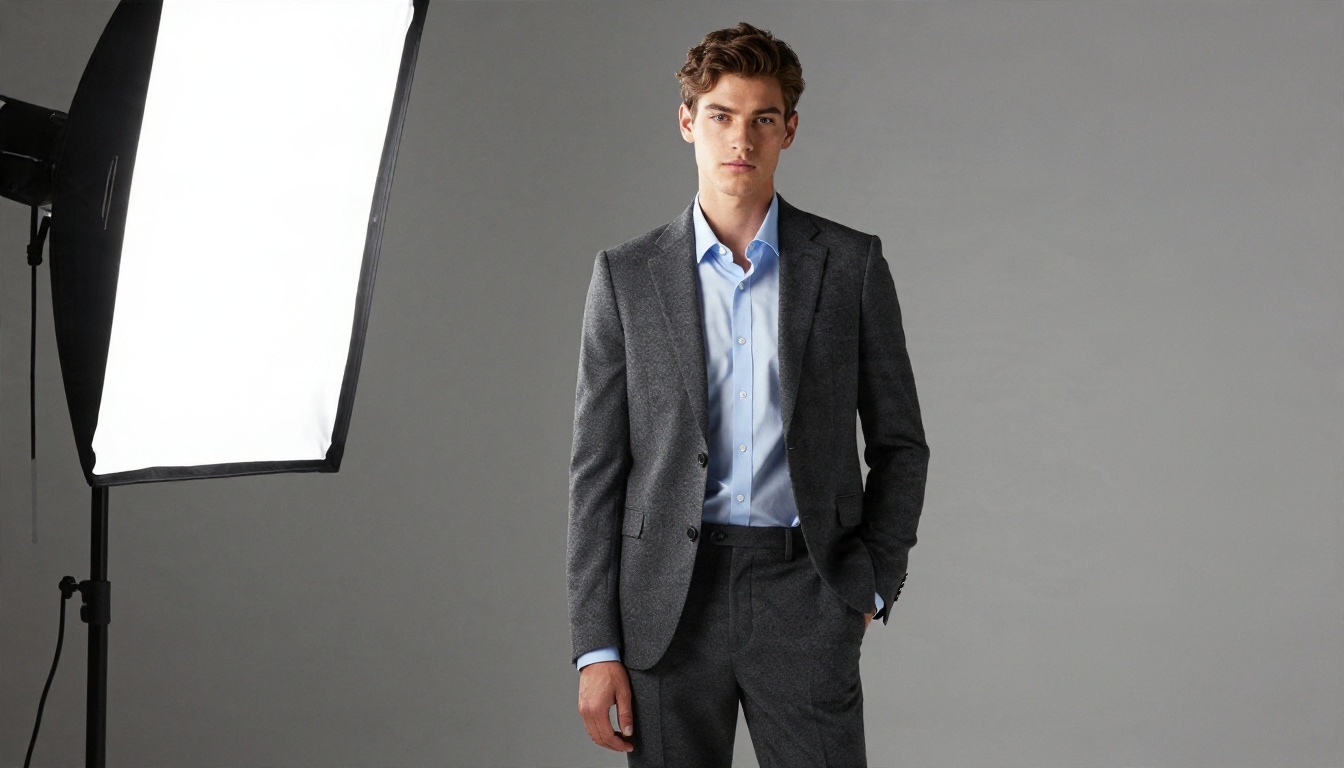
- Office: "Man wearing a charcoal wool suit, pale blue shirt and brown oxford shoes, standing in a bright lobby, soft window light from the left, 85mm lens, crisp fabric detail."
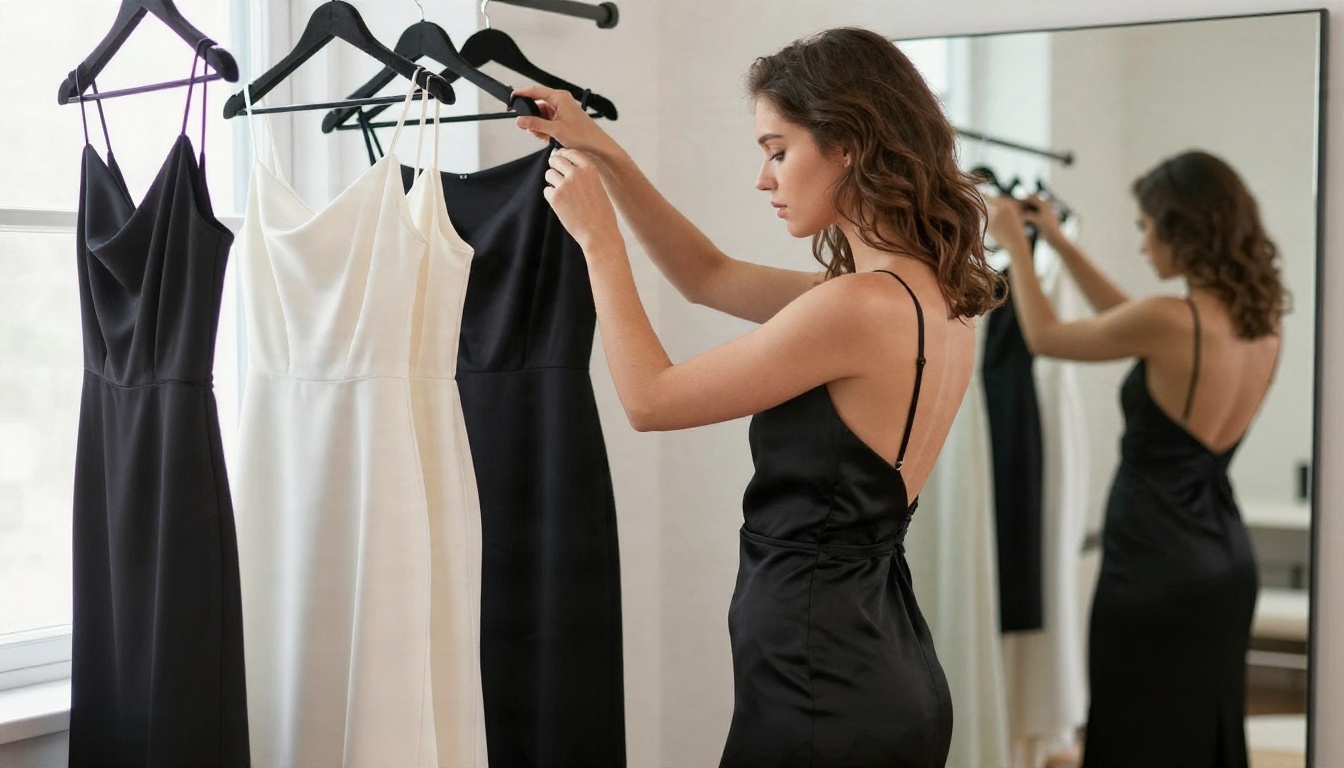
- Evening: "Woman in a floor length black satin dress with thin straps, standing beside a mirror in a warm lit hallway, 50mm lens, silk highlights, elegant and simple."
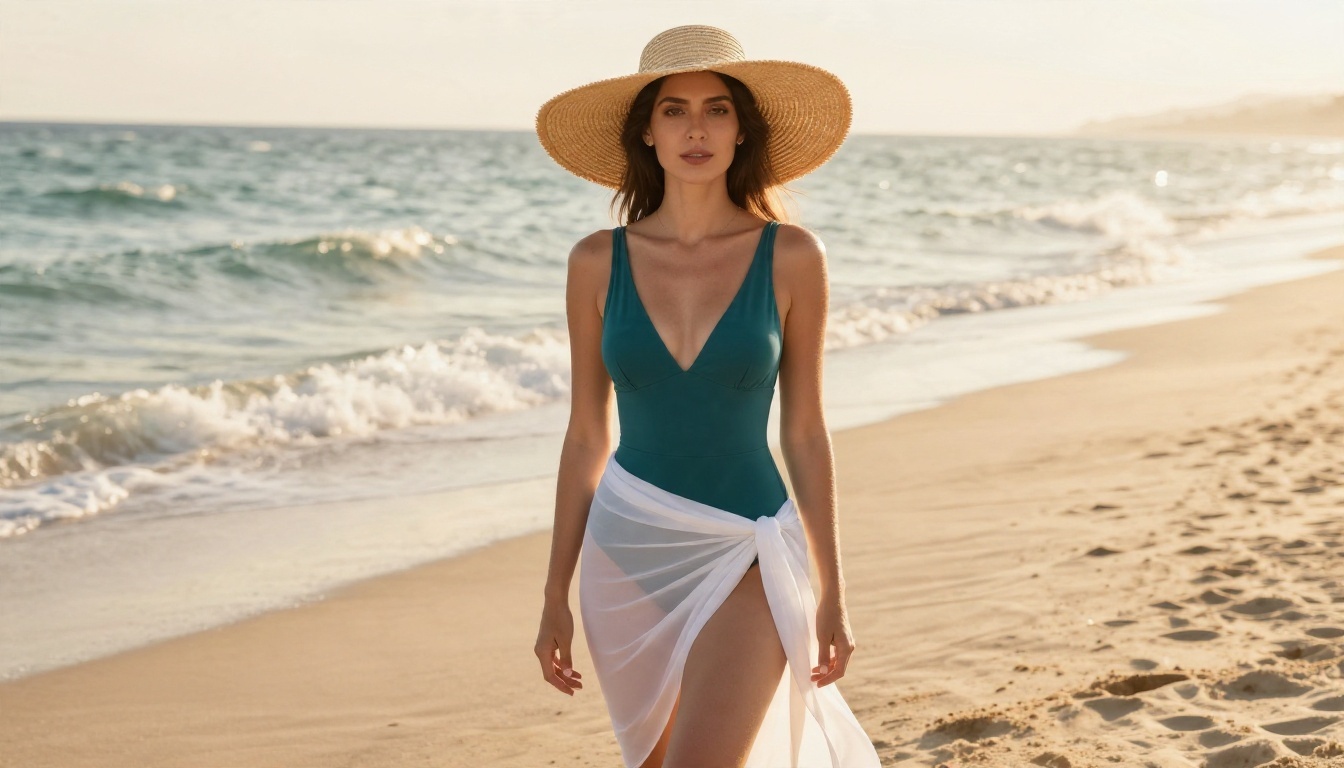
- Vacation: "Woman in a teal one piece swimsuit with a white sarong and straw hat on a pale beach at golden hour, 70mm lens, natural skin, tasteful editorial feel."
💡 Edit prompt tip: for photo edits, start with what must stay the same. "Keep the face, hair, pose and background unchanged. Replace the top with a mustard yellow knit sweater."
Most people ask whether they need to install anything. The honest answer is that it depends on how often you try outfits and where your photos live.
When an app makes sense
A phone app is convenient if you shop from your phone, take selfies all day and want a closet organizer next to the try on feature. Apps can also work offline for simple tasks like sorting your wardrobe. The tradeoff is storage, notification noise and subscription traps, where a free download hides a weekly fee behind a trial.
When a browser tool wins
A browser based platform works on any device, needs no install and gives you access to several models from one account. That matters because no single model is best at everything. One may handle jackets better, another handles dresses, and a third is better at keeping your face unchanged. Being able to switch models in seconds is the biggest practical advantage, and it is why many people end up using a model hub for outfit pictures.
| Factor | Phone app | Browser platform |
|---|
| Install needed | Yes | No |
| Model choice | Usually one | Many |
| Closet organizing | Often included | Rarely |
| Resolution | Often capped on free plans | Depends on model |
| Works on laptop | Sometimes | Always |

Try on is the obvious use, yet people are finding many more ways to put these tools to work.
Packing and trip planning
Generate three or four outfits for the same destination, then pick the pieces that repeat across them. You will pack lighter and know every item has a purpose.
Creators and small shops
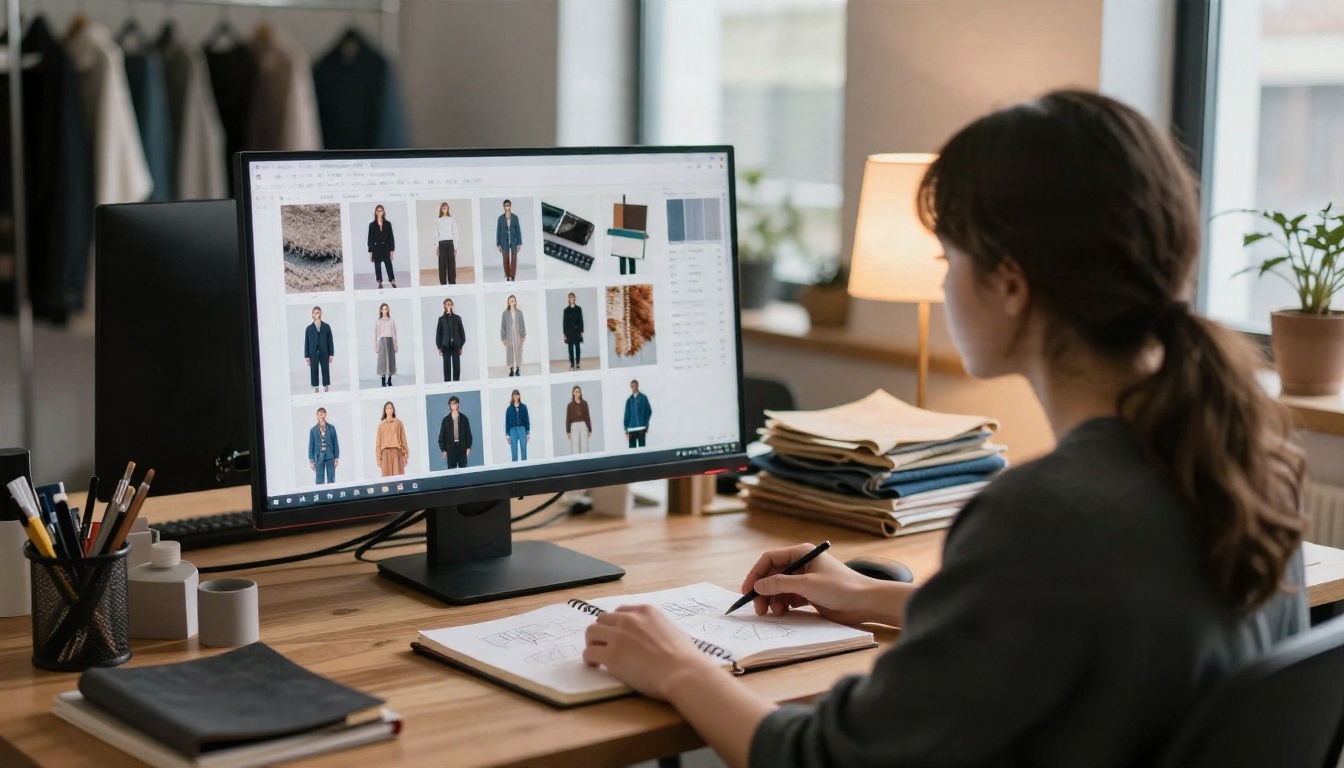
Fashion bloggers, resellers and small boutiques use outfit generators to produce lookbook pictures without booking a model for each season. A stylist can build a full grid of options in an afternoon and show clients before anything is ordered.
Events and special looks
Wedding guests, graduation outfits and holiday parties are classic moments when a preview saves stress. You can compare a green dress and a navy dress on the same photo before spending a cent.
Mistakes and Privacy Tips
A few habits separate good results from frustrating ones.
Five common mistakes
- Uploading a dark, blurry photo and expecting sharp fabric
- Describing the outfit in one vague word instead of fabric, color and fit
- Changing many garments in a single run
- Judging the result on a small preview instead of zooming in
- Treating the render as an exact fit, when it only shows style and color, not precise sizing
💡 Remember: an AI try on shows how a look reads on you. It does not replace a size chart. Always check measurements before buying.
Protect your photos
Your selfie is personal data. Before uploading, check how a service stores and deletes images, and avoid sending photos that show other people without their agreement. Use photos where you are comfortable seeing the result shared, since generated pictures can be saved and reused. Keep your original files, and never upload images of someone else's face to try outfits on them without their permission.
Build Your Own Looks Today
Everything above takes about five minutes to test. Pick one clear photo of yourself, open P Image Try On, and run three outfits: one you already own, one you've been tempted to buy, and one you would never normally wear. Then take the best result and refine it in Nano Banana Pro or Seedream 4.5 for a polished, photographic finish. If you want to compare more options, browse the full list at picassoia.com/en/all-models and run the same prompt through two or three of them.
The best way to find your style is to experiment. Change one detail at a time, keep the prompts that work and save them. Within a few sessions you will have your own library of looks, a clearer idea of what suits you, and far fewer impulse purchases. Open PicassoIA, upload a photo and see what you could be wearing tomorrow.