You finish a product shot, feed it to a free video tool, and the clip comes back with a logo stamped across the lower corner. Now the footage is useless for your store page, your ad account, or your client. That is the whole problem behind every search for an AI product video generator free without watermark: the word free is easy to find, but a clean export is not.
This article walks through a repeatable workflow. You start with one good product photo, animate it into a short clip with an image-to-video model, and check the file before it goes anywhere public. Every step uses models you can open on Picasso IA, with prompts you can copy and adapt in a few minutes.
Why Watermarks Ruin Product Videos
A watermark is not a small cosmetic flaw. On a product video it sits exactly where the eye lands: the corner of a bottle, the hem of a sleeve, the edge of a label. Shoppers read it as a sign that nobody sweated the details, and that impression sticks to your brand, not to the tool that made the clip.

What a Logo Stamp Costs You
The damage shows up in four places:
- Trust: a product page with a third-party logo looks borrowed, and borrowed looks risky.
- Reuse: you cannot recycle one clip across a product card, a newsletter header, and a short-form reel if every version carries someone else's brand.
- Cropping: hiding the mark by cropping removes the edges of the product, and those edges are the most valuable pixels in the frame.
- Time: finding the stamp after you have written copy, scheduled posts, and briefed an editor means redoing the work.
Where "Free" Gets Complicated
Free plans usually pay for themselves in one of three ways: a stamped logo, a low resolution cap, or a tiny monthly quota. Some do all three at once. None of this is dishonest, it is simply a business model, but it means the word free on a landing page tells you very little about what you can actually publish.
💡 Two-minute test: before you spend an hour on prompts, generate one throwaway clip and look at the exported file. If the output is not clean, you have saved yourself an afternoon.
What a Clean Free Generator Needs
A good free product video maker is not defined by its price tag. It is defined by a short list of things you can verify yourself, in order, before you commit to a workflow.
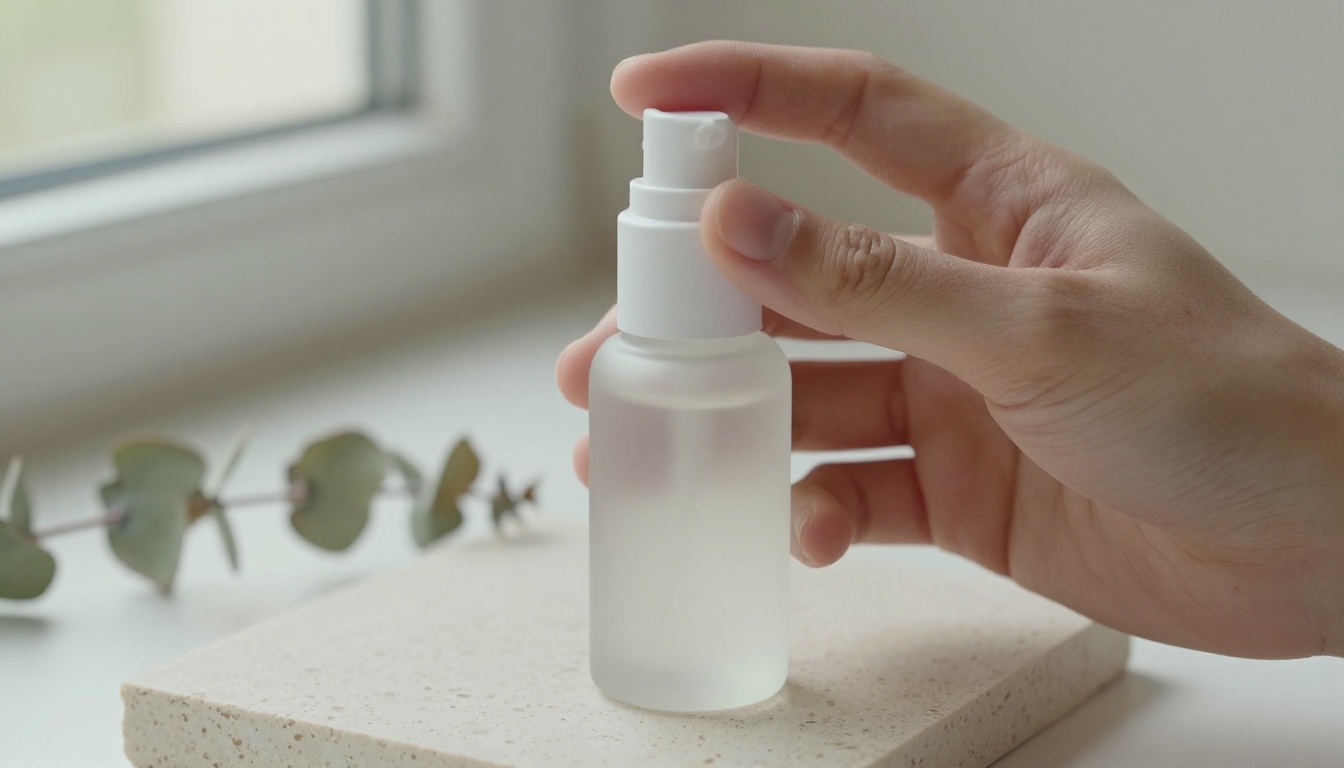
Image Input Comes First
Text-to-video invents a product. Image-to-video keeps yours. Your bottle has a specific shoulder curve, a specific cap, a label in a specific color. A text prompt cannot reproduce those details, but an opening frame can. For any ecommerce product video, treat image input as a hard requirement and treat pure text-to-video as a tool for mood clips, backgrounds, and concept boards.
Honest Limits on Length and Size
Most product moments need three to eight seconds: a slow turn, a light sweep across glass, a hand lifting a garment. A 5-second clip at 720p is enough for a hero loop on a product page, a story frame, or a marketplace listing. You do not need 4K for a thumbnail-sized autoplay, and you do not need a 30-second render when the shopper scrolls past in two.
Use this checklist when you evaluate any free AI video generator:
| Check | What to look for | Quick test |
|---|
| Image input | Your photo becomes the opening frame | Upload a product photo and compare the label and cap shapes |
| Export quality | 720p or better, with a clean frame | Play full-screen and watch all four corners |
| Clip length | 5 seconds or more | Check the duration in the file details |
| Audio | Synchronized sound that you can switch off | Export once with sound and once silent |
| Aspect ratios | 16:9, 9:16, and 1:1 | Match the platform before generating |
| Repeatability | A seed you can lock | Re-run the same prompt with the same seed |
| Limits | A clearly stated quota or an unlimited tier | Read the model page before you plan a batch |
Free Models Worth Trying on Picasso IA
Picasso IA lists more than 120 models in its text-to-video category alone, so the real question is which ones suit product work. Two of them are labeled free and unlimited on their own pages, and they make a sensible starting pair.

Picasso IA Video for Fast Clips
Picasso IA Video is the platform's native model, listed as a free and unlimited AI video generator from text or an image. Here is what the model page confirms:
- Fixed 5-second clips at 24 frames per second, so results stay predictable across runs.
- 480p for the fastest renders and 720p for sharper output.
- Image-to-video, where your photo is the opening frame and the clip inherits its aspect ratio.
- Synchronized audio on by default, with an option to save a silent clip instead.
- A seed you can lock to reproduce the same take later.
The page also describes the output as clean motion suited to social posts, ad concepts, and product teasers, which is exactly the job here.
Seedance 2.5 Lite for Longer Shots
Seedance 2.5 Lite is the lightweight edition of Seedance 2.5. It makes clips of 5 or 10 seconds at 480p or 720p, and Wonder plan members run it without a per-clip cost. It also accepts an optional last frame image: give it a first frame and a closing frame, and the clip animates from one to the other.
That last-frame option is a gift for product reveals. Start with the bottle on a plain surface, end with the bottle in its hero position, and let the model invent the motion in between.
When to Step Up to Other Models
Free and unlimited is perfect for iteration, but some projects deserve a different engine for the final ad. These are worth a look when the first pair does not give you the motion or look you want:
The free and unlimited labels apply to the first two rows. For the others, follow whatever billing the model page shows before you queue a big batch.
How to Use Picasso IA Video
Here is the exact flow for a first product clip. It takes about ten minutes the first time and less than three once you have a prompt template.
Prep the Photo
Image-to-video can only animate what it sees, so the photo matters more than the prompt.
- Shoot or pick a sharp, evenly lit photo with the product filling roughly two thirds of the frame.
- Leave empty space in the direction you want the camera or light to move.
- Crop to the final ratio before uploading, because the clip inherits the ratio of the input image.
- Keep the background simple. Busy backgrounds invite random motion in places you did not ask for.
Write the Motion Prompt
The model page recommends cinematic, chronological descriptions, so write the clip like a tiny script with a beginning and an end. Use one structure every time:
Subject and starting pose, then the motion over time, then the camera move, then the light.
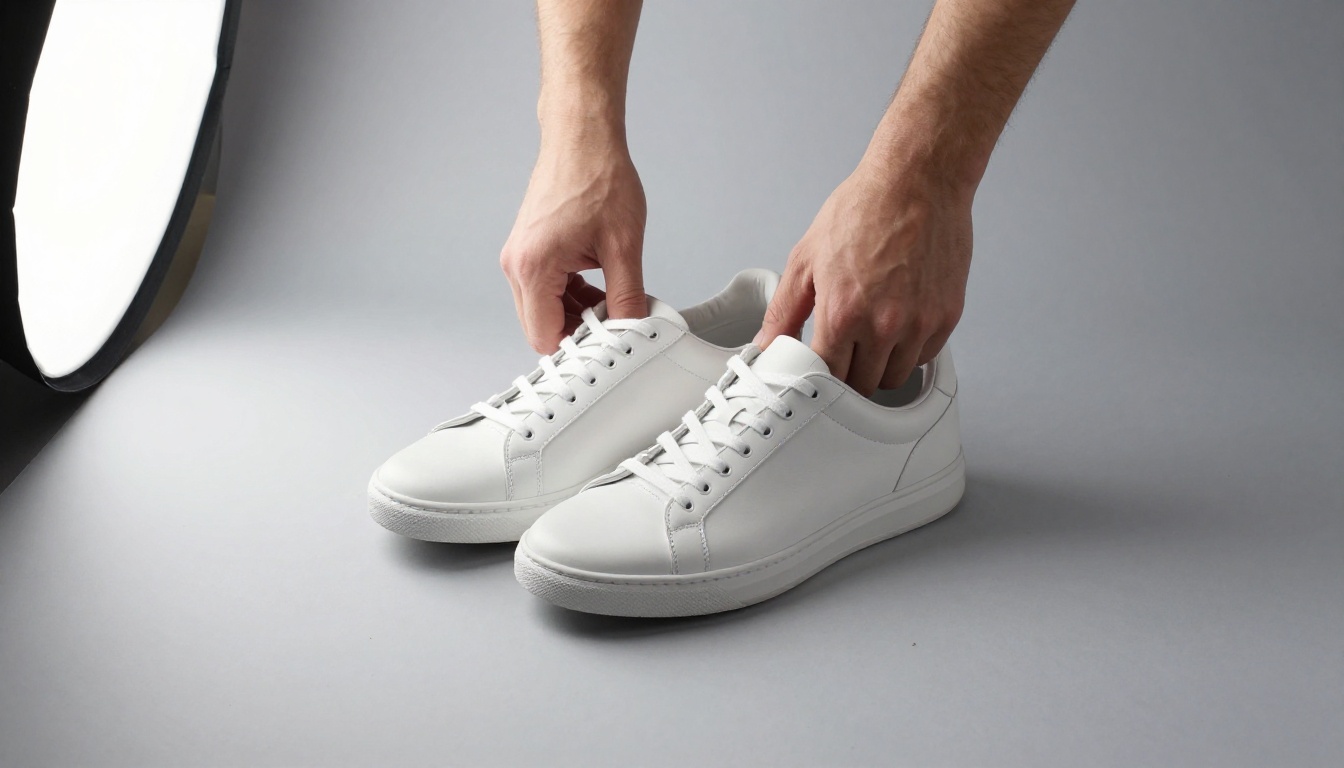
The white leather sneakers sit still on a pale grey backdrop. Over five seconds the camera makes a slow dolly-in toward the toe cap while a soft shadow slides across the paper. Gentle studio light from the left, natural leather texture, shallow depth of field.
Settings and Export
- Open the Picasso IA Video model page.
- Upload your product photo in the Input image field.
- Paste the motion prompt.
- Set resolution to 720p. The aspect ratio setting is ignored when an image is present, because the clip matches the photo.
- Leave save audio on for sound, or switch it off for a silent loop.
- Add a seed if you want to reproduce the take later.
- Generate, download the file, and run the corner test described near the end of this article.
💡 Tip: change one thing per run. If you change the prompt, the seed, and the photo together, you will never know which edit improved the clip.
Prompts That Work for Products
Product clips fail when the prompt asks for too much. Five seconds can hold one subject action, one camera move, and one description of light. Anything beyond that gets averaged into mush.

Ceramic, Glass, and Bottles
Reflective and translucent objects reward patience. Keep the camera nearly still and let the light do the moving, because sweeping light across glass looks expensive and rarely breaks.
A clear glass perfume bottle with a brass cap stands on dark slate. The camera is locked off while low sunlight slowly travels across the glass, making the refractions shift. A few water droplets slide down the shoulder. Macro lens, shallow depth of field, calm and quiet atmosphere.
Apparel and Shoes
Fabric needs a believable cause for movement. A hand, a breeze, or a slow camera orbit all work. Without one, textiles tend to swim.
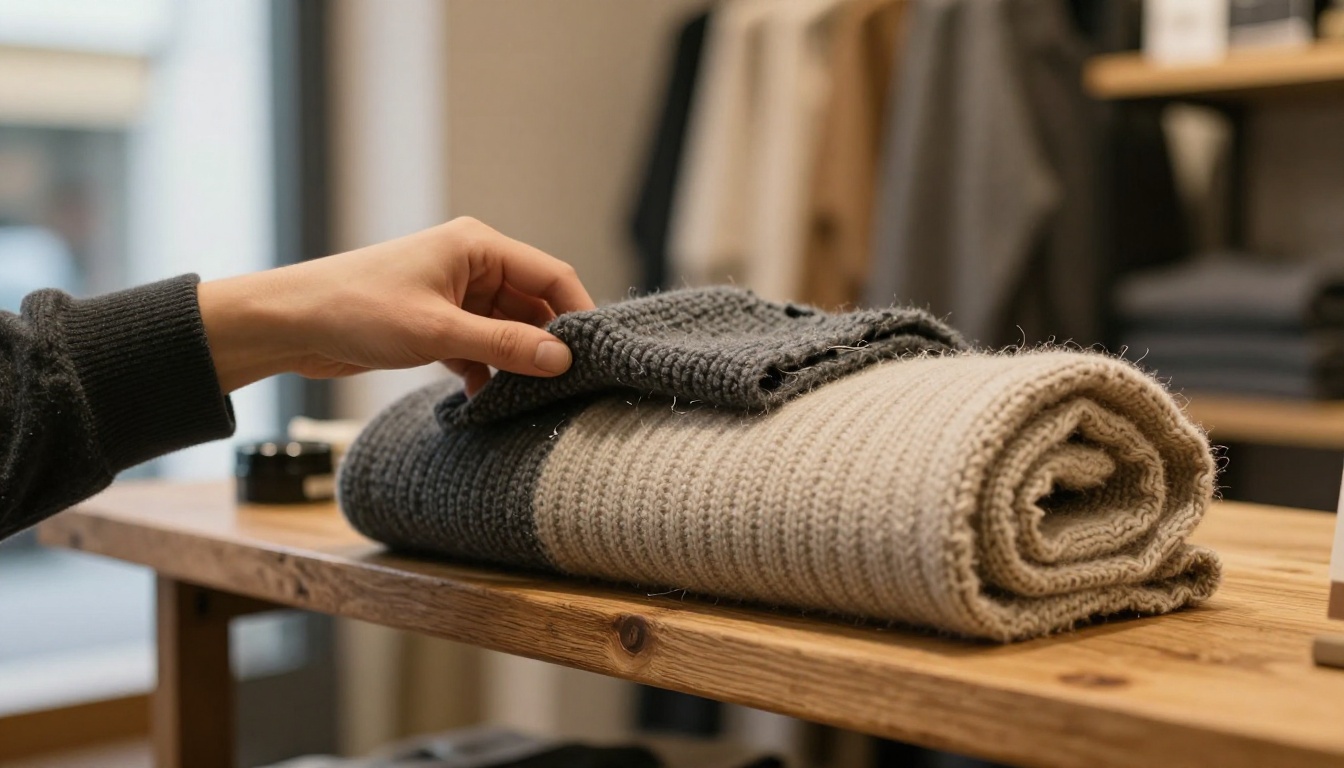
A hand lifts the edge of a folded charcoal merino sweater on an oak shelf, revealing the ribbed weave. The camera makes a gentle push-in on the fabric. Warm shop lights, soft daylight from the window, natural wool texture.
Keep a small library of camera moves and reuse the wording that works:
| Camera move | Best for | Prompt wording |
|---|
| Slow dolly-in | Hero shots, packaging | "slow dolly-in toward the label" |
| Gentle orbit | Shoes, bottles, gadgets | "camera orbits slightly to the right" |
| Locked off with light shift | Glass, jewelry, ceramics | "camera locked, sunlight slides across the surface" |
| Macro push | Fabric, leather, food | "macro push-in on the texture" |
If you sell more than one product, turn the winning prompt into a template. Keep the structure, swap the subject and the material, and run one product at a time through the same settings. A catalog of twenty items then reads as a single visual family: same light direction, same camera speed, same 720p finish. Consistency is what makes a store look professional, far more than any single flashy clip. Save the seed that worked for each item in a simple spreadsheet so you can regenerate the exact take when a packaging change forces a reshoot.
Three common mistakes to avoid:
- Asking for text on the package. Generated lettering often warps, so animate a label that already exists in your photo instead.
- Stacking actions. "Spins, opens, and sparkles" is three clips, not one.
- Vague adjectives. "Make it amazing" gives the model nothing to act on. Name the light, the lens, and the movement.
Build the Source Photo First
An image-to-video model is only as strong as its opening frame. If you do not own a studio setup, you can still create concept stills, backdrop variations, and mockups, then animate the best one.
Generate the Still
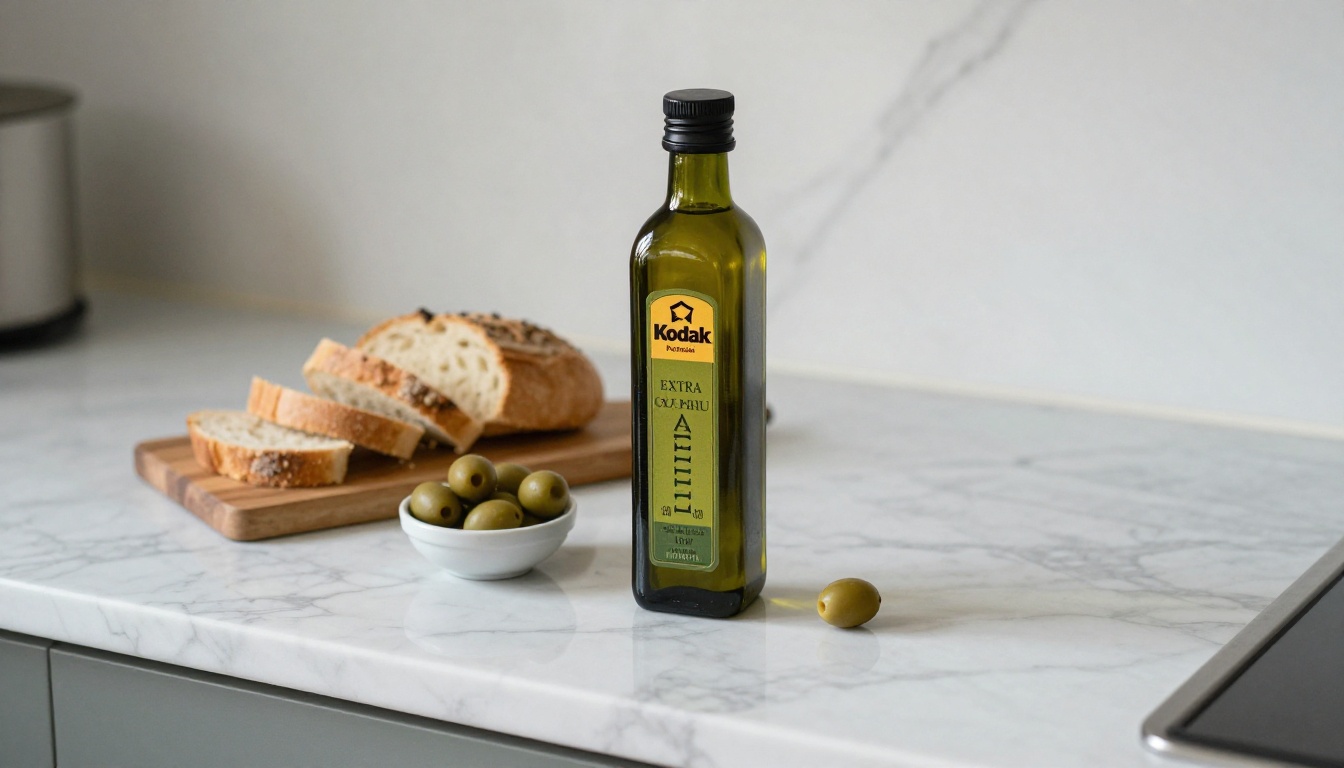
Describe the scene the way a photographer would: material, lens, light direction, surface. Run the same prompt on a few models and pick the opening frame that reads best:
One honest caveat: if you are selling a real product, a generated still will not carry your real label, cap, or stitching. Use your own photograph for the actual item, and use generated stills for concept art, ad backdrops, and variations you have no budget to shoot.
Remove the Background
A cluttered background is the fastest way to get strange motion. Run the photo through Recraft Remove Background, place the cutout on a clean backdrop, and then use that composite as the opening frame. The result is a product that stays put while only the light and camera move.
Check the Clip Before You Post
Whatever tool you use, inspect the file before it reaches a customer. Two minutes here protects every platform you publish on.
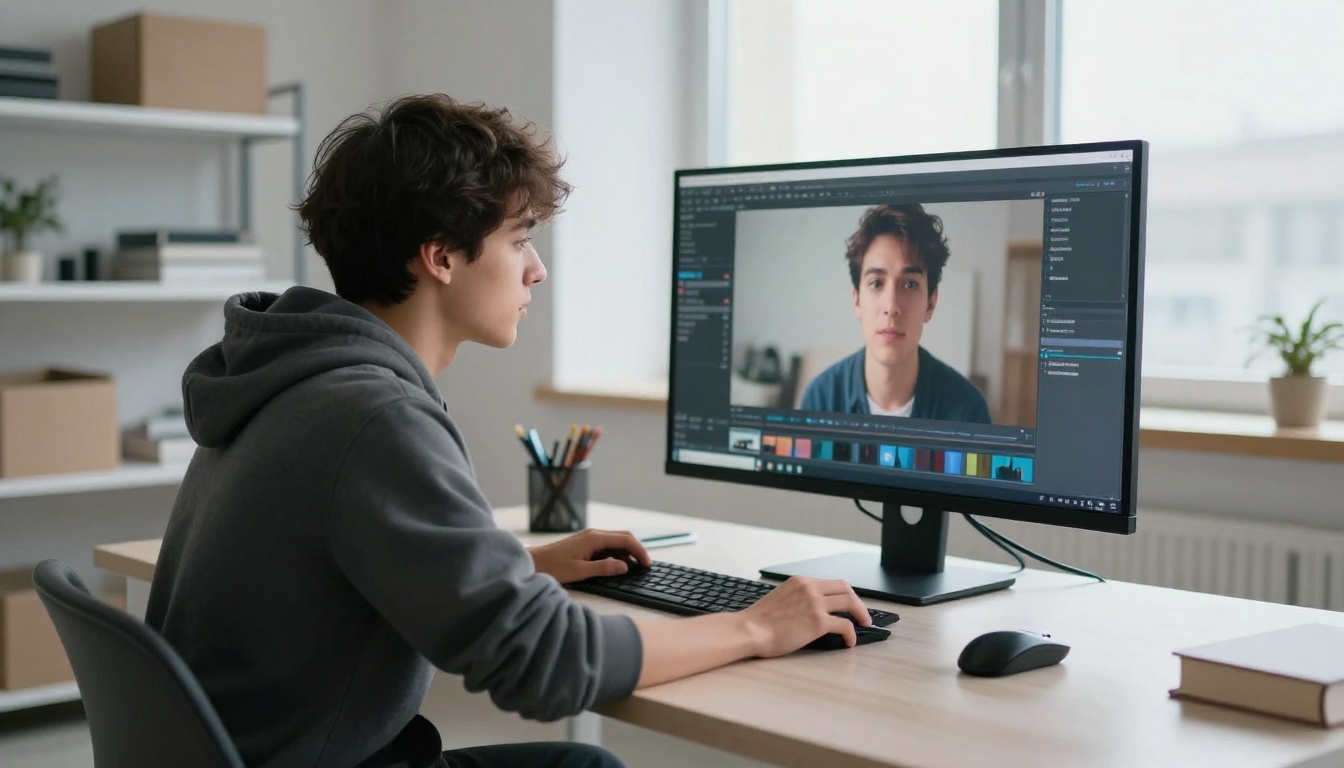
The corner test:
- Play the clip full-screen and watch all four corners, with extra attention on the bottom right.
- Scrub the first and last frames one by one, since marks sometimes appear only at the start or the end.
- Compare the product with your reference photo: label shape, cap, color, and stitching should match.
- Listen to the audio with headphones. If the sound is distracting, export or regenerate a silent version.
- Watch the clip on your phone as well, because compression shows flaws that a monitor hides.
Then match the ratio and length to where the clip will live:
| Placement | Typical ratio | Typical length |
|---|
| Product page hero loop | 16:9 | 5 seconds |
| Short-form reel or story | 9:16 | 5 to 10 seconds |
| Marketplace listing | 1:1 | 5 seconds |
| Email or newsletter header | 16:9 | 5 seconds |
Some platforms also ask creators to label AI-generated media, so read the rules of every channel before you schedule a post.
Make Your First Clip Today
You now have the whole loop: one photo, one motion prompt, one clean export, one quick inspection. The fastest way to find out what works for your product is to run it, so pick the item you sell most often and give it five seconds of movement.

Here is a plan for the next thirty minutes:
- Open Picasso IA Video, upload your best product photo, and run the prompt template from this article at 720p.
- Generate three takes with different seeds and keep the cleanest one.
- Try Seedance 2.5 Lite with a first and last frame for a longer reveal.
- Run the corner test, then post the winner.
Ready to see your own product move? Open Picasso IA, test a clip, and keep experimenting with prompts, seeds, and camera moves. When you want more options, browse the full catalog on the all models page and build a library of product videos that look like yours and no one else's.


