You open a free AI reel creator at 9 p.m., type a idea, wait four minutes, and get a clip with a giant watermark across the lower third. Sound familiar? That is the most common first experience with these tools, and it is why so many people give up on them before they find the ones that actually work. The truth is that "AI reel creator" covers at least three very different kinds of software, and each has its own free tier, its own catches and its own sweet spot.
This article sorts them out. You will see how template editors differ from text to video models, which free online options are worth your time, what editor tools and phone apps do best, and the limits that free plans rarely advertise up front. Then a workflow you can follow today to produce a vertical reel without paying for five subscriptions.
💡 Quick answer: For a polished result with no watermark, combine a generation model for the visuals, a light editor for cuts and captions, and an upscaler for the final export. Free tiers can handle each step, but each one has a ceiling.
What an AI Reel Creator Does
The phrase gets used loosely, so a clear definition helps. A reel is a short vertical video, usually 9:16, between 5 and 90 seconds, built for fast scrolling feeds. An AI reel creator is any tool that uses machine learning to do part of the work: writing the script, generating the footage, cutting the clips, adding captions or syncing a voice.

Text to Video vs Template Editors
There are two main families, and mixing them up leads to disappointment.
| Type | What it produces | Best for | Typical catch |
|---|
| Text to video model | New footage generated from a prompt or a still image | Original scenes, product shots, stylized b-roll | Short clips, credits or queues on free plans |
| Template based editor | Your own clips and stock media arranged with AI cuts and captions | Talking head reels, recaps, slideshows | Watermarks, branded templates, export caps |
| Hybrid tool | Script, stock footage, voice and captions in one pass | Fast explainers and news style reels | Generic look, repeated stock clips |
A text to video model like Seedance 2.5 Lite invents the pictures. A template editor only rearranges pictures that already exist. Neither is better in general. The choice depends on whether you already have footage.
Where Hybrids Fit
Hybrid tools sit in the middle. You paste a script or a link, and the tool picks stock clips, adds a synthetic voice and burns in captions. They are quick, which makes them popular for faceless channels. The downside is sameness: when thousands of people use the same stock library, reels start to look alike. Many creators now use hybrids only for the rough cut, then replace the stock clips with generated shots that are unique to their idea.
Free Online Options That Work
Free is a spectrum. Some tools are free forever with limits. Others are free for a week, or free only until you try to export. Based on what creators report in recent comparisons, the picture in late 2026 looks like this.
Browser Editors With Free Tiers
Browser editors need no install and run on almost any laptop. Microsoft Clipchamp is frequently cited as one of the more generous options, with several guides reporting watermark free 1080p exports on its free plan, though its AI features are lighter than those of specialist tools. Canva's free plan is handy for templates, but premium assets can carry a watermark until you pay. Kapwing and Veed, two other popular choices, have been reported to add a watermark on free exports, with Veed commonly capped at 720p and Kapwing limiting export length on its free plan.
💡 Tip: Free tier terms change without notice. Before you invest an evening in a project, export a three second test clip and look at the result.
Free Generators and Credit Systems
Text to video generators usually run on credits. You get a daily or monthly allowance, and each clip costs a few. Some well known services restrict free plans to personal, noncommercial use, and reports on whether specific tools add a watermark on the free tier often contradict each other. That is a polite way of saying: check the current terms yourself.
A few platforms avoid the credit squeeze. On PicassoIA, Seedance 2.5 Lite is listed as a free and unlimited generator for clips up to 10 seconds, which makes it a practical way to experiment with prompts without watching a balance tick down.
The Watermark Question
Watermarks are the number one complaint about free reel tools. Three rules of thumb help:
- Watermarks on export are common in editors and are tied to the plan, not the tool quality.
- Watermarks inside the generated footage are rarer, but some free generation tiers add them.
- Cropping a watermark out of a vertical reel is a bad idea. You lose resolution and the mark often returns in a corner you missed.

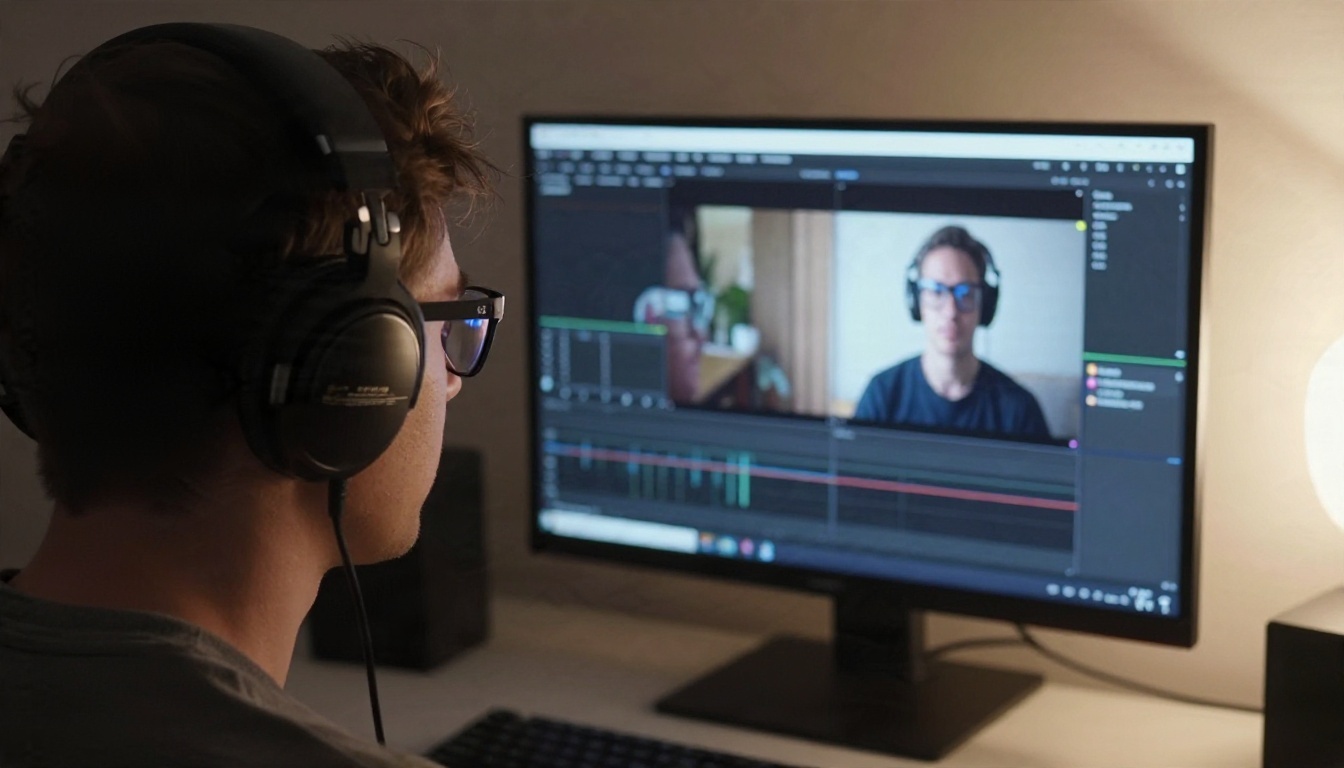
Generation gets the headlines, but editing makes a reel feel professional. A good cut, clean captions and tight pacing matter more to retention than a fancy model.
Timeline Editors
Timeline editors give you precise control: trim by the frame, stack audio, add text. Desktop and browser versions of CapCut style editors have popularised auto captions, beat detection and one click background removal, all of which count as AI features even if nobody markets them that way. If you plan to publish three or more reels a week, learning one timeline editor properly saves hours.

What to look for in a free editor:
- Auto captions with editable text, since automated transcripts always need fixing.
- Vertical presets for 9:16 so you are not cropping a landscape project afterwards.
- Audio ducking so music dips under speech.
- Export without a forced watermark at 1080p, at least for personal projects.
Polish With Upscaling and Cleanup
Free generators often output at 720p or lower, and phone footage can be noisy in low light. A final pass can fix a lot. The Video Upscale model sharpens footage toward 4K and smooths motion, while Real ESRGAN Video is a lighter option for cleaning compression artifacts. Run these on the finished cut, not on each clip, to save time.
App Choices for Phone Creators
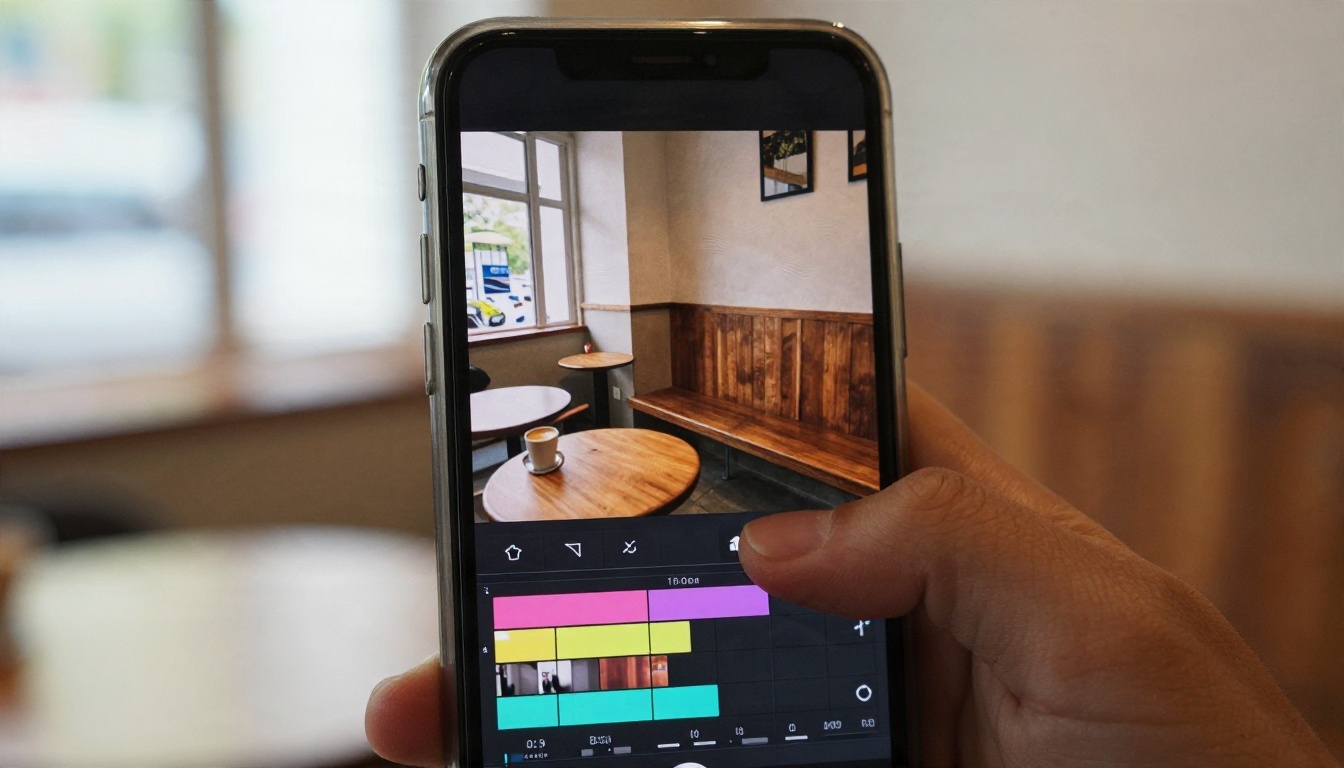
Most reels are published from a phone, so mobile apps deserve their own section. The big names, including Instagram's own editing app, CapCut and a range of template apps, are free to download and mostly free to use, with paid tiers that remove branding or unlock extra effects.
What Mobile Apps Do Best
Phones win on speed and convenience. You shoot, trim, add captions and publish in one sitting. Built in tools such as auto captions, voice cleanup and trending audio libraries sit a tap away. For quick social updates, a phone app is often the right call, and nothing about it is second rate.
When Mobile Falls Short
Phones struggle when you need layered edits, many clips, or generated footage. Long exports drain batteries, small screens make frame accurate cuts tedious, and free tiers sometimes limit the number of tracks or the export resolution. A common compromise: generate and polish on a laptop or in a browser, then send the final file to your phone to post.
💡 Workflow shortcut: Create your visuals in a browser, download the MP4, and add trending sound or captions inside the platform's own app. Native audio libraries are often licensed for that platform only.
The Limits Nobody Mentions
Marketing pages highlight what a tool can do. The limits live in the pricing footnotes. Here are the four that trip up most creators.
Clip Length
Most text to video models generate short clips, from 5 to 10 seconds each. That is plenty for a reel, as long as you build the story from several shots. A 30 second reel typically needs five to eight generated clips plus transitions. Some models reach further: Seedance 2.5 is listed for videos up to 30 seconds, which helps when you want one continuous scene.
Resolution and Watermarks
Many free plans cap exports at 720p. That looks fine on a phone, but it softens when a platform re-compresses the upload. Upscaling before posting keeps edges cleaner. If a platform adds a watermark to the free version, consider that a cost to weigh against the price of a paid plan.
Commercial Rights
Free does not always mean free for business. Some plans restrict output to personal use only, which matters if you post for a client, run ads or sell a product. Read the licence section of any tool before you build a campaign on it.
Consistency Between Shots
The hardest technical limit is keeping a character, outfit or product looking the same from shot to shot. Models are improving, but they still drift. Two workable fixes: start each clip from the same reference still, or use a reference based model such as PicassoIA Reference To Video, which accepts your own images, video and audio as guides.

| Limit | What you will usually see | Workaround |
|---|
| Clip length | 5 to 10 seconds per generation | Build scenes from several short shots |
| Resolution | 720p on many free tiers | Upscale the final cut |
| Watermark | Added on free exports of some editors | Test export first, pick a clean tool |
| Commercial use | Personal only on some plans | Check licence text before client work |
| Consistency | Faces and products drift | Reuse a reference image per shot |
Build a Reel on PicassoIA
Here is a workflow that stays inside free or low cost territory, using models that all live in one place. You can adapt it to any tool, but having generation, voice and polish under one roof saves a lot of tab switching.

Step by Step Workflow
- Write a three beat script. Hook in the first two seconds, one idea in the middle, a clear ending. Short scripts keep generated clips on target.
- Sketch shots on paper. Five to eight frames, each with one subject and one motion. A storyboard prevents wasted generations.
- Make a reference still. Generate one strong image with Nano Banana Pro or Seedream 4.5. This becomes the look of your whole reel.
- Animate each shot. Use Wan 2.5 I2V Fast or Hailuo 2.3 Fast to bring the still to life, or write a prompt directly into Seedance 2.5 Lite.
- Add sound and speech. Models with native audio, such as Veo 3.1 Fast, output synced sound with the picture. For a spoken voiceover on existing clips, Lipsync Speed matches mouth movement to new audio.
- Cut and caption. Assemble the shots in the editor you prefer and add auto captions.
- Upscale and export. Run the final file through Video Upscale for a sharper 1080p or 4K file.

Which Model for Which Reel
| Reel idea | Good starting model | Why |
|---|
| Fast experiments, unlimited tries | Seedance 2.5 Lite | Free and unlimited, up to 10 seconds |
| Cinematic hero shot | Kling v3 Video | Strong motion and detail |
| Scenes with dialogue or ambience | Veo 3.1 Fast | Native audio generation |
| Animating a product photo | Wan 2.5 I2V Fast | Image to video, quick turnaround |
| Talking avatar reel | P Video Avatar | Speaking presenter from a still |
| Longer single scenes | Seedance 2.5 | Up to 30 seconds |
💡 Prompt tip: Describe motion in order. "A woman lifts a ceramic mug, steam rises, camera slowly pushes in, soft window light" works better than a list of adjectives. One subject, one camera move, one lighting setup.
Real Examples and Use Cases
The tools matter less than the job you give them. A few patterns that work well with the stack above:
- Small shops: a five shot product reel, from reference still to animated close ups, built in an afternoon.
- Educators: short explainers where a presenter avatar delivers a tip while generated b-roll fills the screen.
- Travel and food creators: real footage from the phone mixed with a generated establishing shot that would be expensive to film.
- Agencies: a single reference style carried across a month of posts to keep a brand look consistent.
A final point on authenticity. Audiences respond to a clear point of view more than to flawless visuals. Mixing real footage of you, your product or your place with generated shots is usually more convincing than a reel made entirely from synthetic scenes. Generated clips work best as the shots you could not film, not as a replacement for your own voice.
Try Your Own Reel Today
You do not need a monthly plan to find out whether an AI reel creator fits your routine. Pick a single idea, write three beats, generate a reference still, and animate it. Start with Seedance 2.5 Lite for free experiments, bring in Kling v3 Video or Veo 3.1 Fast when a shot deserves more polish, and finish with an upscale pass.
Open PicassoIA, test a prompt you have been thinking about, and see how far one evening of experiments takes you. If you want to browse every video, image and audio model in one list, visit picassoia.com/en/all-models and build your own reel stack.


