You finished the edit, the game build runs, and everything is eerily quiet. Footsteps make no noise, the door closes without a thud, the sword swing cuts through the air like a ghost. An AI sound effects generator free for videos and games closes that gap in minutes: you type what you want to hear, the model renders it, and you drop the file onto a timeline or into an engine. No sample pack hunting, no microphone, no foley stage.
This article shows what works right now on PicassoIA, which models actually produce audio, a full walkthrough with Stable Audio 2.5, prompts you can paste today, and the mistakes that make generated audio sound cheap. A fair warning up front: AI audio is excellent for ambience, drones, stingers and placeholders, and less predictable for tightly detailed foley. Knowing that split saves hours of frustration.
What Free Really Means Here
The word "free" gets stretched a lot in sound design. For an indie project it hides two separate questions, and mixing them up is how people end up with a file they cannot ship.
Free to Generate vs Free to Publish
Free to generate means you can run the model without paying per clip, through a free tier, trial credits or a plan with generous limits. Free to publish means the terms allow you to put the result inside a monetized video or a commercial game. Those are different promises. Read the current plan limits and usage terms on each model page before you build a release around a single sound.
💡 Quick habit: write down the model, the prompt and the date for every sound that ships. If a store page or a client ever asks where an effect came from, you have the answer in one line.
The Time Cost Nobody Mentions
Even when generation costs nothing, your afternoon does. Expect to generate three to five takes for every sound you keep, and plan the list before you open a single prompt box. A tight list of 30 sounds that gets finished beats a sprawling wish list of 300 that never leaves the spreadsheet.
For a sixty second trailer, a realistic first batch looks like this:
- One ambience bed that runs under the whole clip
- Six impacts for cuts, logo hits and title cards
- Four movement sounds for footsteps, cloth and doors
- One stinger for the final beat
- One voice line, if the trailer needs narration
That is thirteen assets, and it is enough to make a rough cut feel like a finished piece.
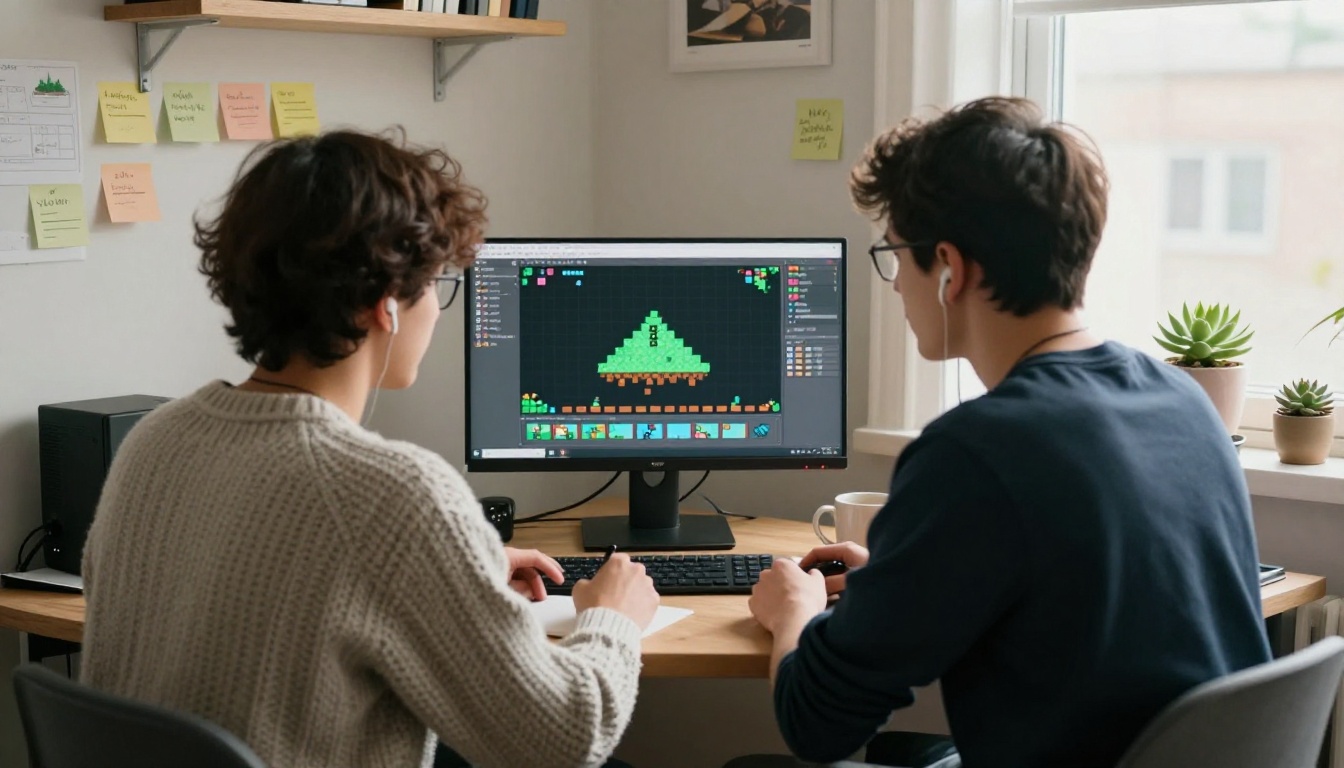
Sound Types Every Project Needs
Before writing prompts, sort the project into four buckets. Each one asks for a different length, a different prompt style and a different level of precision. If you have ever browsed a stock sound effects library, you will recognize the same categories.
| Bucket | Examples | Typical length |
|---|
| Impacts and interface | Door slams, button clicks, coin pickups, menu swooshes | Under 2 seconds |
| Movement | Footsteps, cloth rustle, sword swings, wheels on gravel | 1 to 3 seconds |
| Ambience | Rain, wind, crowds, machinery hum, forest air | 20 to 60 seconds, loopable |
| Stingers and drones | Victory jingles, tension beds, logo hits | 3 to 30 seconds |
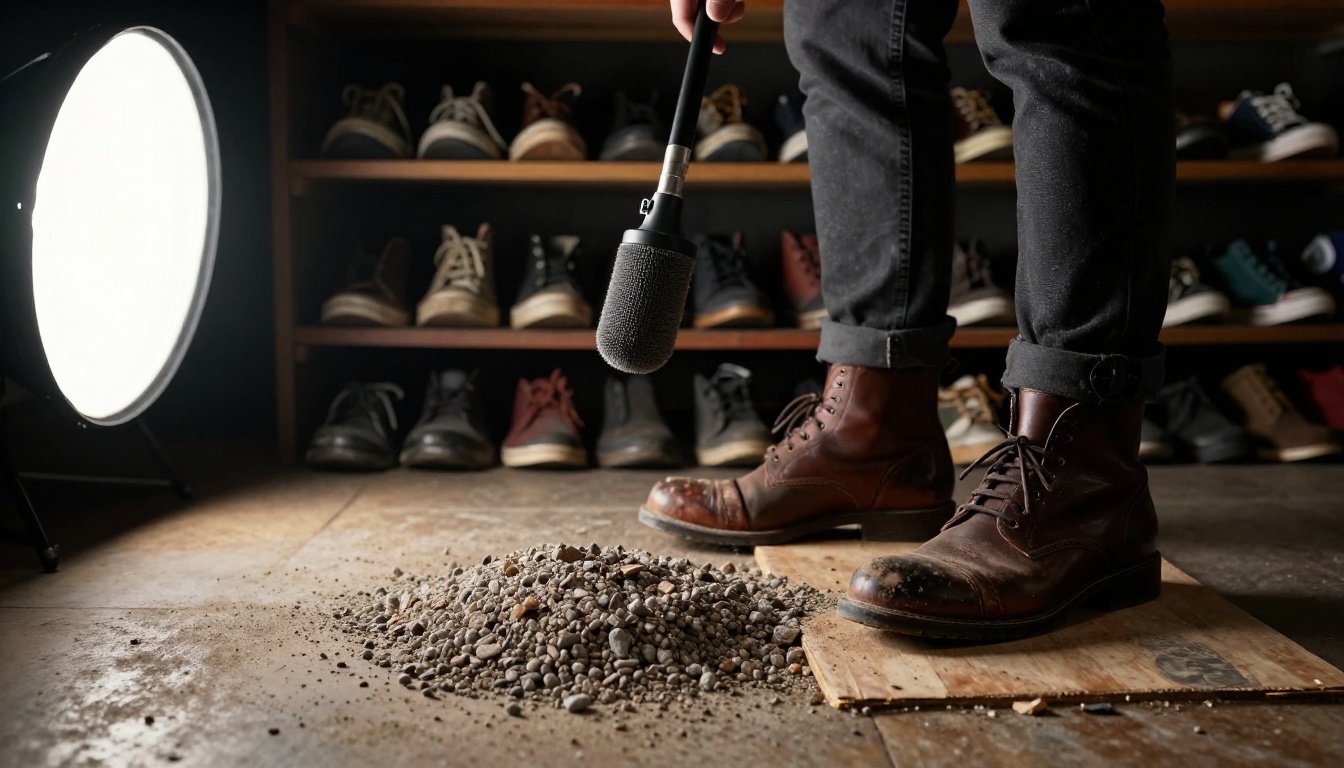
Movement is where traditional foley shines. A foley artist steps on a box of gravel in the right boots and gets a perfect crunch in one take. AI can approximate that crunch, but matching the exact rhythm of an on-screen character takes patience, so treat movement as the bucket where you will regenerate the most.
Impacts and Interface Clicks
Short sounds live or die on the first 50 milliseconds. A button click that begins with a soft fade in feels mushy, so ask for a "sharp transient" and trim any leading silence. For menus, request a family of sounds in one session (hover, click, back, error) so they share the same tone and feel like one interface instead of four unrelated files.
Ambience and Weather
Ambience is where AI audio earns its place. A forest bed, a rainy street or a humming corridor needs minutes of texture, not one perfect hit, and that is exactly what text to audio models handle well. Generate a 30 to 60 second clip, then test the loop point by playing the end straight into the start.
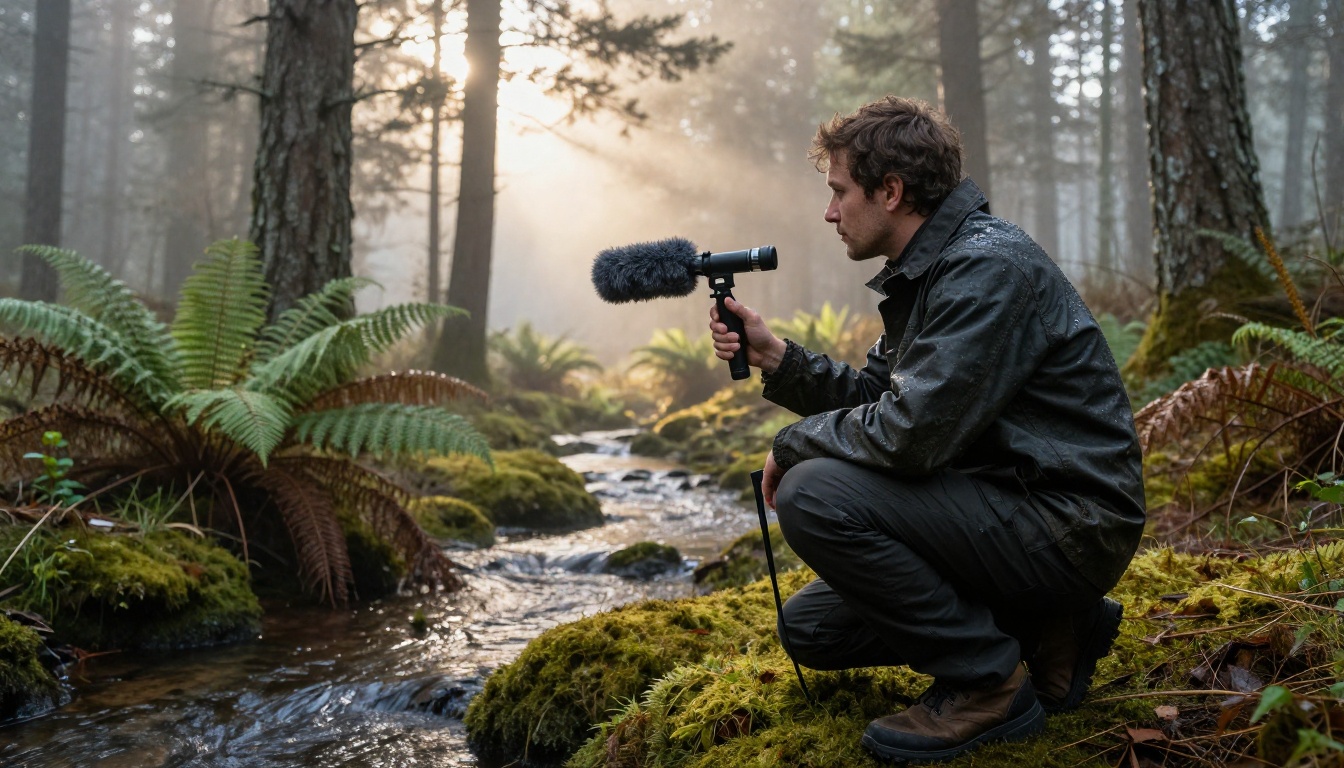
Real field recording is still wonderful when you can get it. But when your game has a rain level and the forecast says sunshine all week, a prompt is faster than a plane ticket.
Three Ways to Generate Sound
PicassoIA does not hide audio behind a single button. Sound comes from three families of models, and each fits a different job.
Audio Models With Text Prompts
Stable Audio 2.5 is the most direct option. Its model page lists full music tracks, ambient sound layers and short one shot effects as outputs, all from a single text prompt. For stingers and scored moments, the music models are worth a try too: ElevenLabs Music, MiniMax Music 2.6 and Lyria 3. They are music first, so use them for beds, drones and jingles rather than a single door slam.
Video Models With Built In Audio
Some video models generate sound along with the picture. Veo 3.1, Seedance 2.0 and Sora 2 all produce clips with audio that follows the on-screen action, so a glass shatters and sounds like glass at the moment it shatters. The catch is that the sound is tied to the clip. If you want a different take of the audio, you regenerate the video. Choose this route when you need picture and sound together, such as a trailer shot, and not when you need a clean standalone effect.
Voice Models for Barks and Narration
Games and videos need voices as much as impacts. Speech 2.8 HD and ElevenLabs V3 turn written lines into speech for shopkeepers, tutorial prompts, countdowns and announcers. They are speech models, so do not expect a roar or an explosion from them.
| Approach | Best for | Weak spot | Models to try |
|---|
| Text to audio | Ambience, drones, stingers, one shots | Fine foley detail varies between takes | Stable Audio 2.5 |
| Video with audio | Picture and sound together | Audio cannot be regenerated alone | Veo 3.1, Seedance 2.0 |
| Text to speech | Voice lines, narration | Not built for non speech effects | Speech 2.8 HD |
Use Stable Audio 2.5 on PicassoIA
Because it needs only a text prompt, Stable Audio 2.5 is the quickest road from idea to audio file. Its model page documents generation up to 190 seconds and five settings:
| Setting | Default | What it does |
|---|
| Prompt | Required | Describes the sound you want |
| Duration | 190 seconds | Length of the clip, in seconds |
| Steps | 8 | More steps trade speed for sharper detail |
| CFG scale | 1 | Higher values follow the prompt more closely |
| Seed | Random | Reuse a value to reproduce a result |
Step 1: Write a Specific Prompt
Open the Stable Audio 2.5 page and type the sound the way you would brief a foley artist: what makes the noise, what it does, what material it hits and what room it is in. "Wooden door slams shut in an empty stone hallway, short echo" gives the model far more to work with than "door sound".
Step 2: Cut the Duration Down
The default duration is 190 seconds, far too long for a door slam. Set a few seconds for one shots and 30 to 60 seconds for ambience. Keep the steps at the default of 8 while you audition ideas, then raise them for the takes you plan to ship. If a result ignores half your prompt, raise the CFG scale a little and try again.
Step 3: Generate, Trim and Save
Generate, listen on headphones, and note the seed of any take that comes close. Trim the silence at the start, add a tiny fade on the last few milliseconds to avoid clicks, and save the file with a name that describes it, like door_slam_stone_hall_02. That same file now works in a video editor or a game engine without any conversion drama.
💡 Near miss? Keep the seed fixed and change a single word in the prompt, such as "wooden" to "metal". With the seed locked, it is much easier to hear what that one word changed.
Prompts That Produce Usable Sounds
A Simple Prompt Formula
Use five parts in this order: source, action, material, space, length. For example: "Heavy iron gate (source) swings open (action), rusted hinges (material), large empty courtyard with echo (space), 3 seconds (length)." Say the length in the prompt and set it in the duration field so both agree.
A few words steer results more than others:
- Dry or close keeps the sound tight, good for UI and impacts.
- Distant or muffled pushes the sound back in the room, good for ambience.
- Layered asks for more than one component, which suits explosions and magic.
- Loopable hints at a steady texture with no big events.
Avoid piling on adjectives. Two or three precise words beat ten vague ones.
Prompts to Paste Today
| Sound | Prompt |
|---|
| Door slam | Heavy wooden door slams shut in an empty stone hallway, short echo, 2 seconds |
| Footsteps | Slow boots on wet gravel, steady pace, outdoors, quiet background, 5 seconds |
| Sword swing | Fast steel sword swing through air, sharp whoosh, no voices, 1 second |
| Coin pickup | Bright metallic coin chime, short, clean, casual mobile game, 1 second |
| Rain ambience | Steady rain on a window, distant traffic, calm, loopable, 45 seconds |
| Forest ambience | Quiet forest morning, birds far away, light breeze in leaves, loopable, 60 seconds |
| Tension drone | Low rumbling drone, slow swell, uneasy, no melody, 20 seconds |
| Victory stinger | Short triumphant brass and strings fanfare, rising, ends cleanly, 4 seconds |
Keep the winners in a prompt sheet next to the seed that produced them. After a week you will have a personal sound pack you can rebuild whenever a project needs it.
Putting Sounds to Work
In Video Edits
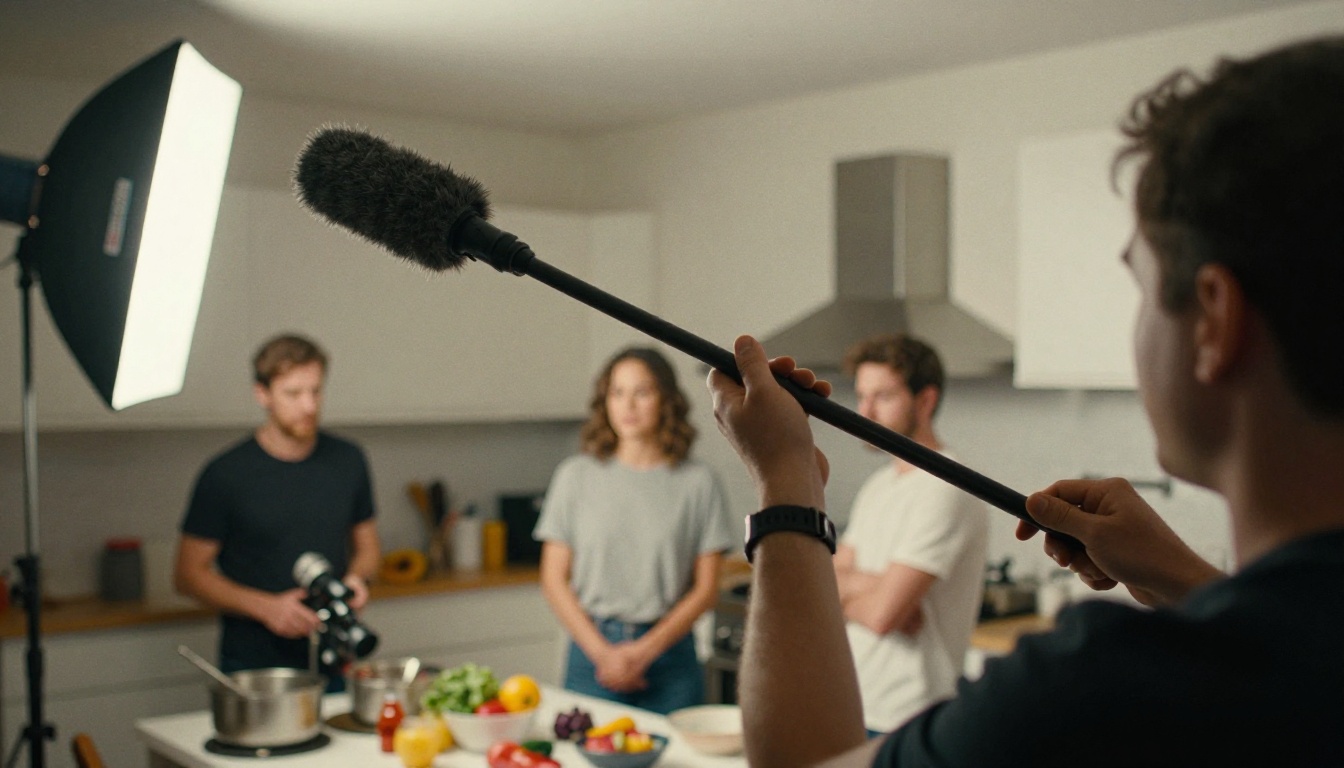
Place each effect on its own track, aligned to the frame where the action lands. Layer two or three sounds for every important moment: a low thump for weight, a sharper layer for detail and a touch of room tone for realism. If your footage came from a real shoot, a boom operator already captured dialogue and some natural sound, so use generated effects to fill gaps rather than replace everything.
Timing matters more than most people expect. Scrub to the exact frame of the action, put the loudest moment of the sound there, and if it still feels late, nudge it a frame or two earlier. A sound that arrives slightly early reads as natural, while one that arrives late reads as a mistake.
In Game Builds
Games repeat sounds hundreds of times, and repetition is what makes audio feel cheap. Generate four to six variations of every frequent sound (footsteps, hits, pickups) and let the engine pick one at random, with a small pitch shift on top. For ambience, test the loop inside the engine and not only in your editor. Start with generated placeholders on day one, then replace only the sounds players hear most.
Organize files before the folder gets messy. Group them by category, use one naming pattern (footstep_gravel_01, footstep_gravel_02) and bring every sound to a similar loudness, so the volume sliders in your settings menu behave the way players expect.
Mixing Levels That Hold Up
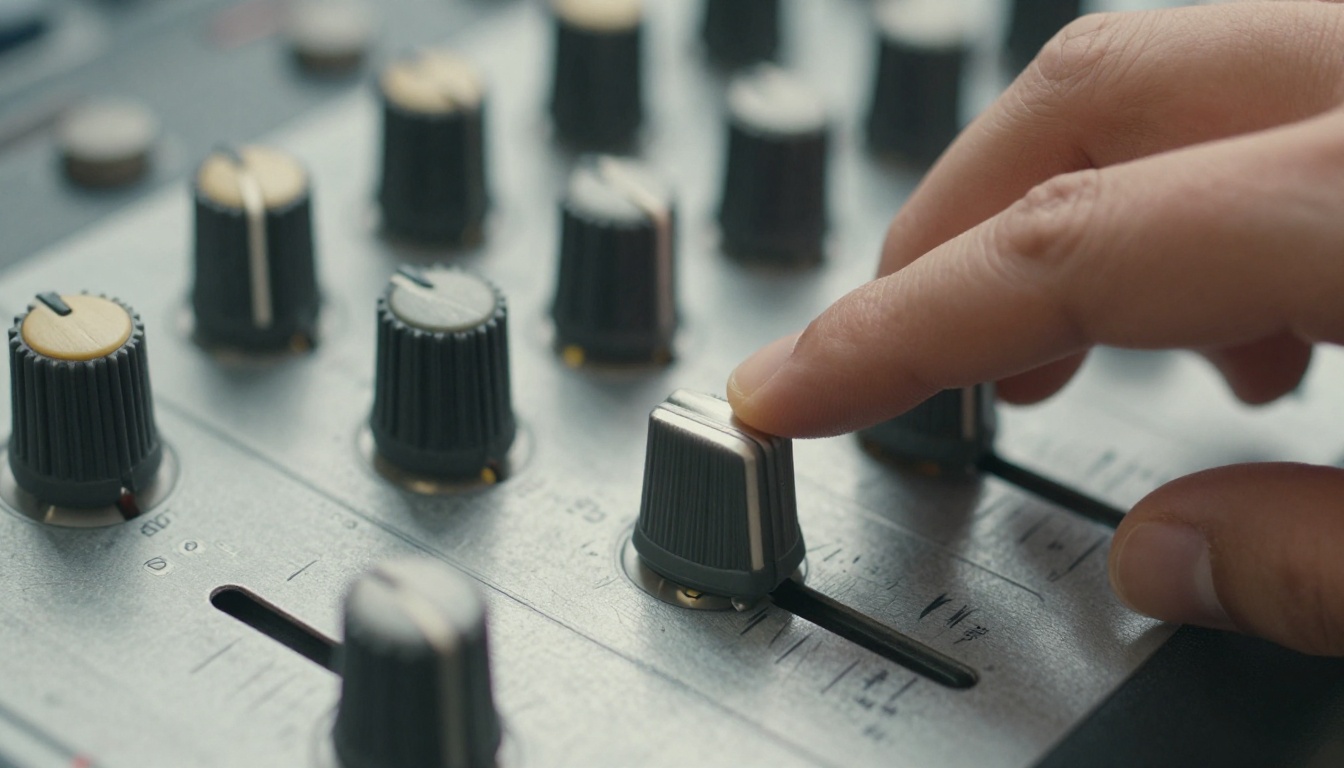
Dialogue and important gameplay cues stay on top, music sits below them and ambience sits below that. As a starting point, place ambience roughly 12 to 18 dB under dialogue, then adjust by ear. Check the mix on laptop speakers and on headphones, since the two reveal different problems.
Mistakes That Make Audio Sound Cheap
- Reusing one take everywhere. Listeners spot repetition after three or four plays. Generate variations.
- Skipping the room. A dry door slam inside a cathedral scene breaks the illusion. Match the reverb to the space on screen.
- Hard loop points. If an ambience clicks at the seam, crossfade the last second into the first.
- Loud peaks. Check levels before importing. A clip that hits the maximum will distort once you layer it with other sounds.
- Too clean. Real impacts have layers. Combine a generated thump with a bright click and a bit of room tone.
- No source notes. Log the model, prompt, seed and date so you can rebuild or replace any sound later.
None of these problems come from the AI itself. They come from treating a generated file as finished, when it is really raw material that still needs a human ear, a trim and a place in the mix.
Make Your Own Sounds Today
Pick one scene, a thirty second trailer shot or a single game room, and build its whole soundscape this afternoon. Write the list, open Stable Audio 2.5, generate five effects and one ambience bed, and drop them into your project.
Then use the rest of Picasso IA for the scene itself. Create stills with a text to image model such as Seedream 4.5, animate them with Seedance 2.0, and score the result with MiniMax Music 2.6. Images, video and audio live in one place, so you can experiment freely without juggling five different tools. Start with a single prompt and see how quickly a silent clip turns into something you want to watch.


