You recorded a ninety minute interview, and now you need the quotes. Scrubbing back and forth through the video to find one sentence is the slowest way to work, and typing it all out by hand is worse. AI transcription from video fixes this in minutes: you feed in a recording, and you get searchable text back, often with timestamps on every line and a label for each person talking.
The catch is that "free" transcription comes in very different flavors. Some tools cap you at a handful of minutes. Some bury timestamps behind a paywall. Others give you a wall of text with no idea who said what. This article sorts through what is actually available, how timestamps and speaker labels work under the hood, and how to get a clean result from your own files without paying for a subscription you will use twice.
What Video Transcription Really Does
Audio first, text second
A video file is mostly a container. Inside it sits a video track and an audio track, and a speech-to-text model only cares about the second one. When you upload an MP4, the tool pulls out the audio, chops it into short windows, and predicts the words in each window. The picture never gets read, unless you use a multimodal model that also looks at the frames.
That is good news for file size. If your video is huge, you can often strip the audio locally to an MP3 or M4A and upload only that. A two gigabyte video becomes a file of a few dozen megabytes, and the transcript comes out the same.
Timestamps and speaker labels, defined
Two terms come up in every transcription tool, so let us pin them down.
- Timestamps are markers that tie a piece of text to a position in the recording, like
[00:14:32]. They can appear at every sentence, every paragraph, or every single word.
- Speaker labels (often called diarization) tag each passage with who is speaking: Speaker 1, Speaker 2, or a real name if you supply it.
A plain transcript gives you words only. A useful transcript gives you words, time, and speaker. If you plan to edit video, pull quotes, or write meeting minutes, you want all three.
💡 Quick rule: if you will ever need to jump back to the original recording, ask for timestamps from the start. Adding them later means running the whole file again.
Free Options Worth Trying
Captions built into video platforms
If your video is already on a major platform, there is a good chance auto-generated captions exist. They cost nothing, and you can often download them as a subtitle file with timestamps included. The weak spot is speaker labels: most auto-captions do not have any, and punctuation tends to be thin.
Video call tools also offer transcripts, but frequently only on paid plans or only for the meeting host. Check before you rely on them for something important.
Free tiers of transcription apps
Many dedicated transcription apps offer a monthly allowance of free minutes. This works well for short clips, and it falls apart when you have a backlog. Read the fine print on three things: the minute cap, the maximum length per file, and whether export is locked to paid accounts. A free transcript you cannot export is a screenshot.
Open-source models on your own machine
Open-source speech recognition models can run locally and cost only electricity. They are private, which matters for sensitive recordings, and they can produce segment timestamps. The trade-off is setup: you need a reasonably modern computer, some patience with installation, and a willingness to troubleshoot. Speaker labels usually require an extra component on top.
Browser-based AI models
The third route sits between the two: pick a hosted model, upload the file, get text back. No installation, no monthly plan. On PicassoIA, the speech-to-text collection includes GPT-4o Transcribe, GPT-4o Mini Transcribe, and Gemini 3 Pro, each with a different strength.
| Option | Cost to start | Timestamps | Speaker labels | Best for |
|---|
| Platform auto-captions | Free | Yes, per caption line | Rarely | Videos already published |
| Free tier of a transcription app | Free, minute cap | Often | Sometimes | A few short clips per month |
| Local open-source model | Free, setup time | Yes, segment level | With extra tools | Private or sensitive files |
| Hosted AI model in the browser | Pay as you go or free to try | Yes, by prompt or output | By prompt (multimodal) | Long files, flexible output |

Timestamps That Actually Help
Segment level versus word level
Not every timestamp is equal. Segment-level timestamps stamp each sentence or phrase, which is plenty for reading and navigating. Word-level timestamps stamp every word, which you need only if you are doing frame-accurate editing or building karaoke style captions.
For most people, segment level is the sweet spot. Word-level output produces enormous files and invites tiny alignment errors that you then have to fix by hand.
Turning timestamps into subtitles
Subtitle formats like SRT are nothing more than numbered text blocks with a start time and an end time. If your transcript has clean segment timestamps, converting it to subtitles is a formatting job, not a transcription job. Keep each caption to one or two short lines, and aim for a reading pace that a viewer can actually follow.
Spot checking with the clock
Here is a habit that saves hours. After you get a transcript, pick five random timestamps and jump to them in the video. If the words match what you hear, the timing is trustworthy across the file. If the text drifts, something went wrong with the audio extraction or the chunking, and it is better to find out now than after you have built an edit around it.
Speaker Labels Without the Headache
How diarization works
Diarization is a separate task from recognizing words. The system listens for changes in voice characteristics like pitch and timbre, groups similar stretches together, and assigns each group a label. It does not know anyone's name. It only knows that the voice at 02:10 matches the voice at 07:45.
That explains the usual failure modes:
- Two people with similar voices get merged into one speaker.
- One person with a very expressive voice gets split into two.
- Overlapping speech gets assigned to whoever was louder.
- A short interjection like "right" or "mm-hm" lands on the wrong person.
Prompting a multimodal model to label speakers
A speech-to-text model returns text. A multimodal model like Gemini 3 Pro accepts audio or video together with a written instruction, so you can ask for the format you want. A prompt along these lines works well:
Transcribe this recording. Start each paragraph with a timestamp in [MM:SS] format and a speaker label. There are two speakers: the host is Maya and the guest is Daniel. Keep filler words out, but keep every sentence otherwise exact.
Giving the model the names up front is the trick. It saves you a find-and-replace pass on "Speaker 1" later. You should still read the result with the video open at least once, because label mistakes tend to cluster around moments where people talk over each other.
Keep the speaker count honest
If you know there are exactly three people in the room, say so. If you are not sure, say "two or three speakers" rather than guessing. Telling a model the wrong number pushes it to invent or merge voices to match your claim.
How to Use GPT-4o Transcribe on PicassoIA
GPT-4o Transcribe is the straightforward choice when you want clean text from a recording without writing a long prompt. It accepts MP3, MP4, MPEG, MPGA, M4A, OGG, WAV, and WebM, so an MP4 video can go in directly.
Step by step
- Open the model page on PicassoIA and find the input panel.
- Upload your file in the Audio File field. This is the only required input.
- Set the language using an ISO-639-1 code such as
en, es, or fr. The platform notes that supplying the language improves both accuracy and speed.
- Add an optional prompt to steer style. A short line listing names, brands, or technical terms from the recording helps the model spell them correctly. The prompt should be in the same language as the audio.
- Leave temperature at 0 for the most predictable output. Raise it toward 1 only if you want more variation, which is rarely what you want in a transcript.
- Run it and copy the text when it finishes.
💡 Tip: long recordings are easier to proof when you split them into chunks of 10 to 20 minutes. If one chunk comes out odd, you rerun only that piece.
When to pick the Mini version
GPT-4o Mini Transcribe is the lighter sibling. For clear single-speaker audio like a voiceover, a tutorial, or a dictated note, it is a sensible first try. For noisy rooms, strong accents, or technical vocabulary, start with the larger model and compare.
Getting timestamps and labels with Gemini 3 Pro
When you need structure rather than raw text, use Gemini 3 Pro. The model accepts audio files up to about 8.4 hours and video files up to 45 minutes each, so you can send the video itself or just the audio track.
- Attach the video or audio in the matching input.
- Write a prompt that specifies timestamp format, speaker names, and whether to remove filler words.
- Set the thinking level to low for speed on clean audio, or high when the recording is messy and you want the model to reason more carefully about who is talking.
- Use a system instruction to lock the output format, for example "Return only the transcript, no commentary."
- Keep temperature low if your result needs to match the audio closely. The default is 1, and a lower value usually gives steadier transcripts.
| Need | Model to try first | Why |
|---|
| Plain text, quick | GPT-4o Mini Transcribe | Fast and light for clear audio |
| Best plain text accuracy | GPT-4o Transcribe | Handles accents and natural speech well |
| Timestamps and speaker names | Gemini 3 Pro | Follows format instructions in the prompt |
| Very long audio | Gemini 3 Pro | Accepts audio up to 8.4 hours |
Accuracy Problems and Fixes
Noisy audio
Background noise is the number one reason a transcript falls apart. A clattering cafe, a fan, a bad echo: the model hears a smear instead of words. You cannot fix everything after the fact, but you can improve the odds.
- Trim long silent or noisy intros before uploading.
- Use a headset or a lapel mic next time, even a cheap one. Distance from the mouth matters more than microphone price.
- Record in a room with soft surfaces. Curtains and carpets reduce echo more than you would expect.
Names, jargon, and acronyms
Models guess at unusual words. A founder named Siobhan becomes "Shavonne," and a product called Kubernetes becomes something creative. Two fixes work reliably:
- Put a short vocabulary list in the prompt, spelled correctly.
- Run a single find-and-replace pass at the end for the handful of terms that repeat.
Mixed languages
Interviews where people switch between two languages confuse a model locked to one language code. If the mix is heavy, try leaving the language unspecified, or split the file by language where you can. Always read the switch points with care.
💡 Proofreading shortcut: play the video at 1.5x speed while following the text. Your eye catches mismatches faster than your ear, and you finish in two thirds of the original runtime.
Who Benefits Most
Students and researchers
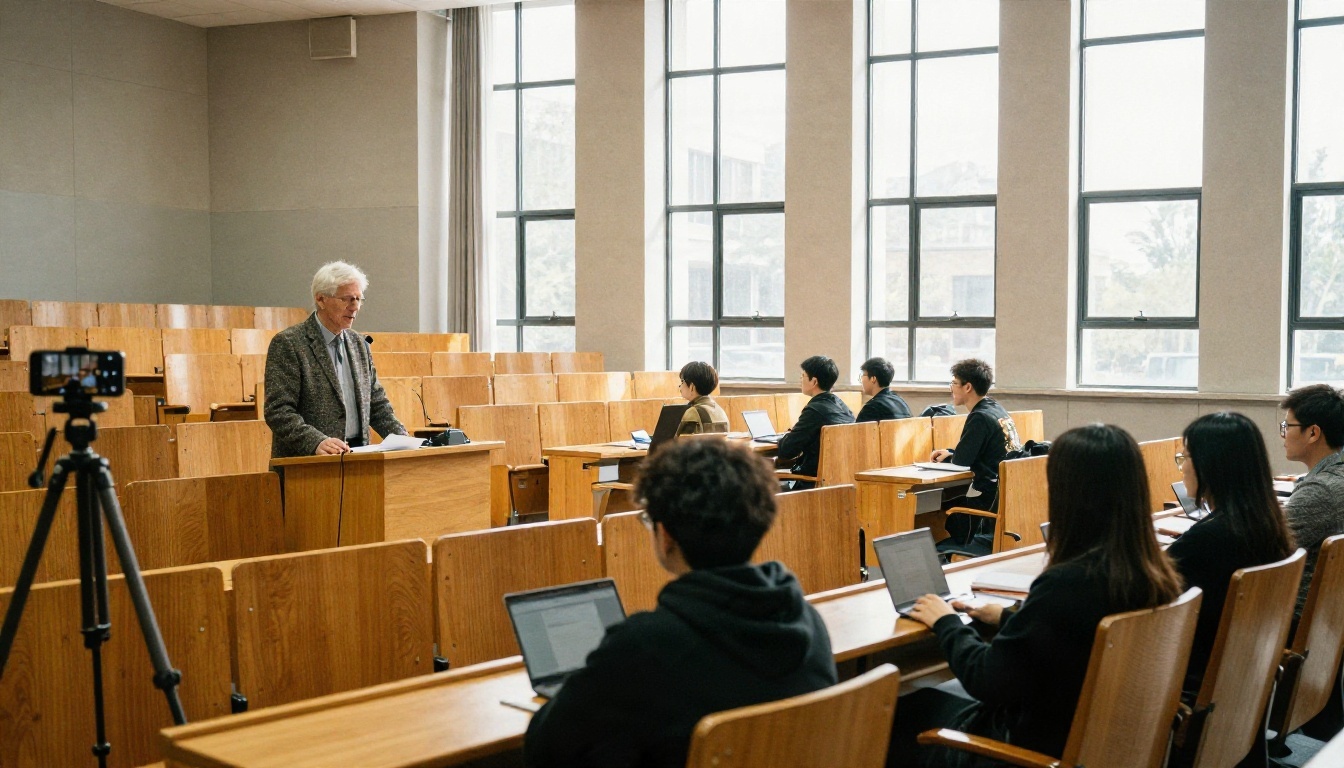
A recorded lecture becomes a searchable study document. Timestamps let you jump to the exact explanation of one concept instead of rewatching an hour of content. Researchers running interviews get verbatim text they can code and quote, which is the whole point of qualitative work.
Journalists and editors
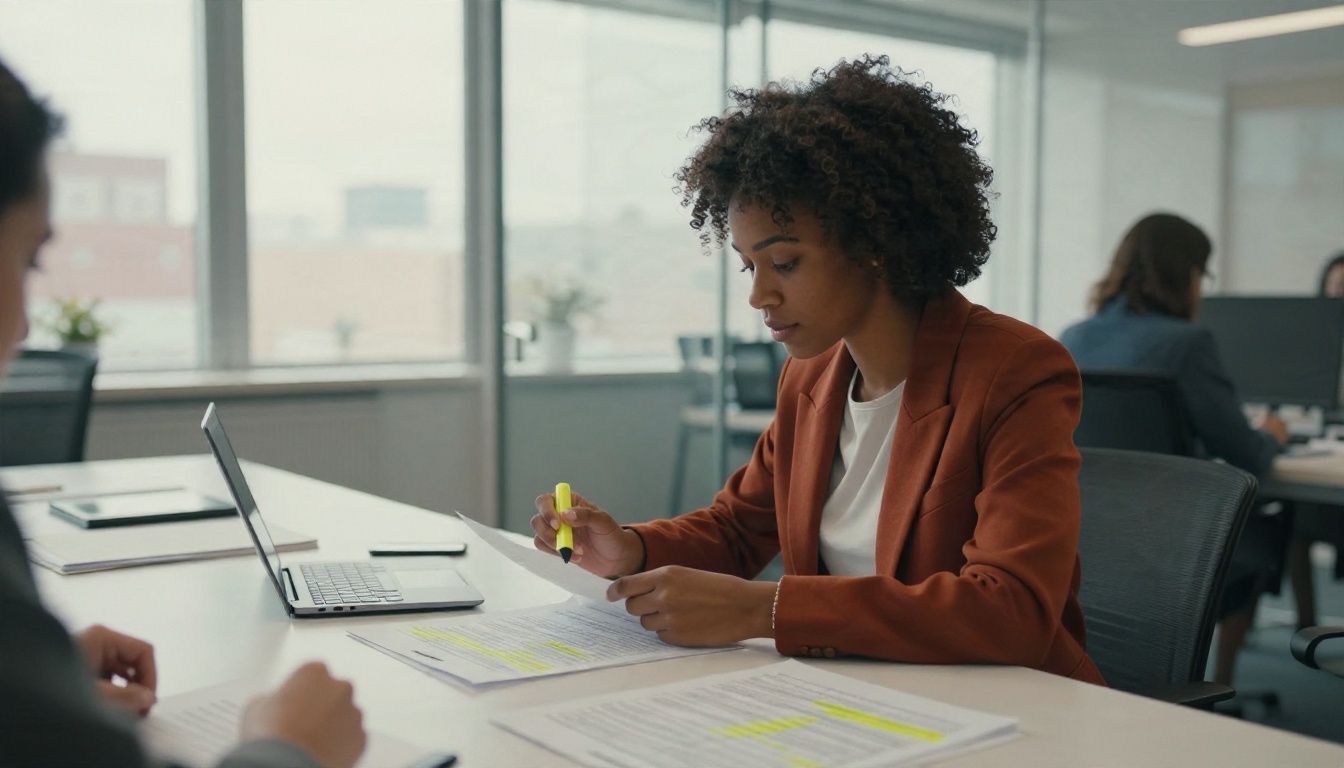
Quotes need to be exact. A journalist who transcribes an interview can search for a name or number in seconds and verify every attribution against the timestamp. Speaker labels matter most here, because a misattributed quote is a real problem, not a cosmetic one. Always check the original audio before publishing a quote.
Creators and subtitle makers
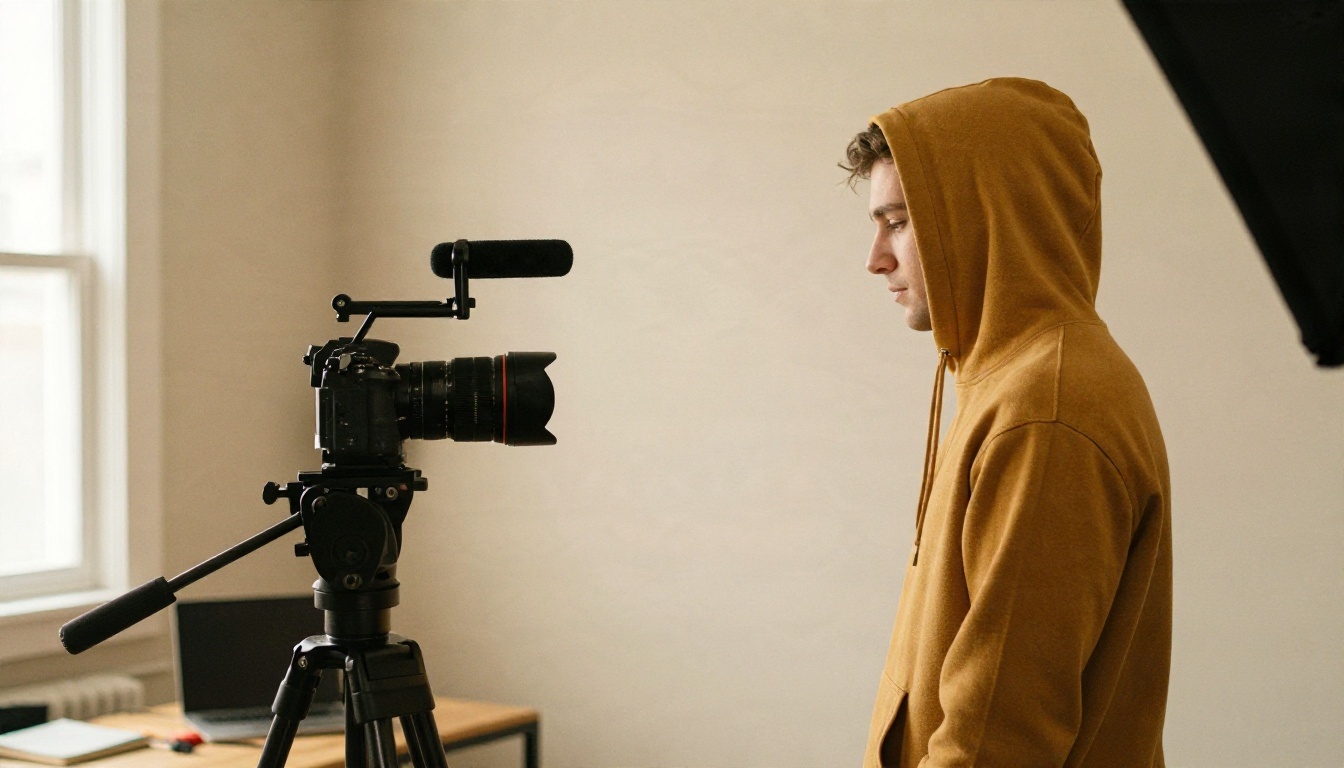
Short-form video viewers often watch with the sound off, so captions are not optional anymore. A transcript with segment timestamps converts neatly into subtitles, and a clean transcript also becomes the raw material for a blog post, a newsletter, or a set of social clips.
Teams and meetings
Nobody enjoys taking minutes. Record the call, transcribe it with speaker labels, and ask a language model to pull out decisions and action items. You get a record of who committed to what, with a timestamp pointing to the moment it was said. For sensitive internal conversations, tell participants that the call is being recorded and transcribed, and store the text where only the right people can reach it.

A Practical Workflow You Can Reuse
Here is a routine that works for almost any recording:
- Extract or keep the audio. Smaller files upload faster and fail less.
- Pick the model. Plain text? GPT-4o Transcribe. Structured with names and times? Gemini 3 Pro.
- Write a short vocabulary list of names and terms.
- Run a short test on the first two minutes before committing to the full file.
- Spot check five timestamps against the video.
- Fix names and labels with find-and-replace.
- Export the text, subtitles, or summary in the format you need.
The test run in step four is the one people skip, and it is the one that saves the most time. Two minutes of audio reveal whether the language setting, the prompt, and the speaker labels are behaving, long before you spend credits on a full hour.
Try It on Your Own Recordings
The fastest way to judge any of this is to use a real file. Take a short clip from your own archive, a podcast segment, a lecture, a call, and run it through GPT-4o Transcribe for clean text. Then run the same clip through Gemini 3 Pro with a prompt that asks for timestamps and speaker names, and compare the two side by side. Five minutes of testing will tell you which setup fits your recordings.
PicassoIA also covers the rest of an audio and video workflow, from text to speech to video generation, so a transcript can become the starting point for new content. Browse everything available at picassoia.com/en/all-models, pick a model, upload a file, and see how much time you get back.


