A five second AI video clip can cost anywhere from a few cents to more than three dollars, depending on the model, the resolution and whether you want sound. That spread is why AI video API pricing trips up so many teams: the price per second on the pricing page is rarely the price you actually pay for a clip you can publish.
This article lays out the real numbers, the traps around free credits and rate limits, and the cheaper ways to get the same kind of output. Prices in the AI video market move fast, and the figures below are rounded ranges gathered from public listings and reseller pages. Treat them as a planning baseline and confirm the current rate with your provider before you commit a budget.

How AI Video APIs Charge You
Almost every provider bills in one of three ways. Knowing which one you are dealing with is the first step to predicting your invoice.
Per second of output
This is the most common model. You pay a fixed rate for each second of generated video, and the rate changes with resolution (720p versus 1080p) and with audio. A 5 second clip at $0.10 per second costs $0.50. Simple, predictable, and easy to forecast.
Per clip or per credit
Some platforms sell credits and charge a set number of credits per generation, regardless of tiny differences in length. It feels cheaper because you see small numbers, but you have to convert credits back into dollars to compare anything.
Token or compute metering
A few providers meter usage in tokens or GPU time. The price per clip then shifts with duration, resolution and settings, so there is no single honest "per second" figure. Seedance style pricing is a good example: the cost depends on configuration, which makes direct comparison with flat per second rates messy.
💡 Rule of thumb: convert every quote into dollars per usable second. That means the listed rate, multiplied by the number of attempts it takes to get a clip you will actually ship.
The Real Cost Per Second

Here is a rounded snapshot of what public listings show for popular video models. Numbers differ between sources, so use them as ranges, not promises.
| Model | Rough price per second | Notes |
|---|
| Veo 3.1 Lite | about $0.05 at 720p, $0.08 at 1080p | Lowest listed rate among the big names, with native audio |
| Runway Gen-4 Turbo | about $0.05 | Credit based, one credit is around a cent |
| Sora 2 | about $0.10 at 720p | Check current API availability before building on it |
| Kling 3.0 | from about $0.11 without audio | Rate rises with audio and higher tiers |
| Runway Gen-4.5 | about $0.12 | Higher quality tier of the same platform |
| Sora 2 Pro | up to about $0.70 at 1080p | Top end of the market |
| Seedance 2.0 and 2.5 | varies | Metered by configuration, not a flat rate |
The overall market range runs from roughly $0.03 to $0.70 per second. That is a 20x gap, and it is the biggest lever on your budget.
What changes the rate
- Resolution: moving from 720p to 1080p often raises the rate by 50 percent or more.
- Native audio: synchronized sound is sometimes bundled and sometimes billed as a surcharge.
- Speed tier: "Fast" and "Lite" variants of the same family are usually the cheapest way in.
- Clip length: longer clips can carry a higher effective rate, or hit a cap that forces you to stitch.
A worked example
Say you need 100 clips of 5 seconds each. That is 500 seconds of finished footage.
| Rate per second | Cost if every clip works first try | Cost at 3 attempts per usable clip |
|---|
| $0.05 | $25 | $75 |
| $0.10 | $50 | $150 |
| $0.70 | $350 | $1,050 |
The third column is the one finance teams should care about. Retries multiply every number above it.
Free Credits: What You Really Get

Free credits are the entry point for most video APIs, and they are genuinely useful for testing prompts. They are also designed to get you into a paid plan, so read the fine print.
Typical free tier rules
- Small amounts: often enough for a handful of short clips, not a pilot project.
- Expiry dates: credits can lapse within weeks.
- Watermarks: some free outputs carry a mark that disappears on paid plans.
- Lower limits: free accounts usually get slower queues and tighter concurrency.
- No commercial rights: certain free tiers restrict use in client work.
How to spend them wisely
- Test your hardest prompt first. If a model fails on your real use case, you save the rest of your credits.
- Run the same prompt across two or three models to compare motion quality side by side.
- Use the cheapest resolution while you iterate, then render the final at full quality.
- Write down the credits per clip so you can convert them to dollars later.
💡 If you only want to experiment without watching a balance, Seedance 2.5 Lite is listed as a free and unlimited video generator for clips up to 10 seconds, which makes it a low pressure place to test ideas before paying anywhere.
Rate Limits and Quotas

Price is only half the story. Limits decide how fast you can actually produce footage, and they can quietly cap your project even when the budget is fine.
The limits that matter
| Limit | What it does | Impact |
|---|
| Concurrent jobs | Caps how many clips render at once | Slows batch work |
| Requests per minute | Throttles submissions | Breaks naive loops |
| Daily or monthly quota | Hard ceiling on output | Stalls campaigns |
| Max clip length | Typically 5 to 10 seconds per call | Forces stitching |
| Queue priority | Free users wait longer | Unpredictable turnaround |
How to work within them
- Queue your jobs instead of firing them all at once, and add a short delay between submissions.
- Retry with backoff when you hit a throttle error, not instantly.
- Cache finished clips so you never pay to regenerate an asset you already have.
- Plan for stitching: if you need a 30 second sequence, budget for six 5 second generations plus editing time.
Some newer models stretch the length ceiling. Seedance 2.5, for example, is positioned for videos up to 30 seconds, which can remove the stitching step for longer scenes.
Hidden Costs Behind the Rate
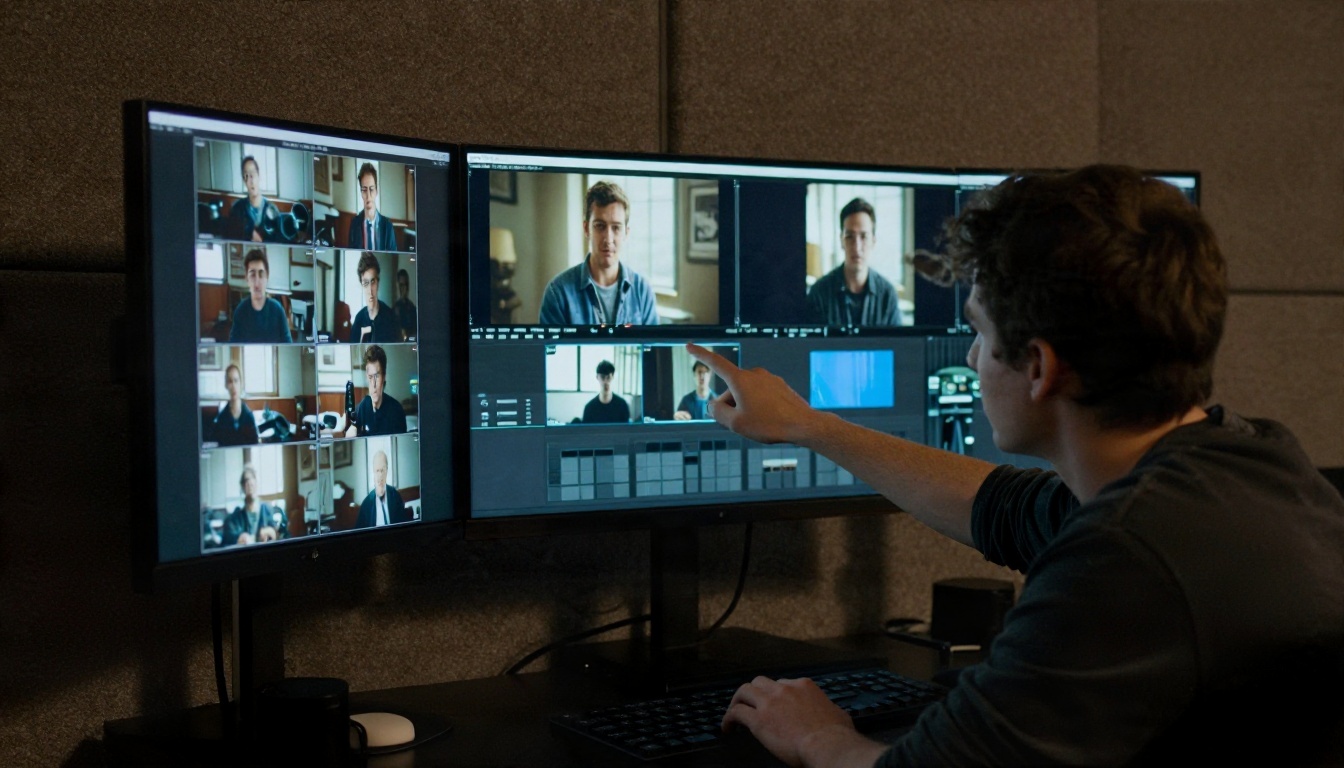
The listed rate excludes the work around generation. This is where budgets quietly drift.
Retries and rejected clips
AI video is probabilistic. A hand might bend wrong, a face might drift, or the camera move might ignore your prompt. In practice, plan for two to four attempts per keeper on complex scenes, fewer on simple ones. That is why a cheap model with a low hit rate can cost more than a pricier model that nails it on the first try.
Review time
Someone has to watch every output. If a reviewer costs $40 an hour and checks 60 clips an hour, that is about 67 cents of labor per clip, which can exceed the generation cost of a low priced model.
Audio, upscaling and editing
Native audio may cost extra. Upscaling a 720p clip to a higher resolution is another line item. Trimming, color work and stitching add time even when the AI step is cheap.
Failed and moderated requests
Some platforms refund jobs that fail on their side, but not every refusal. Check whether a moderated prompt still burns credits.
💡 Cost per usable clip = (rate per second × clip seconds × attempts) + review time. Track this number per project and you will spot the cheapest model for your actual content, not the cheapest on paper.
Cheaper Alternatives That Still Look Good

You do not need the most expensive tier for most work. Social clips, product teasers, storyboards and explainer visuals look great on mid priced or fast variants. These models are all available on PicassoIA, so you can compare them in one place instead of juggling separate API accounts.
Budget friendly picks
When to pay for the premium tier
Reach for the top models, such as Sora 2 Pro, Kling v3 Video or Veo 3 Fast, when a clip is a hero asset: a brand film, a launch video or anything that will sit in front of a big audience. For everything else, drafts on a cheaper model and a single premium render of the winning prompt is a sensible split.
Image to video is another way to save. Start from a strong still, then animate it with a model like Wan 2.5 I2V Fast. Because the first frame is locked in, you waste fewer attempts on composition.
An API is the right call if you are building a product that generates video on demand, because you need programmatic control, webhooks and billing per request. A platform makes more sense if you are a creator, a marketer or a small team, because you pay for results rather than integration work.

Choose an API when
- You need to generate video inside your own app.
- You can absorb integration and monitoring work.
- Volume is high enough that per second savings add up.
Choose a platform when
- You want many models behind one login.
- Your team is mostly non technical.
- You care about quick iteration more than custom pipelines.
On PicassoIA you can switch between text to video, image to video, lip sync and video effects without rebuilding anything, which is handy when your requirements change halfway through a project.
Build a Monthly Video Budget

A budget you can defend takes about ten minutes. Use this simple sequence.
- Count your clips. How many finished videos do you need this month?
- Set an average length. Multiply clips by seconds to get your total finished seconds.
- Pick a model tier for drafts and one for finals.
- Add a retry factor. Use 2 for simple scenes, 3 to 4 for complex ones.
- Add audio and upscaling if they are billed separately.
- Add a 15 percent buffer for experiments and surprises.
Sample budget
| Item | Value |
|---|
| Finished clips | 60 |
| Seconds per clip | 5 |
| Total finished seconds | 300 |
| Draft rate (fast tier) | $0.05 per second |
| Attempts per keeper | 3 |
| Draft cost | 300 × 3 × $0.05 = $45 |
| Premium renders for 10 hero clips | 50 seconds × $0.40 = $20 |
| Buffer (15 percent) | about $10 |
| Estimated total | about $75 |
That is a realistic number for a small team, and it is far below what you would spend by running everything on the top tier.
Quick savings checklist
- Draft at 720p, finish at full resolution.
- Reuse prompts that worked, and save the settings.
- Use image to video when composition matters.
- Batch your jobs inside your rate limits.
- Compare two models on the same prompt before committing.
Pick Your Model and Start Testing

The cheapest way to learn what a model costs for your content is to run your own prompt through it. Spec sheets cannot tell you how often a model nails a camera move or keeps a face stable.
Here is a simple test plan:
- Write one prompt that represents your most common clip.
- Run it on a free or lite model, such as Seedance 2.5 Lite or Veo 3.1 Lite.
- Run it again on a mid tier option like Veo 3.1 Fast or Hailuo 02.
- Compare motion, faces, audio and how many attempts each one needed.
- Pick the cheapest model that gives you a keeper in two tries or fewer.
You can browse every video, image and audio model in one place at picassoia.com/en/all-models. Open a few of them, drop in a prompt from your next project and watch how the results compare. Once you see the cost per usable clip with your own eyes, the pricing tables stop being guesswork, and you can start generating with Picasso IA today.


