You finished the edit. The footage looks right, the pacing works, and then you hit the part nobody warns you about: the narration. Booking a voice actor takes days, recording yourself in a noisy apartment sounds rough, and the first free text to speech website you try reads like a GPS from 2012. The good news is that AI voiceover has moved a long way. A decent script and the right tool can now give you a clean, natural read in a few minutes, in dozens of languages, without a microphone in sight.
This article sorts through the options: what "free" really means, how online generators differ from model-based tools, which text to speech models are worth testing, and a workflow you can repeat for every video.
What AI Voiceover Actually Does
Text to speech in plain terms
A text to speech (TTS) system takes written words and produces spoken audio. Older engines stitched together recorded syllables, which is why they sounded flat. Modern neural models predict the sound of a whole sentence at once, including rhythm, stress and small pauses. That is why a good AI voice can sound like someone who actually read your script before speaking it.
For video, three things matter more than raw realism:
- Pacing control, so the voice lines up with your cuts.
- Consistency, so scene 12 sounds like scene 1.
- Export quality, so the file drops straight into your timeline without noise or clipping.
Where voiceover fits in video
Narration shows up in more places than most people expect. Explainer videos, product demos, tutorials, slideshows, short social clips, training modules, documentary-style edits and faceless channels all depend on a voice track. Some creators use AI voice as a placeholder while they cut the video, then swap in a human recording. Others keep the AI voice in the final export because it is cheaper, faster to revise and easy to translate.

💡 Tip: Treat the AI voice like a real narrator. Give it a clean script, a clear direction on tone, and a quick listen before you commit. The tool does the speaking, but you still do the directing.
Free Options: What You Really Get
Searching for a free AI voiceover tool returns a long list, and almost every entry has a catch. After checking what the most popular lists recommend, the same pattern shows up again and again: the free tier is real, but it is built to get you to upgrade.
Free tiers and their limits
Most free plans restrict you in one of four ways:
| Limit | What it means for your video |
|---|
| Character cap | A few hundred or a few thousand characters per month. Fine for a 30-second clip, painful for a 6-minute tutorial. |
| Watermark or tag | A spoken or audible mark on the output, which rules out client work. |
| No commercial rights | You can test, but you cannot publish on a monetized channel or use it in ads. |
| Voice and language limits | Only a handful of basic voices, with the best ones behind a paywall. |
Web tools such as TTSMaker, Murf AI and similar browser generators are common starting points. Names change and plans shift often, so check the current limits on each site before you build a workflow around one.
Offline and open options
If you do not want a monthly plan at all, an offline reader such as Balabolka works with the voices already installed on your computer. It is genuinely free and has no character cap, but the voices are the older, more robotic kind. Open-weight models can sound far better, yet they need a capable GPU and some patience to set up. For most video creators, the time cost outweighs the savings.
When free stops being enough
You will feel it when any of these happen:
- You need more than a few minutes of narration per week.
- A client asks for commercial usage rights in writing.
- Your viewers start commenting that the voice sounds robotic.
- You need the same voice across a whole series.
- You want to translate the video into other languages.
At that point, a pay-as-you-go setup tends to beat a fixed subscription, because you only spend when you actually produce audio.
Online Generators Compared
Not every "AI voice generator" works the same way. Broadly, there are two families, and picking the wrong one is the most common reason people give up on the idea.
Browser tools for quick jobs
These are single-purpose websites. You paste text, pick a voice from a dropdown, press play and download an MP3. They are perfect for a short social clip or a quick test of a script. Their weak spots are limited voice quality, few controls and unpredictable pricing.
Model-based tools with more control
The second family lets you choose the underlying text to speech model. Different models are tuned for different jobs: studio-quality narration, very low latency, many languages, or cloning a specific voice. Because you can switch models per project, you can use a fast model for drafts and a higher-fidelity one for the final render.
| Feature | Browser voice tool | Model-based platform |
|---|
| Setup time | Seconds | Seconds |
| Voice choice | Fixed dropdown | Many models, many voices |
| Languages | Often 10 to 30 | 15 to 70+ depending on the model |
| Voice cloning | Usually paid add-on | Available as its own model |
| Cost control | Monthly plan | Pay for what you generate |
| Best for | One-off clips | Series, client work, multilingual video |
PicassoIA sits in the second group. Its text to speech collection puts models from several providers in one place, so you can compare them with the same script instead of juggling six accounts.
Text to Speech Models Worth Trying
Here are the models that stand out for video work, grouped by what they do best. Run your own script through two or three of them. Voices are personal, and the one that sounds best to you is the right one.
Studio quality narration
For tutorials, documentaries and brand videos, you want a warm, steady read with believable emphasis.
- ElevenLabs V3 is built for natural, expressive voiceovers and is a strong first test for narration.
- Speech 2.8 HD targets studio-quality output, and its older sibling Speech 2.6 HD is worth a comparison.
- Chatterbox Pro produces natural voiceovers and is a good pick when you want a more conversational tone.
Fast and low latency
When you are iterating on a script, waiting for each render slows you down. Faster models are ideal for drafts.
Multilingual and dubbing
Translating one video into five markets is where AI voice pays for itself.
Voice cloning and custom voices
A branded series needs the same voice every time. Cloning gives you that.
- Qwen3 TTS can clone a voice or design a new one from a description.
- Chatterbox clones voices with emotion control.
- Voice Cloning builds a custom voice from a sample.
- Play Dialog is made for back-and-forth dialogue, useful for interviews and two-person explainers.
⚠️ Heads up: Only clone a voice you have permission to use. Your own voice, or a voice actor who has signed off, is the safe route. Never clone a stranger or a public figure.
A Workflow That Saves Hours
Here is the sequence that works for most videos, from a blank page to a finished export.
Write for the ear
Scripts written for reading sound stiff when spoken. Cut long sentences in two. Replace stacked clauses with short statements. Spell out numbers and abbreviations the way you would say them out loud. If a word could be pronounced two ways, write it phonetically in the script.

A quick rule: read it aloud once. Anywhere you stumble, the AI voice will stumble too.
Generate, listen, adjust
- Draft with a fast model. Use something like Realtime TTS 1.5 Mini to check timing against your cuts.
- Pick a voice and stay with it. Switching mid-project is the fastest way to make a video feel stitched together.
- Render the final with a higher-fidelity model. Narration in HD quality gives you more room when you add compression and music.
- Listen with headphones. Small clicks, mispronunciations and odd stresses are easy to miss on laptop speakers.
- Fix by editing the text, not the audio. Add a comma for a pause, rewrite a clumsy phrase, or split a sentence.

Mix with music
A voice alone can feel naked. A quiet music bed fills the gaps and sets the mood. You can generate a track that fits your video with Music 2.6 or Lyria 3 Pro, then lower it well beneath the narration. A common starting point is music around 15 to 20 decibels below the voice, then adjust by ear.
If your video features a talking character or avatar, tools such as P Video Avatar and Kling Lip Sync can match mouth movement to the audio you generated. Lipsync Precision is built for dubbing a video so the lips follow the new language.
Common Mistakes With AI Voices
Most bad AI voiceovers share the same handful of problems, and none of them are the model's fault.
- Pasting a blog post as a script. Written text has long sentences and parentheses. Spoken text needs short lines.
- Ignoring pauses. Without punctuation guidance, the voice runs on. Use commas, periods and line breaks on purpose.
- Choosing a voice that fights the topic. A bright, upbeat voice on a serious finance explainer feels off. Match tone to subject.
- Skipping the listen-through. A voice can pronounce a brand name wrong in every scene. Catch it once, fix it in the script, and regenerate.
- Overloading with music. If you strain to hear the narration, the mix is wrong.
- Forgetting disclosure rules. Some platforms ask creators to label synthetic audio. Check the current policy of the platform you publish on.
Human or AI: which one to pick
AI is not always the answer. A founder story, an emotional documentary or a brand anthem often benefits from a real person. A product demo, a how-to, a training module or a multilingual rollout is where AI voice shines. A smart middle path is to record a human for the hero video and use AI for the dozens of supporting clips.
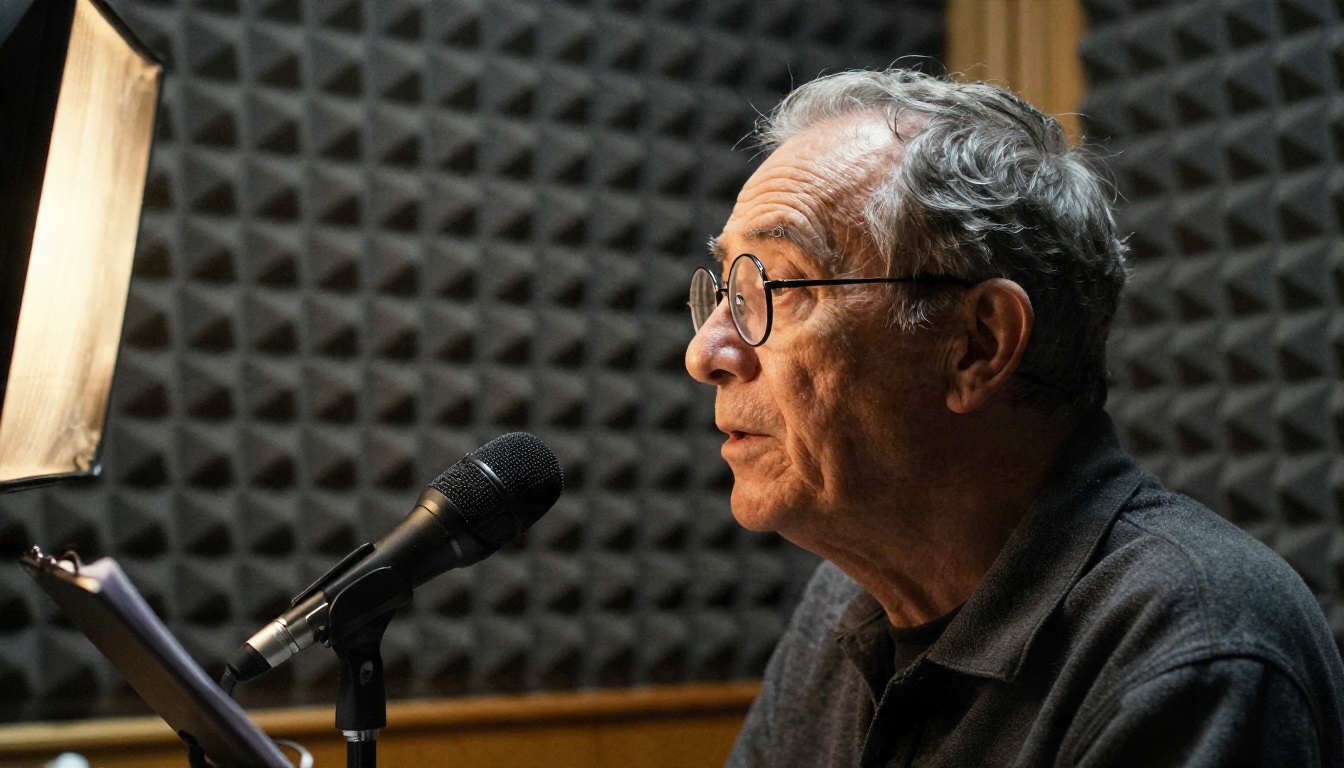
If you want a quick answer, use this table.
| Your situation | Try this first | Why |
|---|
| Short social clip, tight deadline | Flash v2.5 | Fast render, clean read |
| Tutorial or explainer, 3 to 10 minutes | ElevenLabs V3 | Natural, expressive narration |
| Polished brand video | Speech 2.8 HD | Studio-quality output |
| Video for many countries | Gemini 3.1 Flash TTS | 70+ languages |
| Existing video in one language | Dubbing | Translates the full video |
| Same voice across a series | Qwen3 TTS | Clone or design a voice |
| Interview-style script | Play Dialog | Built for dialogue |
| Rapid script iteration | Realtime TTS 1.5 Mini | Around 120 ms response |

💡 Quick test: Take one paragraph from your actual script and run it through three models. Listen once without looking at the screen. The voice you keep wanting to hear again is the one to use.
Try Your Own Voiceover Today
You do not need a studio, a voice actor or a monthly plan to put a good voice on your video. Write a short script, pick two or three models from the PicassoIA model library, and compare the results side by side. Start with a fast model for the draft, move to a studio-quality one for the final read, add a music bed, and export.
If you are building a series, try cloning your own voice once and reuse it everywhere. If you are reaching new audiences, run the same script through a multilingual model and publish in more languages than you ever planned for. Open PicassoIA, paste in the first paragraph of your next video, and press generate. You will know within a minute whether the voice fits.


