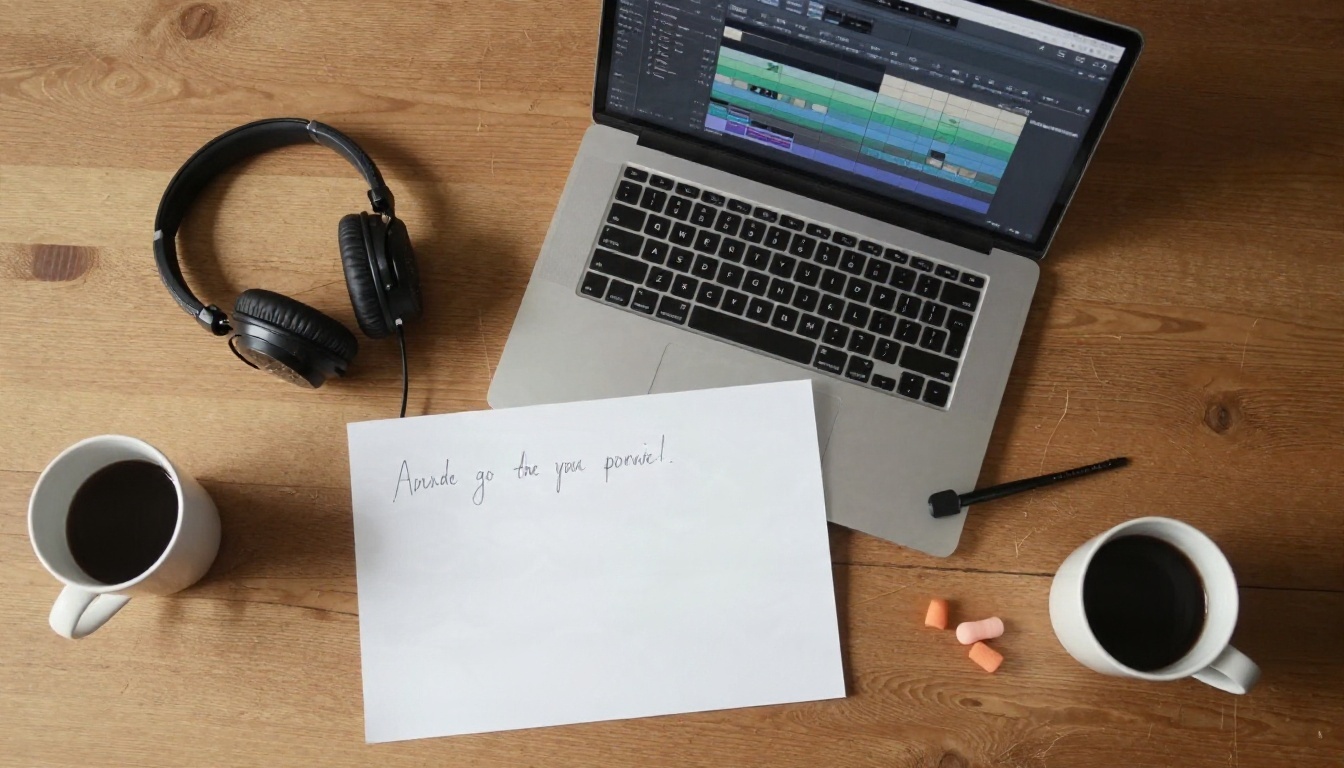
You open your editor, the video is finished, and the only thing missing is the narration. Recording it takes an hour, you flub the third sentence, and a week later the script changes and you have to do it all again. An AI voiceover with your own voice removes that loop. You record a short clip once, a cloning model builds a reusable copy of your voice, and from then on you type text and get audio that sounds like you.
This article walks through how it works, which online tools are worth trying, how to record a clean sample, and which settings make the output sound human instead of robotic. It also includes a hands-on tutorial for cloning your voice on PicassoIA.
Why Use Your Own Voice
Stock AI voices are fine for a quick draft, but they sound like everyone else's videos. Your own voice is recognizable, and that matters more than most creators expect.
Your Voice Is Part of Your Brand
Listeners recognize a voice in about a second. If you run a channel, a podcast, a course or a company explainer series, a consistent voice builds trust the same way a logo does. A cloned voice lets you keep that sound across hundreds of clips without booking studio time.
It Saves Hours on Every Revision
Scripts change. Product names get corrected. A sponsor wants a different line. With a cloned voice, a revision is a text edit and a few seconds of generation, not a new recording session with matching room tone and microphone distance.
It Works When You Cannot Record
Sick, traveling, or sitting in a noisy apartment? Generate the audio later from a script. Many people also use a cloned voice to produce narration in languages they do not speak, while keeping their own timbre.

💡 Quick reality check: a cloned voice is excellent for narration, explainers and drafts. It will not replace a live performance where you need genuine spontaneous emotion, but it gets surprisingly close with the right settings.
How Voice Cloning Actually Works
You do not need to know the math, but a simple mental model helps you fix problems when the result sounds off.
The Reference Clip
The cloning model listens to a short recording of you and extracts the traits that make your voice yours: pitch range, timbre, accent, speaking rhythm and the way you shape vowels. This compact profile is sometimes called a voice embedding. Cleaner input gives a cleaner profile, which is why the recording step matters so much.
The Text to Speech Engine
A separate speech model reads your script and renders it using that profile. Better engines add natural pauses, breathing and intonation. Some tools bundle both steps in one screen. Others, like the Voice Cloning model on PicassoIA, create the voice first and then let you pair it with a speech model tier, from fast turbo to high definition.
Two Cloning Styles
| Style | Sample needed | Typical result | Best for |
|---|
| Instant (zero shot) | 5 to 30 seconds | Very close, small quirks | Quick tests, short clips |
| Trained voice | 10 seconds to several minutes | More stable across long scripts | Series, courses, audiobooks |
Both styles are available online without installing anything, and several are free to try.
The market is crowded, so here is a practical comparison of options you can open in a browser right now. All of the following are on PicassoIA, so you can test them side by side with one account.
| Model | Cloning approach | Strength | Good fit |
|---|
| Voice Cloning | Upload a clip, get a reusable voice | Noise reduction and volume normalization built in | Creating a lasting copy of your voice |
| Chatterbox | Reference audio plus text in one step | Emotion slider and pace control | Expressive narration |
| Chatterbox Pro | Reference audio, refined output | Polished, natural delivery | Final voiceovers |
| Chatterbox Turbo | Fast generation | Speed for quick iterations | Drafts and testing |
| Qwen3 TTS | Clone any voice or design a new one | Flexible, multilingual | Experiments and character voices |
Which One Should You Pick?
If your goal is a voice you can reuse for weeks, start with Voice Cloning, then pair the result with a speech model. If you want to type a script and hear it immediately in your voice, Chatterbox is the fastest route because it takes the reference clip and the text in one form. When you want a premium, studio-style finish on a final script, compare against Speech 2.8 HD and ElevenLabs V3 for stock voices to see how your clone stacks up.
What "Free" Really Means
Free usually means a limited number of generations, a length cap, or a watermark. Chatterbox, for example, adds an inaudible watermark to its output so audio stays traceable without changing how it sounds. Test your clone with short paragraphs first so you do not burn through your allowance on a failed take.
Record a Clean Voice Sample
This is where most results are won or lost. A mediocre model with a great sample beats a great model with a bad sample.
Treat Your Room Before Your Microphone
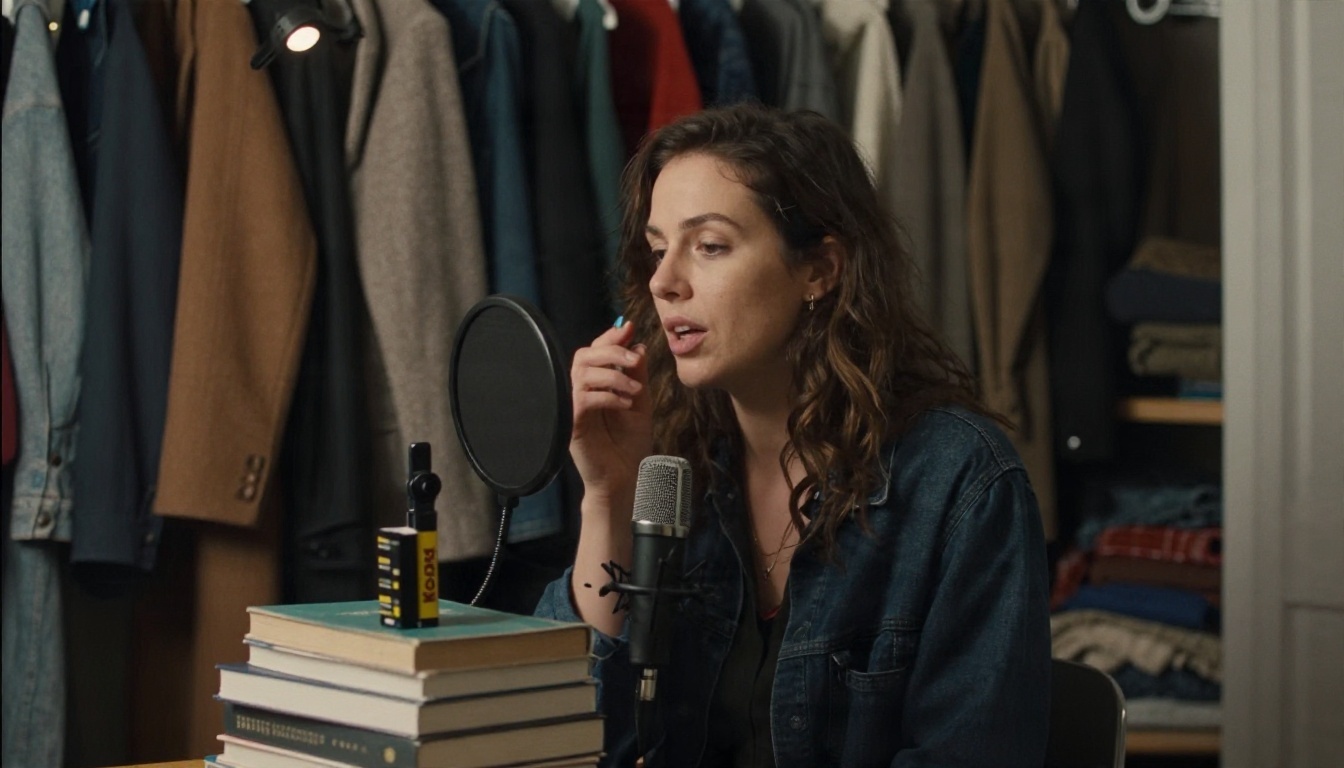
Echo is the biggest enemy. Hard walls bounce your voice back into the microphone, and the clone learns the echo as part of your voice. You do not need a studio. A walk-in closet full of coats, or a desk surrounded by pillows and a blanket, absorbs most of it.
Pick a Microphone You Already Own
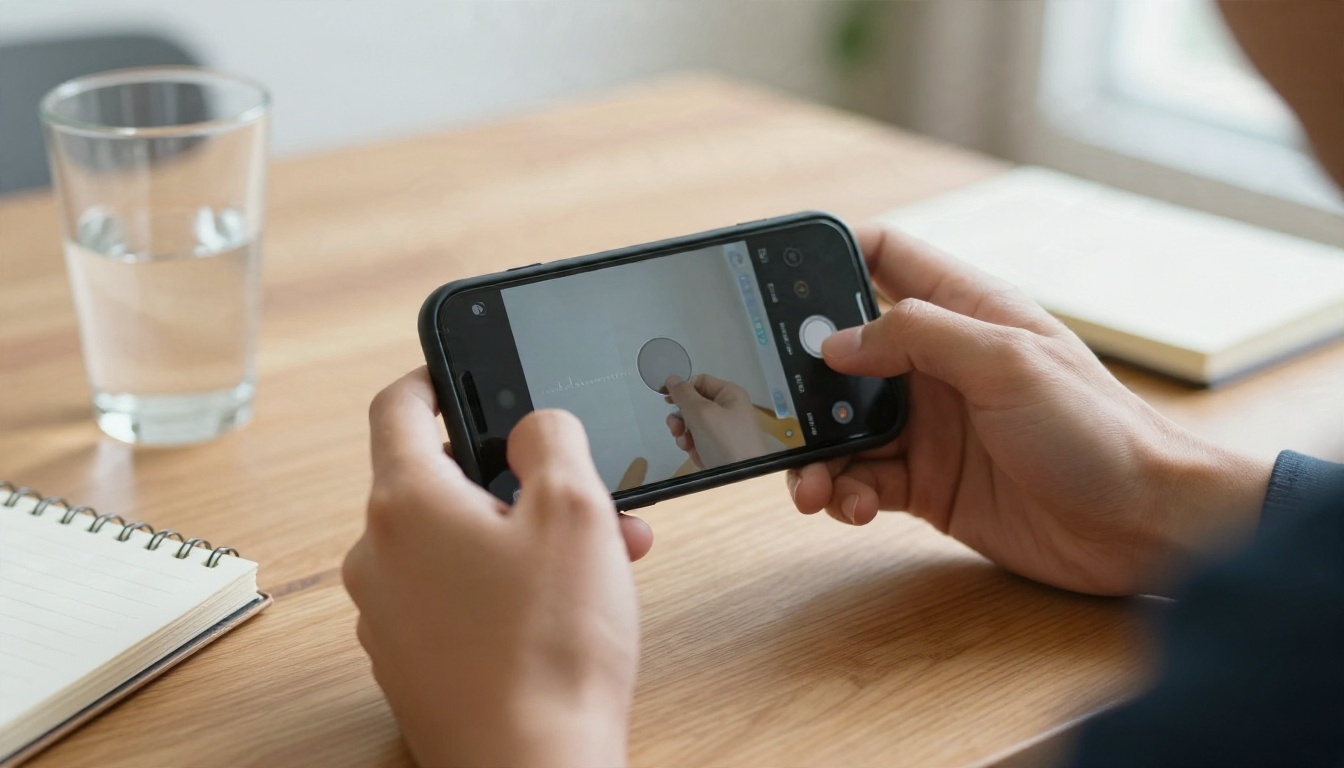
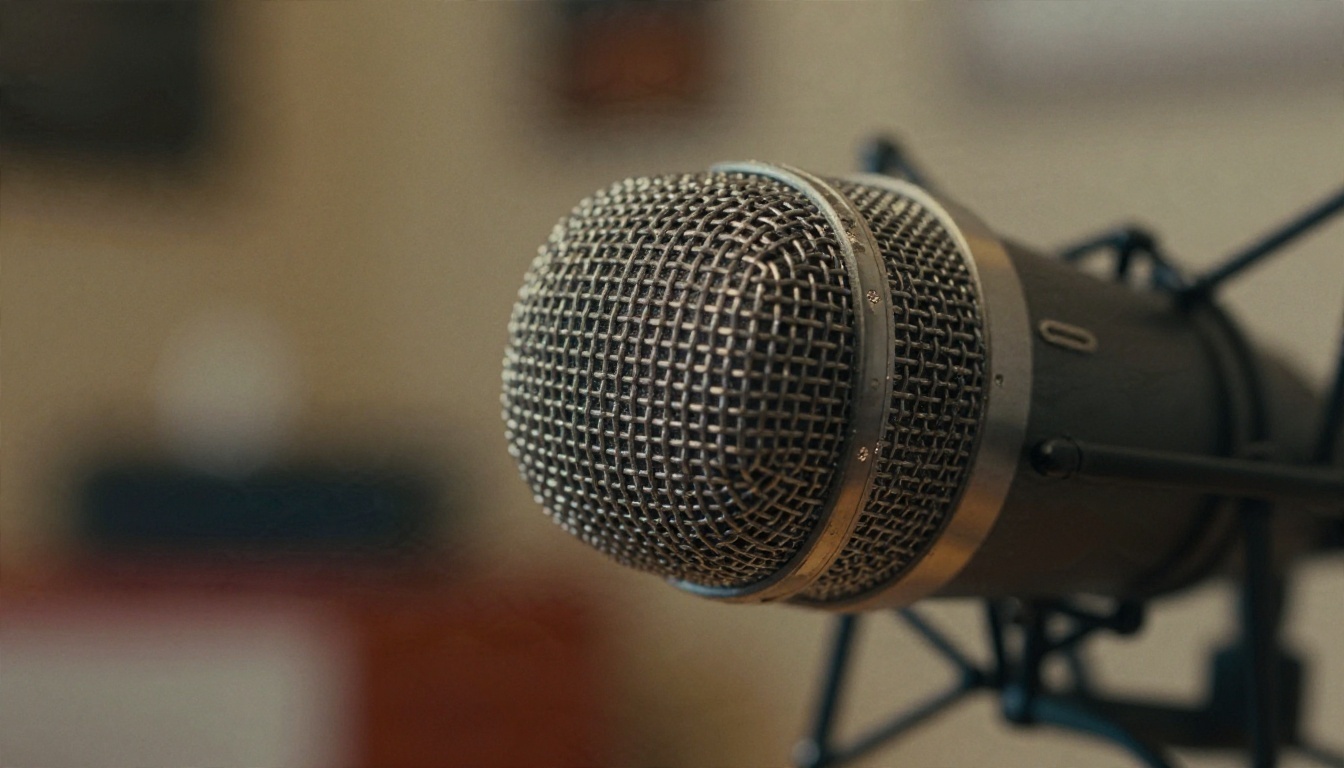
A phone held about a hand span from your mouth works. A USB condenser microphone is better. Whatever you use, keep the distance constant and speak slightly off to the side to avoid plosives, the harsh puffs on "p" and "b" sounds.
What to Read
Read something that sounds like your finished project. If you plan to narrate warm, friendly tutorials, do not read a serious news script. The clone inherits your energy. A good sample includes:
- A mix of short and long sentences
- A few questions, so the model hears rising intonation
- Natural pauses, not rushed delivery
- Numbers, names and a couple of tricky words you use often
Sample Checklist
| Item | Target |
|---|
| Length | 30 seconds to 2 minutes is a sweet spot |
| Format | WAV, MP3 or M4A |
| Background noise | As close to silence as possible |
| Volume | Clear, no clipping or distortion |
| Speakers | Only you, no other voices |
| Delivery | The tone you want in the final voiceover |
💡 Tip: Record three short takes and use the best one. Do not stitch together takes recorded on different days, because the voice changes slightly with sleep, hydration and mood.
How to Use Voice Cloning on PicassoIA
The Voice Cloning model turns a short audio clip into a reusable AI voice. It is free to try online and needs no coding. It accepts MP3, M4A and WAV files up to 20 MB, with a duration between 10 seconds and 5 minutes.
Step by Step
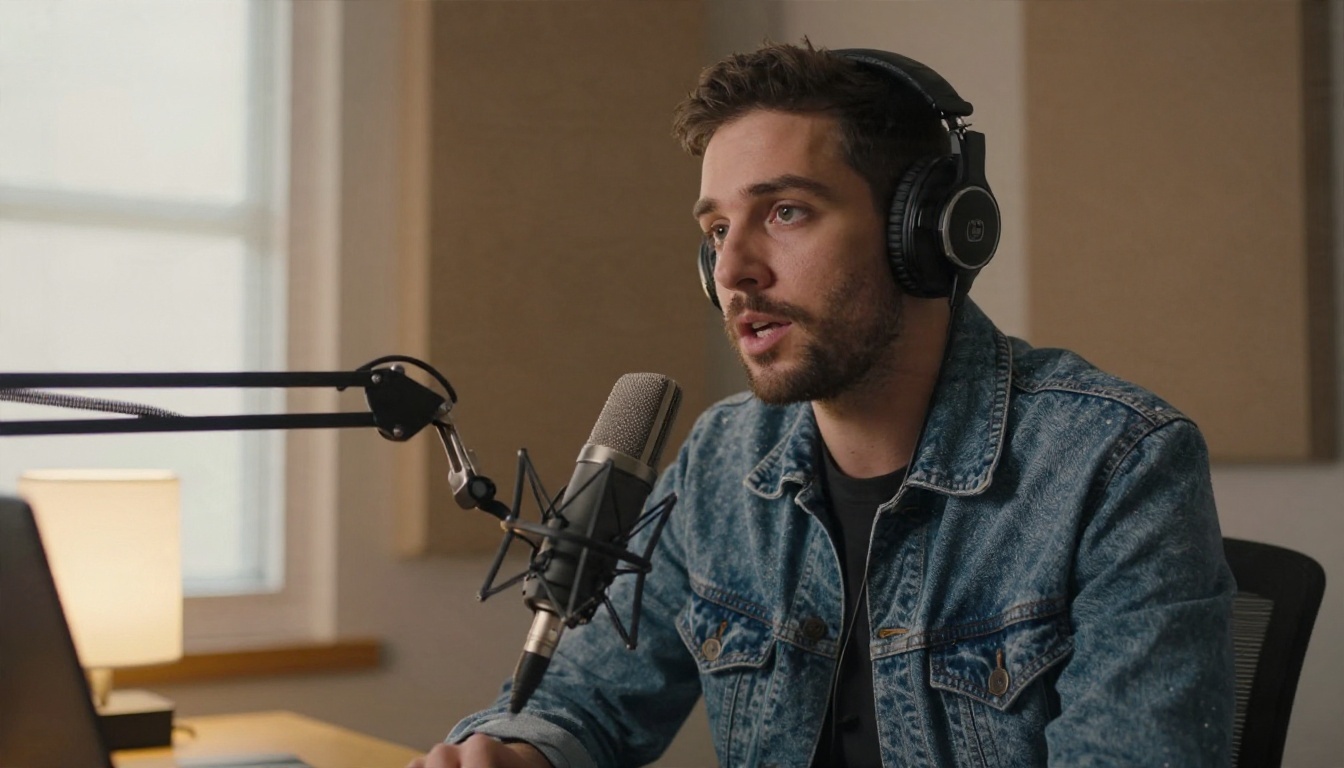
- Open the model page. Go to the Voice Cloning page on PicassoIA.
- Upload your voice file. Choose the clean recording you made in the previous section.
- Turn on noise reduction if needed. If you recorded outside a quiet room and hear hiss or hum, enable Need Noise Reduction.
- Turn on volume normalization. If your clip has loud and quiet moments, enable Need Volume Normalization so the clone stays at a steady level.
- Choose the speech model. The default is
speech-2.6-hd. You can also pick speech-2.6-turbo, speech-02-hd or speech-02-turbo.
- Leave accuracy at 0.7 first. This is the text validation threshold, a number from 0 to 1. The default is a sensible starting point.
- Run it and listen. Check that the clone captures your accent and pacing, then use the resulting voice with the matching speech model.
Parameter Tips
| Setting | Default | When to change it |
|---|
| Model | speech-2.6-hd | Use HD for final output, turbo for quick drafts |
| Noise reduction | Off | On for phone recordings or rooms with fan noise |
| Volume normalization | Off | On if your clip varies in loudness |
| Accuracy | 0.7 | Raise it if words are mispronounced, lower it if validation rejects a good sample |
A Faster Route: Chatterbox
If you prefer a single step, open Chatterbox. Paste your script into the prompt, attach your clip as the audio prompt, and generate. Because it reproduces a speaker from only a few seconds of reference audio, it is perfect for testing whether your sample is good enough before committing to a longer cloning workflow.
Settings That Change the Result
Once your voice is cloned, the difference between "obviously AI" and "that sounds like me" comes from a handful of controls. Chatterbox exposes the clearest ones, and the logic applies to most tools.
Emotion and Exaggeration
The exaggeration slider controls how expressive the delivery is. The neutral value is 0.5. Move it toward 0.6 or 0.7 for animated, energetic narration, such as a product ad. Drop it lower for calm explainers and meditation scripts. Extreme values can become unstable, so change it in small steps.
Pace and CFG Weight
The CFG weight acts as a pace control. The default is 0.5. Lower values tend to slow the delivery down and give it a more relaxed rhythm, while higher values tighten it. If your clone speaks faster than you do, nudge this down and compare.
Temperature
Temperature controls variety. At the default 0.8, repeated runs of the same sentence will differ a little, which feels natural. Lower it for predictable, consistent reads of technical content. Raise it slightly if the output sounds flat.
Seed
A seed of 0 means random. When you get a take you love, note the seed and reuse it. That way, a small script edit will not change the whole character of the read.
Write for the Ear
Even the best clone struggles with text written for the eye. Fix the script first:
- Use short sentences. Aim for under 20 words.
- Spell out awkward items. Write "twenty twenty six" if the model stumbles on a year.
- Use punctuation as direction. Commas create small pauses, periods create longer ones, and a question mark lifts the pitch.
- Add phonetic spellings for brand names that get mispronounced.
- Generate in chunks. Paragraph by paragraph is easier to correct than a ten minute block.
💡 Pro move: generate the same paragraph three times with slightly different exaggeration values, then keep the take that feels most like you.
Check the Result Against a Transcript
To catch skipped or swapped words, run the generated audio through a transcription model such as GPT 4o Transcribe and compare the text with your script. It takes seconds and saves a lot of listening.
Where Cloned Voiceovers Work Best
Your voice can now appear in more places than you could ever record it.
Video and Social Content
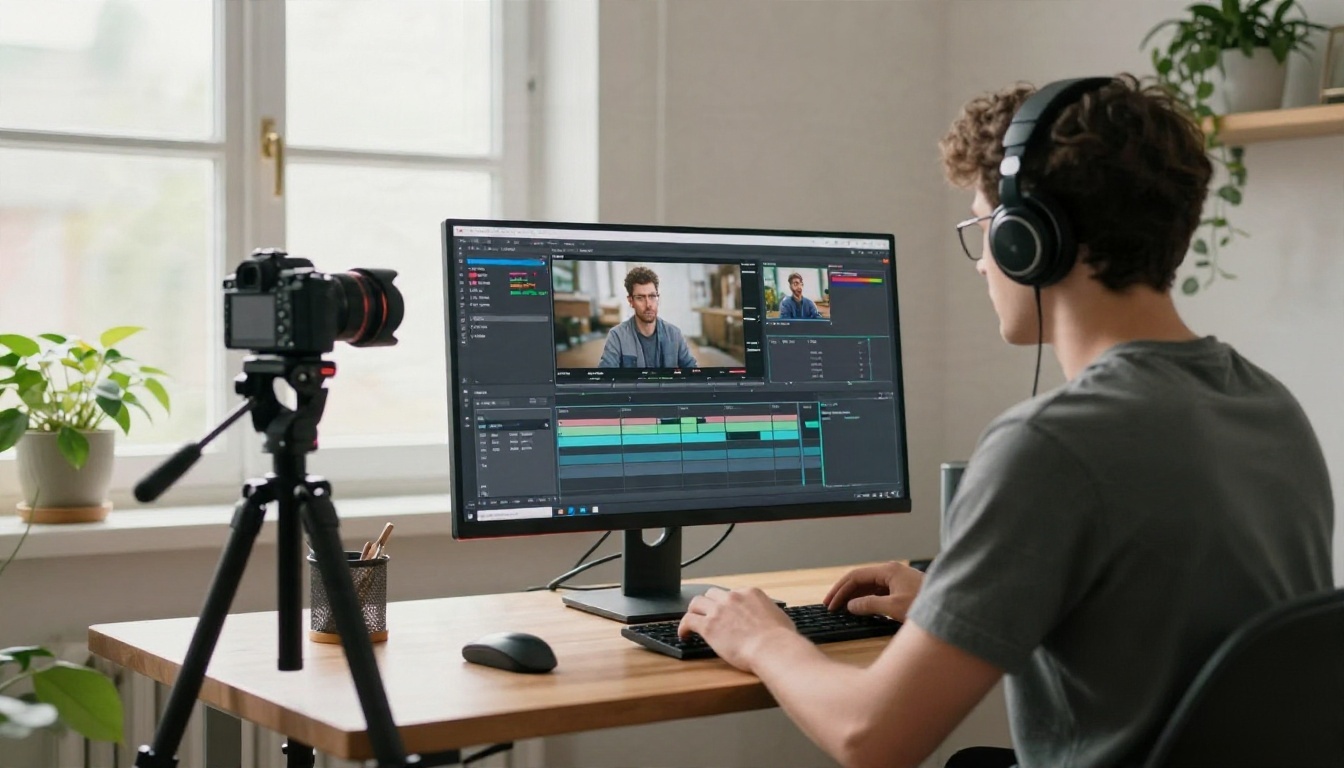
Short clips and explainers are the easiest win. Write the script, generate the audio, drop it onto the timeline. If your video features a speaker on screen, pair the audio with Lipsync 2 so the mouth movement matches the new track.
Audiobooks and Long Narration
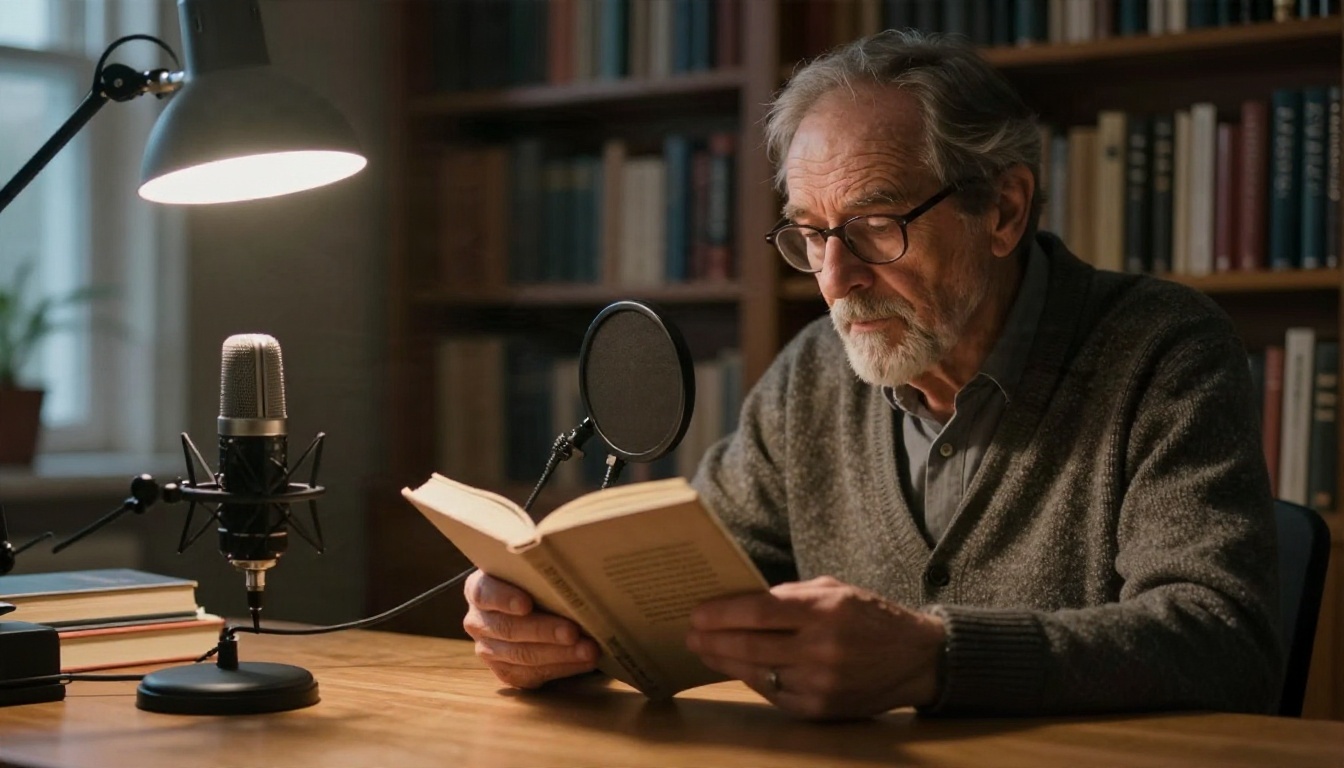
Long reads reward trained voices and consistent settings. Split the manuscript into chapters, keep the same seed, model and settings for each, and listen for drift between chapters.
Training and Internal Videos
Companies update training content constantly. Having a trusted internal voice re-generate a changed module in minutes is a huge time saver compared with rebooking a narrator.

Dubbing Into Other Languages
When you want the same video in Spanish, French or German, a dubbing tool such as Dubbing can translate a video into 90+ languages. For multilingual scripts where you control the text, Qwen3 TTS and Voice Cloning are worth testing with your own sample.
Use Only Voices You Have Permission to Clone
Clone your own voice, or the voice of someone who has clearly agreed. Never clone a colleague, celebrity or relative without consent. Label synthetic audio when the context matters, such as ads or news style content, and keep the original recordings in case anyone asks you to prove where a track came from.
Fix Common Problems
| Problem | Likely cause | Fix |
|---|
| Robotic or flat delivery | Monotone sample | Re-record with more variation in pitch |
| Echoey result | Room reflections | Record in a closet or add soft furnishings |
| Hiss in the output | Noisy input | Enable noise reduction and re-run |
| Volume jumps | Uneven recording | Enable volume normalization |
| Wrong pronunciation | Unusual words | Spell them phonetically in the script |
| Voice drifts between files | Random seed and settings | Lock the seed, model and exaggeration |
| Sounds like a different person | Sample too short or too noisy | Use 30 to 60 seconds of clean speech |
Try Your Own Voice Today
You do not need new equipment or a studio to hear your own voice narrate a script you wrote five minutes ago. Record one clean minute, upload it to Voice Cloning, then test it against Chatterbox and Chatterbox Pro to see which sounds most like you. Adjust exaggeration, pace and temperature in small steps, keep the seed of your favorite take, and build a script library you can regenerate any time.
Open PicassoIA, pick a model, and make your first voiceover with your own voice. For more audio, image and video models to combine with it, browse all PicassoIA models.


