AI Wedding Invitation Video Maker Free: Cards and Prompts
Build a wedding invitation video from scratch with free AI tools. This article shows how to design the card, write scene prompts that work, animate a still into a 5 or 10 second clip, and add names, music and a voice before you send it to guests.
A paper invitation gets a glance. A short video of the couple, with a soft song underneath and the date fading in on screen, gets opened twice and forwarded to the cousin who never answers messages. That is why so many couples now search for an AI wedding invitation video maker free of editing skills, free of a design budget, and quick enough to finish between cake tastings. The practical answer: a card and a 5 to 10 second clip can both be produced from text prompts in a single evening. This article lays out the full workflow, from card design to prompts, settings, sound and the mistakes that waste time.
Why Video Invitations Work
Most guests will read your invitation on a phone, standing in a kitchen or waiting for a train. A moving image suits that moment better than a PDF attachment. The clip plays at once, sets a mood in three seconds, and is easy to forward to a partner or a parent. A printed card still does something a screen cannot: it sits on a fridge for months. The strongest plan uses both, built from the same artwork.
Card or Video: Quick Comparison
Factor
Printed card
Video invitation
Delivery
Post or hand delivery
Messaging app, email or link
Time to produce
Days at a print shop
One evening
Mood
Tactile, formal
Warm, personal, moving
Changing a detail
Reprint and repost
Regenerate and resend
Cost per guest
Paper and postage
Close to zero with a no-per-clip-cost model
Best for
Formal tables, older relatives
Friends, destination weddings, save the dates
💡 Tip: Send the video as the save the date, then mail the card with the full details. The clip builds excitement; the card carries the address, the schedule and the RSVP line.
When a Video Makes Sense
Video earns its place in a handful of situations:
Destination weddings, where guests need to feel the place before they book flights.
Short timelines, when printing and posting would eat the whole schedule.
Save the dates, which are meant to be light, quick and shareable.
Last-minute changes, such as a new venue, where regenerating a clip beats reprinting 120 cards.
Digital-first families, where the group chat is the real notice board.
Older relatives may prefer paper, so keep a few printed copies ready for them.
What Free Really Means Here
"Free" is a slippery word in AI tools. It can mean a trial, a daily cap or a watermark. Before you plan a whole invitation around one model, check what the model page actually promises. On Picasso IA, two video models are described as free and unlimited, and both are a good fit for invitations.
Both models take an image as the opening frame, which is exactly what an invitation needs: your card art or a chosen scene becomes the first thing guests see, and then it moves.
If you want to compare looks, the same prompt can be tried on Veo 3.1, Kling v3 Video, Wan 3 or Seedance 2.0. Each model page states how it is billed, so check that before you generate ten variations.
Where Free Stops
Free does not mean finished. Expect to do three things yourself:
Add names, date and place in a basic phone video editor, because text generated inside a video can warp.
Pick or generate the soundtrack, unless the built-in ambient audio is enough.
Review every clip for odd hands, drifting faces and objects that appear from nowhere.
The lite models also stop at 720p. That is sharp enough for a phone screen and a group chat, which is where invitations live.
Design the Card First
Start with a still. The card art becomes the first frame of the video, so building it first gives the whole invitation one visual identity: the same palette, the same flowers, the same paper.
Pick a Card Style
Three styles fit most weddings:
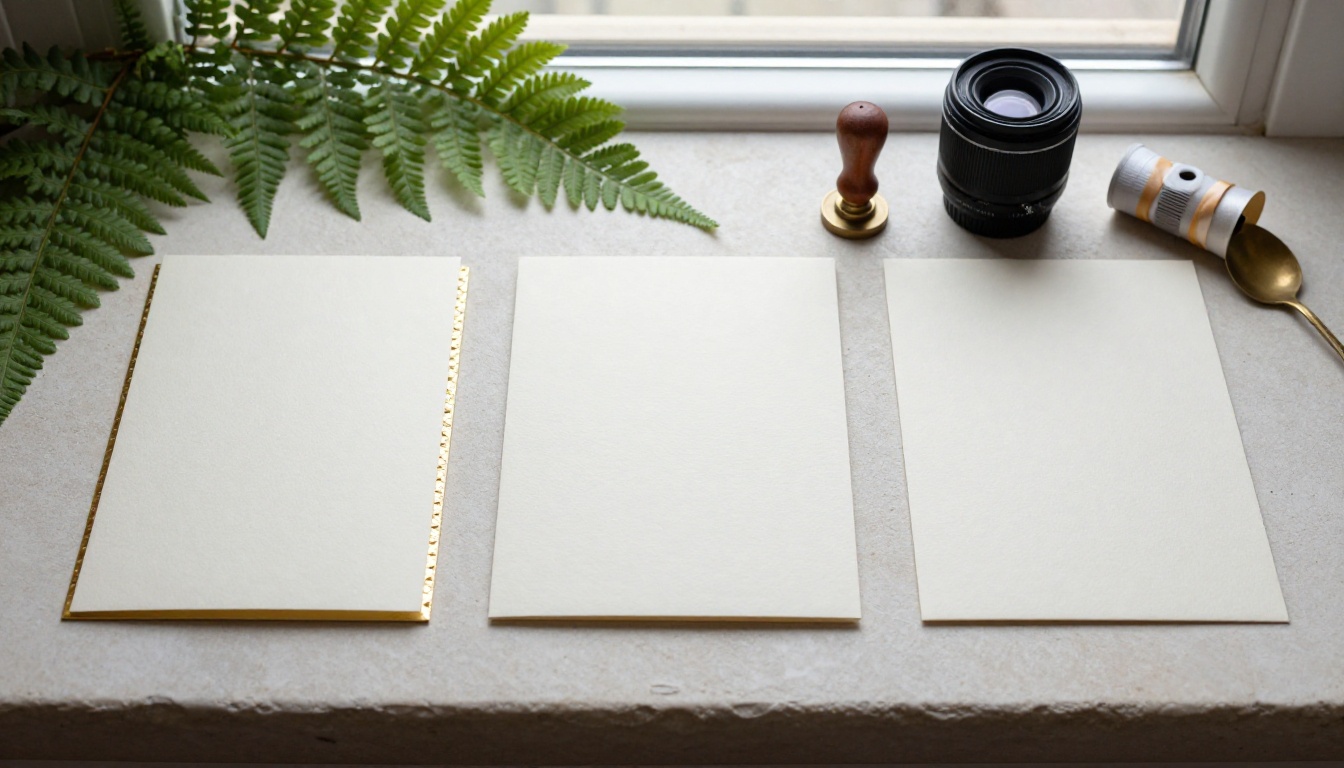
Deckled cotton paper: soft torn edges, dried flowers, a wax seal. Suits garden, farmhouse and vineyard days.
Gold foil rim: a thin metallic border and generous empty space. Suits ballrooms, hotels and black tie.
Plain matte: clean paper, one botanical sprig, lots of air. Suits city halls, galleries and modern venues.
Choose three colors and repeat them in every prompt. Palette consistency matters more than any single clever detail.
Prompt the Card Art
Ask for the artwork only, with the top third of the frame empty. Names and dates go in afterward, where you can spell them correctly. For stills, Seedream 5 Pro, GPT Image 2 and Nano Banana Pro are all worth a try. If a card truly needs a few words of lettering, try GPT Image 2 or Ideogram v4 Quality and check the spelling letter by letter.
Cream cotton-paper wedding invitation, deckled edge, burgundy wax seal at the
lower corner, sage-green silk ribbon, dried lavender and eucalyptus along the
left side, empty space in the upper third, soft window light from the left,
85mm lens, shallow depth of field, natural film grain, no text
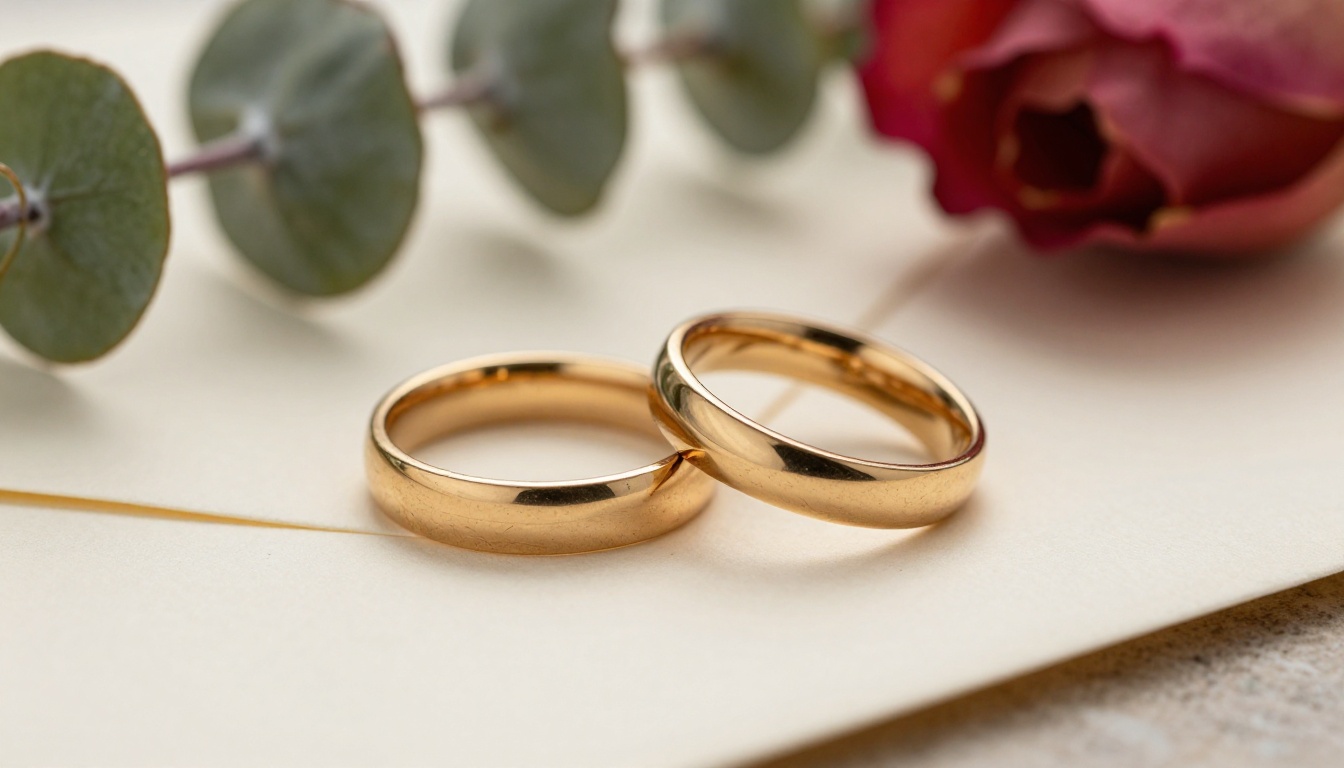
💡 Tip: Generate a second still, such as rings on an envelope, to use as the last frame in Seedance 2.5 Lite. The clip then ends on a calm detail shot instead of drifting somewhere random.
Prompts for Wedding Video Scenes
Video prompts work best as short, chronological descriptions of motion. A reliable formula is subject and starting pose, then the motion over time, then the camera move, then the light. Describe what changes during the clip, not what the picture already shows.
Wedding style
Camera move
Light
Motion detail
Rustic or vineyard
Slow follow from behind
Golden hour backlight
Leaves brushing past fingers
Beach
Low wide shot, slow push in
Sunset peach and rose
Waves foaming, dress rippling
Garden reception
Aerial descent
Soft overcast
Candle flames, petals drifting
Formal ballroom
Gentle dolly toward the entrance
Warm chandelier glow
Curtains moving, glasses catching light
Modern city
Handheld walk and talk
Blue hour street light
Passing cars, steam, soft crowd noise
Vineyard Walk Reveal
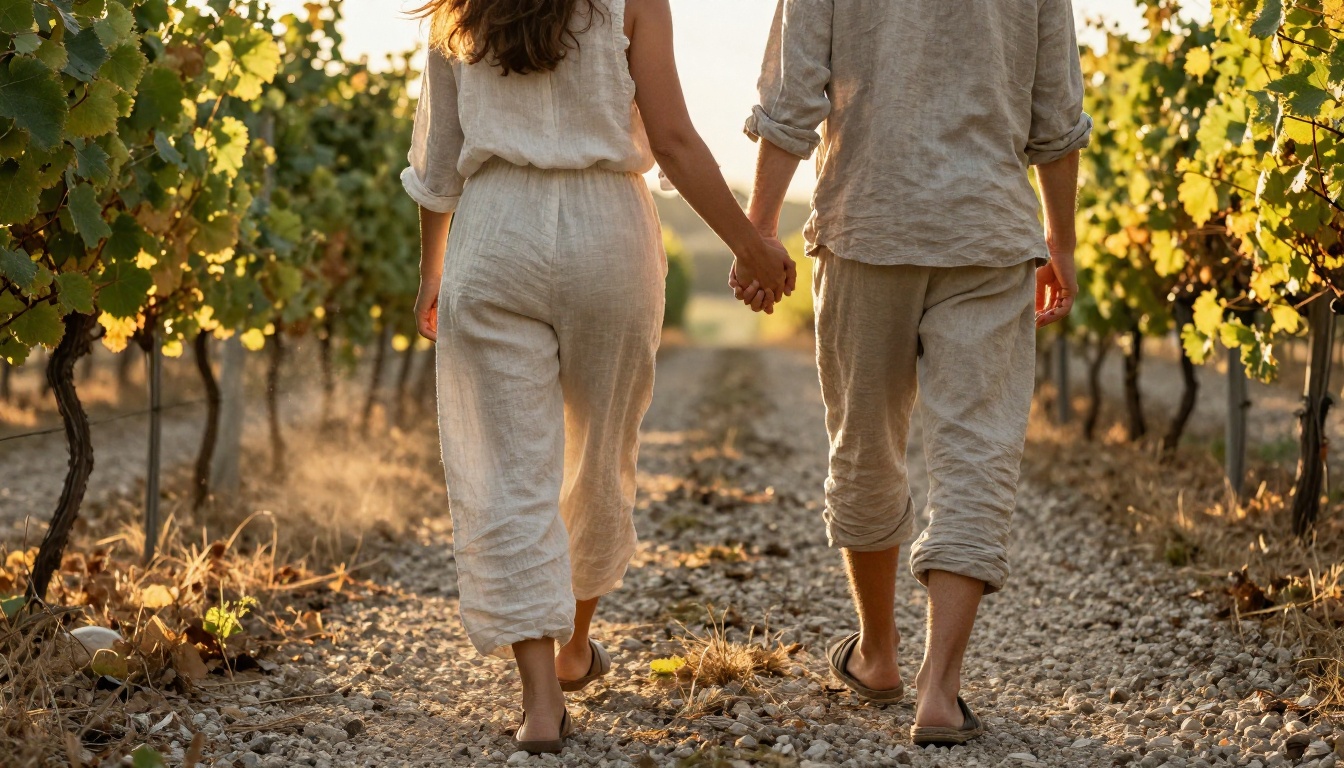
Use a still like this one as the opening frame, then describe the walk:
The couple walk slowly away from the camera along the gravel path, her free
hand brushing the vine leaves. The camera glides forward at waist height behind
them. Golden hour backlight, dust drifting in the warm air, a light breeze
moving her hair. Soft ambient wind and distant birds.
This works because there is one action (walking), one camera move (gliding forward) and one light source. Faces stay turned away, which also avoids the face drift that sometimes appears when people turn toward the lens.
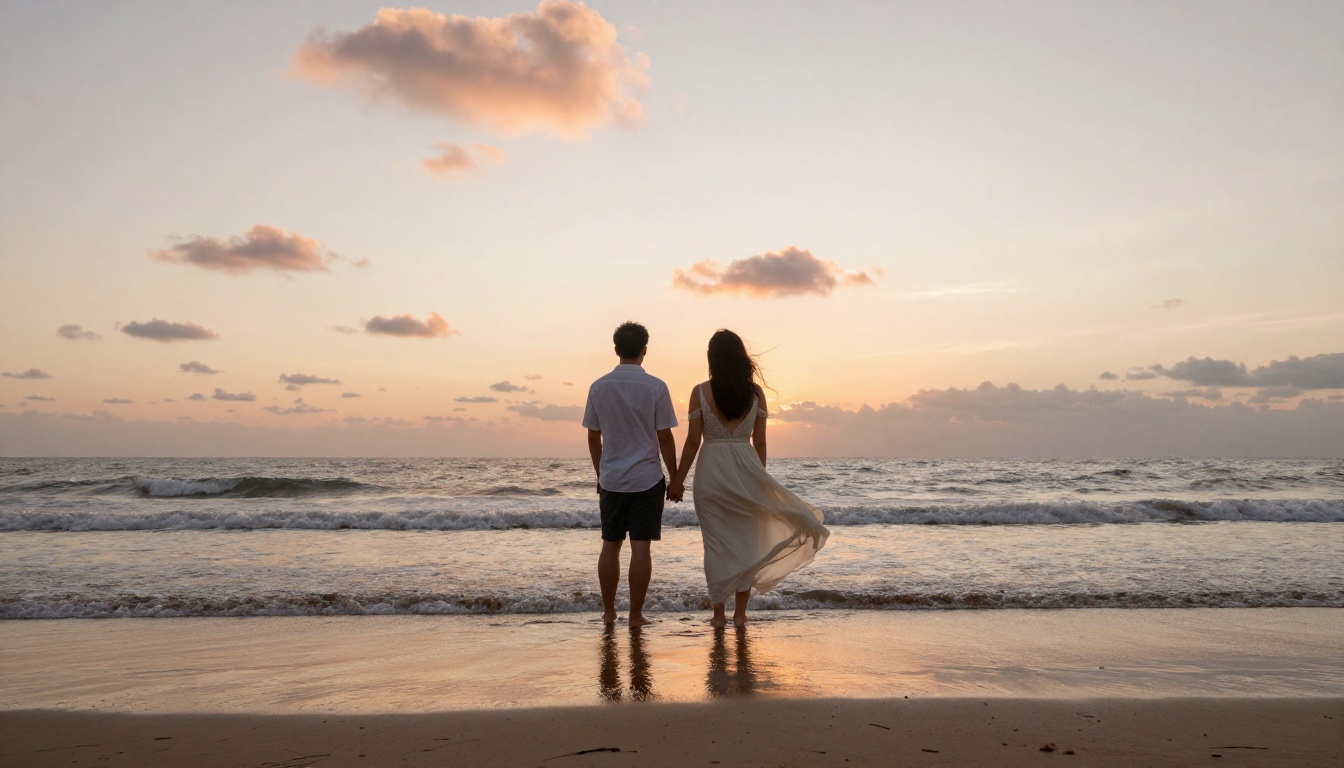
Beach Sunset Arrival
For a destination wedding, let the place do the talking:
Gentle waves roll over the couple's ankles as they stand still facing the
horizon. The bride's ivory dress ripples in the sea breeze. The camera starts
low and pushes in slowly toward their backs. Peach and rose sunset light on
wet sand, soft sound of surf.
Keep the clip at 10 seconds in Seedance 2.5 Lite if you want the waves to build rather than just flicker.
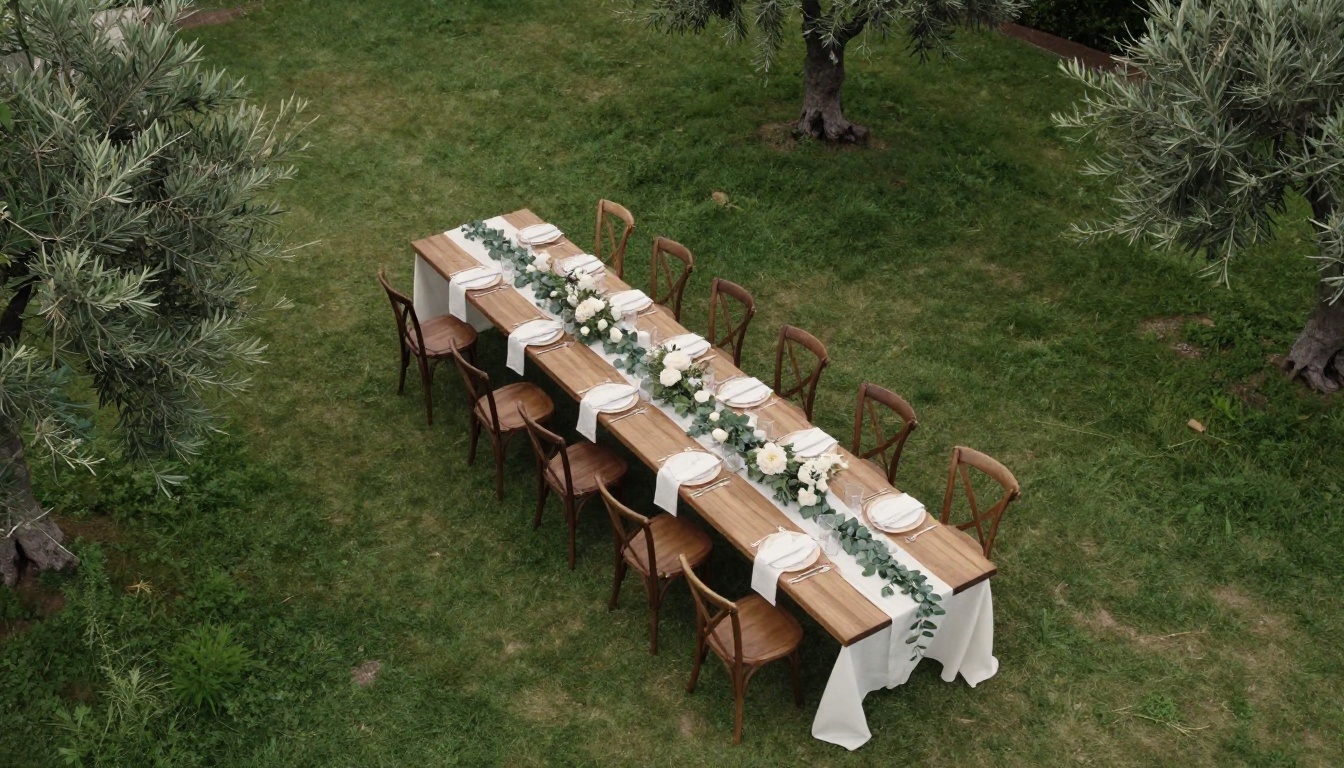
Garden Table Close-Up
Scenes without people are the safest bet for first attempts, since there are no faces to drift:
Aerial view straight down on a long banquet table under olive trees. The
camera descends slowly toward the center of the table. Candle flames flicker,
a few petals drift across the white linen. Soft overcast daylight, quiet
garden ambience.
How to Use Seedance 2.5 Lite
Seedance 2.5 Lite is a sensible first stop: it takes text or an image, makes clips of up to 10 seconds, and renders at 480p or 720p with synchronized audio.
Step by Step
Open the model page for Seedance 2.5 Lite on Picasso IA and sign in.
Upload your input image: the card art or a chosen scene. It becomes the opening frame, and the clip inherits its aspect ratio.
Paste the motion prompt, using the formula above.
Set the duration: 5 seconds for a quick beat, 10 for a full reveal.
Choose the resolution: 480p for fast drafts, 720p for the version you send.
Decide on audio: leave it on for ambient sound, or switch it off if you will add your own music.
Add a last frame image (optional) so the clip ends on your card or a detail shot.
Generate, review, then lock the seed once you like the result. Change one phrase at a time after that.
Settings Worth Changing
Setting
Options
Recommendation for invitations
Duration
5 or 10 seconds
10 for the hero clip, 5 for extras
Resolution
480p or 720p
Draft at 480p, final at 720p
Aspect ratio
Ignored when an image is given
Generate the still in 9:16 for phone feeds
Seed
Any integer
Lock it when you want the same clip again
Save audio
On or off
Off if you will lay music over it
Last frame image
Optional second still
Use a detail shot to close the clip
The same workflow applies to Picasso IA Video, with a fixed 5 second length at 24 fps and no last frame option. Many people run both and keep the better take.
Add Sound, Names and Dates
A silent clip feels unfinished, and a clip with wrong spelling feels careless. This is the stage where the invitation becomes yours.
Voice With Speech 2.8 HD
A 15 second spoken line is enough. Speech 2.8 HD can read a short script in a calm voice:
Two years, one long road trip, and now one very big yes. [Name] and [Name] are
getting married on [date] at [venue], and we would love you there.
Keep the script under 30 words and read it aloud once yourself, because stiff phrases are easy to hear and hard to spot on the page.
Music With Lyria 3
Lyria 3 can produce a short instrumental bed, and Music 2.6 suits fuller songs. A prompt that works:
Gentle acoustic guitar with soft strings, warm and hopeful, slow tempo,
20 seconds, no vocals, quiet ending
Lower the music under the voice, and let it rise again in the last two seconds.
Text Overlays Done Right
Plan the timeline before you open the editor:
Seconds
On screen
Text
0 to 4
Hero clip, opening frame
Names only, large and centered
4 to 8
Same clip, motion peaks
Date and city
8 to 10
Last frame, calm detail
RSVP line and link
Use one font, keep text away from the edges, and leave each line on screen for at least three seconds. Light text on a dark area of the image, or the reverse, will beat any fancy effect.
Mistakes That Ruin the Result
Mistake
What happens
Fix
Asking the model to write names and dates
Letters warp or change between frames
Add all text in the editor
Describing the picture, not the motion
The clip barely moves
Say what moves and how the camera travels
Overloaded prompts
Muddled action, odd objects
One action, one camera move, one light source
Using a photo of someone without asking
Awkward conversations later
Use your own photos or scenes without people, and get consent from anyone shown
Skipping the review
A stray extra finger ends up in the clip
Watch every clip at full screen before sending
Sending everything at once
Details get lost
Send the save the date early, the full invitation later
One more habit saves headaches: keep the seed and the prompt for every clip you like. If the venue changes, you can regenerate a matching version in minutes instead of starting from zero.
Make Your Own Invitation Today
You already have the recipe: a card still, one motion prompt, a 10 second clip, a short voice line and a song. Set aside an evening, draft at 480p, and save the final render at 720p for the version that goes to guests.
Add names, date and RSVP in your phone editor, then send it.
Open Picasso IA, paste one of the prompts above, and try your own version. Change the flowers, the light or the walk, and see which take feels most like the two of you. When you want more options, browse every model at picassoia.com/en/all-models and keep experimenting until the clip makes you smile on the first watch.