A seven-year-old draws a wobbly red-shirted figure with yellow hair, holds the paper up to a camera, and thirty seconds later that same figure is waving, jumping and walking across the screen. That is the whole promise of animated drawings AI, and it is the reason parents, teachers, illustrators and small studios keep searching for it. The good news: you can do this for free, in a browser, with a phone, or with an image-to-video model that handles far more than stick figures.
This article breaks down how the technology works, which free tools and apps are worth your time, what real examples look like, and the exact prompts that get a flat drawing to move without melting. You will also see a step-by-step workflow on PicassoIA for results that go well beyond a simple walk cycle.
What Animated Drawings AI Really Does
At its simplest, animated drawings AI takes a still picture made by hand and gives it motion. The picture can be a crayon doodle, a pencil sketch, an ink character or a watercolor mascot. The software finds the shape of the subject, decides which parts can bend, and then plays a movement over it.
There are two very different approaches, and mixing them up is the number one reason people get disappointed.
Rigging: the classic method
The first approach is skeleton-based animation. The tool cuts your character out of the paper, places joints at the shoulders, elbows, hips and knees, and then bends the flat cutout like a paper puppet. Meta's research project, usually called Animated Drawings, popularized this idea. You upload a drawing of a human-like figure, confirm the outline, adjust the joint dots, and pick a motion such as dancing, jumping or waving. The result can be saved as a short GIF or video clip.
It is free to try, runs in a browser, and does not demand an account according to most accounts at the time of writing. Meta also released the underlying code as open source, which is why so many copycat sites and classroom projects exist. Meta's tool is a separate research project, not a model on PicassoIA, so there is no link here. For similar results today, the generative options later in this article are the closest match.
Generative video: the newer method
The second approach is image-to-video generation. Instead of bending a cutout, a video model reads your drawing as the first frame and invents the following frames. Your sketch can blink, the pencil lines can shimmer, a fox can turn its head, and the camera can drift slowly around the page. There is no skeleton to fix, so it works on animals, monsters, vehicles and anything else you can draw.
The trade-off is control. A rigged tool does exactly what you pick from a menu. A generative model does what your prompt suggests, plus a little of what it imagines.
💡 Quick rule: if your drawing is a standing human-like figure and you want a clean dance or walk, use a rigging tool. If your drawing is anything else, or you want a cinematic result, use image-to-video.
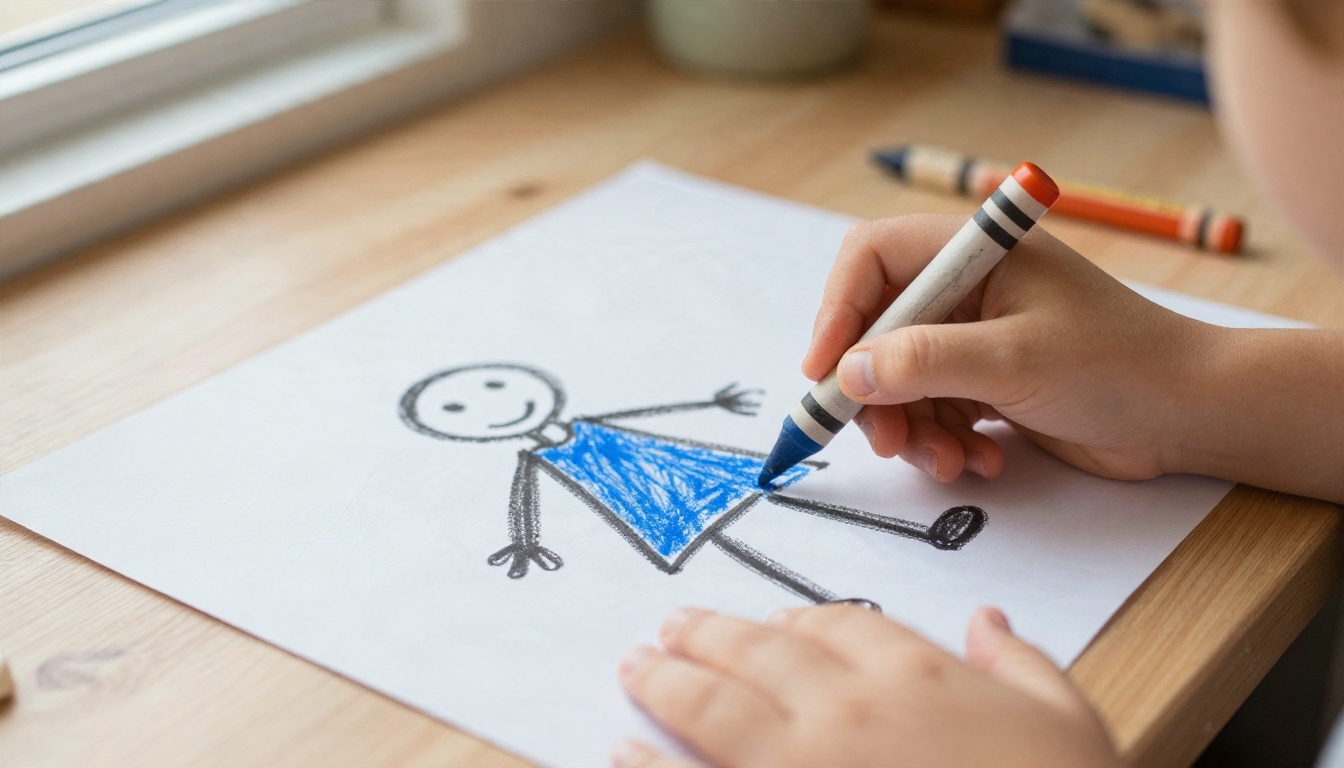
You do not need to pay to get a first animation. Here is how the options break down.
Browser tools that rig your sketch
These tools need only a photo of your drawing. They tend to share the same flow: upload, crop, trace the outline, place joints, choose a motion. Expect a short loop, usually a few seconds, saved as a GIF or MP4. They shine on human-like figures with a clear head, torso, two arms and two legs. They struggle with side views, tangled limbs, or drawings that run off the edge of the paper.
Phone apps for quick results
Phone apps follow the same idea but trade control for speed. You snap a photo, the app removes the background, and a sticker-style figure appears with ready-made moves. Many include voice recording, so a child can make the character speak. For a birthday message or a school presentation, this is often enough.
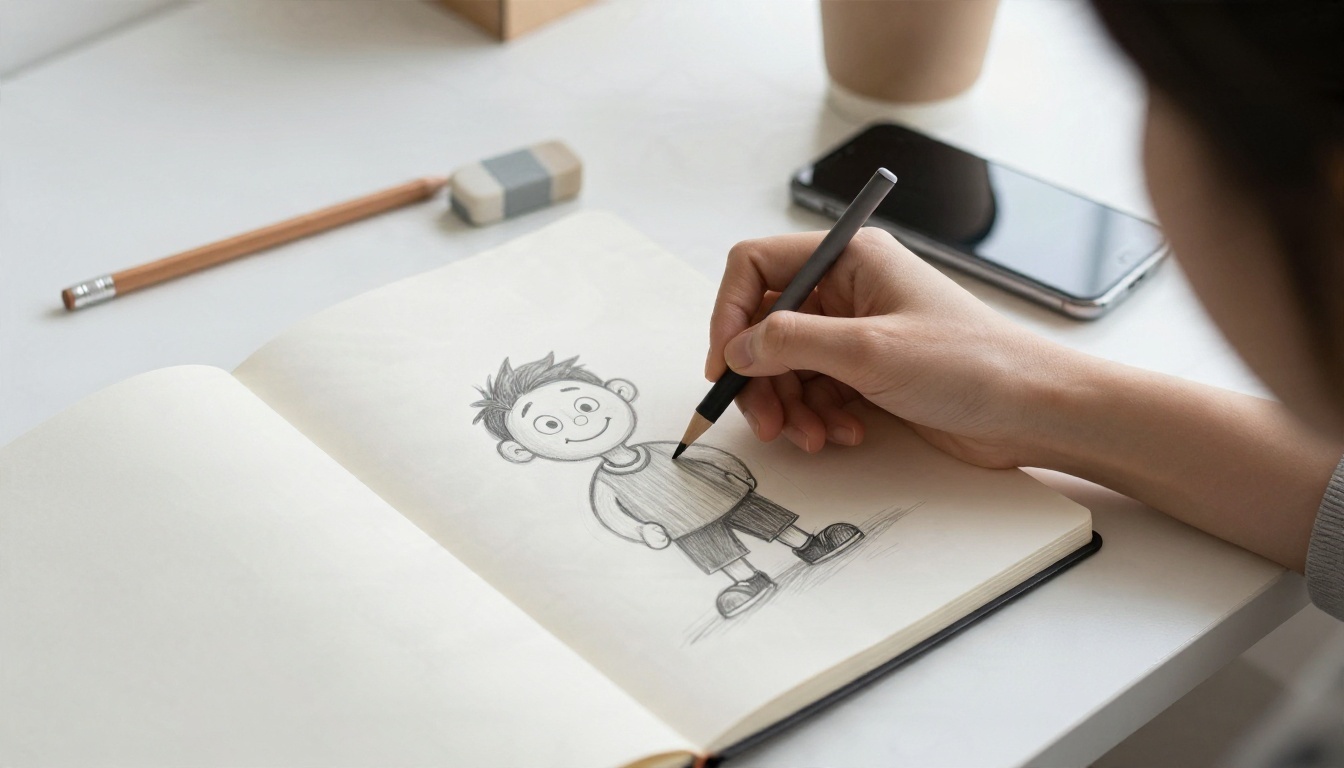
💡 Photo tip: shoot straight down, in daylight near a window, with no shadow from your hand or phone. A clean, evenly lit photo prevents most outline errors before they start.
Image-to-video models for everything else
When you want more than a loop, an image-to-video model gives the strongest results. Several models on PicassoIA handle this well:
If your final goal is a lightweight loop for a website or chat, Vid2WebP converts a finished clip into an animated WebP.
Real Examples Worth Trying
Seeing the range helps you decide what to animate first. These are the five most common projects people attempt.
Crayon characters from kids
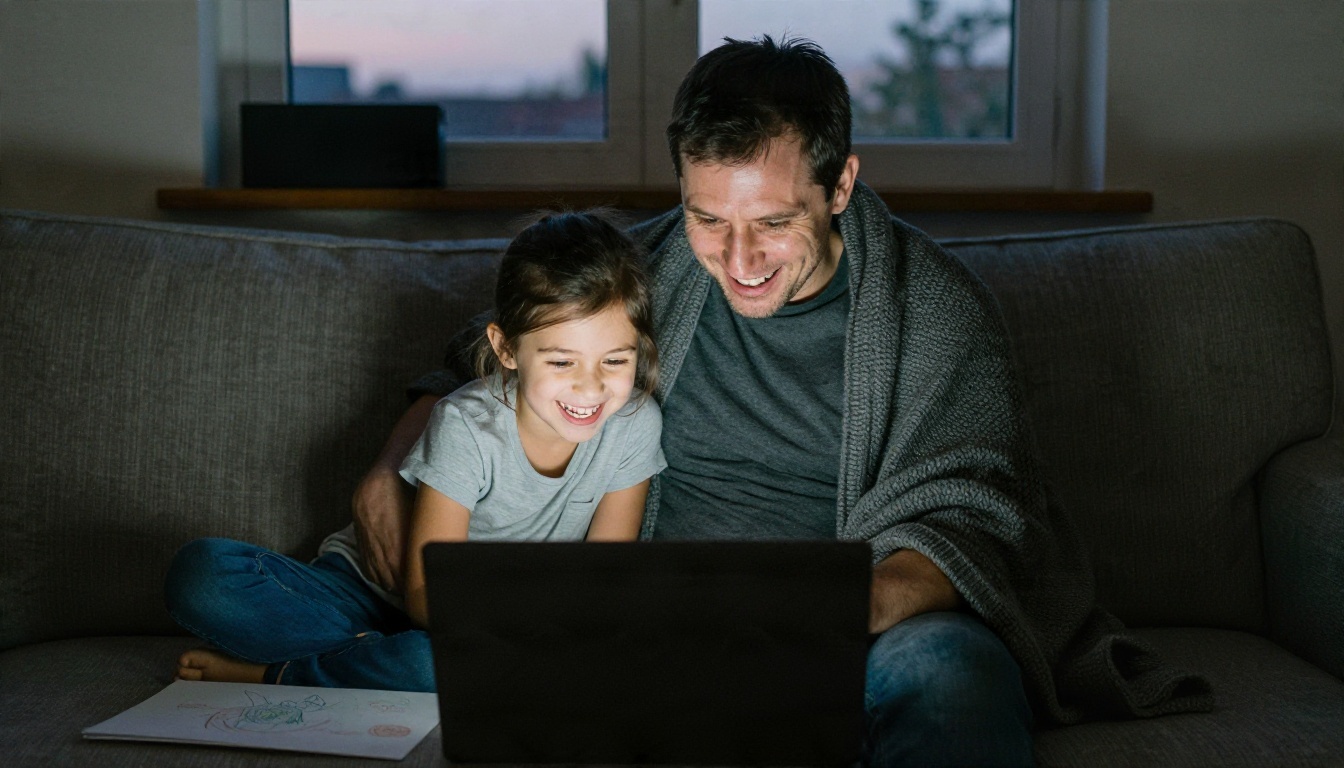
This is the classic. A child draws a person or creature, and the animation makes it dance. Imperfect lines are part of the charm: a lopsided head and mismatched arms look wonderful in motion, so do not tidy anything up. The only rule is to leave white space around the figure so the tool can separate it from the page.
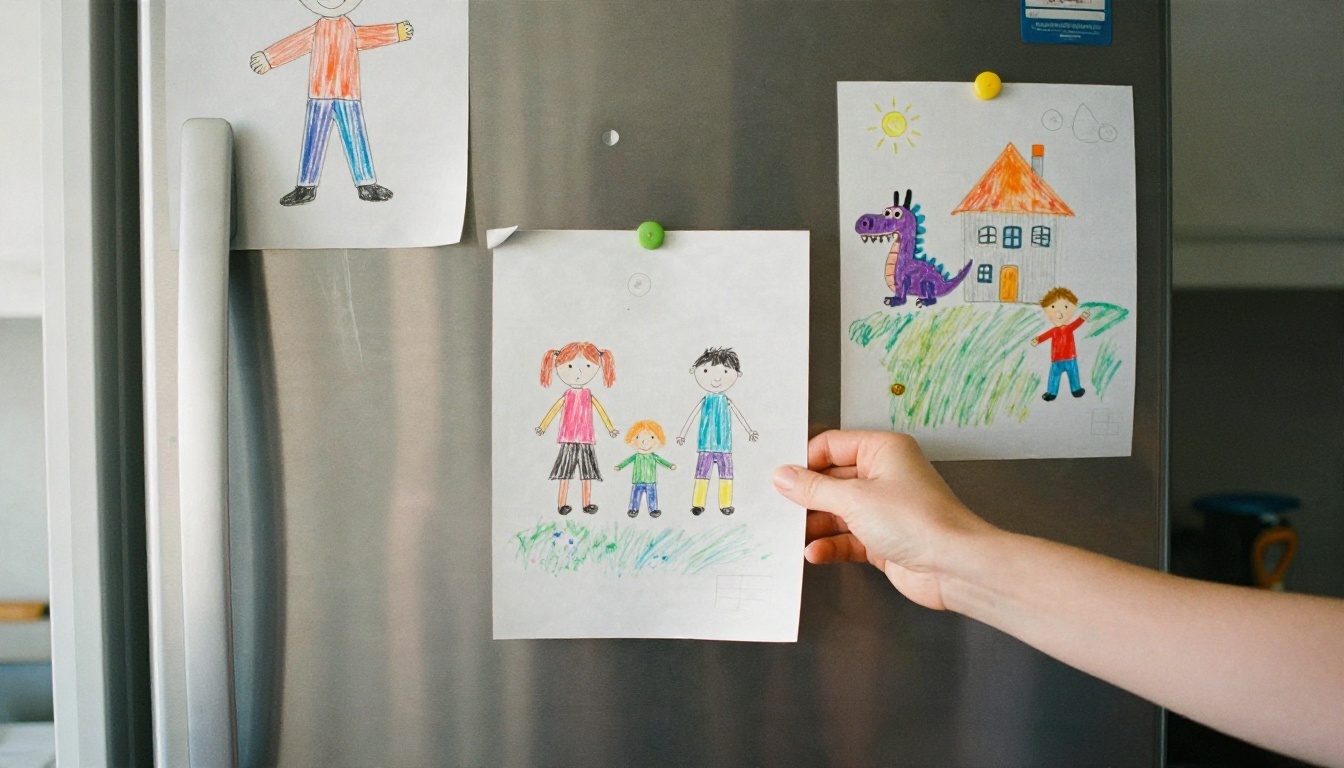
A fridge gallery makes a perfect source list. Pick the three drawings with the clearest outlines and animate those first.
Animals and pets on paper
Rigging tools often stumble on four-legged animals because they expect a human skeleton. Generative models do better. A crayon dog with a long tail can wag, trot and tilt its head if the prompt describes the motion plainly.
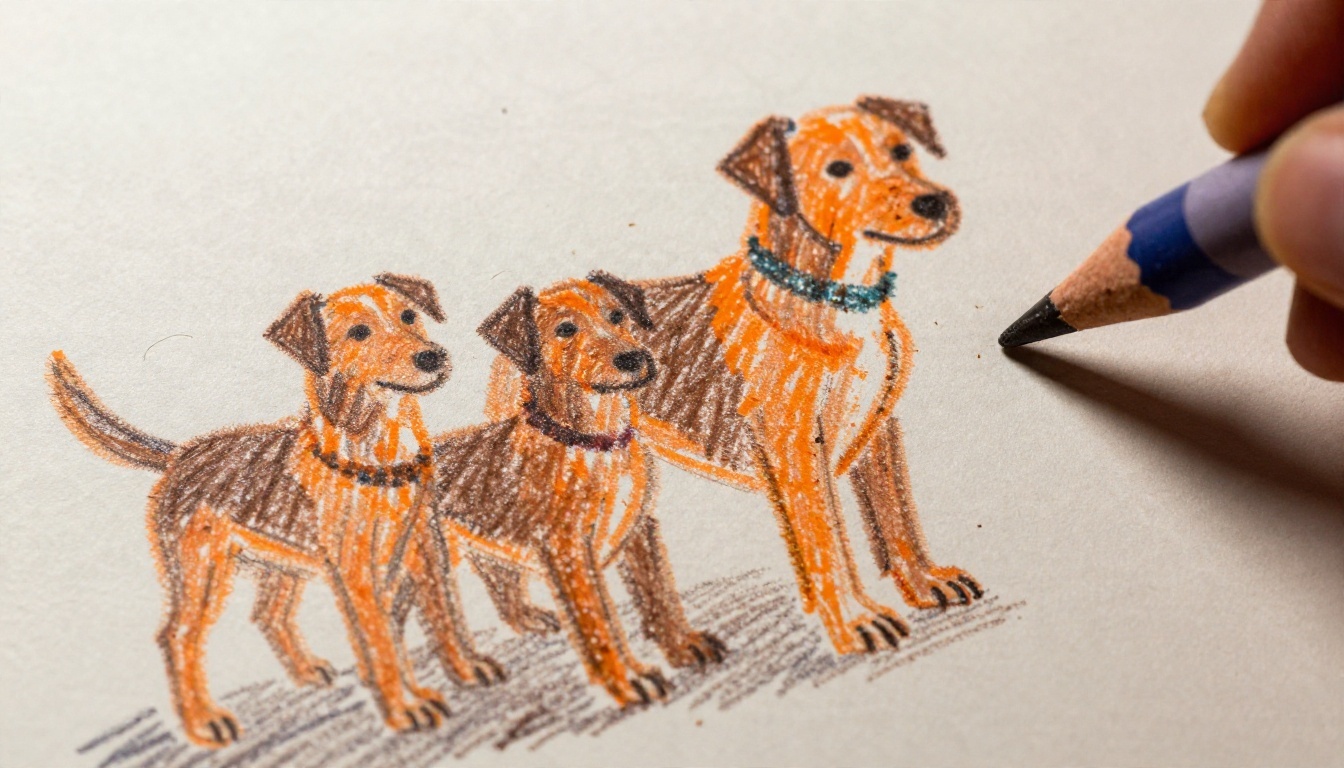
Notice the thick waxy strokes. When you animate a drawing like this, you can ask the model to keep the crayon texture visible so the result still feels hand-made, not smooth and plastic.
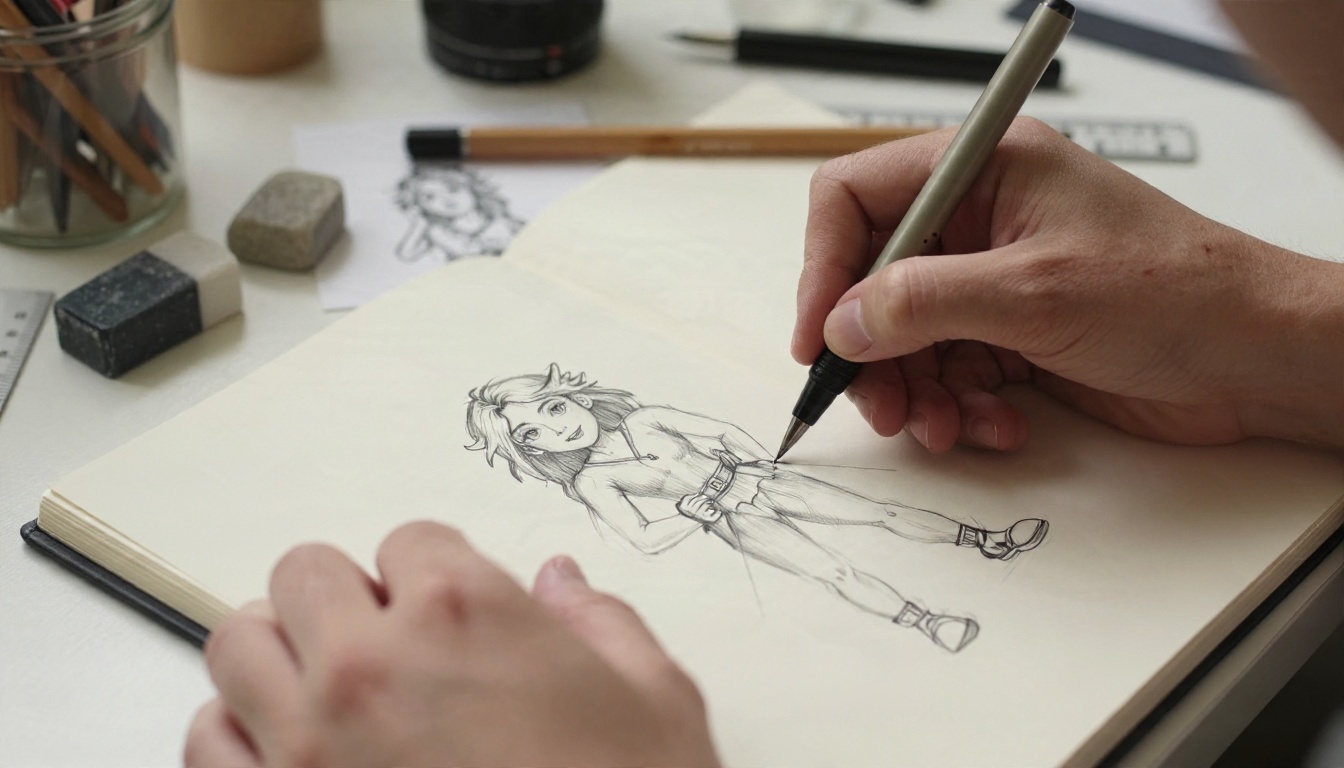
Sketchbook and ink characters
Illustrators use animated drawings AI for pitches, social posts and animatics. An inked character with confident outlines animates cleanly, because the edges are crisp and the contrast is strong.
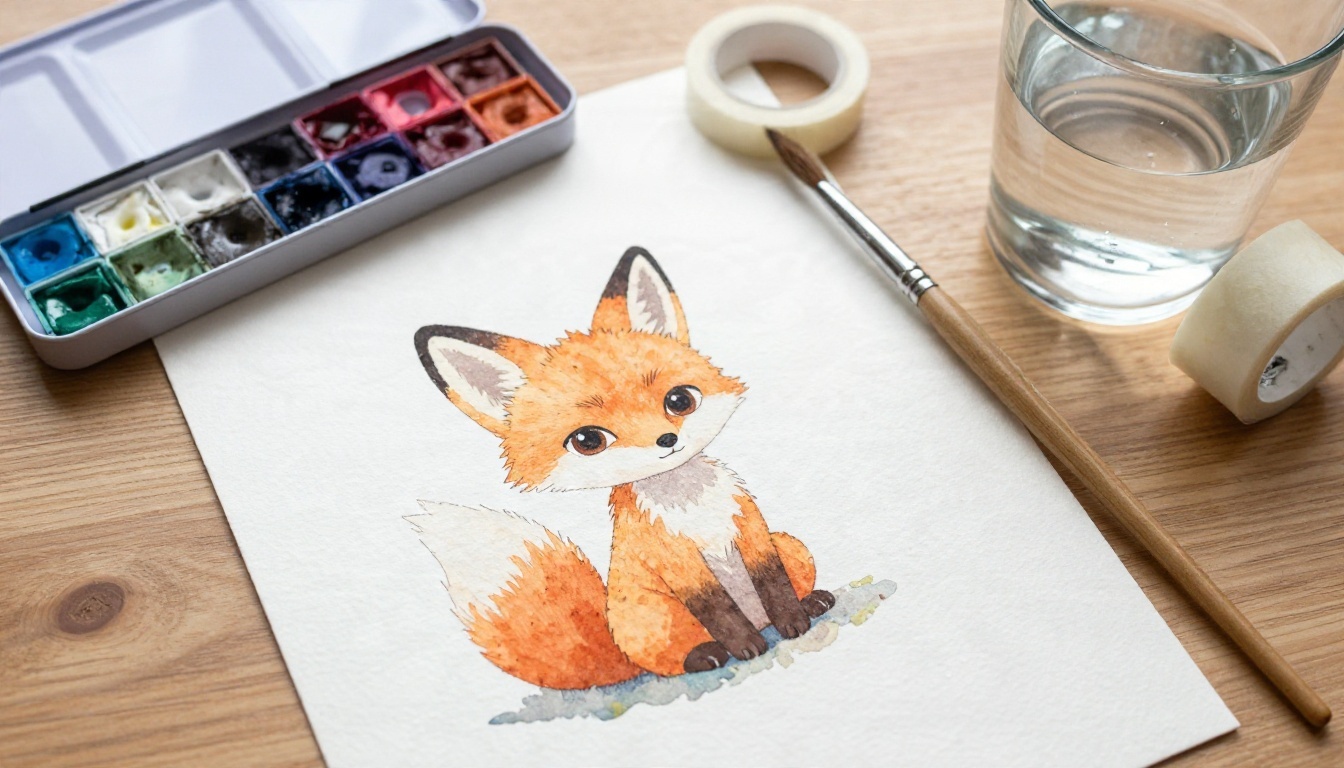
Watercolor mascots
Soft color washes are harder, because edges bleed into the paper. Still, a watercolor fox can blink, breathe and turn its head with an image-to-video model, and the pigment granulation gives the clip a tactile feel that digital art rarely matches.
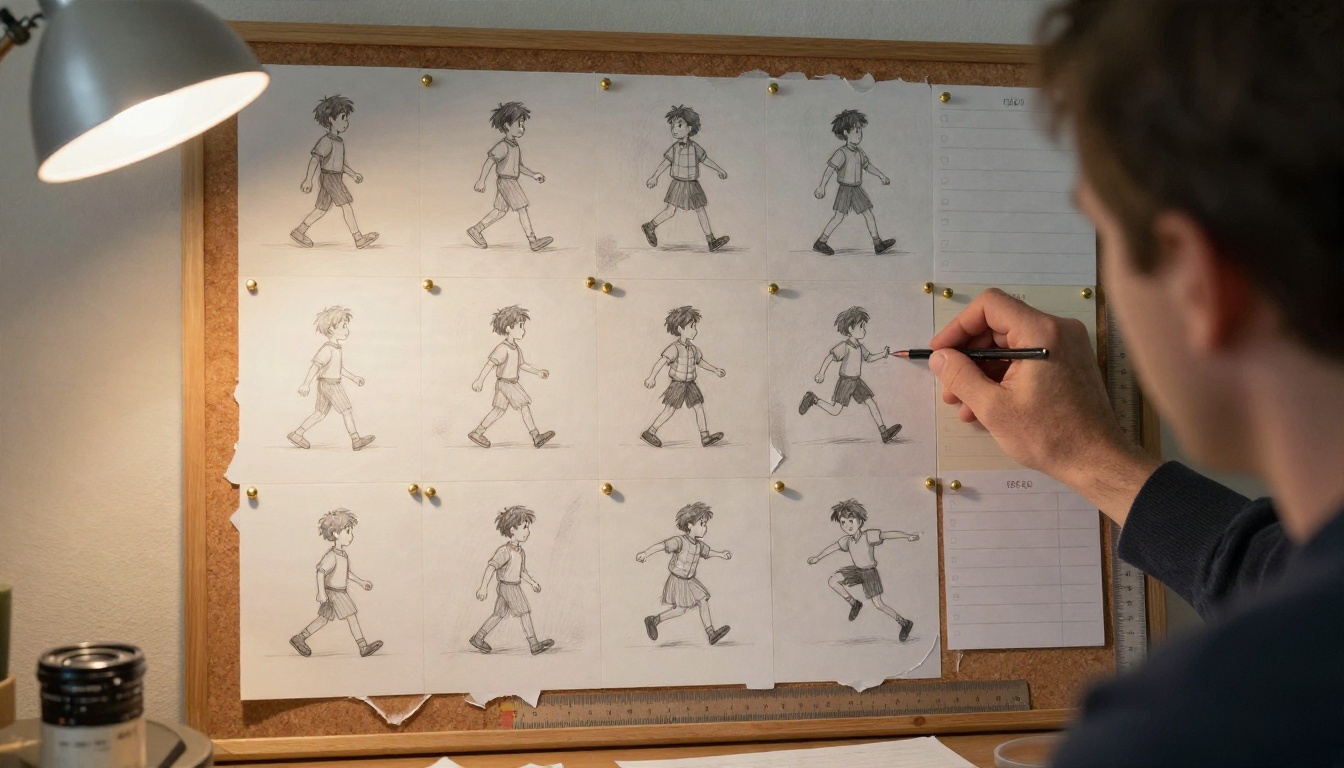
Storyboards and animatics
A row of pencil panels on a corkboard can become a rough animatic. Animate each panel as a separate five-second clip, then cut them together. It is a fast way to test timing before anyone commits to final artwork.
Prompts That Bring Drawings to Life
Prompts for drawings differ from prompts for photos. You are not describing a scene from scratch. You are describing what should happen to something that already exists. Keep the subject short and spend your words on motion, camera and style.
Motion prompts that work
Use a simple three-part pattern: subject, movement over time, camera and mood.
| Drawing | Prompt |
|---|
| Crayon figure | The crayon character waves with both arms, bounces twice, then smiles. Static camera, paper texture stays visible. |
| Crayon dog | The drawn dog wags its long tail, trots three steps to the right and tilts its head. Slow pan following the dog. |
| Ink character | The inked character blinks, turns its head slowly toward the camera and raises one eyebrow. Gentle push-in. |
| Watercolor fox | The watercolor fox breathes softly, ears twitch, tail curls. Soft window light, paint edges stay wet and organic. |
| Storyboard panel | The pencil hero steps forward and looks up. Graphite lines shimmer slightly, camera tilts up. |
💡 Prompt tip: always add a line such as keep the hand-drawn look, paper grain and original colors. Without it, many models will quietly polish your drawing into a smooth cartoon.
Image prompts for source art
You do not have to draw anything yourself. A text-to-image model can create the starting picture, and then a video model animates it. Seedream 4.5, Nano Banana and Nano Banana Pro all follow detailed prompts well. Try this for a crayon-style source:
A child's crayon drawing of a smiling human figure with a round head, two arms and two legs, red shirt, yellow hair, centered on plain white paper with generous margins, waxy strokes, slight paper creases, photographed straight down in soft daylight.
Notice the margins and the plain background. Those two details help every animation tool that follows.
How to Get Similar Results on PicassoIA
Meta's Animated Drawings is not a PicassoIA model. For similar results today, Wan 2.5 I2V Fast is a good first choice: it takes your drawing as the opening frame and moves it according to your prompt. Kling v3 Motion Control and Seedance 2.5 are strong alternatives if you want more precise movement or longer clips.
Step by step
- Prepare the drawing. Photograph it straight down in even daylight. Crop tightly but leave a margin of blank paper around the figure.
- Open the model page. Go to Wan 2.5 I2V Fast and choose the image-to-video input.
- Upload your photo. Use the highest resolution file you have. A sharp source gives the model more to work with.
- Write a motion prompt. Use the pattern from the table above: subject, movement over time, camera and mood.
- Add a style lock. End with keep the hand-drawn look, paper grain and original colors.
- Pick resolution and length. Choose a shorter length and a lower resolution for tests, then raise both for the final render.
- Generate, review, adjust. Change one thing per attempt: either the motion, or the camera, never both.
Settings that matter
| Setting | Recommendation | Why |
|---|
| Source image | Sharp, evenly lit, plain background | Cleaner outline, fewer artifacts |
| Prompt length | One to three sentences | Short prompts keep the drawing intact |
| Motion amount | Small to medium | Big moves tend to warp thin crayon lines |
| Camera | Static or slow push-in | Fast moves blur paper texture |
| Clip length | Short for tests | Faster feedback, less waiting |
💡 Free route: Seedance 2.5 Lite is free and unlimited, so it is a relaxed place to test five or six prompt variations before you spend effort on a final render.
Mistakes That Ruin the Animation
Most failures come from the source image or the prompt, not from the tool. These are the problems that show up again and again.
A messy source photo
Shadows, creased paper and phone glare confuse outline detection. Flatten the page under a book for a minute, shoot near a window, and keep your hand out of the frame.
A drawing that touches the edge
If an arm runs off the paper, the tool has nothing to animate beyond the border. Redraw with room to spare, or crop the photo so the figure sits fully inside the frame.
Overloaded prompts
Writing a paragraph of action for a five-second clip is a recipe for chaos. Choose one main movement and one camera move. If you want three actions, make three clips.
Asking a rigging tool for the wrong subject
Skeleton-based tools expect a human layout. Birds, snakes, cars and dragons often come out twisted. Switch to a generative model for those.
Forgetting the style lock
Without a reminder to keep the hand-drawn feel, many models smooth out your crayon strokes and ruin the charm. One extra sentence in the prompt solves it.
Use this table to decide in under a minute.
| Goal | Best fit | Time to first result |
|---|
| Make a child's human figure dance | Browser rigging tool | A few minutes |
| Quick sticker-style clip with voice | Phone app | Under five minutes |
| Animate an animal or creature | Wan 2.5 I2V Fast | Short wait per clip |
| Precise character movement | Kling v3 Motion Control | Short wait per clip |
| Cinematic camera over artwork | Kling v3 Video or Veo 3.1 Fast | Short wait per clip |
| Longer clips from one drawing | Seedance 2.5 | Longer wait |
| Looping GIF-style animation | Hotshot XL | Short wait |
Classroom and family projects
Teachers use animated drawings to turn a writing assignment into a short film: students draw the hero, write one sentence of action, and watch the character move. Families do the same with birthday messages and bedtime stories. A good pattern is one drawing, one sentence, one five-second clip. Small, finished projects beat ambitious ones that never get shared.
Safe handling of children's art
Children's drawings are personal. Before uploading a classmate's or a stranger's artwork anywhere, ask permission, and keep clips private unless a parent agrees to share them. A simple habit, but it keeps the project friendly.
Make Your Own Moving Drawing
You now have the whole picture: rigging tools for quick dances, phone apps for fast stickers, and image-to-video models for everything else. The best way to see the difference is to try it with one drawing you already own.
Take a photo of a sketch, open Wan 2.5 I2V Fast on PicassoIA, and paste one of the prompts from the table above. Then try the same drawing in Kling v3 Motion Control and compare. If you have no drawing handy, create a source image with Seedream 4.5 or Nano Banana and animate that instead. For more options, browse every model at picassoia.com/en/all-models.
Start with one crayon figure and one short prompt. Odds are good that it will be waving back at you within minutes.


