Antigravity does one thing that most content platforms get wrong: it separates the workspace into two purpose-built views instead of forcing every user into a single cluttered interface. If you have opened the platform and clicked through both the Editor View and the Manager View without really knowing the difference, you are not alone. The confusion is common, but it is completely fixable once you see what each view was designed to do and for whom.
What Antigravity Is Built For
Antigravity is a structured content platform designed for teams that publish at scale, handling everything from initial drafting to multi-stage approval workflows and multi-channel distribution. The role-aware interface system at its core means different users see different tools based on their function in the organization.
Two Modes, Not Two Products
The Editor View and Manager View are both accessed from the same account. There is no separate login, no separate app, and no second subscription. The switcher lives in the top navigation bar, and toggling it instantly changes what the interface renders without logging you out or losing your session state. What changes is not the underlying data, but the lens through which you interact with it.
Why the Split Exists
Most content platforms collapse all functionality into one interface, which means writers scroll past settings they can never change, and administrators hunt for user controls buried under content lists. Antigravity separates these concerns so each role works without visual noise. Writers see a writing tool. Administrators see a control tower.

Inside the Editor View
The Editor View is where content gets made. It is the focused, distraction-minimized writing interface built specifically for the people producing articles, posts, or any structured content.
What the Canvas Looks Like
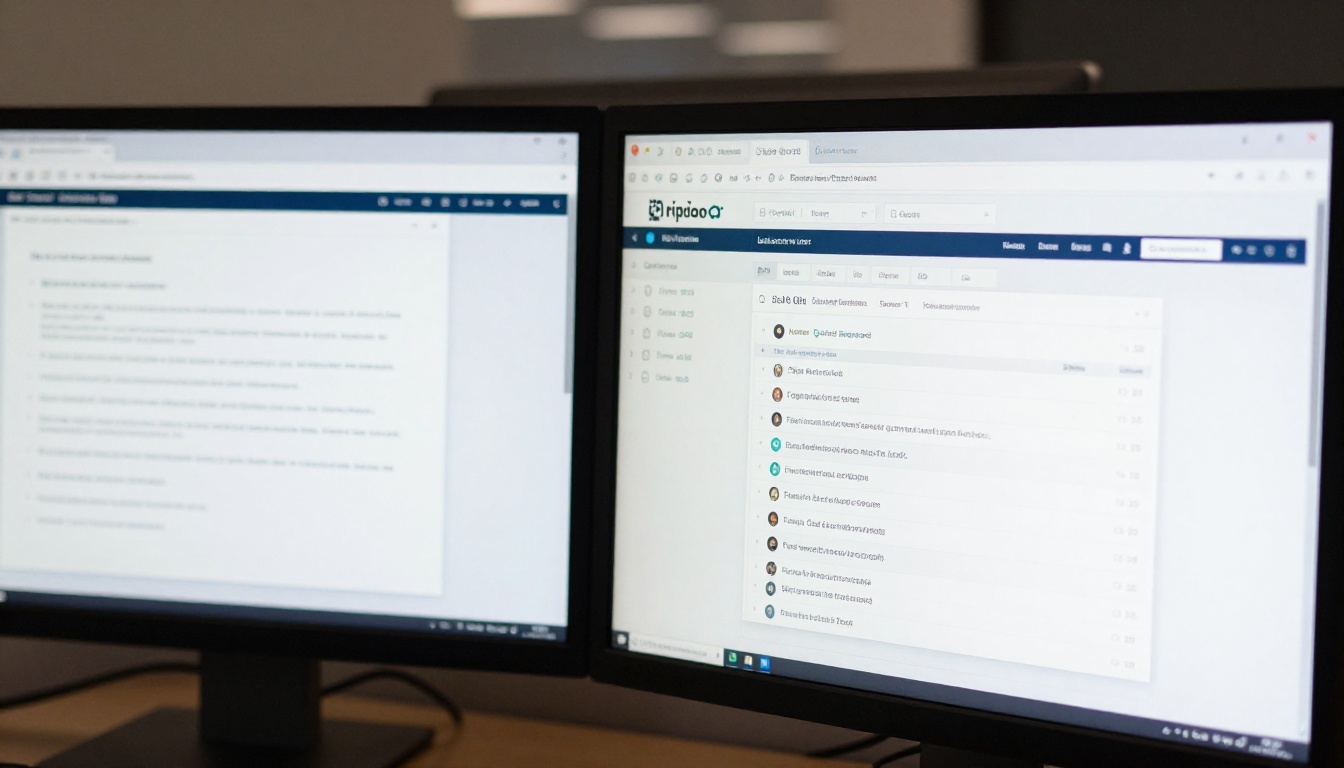
When you open Editor View, the central area is a clean writing canvas. The left sidebar displays your personal content library: drafts you are working on, pieces currently in the review queue, and content that has already been published. The toolbar along the top provides access to block types, formatting options, and embed functionality. A right-side panel handles all metadata: title, URL slug, categories, tags, and SEO fields.
There is no user management panel. There are no workspace settings. There is no billing section. Everything that is not directly related to creating and formatting content is absent.
Tools Writers Rely On
Inside the Editor View, the most-used features are:
- Draft autosave: Changes are saved continuously, so no version is lost if the browser closes unexpectedly
- Block-based content builder: Text, image, quote, code, table, and embed blocks can be inserted, moved, and reorganized freely
- Inline commenting: Collaborators can leave annotations on specific text ranges without altering the content itself
- Preview mode: A one-click toggle renders the content exactly as it will appear on the live site, using the actual front-end stylesheet
- Revision history: A timeline of saved states lets editors roll back to any previously saved version
💡 Tip: The Preview mode in Editor View uses the real stylesheet, not an approximation. What you see is genuinely what the audience will read.
What Editors Cannot Access
This is where most confusion originates. In Editor View, the following are hidden entirely:
- Other users' content unless explicitly shared with you
- Team member role assignments and permission settings
- Workspace-level configuration options
- API integrations and webhook configuration
- Billing and subscription details
- Approval pipeline settings and workflow rules
If you are trying to reach any of these and you are in Editor View, you will not find them. This is intentional separation, not a missing feature.

Inside the Manager View
The Manager View is the operations interface. This is where the infrastructure of a content organization lives: team oversight, pipeline configuration, workspace analytics, and administrative controls.
The Dashboard at a Glance
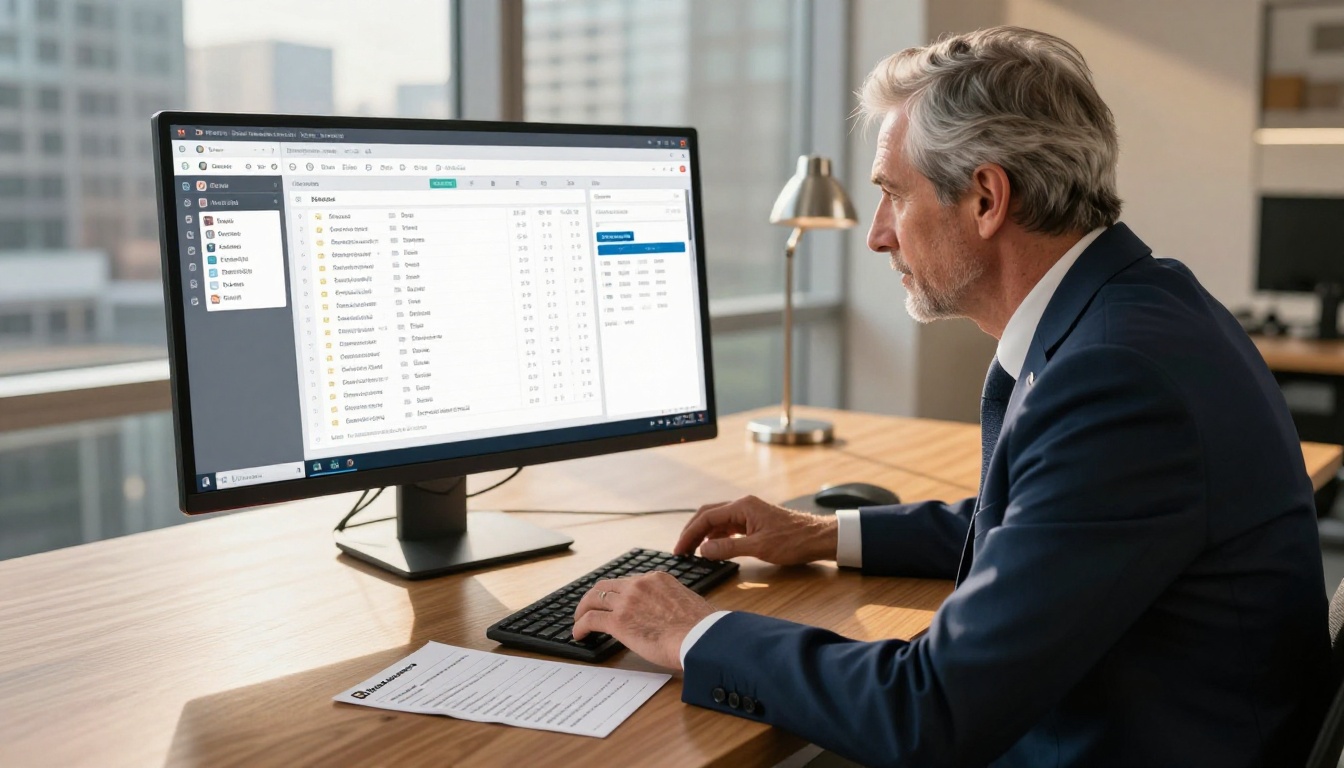
When you switch to Manager View, the entire layout changes. The primary area becomes a workspace analytics dashboard showing content output by team member, articles currently awaiting approval, publishing velocity over selected time periods, and flagged items requiring attention. The left sidebar shifts from a personal content list to a workspace-wide organizational tree showing all projects, folders, and team members.
What Only Managers Can Do
Manager View exposes controls that are invisible in Editor View:
| Function | Editor View | Manager View |
|---|
| Create and edit own articles | Yes | Yes |
| View other users' drafts | No | Yes |
| Assign reviewer roles | No | Yes |
| Set publishing rules | No | Yes |
| Manage API connections | No | Yes |
| Configure approval workflows | No | Yes |
| Access workspace analytics | No | Yes |
| Edit team member permissions | No | Yes |
💡 Note: Users with Manager View access can still create and edit their own content. Manager View is additive, not a replacement for editorial work.
The Approval Pipeline
One of the most powerful features in Manager View is the approval pipeline configurator, where managers define exactly how content moves from draft to published:
- Draft stage: Content is created and self-reviewed by the author
- Peer review: A designated reviewer is assigned and notified automatically
- Manager approval: Final sign-off before the content enters the publishing queue
- Scheduled release: Content is queued for a specific date and time with automatic publishing
Each stage carries its own permissions, time limits, and notification rules. None of this is accessible from Editor View.
The Real Differences, Side by Side
| Area | Editor View | Manager View |
|---|
| Primary purpose | Content creation | Operations oversight |
| Default landing screen | Personal drafts | Analytics dashboard |
| Content visibility | Own articles only | All team content |
| User management | None | Full control |
| Workflow settings | None | Full control |
| API and integrations | Not visible | Full access |
| Publishing controls | Own content only | All workspace content |
| Notifications | Personal only | Workspace-wide |
| Role assignment | None | Assign any role |
| Billing access | None | Full access |
The visual difference is stark. Editor View feels like a focused writing application. Manager View feels like a control tower with a full view of all active operations.
Who Should Use Which View
The Right View for Writers
If your primary job is producing articles, blog posts, or structured content, you live in Editor View. Everything required for that work is present: drafting, formatting, previewing, and submitting for review. Switching to Manager View will surface a large volume of information that is not relevant to your work, and in some cases may create confusion about what you are authorized to change.
The only scenario where a writer benefits from opening Manager View is when that writer has also been granted manager permissions and needs to perform a specific administrative task.
The Right View for Administrators
If you are responsible for a team of writers, the publishing cadence, the technical configuration of the workspace, or the overall content calendar, Manager View is your operating environment. You will still write and edit your own content, but your primary mode of working is oversight and configuration, not creation alone.
Manager View is also the correct starting point when onboarding new team members. Role assignment, permission configuration, and workflow setup are all done from here.

Switching Between Views
The Toggle Is Always There
The view switcher is persistent in the top navigation bar regardless of which view you are currently using. Clicking it does not trigger a full page reload. The interface remounts in the new view with your last-known position preserved where possible. If you were editing a draft in Editor View and switch to Manager View, the draft is not lost.
3 Common Mistakes When Switching
These are the situations that most often cause frustration:
-
Looking for workflow settings in Editor View: Writers who have also been given manager permissions sometimes forget to switch views and spend time looking for settings that are simply not rendered there.
-
Assuming Manager View changes what editors experience: Changing the pipeline settings in Manager View does not affect content already in review. Changes apply to new submissions only.
-
Treating the two views as separate apps: Some users bookmark both views separately and navigate between them using browser history. The correct pattern is to use the in-app toggle, which maintains session state and prevents authentication issues.
💡 Tip: If you cannot find a setting in Antigravity, the first question to ask yourself is whether you are in the right view. This resolves the majority of navigation confusion immediately.
Permissions Determine What You Can See
Not every user has access to both views. The ability to switch to Manager View depends on the role assigned to your account. If you do not see the view toggle in your top navigation, your account has not been granted manager permissions. This is a decision made by whoever administers your workspace, not a limitation of the platform itself.

Pairing Antigravity With AI Image Creation
Content published through Antigravity is only as strong as the visuals that accompany it. Whether you are managing a blog, a knowledge base, or a multi-channel publishing operation, the images attached to articles directly affect how readers respond to them.
Creating Images for Your Content
This is where PicassoIA Image fits naturally into the workflow. You can generate photorealistic, publication-ready images directly from text prompts, without needing a designer or a stock photo subscription. Every image is generated specifically for your content, styled to match your article's tone and subject matter.
For article headers and featured images that need refinement, PicassoIA Image Editor Pro gives you control over existing photos: adjust composition, replace backgrounds, or correct details that do not match the article's mood. This is particularly useful when adapting a single asset across multiple articles in different formats.

Image Variations for A/B Testing
Content teams using Antigravity's analytics features often run A/B tests on article thumbnails and headers. Flux Redux Dev on PicassoIA generates controlled variations of an existing image while keeping the core composition consistent, changing details like lighting, color temperature, and subject expression. This makes it straightforward to produce several thumbnail variants from a single reference image for split testing inside Antigravity's performance analytics.
Visual Consistency Across the Team
When multiple editors are publishing through Antigravity, visual inconsistency becomes a real problem. Images created with different tools at different quality levels, with varying aspect ratios and lighting styles, create a fragmented reading experience. Standardizing on PicassoIA and defining a shared prompt template gives managers the ability to enforce a consistent visual style across all published content, without manually reviewing every image before it goes live.

Make Something Worth Publishing
The Editor View and Manager View are not confusing once you see them for what they are: two interfaces built for two genuinely different modes of working inside the same platform. Writers stay in Editor View. Administrators operate from Manager View. Users who do both switch between them deliberately, not accidentally.
The next step is pairing that workflow with visuals that match your content quality. Try PicassoIA Image for your next article header. Write a detailed prompt describing the mood, setting, and lighting you want, and you will have a photorealistic, publish-ready image that fits your content precisely. If you need to refine it, PicassoIA Image Editor Pro is right there on the same platform.
Two views, one platform, and now one less source of confusion.


