Every team lead has felt it: the nagging uncertainty about whether everyone is moving in the right direction, whether someone is quietly buried under too much work, or whether a deadline is slipping off the calendar without anyone raising a hand. Antigravity's Manager View was built to eliminate that uncertainty. It gives managers one living, real-time snapshot of everything happening across their team, without requiring a single status update meeting or an inbox full of check-in messages.
But what does it actually show? How does it differ from what individual contributors see? And is it genuinely worth investing the time to configure it right? This article breaks it all down, section by section.
What Antigravity's Manager View Actually Is
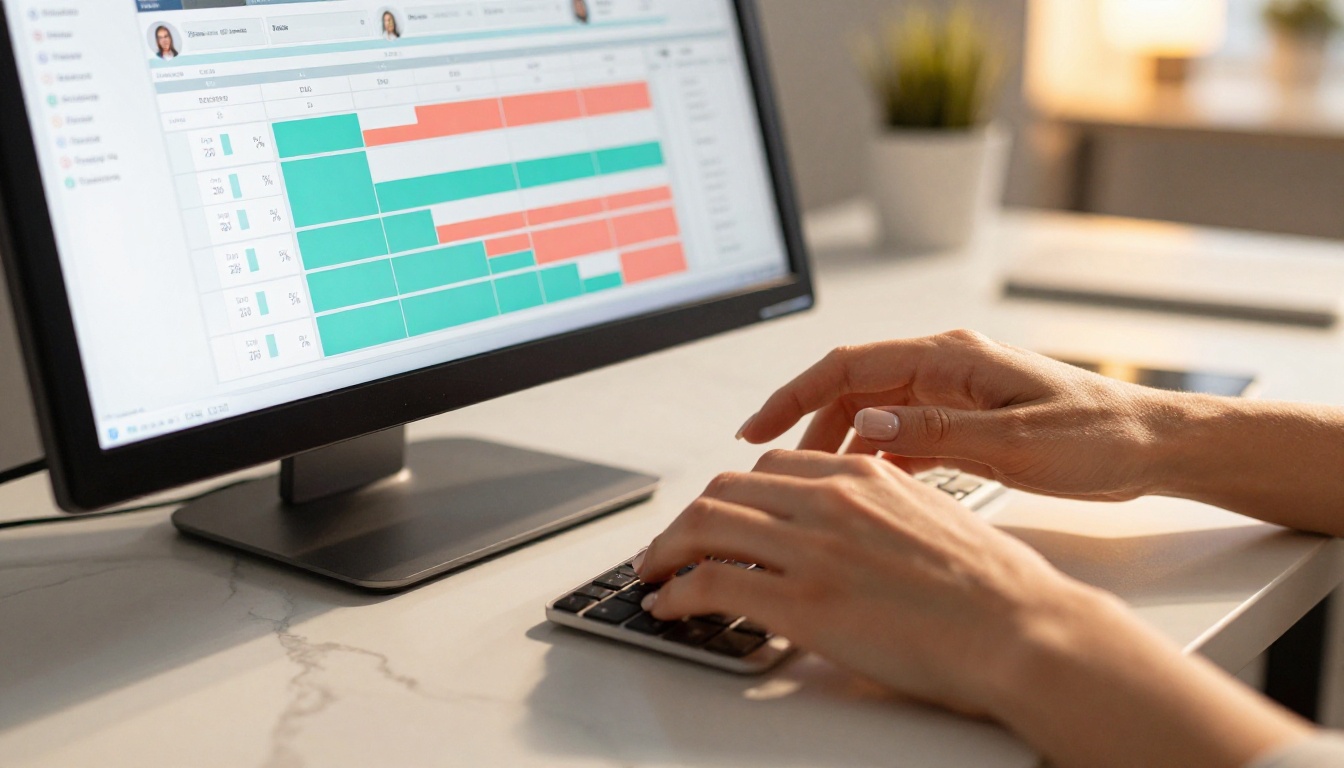
Antigravity is an AI-assisted work management platform built around the idea that visibility should be effortless. Most project tools make managers cobble together a picture of their team's status by reading through task comments, running manual reports, or scheduling recurring check-ins that eat into everyone's productive time. The Manager View is Antigravity's direct answer to that friction: a purpose-built perspective that aggregates every relevant signal from across the workspace into one consolidated interface.
When a manager opens this view, they are not looking at their own tasks. They are looking at a filtered, restructured representation of their entire direct team's workload. Items are grouped, sorted, and surfaced based on what matters at the management level: capacity, priority, due dates, and blocking relationships between tasks that span multiple people.
This is a fundamentally different philosophy from giving managers administrative access to everyone's individual task lists. Instead of scrolling through piles of granular to-dos, the Manager View applies a layer of abstraction that highlights signals over noise. A manager scanning this view can, within thirty seconds, identify who is stretched thin, which project has a cluster of blocked items, and whether the current sprint is on pace.
Important: The Manager View is read-optimized by default. Managers can flag items and leave comments, but task ownership stays with the assignee. This is not an accident; it reflects how the tool positions the manager as an observer and facilitator rather than a micromanager.

The Three Data Layers It Shows
The Manager View renders information in three distinct layers that can be toggled independently:
- Capacity layer: How much workload each person currently carries, expressed as a percentage of their available hours or story points within the current sprint or time window. This is the first thing most managers look at.
- Progress layer: Which tasks are on track, which are blocked, and which are overdue, displayed per person and per project. Items flag automatically when they sit in an "In Progress" status past their due date.
- Dependency layer: Which items are waiting on other items, with visual chain indicators showing where a single blocker is causing downstream delays across multiple assignees.
Each layer can be collapsed so managers who only need capacity data during a sprint review do not wade through dependency chains that are not relevant in that moment.
Real-Time vs. Scheduled Data
The capacity and progress layers update in real time as team members log work, change task statuses, or modify estimates. The dependency layer, by contrast, refreshes on a configurable schedule that defaults to every fifteen minutes. This is because dependency mapping involves traversing the full task graph, which is computationally heavier than status polling and does not need to run at the second-by-second level.
Managers who need true real-time dependency visibility can reduce the refresh interval to two minutes in workspace settings. On very large workspaces with hundreds of interconnected tasks, this can introduce minor interface lag during the refresh cycle. A fifteen-minute refresh is the practical sweet spot for most teams.
How Team Capacity Shows Up
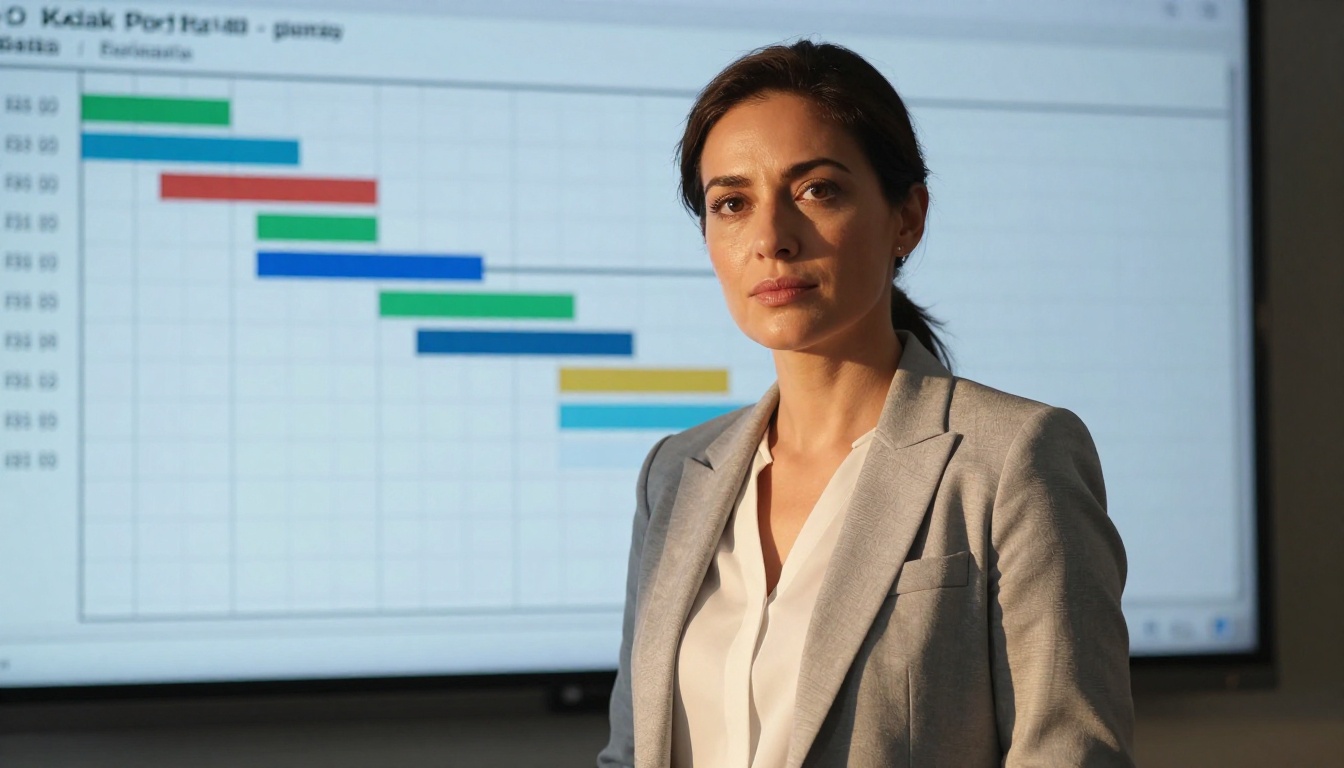
Capacity is the metric managers check first, and Antigravity's representation of it is more nuanced than a simple percentage bar. Each team member appears as a row in the capacity section, and their bar fills based on the ratio of assigned estimated work to available capacity within the selected period. The period defaults to the current sprint or the current week, switchable in the view header.
The color coding follows a three-tier system that maps directly to how much attention each person needs:
| Capacity Level | Color | What It Signals |
|---|
| 0% to 70% | Green | Bandwidth available, no immediate action needed |
| 71% to 90% | Amber | Near full, worth checking in |
| 91% to 100%+ | Red | Over-allocated or at risk of slipping |
Hovering over any person's capacity bar expands a tooltip that lists the specific tasks contributing to their load, their individual due dates, and whether any tasks are unestimated. Unestimated tasks appear with a warning icon because they represent unknown work that is not factored into the capacity calculation. A person at 75% capacity with three unestimated tasks may actually be sitting at 95%.
Reading the Capacity Bars
The capacity calculation is straightforward: sum of estimated hours (or points) on all active, non-completed tasks assigned to the person within the current period, divided by their available hours as configured in their profile. If a team member has not set their working hours, Antigravity defaults to 40 hours per week for full-time roles.
This default is where many teams run into problems. Part-time contributors, contractors working 20 hours per week, or team members on a reduced schedule will appear severely over-allocated simply because the correct hours were never entered. Before acting on a red capacity bar, always verify that the person's profile hours reflect their actual availability.
When Someone Is Over-Allocated
When a team member crosses into the red zone, the Manager View surfaces three automatic suggestions alongside their row: the top three tasks by lowest priority score that could potentially be reassigned to someone with available capacity. These are prompts, not automatic actions. The manager reviews the suggestions and decides whether to reassign, push back due dates, or accept the temporary overload because the tasks are business-critical.
The platform logs every dismissed over-allocation warning, creating a lightweight audit trail. During retrospectives, this data shows whether over-allocation events were isolated or recurring, which helps teams make better capacity commitments in future planning sessions.
Task-Level Visibility Without Micromanaging
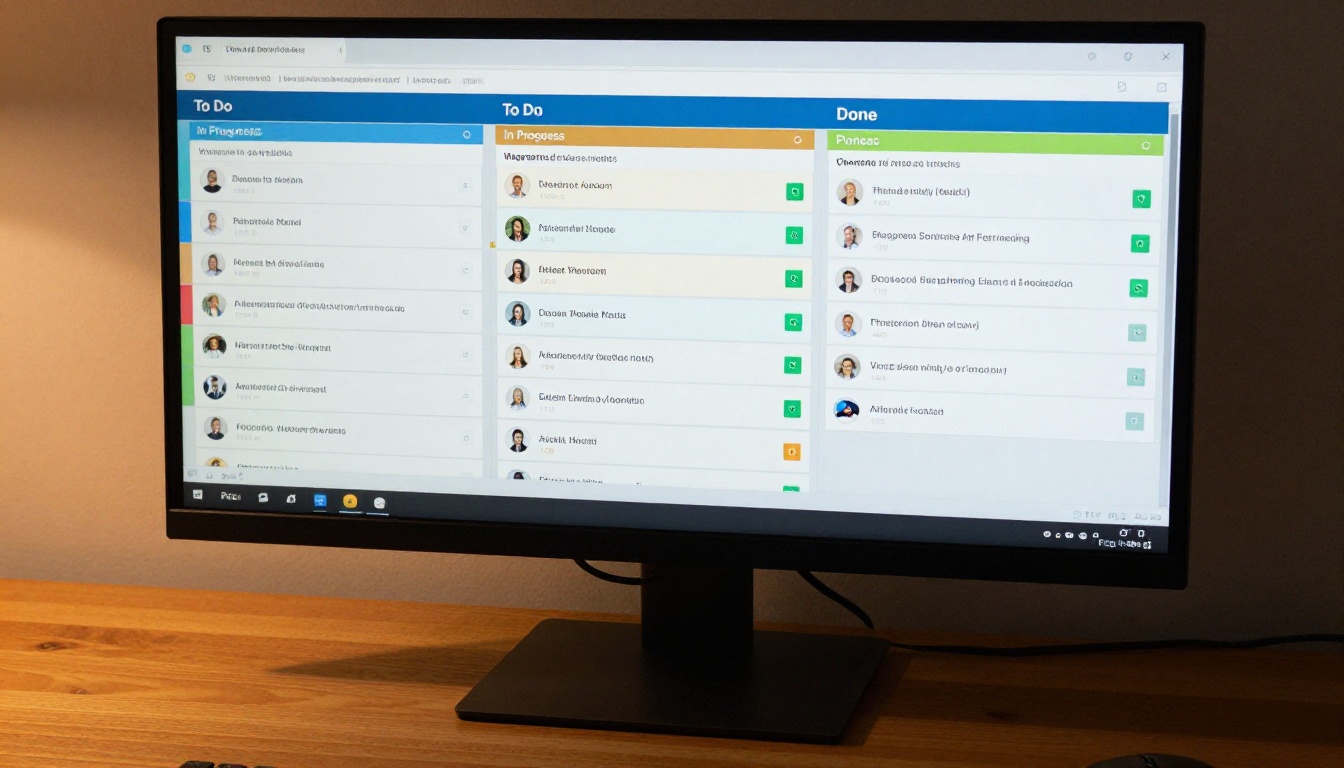
One of the more deliberate design decisions in the Manager View is that it does not default to showing every individual task in full detail. By default, the view shows task groups, with a count of items in each status column per person. A manager sees that a particular team member has twelve tasks in progress and three blocked, without immediately seeing every task title, description, and comment thread.
This is not a limitation. It is a considered choice grounded in research on management dynamics: when managers can see every task in granular detail at all times, they tend to intervene on specifics rather than trusting their team to execute. The aggregated view shifts the manager's attention toward patterns and trends rather than individual task ownership.
When a pattern warrants deeper inspection, one click on any aggregate expands it to show all individual tasks within that group, at which point the manager can read comments, adjust priority, or flag an item for discussion.
The Difference Between Status and Progress
Status in Antigravity is categorical: a task is in To Do, In Progress, In Review, Done, or a custom status the workspace has defined. Progress, however, is continuous. Team members can log their estimated completion percentage within a task, and this granular figure surfaces in the Manager View as a small progress bar nested inside the status aggregate.
The practical value of this distinction becomes clear when a manager sees that someone has four tasks "In Progress," but one sits at 92% complete, two sit at around 45%, and one has been at 8% for the past four days. That last item is worth a conversation. Without the progress layer, all four tasks look identical from the outside.
Filtering by Person, Team, or Sprint
The Manager View supports multi-level, stackable filtering that allows very specific slices of the data:
- By person: Isolate a single team member's entire workload in one click without leaving the view.
- By team: If you manage multiple sub-teams, collapse or expand each group independently to focus your attention.
- By sprint: Switch between the current, previous, or next sprint window from a dropdown in the header.
- By project: When team members work across multiple projects simultaneously, filter to show assignments from one project only.
Filters stack. You can look at a specific person's tasks within a specific project during a specific sprint in a single, focused view.
Setting Up the View Right
A Manager View that has not been properly configured will surface incomplete or actively misleading data. The three most common setup failures are: team member profiles with incorrect working hours, tasks that carry no time estimates, and missing dependency links between related items that actually block each other.
Fixing all three before relying on the view for real decisions takes less than an hour for most teams and dramatically improves the quality of the signals the view produces.
The Permissions You Need to Set First
To see another person's tasks in the Manager View, you must hold the "Team Lead" or "Manager" role for that person in Antigravity's permission hierarchy. Organization admins can grant this in Settings, then People, then Roles. Without the correct role assignment, those team members do not appear in your Manager View at all. This is easy to miss: a manager can open the view, see a clean, manageable-looking board, and not realize they are only seeing two of their six direct reports because the other four were never assigned to them in the permission system.
If your organization uses private projects, tasks inside those projects only appear if you have been explicitly granted viewer access to each private project. The Manager View respects all project-level privacy settings and does not override them, even at the manager role level.
Custom Fields That Actually Help
Not every custom field adds value at the management level. The fields that consistently improve decision-making in the Manager View are:
- Risk level: A simple High, Medium, or Low tag that lets managers sort all active tasks by risk in one click.
- Business impact: Linking tasks to business objectives or OKRs allows the Manager View to surface which blocked items carry the highest strategic weight.
- External dependency flag: Marking tasks that are waiting on a third-party vendor, client approval, or another department makes it immediately clear why something is stalled, without requiring the manager to dig through comment threads.
Resist the urge to surface every custom field in the Manager View. More data visible at once creates more scanning work, not better decisions. Three to five well-chosen fields outperform fifteen fields every time.
Manager View vs. Team Member View

The same Antigravity workspace looks entirely different depending on who opens it. A team member logging in sees their personal task list: their deadlines, items assigned to them, comments they are tagged in, and the shared project boards they have access to. They see nothing about their colleagues' capacity levels or workload totals unless they navigate explicitly to a shared board view.
A manager opening the Manager View sees an aggregated, restructured version of all of that information across their entire direct team. They cannot see tasks a team member has marked as private, but they see everything else.
What Managers See That Teams Don't
- Aggregate capacity percentages per person, updated in real time
- Cross-person blocking relationships showing when Person A is waiting on Person B to finish something
- Over-allocation warnings with AI-suggested reassignment candidates
- Historical capacity trend lines over the past 30, 60, and 90 days
- Sprint velocity for the current team compared to the rolling 6-sprint average
- A summary of how many items have been added to the sprint after it started (sprint scope creep)
What Teams Don't See About Each Other
Team members in standard contributor roles cannot see each other's capacity percentages, workload aggregates, or personal task lists. They see their own work and the shared content within projects they are members of. This privacy boundary is intentional: visible workload comparisons between peers tend to create unhealthy dynamics, particularly in teams where some members work on more visible or estimable tasks than others.
Common Mistakes New Managers Make

The Manager View is a genuinely powerful tool, but it surfaces data, not conclusions. The most consistent errors new managers make when they first gain access to it fall into two predictable categories.
Relying on the View Instead of Conversations
The view tells you that someone is over-allocated at 104%. It does not tell you why. Maybe they requested additional work because they wanted more challenge. Maybe a task was estimated at two hours and turned into a six-hour project because of unexpected technical complexity. Maybe they are struggling with something they have not mentioned. The Manager View surfaces the signal. The manager still needs to create the space for the conversation.
Teams where managers treat the view as a substitute for regular one-on-ones consistently surface problems later and with less context than teams where the view is used as preparation for conversations, not a replacement for them.
Ignoring the Bottleneck Signals
The dependency layer surfaces bottlenecks clearly, often as a single task that has four or five other tasks waiting on it across multiple team members. New managers frequently scan past these because they look like status information rather than action items. In practice, a blocked dependency chain is almost always the highest-priority item in the view, regardless of what priority tags the individual tasks carry.
Tip: Sort the dependency layer by "downstream impact count" to always see the tasks with the most blocked items waiting on them at the top of the list.
How AI Changes This Picture

Antigravity layers AI-driven predictive signals on top of the static Manager View data. The platform analyzes historical task completion rates, team communication cadence, and workload distribution patterns over time to surface early warnings that are not yet visible in the raw capacity or progress numbers.
These signals appear as subtle indicators embedded in the view: a small icon next to a task the system flags as at risk of slipping based on its current completion rate and remaining time, or an automated suggestion to rebalance workload before the situation escalates into an over-allocation event. Managers can act on these signals or dismiss them; every dismissal is logged and factors back into the model's future calibration for that workspace.
When AI Flags What You Would Have Missed
The most common AI-assisted intervention involves tasks with imminent due dates that are still at very low completion percentages. These fall through the cracks in manual reviews because their priority tag might be Medium or Low, even though their urgency is high. The combination of low completion percentage plus short remaining time is exactly the pattern the AI is calibrated to surface.
Managers who use AI-assisted tools consistently report that the most valuable interventions are not the dramatic, obvious ones. They are the quiet, early catches: a task heading toward a slip four days before the due date, surfaced on a Monday morning before anyone has started firefighting. That is where the leverage is.
Balancing Automation With Judgment
The AI signals in Antigravity are advisory. The system does not reassign tasks, adjust deadlines, or send automated messages to team members. Every action still runs through the manager. This reflects a broader principle in well-designed AI tools: surface information faster and more completely than a human could on their own, then let the human make the call. Automation that removes judgment from the process tends to create more problems than it solves, particularly in team management where context and relationship dynamics are never fully captured in structured data.
Bring Your Workflows to Life with PicassoIA
AI-powered management tools like Antigravity change how teams track and coordinate their work. But there is a parallel dimension where AI is reshaping how teams communicate that work outward: visual storytelling in reports, presentations, and team updates.
Whether you are building a quarterly business review deck, a project status report for stakeholders, or an internal team newsletter, the images you use either reinforce your message or dilute it. Generic stock photos of people pointing at whiteboards do not represent what your team actually does. This is where PicassoIA Image becomes a practical part of the workflow. With a plain text description, you generate photorealistic visuals that match the exact tone and context of your reports.
For managers who want to work from an existing visual and refine it, PicassoIA Image Editor Pro gives you AI-driven editing with full compositional control. Adjust framing, remove distracting elements, or build on a base image without rebuilding from scratch. When the final output needs to go on a large display or printed report, Clarity Pro Upscaler scales images to presentation quality without visible degradation.
For teams that work with branded visuals or product screenshots, Bria Remove Background strips backgrounds cleanly in a single step, ready for placement on slide decks, dashboards, or documentation.
If you want to experiment with the highest-fidelity photorealistic output, GPT Image 2 and Flux Redux Dev both produce exceptional detail in professional and office-context imagery. For creative editing workflows, Qwen Image Edit Plus and Seedream 4.5 offer strong text-guided editing capabilities that fit naturally into a report preparation workflow.
The combination of a platform like Antigravity managing how work flows through your team and a platform like PicassoIA managing how that work is visually communicated covers both sides of modern team leadership. Start with a description of what you need. Let the platform generate the rest.


