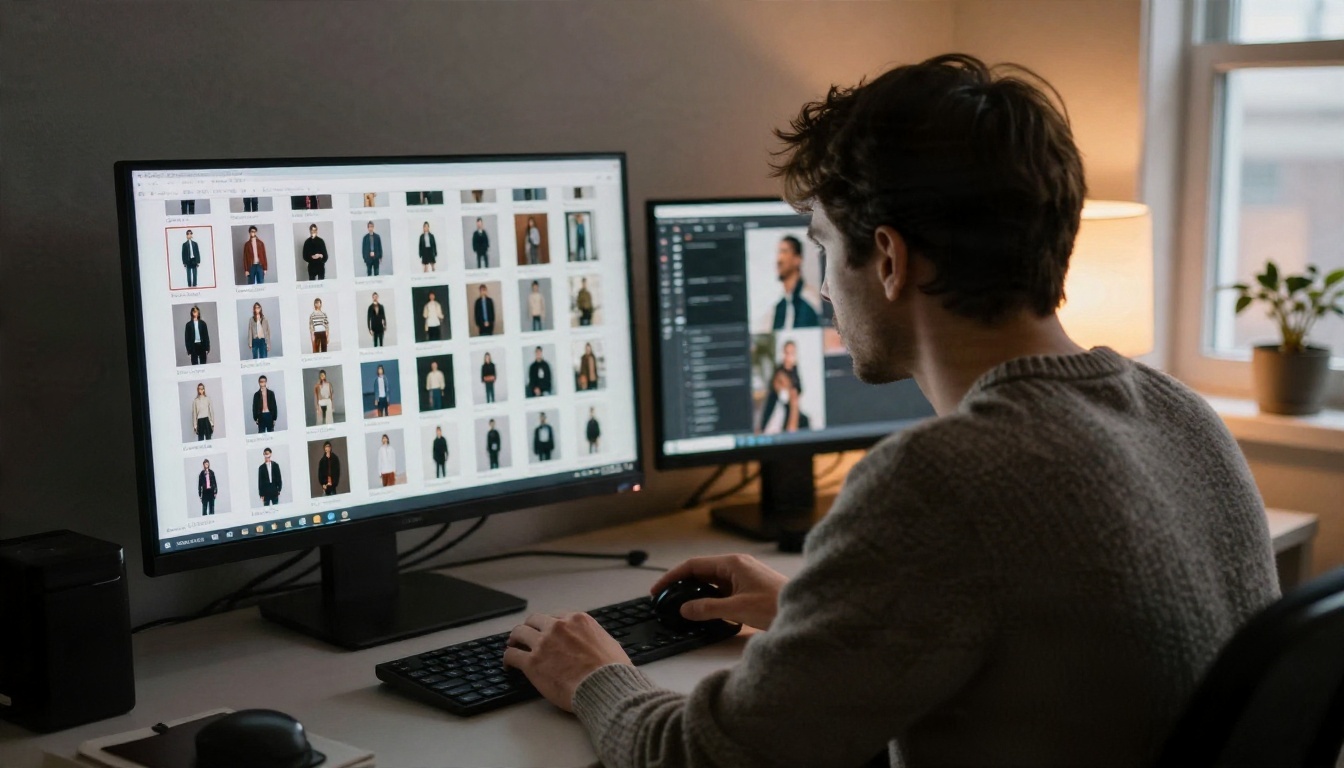
Batch Fashion Photography AI: Free Tools, Prompts and Settings for Bulk Photos
A practical walkthrough of batch fashion photography with AI: which free tools handle bulk generation, the prompt template that scales across dozens of outfits, and the seed, lighting and resolution settings that keep every photo consistent.
A single great fashion photo is easy to get from AI. Fifty of them that look like they came from the same studio, the same day, the same photographer? That's where most people fall apart. The first image is sharp and moody, the second has a different face, the third has a different backdrop, and by the tenth you've burned an afternoon and still can't upload a consistent catalog.
Batch fashion photography AI solves exactly that problem. Instead of treating every image as a one-off experiment, you build a repeatable system: one prompt template, a small set of locked settings, and a handful of tools that each do one job well. This article shows you the free tools worth using, the prompts you can copy today, and the settings that keep bulk photos looking like a real shoot.
💡 Quick answer: Lock your lighting, backdrop and camera words in a fixed prompt block. Change only the garment and the pose. Keep the same aspect ratio and reuse seeds when you want a consistent look. Upscale the winners at the end, not before.
What Batch Fashion AI Really Means
Batch photography is not "press generate 100 times and hope." It's a production habit borrowed from real studios, where a photographer shoots forty outfits in a day because the light, lens and backdrop never change. AI lets you copy that logic without the rented studio.
Single Shots vs Batches
A single shot rewards creativity. You tweak wording, chase a mood, and accept some luck. A batch rewards discipline. Every variable you leave open multiplies the chance that two photos won't match.
Approach
Goal
Risk
Best for
Single shot
One striking hero image
Low
Campaign visuals, covers
Small batch (5 to 10)
A mini lookbook
Medium
Social posts, mood boards
Bulk batch (30+)
Full catalog or collection
High without a template
Online stores, lookbooks
Who Gets the Most From It
Small clothing brands that can't afford a shoot per drop.
Resellers who need tidy listing photos for dozens of pieces.
Stylists and creative directors building mood boards fast.
Fashion students testing collections before sewing a stitch.
Content creators who need a steady stream of outfit visuals.
If you're in any of those groups, the workflow below will save you hours every week.
Free Tools Worth Using
You don't need one magic app. You need a short toolkit: a generator, an editor, an upscaler and a background tool. Several of the tools below are available on PicassoIA, and many can be tried for free before you commit to a big run.
Text to Image Generators
These do the heavy lifting of creating the model, outfit and scene.
Seedream 4.5 is a strong first pick for polished fashion imagery with crisp fabric and skin detail, and it handles long, structured prompts well.
Nano Banana Pro is built for high resolution output and follows detailed styling instructions closely.
Qwen Image 3 leans photorealistic and is good for natural, documentary style looks.
Z Image Turbo is the speed option when you're running dozens of drafts.
Flux Schnell is another quick generator for fast first passes before you commit to a final model.
Product Cutout isolates garments precisely when you need a transparent or plain background.
💡 Tip: Run your first 3 to 5 images through two different generators with the same prompt. Pick the one whose fabric and skin look closest to what you want, then use that model for the whole batch.
The Prompt Template That Scales
The single biggest upgrade to bulk generation is a structured prompt with fixed slots. You rewrite only the slots that change.
The Six Slot Formula
Think of every prompt as six blocks in a fixed order:
Subject: age range, build, hair, expression.
Garment: fabric, color, cut, fit, details.
Pose: standing, walking, hand position.
Backdrop: seamless paper, street, studio wall.
Light: direction, softness, time of day.
Camera: lens, aperture, film feel.
Slots 4, 5 and 6 stay locked across the whole batch. Slots 1 to 3 are the only ones you edit.
Swappable Variables
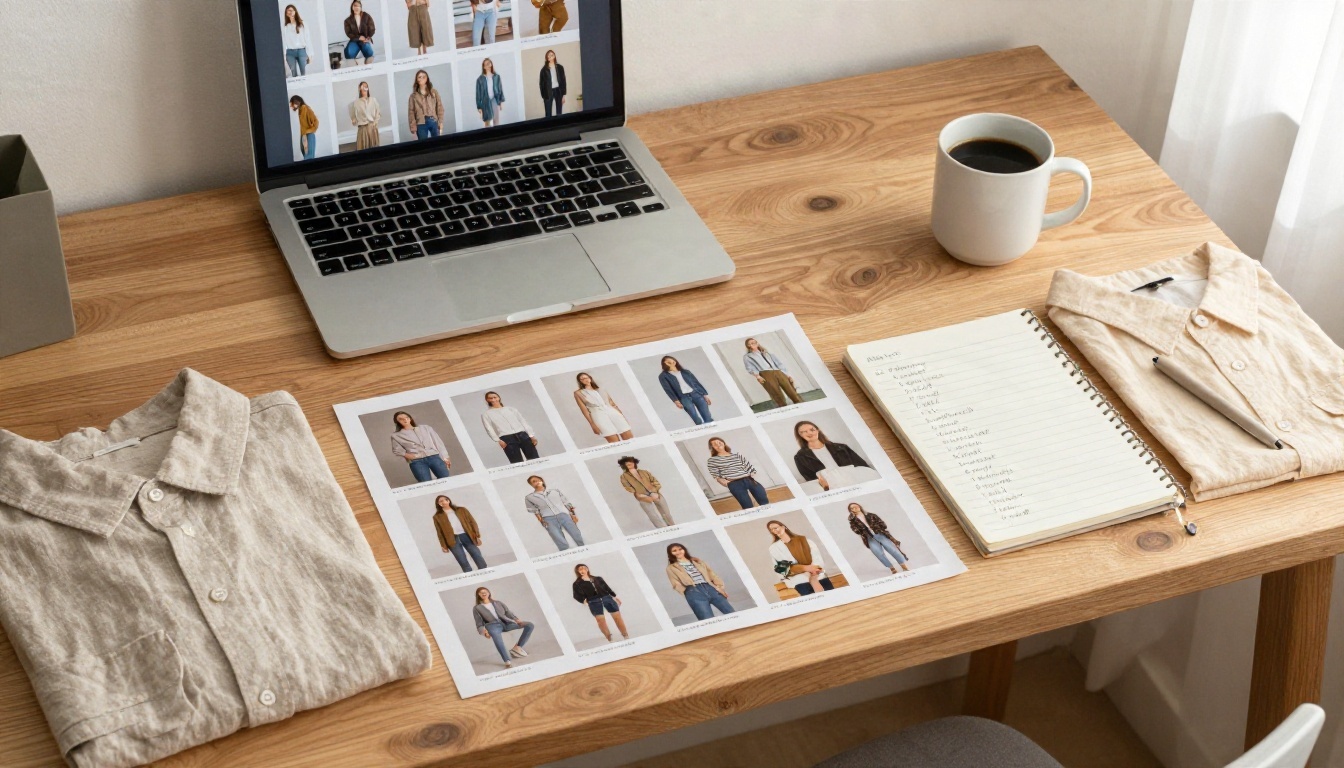
Keep a simple spreadsheet or note with one row per outfit. Each row only needs the garment description and the pose. Paste them into the template one by one.
Outfit
Garment slot
Pose slot
01
camel wool coat, cream knit, indigo jeans
mid-turn, hand in pocket
02
olive linen shirt, sand trousers
walking toward camera
03
black slip dress, leather belt
standing, weight on one leg
04
navy blazer, white tee, gray chinos
arms relaxed, slight smile
Prompts You Can Copy
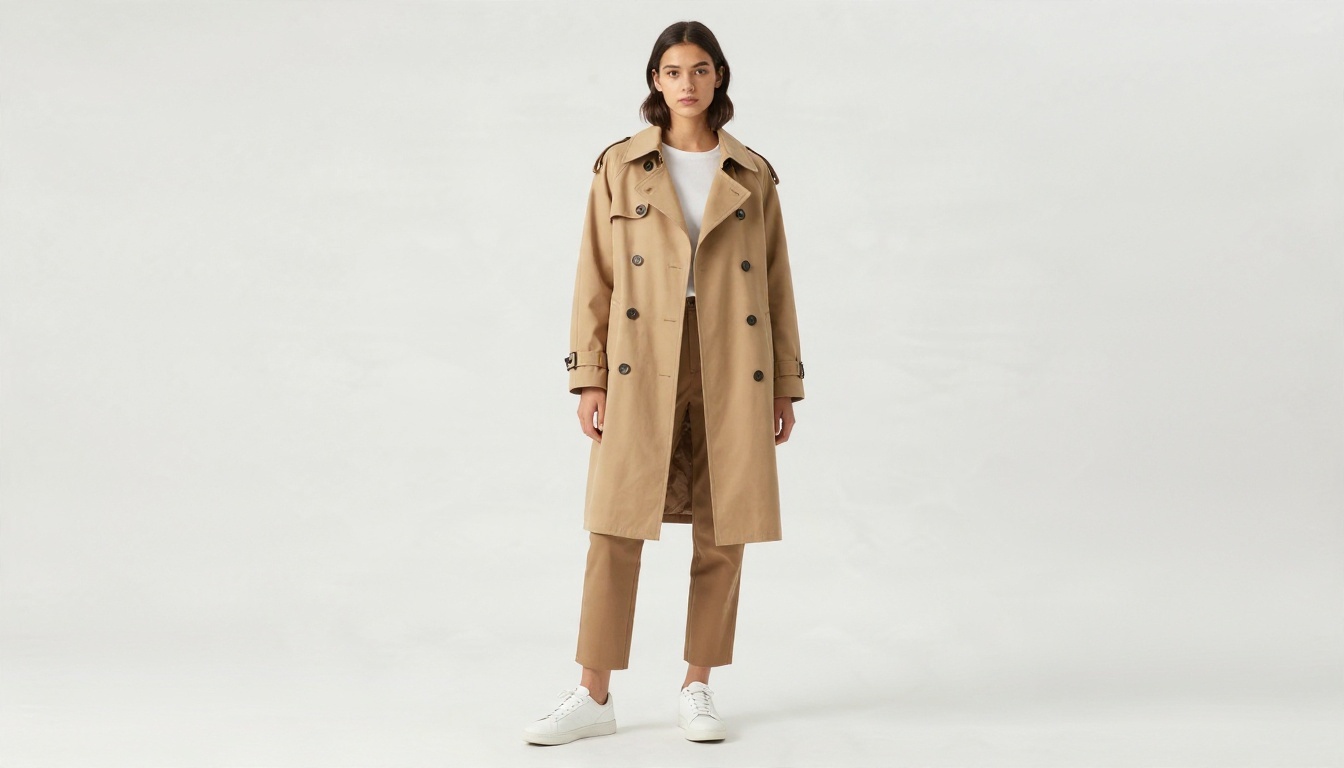
Catalog style (white backdrop):
Full body photograph of a young woman with shoulder length brown hair wearing [GARMENT], standing relaxed on a clean white seamless backdrop, even soft light from two large softboxes, subtle floor shadow, 70mm lens at f/5.6, crisp fabric stitching, natural skin texture, Kodak Portra 400 film grain, raw photography
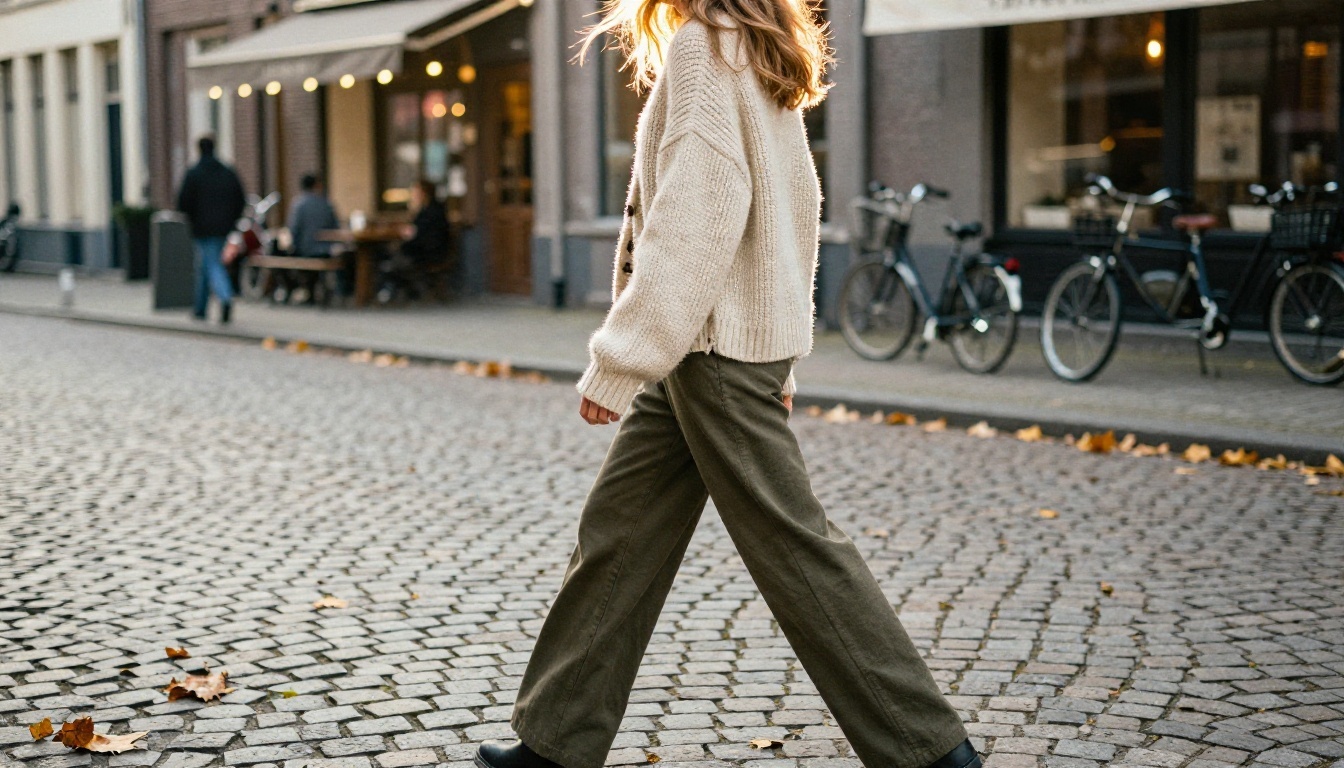
Lifestyle style (street):
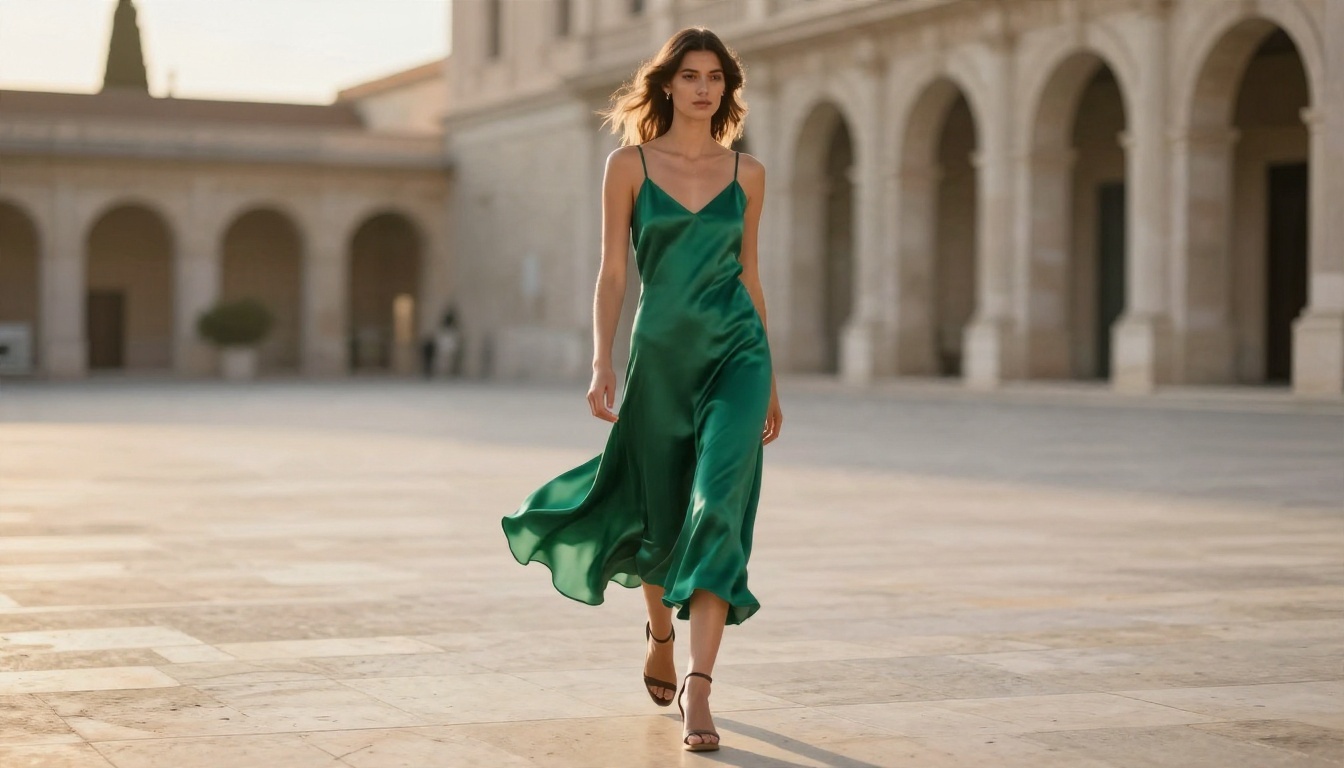
Street style photograph of a woman wearing [GARMENT], [POSE] on a cobblestone European street, warm late afternoon sun from behind with soft rim light, blurred cafe in the background, 50mm lens at f/1.8, visible fabric texture, natural color, raw photography
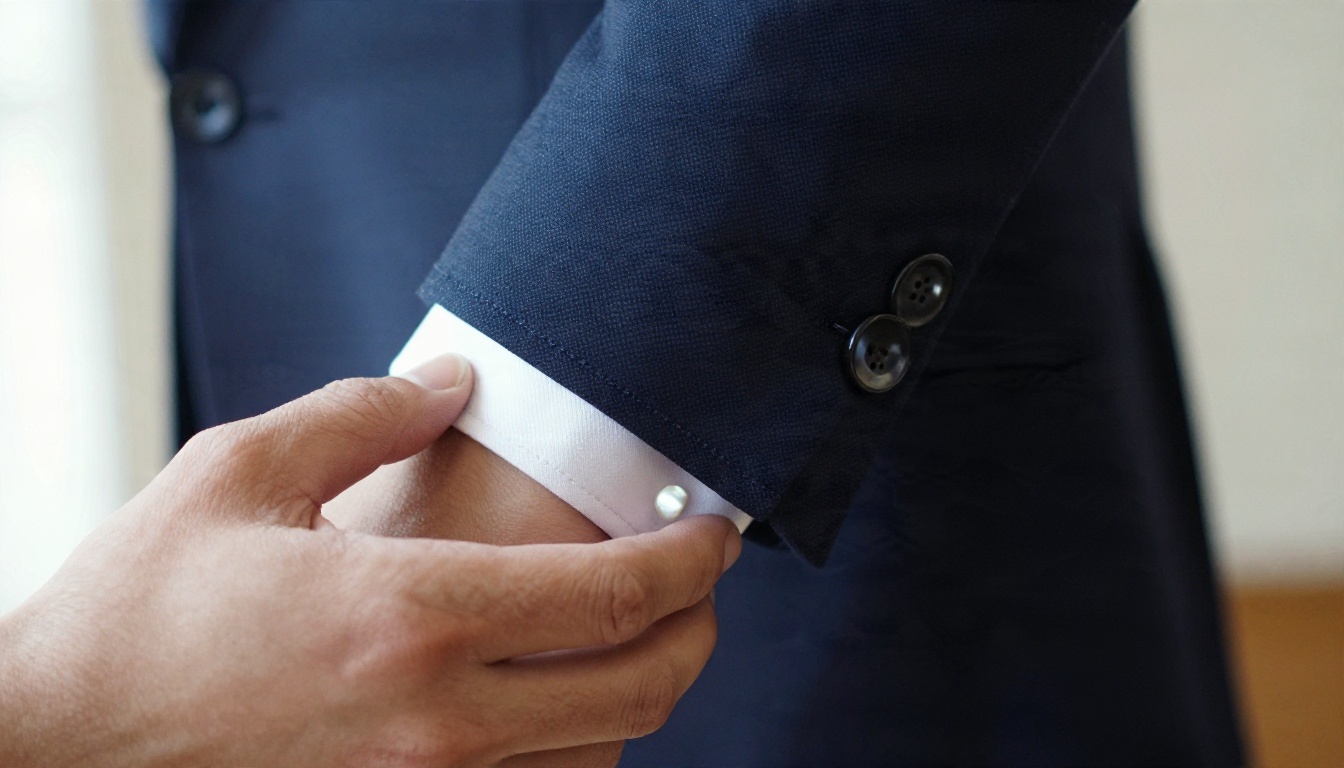
Editorial close-up:
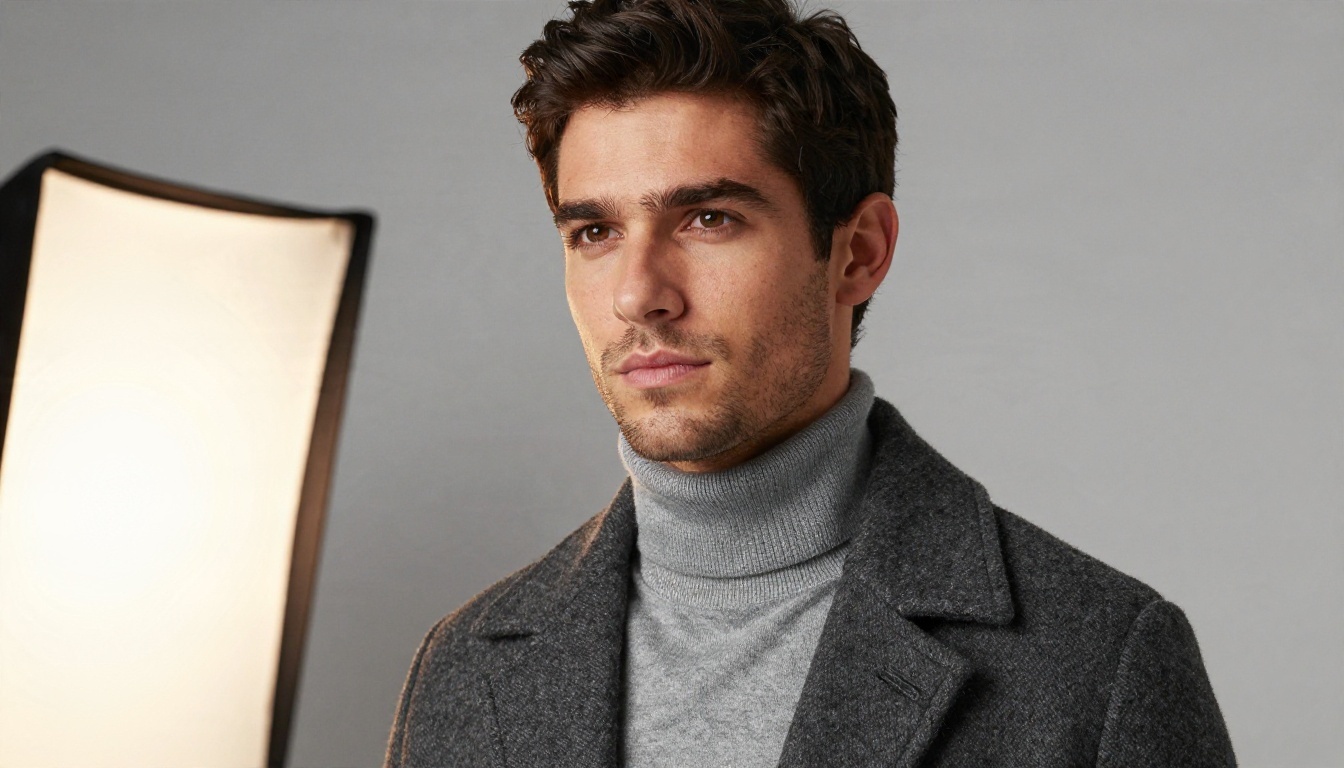
Close-up portrait of a male model wearing [GARMENT], seamless warm gray backdrop, soft main light from camera left, gentle fill from the right, visible skin pores and fabric fibers, 105mm lens at f/2.8, film grain, raw photography
Notice the words "natural skin texture,""visible fabric fibers" and a real lens number. These small phrases push results toward photography and away from the glossy, plastic look people associate with AI.
Settings That Keep Batches Consistent
Prompts get you 70 percent of the way there. Settings finish the job.
Aspect Ratio and Seed
Pick one aspect ratio for the whole batch and never change it. A 3:4 or 4:5 vertical suits product pages and social feeds, while 16:9 suits banners and editorial spreads. Mixed ratios force reframing and make a grid look messy.
When a model offers a seed option, note the seed of any result you love. Reusing it with small prompt edits tends to keep composition and mood steady. Change the seed again only when you want a genuinely different face or framing.
Lighting Words That Hold
Lighting is the first thing to drift between images. Fix a short phrase and paste it into every prompt:
"soft diffused daylight from camera left"
"even light from two large softboxes"
"golden hour backlight with gentle rim light"
Avoid vague words like "nice lighting" or "cinematic." They give the model room to improvise, and improvisation is the enemy of a batch.
Resolution and Upscaling
Generate at a moderate size for the draft round, because speed matters when you're making dozens. Once you've picked winners, send them through Real ESRGAN or Recraft Crisp Upscale. Upscaling 80 drafts is wasteful. Upscaling the 20 you'll actually publish is smart.
Setting
Recommended habit
Why it helps
Aspect ratio
One ratio per batch
Uniform grid, no reframing
Seed
Reuse for look, change for new face
Predictable composition
Lighting phrase
Copy and paste, never retype
Stops drift
Lens words
Same lens and aperture
Same depth of field
Draft size
Moderate
Faster iteration
Final size
Upscale winners only
Saves time and credits
A Step by Step Batch Workflow
Here's the loop that works whether you're making 20 images or 200.
Step 1: Build the Garment List
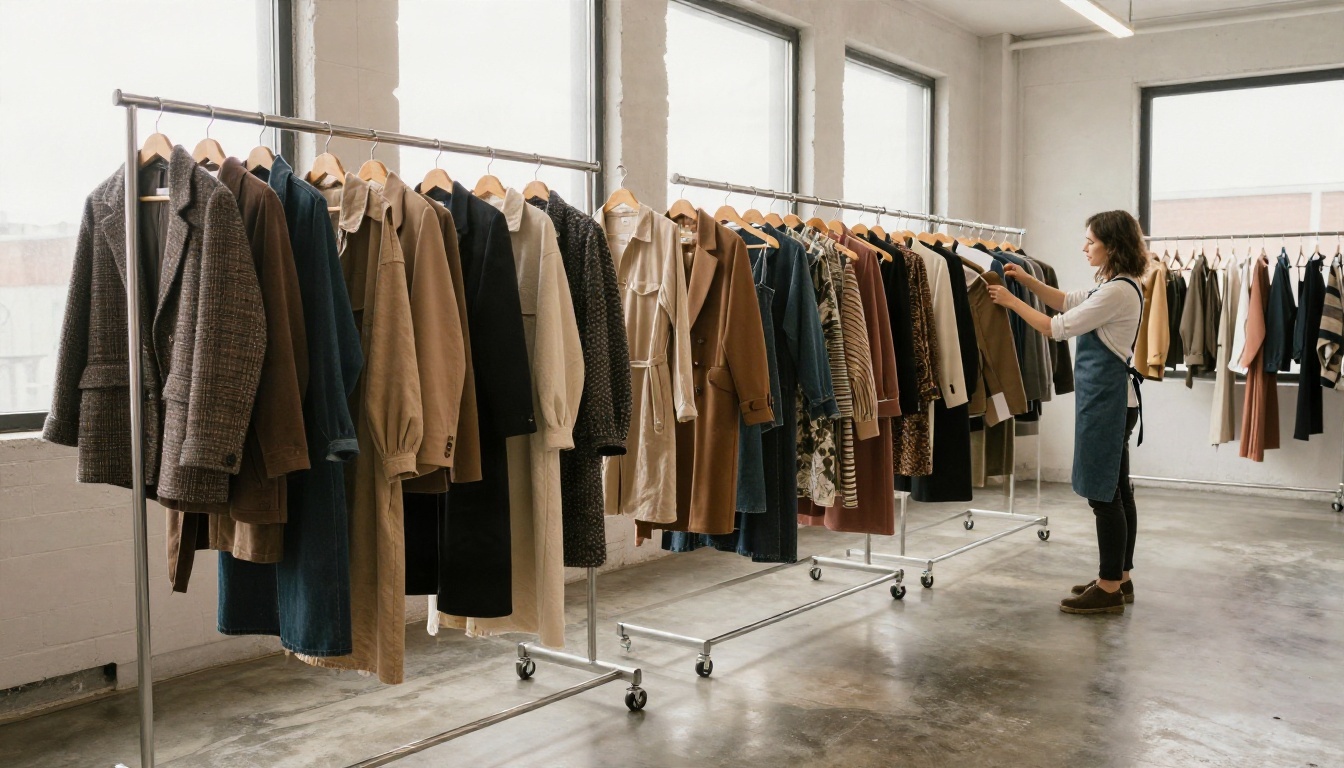
Lay out every piece like a real rack. Write one line per item with fabric, color and cut. Specific beats vague: "oatmeal chunky cable knit sweater with a folded crew neck" will outperform "nice sweater" every time.
Step 2: Lock the Template
Write your six slot prompt once. Test it on three garments. If the backdrop, light and lens feel right, freeze slots 4 to 6 and don't touch them again.
Step 3: Draft in Bulk
Run all garments through a fast generator such as Z Image Turbo or Flux Schnell. Generate two or three variations per outfit so you have choices.
Step 4: Pick and Refine
Choose one winner per outfit. For the ones that are close but not perfect, use an editing model like Nano Banana to adjust a sleeve, change a color or fix a pose without redoing the whole image. If you need top fidelity for hero images, regenerate those with Seedream 4.5 or Nano Banana Pro.
Step 5: Upscale and Clean Up
Send finalists through an upscaler. For marketplace listings, add a background removal pass with Remove Background.
Keeping the Same Look Across Outfits
Consistency has three layers: the model, the space and the style.
Lock the Model Description
Write a fixed description for your model and paste it unchanged: "young woman, shoulder length chestnut hair, light freckles, calm expression, athletic build." Even small edits like swapping "chestnut" for "brown" can shift the face.
If you want the same person across hundreds of images, consider training a custom style or identity with P Image Trainer or using a LoRA enabled model such as Flux Schnell LoRA. Only use images you own or have clear permission to use.
Switch Backdrops on Purpose
White seamless for the store page, a street scene for social, a warm gray wall for editorial. Decide which backdrop goes with which use, then run each as its own batch. Don't mix them in one run.
Show a Range of Real People
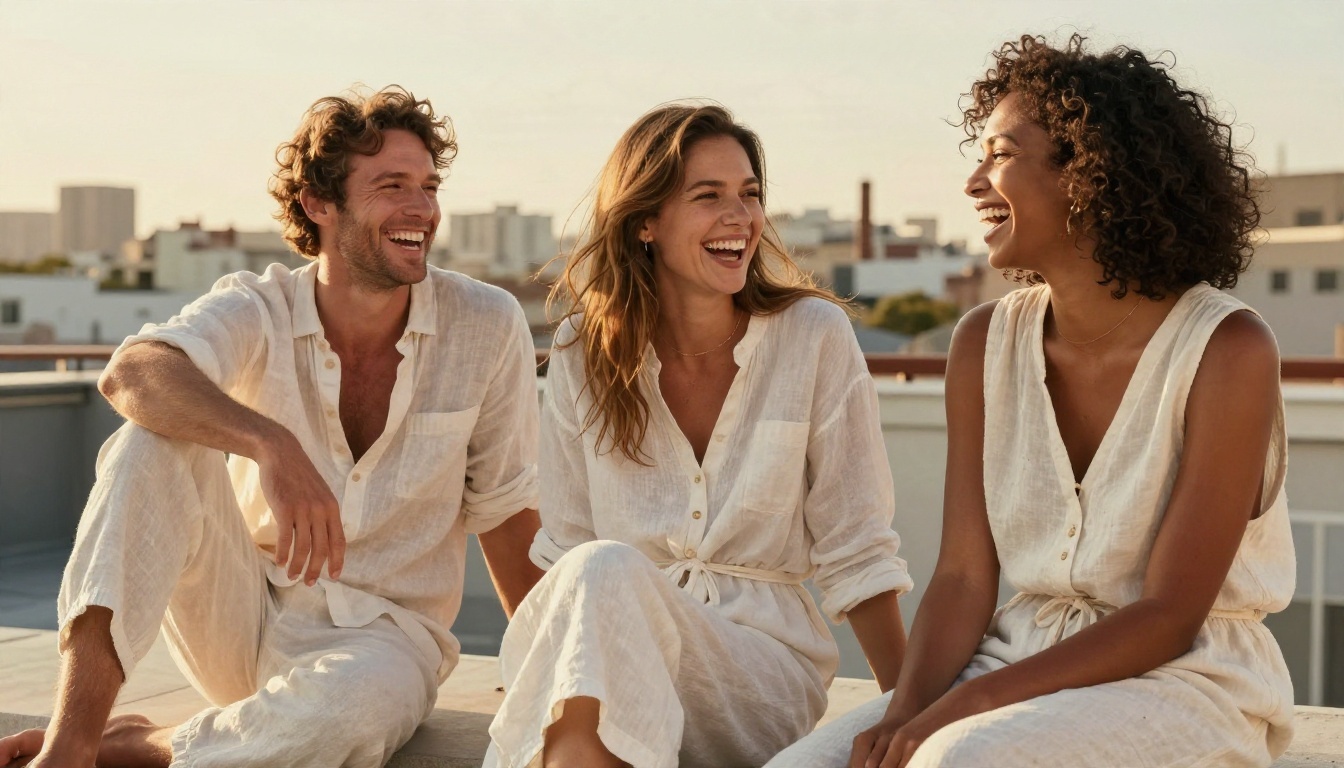
Shoppers want to see themselves. Build separate templates for different ages, body types and skin tones, then run the same garment list through each. It takes minutes with a template and makes a collection feel far more real.
Fixing Fabric, Hands and Faces
Even the best models slip now and then. Know the common weak spots and have a fix ready.
Problem
Likely cause
Fix
Plastic, glossy skin
No texture words in the prompt
Add "natural skin texture, visible pores, film grain"
Melted or odd fabric
Vague garment description
Name the weave: twill, jersey, poplin, rib knit
Extra or bent fingers
Hands in busy poses
Use hands in pockets or relaxed at sides
Backdrop drift
Backdrop wording changed
Paste the locked backdrop slot
Face changes between shots
Model description edited
Keep the model slot identical
Soft or blurry details
Low draft resolution
Upscale the final pick
Make Fabric Believable
Fabric sells clothes. Give each garment a material word and a detail word: "wool twill, mother-of-pearl button," "silk satin, bias cut," "heavy cotton jersey, raw hem." Then use a close-up round of your winners if you want detail shots for the product page.
Handle Hands Smartly
Hands are hard for any generator. Plan poses that hide them or keep them simple: in pockets, holding a bag strap, resting on a hip. If a hand still looks off, fix it with an editing model instead of regenerating the whole image.
Five Mistakes That Ruin Bulk Shoots
Changing the template mid-batch. One small edit and the whole set stops matching.
Upscaling everything. You'll waste time on shots you won't use.
Using vague words. "Fashionable" and "stylish" tell the model nothing.
Mixing ratios. Your grid will never line up.
Skipping the review pass. Always scan the full set side by side before publishing.
💡 Review trick: Zoom out until you see only thumbnails. If one image jumps out because of lighting or color, it doesn't belong in the set. Regenerate it with the locked template.
A Quick Note on Honesty
If you use AI generated models in your listings, say so where it matters, and never imply that a garment has features it doesn't have. Fabric color, fit and length in your photos should match the real product. Customers forgive AI imagery. They don't forgive returns caused by misleading photos.
Start Your First Batch Today
You now have the whole system: a locked six slot prompt, a short list of settings that don't change, and a toolkit for drafting, editing, upscaling and cleaning up. The fastest way to see it work is to run a small test. Pick five garments, write the template, and generate a draft round.
Open PicassoIA, try Seedream 4.5 for polished results or Z Image Turbo for quick drafts, then refine your favorites with Nano Banana. Compare the results, adjust one slot at a time, and you'll have a consistent set before your coffee gets cold.
Want to see every option in one place? Browse the full model list at picassoia.com/en/all-models and build the batch workflow that fits your collection.