You type a sentence. Seconds later, a photorealistic image appears on your screen exactly matching what you described. That is not science fiction anymore. It is what the best text-to-image AI tools do in 2027, and the quality gap between a mediocre model and a top-tier one is enormous.
Whether you are a content creator, marketer, designer, or just curious what AI can do, picking the right model matters. The wrong choice gives you muddy, uncanny results. The right one produces images that look like a professional photographer spent hours on them.
This breakdown covers the top AI models for turning text into pictures, what makes each one stand out, and where you can run them without hitting a paywall every five minutes.
What Actually Separates Good Text-to-Image AI
Not all text-to-image models are equal. Before comparing specific tools, you need to know what to look for, because marketing copy for AI tools is notoriously misleading.
Prompt Fidelity
Prompt fidelity is how accurately the AI interprets your text. A model with high prompt fidelity places objects where you describe them, maintains consistent lighting conditions, and does not invent details you did not ask for. Lower-fidelity models tend to drift, producing images that sort of match your prompt but miss the specifics that matter.
Resolution and Sharpness
Raw pixel count is not the whole story. Some models output 4K images that look soft and smeared at close inspection. Others produce 2K images with crisp edges, accurate textures, and natural film grain. Look for models that deliver texture fidelity, not just megapixel numbers.
Speed
If you are generating dozens of images for a project, a model that takes 45 seconds per image becomes a productivity bottleneck. Several of the best models now complete a generation in under 10 seconds while maintaining quality comparable to slower models from two years ago.
Access and Limits
Many AI image generators advertise "free" use, then hit you with a hard generation cap after a handful of images. Unlimited access matters if you are doing serious creative work. This is one area where platforms like PicassoIA Image stand out with their unlimited-generation approach.
The Top Models Right Now
These are the text-to-image models delivering the most consistent, high-quality results in 2027. Each has different strengths, and the best choice depends on what you are making.
GPT Image 2
GPT Image 2 is one of the most significant text-to-image releases in recent memory. It handles complex compositional prompts with a level of accuracy that was previously only achievable through extensive prompt engineering on older models.
What sets it apart is its understanding of spatial relationships. If you write "a red apple on the left side of the table with a coffee cup to the right and a window behind," GPT Image 2 places everything where you specified. Earlier models routinely scrambled these relationships.
Best for: Detailed compositional scenes, product mockups, editorial illustrations.
💡 Tip: GPT Image 2 responds well to descriptive prompts that include lighting direction, time of day, and surface textures. The more specific your language, the sharper the result.
Seedream 4.5
Seedream 4.5 produces 4K images with a level of photorealism that consistently surprises people seeing AI-generated images for the first time. Its particular strength is human subjects, where older models still struggle with proportions and skin texture realism.
The model handles diverse lighting scenarios exceptionally well, from harsh midday sun to low-key studio setups, without the blown highlights or crushed shadows that plague many competitors.
Best for: Portrait photography, fashion imagery, lifestyle content.
Wan 2.7 Image Pro
Wan 2.7 Image Pro targets the high end of the quality spectrum with 4K output optimized for professional creative workflows. If you need images that could pass as stock photography or commercial photography, this is a serious contender.
It handles architectural subjects and interior scenes with particular competence, capturing the subtlety of light bouncing off surfaces in a way that feels physically accurate rather than computer-generated.
Best for: Architecture, interiors, commercial product photography style imagery.
Hunyuan Image 2.1
Hunyuan Image 2.1 delivers 2K output with fast generation speeds. It is a strong choice when you need to iterate quickly across many concepts without waiting for longer render times.
The model has notably improved its handling of text within images, a persistent weakness across most AI image models. While still not flawless, readable signage and simple words in generated images are more consistent here than in many alternatives.
Best for: Rapid iteration, concept exploration, images containing legible text elements.
Wan 2.7 Image
The standard Wan 2.7 Image sits in a useful middle tier, offering 2K resolution at speeds that work well for creative brainstorming sessions. It shares the core model architecture with the Pro version but trades some maximum quality ceiling for faster throughput.
Best for: Creative ideation, social media content, blog imagery.
Comparing the Top Models
How to Use These Models on PicassoIA
PicassoIA gives you access to every model in this list from a single platform, with no per-generation credit system eating into your workflow. Here is exactly how to get started.
Step 1: Choose Your Model
Go to the text-to-image collection on PicassoIA. Each model has a dedicated page with example outputs so you can compare the aesthetic before committing. For most people starting out, PicassoIA Image is the best entry point because it uses a balanced model optimized for diverse subject matter.
Step 2: Write a Strong Prompt
The quality of your output depends heavily on prompt quality. A weak prompt like "a forest" will give you a generic result. A strong prompt like "a dense Pacific Northwest old-growth forest in early morning fog, shafts of light breaking through a cedar canopy, mossy ground with visible fern texture, shot at ground level looking upward with 24mm wide angle" will give you something remarkable.
The core structure to follow:
- Subject: What is in the scene, and what is it doing?
- Environment: Where is the scene set? What surrounds the subject?
- Lighting: What time of day, what light source, what direction?
- Camera: What angle, focal length, depth of field?
- Style: Photorealistic, film grain, specific film stock simulation.
Step 3: Iterate and Refine
Your first generation is rarely your final image. Adjust specific elements of the prompt, changing one variable at a time to see the effect. PicassoIA lets you run unlimited iterations without hitting a generation cap, which means you can refine until the result is exactly right.
💡 Tip: Save prompts that work well for you. A good base prompt adapted slightly for each use case is far more efficient than writing from scratch every time.
Step 4: Edit and Upscale
Once you have a strong base image, the PicassoIA Image Editor Pro lets you make targeted edits: replace objects, fix specific areas, adjust composition elements, and run the image through super-resolution upscaling for print-quality output.
Prompt Writing That Actually Works
Most people struggling to get good results from AI image generators are writing prompts the wrong way. Here are the patterns that consistently produce better images.
Be Specific About Light
Light is the single biggest differentiator between a flat, boring AI image and a photorealistic one. Do not write "outdoor scene." Write "volumetric morning light at 7am from camera right, casting long soft shadows across the scene."
Phrases that work well:
- "Overcast diffused light, soft shadows, flat even illumination"
- "Golden hour light, warm 3200K color temperature, long horizontal shadows"
- "Side-lit studio setup with single key light from camera left, deep shadow falloff on the right"
- "Dappled sunlight through tree canopy creating leaf shadow patterns"
Reference Camera Equipment
Camera references lock in a photographic feel that separates AI images from obvious digital renders. Try:
- "Shot on 85mm f/1.4, shallow depth of field, subject in focus, background bokeh"
- "35mm film perspective, slight barrel distortion, natural vignette"
- "Kodak Portra 400 film simulation, visible grain, warm highlights, natural shadow rolloff"
Use Negative Space Intentionally
Many over-described prompts result in cluttered images. If you want the subject to stand out, specify minimal backgrounds. "Against a clean white studio backdrop" or "isolated in open field with empty sky" gives the AI room to focus detail on your main subject.
Anchor the Scene with Specific Details
Vague prompts produce vague images. Instead of "a person in a coffee shop," write "a woman in her late 20s with short black hair wearing an oversized olive green jacket, sitting at a marble counter beside a rain-streaked window in a narrow Tokyo coffee shop." Each specific detail acts as a constraint that narrows the model toward what you actually want.
Creating Image Variations with Flux Redux Dev
Flux Redux Dev takes a different approach to image generation. Rather than creating from a blank slate, it generates variations based on an existing image, maintaining the core visual identity while allowing creative exploration around it.
This is particularly useful for:
- Brand visual consistency: Generate multiple lifestyle shots that all share the same color palette and aesthetic feel
- Concept iteration: Start with a rough composition and generate polished variations without rewriting the entire prompt
- Product photography: Create multiple settings and angles from a single reference shot
- Style preservation: When a generated image has exactly the right mood but needs compositional adjustments
The variation quality in Flux Redux Dev is high enough that the relationship between input and output feels intentional rather than random, which is not always the case with similar tools.
Editing Images After Generation
Generating the perfect image in one shot is possible but not always realistic. The PicassoIA Image Editor Pro is built for post-generation refinement, offering unlimited editing sessions.
Inpainting
Inpainting lets you select a specific region of an image and replace it with new content while maintaining perfect continuity with the surrounding area. If your generated portrait has an awkward background element, you can mask it and regenerate just that region with a new prompt.
Outpainting
Outpainting expands the canvas beyond its original borders. If you generated a portrait and need a wider shot for a banner, outpainting extends the image in any direction, generating new content that matches the established scene without visible seams.
Object Replacement
Need to swap the shirt color in a fashion shot? Replace a specific prop in a product image? Object replacement in the Image Editor Pro lets you select any element and regenerate it with a new description while preserving everything else in the frame.
Upscaling AI Images for Print
AI-generated images often start at resolutions that work well for screens but fall short for large-format printing. The super-resolution tools on PicassoIA address this directly.
Standard upscaling algorithms simply interpolate pixels, resulting in blur at high magnification. AI-based super-resolution instead reconstructs detail based on pattern recognition, adding texture and sharpness rather than just size. The practical result is an image that holds up at 300 DPI print resolution even when the source was generated at screen resolution.
For a designer working through multiple concepts before committing to final production, this saves significant time. Generate quickly at standard resolution, find the best concept, then upscale only the chosen direction rather than running every iteration at maximum quality.
💡 Tip: Run super-resolution upscaling as the last step after all edits are complete. Upscaling before heavy inpainting or editing can introduce artifacts that complicate subsequent adjustments.
When to Use Qwen Image Edit Plus
For images requiring both editing and enhancement in one pass, Qwen Image Edit Plus handles both tasks simultaneously. It is particularly strong at global adjustments, color grading, and style transfers applied to existing images.
Real Use Cases Across Industries
The adoption of text-to-image AI is no longer limited to digital artists and tech enthusiasts. Here is where it is having measurable impact right now.
Marketing and Advertising
Marketing teams are using text-to-image AI to prototype campaign visuals before committing budget to a professional photo shoot. A single copywriter with a clear creative brief can generate dozens of visual concepts in an afternoon that would previously require coordination with photographers, models, and post-production teams.
The ability to iterate rapidly also means A/B testing visual concepts before production, allowing data to inform which direction gets developed fully.
E-Commerce Product Visualization
For products that exist only as concepts or prototypes, AI image generation creates photorealistic lifestyle imagery for product pages before physical samples exist. This accelerates go-to-market timelines and reduces the cost of early-stage visual assets significantly.
Content Creation at Scale
Bloggers, newsletter writers, and social media teams need images constantly. Stock photo licensing is expensive and repetitive imagery gets flagged by audiences. Custom AI-generated imagery produced from specific prompts tied to each article or post gives creators genuinely unique visuals that match their content exactly.
Architecture and Interior Design
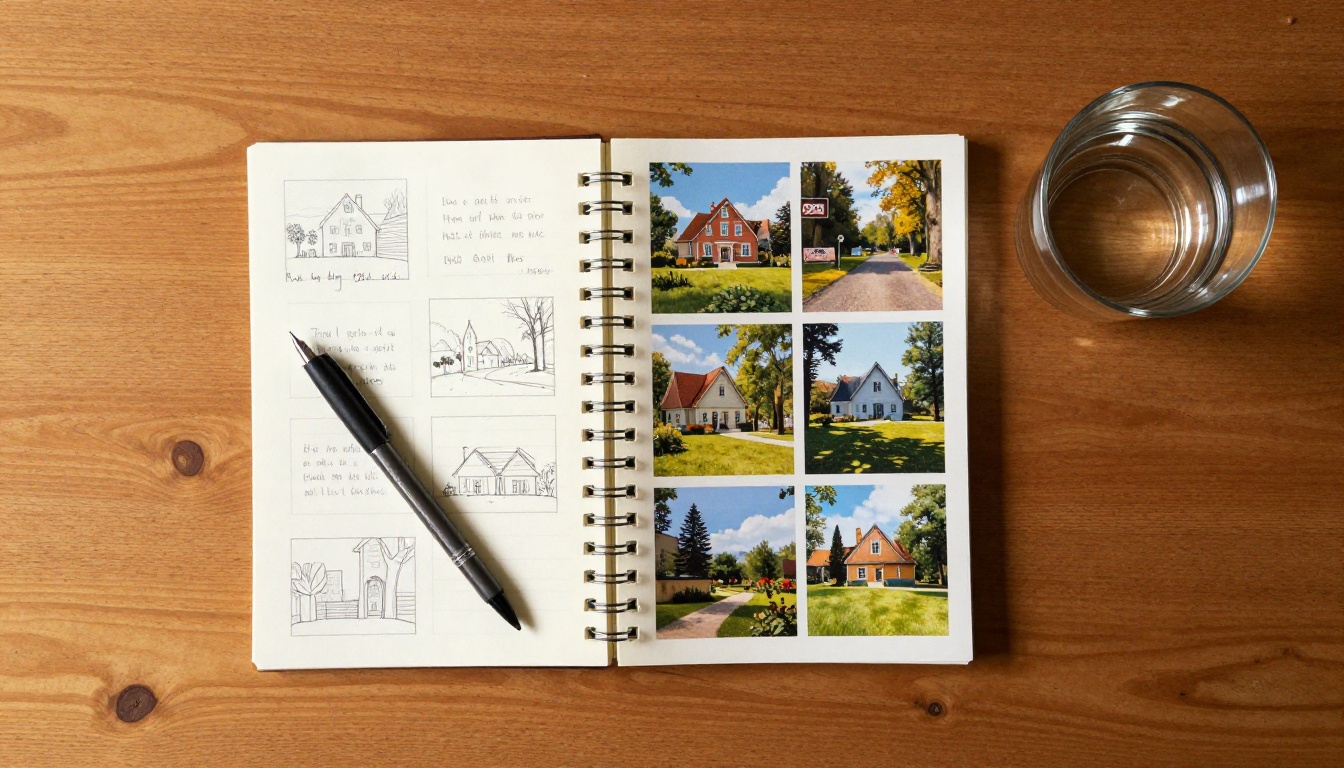
Architects and interior designers use text-to-image tools to visualize spaces with clients before any construction or renovation begins. Describing a room renovation in text and generating a photorealistic preview is faster and cheaper than a traditional 3D render, and clients respond to it more naturally because it looks like a photograph rather than a technical drawing.
Common Mistakes to Avoid
Even with access to the best models, certain habits reliably produce disappointing results.
Vague subject description: "A nice landscape" tells the AI almost nothing. Every element of your scene needs specificity to generate a coherent image.
Conflicting style signals: Asking for "cinematic dark noir lighting with bright colorful neon" creates contradictory requirements that produce visually incoherent output. Keep your style references internally consistent.
Ignoring the background: Many prompts describe the subject in detail while leaving the background entirely undefined. The model fills undefined space with generic content that can undermine an otherwise strong subject.
Expecting perfect text in images: Text within AI-generated images is still unreliable across most models. If legible text is critical to your image, generate the image without text and add it in a design tool afterward.
Treating the first generation as final: The value of text-to-image AI is in rapid iteration. Generate, adjust the prompt, generate again. Ten iterations in fifteen minutes will always beat one carefully planned generation.
Over-prompting: Packing 200 words into a prompt does not always improve results. Models have a practical ceiling on how many simultaneous constraints they can honor. If your prompt is extremely long, try stripping it back to the five most important elements and add complexity gradually.
Try It on PicassoIA
The gap between reading about text-to-image AI and actually using it is significant. Nothing in this article will give you the intuition that comes from running twenty iterations on a single concept and seeing how small prompt changes produce completely different images.
Every model covered here is available on PicassoIA without hard generation limits. You can run GPT Image 2, compare it immediately against Seedream 4.5, then take the best result into PicassoIA Image Editor Pro for refinement, all in a single session.
The PicassoIA Image model is a strong default starting point if you are new to the platform. It handles a wide range of subjects well and gives you immediate feedback on your prompt quality.
Start with a scene you know well, something you could describe to another person in detail, and write that description as your first prompt. The result will show you exactly where your prompting instincts are strong and where they need refinement. From there, every image you generate will be better than the last.