The world of video editing used to demand hours of manual work: clip by clip, frame by frame, adjustment by adjustment. AI video tools in 2027 cut that time dramatically, and the results are no longer close calls. Whether you shoot for YouTube, create social short-form content, or work on broadcast projects, there is a specialized AI model built for your exact problem.
This article breaks down the best AI for video editing and upscaling by category: text-based editing, 4K upscaling, object removal, background replacement, and audio generation. Every tool mentioned is available directly on PicassoIA, so you can move from reading to creating without switching platforms.

Before looking at specific models, it helps to understand what falls under the "AI video editing" umbrella. The phrase covers several distinct technologies that often get conflated:
- Text-based editing: You type a natural language command, and the AI rewrites part or all of a clip to match your instruction.
- Upscaling and sharpening: Neural networks reconstruct missing detail in low-resolution or noisy footage, producing output at 2x, 4x, or higher resolution.
- Object and background removal: Segmentation models isolate specific elements from video frame-by-frame, removing or replacing them without manual masking.
- Audio generation: Models that analyze video content and synthesize matching sound effects, ambient audio, or music automatically.
Each category has its own set of specialized models. Picking the right one for your specific task matters far more than chasing a single all-in-one solution. A professional upscaler will not help you remove an object from a clip, and a text-based editor is the wrong choice when your only problem is that the original footage is too low-resolution.
The good news is that PicassoIA organizes all of these tools clearly, giving you access to over 30 video models across editing, upscaling, audio, and utilities without needing to manage separate accounts or subscriptions.
Text-Based Video Editing
Rewrite a clip with a sentence
The most exciting category right now is text-based style transfer and content editing. You keep the same camera motion, subject positioning, and timing, but you completely change how the clip looks, or even what is in it.
Wan 2.7 Videoedit is one of the strongest open-weight models for this task. You describe the edit you want in plain language and the model applies the change coherently across all frames. It handles clothing changes, environment replacements, and time-of-day shifts with strong temporal consistency. The open-weight nature also means it has been fine-tuned extensively by the community for specific use cases.
Lucy Edit 2 by Decart pushes this further with near-real-time processing. Type an instruction and watch the clip shift almost immediately. For content creators who iterate fast, that speed is a serious workflow advantage over batch-processing alternatives that require minutes of waiting per generation.
Gen4 Aleph from Runway takes a different approach: you restyle the video by editing a single reference frame. Adjust that one frame to look exactly how you want, and the model propagates that look across the entire clip while maintaining motion consistency and avoiding temporal flickering.
Aleph 2 builds on this concept further. Edit one frame and get the full video restyled without losing temporal coherence. This is ideal for branded content that needs a specific visual identity maintained throughout a longer clip.
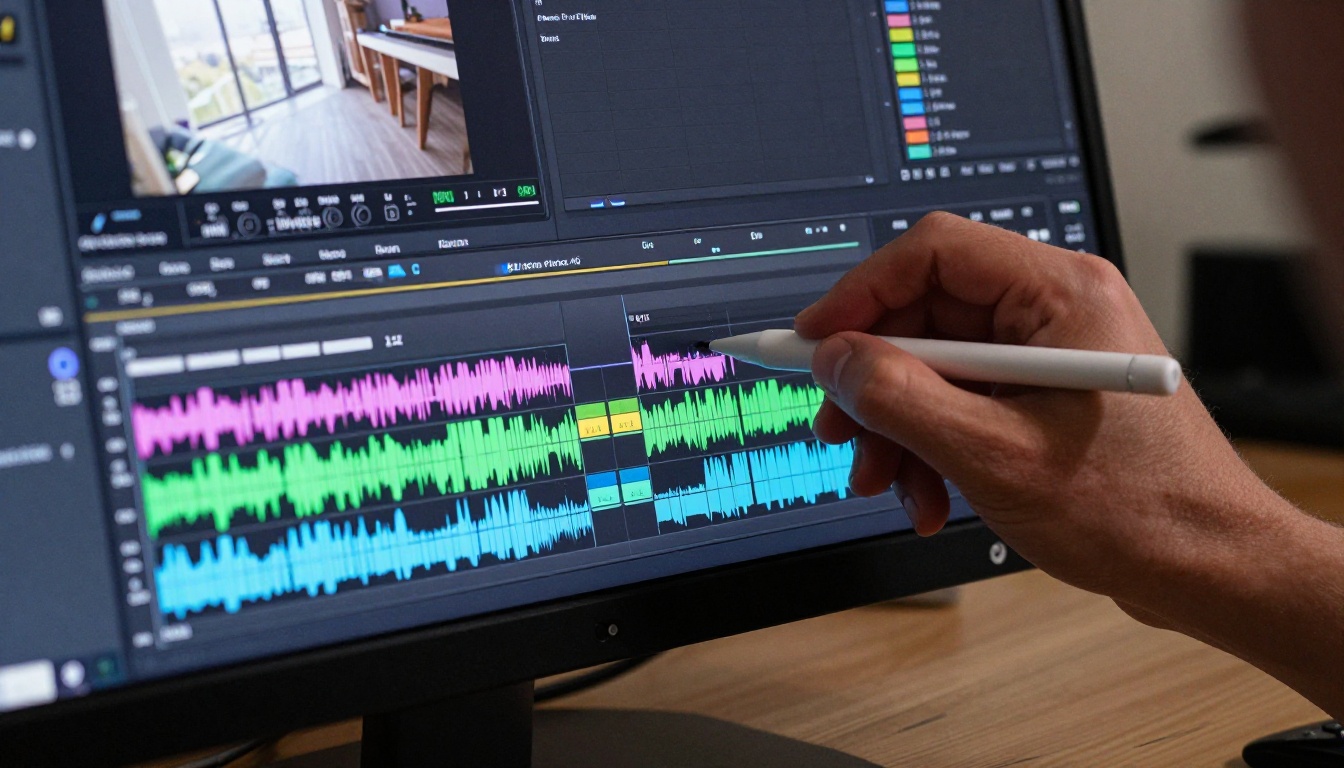
💡 Tip: Text-based video editing works best on clips with stable camera movement. Handheld shaky footage introduces artifacts when the model tries to apply changes frame-by-frame. Stabilize first if necessary.
Surgical edits on specific sections
Sometimes you do not need to edit the whole clip, just a specific moment. LTX 2 Retake lets you isolate a section of your video, describe what you want to change, and regenerate just that portion. The transitions in and out of the edited section stay smooth because the model respects the surrounding context, reading several frames on each side before generating.
Kling o1 from Kwai takes a similar section-based approach but with particularly strong motion realism. If you need to replace a gesture, an expression, or a background element in a specific window of your clip, Kling o1 handles it with fewer visual artifacts than most alternatives in this category.
Modify Video by Luma AI is a lighter-touch tool for situations where you want to restyle a clip's overall look without reconstructing content. You provide a text prompt describing the desired style, and the model applies it while preserving the original motion. It is faster and more predictable than full regeneration for subtle visual adjustments.
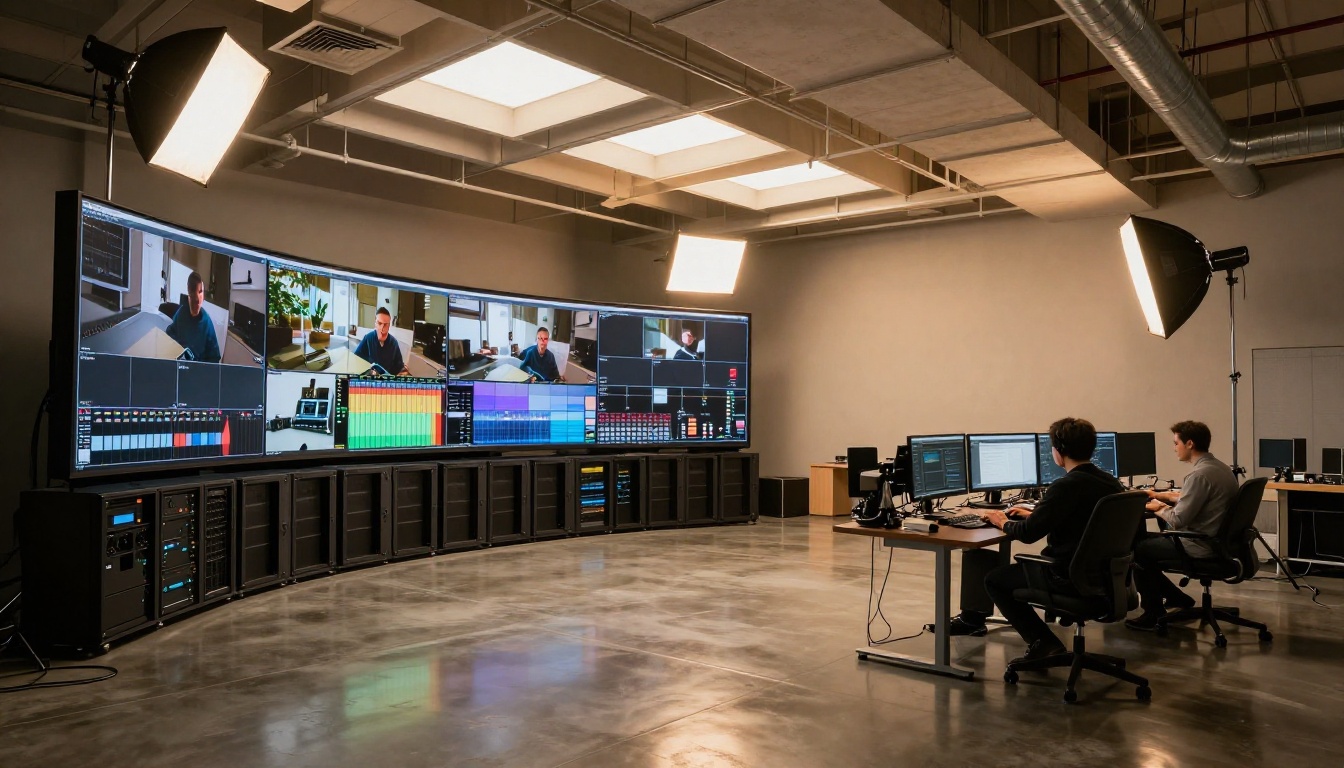
AI Video Upscaling: From SD to 4K
What the upscaling models actually do
AI video upscaling is not simple pixel-stretching. Modern super-resolution models use trained neural networks to predict and reconstruct detail that was never in the original footage. The results on older, low-resolution video are often remarkable, recovering edge sharpness, skin pore detail, and fabric texture that had been lost to compression.
Video Upscale by Topaz Labs is the professional-grade choice. Topaz has been training video models for years, and the quality shows in the output. It handles film grain, compression artifacts, and motion blur as separate processes, producing footage that looks genuinely sharper and cleaner without the plasticky over-processing seen in cheaper upscalers. Output reaches 4K at up to 120fps, which matters for sports, action, and slow-motion content.
Video Upscaler from ByteDance is a strong alternative built for web-scale content. Fast processing, strong performance on H.264 and H.265 compressed footage, and clean 4K output suitable for social media publishing make it a go-to for high-volume work.
Crystal Video Upscaler takes a specialized approach with a focus on skin tones and face detail. For talking-head content, interviews, or vlogs where the face is the primary subject, it produces noticeably better results than general-purpose upscalers that optimize for overall sharpness without considering skin-tone accuracy.
Upscale v1 from Runway integrates cleanly into creative workflows. If you are already using Runway models for generation or editing, this keeps everything in one ecosystem with consistent visual output and easy handoff between steps.
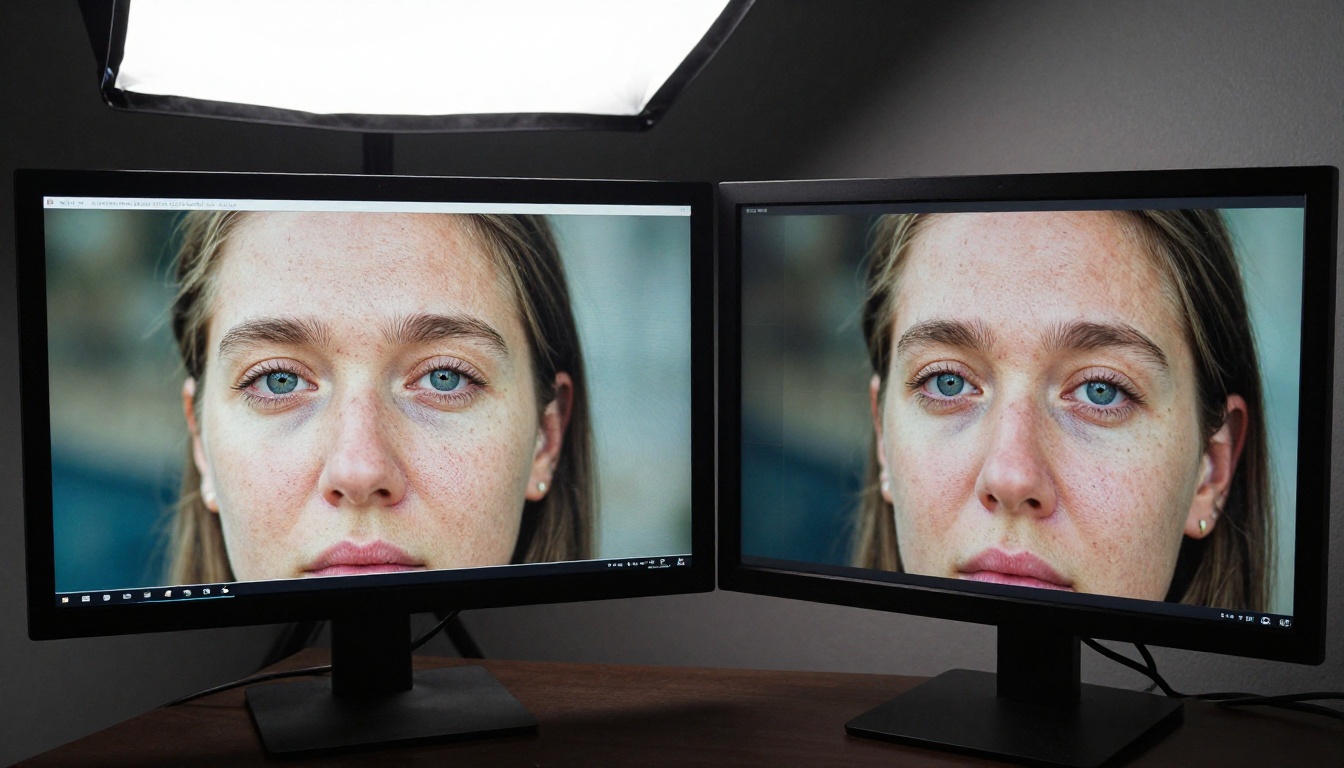
For severely degraded footage
Real ESRGAN Video handles the worst-case scenarios: heavily compressed online video, VHS transfers digitized from tape, or archival footage with significant noise and banding. It was trained specifically on degraded footage rather than artificially downsampled clean video, which makes it more effective on real-world problem clips where the degradation pattern is complex and irregular.
💡 Tip: Avoid running Real ESRGAN on footage that has already been processed by another upscaler. Double-processing introduces its own set of artifacts that are harder to remove in post.
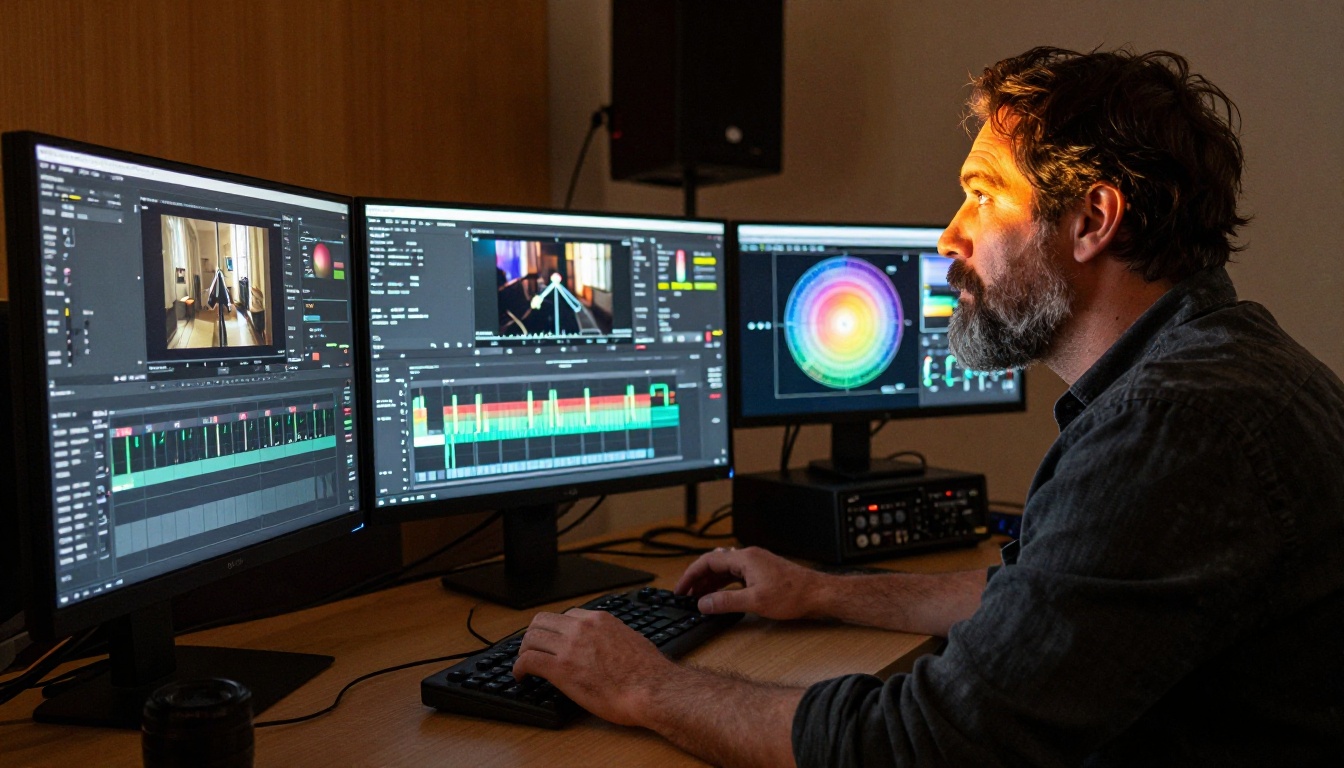
Object Removal from Video
The tool that replaces re-shoots
One of the most practical applications in AI video editing is automated object removal. A street sign in the background, an unwanted prop on set, a microphone dipping into frame: these situations used to mean expensive re-shoots or hours of manual rotoscoping work in a compositing application.
Video Erase Object by BRIA handles this end-to-end. You mark the object you want removed and the model inpaints the background frame-by-frame, maintaining motion consistency and texture detail in the filled region. It performs exceptionally well on static backgrounds and handles simple moving backgrounds reliably.
For more dynamic scenes, combining object removal with a background replacement tool gives cleaner results. BRIA's video tools are designed to work together, which makes this combination straightforward on PicassoIA without exporting and re-importing between tools.
💡 Tip: Object removal quality drops when the target has a motion trail or when the background behind it contains complex animated elements like water, fire, or crowd movement. For those cases, section-based regeneration with LTX 2 Retake often produces cleaner results.
Background Removal Without a Green Screen
Shoot anywhere, composite everywhere
Video Remove Background by BRIA uses temporal segmentation to remove backgrounds from video without any chroma-keying setup. No green screen, no controlled lighting, no studio rental. You shoot your subject in any environment and the model isolates them cleanly across every frame.
The output is a video with a transparent background ready to composite into any other scene. Edge quality on hair and fine detail has improved significantly in current-generation models, and temporal consistency across frames eliminates the flickering edge effect that was common in earlier background-removal tools. You no longer see the subject's outline warping unpredictably between frames.
This opens up production workflows for small teams and solo creators who cannot afford green screen setups. Interview overlays, product demonstrations, tutorial content: all of these become considerably cheaper to produce at a professional quality level.
Audio Generation for Video
Sound that matches what is on screen
Silence kills a video. Finding and licensing the right sound effects used to consume hours of search time. AI audio generation for video changes that entirely, producing synchronized audio from the visual content itself.
Thinksound analyzes the visual content of your video and generates contextually appropriate audio that matches what is happening on screen. A clip of someone walking on gravel gets gravel footstep sounds. A scene with wind-blown trees gets matching ambient wind audio. The synchronization accuracy is consistently impressive across varied content types.
Video to SFX v1.5 from Mirelo produces particularly strong results for action and impact sounds. If your content involves fast movement, collisions, or physical interactions, this model generates sharper, more precisely timed audio than general-purpose tools. The earlier Video to SFX v1 is still available and works well for simpler ambient sound scenarios.
MMAudio handles scenarios where you want to describe the audio in text rather than have the model infer it from the visuals. Type what you want to hear and the model generates matching synchronized audio. This is useful for stylized content where visually-inferred audio would not match your creative intention, or where you want to add sounds that are not visually present in the clip.
For adding full music tracks, PicassoIA's AI Music Generation tools create original compositions from text prompts, giving you copyright-free music matched to your video's mood and tempo without any licensing complications.
Format without re-shooting
Social media has fragmented video consumption across incompatible formats: 16:9 for YouTube, 9:16 for Reels and TikTok, 1:1 for feed posts. Re-editing the same video manually for each platform is repetitive work that AI handles automatically.
Reframe Video by Luma AI uses AI-powered subject tracking to automatically reframe footage for any target aspect ratio. It follows the primary subject across the clip, keeping them in frame as the crop adjusts dynamically. Results hold up well on content with a single main subject in consistent positions throughout the clip.
Grok Imagine Video Extension from xAI solves a different problem: extending a clip beyond its original end frame. If your footage ends abruptly or you need a few extra seconds for a transition, this tool generates a natural continuation that maintains visual and motion consistency with what came before.
💡 Tip: When reframing vertical to horizontal, content with centered subjects performs better than scenes where subjects move hard to one side. Fast lateral motion creates crop adjustments that even strong AI reframing tools struggle to follow cleanly.
Captions, Clips, and Workflow Utilities
The operational layer
Beyond creative editing, there is the operational side of video production: captioning, splitting, merging, and compressing clips. PicassoIA covers all of it without requiring a separate NLE for routine tasks.
Autocaption generates accurate synchronized captions directly from your video's audio. The model handles multiple languages, identifies speakers in multi-person conversations, and produces clean readable text precisely timed to speech patterns. The output can be burned into the video or exported as a separate subtitle file.
Video Split and Trim Video handle surgical clip management, letting you cut footage to exact timestamps without loading a full editing application. Video Merge combines multiple clips with configurable transition options for assembly work.
For replacing or mixing audio tracks in existing clips, Video Audio Merge handles synchronization cleanly. And Video Increase Resolution by BRIA provides an additional 8K upscaling path that integrates naturally with BRIA's other video editing tools.
Step 1: Identify your task category
PicassoIA organizes video tools into clear categories. Video Editing covers 27 models spanning text-based editing, object removal, background removal, audio generation, and format utilities. AI Enhance Videos holds 4 specialized upscaling models. Start by matching your task to the right category rather than browsing every option randomly.
Step 2: Upload your source video
For editing tools like Wan 2.7 Videoedit or Lucy Edit 2, upload your source clip and write your editing instruction. Keep instructions specific: "change the jacket to red leather, keep the background and lighting unchanged" produces better results than vague directional language.
Step 3: Write a precise prompt
Every text-based video tool uses your written prompt as the primary instruction. Specific, visual language produces far better outputs than abstract descriptions. Name colors, textures, spatial relationships, and lighting conditions rather than general style adjectives. "Warm golden hour light from the left, brick wall background" outperforms "make it look cinematic."
Step 4: Iterate from the first output
AI video tools are not single-pass solutions. The first output is a starting point. Adjust parameters, refine the prompt, and regenerate specific sections until the result matches your intention. Most tools on PicassoIA let you target just a portion of the clip for regeneration, which saves time when most of the clip is already correct.
Step 5: Chain tools for complete productions
The most powerful workflows combine multiple tools in sequence. Upscale old footage with Topaz Video Upscale, remove unwanted objects with Video Erase Object, restyle the clip with Wan 2.7 Videoedit, add contextual audio with Thinksound, then caption it with Autocaption. That is a complete post-production pipeline built entirely from AI tools, available on one platform with no file conversion or application switching.
Every tool in this article is live on PicassoIA right now. No software to install, no single-tool subscription: you get access to over 30 video editing and upscaling models through one platform, each built by specialized teams at Runway, ByteDance, Topaz Labs, BRIA, Luma AI, Lightricks, and more.
If you have footage sitting on a drive that never got finished because the manual work felt too time-consuming, now is the time to revisit it. Upload your clip to picassoia.com/en/all-models and see what these tools do with your specific content. The results consistently surprise people who have not worked with current-generation AI video tools.
Pick one task, one clip, one model. That is all it takes to see whether AI video editing belongs in your workflow.


