Getting a poster-quality image from an AI tool requires more than typing a prompt and hoping for the best. You need resolution that holds up at large print sizes, a model that accurately interprets your description, and output that looks like real photography rather than a digital illustration. This article compares the best AI image makers for posters available right now, breaks down where each one excels, and shows you exactly how to use them to get print-ready results on the first or second attempt.
What Sets a Good Poster Image Tool Apart
Not every text-to-image model is built for poster work. Most are optimized for social media thumbnails, square outputs, or general-purpose content creation. Posters have specific demands that rule out a significant portion of what is available.
Resolution That Holds Up at Scale
A poster printed at 18x24 inches at 150 DPI needs at least 2700x3600 pixels. Many AI generators top out at 1024px or 1280px on a side, which is perfectly fine for screens but falls apart when enlarged for print. The best AI image maker for posters either generates natively at high resolution, or produces output clean and detailed enough that an upscaler can fill in the missing information without creating soft edges or artificial-looking texture.
Seedream 3 is one of the few models that outputs natively at 2K resolution (2048px on the longest side) from a single generation. For poster work where you need maximum detail without a separate upscaling workflow, that distinction matters.
Prompt Accuracy Matters More Than You Think
Poster images are usually very specific. You are not looking for a random mountain. You want that mountain, at that angle, with that quality of early-morning light catching the east face of the ridge. AI models vary enormously in how faithfully they interpret a detailed description. Flux Pro was designed around prompt precision, making it a reliable choice when your brief is detailed and the output needs to actually reflect it rather than paraphrase it loosely.
Aspect Ratio Flexibility
Standard poster sizes use vertical ratios: 2:3 for A-series and common US sizes, 3:4 for others, 9:16 for tall digital display formats. A model locked to square 1:1 output forces you to crop or pad the result, which rarely works well when the composition was generated for a square canvas. Look for models that support a wide range of ratios natively so your prompt is composed for the actual frame you need.
The Best AI Models for Poster Images
PicassoIA's library gives you access to all the top text-to-image models in one place, with no local GPU setup required. Here are the four that consistently produce the best poster-ready output across a range of use cases.
Flux Dev
Flux Dev is a 12-billion parameter model that generates at 1 megapixel with strong detail retention and support for 11 aspect ratios. It handles img2img editing as well, so if you have a reference photo you want to push toward a specific visual direction, you can upload it alongside your prompt to steer the output.
For poster work, Flux Dev's balance of quality and generation speed makes it the practical starting point. You can iterate through prompt variations in quick succession, fix the seed on any result you like, and run small changes to refine composition without starting over from scratch every time.
Best for: Product posters, brand visuals, iterative design workflows where you need to test several directions quickly.
Flux Pro
Flux Pro applies tighter prompt adherence than Flux Dev. Where Flux Dev interprets your description with some creative latitude, Flux Pro follows it more literally. That precision is valuable when the poster brief is exact, whether you are working from a client specification or your own very clear mental image of the final output.
The guidance parameter gives you direct control over that adherence level. Set it between 4 and 5 for a near-literal interpretation of your text description. Drop it to 2 or 3 when you want the model to make more of its own visual decisions within the framework you provide. Flux Pro also accepts a reference image input (Flux Redux), which lets you combine visual composition guidance with text-based subject control.
Best for: Event posters with specific subjects, any client-facing work with tight creative briefs, compositions that need to match a pre-existing reference.
Flux Schnell
Flux Schnell prioritizes speed. It generates a 1-megapixel image in under 5 seconds, which makes it ideal for the early stages of a poster project when you are testing compositions, palette directions, or general visual concepts before committing to a longer generation run with Flux Dev or Seedream 3.
On PicassoIA, Flux Schnell runs with no credit caps. You can run 50 or more prompt variations in a single session without hitting any usage limits, which makes it genuinely useful for exploration phases where the goal is to find a visual direction, not produce a finished asset.
Best for: Rapid concept iteration, composition testing, early-stage poster drafts, anyone who needs to test a lot of ideas before committing to a direction.
Seedream 3
Seedream 3 stands apart from the Flux family with native 2K output. It renders images up to 2048px on the longest side without any post-generation upscaling, which means the detail in your output is real, not interpolated. It supports 9 aspect ratios including 21:9 ultra-wide and 9:16 vertical, and the guidance scale parameter gives you precise control over how closely the output follows your prompt text.
At 2.5 guidance (the default), outputs feel naturally composed without being mechanical or overly literal. Push it higher when you need the model to follow a complex scene description more closely.
Best for: Print-ready poster work, large-format output, decorative and fine-art posters where every pixel of detail matters.
How to Use Flux Dev for Poster Images on PicassoIA
Flux Dev is the most flexible starting point for poster work on PicassoIA. Here is a step-by-step session that takes you from blank page to a high-quality poster image ready for upscaling or print.
Step 1: Open Flux Dev
Go to Flux Dev on PicassoIA. No account is required to generate your first image.
Step 2: Choose your aspect ratio
Posters typically use 2:3 (vertical A-series and common US sizes) or 3:4 (shorter portrait format). Select the appropriate ratio from the dropdown before writing your prompt. The composition the model generates will match the frame you specify.
Step 3: Write a structured prompt
The most reliable poster prompts follow this pattern:
[Subject and position] + [Environment and setting] + [Lighting direction and quality] + [Camera angle and lens spec] + [Texture and atmosphere] + [Photography style modifier]
For example: "A lone hiker standing at the edge of a granite cliff overlooking a fog-filled valley at dawn, warm orange light from the right horizon raking across the rock face, low angle shot with 24mm wide lens, fine rock surface texture and mist particle detail visible, Kodak Portra 400 film grain, photorealistic RAW photography"
Step 4: Set inference steps to 40-50
The default of 28 steps is fast but produces softer output. For poster-quality results where you want maximum sharpness and detail, set inference steps between 40 and 50. Generation will take a few extra seconds but the difference in output quality at large sizes is significant.
Step 5: Lock your seed
Once you get an output that has the right general composition and mood, note the seed number displayed with the result. Enter it in the seed field on your next run. This anchors the visual direction and lets you refine specific elements of the prompt without the model generating a completely different composition each time.
Step 6: Export as PNG at 100 quality
Select PNG as the output format for a lossless file. This is the right choice before upscaling, since compression artifacts in JPG files can become visible after a 4x or 6x enlargement.
💡 Tip: If the poster looks sharp at screen zoom but soft when you zoom in to 100%, run it through Clarity Pro Upscaler on PicassoIA before sending to print. It adds genuine photorealistic texture during the upscale, not just stretched pixels.
3 Poster Types and Which Model Fits Each
Event and Concert Posters
Event posters carry a specific atmosphere. The image needs to communicate the energy of a performance, the mood of a venue, or the identity of an artist without relying on text alone. Flux Pro's prompt precision makes it the strongest choice here: describe a specific scene, include details about lighting style and subject placement, and the model follows them reliably.
For event poster work, use guidance between 4 and 5. Set aspect ratio to 2:3 or 9:16 for standard poster and digital display formats. Include specific lighting descriptions such as "single spotlight from directly above casting hard shadows downward", "foggy stage backlighting with warm amber spill", or "crowd out of focus in foreground with shallow depth of field". These details make the difference between a generic performance image and one that actually captures the atmosphere you are after.
Marketing and Brand Posters
Brand posters need clean, professional output with controlled color palettes and accurate subject representation. Flux Dev's img2img mode is particularly useful in this context. Upload a reference photo of your product, space, or brand asset, then redirect it with a text prompt to fit the visual style you need for the campaign without shooting entirely new photography.
💡 Tip: After generating your poster image, use Bria Remove Background on PicassoIA to isolate your subject cleanly. You can then place it on a custom color background, pattern, or environment in your design software without any manual masking.
For color-accurate brand work, consider using Flux Pro's image prompt input (Flux Redux) alongside your text description. Supply a reference image that captures the color palette and composition style you want, then describe your subject in text. The model balances both inputs to produce output that fits your brand direction without drifting.
Fine Art and Decorative Posters
Fine art posters demand the highest possible output resolution because the image itself is the entire product. Seedream 3 is the right choice here. Use the "big" size preset to get native 2K output, and set the aspect ratio to match your intended frame size (2:3 for standard portrait, 3:2 for landscape).
For decorative work that needs to feel organic rather than mechanical, keep the guidance scale at 2.5 or slightly below. This gives the model creative room to produce naturally balanced compositions rather than overly literal interpretations of your description.
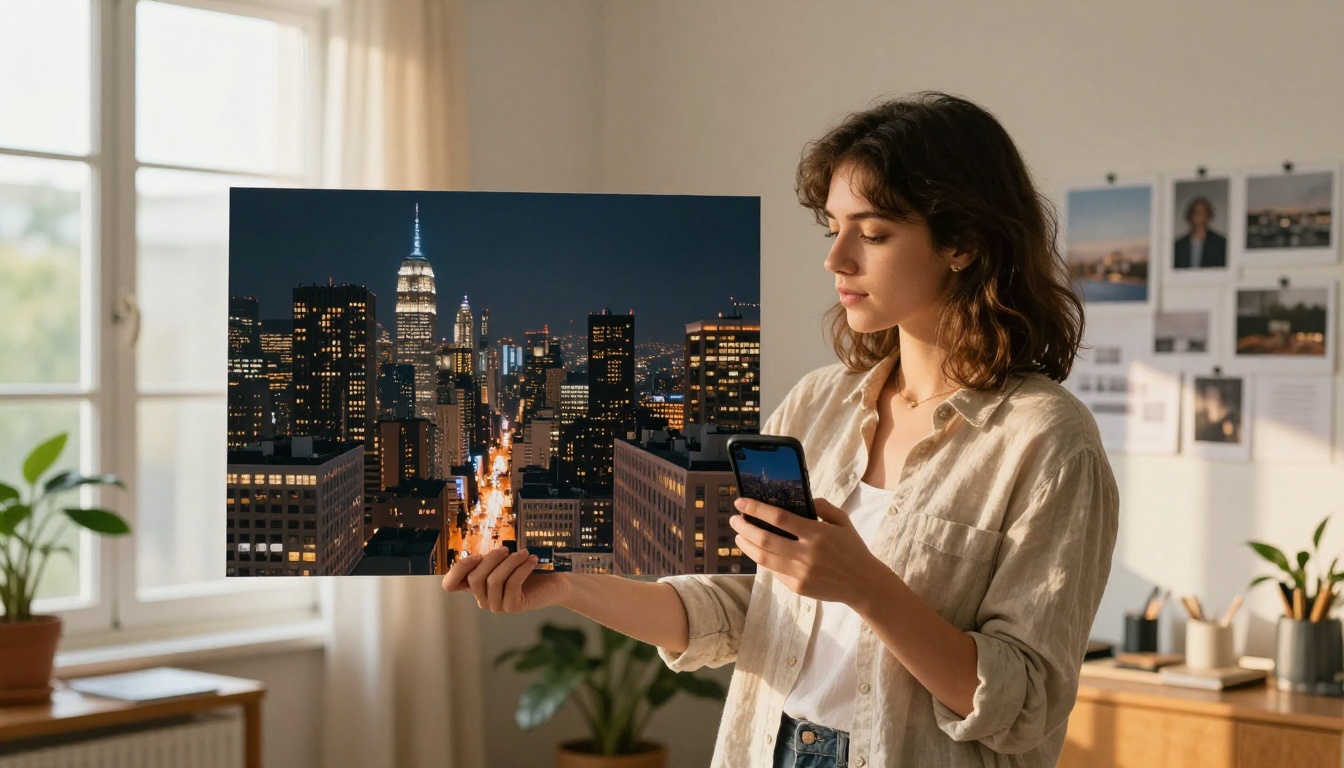
How to Write Prompts That Actually Work for Posters
The difference between a generic AI poster image and a genuinely usable one is almost always the prompt. Here are the elements that separate high-quality results from outputs that look like stock photo placeholders.
Structure That Gets Results
| Prompt Element | What It Controls | Example |
|---|
| Subject specificity | Removes ambiguity about the main subject | "A lone hiker on a granite ridge" not "a person in nature" |
| Lighting direction | Shapes mood and three-dimensionality | "volumetric morning light from upper left" |
| Camera angle | Sets composition perspective | "low angle, 24mm wide lens looking upward" |
| Texture detail | Adds tactile photorealism | "rough limestone surface, visible pore structure" |
| Atmosphere | Defines emotional register | "early morning mist filling valley below, blue hour light" |
| Technical style | Reinforces photorealistic output | "RAW photography, Kodak Portra 400, 8K" |
What to avoid in poster prompts:
- Generic qualifiers like "beautiful" or "stunning" without describing what makes it beautiful
- Multiple unrelated subjects competing for the same frame
- Asking for text inside the image unless you are using a model specifically strong at text rendering
- Contradictory lighting descriptions (warm sunset light and cool blue shadows rarely coexist naturally)
- Overly long prompts where the later half contradicts the setup in the earlier half
💡 Tip: Start with a 20-word core prompt: subject, lighting condition, and photography style. Run it once. Then add specificity to the elements that need adjustment rather than rewriting the entire prompt from scratch.
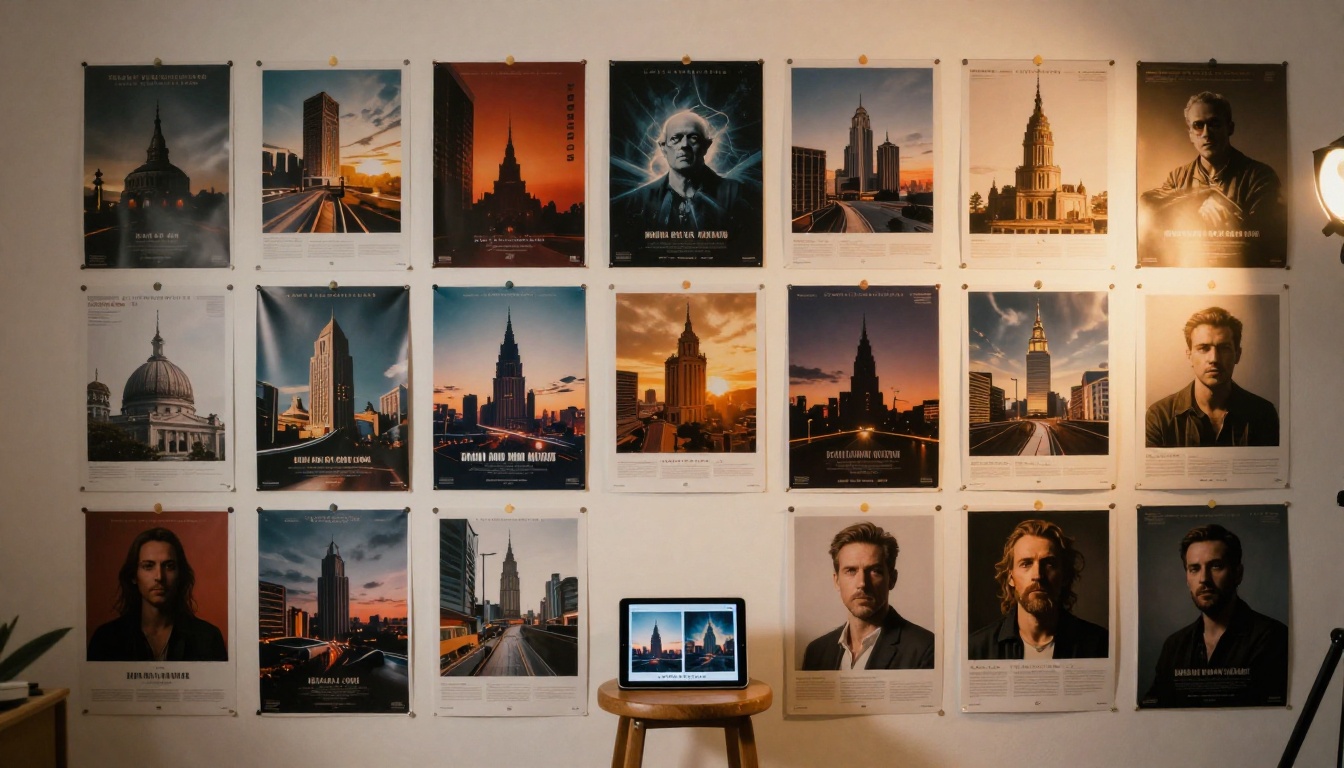
Upscaling Your AI Poster Image to Print Size
Even generating at the highest available resolution, poster printing typically demands more pixels than current AI models output natively. A solid upscaling step between generation and printing is part of any professional poster workflow. PicassoIA has several upscaling options that go well beyond basic interpolation.
Clarity Pro Upscaler
Clarity Pro Upscaler uses AI upscaling to add genuine photorealistic texture during the enlargement process. It does not just stretch existing pixels: it synthesizes new detail that matches the style and tone of the original image. This makes it particularly effective with portraits and landscapes where skin texture, fabric weave, and fine environmental detail need to remain natural at larger sizes.
Topaz Image Upscale
Topaz Image Upscale supports enlargement up to 6x. For a standard 1-megapixel AI output at 1024x1024px, a 6x upscale produces approximately 6144x6144px, which is more than enough for any standard poster print at 300 DPI. It is the most aggressive option available on PicassoIA and works well for images where maximum final size matters more than stylistic texture synthesis.
Other Upscaling Options on PicassoIA
Google Upscaler offers clean 4x enlargement well-suited to architectural subjects and geometric compositions. Recraft Crisp Upscale handles high-frequency edge detail particularly well, making it a strong choice for poster images with sharp lines, text elements, or geometric patterns. Real ESRGAN provides reliable 4x upscaling for general use when you need fast results without fine-tuning a specialized tool.
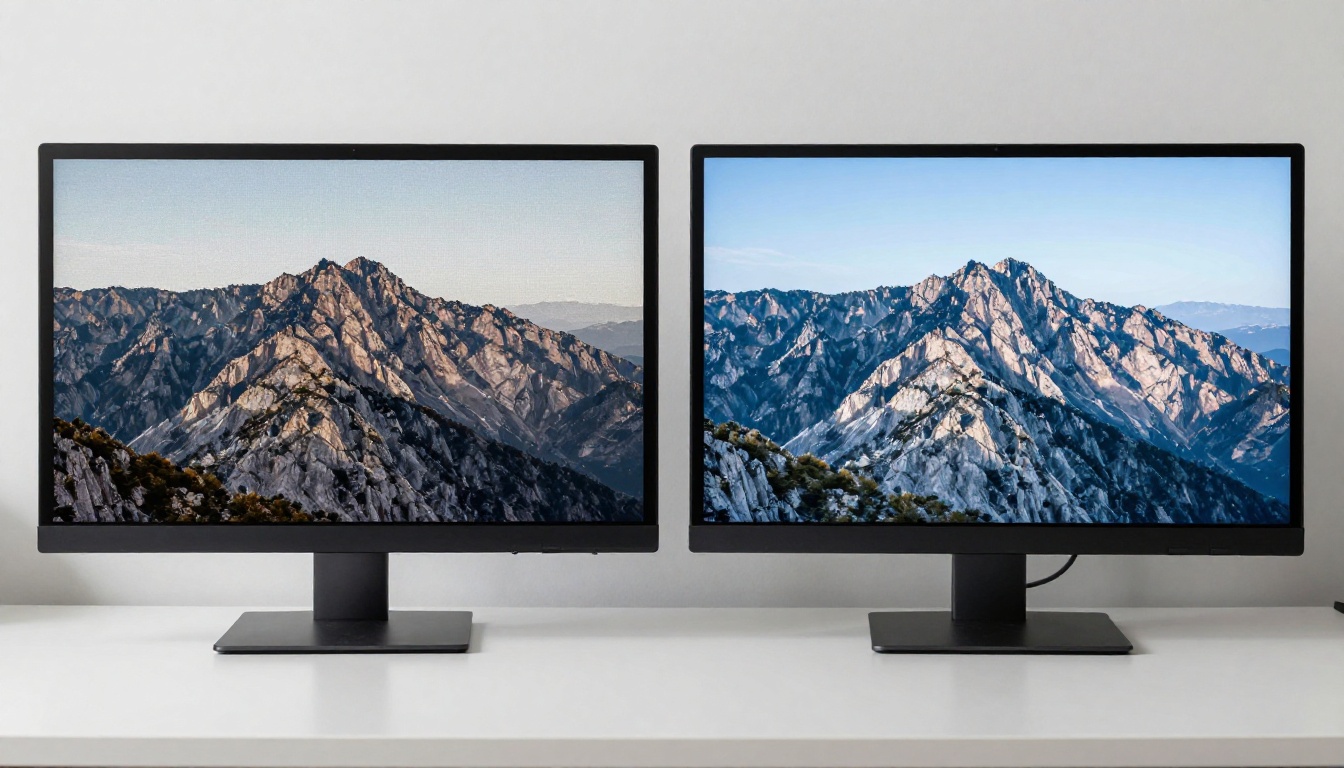
Quick-Reference: Models by Poster Type
Here is a fast-reference summary of which model and settings to reach for based on the poster type you are working on:
| Poster Type | Recommended Model | Aspect Ratio | Guidance Setting | Resolution Path |
|---|
| Event / Concert | Flux Pro | 2:3 or 9:16 | 4 to 5 | 1MP then 4x upscale |
| Brand / Product | Flux Dev | 3:4 or 1:1 | 3 to 4 | 1MP then 4x upscale |
| Fine Art / Decorative | Seedream 3 | 2:3 or 3:2 | 2.5 | 2K native (no upscale needed) |
| Concept / Draft | Flux Schnell | Any | Default | Regular (fast preview) |
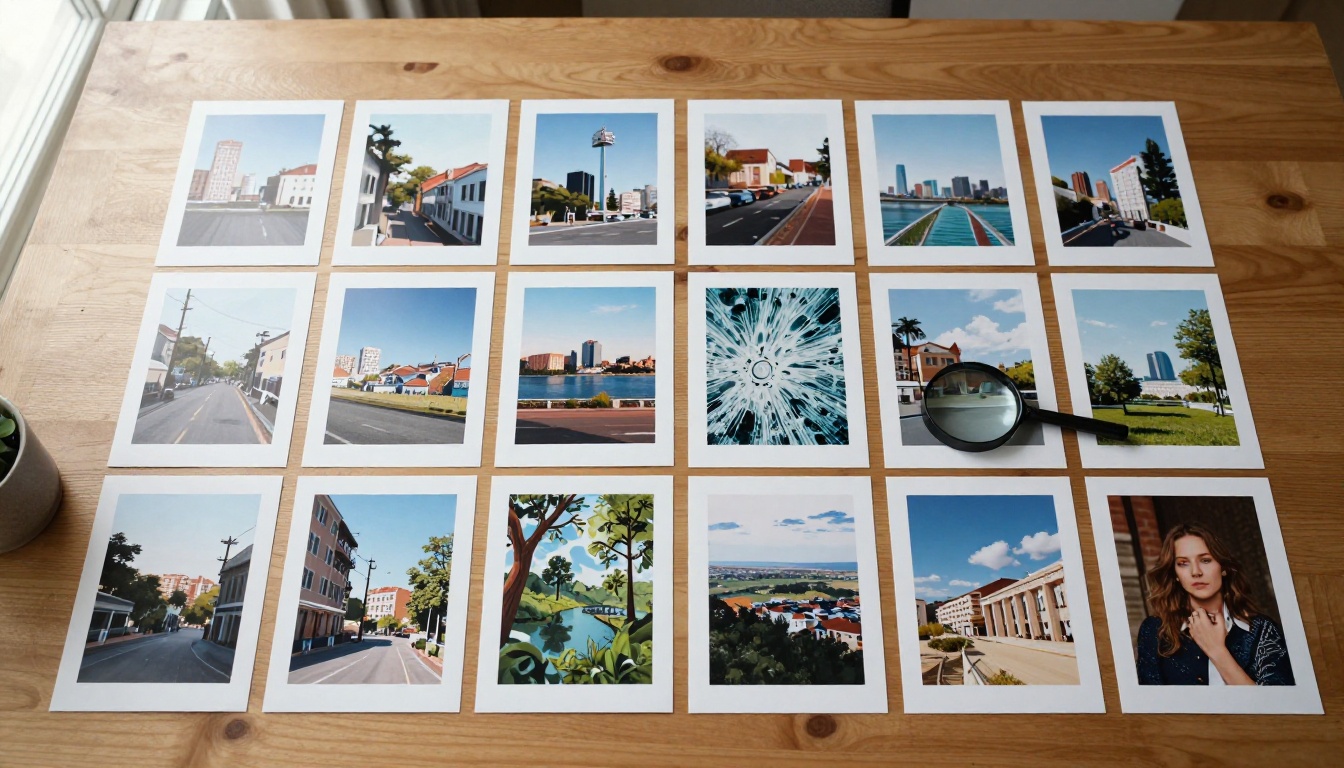
Start Generating Your Own Poster Images
The tools to create photorealistic, print-ready poster images are all available on PicassoIA, in your browser, with no GPU setup and no software to install. Whether you begin with Flux Dev for fast, iterative work, use Flux Pro when your brief is precise and non-negotiable, or go straight to Seedream 3 for native 2K output, the workflow follows the same steps: write a structured prompt with lighting and camera specifics, set the correct aspect ratio for your poster format, run the generation, and upscale before printing using Clarity Pro Upscaler or Topaz Image Upscale.
The fastest way to find which model fits your visual style is to run the same detailed prompt through two or three of them and compare the results side by side. Open the full model library on PicassoIA to see everything available, or pick one of the models from this article and run your first poster prompt right now.


