Best AI Model for Realistic Skin: What Actually Works
Tired of waxy, fake-looking AI portraits? This article breaks down the best AI models for rendering photorealistic skin, including subsurface scattering, pore detail, skin tone accuracy across all Fitzpatrick types, and how to upscale skin to print-quality resolution without losing realism.
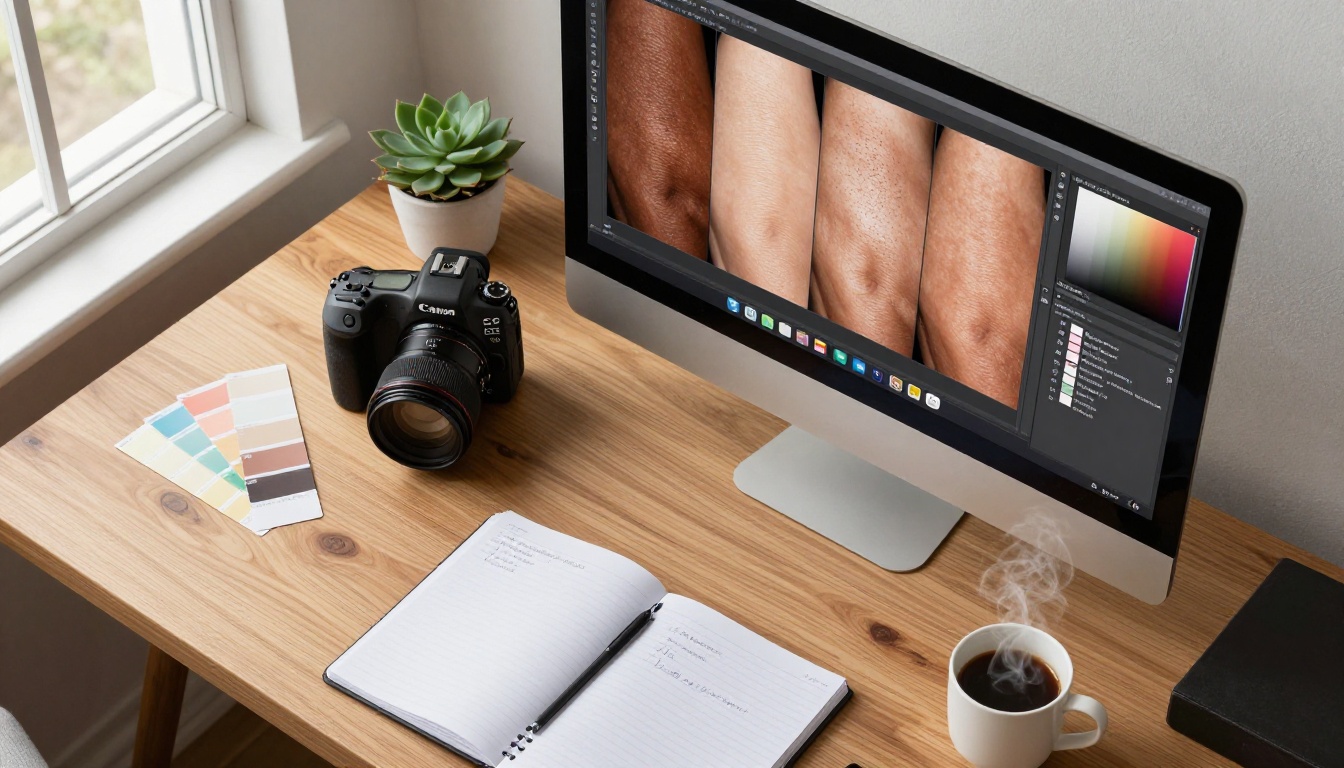
Realistic skin is where most AI image generators quietly give up. You have seen it: the waxy, pore-free complexion that looks like it belongs on a department store mannequin, or the over-smoothed finish that strips away everything that makes a human face actually human. Choosing the best AI model for realistic skin is not just about picking the newest release. It is about understanding which models actually simulate the physics of light on biological tissue, and which ones fake it with a plastic sheen.
This article breaks down the top performers, the physics behind convincing skin rendering, how lighting changes everything, how to handle every skin tone in the Fitzpatrick scale, and how to get consistently photorealistic results starting today.
Why Most AI Models Fail at Skin
Skin is physically one of the hardest surfaces to render correctly. Unlike a ceramic mug or a chrome ball, it is semi-transparent. Light does not just bounce off the surface. It enters the top layer (the epidermis), scatters through fat and water underneath, and exits at a slightly different angle and color. This process is called subsurface scattering (SSS), and most AI models trained on broad internet datasets never properly learn it.
The result is a common set of failures that show up across dozens of popular generators:
The Wax Museum Effect: Skin looks solid and opaque, like candle wax. No light penetration near the ears or nostrils, no warm glow through thin earlobe tissue.
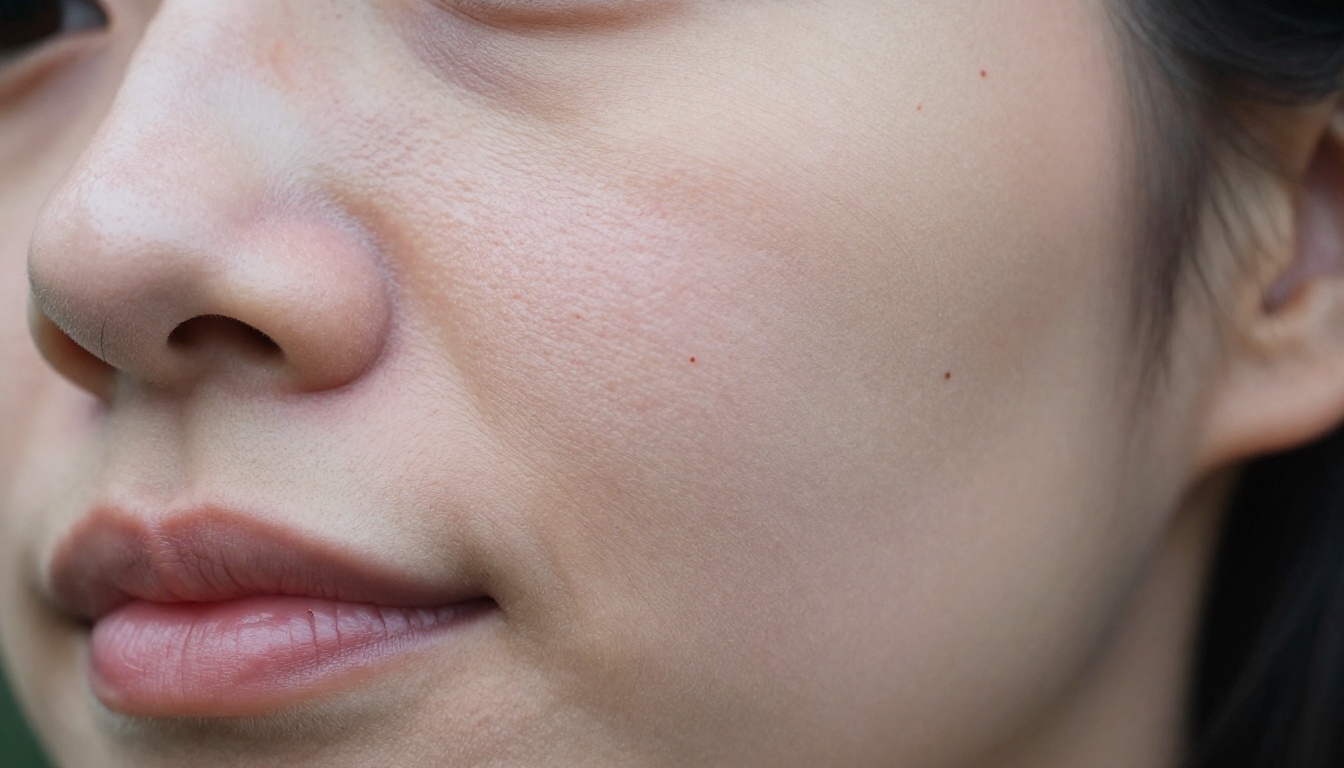
Pore Erasure: All micro-texture flattened into a smooth gradient, more like face paint than actual flesh.
Wrong Color Temperature Zones: Real skin is warmer and redder near the nose, cooler and more desaturated at the temples and chin. A single flat tone applied across the face reads as artificial immediately.
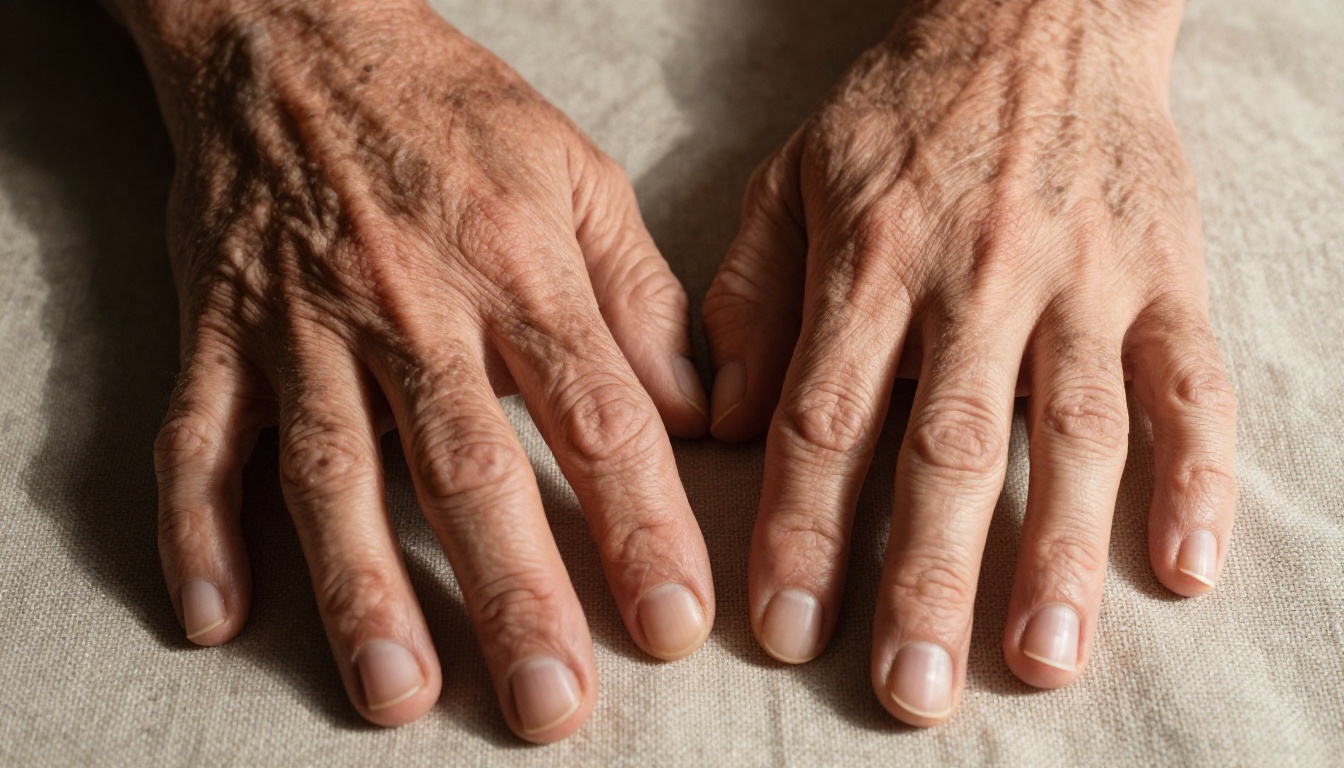
Missing Micro-detail: Individual hairs at the hairline, capillary redness after sun exposure, tiny scars, uneven pigmentation from freckles or sun damage. These imperfections are exactly what makes a portrait feel alive.
Impossible Speculars: Artificial-looking catch lights that are geometrically perfect circles, rather than the irregular soft window reflections you see in real photography.
💡 The single biggest tell of fake AI skin: zero variation. Real faces have zones. Dark circles, redness around the nose, a slight shine at the forehead. A uniform, evenly-lit face with no tonal variation is never real, no matter how high the resolution.
What Real Skin Actually Looks Like
Before choosing a model, it helps to know what you are actually aiming for. Professional portrait photographers spend years learning to capture skin correctly. Here is the condensed version of what matters.
Pore Depth and Shadow
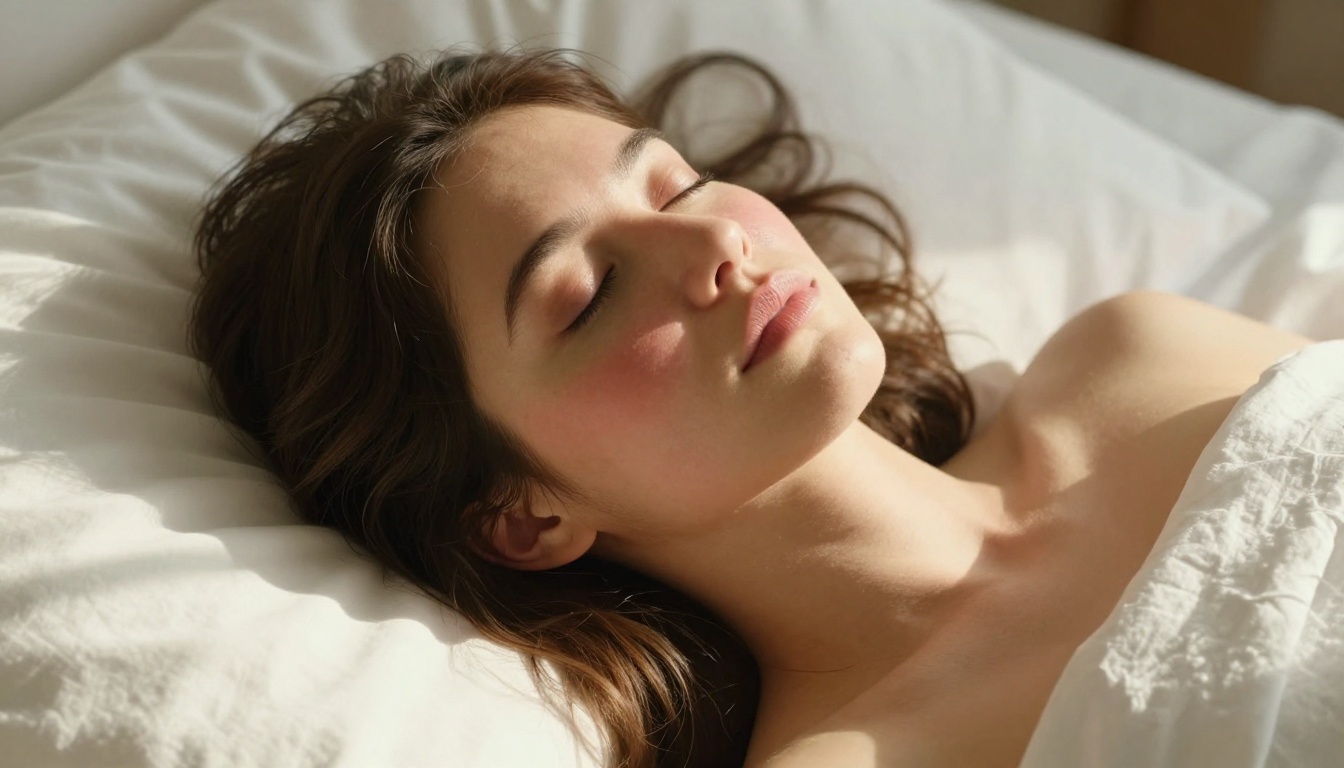
Each pore is a tiny pit. Under raking light (light hitting at a low angle from the side), each pore casts its own micro-shadow. The result is a textured surface that reads as physically real. Under soft frontal light, pores are less visible but still present as subtle tonal variation. A model that cannot show this relationship between light angle and pore visibility will always look flat.
Subsurface Color Zones
Zone
Expected Color Behavior
Forehead
Cooler, slightly more matte due to thin skin over the skull
Nose and Cheeks
Warmer, redder from higher capillary density near the surface
Under-eye area
Cooler, bluish-purple from blood vessels visible through thin skin
Temples
Slightly greener due to deeper vasculature
Jawline
Warmer in males with beard shadow, cooler in females
Lips
High saturation warm red-pink, with visible vertical lip lines
Specular vs. Diffuse Highlights
Real skin carries two types of highlight simultaneously. A diffuse highlight is the broad, soft glow across a forehead or cheekbone from scattered light. A specular highlight is a tight, sharp catch of light on an oily patch, the tip of the nose, or the center of the lower lip. Models that generate only one type consistently look immediately wrong.
The Models That Get It Right
Not every model handles dermal realism equally. Testing across architectures and fine-tunes produces a clear tier of performers for skin-focused generation.
p-image by Prunaai
The p-image model is the standout performer for photorealistic skin in PicassoIA's lineup. It generates images with exceptional handling of subsurface scattering, pore topology, and skin undertone variation. The training data skews heavily toward real photography rather than synthetic renders, meaning it has absorbed genuine photographic skin behavior, including the color science of film emulsions like Kodak Portra, which are widely regarded as the gold standard for flattering yet accurate skin rendition.
Strengths:
Accurate pore micro-detail at close-up distances
Correct zonal color temperature across the face
Handles both direct and diffuse lighting convincingly
Renders age-appropriate skin texture without requiring explicit prompting for it
Consistent results across multiple ethnicities and Fitzpatrick types
Where it shines most: close-up portraiture, beauty photography, fashion editorial, natural light environments.
Flux Redux Dev
The Flux Redux Dev model by Black Forest Labs is a variation engine. It takes a source image and generates variants while preserving the skin character of the original. This makes it particularly useful for iterating on a portrait you already like. If you generated a face with convincing skin texture using p-image, Flux Redux Dev can produce ten alternative angle variations while keeping the same pore depth and coloring consistent across all of them.
Strengths:
Image-to-image preservation of skin character and tone
Excellent at maintaining consistent subsurface color across variants
Ideal for generating multiple shots of the same subject from different angles
💡 Pro workflow: Generate your base portrait with p-image, then run variations through Flux Redux Dev for alternative angles. The skin stays consistent even as pose and background change.
How Lighting Defines Skin Realism
The model only gets you halfway there. The other half lives in your prompt's lighting description. Here is how different light sources change skin rendering in AI output.
Directional Natural Light
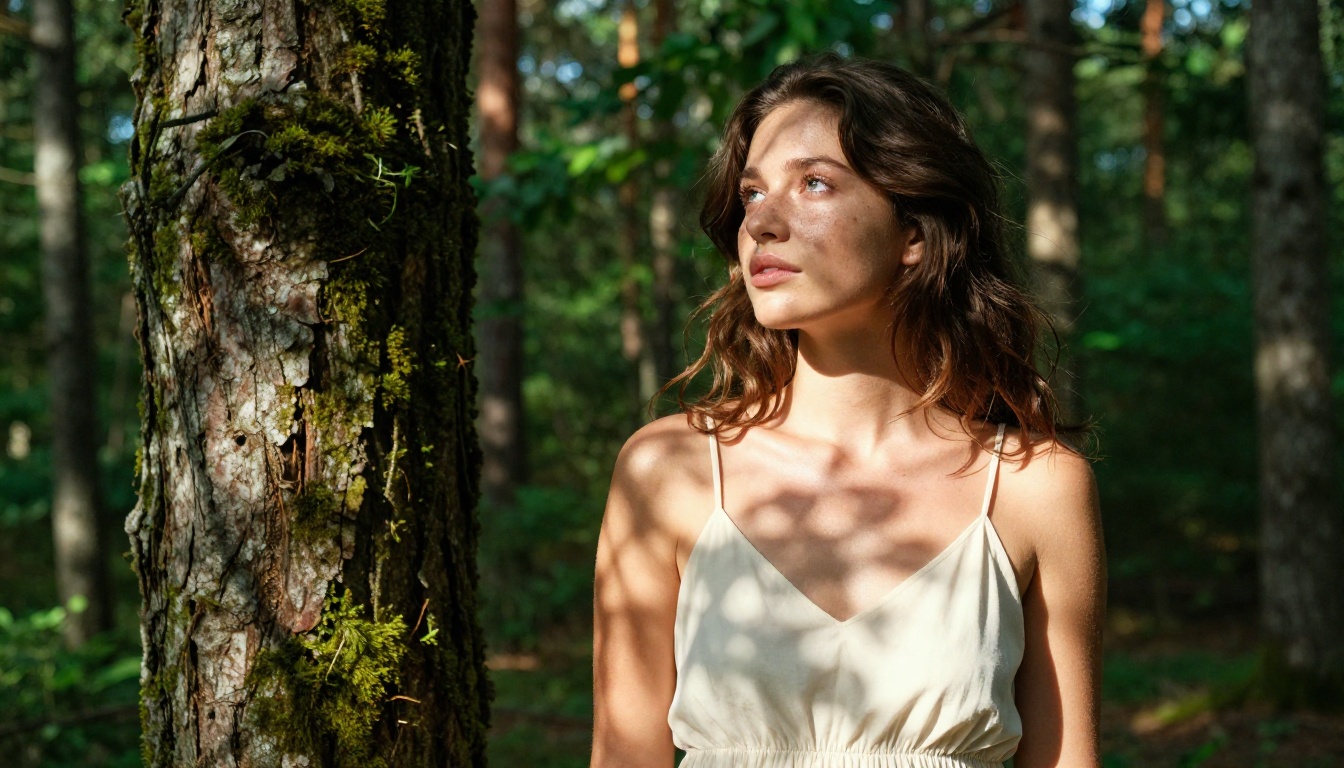
A single source from one side creates Rembrandt lighting: a triangle of light on the shadow-side cheek, deep shadows under the brow and jaw, and a strong specular on the lit side. This setup produces the most convincing sense of three-dimensional skin because the shadows reveal surface topology. Pores look like pores. Hair follicles cast micro-shadows. Wrinkles become readable.
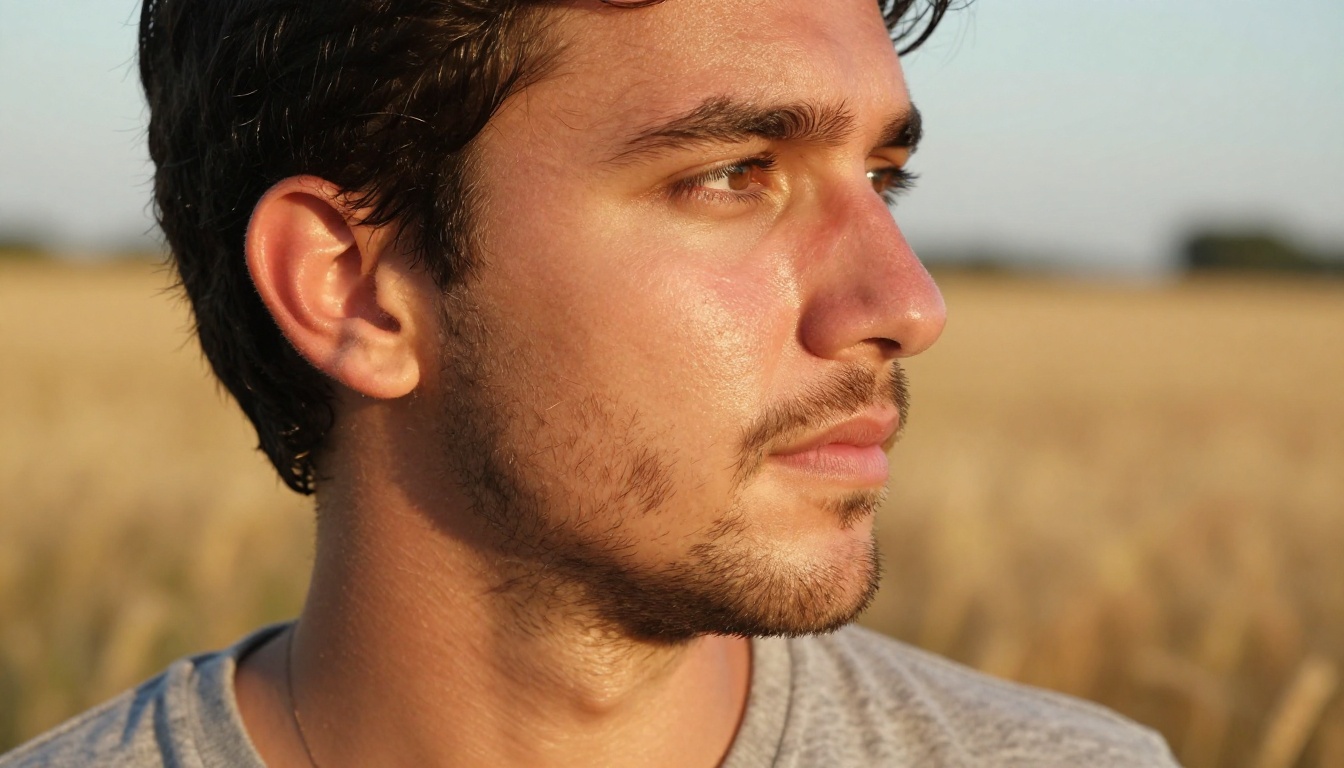
Prompt keywords that work well: north-facing studio window, raking sidelight at 45 degrees, volumetric morning light from the left, golden hour backlight with warm rim on the ear.
Overcast or Diffuse Light
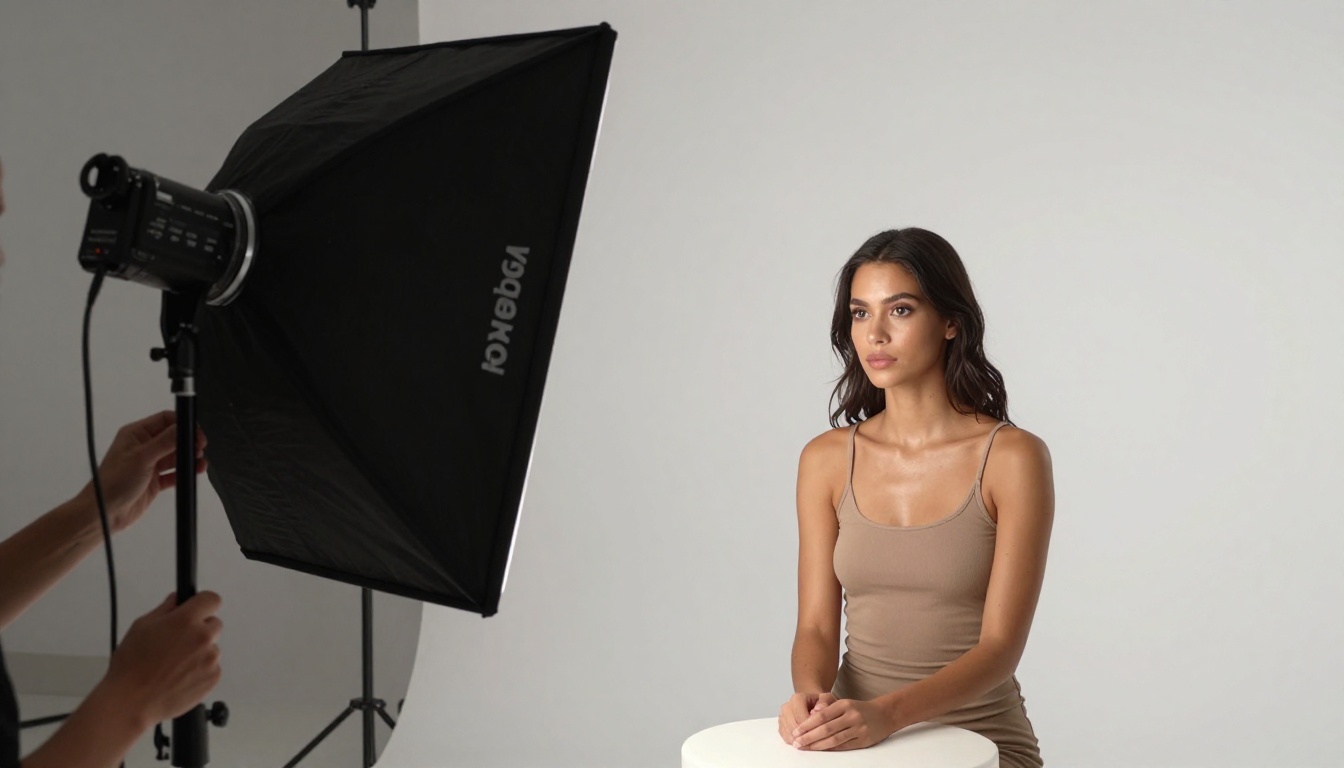
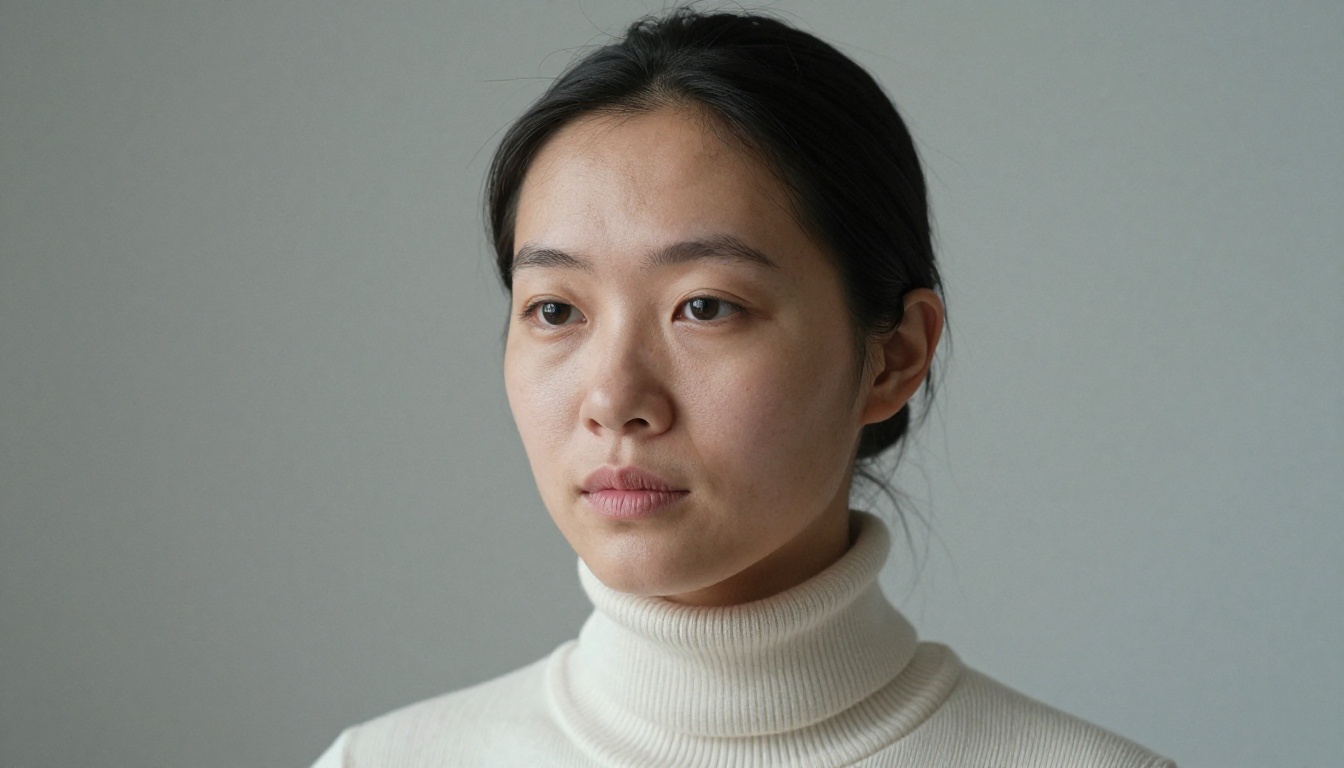
Flat, soft, no hard shadows. Common in fashion and commercial photography. Skin looks smooth and even, which works well for showcasing tone without the distraction of heavy shadowing. The tradeoff is less three-dimensional pore visibility.
Prompt keywords: overcast outdoor light, large octabox from directly above, flat beauty dish with diffuser, soft diffuse fill with no shadows.
Mixed Color Temperature
Warm practical light from one direction plus cool ambient from the other. Creates a cinematic two-tone look where the lit side is warm and the shadow side is cool. Extremely realistic because that is exactly what happens in real interior spaces.
Prompt keywords: warm tungsten key light + cool daylight fill, window light on shadow side, warm lamp on lit side, mixed color temperature, no neon, practical sources only.
Rendering Skin Across Every Tone
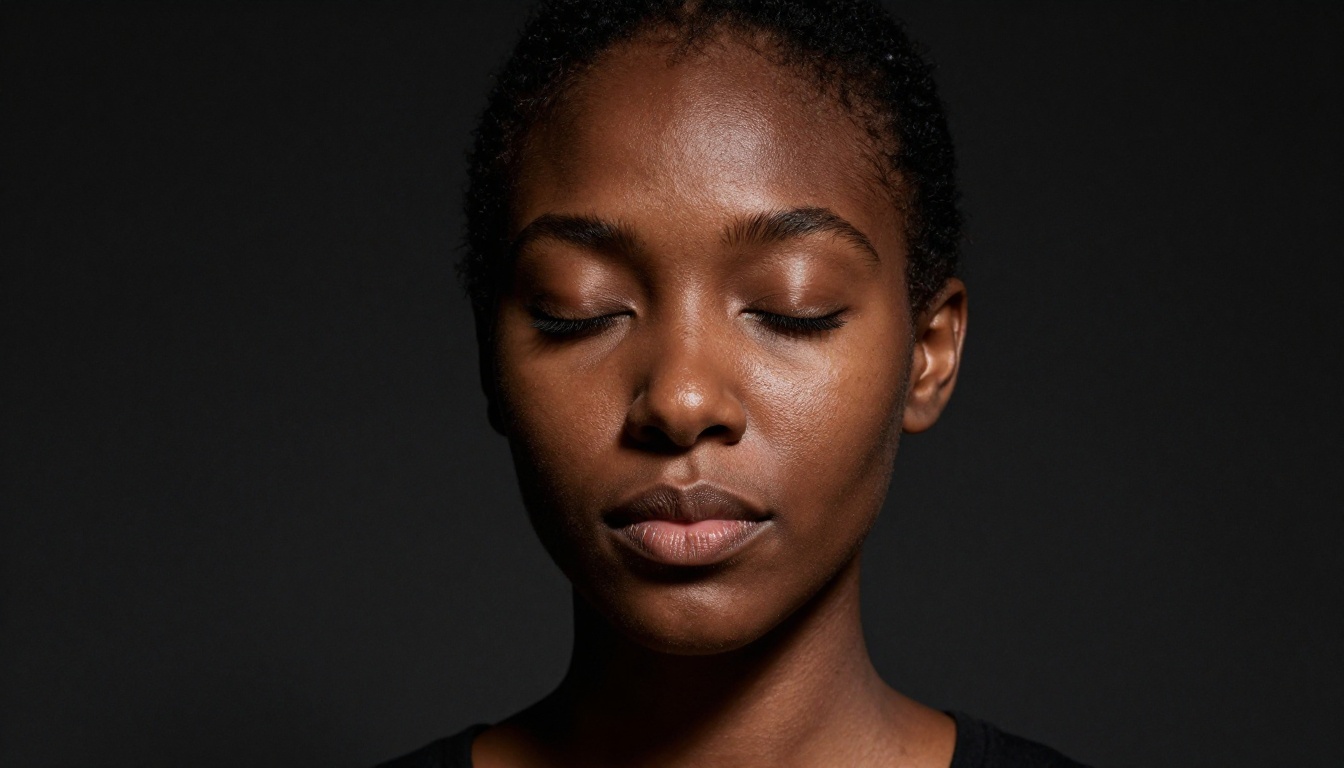
A critical failure mode in many models is handling darker skin tones poorly. The physics genuinely change at higher melanin concentrations. Very dark skin (Fitzpatrick V-VI) absorbs more light at the surface, reducing specular highlight visibility and shifting the color of subsurface scatter from pink-red toward deep amber. Models trained without sufficient diversity in their portrait data struggle here, producing either crushed black shadows with no detail, or an over-brightened result that strips out the skin's natural richness.
Here is how skin physics shift across the full Fitzpatrick range:
Fitzpatrick Type
Subsurface Color
Specular Highlights
Common AI Failure
I-II (Pale, Fair)
Pink-red, visible veins
High contrast, very visible
Over-blueing shadows, washing out
III-IV (Olive, Medium)
Warm amber-red
Moderate natural sheen
Over-yellowing, losing red undertones
V-VI (Dark, Deep)
Deep amber-brown
Lower contrast, more matte
Crushing shadows to solid black
What separates good AI models from bad ones at dark skin tones: the ability to render shadow areas without losing pore texture. Skin at Fitzpatrick V should still show surface topology, capillary sheen at the cheekbone ridge, and volumetric light catching the bridge of the nose. Models that simply darken skin without maintaining the surface physics look wrong immediately.
💡 Prompt tip for deep skin tones: add "deep warm amber subsurface, sculptural side-light catching the cheekbone ridge, natural skin oil sheen, shadow area retaining full pore texture" to force the model to maintain tonal range.
When AI Skin Goes Wrong: 5 Fixes
Even with the right model, prompt errors produce bad skin. Here are the five most common failures and how to correct them.
1. Over-smooth, pore-free result
Add explicit pore language: "individual pores visible on nose and cheeks, no retouching, natural skin imperfections". Also append --style raw to suppress any stylization processing.
2. Wrong skin tone despite correct prompt
Add the Fitzpatrick type explicitly: "Fitzpatrick Type IV olive skin with warm amber undertone". Models respond well to clinical descriptors over vague adjectives like "tan" or "brown."
3. Plasticky highlight on forehead
Soften the light source in your prompt: "large diffuse window light, no hard specular on forehead, broad soft diffuse highlight". Hard highlights from under-described light sources are the top cause of wax-museum skin.
4. Shadow side crushed to black
Add fill: "soft reflector fill on shadow side, shadow retaining skin texture and tonal variation, not crushed to black".
5. Skin looks painted at close range
Add film grain and anti-retouch language: "Kodak Portra 400 film grain, visible skin imperfections, zero digital retouching, raw photography feel". Film emulation language consistently produces more organic skin texture.
Upscaling Skin After Generation
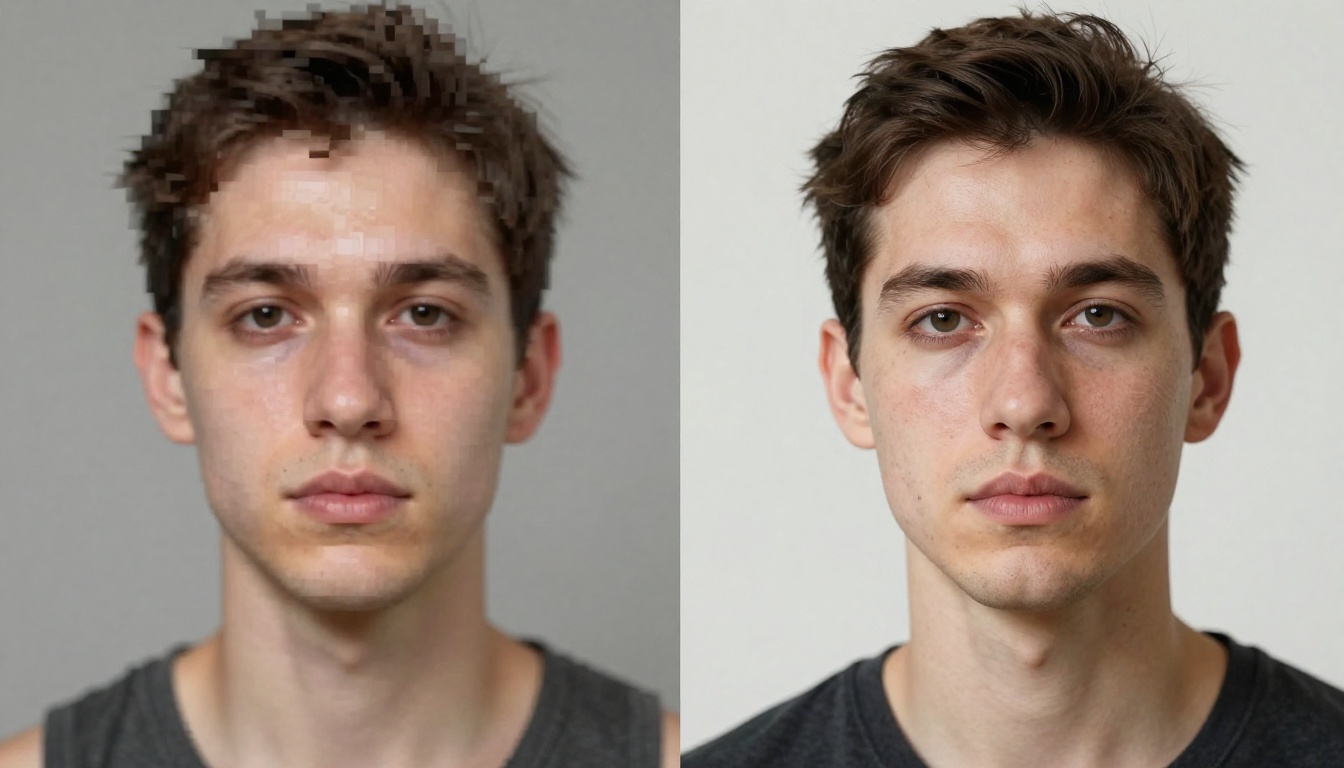
Even the best AI portrait generators produce output at resolutions that do not hold up to close inspection. Upscaling is not optional for serious work. It is part of the pipeline. PicassoIA has several options specifically suited to portrait and skin upscaling.
Clarity Pro Upscaler
Clarity Pro Upscaler by philz1337x is specifically trained for photorealistic upscaling. It does not merely interpolate pixels: it adds plausible micro-detail during the upscale. For skin, it introduces pore depth, subtle surface texture, and hair micro-fiber detail that was not present in the original generation. The result at 4x often looks more convincing than the base output.
Crystal Upscaler
Crystal Upscaler is the sibling model from the same creator, optimized for a crisper, sharper result. Where Clarity Pro adds creamy film-like texture, Crystal leans into clinical sharpness. Strong choice for situations where pronounced pore detail is the priority.
Topaz Image Upscale
Topaz Image Upscale offers up to 6x enlargement without quality degradation. Topaz has been a professional-grade upscaling tool for years, and its integration in PicassoIA makes it directly accessible within your generation workflow. At 6x, a standard portrait becomes large enough for high-quality print output.
Real ESRGAN
Real ESRGAN handles noise and compression artifacts especially well. If your source image has JPEG banding or generation artifacts around hair edges, Real ESRGAN will clean those during the upscale rather than amplifying them.
The workflow matters as much as the model choice. Here is a step-by-step process that reliably produces photorealistic skin output.
Step 1: Build a Detailed Foundation Prompt
Be specific about subject, lighting, and camera. Vague prompts produce vague skin:
Weak: "Portrait of a woman, realistic skin"
Strong: "Three-quarter portrait of a 28-year-old woman with Fitzpatrick Type III olive skin, Rembrandt lighting from a north-facing studio window, visible pores on nose and cheeks, slight capillary redness near nostrils, Hasselblad X2D 100C with 90mm f/2.0 lens, Kodak Portra 400 film emulation, 8K RAW photography, no retouching --ar 16:9 --style raw"
Step 2: Use p-image as Your Primary Model
Navigate to p-image on PicassoIA and paste your prompt. Set the aspect ratio to 16:9 for editorial output or 3:2 for classic portrait framing.
Step 3: Iterate with Flux Redux Dev
Once you have a base portrait with convincing skin, run it through Flux Redux Dev to generate alternative angles or lighting variations. This preserves the skin character and coloring across every variant.
Step 4: Upscale for Final Output
Run the selected image through Clarity Pro Upscaler at 4x. For print use, follow with Topaz Image Upscale for a further 2x, reaching 8x total from your base generation.
Ready-to-Use Prompt Templates
These prompt structures are ready to copy. Replace the bracketed sections with your specifics and drop them directly into p-image.
Close-up Beauty Portrait:
Close-up portrait of [subject], [lighting setup] from [direction], individual pores visible on [zone], [skin tone description] complexion with [undertone], [camera body] with [lens] at [aperture], Kodak Portra 400 film emulation, 8K RAW photography, no retouching --ar 3:2 --style raw
Environmental / Outdoor Portrait:
[subject] in [environment], [natural light description] creating [shadow/highlight effect] on skin, [specific skin detail] visible, [clothing], shot from [angle] with [camera and lens], [film emulation], photorealistic 8K RAW --ar 16:9 --style raw
Skin Texture Study (Macro):
Extreme macro photography of [skin area], [lighting at low angle] casting micro-shadows into each pore, [skin characteristics], [camera and macro lens], [film], 8K RAW photography, no retouching --ar 16:9 --style raw
Diverse Skin Tone Portrait:
Portrait of [subject] with [Fitzpatrick type] skin, [subsurface color description], [directional light catching specular on cheekbone ridge], shadow side retaining full pore texture, [camera], [lens], [film emulation], 8K RAW --ar 16:9 --style raw
Try It on PicassoIA
Every technical point above becomes tangible the moment you open PicassoIA and start generating. The models, the upscalers, the variation workflow: it is all available without any local installation or hardware requirements.
Start with p-image for your first photorealistic skin portrait. Paste one of the prompt templates above, customize the subject description and lighting, and generate. Then run the result through Clarity Pro Upscaler to see what genuine 4x AI upscaling does to pore detail at close range.
If you want to test the full range of what is available, the PicassoIA model library contains over 185 text-to-image models plus upscalers, AI image restoration for fixing noise or damage in existing portraits, and face tools for refining specific facial features. Photorealistic skin is no longer the ceiling of what AI can produce. With the right model and the right prompt structure, it is the starting point.