Video editing has always been a time sink. You pull footage into a timeline, make a hundred manual cuts, hunt for background music, fix the lighting in post, add captions frame by frame, and export. That process hasn't changed much in decades. AI is changing it now, and fast.
The best AI tools for video editing don't replace creativity. They eliminate the tedious parts. Text commands instead of drag-and-drop. Automatic upscaling instead of manual sharpening. Background removal without a green screen. Captions generated in one click. If you've been editing video the old way, this list will shift how you think about the whole process.
What AI Actually Changes
Most traditional editors give you precise control over every cut. That's powerful, but it means every second of cleanup, every re-render, every subtitle adjustment is your problem. AI flips this: instead of specifying how to do something, you describe what you want.
That shift matters most across four areas:
- Content editing: change what's in the frame without reshooting
- Quality restoration: fix blurry, low-res, or damaged footage automatically
- Audio: generate sound effects and ambient tracks that match the scene
- Formatting: captions, aspect ratios, and file conversion on demand
The tools below are organized by what they actually do, not by brand or price. Every one of them runs in a browser with no installation required.
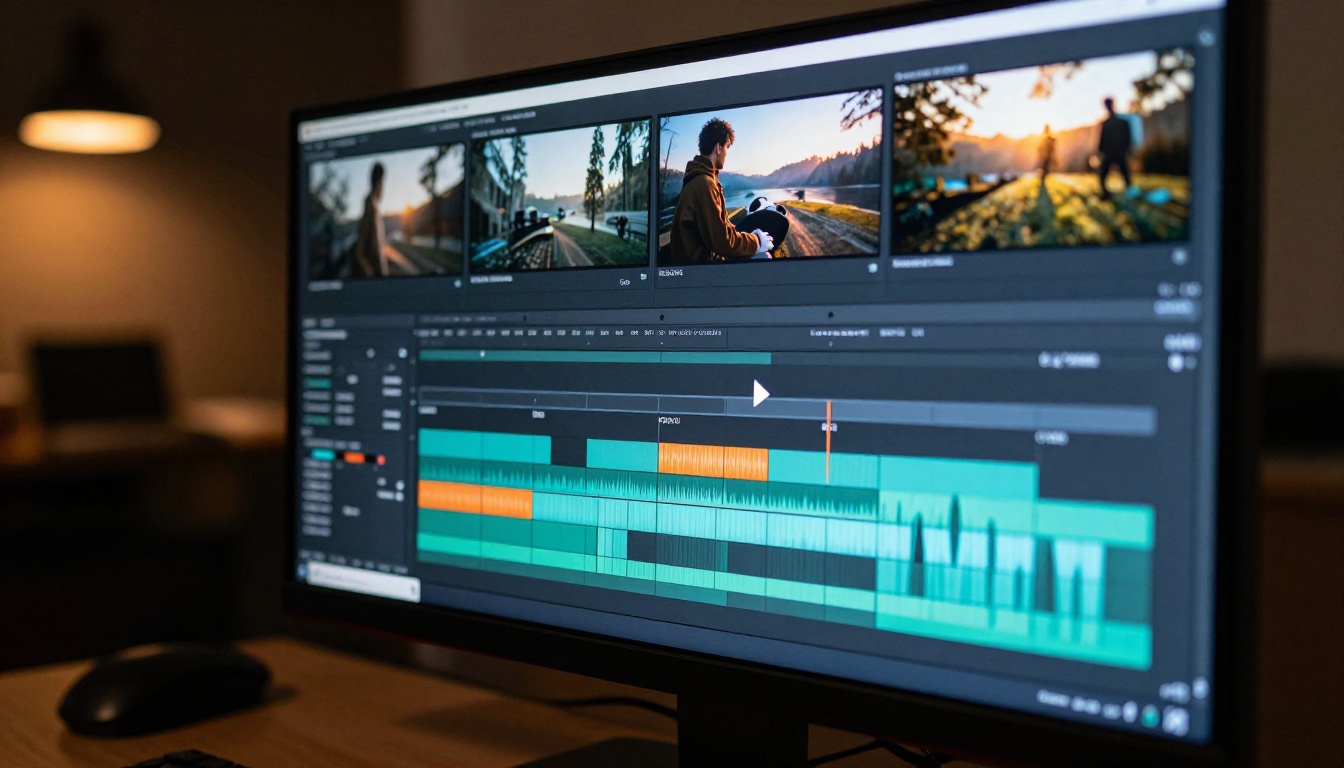
Edit Video with Words
Text-based video editing is the biggest shift in the space right now. You type what you want changed, and the model applies it to the footage. No timeline scrubbing, no manual rotoscoping.
Wan 2.7 Videoedit
Wan 2.7 Videoedit is one of the most capable text-driven editors available. Upload a clip, write a prompt describing the transformation, such as "make this daytime scene look like it's raining at night," and the model rewrites the video accordingly while keeping the original motion and structure intact. It works best on short clips with clear, specific prompts.
Best for: scene restyling, time-of-day changes, weather effects applied post-shoot.
Lucy Edit 2
Lucy Edit 2 from Decart focuses on real-time, instruction-based edits. It takes a video and a written instruction, then produces an edited version that follows the instruction closely. The output maintains temporal consistency across frames, which is a persistent problem with many text-to-video editors that produce flickering or drifting results.
Best for: character appearance changes, clothing edits, background swaps by description.
Kling o1
Kling o1 handles full video rewrites from a text prompt. Feed it a clip and a description of what the final version should look like. It's particularly effective when you want to shift the visual style of footage while preserving the motion path of subjects.
Best for: style transfers, visual identity changes, repurposing old footage for a different audience.
Gen 4 Aleph
Gen 4 Aleph from Runway excels at recutting and restyling. It handles both isolated edits and full-sequence transformations, making it flexible enough for short-form content and longer project clips. Its handling of motion continuity is notably strong compared to earlier generation models.
Best for: content creators who reuse footage across different formats and visual styles.
💡 Text-based tools work better with high-quality source material. Blurry inputs produce blurry outputs even after transformation. Shoot cleanly first, then edit with AI.
Cut, Split, and Merge Without Drama
Sometimes you just need basic operations done fast and clean. These tools handle the mechanical side of editing at a fraction of the time a traditional editor takes.
Trim Video
Trim Video cuts any clip to a precise length by specifying start time, end time, or both. No export settings, no complex timeline to manage. Just an input video and a time range. The output is clean with no quality loss.
Video Split
Video Split breaks a long video into timed segments automatically. Set the interval and it outputs individual clips. Useful for batch processing raw footage into social-ready chunks without any manual cutting.
Video Merge
Video Merge combines multiple clips into a single video in seconds. The join points are clean and the tool handles different resolutions by maintaining the quality of the highest-resolution input in the batch.
💡 These three tools work well together as a lightweight pipeline: split long recordings, edit each segment separately, then merge the final sequence back together.
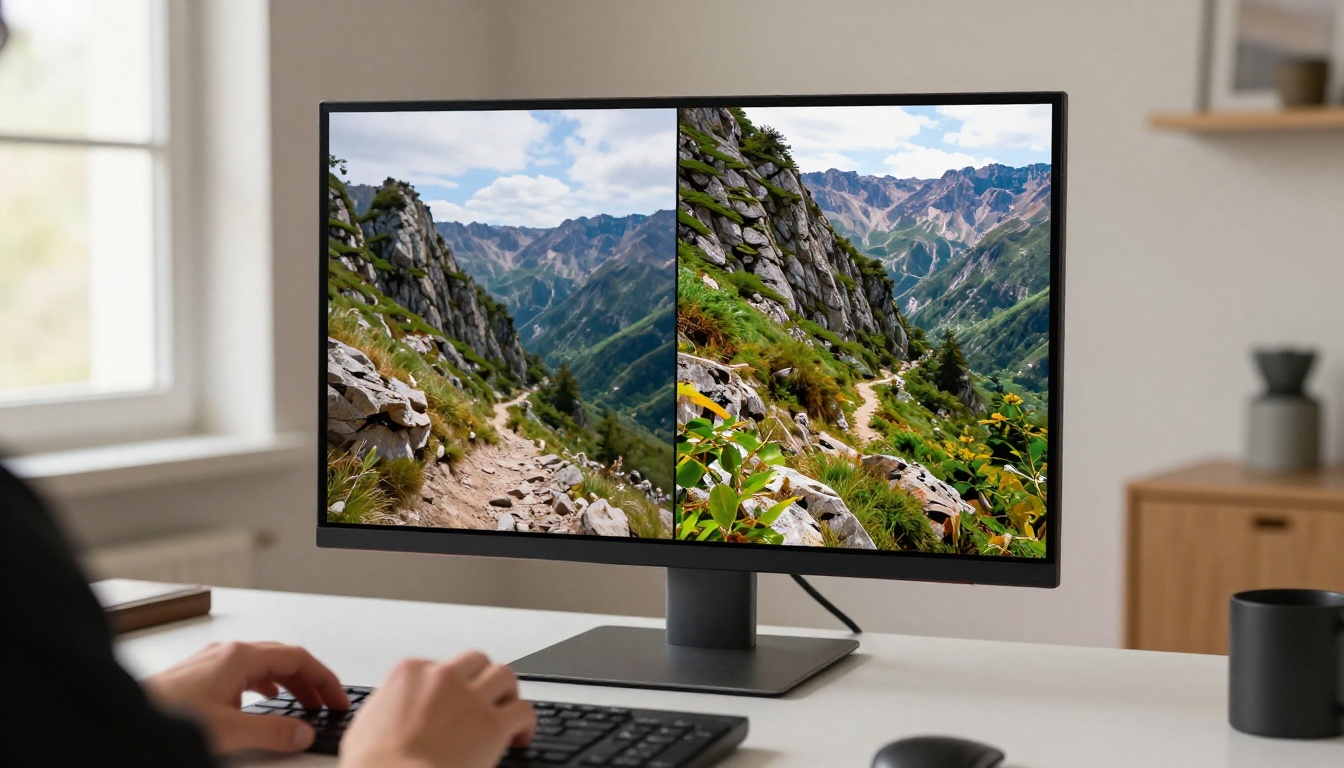
A lot of great footage is stuck at 480p or 720p. AI upscaling doesn't just resize pixels. It reconstructs detail that wasn't visible in the original file.
Real ESRGAN Video
Real ESRGAN Video upscales video footage up to 4K using the Real-ESRGAN architecture. It sharpens edges, reduces compression artifacts, and adds fine detail to faces and textures. The output is noticeably sharper than bicubic interpolation at the same resolution target.
Best for: archival footage, phone recordings from a few years ago, YouTube content originally shot at lower resolutions.
Crystal Video Upscaler
Crystal Video Upscaler applies a different approach that emphasizes natural texture preservation. It handles motion blur better than some competing tools, which matters for footage with fast movement where motion clarity is critical.
Best for: sports footage, action clips, fast-moving subjects.
Video Increase Resolution
Video Increase Resolution from Bria pushes output up to 8K. It's the most aggressive upscaling option in this category, best used on well-lit footage with no major compression artifacts. On the right material, the results are striking.
Best for: professional productions archiving content at maximum resolution, or footage intended for large-format display.
Erase Distractions, Remove Backgrounds
Fixing what's in the frame after the shoot is one of the most requested editing capabilities. These two tools handle it without a green screen or manual rotoscoping.
Video Erase Object
Video Erase Object identifies and removes specific objects from video footage across all frames. It fills the removed area using context from surrounding pixels so the result blends naturally with the background. Works with moving objects as well as static ones.
Best for: removing photobombers, unwanted signs, logos, or background elements that appear consistently throughout a clip.
Video Remove Background
Video Remove Background isolates subjects from their background across every frame. No green screen needed. The output can be placed onto any new background or exported as a transparent layer for compositing in another tool.
Best for: e-commerce videos, presentation overlays, content repurposed for entirely different settings.
💡 For scenes with overlapping subjects and complex backgrounds, shorter clips produce more accurate results. Split longer footage first, process each section, then merge the output back together.
Add Real-Sounding Audio Without a Mic
AI audio tools for video have improved significantly. You no longer need a recording setup to get professional-quality sound effects or ambient audio that actually fits the scene.
Video To SFX v1.5
Video To SFX v1.5 analyzes the visual content of a video and generates matching sound effects automatically. It reads what's happening in the frame, including footsteps, a door closing, or wind through trees, and produces audio timed to those actions. The sync accuracy is reliable enough for final delivery without further manual adjustment.
Best for: silent footage, stock video with placeholder audio, content shot without a dedicated sound recordist.
MMAudio
MMAudio generates AI audio using a multimodal approach that takes both visual and text cues as inputs. You can describe the audio you want, such as "busy city street ambiance, light rain, distant traffic," and it applies it to the video with natural-sounding results that match the visual tone of the scene.
Best for: ambient soundscapes, mood audio, background atmosphere for talking-head videos and documentary content.
Thinksound
Thinksound focuses on contextual audio generation with specific attention to spatial accuracy. When an object moves across the frame, the audio tracks it accordingly. This spatial coherence makes a noticeable difference in immersive or cinematic pieces where positional audio matters.
Best for: narrative video content, short films, any project where audio perspective is part of the storytelling.
The final step before publishing. These tools handle presentation formatting: getting your video sized, subtitled, and ready for wherever it needs to go.
Autocaption
Autocaption generates styled captions from the speech in your video, synced to the audio automatically. The output is visually customizable. For platforms like Instagram Reels, TikTok, and YouTube Shorts, captions are no longer optional. Most viewers watch without sound, and captioned videos hold more viewers through the full clip.
Best for: social media content, accessibility-focused publishing, long-form interviews and podcasts converted to video.
Reframe Video
Reframe Video converts video between aspect ratios intelligently, keeping the main subject in frame as the crop changes. Going from 16:9 horizontal to 9:16 vertical for Reels, or to 1:1 for an Instagram feed post, takes seconds and keeps subjects properly centered throughout.
Best for: repurposing horizontal footage for vertical platforms, multi-format publishing across different channels.
LTX 2 Retake
LTX 2 Retake allows targeted regeneration of specific sections within a video. Rather than editing an entire clip, you define a region and time range, and the model regenerates just that section based on a new prompt while leaving the rest of the video untouched.
Best for: fixing a specific moment in an otherwise solid take, adjusting a short section without reprocessing the whole clip.
How to Use Wan 2.7 Videoedit on PicassoIA
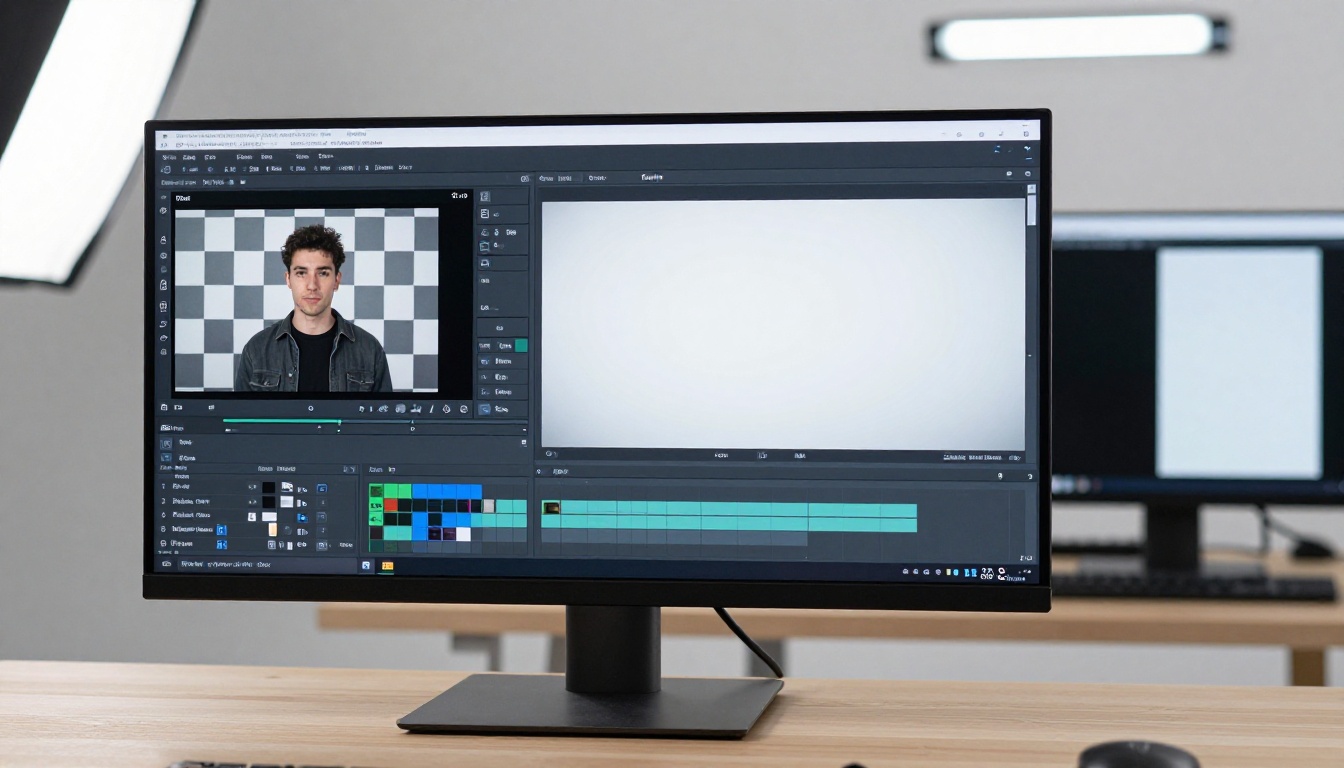
PicassoIA's video-editing collection includes Wan 2.7 Videoedit as one of its most capable text-driven tools. Here's how to use it directly in the browser.
Step 1: Open the Model
Go to the Wan 2.7 Videoedit page on PicassoIA. No software to install and no account required to start. The interface loads directly in your browser.
Step 2: Upload Your Video
Click the upload area and select a short clip. Under 10 seconds works best for precise edits. Supported formats include MP4, MOV, and WebM.
Step 3: Write Your Edit Prompt
In the prompt field, describe the transformation you want. Specificity is the single most important factor:
- Too vague: "make it look different"
- Effective: "change the sky to a dramatic sunset with orange and red tones, keep all people and objects in the foreground unchanged and photorealistic"
The more detail in your prompt, the more accurate and consistent the output across frames.
Step 4: Adjust the Parameters
- Guidance scale: higher values follow your prompt more strictly; lower values allow more creative variation from the model
- Inference steps: more steps produce higher quality output at the cost of generation time
- Seed: set a fixed seed to reproduce consistent results when iterating on the same clip
Step 5: Generate and Review
Click generate. The model processes the video and returns the edited version. If the result isn't right, refine the prompt and run it again. Common issues and how to fix them:
| Issue | Fix |
|---|
| Background changed but subjects look distorted | Add "keep subjects photorealistic and unchanged" to the prompt |
| Colors look unnatural | Lower the guidance scale slightly |
| Motion artifacts across frames | Use shorter clips and reduce inference steps |
| Output ignores part of the prompt | Break the prompt into shorter, more specific instructions |
💡 Set a seed value if you want to compare different prompt variations on the same source clip. It removes output variability and makes iterative refinement much easier to evaluate.
Worth Trying on Your Next Project
The tools in this list cover the full range of what AI video editing can do right now: text-driven scene changes, object removal, upscaling, audio generation, captions, format conversion, and section-level regeneration. None of them require desktop software, a paid subscription, or technical expertise to get started.
PicassoIA puts all of these models in one place, accessible directly in the browser. You can go from raw footage to a polished, captioned, correctly formatted video without downloading anything or switching between multiple platforms.
The fastest way to get comfortable with AI editing is to pick one tool and use it on footage you already have. Try Wan 2.7 Videoedit with a short clip and a specific prompt. Run Real ESRGAN Video on something you shot years ago at low resolution. Add atmosphere to a silent stock clip with MMAudio. Each of these takes under two minutes to set up.
Your footage is already there. Start with one edit and see what changes.


