You have a box of old family photographs. Some are yellowed, some have scratches cutting across people's faces, some are so faded you can barely make out who is standing in them. That used to mean either paying a professional retoucher hundreds of dollars per print or accepting the loss forever. In 2027, AI photo restoration tools can recover those memories in under a minute, on any device, with zero design experience required. But not every tool does the same thing, and picking the wrong one for your type of damage wastes time and produces disappointing results.
This article breaks down the best AI tools for photo restoration available right now, what each one does better than the rest, and how to actually get professional results without hours of trial and error.
What Photo Restoration Actually Involves
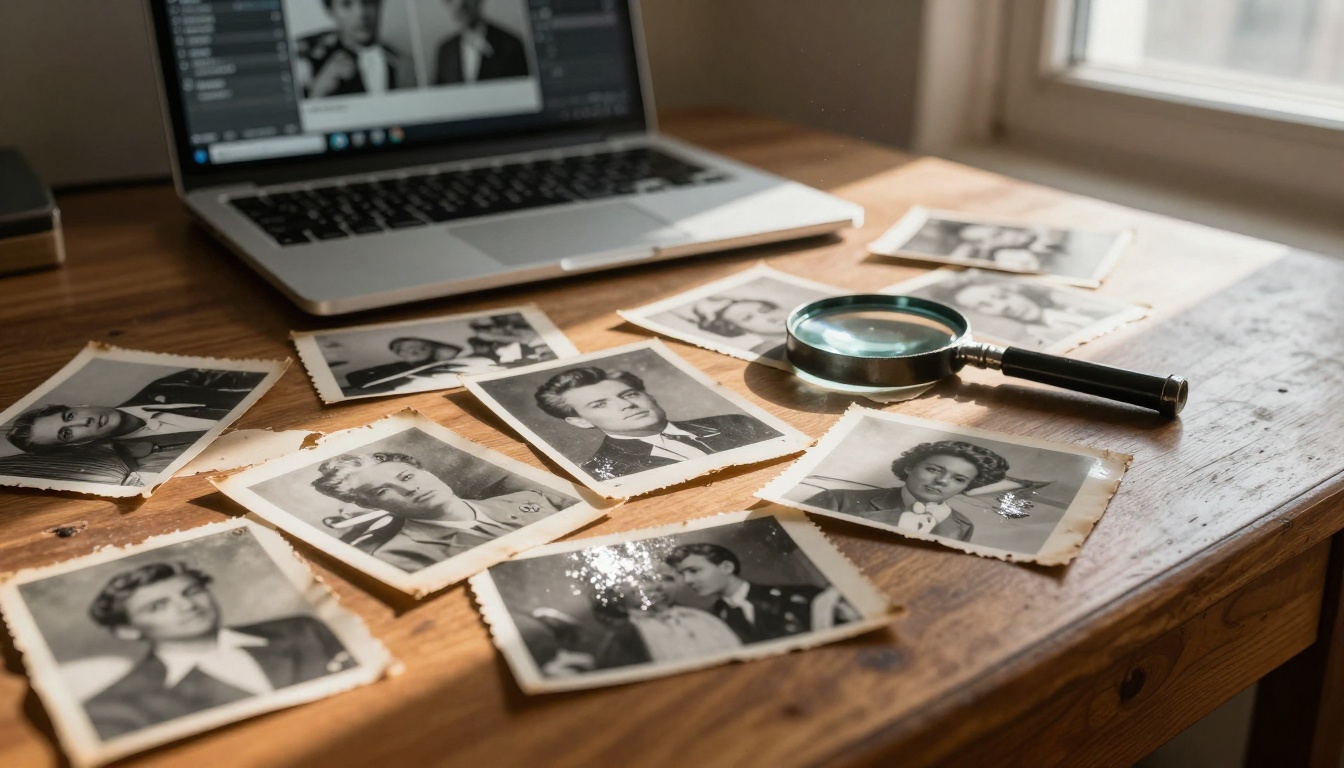
Photo restoration is not a single operation. It is a combination of distinct processes applied to a damaged photograph, and the best approach depends entirely on what kind of damage you are dealing with. Knowing this upfront saves you from running the wrong tool and wondering why results look off.
Why Old Photos Break Down Over Time
Physical photographs deteriorate because of chemistry, not just poor storage. Silver halide crystals in black-and-white prints migrate over time, creating a mottled appearance called silvering out. Color dyes in film prints oxidize unevenly, causing color shifts and progressive fading. Paper absorbs moisture and environmental acids, leading to yellowing, brittleness, and the reddish-brown spots known as foxing.
When these prints get digitized through a flatbed scanner or smartphone camera, the digital file inherits every flaw. The result is a combination of problems:
- Noise and grain: Random pixel-level variations that obscure fine detail
- Loss of sharpness: From camera limitations or motion during scanning
- Tonal compression: Shadows and highlights collapse into flat, muddy mid-tones
- Physical damage artifacts: Scratches, tears, water stains, and fold lines encoded as pixel patterns
- Color cast: An overall shift toward yellow, magenta, or cyan as dyes fade unevenly
AI restoration models are trained on hundreds of millions of image pairs to recognize and reverse these exact patterns. The best ones do not just smooth everything out. They actively reconstruct detail that was genuinely lost, using visual knowledge about what photographs from different eras should look like.
What AI Can Fix (and What It Still Struggles With)
| AI Handles Well | AI Still Struggles With |
|---|
| Noise reduction and grain removal | Extreme tear or burn damage |
| Sharpening soft or motion-blurred photos | Heavy ink or chemical stains |
| Recovering shadow and highlight detail | Faces with more than 70% missing pixels |
| Removing fine scratches and minor artifacts | Very large missing areas without inpainting |
| Upscaling resolution 2x to 6x | Motion blur from original camera shake |
| Tonal restoration in faded prints | Accurate color memory (subjective to recreate) |
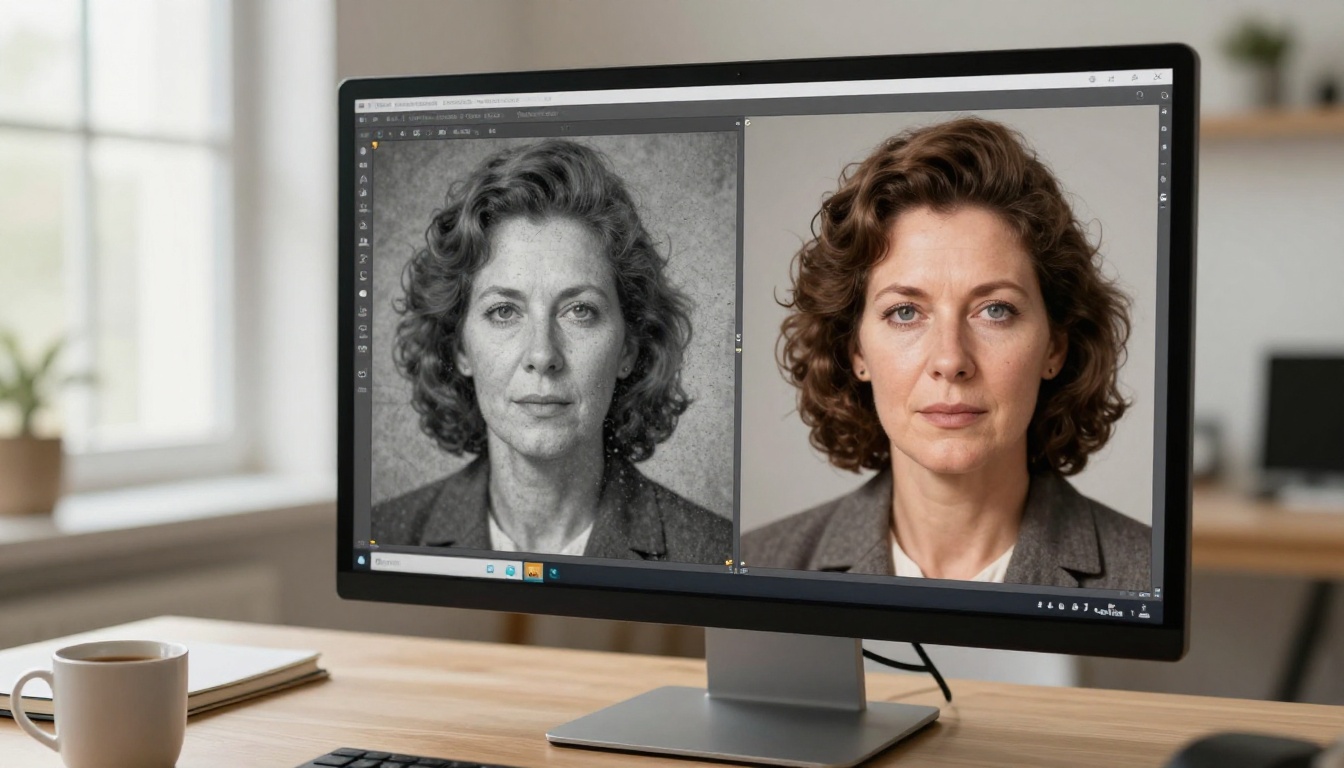
💡 Good to know: For photos with large missing areas like holes, burns, or severe tears, combine a restoration tool with an AI inpainting tool for best results. Restoration tools recover existing degraded pixels. Inpainting fills in areas where pixels are completely absent.
How AI Changed Photo Restoration
From Hours of Manual Work to Seconds
Before neural networks entered image processing, restoring a single photograph meant hours of meticulous manual work in Photoshop. A skilled retoucher would use clone stamp, healing brushes, frequency separation, and manual dodging and burning to piece together damaged sections. Charging $50 to $200 per print was standard practice, and even that rate could not always produce truly convincing results on badly damaged originals.
The shift started when researchers began applying convolutional neural networks to image degradation problems around 2017 and accelerated dramatically with diffusion models after 2021. These models are trained on examples of sharp, undamaged photographs alongside their degraded counterparts. When given a damaged input, they do not just apply preset filters. They reconstruct what was probably there based on visual context, learned texture patterns, and probabilistic knowledge about photographic subjects.
Three hours of professional retouching now takes an AI about three seconds.
The Technology Behind It
Modern photo restoration models fall into two main architectural families, and understanding the difference helps you choose the right tool:
GAN-based models (Generative Adversarial Networks): A generator tries to restore the image while a discriminator simultaneously tries to detect whether the result looks fake. This competitive dynamic forces the generator to produce highly realistic fine detail. Real ESRGAN is the most widely-deployed example of this approach applied specifically to real-world photo degradation.
Diffusion-based models: These models are trained to progressively remove noise from images. When applied to restoration, they can generate plausible detail in areas where original information was partially or fully lost. Clarity Pro Upscaler uses a fine-tuned diffusion pipeline that is particularly strong at recovering micro-texture in portraits and aged prints.
Most production-ready tools now combine elements of both approaches, plus transformer-based attention mechanisms that help the model maintain coherent structure across the entire image rather than processing it in disconnected patches.
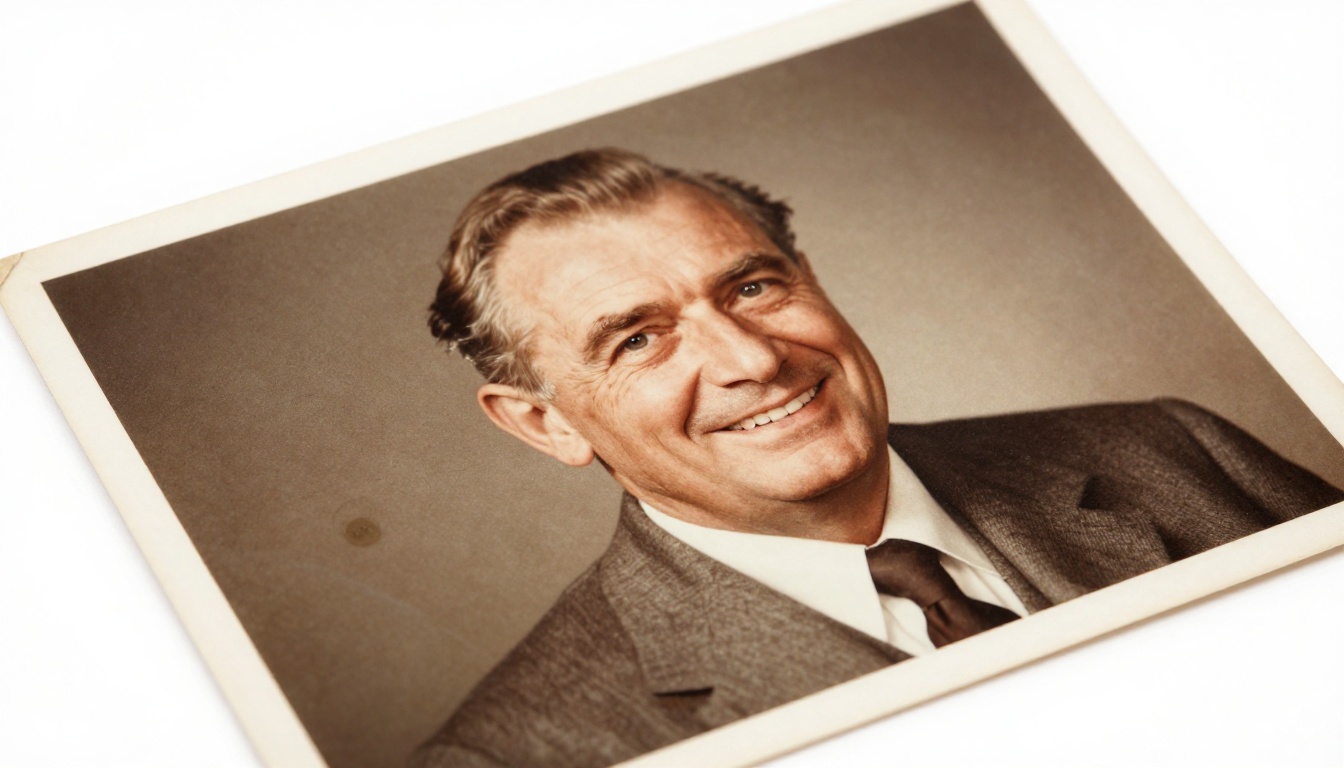
All seven tools below are available through PicassoIA, which consolidates them into a single browser-based interface. No installations, no managing separate subscriptions, no API keys to configure.
1. Clarity Pro Upscaler
Clarity Pro Upscaler by philz1337x is the top choice for photorealistic upscaling with restoration built in. It does not simply add pixels: it adds detail. Running on a fine-tuned diffusion pipeline, it reconstructs micro-texture including fabric weave, individual skin pores, hair strands, and paper grain that disappeared during decades of aging or low-resolution scanning.
Best for: Portrait photos, archival prints, and any image where fine texture recovery is the priority.
Strengths:
- Photorealistic output without the plastic-skin smoothing effect common in lesser tools
- Handles noise reduction and sharpness recovery simultaneously in one pass
- Equally strong on color and black-and-white originals
- Particularly impressive on fabric, hair, and facial feature detail
Limitations: Processing is slower than lighter models. Not the best choice when you need to process hundreds of photos quickly.
2. Real ESRGAN
Real ESRGAN is one of the most rigorously tested open-source restoration models available today. The critical distinction of the "Real" variant is that it was specifically trained on real-world degradation patterns: noise, JPEG compression artifacts, motion blur, print deterioration, and combinations of multiple damage types at once. This is what makes it dramatically more effective on actual old photographs than the original ESRGAN, which was trained on synthetic degradation only.
Best for: General-purpose restoration on old prints with mixed or unidentifiable damage types.
Strengths:
- Handles complex combinations of real-world damage reliably
- Fast processing compared to diffusion-based models
- Excellent at recovering small faces and fine text details
- Consistent results across a wide variety of input quality levels
Limitations: Can occasionally introduce subtle hallucinated texture in regions with extreme damage where source information is fully absent.
3. Topaz Image Upscale
Image Upscale by Topaz Labs is the professional-grade option. Topaz Labs has specialized in AI-powered image processing tools for working photographers for years, and this model reflects that depth of expertise. It enlarges photos up to 6x while preserving natural character rather than artificially sharpening or over-smoothing.
Best for: Professional photographers digitizing archival collections, fine art reproduction, and output destined for large-format printing.
Strengths:
- Up to 6x enlargement without visible grid or haloing artifacts
- Exceptional edge preservation that maintains the character of the original print
- Intentionally preserves film grain rather than erasing it, which keeps the era-appropriate feel intact
- Well-calibrated for prints that will be enlarged to wall-print size
Limitations: Longer processing time than most alternatives in this list.
4. Crystal Upscaler
Crystal Upscaler by philz1337x was designed with portrait photography specifically in mind. If your old photos primarily contain faces, this tool should be your first stop. Its training was weighted heavily toward facial feature reconstruction, which means it recovers eye clarity, lip definition, and skin texture in old portraits with a level of accuracy that general-purpose upscalers cannot match.
Best for: Family portraits, school photos, wedding photography from the film era, and any image where faces are the focal point.
Strengths:
- Best-in-class face detail recovery among tools tested
- Handles accessories like glasses, jewelry, and hats with high fidelity
- Sharp results that still look naturally aged rather than artificially processed
- Performs well even on very small faces within larger group photographs
Limitations: Less optimized for landscapes, architectural photos, or subjects without prominent human figures.
5. Bria Increase Resolution
Increase Resolution by Bria offers up to 4x upscaling with a focus on production-grade consistency. Bria AI builds models for commercial applications where reliability matters more than peak ceiling performance, and this tool reflects that design philosophy: clean output, minimal artifacts, and dependable results across diverse input types.
Best for: Processing mixed photo collections with a variety of subjects where consistent quality across the entire batch matters most.
Strengths:
- Highly consistent results regardless of subject matter
- Minimal artifact introduction even on challenging inputs
- Works well on both portrait and non-portrait subjects
- Reliable for automated or lightly-supervised batch workflows
Limitations: Does not push as aggressively into fine detail recovery as Clarity Pro on portrait subjects.
6. Google Upscaler
Google Upscaler brings Google Research's super-resolution model to photo restoration at 4x enlargement. Google's image research has produced some of the most cited work in the field, and this model benefits from that foundation, particularly in maintaining structural coherence across the full image without introducing spatial warping.
Best for: Photos where overall structural integrity and spatial accuracy matter as much as fine texture detail.
Strengths:
- Strong structural coherence prevents the warping effect seen in weaker models
- Handles a wide variety of subject types with even performance
- Consistent, predictable output without the occasional hallucination risks of GAN models
- Good choice when accuracy is more important than aggressive detail reconstruction
Limitations: Less specialized for the specific challenges of damaged photo restoration compared to models trained on real-world degradation patterns.
7. P Image Upscale
P Image Upscale by Prunaai is the speed champion of this lineup. Prunaai specializes in optimized, efficient AI model deployment, and this upscaler delivers solid results in a fraction of the time most alternatives require. For anyone who needs to process a large collection quickly or wants a fast first-pass result before deciding whether to run a more intensive model, this is the practical choice.
Best for: Quick first-pass restoration, batch workflows, and users new to AI image tools who want immediate results.
Strengths:
- Dramatically faster than any competing model in this comparison
- Good quality-to-speed ratio for general restoration needs
- Accessible for users without prior experience in AI image processing
- Works well as a first pass before a more detailed second-pass refinement
Limitations: Does not reach the same detail ceiling as Clarity Pro or Topaz on complex or severely damaged inputs.
Rather than testing all seven yourself, use this decision table to pick the right starting point:
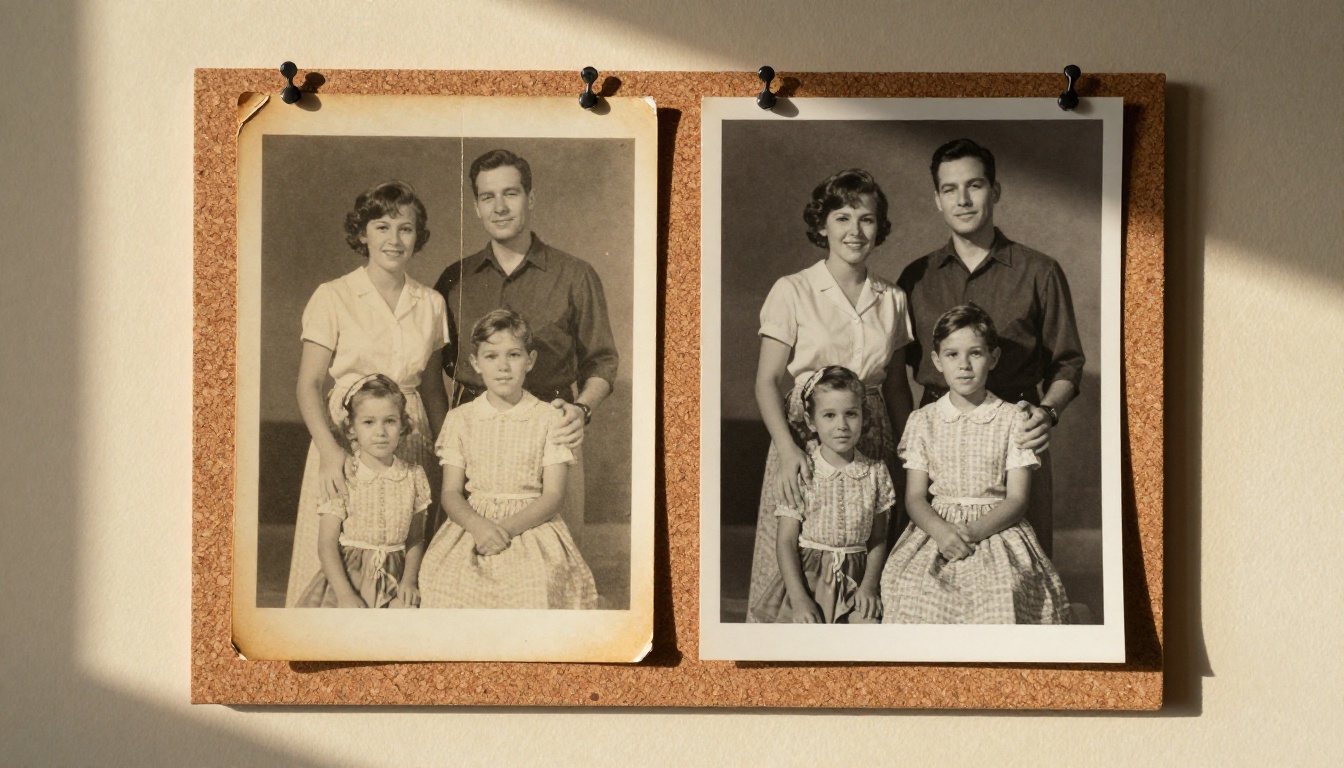
💡 Two-pass workflow for badly damaged photos: Run Real ESRGAN first to remove noise and fix general degradation, then run Clarity Pro Upscaler as a second pass to add fine texture back in. Two targeted passes consistently outperform a single pass with any one tool.
How to Restore Photos on PicassoIA
PicassoIA makes all of these tools available through a single browser interface with no software to install. Here is the exact process for getting professional results:
Step 1: Prepare your original scan
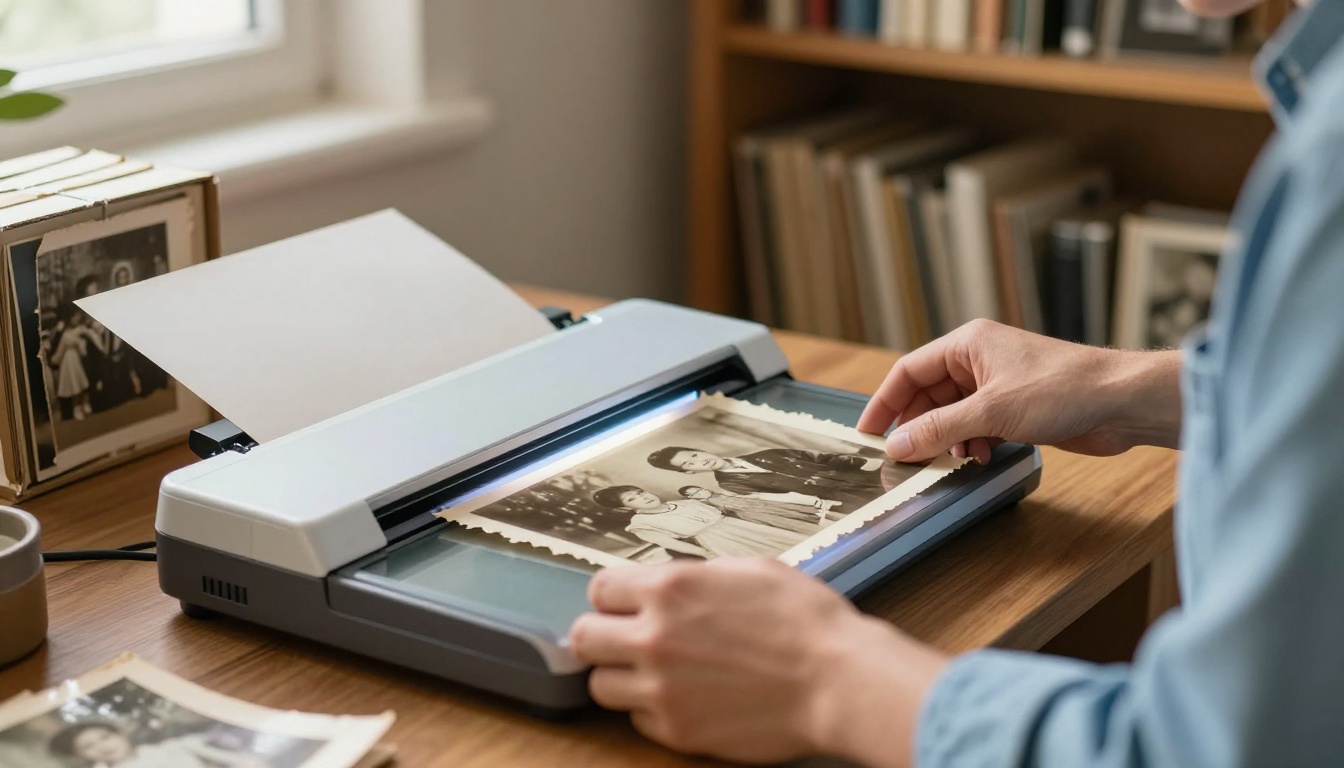
Use a flatbed scanner set to 600 DPI minimum (1200 DPI for very small photos or images with fine detail). If using a smartphone, shoot in even, diffused light with no shadows falling across the print. Save your scan as PNG or TIFF before processing. JPEG introduces compression artifacts that AI models then have to work around, reducing output quality before the restoration even starts.
Step 2: Identify your primary damage type
Spend 30 seconds looking at the photo critically. Is the main problem blur and low resolution? Physical scratches and marks? Fading and low contrast? Noise and grain? Your answer determines which tool you use first and whether you need a second pass.
Step 3: Select your tool on PicassoIA
Navigate to the super-resolution collection on PicassoIA. For portraits, start with Crystal Upscaler. For mixed damage, start with Real ESRGAN. For maximum quality output destined for large printing, use Clarity Pro Upscaler.
Step 4: Upload and set your upscale factor
Drag and drop your file into the tool interface. For prints smaller than 4x6 inches, select 4x upscaling. For standard 4x6 to 8x10 prints, 2x is usually sufficient. Avoid upscaling beyond what the print genuinely needs; over-processing introduces its own artifacts.
Step 5: Review at 100% zoom
Download your result and review it at full resolution, zoomed to 100%. Check faces, fine text, and previously damaged areas carefully. If specific regions still need work, you can run a second pass with a different model targeting the remaining issues.

3 Common Mistakes That Ruin Results
Upscaling a JPEG that was already compressed multiple times
Every time a JPEG is saved, compression artifacts bake permanently into the file. Running a highly-compressed JPEG through an AI upscaler amplifies those blocky artifacts instead of removing them. Always work from your highest-quality original scan, and save intermediate outputs as PNG to prevent quality loss between steps.
Using an upscaling-only model on physical damage
Pure upscaling models do not specifically target physical damage artifacts like scratches and water stains. They will upscale those features right along with everything else, making the damage more visible, not less. If your photo has prominent physical damage, use Real ESRGAN first. It was trained specifically on real-world degradation patterns, which is a fundamentally different problem from resolution scaling.
Skipping scanner preparation
Dust and hair sitting on the scanner glass become high-resolution digital artifacts that the AI model then has to contend with. Clean the scanner glass with a microfiber cloth before every session. Gently brush loose debris off the print surface with a soft anti-static brush. Handle prints by their edges only to avoid leaving skin oil on the surface. These steps take two minutes and dramatically improve how clean your starting input is, which is the single biggest factor in output quality.
Start Restoring Your Photos Right Now
Every old photograph represents a moment that cannot be re-created. The people in those images, the places, the specific light of a specific afternoon: none of it exists anywhere else. AI photo restoration tools in 2027 are genuinely capable enough to bring those images back to a quality that would have required a professional lab and significant expense just a few years ago.
PicassoIA puts all seven tools from this article in one place, accessible from any browser, with no installations required. You can run Real ESRGAN on a water-damaged family photograph right now, in about 30 seconds. Start with one photo you thought was too far gone. The results are consistently surprising.
Whether you are working through a single shoebox of childhood memories or digitizing an entire family archive spanning generations, the tools are ready and they work. Pick your photo, pick your tool from the options above, and see what comes back.


