You have a launch on Friday, a logo that looks like it was drawn in 2009, and a budget that stops at "free." A good design generator can fix two of those three problems before lunch. The tricky part is that the label "design generator" now covers everything from drag-and-drop template apps to raw image models that paint a poster from one sentence. Pick the wrong type and you waste a weekend. Pick the right one and you ship something that looks like it came from a small agency.
This is the Best Design Generator: Free Options, Prompts, Examples and Pricing breakdown I wish I had when I started. You will see which tools cost nothing, what the paid tiers run, which prompts produce usable results, and what the output looks like for real jobs like packaging, posters and social posts.
What a Design Generator Does
A design generator takes a plain-language request and returns a finished visual: a logo concept, a poster, a banner, a product mockup, a social graphic. You describe the result, the model draws it, and you adjust the wording until it matches the picture in your head.

Image Models vs Layout Tools
There are two families, and mixing them up is the most common mistake.
- Image models create pixels from scratch. You type a prompt, you get a picture. Examples on PicassoIA include Nano Banana Pro, Ideogram v4 Quality and Recraft v4.1 Pro.
- Layout tools arrange assets you already have into templates. Canva is the best known. Adobe Express and Figma's AI features sit in the same space.
Image models win on originality and speed. Layout tools win when you need twelve matching slides with your exact brand font. Many people use both: generate the hero image with a model, then drop it into a layout app.
Who Gets the Most Value
Solo founders, freelancers, small shops, content creators and marketers who need volume. If you ship five graphics a week, a generator pays for itself in the first month. If you run a brand with a 60-page style manual, treat it as a drafting partner, not a replacement for your designer.
💡 Quick rule: If the job needs exact brand fonts and fixed layouts, start in a layout tool. If the job needs a fresh visual idea, start with an image model.
Free Options That Actually Work
Free is real, but it comes with strings. Daily caps, watermarks, slow queues and licence limits are the usual ones. Here is how the field looks right now.
Free Plans From Big Tools
Prices and caps change often, so check each provider's current page before you commit. Based on recent 2026 comparisons:
| Tool | Free tier | Paid starts around | Best at |
|---|
| Canva | Limited AI image generation | About $15 per month, or $120 to $144 per year | Layouts and brand kits |
| Adobe Firefly | Roughly 25 credits per month | About $9.99 per month | Commercially safe imagery |
| Ideogram | Limited daily or weekly credits | About $20 per month | Text inside images |
| Recraft | Limited, check current plan | About $12 per month | Vectors, logos, icons |
The pattern is clear: free tiers let you test, not run a business. Twenty-five Firefly credits vanish in one afternoon of prompt tweaking. That is fine for a trial and painful for a weekly content calendar.
Free Models on PicassoIA
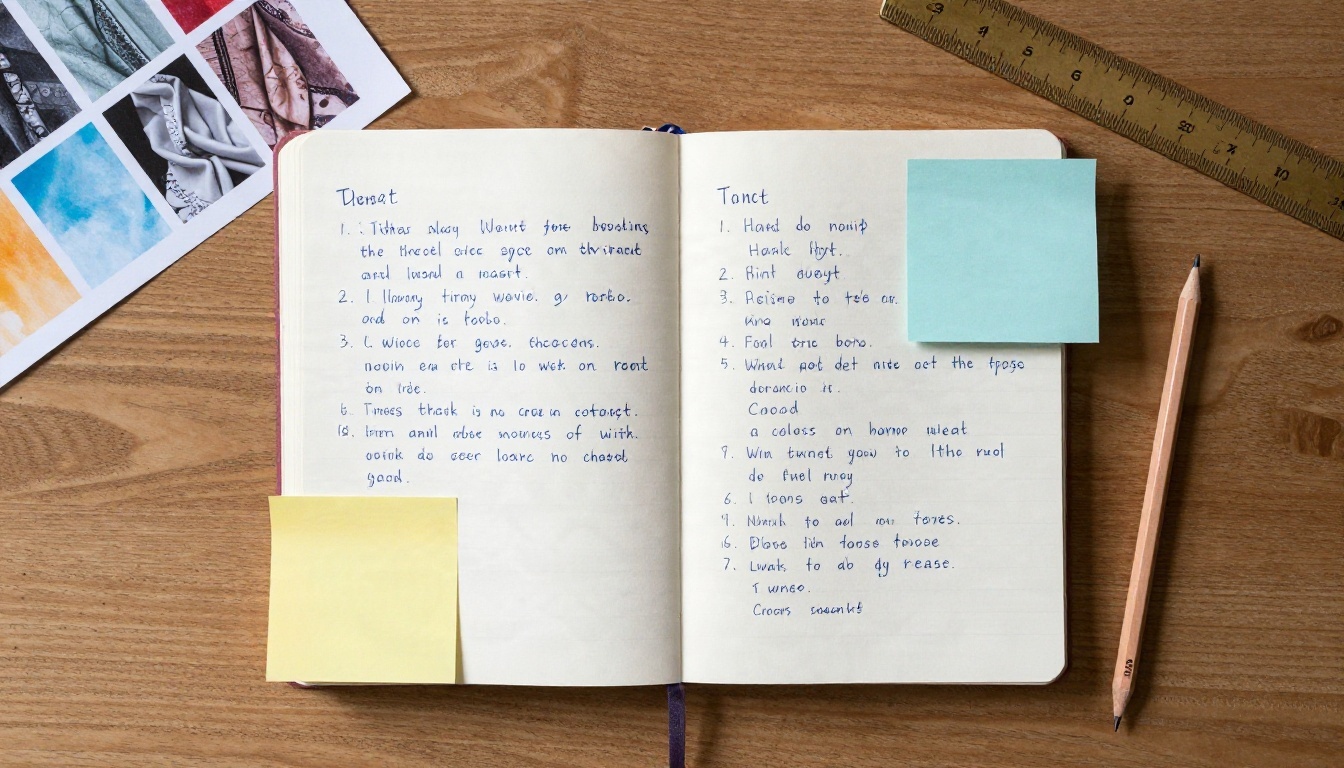
PicassoIA takes a different route: one place, many models, no single-vendor lock-in. Several image models are listed with free access, including Nano Banana Pro for 4K output, Ideogram v4 Balanced for text-heavy graphics, and Recraft v4.1 SVG for vector art. Open each model page to see its current limits.
The real advantage is testing the same prompt across models. A poster that looks flat in one model can look gorgeous in another, and you only find out by trying.
Best Design Generators Compared
No single winner exists, because "design" is five different jobs wearing one name. Here is how I would match models to tasks.
Best for Logos and Vectors
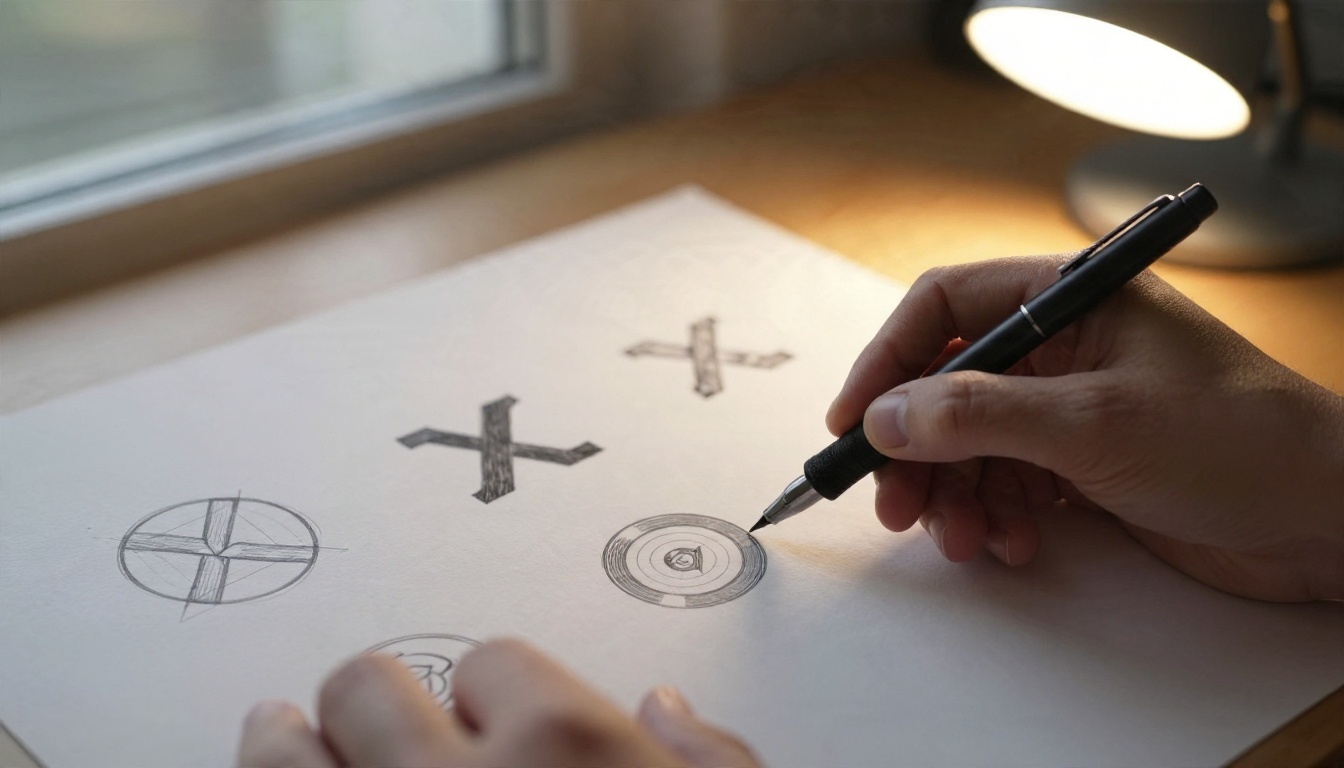
A raster logo is a headache the moment a client wants it on a van. Recraft v4.1 SVG and its Pro sibling output vector files you can scale to a billboard without blur. Ask for flat shapes, two or three colors and plenty of white space. Complicated gradients and tiny details are where vector models still stumble.
Best for Text in Images
Misspelled headlines used to be the giveaway of AI posters. Ideogram v4 Quality and GPT Image 2 are the two I trust most for short, accurate lettering. Keep the text under six words, put it in quotation marks inside the prompt, and say where it sits: "headline centered at the top."
Best for Photoreal Mockups
For packaging, product shots and lifestyle scenes, you want a model that respects materials: matte cardboard, frosted glass, brushed metal. Seedream 5 Pro, Qwen Image 3 Pro and Imagen 4 Ultra all handle surfaces and lighting convincingly.
Prompts You Can Copy Today
Prompts are where free tiers get won or lost. A sharp prompt gets you a usable result on try two. A vague one burns ten credits. The structure below works across almost every model.
💡 Formula: Subject + style + colors + layout + lighting or material + what to avoid.
Logo Prompt Formula
Copy this and swap the brackets:
"Minimal vector logo for a [business type] called [name], a simple [symbol] made of [shape], two colors: [color one] and [color two], centered on a plain white background, flat design, generous spacing, no gradients, no shadows."
Example: "Minimal vector logo for a neighborhood bakery, a simple wheat stalk made of three curved strokes, two colors: warm brown and cream, centered on a plain white background, flat design, no gradients."
Run it in Recraft v4.1 Pro SVG, pick the best of four, then ask for variations of that one.
Poster Prompt Formula
"Vertical event poster, [subject] in the lower third, large headline "[3 to 5 words]" at the top in bold sans serif, [color palette], [mood], clean margins, print-ready composition."
Example: "Vertical event poster, a lone cyclist on a coastal road in the lower third, large headline "SUMMER RIDE" at the top in bold sans serif, sand and teal palette, calm morning mood, clean margins."
Use Ideogram v4 Quality first, and compare with GPT Image 2 when the lettering needs to be exact.
Social Post Prompts
For social graphics, ask for the crop up front: square for feeds, vertical for stories, wide for banners. Then describe one clear focal point. Cluttered prompts produce cluttered posts.
"Square Instagram post, close-up of a hand holding a warm croissant, soft window light, shallow depth of field, cream and caramel palette, empty space at the top for a caption."
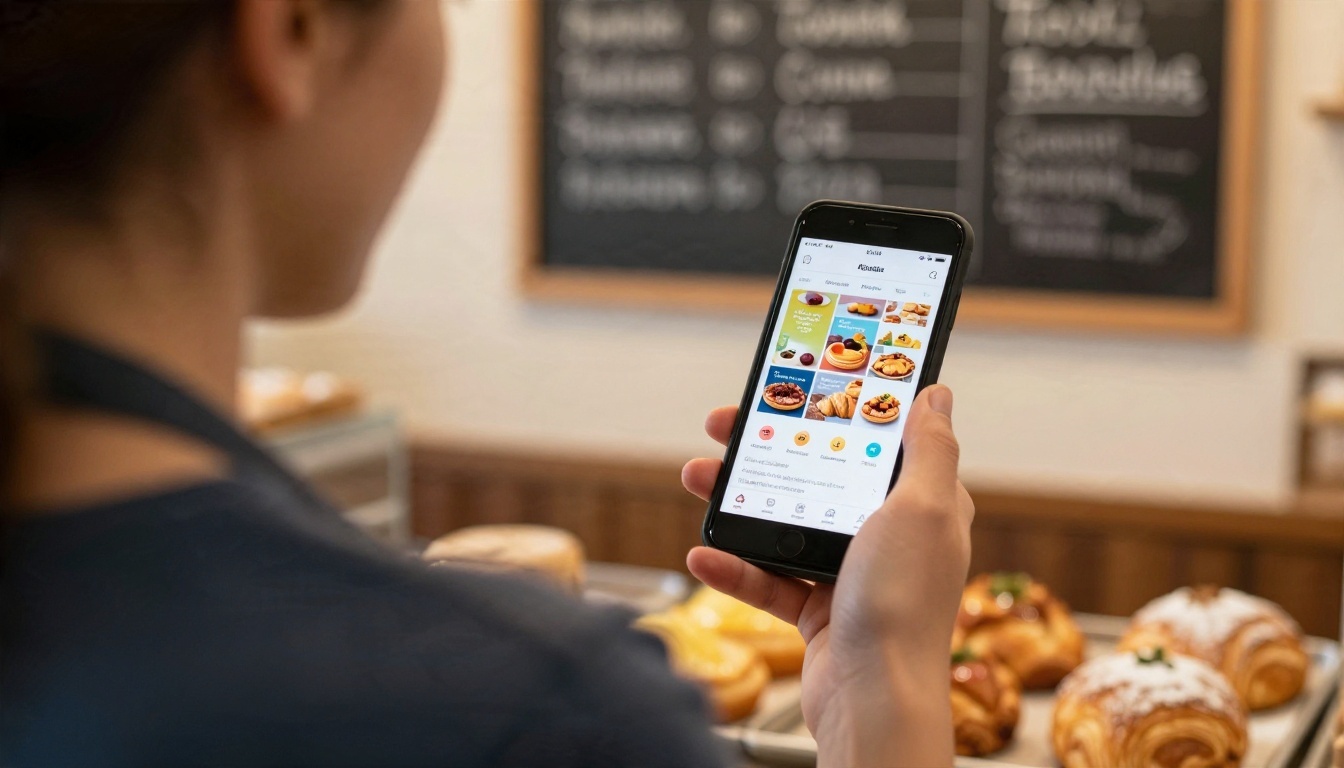
The "empty space at the top" line matters. It gives you room to add text in a layout tool without covering the subject.
Real Examples by Use Case
Examples beat theory, so here is what these tools handle well when the prompt is specific.
Packaging and Product Shots
Product packaging is where design generators shine for small brands. Describe the object, the surface it sits on, the light direction and one prop. You get a lifestyle shot that would normally need a studio and a photographer.
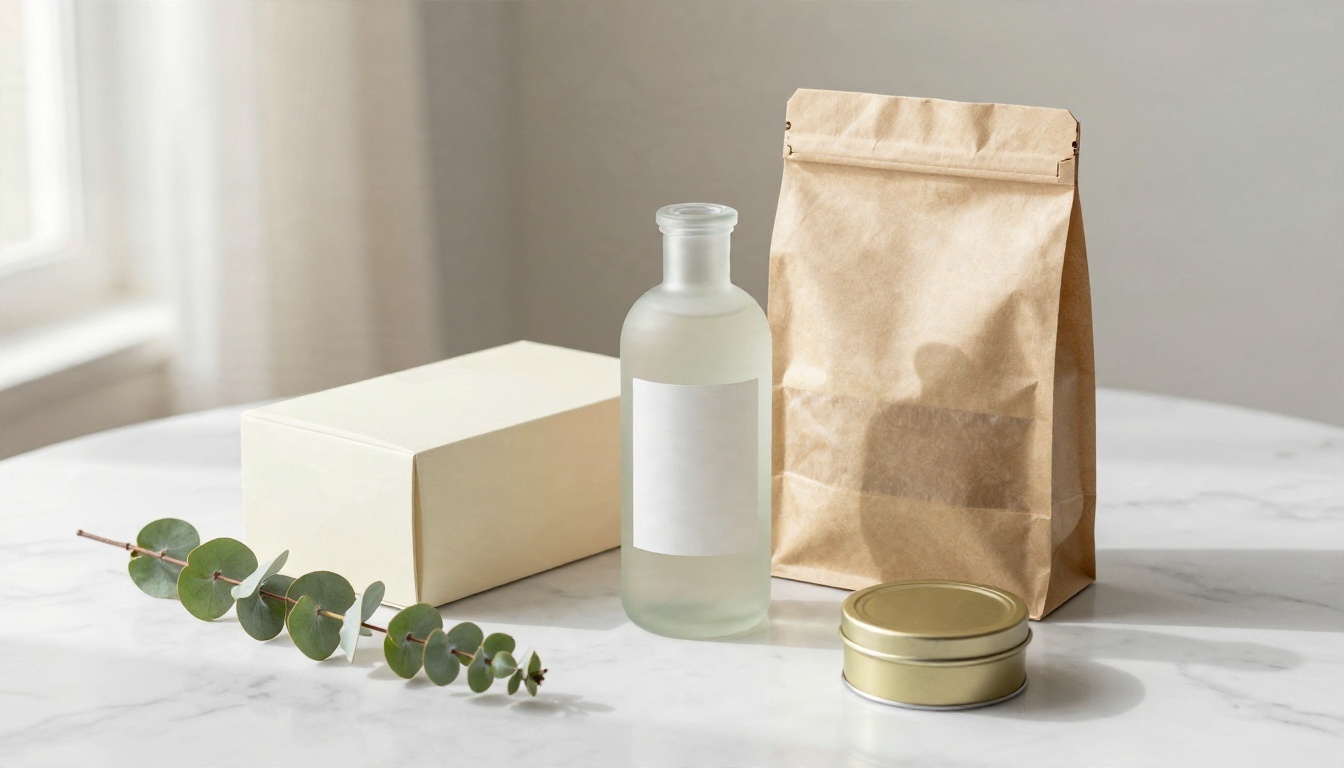
A useful trick: generate the scene with a blank label, then add the real label in an editor. That way your brand name stays exact and the model only handles the photography.
Wall Art and Posters
Poster sets are another sweet spot. Ask for a series with a shared palette, such as "five abstract compositions in terracotta, sand and olive," and you get a matching gallery wall in minutes.
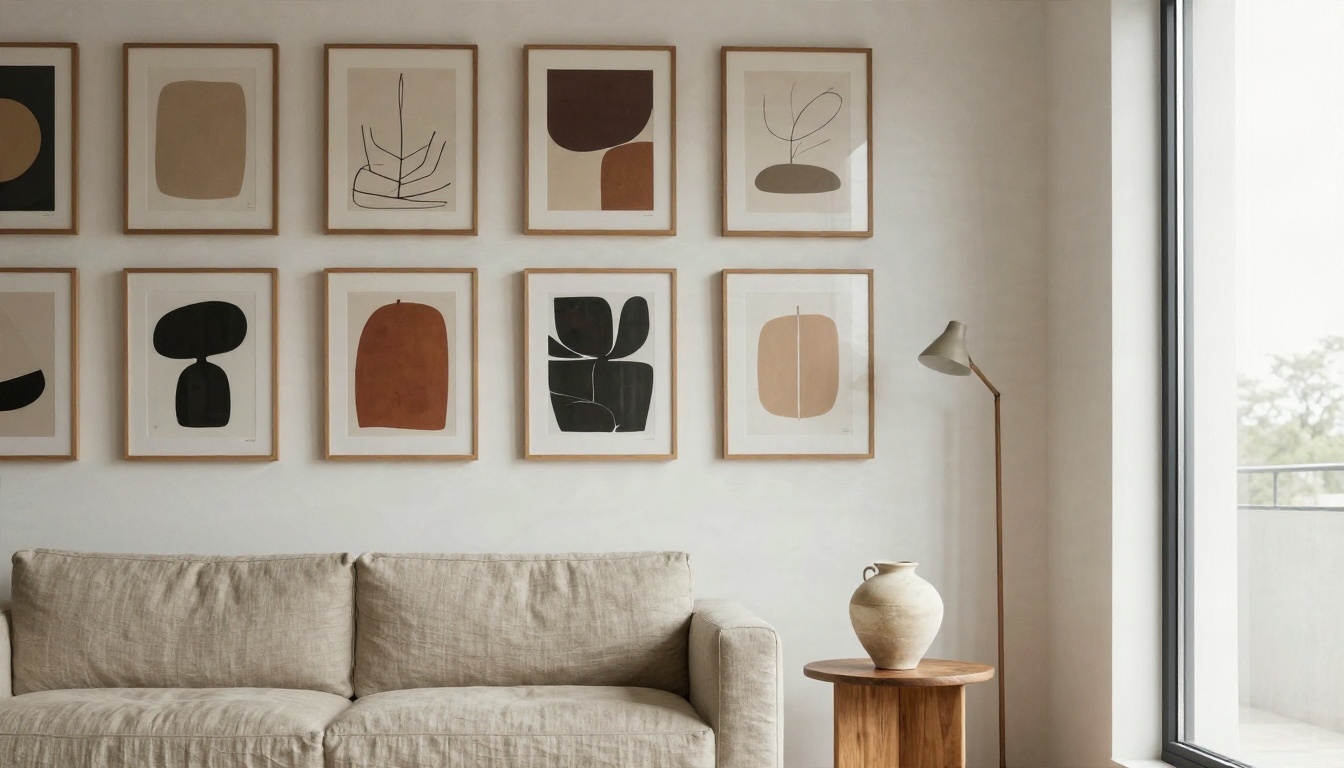
Print shops want high resolution, so generate at the largest size available and upscale if needed. PicassoIA also lists super resolution models for that last step, which saves you from soft edges at A2 size.
The Real Cost of Design AI
Sticker price is only half the story.
Subscription Pricing
Most tools sit in the same band: roughly $10 to $20 per month for an individual plan. Canva Pro, Ideogram and Recraft all land there, and Adobe Firefly starts a little lower. If you subscribe to three of them to cover logos, text and layouts, you are at $40 to $50 a month before you have made a single poster.
Compare that with a single platform that offers many models. You pay once and switch models per job, instead of stacking subscriptions for each one.
Hidden Costs
Watch for these:
- Credit burn. Failed generations still use credits on many plans.
- Licence terms. Check whether free-tier images can be used commercially.
- Watermarks. Some free plans stamp the corner of every image.
- Your time. A cheap tool that needs twenty retries is not cheap.
💡 Budget tip: Spend your first ten generations on testing one prompt across three models. Then commit to the winner for the rest of the project.
A Simple Workflow That Saves Hours
Here is the routine that has worked best for me across logos, posters and social sets.
Five Steps From Idea to File
- Write a one-line brief. Who is it for, where will it appear, what should it feel like?
- Draft the prompt with the formula above and generate four options.
- Pick one and iterate. Change one thing at a time: color, crop, mood. Changing five things at once makes it impossible to tell what worked.
- Fix details. Use Nano Banana Pro to edit an existing image instead of regenerating it.
- Finish in a layout tool. Add your real fonts, logo and call to action.
Teams get extra value from reviewing options together, because a printed proof starts better conversations than a link in a chat window.
Common Mistakes
- Prompts that are too short. "A logo for my shop" gives you a generic result. Add shape, color and style.
- Too much text. Long sentences inside images still fail sometimes. Add long copy later.
- Ignoring the crop. Generate in the final aspect ratio so nothing important gets cut.
- One model for everything. Logos, lettering and photoreal scenes each have a better fit.
- Skipping a human check. Zoom in. Look at hands, edges and spelling before you publish.
Make Your First Design Today
The best design generator is the one that matches your job and your budget, and for most people that means trying more than one model. Start with a single prompt from this article, run it on two or three models, and keep whichever result you would be proud to post.
PicassoIA puts the models mentioned here in one place, so you can test Recraft v4.1 Pro for a logo, Ideogram v4 Balanced for a poster headline and Qwen Image 3 for a photoreal mockup without juggling subscriptions. Browse everything at picassoia.com/en/all-models, pick a model and paste in a prompt. Your first draft is a few seconds away.


