You have a sound you love, a phone in your hand, and about thirty seconds before the idea feels stale. The problem is picking the right tool. Some lip sync apps are built for quick mimes with a trending track. Others use AI to make a face say words it never said. A few are free in a useful way, and many are free the way a sample at a supermarket is free. This article sorts them out: what each type does, what free really gets you, how audio upload works, what a good result looks like, and where every tool runs out of road.
💡 Quick answer: For a classic "mouth the song" clip, TikTok's own sound tools are enough. For anything where the voice is new, such as a dub, a photo that talks, or a character, you need an AI lip sync model that takes your audio and rebuilds the mouth movement frame by frame.
Two Kinds of Lip Sync Apps
Before comparing names, separate the two jobs. Most disappointment comes from using a tool built for one job on the other.
Native Lip Sync on TikTok
This is the original format. You pick a sound from the library or attach your own, play it back while you film, and move your mouth along. The app never touches your face. It only plays audio under your clip. That makes it free, instant and impossible to "break", but the quality is entirely down to your performance and timing.
Strengths: no watermark added by a third party, no upload wait, access to trending sounds, duets and stitches. Weakness: you can only lip sync to audio you can physically perform along with.
AI Lip Sync Tools
AI tools do the reverse. You supply a video or a still photo plus an audio file, and the model generates new mouth movement that matches the sound. This is what you want when you:
- dub a clip into another language
- make a portrait or character speak
- fix a take where you mispronounced a line
- build a talking avatar without filming at all
The output is a new video file that you then upload to TikTok like any other. That extra step is where free limits, file sizes and watermarks start to matter.
Free Options That Work
"Free" is the most searched word in this topic and the most misleading. It helps to know the four patterns you will meet.
What Free Usually Means
- A short trial with no signup. Magic Hour, for example, has offered a browser trial with a few attempts per day and a clip length of around ten seconds, with a watermark on the result.
- Monthly credits. Some tools give you roughly a hundred credits a month, which at low resolution translates to a couple of dozen short videos.
- A file cap. LipSync.video has advertised free daily credits along with a maximum video length and a 30 MB upload limit.
- A paid-trial wall. Sync.so offers a free trial that lets you upload a video and a track, but what you get depends on the plan.
These figures come from public pages at the time of writing and change often. Treat them as examples of the pattern, not a promise.
Watermarks and Daily Caps
A watermark on a TikTok clip is more than cosmetic. It sits in the corner or across the middle, it survives cropping poorly, and viewers read it as a low-effort repost. Daily caps are the other trap: three attempts sounds fine until your first two outputs have a drifting mouth.
| Free pattern | Typical catch | Best for |
|---|
| No-signup browser trial | Short clips, watermark, few tries a day | Testing whether a tool suits your face |
| Monthly credits | Low resolution, queue time | Occasional posters |
| Daily credits | Upload size and length limits | Short loops and reaction clips |
| Native TikTok sounds | You do the performing | Trends and duets |
💡 Tip: Spend your free attempts on your hardest clip first, not your easiest. If a tool handles a side angle with a beard, it will handle everything else.
Uploading Your Own Audio
Audio is where AI lip sync quality is won or lost. The model listens to phonemes, so what it hears sets the mouth shapes.
Formats and Length
Most tools accept MP3 and WAV, and many also take the audio track of an MP4. Keep these habits:
- Trim before you upload. A clip with five seconds of silence at the start often produces a frozen mouth for five seconds.
- Match the lengths. If the audio is longer than the video, tools either loop, cut or stretch. None of those look natural.
- Export at a normal sample rate. 44.1 kHz or 48 kHz is fine. Exotic settings are not worth the risk.
Clean Audio Beats Loud Audio
A voice over a loud beat confuses the model. If you can, upload the vocal alone, or a version with the music turned down, and mix the full song back in during your TikTok edit. A short voice recorded close to a microphone will usually give a sharper result than a polished track with heavy reverb.
If you do not have a voice at all, a text to speech model can create one. Realtime TTS 2 produces natural voiceovers from a written script, and you can feed that file straight into a lip sync tool.
Copyright and Licensed Tracks
TikTok scans uploaded audio, and a track used beyond its licensed length can trigger an automated response. If you sync a commercial song, post it using the platform's own sound library so the licence is handled for you. If you use AI lip sync with a commercial track, treat it as higher risk and expect muting or removal. Original voice, your own recordings and generated speech avoid the problem.
Examples You Can Copy
Concrete formats beat abstract advice. Here are four that work well and what each needs.
The Duet With a Friend
Two people, one phone, one track. The format is old but it still performs because the energy is real. The native approach is the right one here: no AI needed, only good lighting and a steady phone.
Set the phone at chest height, face a window, and rehearse the first four seconds. Hook viewers in the first beat, because that is the only part many will see.
The Talking Photo
This is the format that exploded with AI. You take one portrait, upload an audio clip, and get a short video where the person speaks. It works for a family portrait, a historical figure in a classroom project, a brand mascot or an invented character.
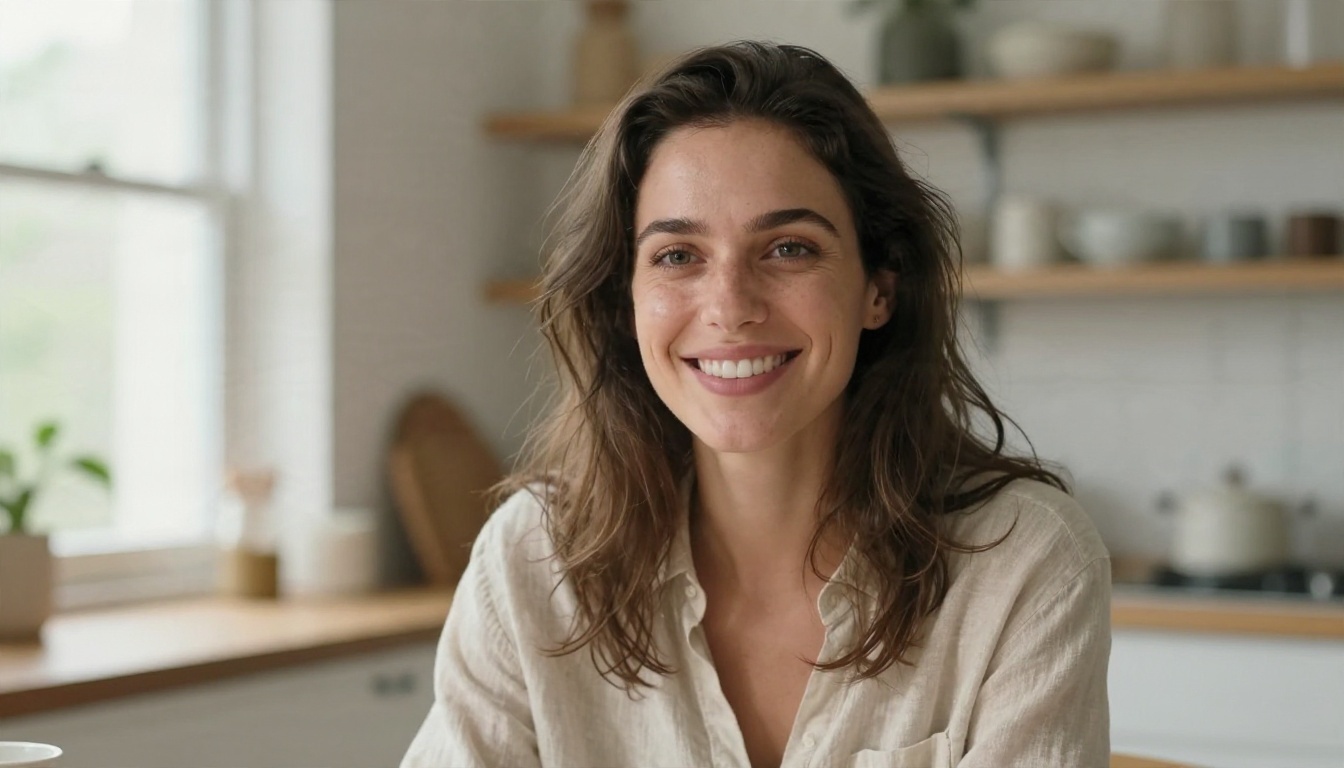
Pick a photo with the mouth closed or slightly open, even lighting, and eyes toward the camera. Photos with sunglasses, a hand over the chin or a heavy shadow across the lips fail more often.
The Dubbed Clip
You filmed a clip in English and want it in Spanish or Portuguese. A video translate or dubbing model rewrites the voice and adjusts the mouth. This one is a real time saver for creators with international audiences, because you post the same clip in several languages without refilming.
The Outdoor Lip Sync
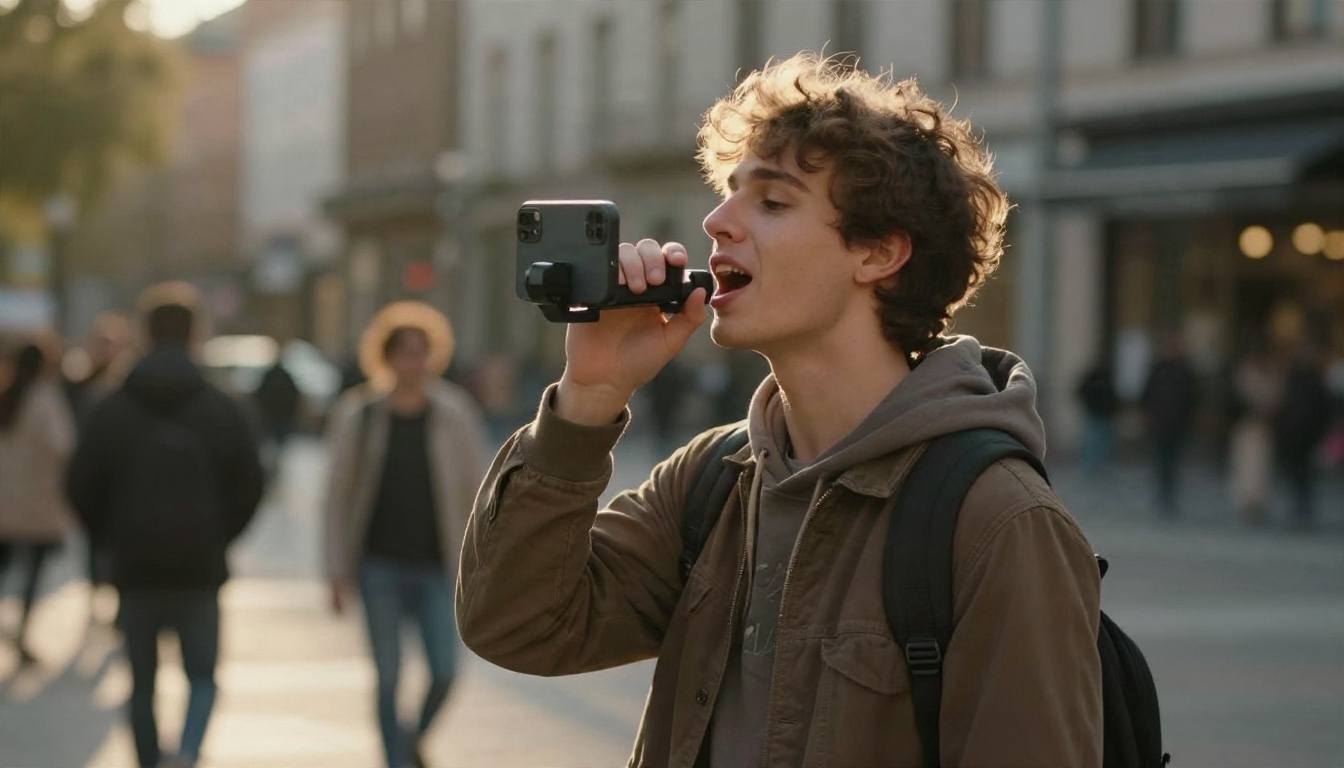
Moving shots, gimbal walks and city backdrops look great with native lip sync because the energy comes from your movement. AI tools struggle when the head turns fast or the background has strong motion, so keep AI for studio-style framing and native sounds for the street.
Limits Nobody Mentions
Every tool has a ceiling. Knowing it saves you a lot of retries.
Mouth Accuracy
AI models are best on clear, front-facing mouths. Teeth, tongue and lip corners are the hardest parts to render. Expect small errors on fast rap, rolled consonants and whispered speech. Slow your audio down a notch if you can, or choose a model tuned for precision over speed.
Resolution and Length
Free tiers often render at 480p. TikTok displays on high-density screens, so soft footage stands out in the feed. Length caps are also real: many tools process in short chunks. If you need a 60-second clip, plan to split the audio, generate each part, and join them in your editor.
Angles, Hands and Obstructions
A hand crossing the mouth, a microphone held at the chin, a profile view and a face partly out of frame all lower the quality. Film a clean front or three-quarter view, keep your hands low, and leave a gap between the microphone and your lips.
Best Lip Sync Models on PicassoIA
If you outgrow free trials, PicassoIA gathers many lip sync models in one place, so you can test different engines on the same clip without opening five accounts. Here is how they split by job.
| Model | Input | Best use |
|---|
| Lipsync 2 | Video + audio | Natural everyday dubbing and voice swaps |
| Lipsync 2 Pro | Video + audio | Close-ups where teeth and lips must look sharp |
| Kling Lip Sync | Video + audio | Matching mouth to audio in clips from other AI video tools |
| Lipsync | Video + audio | Quick results on short social clips |
| React 1 | Video + audio | Adding lip sync to existing footage |
| Fabric 1.0 | Photo + audio | Making a still photo talk |
| Omni Human 1.5 | Photo + audio | Realistic talking video from one portrait |
| Omni Human | Photo + audio | Animated photo with natural gestures |
| P Video Avatar | Image + audio | Talking avatar videos |
| Video Translate | Video | Dubbing into many languages |
For Existing Video
When you already have footage, Lipsync 2 and Lipsync 2 Pro are the first models to try. Two faster options, Lipsync Speed and Lipsync Precision, let you choose between turnaround time and mouth detail.
For a Single Photo
Fabric 1.0 and Omni Human 1.5 turn one still image into a speaking clip. If you have no photo yet, create one with Seedream 4.5 or Nano Banana, then animate it.
For Voice and Visuals Together
Need the whole clip from nothing? Generate a scene with Kling v3 Video, write a script, produce the voice with Realtime TTS 2, and finish the mouth with Kling Lip Sync.
A Simple Workflow for TikTok
Here is a repeatable routine that avoids most of the retries.
- Write a short script. Fifteen to twenty-five seconds is a sweet spot. Shorter clips sync better and loop better.
- Record or generate the voice. Use your own microphone or a text to speech model. Export as WAV or MP3.
- Pick your visual. A front-facing clip, or a clean portrait for a talking photo.
- Run it through a lip sync model. Open the model page, upload the video or image, upload the audio, and generate.
- Check the first three seconds. If the mouth is wrong at the start, it will not fix itself later. Trim the audio and try again.
- Edit in TikTok. Add captions, trending text and the music bed at a low volume.
- Post vertical. Export in 9:16 so TikTok does not crop your work.
💡 Tip: Keep a "test line" of five seconds with hard consonants such as "Peter picked a pepper." Run it on each model first. It shows quickly which one handles your face.
Which App Fits Which Creator
| If you are... | Start with |
|---|
| A casual poster doing trends | TikTok's own sounds and duets |
| A creator who needs to dub clips | A video translate or Lipsync 2 style model |
| Building a character or mascot | A photo to video model like Fabric 1.0 or Omni Human |
| Running a faceless channel | Text to speech plus a talking avatar model |
| Testing before paying | Free browser trials, then a pay as you go platform |
Try Your Own Lip Sync Clip
The best way to settle the "which app" question is to run one real clip through two or three tools. Pick a 15-second line, record it, and test it with a video model and a photo model. You will see within minutes which one respects your face, your accent and your style.
PicassoIA puts these models in one place, from Lipsync 2 Pro for sharp dubbing to Omni Human 1.5 for talking portraits. Browse the full list at picassoia.com/en/all-models, upload your audio, and post your first AI lip sync to TikTok today.


