Getting truly cinematic output from Veo 3.1 comes down to one thing: knowing which settings actually move the needle. Most people drop a prompt and hit generate, then wonder why their videos look generic. The difference between a mediocre output and a genuinely stunning clip is almost always in how you configure the model, not in how fancy your prompt sounds. This article breaks down every setting that matters in Veo 3.1, with specific values, real examples, and comparisons so you can stop guessing and start producing professional-quality AI video from your first generation.
What Sets Veo 3.1 Apart
Google's Veo 3.1 is not just an incremental update. It represents a shift in how AI video models handle both visual fidelity and sound. If you've worked with Veo 2 or Veo 3 before, the jump in quality is noticeable, especially in motion coherence and detail retention across frames. But the single biggest leap is in audio.
Native Audio in One Generation Pass
Earlier models required a separate audio pass or a third-party lipsync tool to add sound. Veo 3.1 generates synchronized audio as part of the same generation, not bolted on afterward. This means ambient sound, dialogue, foley effects, and even music cues can all emerge from a single text prompt. The model understands acoustic environment from your visual description, so a prompt that mentions "crowded city street" will produce street noise without you explicitly asking for it.
💡 Pro tip: Include acoustic descriptors in your prompt ("echoing warehouse", "quiet forest clearing", "busy café with background chatter") to dramatically improve audio quality and environmental coherence.
1080p as the Default Output
Veo 3.1 defaults to 1080p, which is a significant upgrade from models that require you to manually select or pay extra for higher resolutions. The Veo 3.1 Fast variant also outputs at 1080p but completes in roughly half the time. This matters for iteration speed when you're testing multiple prompt variations.
Resolution Settings That Affect Everything
Resolution is not just about pixel count. In AI video generation, the resolution setting affects how much detail the model attempts to maintain across motion, how stable edges appear on moving subjects, and how well text or fine textures hold up over time.
1080p for Final Output
Use 1080p when the video is going into a final deliverable: social media, client presentations, portfolio work, or anywhere the video will be watched at full size. At 1080p, Veo 3.1 produces noticeably sharper edges on subjects, finer surface textures, and cleaner motion blur during camera movement. Faces retain micro-detail throughout the clip, not just in static frames.
The tradeoff is generation time. A standard 1080p Veo 3.1 generation takes longer than its fast-tier counterparts. If you're running a batch of prompt variations to find the best composition, that wait time adds up.
When Lower Resolution Makes Sense
Veo 3.1 Lite sits at a lower output resolution and generation cost. It's useful for rapid prototyping, storyboarding, or checking motion dynamics before committing to a full-quality generation. Many creators run their first five to ten iterations in Lite mode, settle on a prompt direction, then switch to the full Veo 3.1 for the final output.
| Setting | Veo 3.1 | Veo 3.1 Fast | Veo 3.1 Lite |
|---|
| Resolution | 1080p | 1080p | Lower |
| Generation speed | Standard | ~2x faster | Fastest |
| Audio quality | Full | Full | Basic |
| Best for | Final output | Rapid testing | Prototyping |
Writing Prompts That Get Results
The prompt is where most people go wrong. Veo 3.1 is far more literal than image generators. It does not interpret vague descriptions creatively, it follows instructions. Vague prompts produce generic output. Specific, structured prompts produce cinematic results.
The Three-Part Structure That Works
The most reliable prompt structure for Veo 3.1 follows this pattern:
[Subject + Action] + [Environment + Atmosphere] + [Camera behavior]
For example:
- Weak: "A woman walking in a city"
- Strong: "A woman in a long coat walking confidently down a rain-slicked cobblestone street at dusk, warm amber streetlights reflecting on wet pavement, slow tracking shot following her from the left"
The strong version tells the model who, where, how the light behaves, and how the camera moves. All three components contribute to the final output quality.
💡 For audio: Add an audio line at the end. Example: "Sound: distant traffic, light rain hitting the pavement, muffled café sounds." Veo 3.1 processes this as a separate instruction for the audio track.
Camera Movement Language
Veo 3.1 responds well to specific cinematographic terminology. These are the terms that produce consistent, predictable results:
- Slow dolly-in: Camera moves gradually closer to the subject over the duration
- Gentle pan left/right: Horizontal sweep, works well for establishing landscape shots
- Orbit shot: Camera circles the subject, great for product-style or character reveals
- Handheld walk: Subtle natural camera shake, creates documentary realism
- Static locked: No camera movement, focuses all motion on the subject
Avoid generic terms like "cinematic shot" or "movie-like camera" as these produce inconsistent results. The more specific the instruction, the more reliable the output.
Lighting Terms with Real Impact
Lighting description in Veo 3.1 prompts directly affects exposure, shadow behavior, and color temperature in the generated video. These descriptors produce consistent results:
- "Volumetric morning light from the left": Golden, slightly hazy light with visible light shafts
- "Overcast natural diffused light": Even, soft shadows, flat but clean
- "Single practical light source": One dominant light with deep shadows, noir effect
- "Magic hour backlight": Subject silhouetted with glowing rim edges, warm orange tones
- "Fluorescent office lighting": Neutral, slightly green-tinged, indoor realism
Motion and Clip Duration
Motion settings in Veo 3.1 control how much movement occurs within the frame relative to your prompt. Getting this wrong is one of the most common causes of unsatisfying output.
Motion Intensity Levels Explained
Think of motion intensity as a dial from subtle to dramatic. A high motion intensity value will produce more aggressive movement, faster action, and more camera dynamism. A low value gives you controlled, deliberate motion that suits atmospheric or product videos.
Recommended values by use case:
| Use Case | Motion Intensity | Notes |
|---|
| Product/commercial | 20 to 35 | Clean, controlled, minimal distraction |
| Nature/landscape | 30 to 45 | Natural wind and light movement |
| Action/sports | 65 to 80 | Fast movement, dynamic energy |
| Dance/performance | 50 to 65 | Rhythmic, fluid movement |
| Talking head/dialogue | 15 to 25 | Minimal background movement |
One important behavior: high motion intensity does not just affect subjects. It increases camera movement and environmental motion as well. If your background starts flickering or distorting at high intensity settings, drop the value by 15 to 20 points before retrying.
Clip Length and Coherence
Veo 3.1 currently supports clip durations that work best when matched to your motion intensity. Longer clips at very high motion intensity tend to lose coherence in the second half, as the model struggles to maintain subject consistency across more frames.
For controlled, high-quality output:
- Short clips (under 5s): Use any motion intensity. Consistency is highest.
- Medium clips (5 to 8s): Keep motion intensity below 70 for best results.
- Longer clips: Use motion intensity in the 25 to 50 range. Let the camera movement carry the energy rather than subject motion.
Native Audio Controls
Audio is where Veo 3.1 genuinely pulls away from most competing models. Seedance 2.0, Pixverse v6, and Hailuo 02 all include audio, but Veo 3.1's audio generation is noticeably more contextually accurate and temporally synced.
How Audio Generation Works
Veo 3.1 analyzes the visual content and your text prompt to generate audio in a single pass. It does not use a separate audio model or synchronization step. This means the audio is temporally anchored to what's happening on screen. A door slamming in frame 80 will have its sound effect at frame 80, not offset by half a second.
The model supports:
- Ambient environmental sound: Automatic based on your visual description
- Dialogue and voiceover: If you describe a character speaking, Veo 3.1 will generate the vocal audio
- Music and score: Described broadly (e.g., "subtle orchestral underscore") or specifically (e.g., "upbeat lo-fi beat at moderate tempo")
- Foley and SFX: Object interactions, weather, machinery
Prompting for Audio Style
Adding an explicit audio instruction at the end of your prompt consistently improves audio quality. Structure it as a separate sentence:
Example audio prompts:
- "Audio: light rain, distant thunder, café background noise."
- "Audio: no music, only ambient wind and leaves rustling."
- "Audio: upbeat acoustic guitar, warm and joyful tone."
- "Audio: sci-fi ambient hum, metallic reverb, subtle electronic tones."
If you don't include an audio instruction, Veo 3.1 will infer audio from your visual description. This usually works well, but for precise control, explicit audio prompting is worth the extra line.
Speed vs Quality Tradeoffs
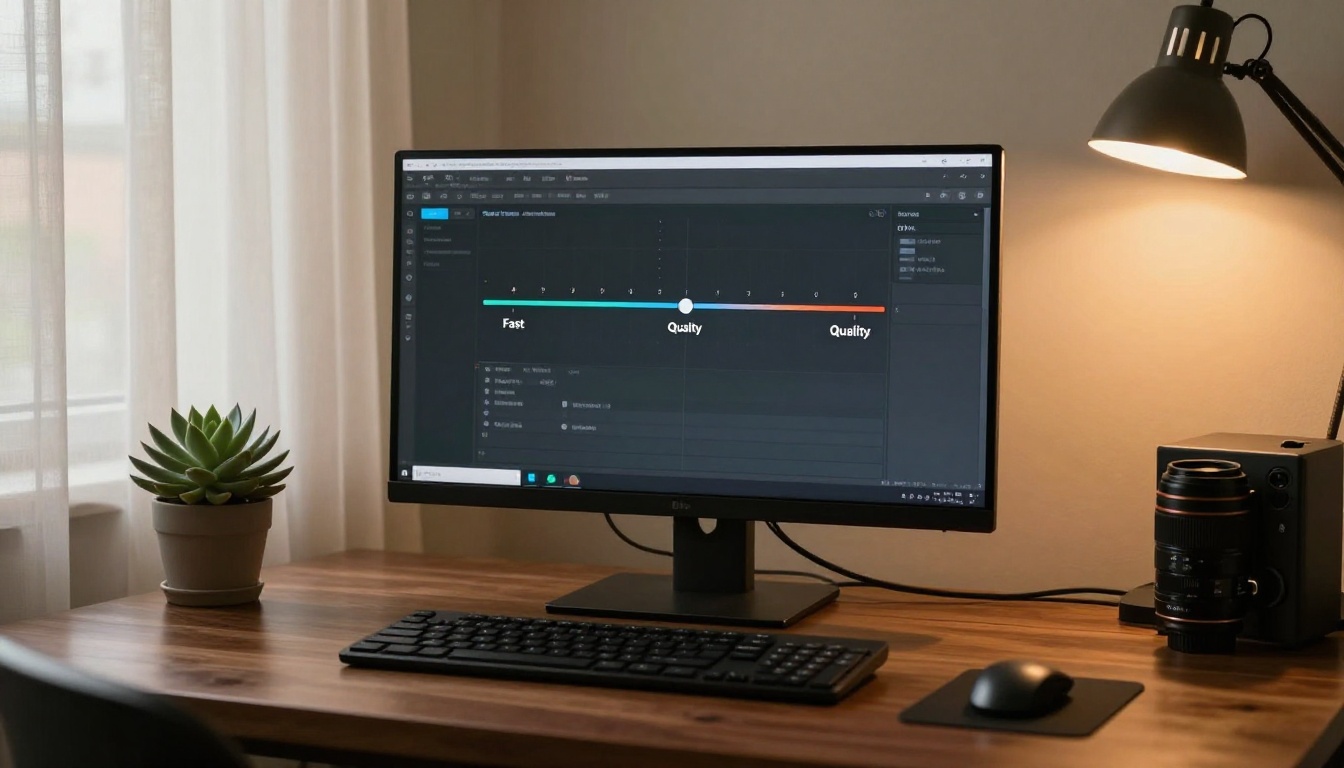
With three Veo 3.1 tiers available on PicassoIA, choosing the right one for your workflow can save significant time without sacrificing final output quality.
Veo 3.1 vs Veo 3.1 Fast
Veo 3.1 and Veo 3.1 Fast both output at 1080p with full audio. The difference is generation speed and, in some cases, fine detail retention on complex textures like fabric weaves, hair strands, and particle effects (smoke, rain, sparks). The full model handles these more consistently; Fast mode occasionally simplifies them slightly to hit its time target.
Use Veo 3.1 (full) when:
- Doing final production renders
- Working with complex textures or detailed subjects
- Audio fidelity and sync accuracy are critical
Use Veo 3.1 Fast when:
- Testing prompt variations before committing to a final render
- Working with clean, simple compositions (flat color backgrounds, minimal texture)
- Speed is more important than micro-detail
Veo 3.1 Lite for Rapid Iteration
Veo 3.1 Lite is the best option when you're in the early stages of a project. Use it to test motion direction, subject placement, camera behavior, and basic composition before scaling to full resolution. It's also useful for social media content where the delivery resolution is already compressed.
💡 Workflow tip: Run your first 3 to 5 iterations in Veo 3.1 Lite. Once you find a prompt structure that produces the right composition and motion, switch to full Veo 3.1 for your final render. This approach cuts iteration time significantly.
How to Use Veo 3.1 on PicassoIA
Veo 3.1 is available directly on PicassoIA alongside Veo 3.1 Fast and Veo 3.1 Lite. Here's the step-by-step process for getting the best output.
Step-by-Step on PicassoIA
Step 1: Select your model tier
Open Veo 3.1 from the text-to-video collection. For first-time use with a new concept, consider starting with Veo 3.1 Lite.
Step 2: Write your prompt in three parts
Subject + action, environment + atmosphere, camera movement. Keep it specific. Aim for 40 to 80 words.
Step 3: Set resolution
Select 1080p for final renders, or use the tier's default if you're prototyping.
Step 4: Set motion intensity
Start at 40 to 50 for your first generation. Adjust based on whether the output feels too static or too chaotic.
Step 5: Add audio instruction
If you have specific audio needs, add an explicit "Audio:" line at the end of your prompt.
Step 6: Generate and evaluate
Review the motion path, audio sync, and composition. Adjust one variable at a time when iterating.
Tips for Best Results
- Don't over-describe movement: One clear camera instruction beats three conflicting ones
- Use real location names for audio: "Tokyo intersection", "Rocky Mountain forest" will generate more contextually accurate ambient sound
- Avoid negative instructions in prompts: Instead of "no camera shake", say "static locked camera" to get consistent results
- Batch prompt testing: PicassoIA lets you run multiple generations in sequence, which is the fastest way to find the optimal motion intensity for your scene
Veo 3.1 vs Other Top Models
Veo 3.1 does not exist in isolation. The text-to-video landscape has several strong options available on PicassoIA, each suited for different needs.
Veo 3.1's specific advantage is the combination of 1080p output, native audio synchronization, and strong motion coherence over 5 to 8 second clips. Models like Kling v2.6 produce comparable visual quality in some scenarios, but without integrated audio generation. If audio matters for your use case, Veo 3.1 is hard to beat.
For use cases where audio is not needed, LTX 2 Pro offers 4K output, and Wan 2.7 T2V delivers solid 1080p results with no credit cost.
The Settings Checklist Before You Generate
Before hitting generate, run through this quick checklist to avoid the most common quality issues:
- Resolution: Selected 1080p for final output, or Lite for iteration
- Prompt structure: Subject + environment + camera movement, each part present
- Motion intensity: Set to match your content type (see table above)
- Audio instruction: Added explicit "Audio:" line if audio matters
- Clip length: Matched to motion intensity (shorter for high motion)
- Camera instruction: Specific term used (dolly, pan, orbit), not generic "cinematic"
💡 One variable at a time: When output doesn't match expectations, change a single setting and regenerate. Changing resolution, motion, and prompt simultaneously makes it impossible to know what actually fixed or broke the output.
Start Creating with Veo 3.1 Now
The best way to internalize these settings is to run them yourself. PicassoIA gives you direct access to Veo 3.1, Veo 3.1 Fast, and Veo 3.1 Lite alongside over 87 other text-to-video models including Seedance 2.0, Kling v3 Video, Hailuo 02, and Pixverse v6.

Start with a simple scene: one subject, one environment, one camera movement. Set motion intensity to 45, resolution to 1080p, and add a one-line audio instruction. Generate, watch the output, then change one thing. Within 5 to 10 generations, you'll have a precise feel for how each setting affects the result, and you'll stop guessing.
PicassoIA also makes it easy to compare outputs from different models side by side. Try the same prompt on Veo 3.1 and Seedance 2.0 to see which model's motion style fits your creative direction better. Browse the full model library at picassoia.com/en/all-models to find the right tool for every type of video project.


