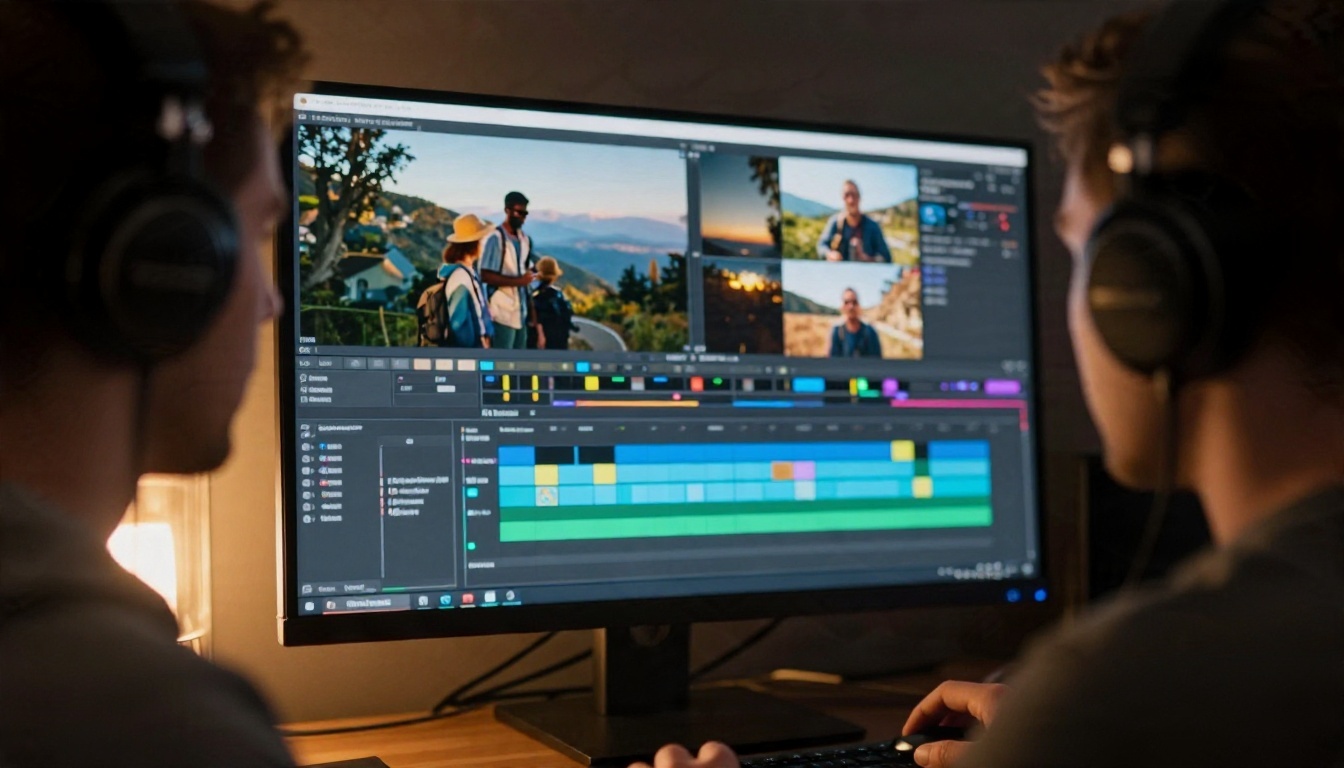
Can Claude Process Video? Supported Formats, Limits and Workarounds
Claude does not accept MP4 or MOV files as input, yet you can still get accurate answers about footage. This article lists the formats Claude reads, the image and token limits that apply, and five practical workarounds using frames, transcripts and chunking.
You drag an MP4 into a chat window, hit send, and wait for a summary. With Claude, that moment usually ends in an error or a polite refusal. Claude does not accept video files as input. It reads text, still images and documents, and that is where the story starts rather than ends. Turn a clip into a handful of well-chosen frames plus a transcript, and Claude can describe scenes, spot mistakes, pull out on-screen text and write summaries that are surprisingly accurate. This article lays out what Claude reads, the limits that apply, and five workarounds that hold up with real footage.
The Short Answer
What Claude Accepts Today
Claude's documented inputs are text, still images and PDFs. There is no upload slot for MP4, MOV, WebM or AVI, and no audio track handling either. If you send a video file through an API call, you will get a validation error because the content type is not recognized. The same holds for the Claude apps: attach a video and it is rejected or ignored.
Anthropic updates its models often, so check the current vision documentation before building a product around this. The pattern so far has been consistent, though: image understanding keeps improving, while raw video input has not been a supported content type.
💡 Quick test: if a file type is not listed in the model's image or document inputs, assume it is unsupported. Do not rely on a chat interface silently handling it, because it may drop the file and answer from your text prompt alone.
What "Video Support" Really Means
When people ask whether Claude "watches" video, they usually want one of three things:
A summary of what happens in a clip
Specific answers about a moment ("what does the error dialog say at 02:14?")
Content extraction, such as slides, code on screen or spoken words
Each of these can be done without native video input. A video is just a stack of images plus an audio track. Claude is strong with the images and with text, so you supply the audio as a transcript and the visuals as sampled frames. What you lose is continuous motion: Claude sees snapshots, not flow, so it can miss quick gestures, subtle camera moves or anything that only exists between frames.
Supported Formats at a Glance
Image Formats Claude Reads
The accepted image types are the usual web formats. Everything else needs conversion before it goes in.
Input type
Supported
Notes
JPEG
Yes
Best choice for photographic video frames, small file size
PNG
Yes
Good for screenshots, slides and text-heavy frames
WebP
Yes
Compact, works for both photos and screen captures
GIF
Partly
Treat as non-animated; do not expect motion to be read
MP4, MOV, WebM, AVI
No
Extract frames and audio first
MP3, WAV, M4A
No
Transcribe to text first
PDF
Yes
Useful for slide decks exported from a recording
Why Animated GIFs Disappoint
A GIF looks like the obvious shortcut for short clips, but Claude does not play animations. Expect a single frame to be used, which means a ten-second GIF gives you the same information as one screenshot. If a GIF is all you have, split it into separate PNG files and send those instead.
Audio and Subtitles
There is no direct audio path either. If your video has speech, you need a transcript. Two easy routes exist on PicassoIA: GPT 4o Transcribe for accuracy, and GPT 4o Mini Transcribe when speed and cost matter more. Gemini 3 Pro is another option for the transcription step. If your video already ships with an SRT or VTT subtitle file, you can paste that text straight into the prompt and skip transcription entirely.
Limits That Will Bite You
Image Count Per Request
Frame-based workflows run into the image cap quickly. At the time of writing, the Claude API accepts up to about 100 images per request on models with a 200k-token context window, with a higher ceiling on models that offer expanded context. In the Claude apps the cap is much lower, around 20 images per message. Check the current numbers in Anthropic's documentation, since they change between model generations.
In practice this means one request can hold roughly one frame every two seconds for a three-minute clip, and that assumes you spend your whole budget on images. For anything longer you will need to chunk the video, which is covered below.
File Size and Resolution
Two separate ceilings apply:
Per-image size: caps are in the single-digit to low double-digit megabyte range, and they differ between the direct API and cloud partner platforms.
Total request size: the standard API endpoint has an overall request limit in the tens of megabytes, which base64 encoding eats into quickly.
Resolution matters too. Very large images get resized down before the model sees them, so uploading a 4K frame wastes bandwidth without adding detail. A long edge of roughly 1,280 to 1,568 pixels is a sensible target. If you need to read small on-screen text, crop to the region that matters instead of raising the resolution of the whole frame.
Token Cost of Frames
Images consume context, and the cost scales with pixel area. A rough rule is width times height divided by 750 tokens per image. That puts a 1280 by 720 frame near 1,200 tokens.
Frames sent
Approx. tokens (720p)
Typical use
10
12,000
Short clip summary
30
36,000
One-minute tutorial
60
72,000
Several minutes, one scene per frame
100
120,000
Near the ceiling for a 200k window
💡 Budget tip: leave at least 20 percent of the context window free for your instructions and Claude's reply. Filling it to the brim with frames often produces shallower answers.
Five Workarounds That Work
1. Sample Frames at a Fixed Rate
The simplest approach is to pull one frame every N seconds with ffmpeg and send them in order. It works well for talks, tutorials and screen recordings where content changes slowly.
That command grabs one frame every two seconds at 1280 pixels wide. Name the files with sequential numbers so the order is obvious, and tell Claude the interval in your prompt: "These frames are 2 seconds apart, in order."
2. Pick Frames at Scene Changes
Fixed sampling wastes budget on static shots and misses fast cuts. Scene detection solves both by saving a frame only when the picture changes enough.
Lower the threshold (0.2) for subtle changes and raise it (0.4) for noisy footage. This usually gives you better coverage per token than a fixed interval, especially for edited videos with many cuts.
3. Pair Frames With a Transcript
Frames alone miss everything that is spoken. Strip the audio, transcribe it, and include timestamps so Claude can line up words with visuals.
ffmpeg -i input.mp4 -vn -ac 1 -ar 16000 audio.mp3
Send that audio through GPT 4o Transcribe, then paste the text above your frames. A prompt such as "Here is the transcript with timestamps, followed by frames taken every 5 seconds. Summarize the video and flag any moment where the speech and the visuals disagree" gives Claude a full picture. This combination is the strongest general-purpose method, and it costs far fewer tokens than dense frame sampling.
4. Build Contact Sheets
When you have too many frames for one request, tile several into a single grid image. Twelve frames in a 4 by 3 grid count as one image against the cap. The trade-off is detail: each tile is small, so this suits scene-level questions ("which of these shots shows the product?") rather than reading fine text. Keep tiles at least 320 pixels wide and tell Claude the grid order, left to right, top to bottom.
5. Chunk Long Videos
For anything beyond a few minutes, split the video into segments, run Claude on each one, then ask it to merge the notes.
Cut the video into 2 to 5 minute segments.
Send each segment's transcript and frames with the same prompt.
Save every response as a short structured summary.
In a final request, paste the summaries and ask for a single overview.
This map-then-reduce pattern keeps every request well below the limits and makes errors easy to trace. If one segment gives a poor answer, you rerun that segment alone.
How to Use Claude on PicassoIA for Video Work
PicassoIA hosts several Claude models in one place, so you can run the frame-and-transcript workflow without juggling separate accounts. The options include Claude Sonnet 5, Claude Fable 5, Claude Opus 4.7, Claude Sonnet 4.6 and Claude 4 Sonnet. Which inputs each one exposes can differ, so open the model page and check whether image input is offered before you plan a frame-based run.
Step-by-Step Setup
Prepare the assets. Extract frames with ffmpeg and transcribe the audio using one of the speech-to-text models linked above.
Open a Claude model.Claude Sonnet 5 is a solid default for mixed image and text tasks. Pick Claude Opus 4.7 when you need deeper reasoning over many frames.
Write a structured prompt. State the frame interval, paste the transcript with timestamps, and say exactly what output you want.
Attach the frames. Keep them in order and name them clearly.
Ask one question at a time. Summaries first, then follow-ups on specific moments.
Prompt Tips That Help
Tell Claude the video length and the frame spacing, because it cannot infer either.
Ask it to cite frame numbers when it describes a scene, which makes hallucinations easy to catch.
Request a table of timestamp, event and confidence when you need a timeline.
Add a line such as "if something is not visible in the frames, say so" to stop it from filling gaps with guesses.
When Another Model Fits Better
Some jobs genuinely need native video: judging motion quality, reading sign language, following fast sports action or checking audio and picture sync. For those, Google's Gemini family is built to accept video directly through Google's own API. On PicassoIA you can try Gemini 3.1 Pro, Gemini 3.5 Flash and Gemini 3 Flash. As with Claude, open each model page to see which inputs are offered there.
Other options in the same category include GPT 5.4 and Qwen3.7-Plus, the latter described as reading images alongside text. They are worth testing against the same frame set to compare how each handles small details and text.
💡 Fair comparison: run the same frames, the same transcript and the same prompt through two models. Differences in the answers tell you more than any spec sheet.
Improve the Source Footage First
Low-quality input leads to vague answers. If your clip is soft, noisy or tiny, upscale it before you extract frames. Video Upscale sharpens footage so on-screen text and faces survive the downscale to 1280 pixels. It helps most with old screen captures, phone recordings and compressed uploads.
Common Mistakes
Most failed attempts trace back to the same handful of errors:
Sending too many frames. More images do not mean better answers. Thirty well-chosen frames beat a hundred near-duplicates.
Forgetting the order. If the frames are shuffled or unnumbered, Claude will guess the sequence and invent a story.
Skipping the transcript. Speech carries most of the meaning in interviews, meetings and lectures.
Using oversized frames. Raising resolution past what the model uses only burns tokens and request size.
Trusting motion claims. Claude sees snapshots. If it says "the camera pans left," that is an inference from two frames, not an observation.
Ignoring platform differences. The same model can have different image caps on the direct API, the apps and cloud partner platforms.
Asking vague questions. "What happens in this video?" gets a vague reply. "List every product shown and the timestamp it first appears" gets a useful one.
A good habit is to ask Claude to point at the exact frame numbers behind each claim. If a statement cannot be tied to a frame or a transcript line, treat it with suspicion.
Run Your First Frame Test
Claude cannot open a video file, but it can reason about nearly everything inside one when you hand it the right pieces. Start small: pick a 60-second clip, pull 20 frames, transcribe the audio, and ask for a timestamped summary. Then compare the result with a second model to see which one reads your footage best.
PicassoIA puts the Claude models, the Gemini models, the speech-to-text tools and video upscaling in one place, so you can run the whole experiment without switching tabs. Open Claude Sonnet 5 or Claude Opus 4.7, try the frame-and-transcript prompt from this article, and browse everything else at picassoia.com/en/all-models. Your first useful video summary is a few frames away.