Most people who search for Comfy UI NSFW image editing want the same thing: precise control over a photo, no content filter slamming the door, and results that look like a real camera shot instead of a plastic render. ComfyUI delivers that control, but it asks for a powerful graphics card, a pile of model files and an evening of wiring nodes together. If you just want to swap an outfit, change the lighting or restyle a boudoir portrait, there is a faster road. This article compares the local route with free online tools, hands you prompts you can paste straight in, and shows what tasteful, non-explicit edits look like in practice.
💡 Quick answer: If you own a strong GPU and enjoy tinkering, ComfyUI is unbeatable. If you want results in minutes, an online editor such as PicassoIA Image Editor Pro gives you unlimited generations with no installs.
Why ComfyUI Draws NSFW Editors
ComfyUI is a node based interface. Every step of an edit (loading the photo, encoding the prompt, masking an area, sampling, decoding) is a box on a canvas, and you connect the boxes with wires. For adult and glamour work, that design matters for three reasons.
Total Control Over Every Step
You choose the model, the sampler, the mask and the strength of every change. Want the face untouched while the outfit changes? Draw a mask and let the sampler work only inside it. Want to run the same edit on fifty portraits? Save the workflow and queue them.
Local Privacy
When ComfyUI runs on your own machine, your source photos never leave your drive. That is a real advantage for anyone editing personal shoots, and it is a big part of the appeal.
No Built-In Moderation Layer
A local install does not carry a hosted service's moderation rules. That freedom is exactly why people search for this topic, and it is also why you should set your own rules: edit only photos of adults who agreed to it, and never use someone's likeness without consent.
The Real Cost of Local Setup
The honest side of ComfyUI is that "free" really means "free software, paid for with your time and hardware."
Hardware You Actually Need
Modern editing models are big. Recent image editing checkpoints such as Qwen Image Edit and Flux Kontext run best with a graphics card that has plenty of video memory, and smaller cards need compressed model versions that trade some quality for speed. If your laptop has integrated graphics, local editing is not realistic.
Model Files, Nodes and Updates
A typical edit workflow needs an updated ComfyUI build, the editing model itself, a text encoder, a VAE and often a speed LoRA. Miss one file or install an outdated node pack and the graph turns red. Community inpainting nodes appear every few weeks, which is great for options and tiring for maintenance.
The Drift Problem
Plain edit models regenerate the whole picture, so faces and small details can shift between versions. The standard fix is masked inpainting: you paint over the area to change, and everything outside the mask stays put. It works well, but it adds more nodes and more tuning.
| Factor | Local ComfyUI | Online editor |
|---|
| Setup time | Hours to days | Under a minute |
| Hardware | Strong GPU needed | Any phone or laptop |
| Cost | Hardware plus electricity | Free tiers, unlimited options |
| Control | Maximum, node by node | Prompt driven, simple |
| Privacy | Files stay on your drive | Files sent to a service |
| Maintenance | Constant updates | None |
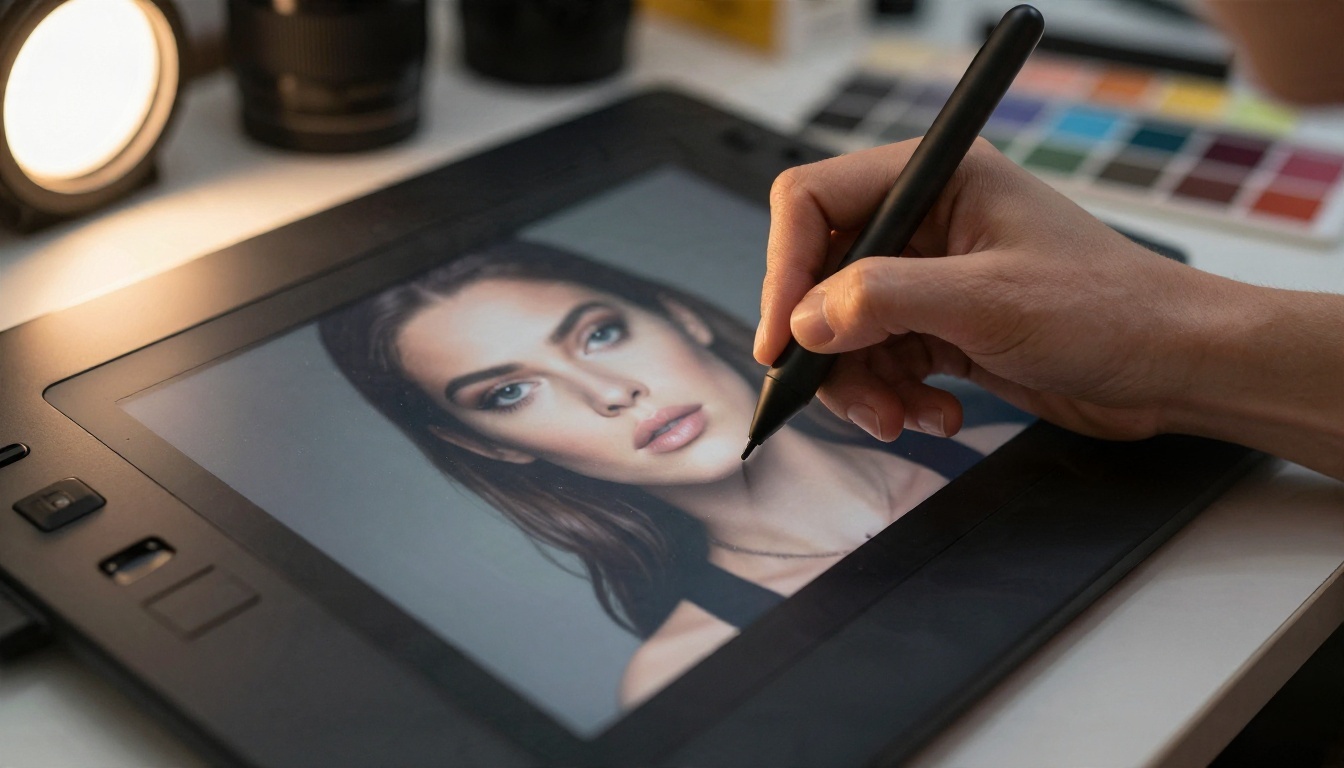
You can get most of the ComfyUI result without owning any of the hardware. The trick is picking tools that run strong editing models and that do not refuse adult-leaning, glamour style requests.
Models Worth Trying First
These are the models I would test, in this order:
- Seedream 4.5: sharp, photographic skin and fabric, and the best starting point for glamour and swimwear edits.
- PicassoIA Image Editor Pro: an editing focused tool with unlimited generations, ideal when you want to iterate on the same photo twenty times.
- Qwen Image Edit 2511: follows instructions closely, good for clothing, pose and background changes.
- Qwen Image Edit Plus: a flexible sibling for multi-step edits.
- Flux Kontext Fast: quick instruction based edits that keep the subject's identity stable.
- Z Image Turbo: very fast base images when you want to generate a source photo first.
💡 If you already have a favorite node graph, the Any ComfyUI Workflow model lets you run a ComfyUI style workflow online without building your own server.
Why Speed and Unlimited Runs Matter
Good edits come from iteration. The first result is rarely the best one. A tool that charges per image punishes experimentation, while an unlimited editor rewards it: change one phrase, rerun, compare. That feedback loop is what makes ComfyUI feel powerful, and it is the thing you want to preserve online.
Quick Comparison
| Tool | Best for | Speed | Strength |
|---|
| Seedream 4.5 | Glamour, swimwear, skin realism | Fast | Photographic detail |
| Image Editor Pro | Repeated edits on one photo | Fast | Unlimited runs |
| Qwen Image Edit 2511 | Outfit and pose instructions | Medium | Prompt accuracy |
| Flux Kontext Fast | Identity safe edits | Very fast | Consistency |
| Z Image Turbo | Source image creation | Very fast | Sharp base photos |
How to Edit Photos With Image Editor Pro
Here is the quickest workflow I know for a ComfyUI style edit with no nodes at all, using PicassoIA Image Editor Pro.
Step by Step
- Open the model page and sign in. Free generation is available, and the editor allows unlimited runs.
- Upload your source photo. Pick a sharp image with good light. Soft, noisy photos produce soft, noisy edits.
- Write one clear instruction. Example: "Change the grey top to a black lace bodysuit, keep the face, hair, pose and background identical."
- Generate and compare. Run it three or four times. Small wording changes give noticeably different fabric and fit.
- Refine in small steps. Instead of one giant request, chain edits: outfit first, lighting second, background last.
- Upscale if needed. Run your favorite result through a super resolution model for print sized detail.
Parameter Tips
- Keep instructions short. One change per prompt beats five changes at once.
- Name what stays the same. Phrases such as "keep the face unchanged" reduce drift.
- Use the same photo as the base each time. Re-editing an edited image slowly degrades skin texture.
- Try Seedream 4.5 for the base. If you need a fresh source photo, generate it with Seedream 4.5 first, then refine it in the editor.
Prompts That Actually Work
Prompts for editing models behave differently from prompts for text to image. You are describing a change, not a whole scene. Here are patterns that hold up well, all kept tasteful and non-explicit.
Outfit Swaps
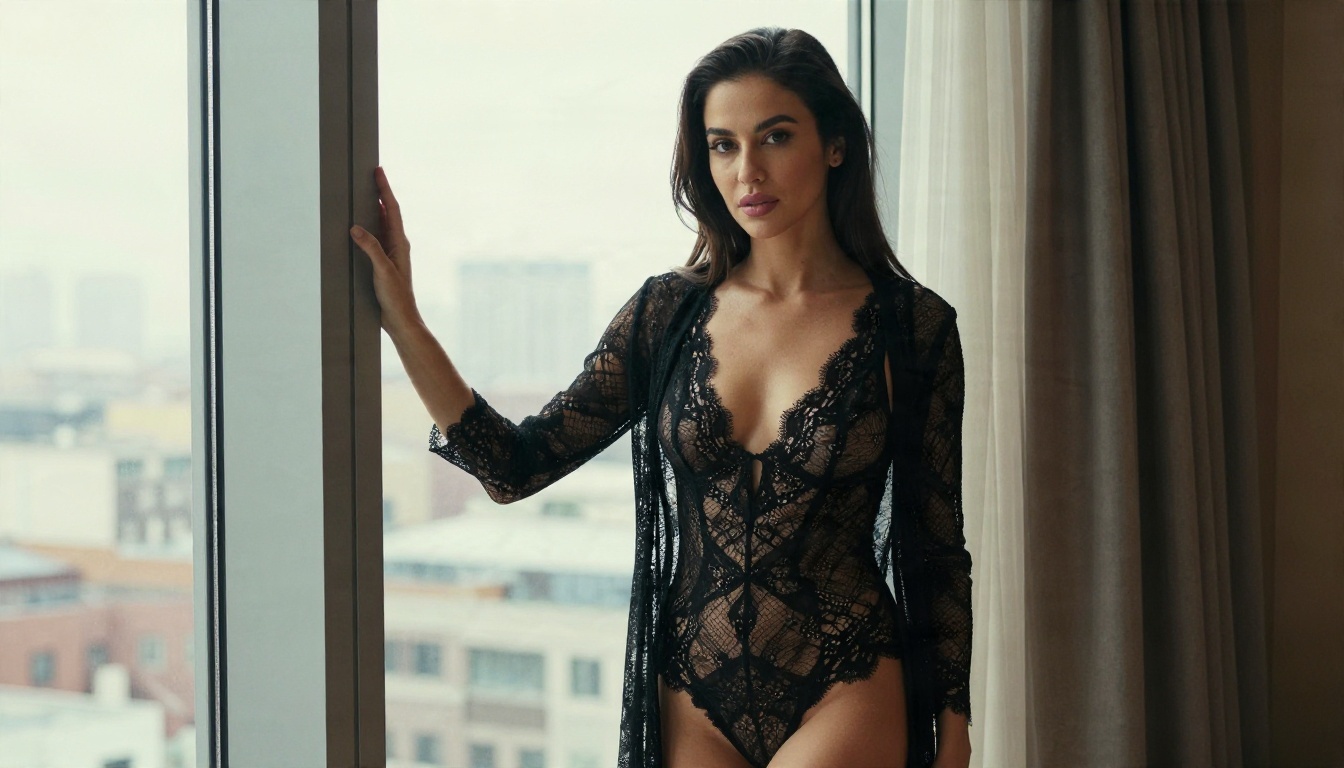
- "Replace the white t-shirt with a black lace bodysuit and a sheer long cardigan. Keep her face, hair, pose and the hotel window exactly the same."
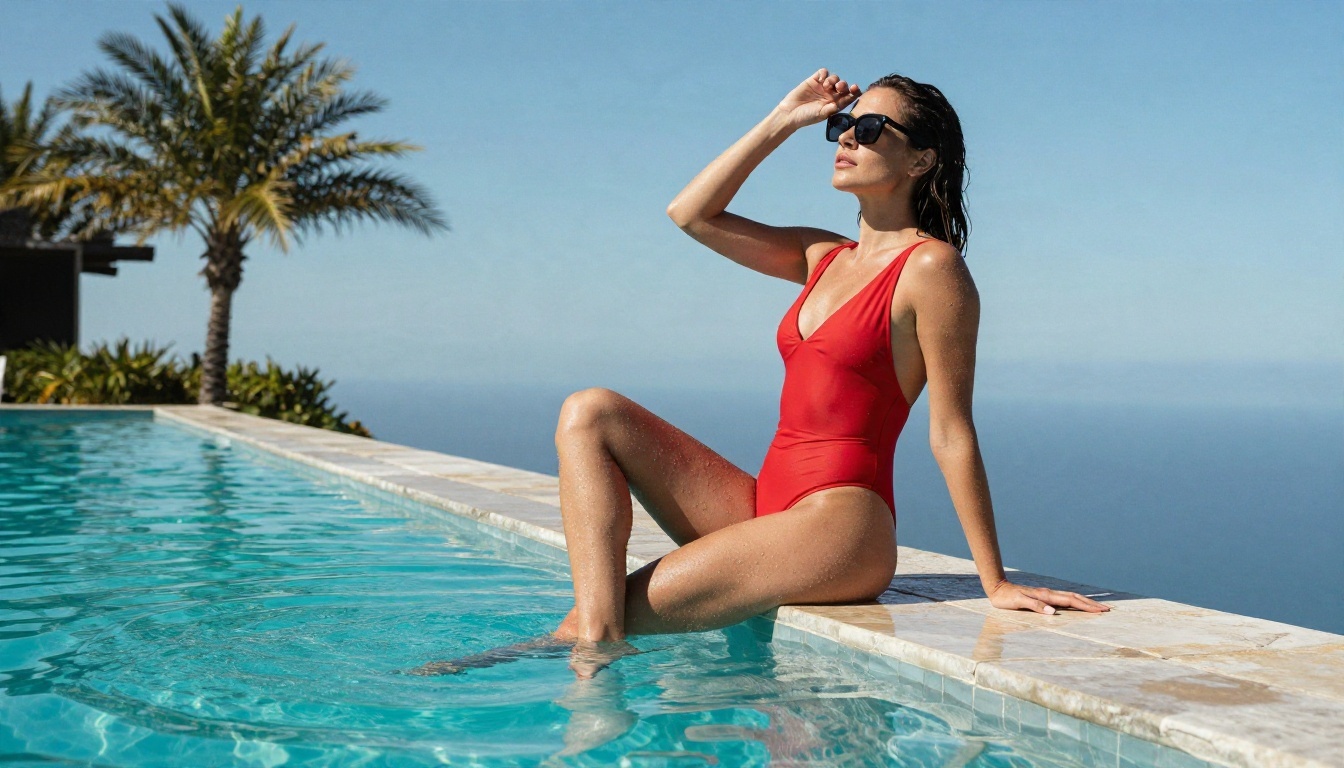
- "Change the dress to a red one piece swimsuit with a high cut leg. Preserve skin tone, lighting and background."
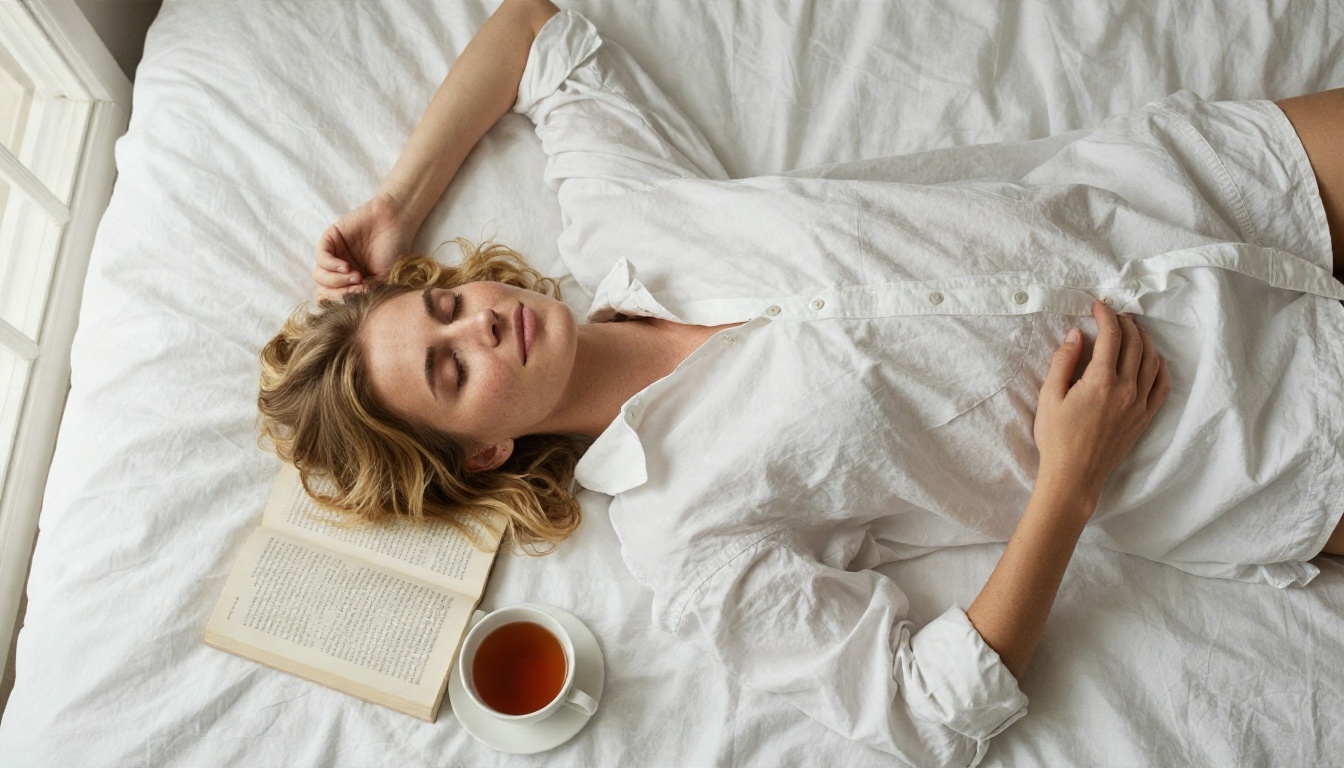
- "Turn the jacket into an oversized white button up shirt, top buttons open, fabric wrinkled naturally."
Be specific about fabric. "Satin," "lace," "ribbed knit" and "sheer chiffon" each give the model a texture to render, and realistic texture is what separates a convincing edit from an obvious one.
Lighting and Mood
- "Relight the scene with soft golden hour sunlight from the left, warm rim light on the shoulders."
- "Soften the shadows, add gentle window light from the front, keep skin texture visible."
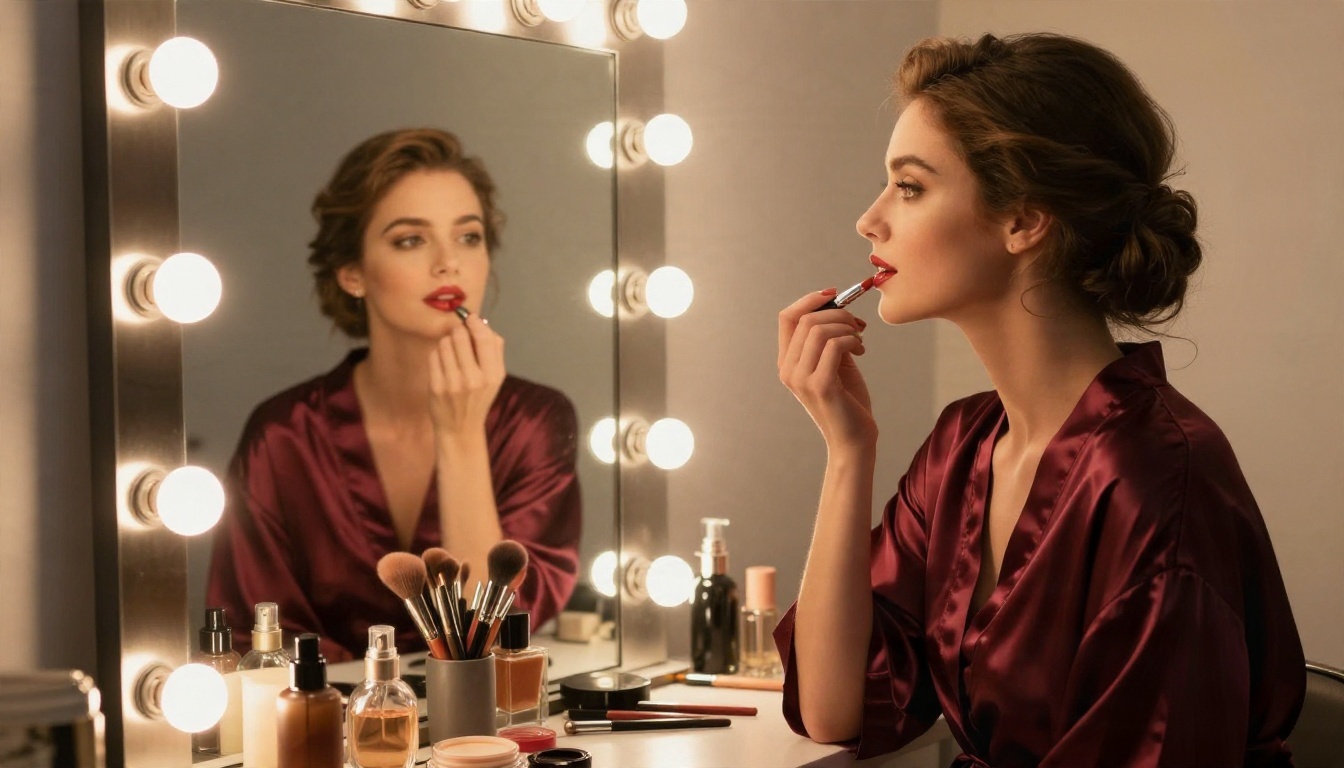
- "Warm tungsten bulb glow on both sides of her face, like a backstage vanity mirror."
Background Changes
- "Replace the background with an empty beach at sunset, pale dunes, soft waves. Match the lighting on her skin to the new sun direction."
- "Move her to a stone infinity pool with palm trees and a clear blue sky."
- "Place her on a teak yacht deck with the sea behind, long evening shadows."
The phrase "match the lighting" is the secret ingredient. Without it, the subject keeps the old light and looks pasted on.
Habits That Hurt Results
- Asking for a different face while keeping the same person. Pick one.
- Stacking contradicting instructions, such as "bright midday sun" and "moody candlelight."
- Using vague words like "sexy" with no visual detail. Describe fabric, pose and light instead.
💡 Prompt formula: [Change] + [what stays the same] + [light direction] + [lens or mood]. For example: "Change the robe to deep burgundy satin, keep the face and updo, warm bulb light from both sides, 50mm portrait look."
Example Edits, Before and After
Seeing the process helps more than reading about it. Here are three typical edit jobs and what to expect from each.
Plain Top to Evening Dress
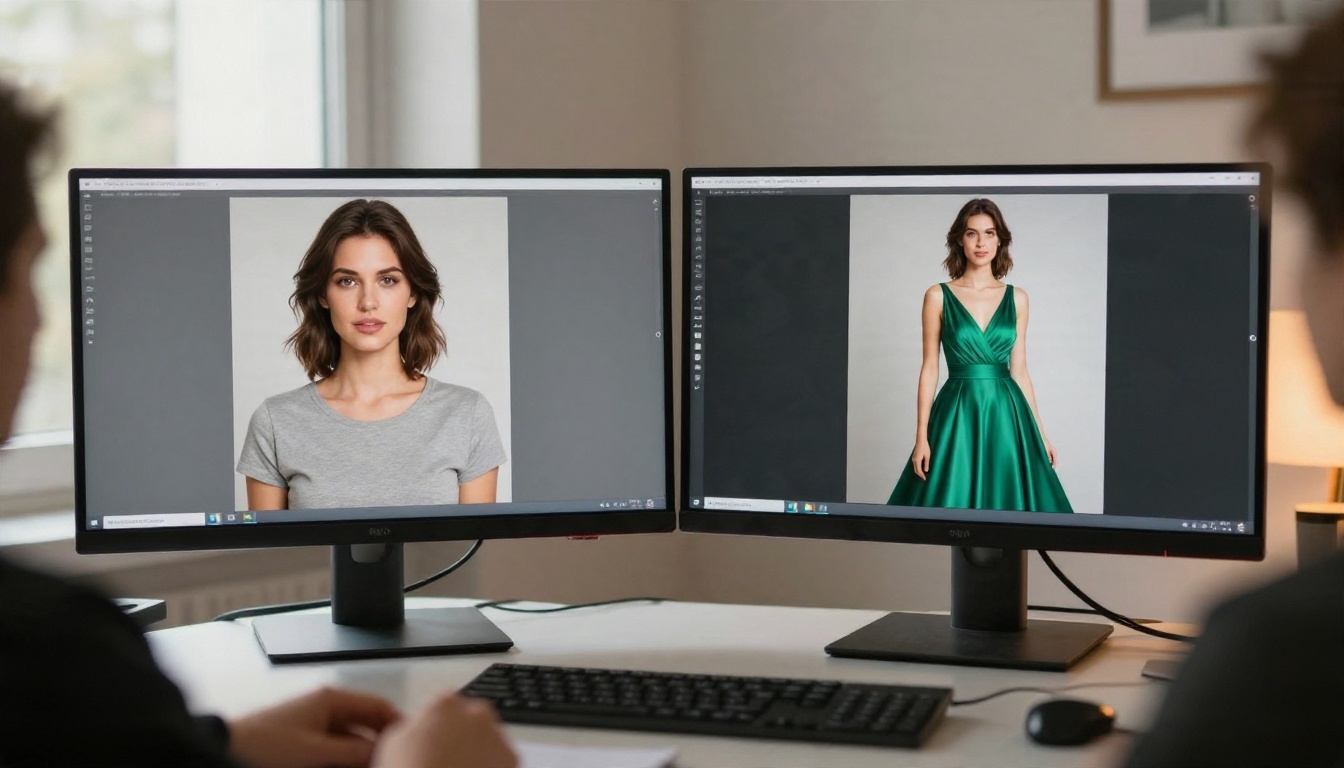
A woman in a basic grey top becomes a woman in an emerald evening gown. The best prompt names the neckline, the fabric and the length, then asks to keep the face and pose. Seedream 4.5 and Qwen Image Edit 2511 both handle this well, with fabric folds that react to the original pose.
City Indoor Shot to Beach Scene
Background swaps are where drift shows up most. Run the edit in two passes: first replace the setting, then ask for a lighting match in a second pass. Flux Kontext Fast is useful here because it keeps the subject's identity steady while the world changes around her.
Daylight to Golden Hour
Relighting is the cheapest way to make a flat photo feel like a magazine shot. Warm side light, a gentle rim on the shoulders and slightly lifted shadows do most of the work. Keep skin texture in the prompt, or the model may smooth pores into plastic.

Mistakes That Ruin Results
After many edits, these errors show up again and again.
- Low resolution sources. A blurry input caps your quality. Start sharp, or upscale first.
- Editing an edit of an edit. Every generation loses a little detail. Return to the original photo for each new idea.
- Overlong prompts. Three sentences beat ten. Models drop details when overloaded.
- Ignoring hands and edges. Check fingers, straps and hairlines at full size before you call it finished.
- Skipping the lighting match. A swapped outfit under the wrong light is the number one giveaway.
- Forgetting consent. Use your own photos, or photos of adults who agreed to the edit. Never recreate a real person's likeness without permission.
Local or Online: Which Should You Pick?
Choose local ComfyUI if you edit hundreds of images a week, want pixel level mask control, or need everything offline. Choose an online editor if you edit a few photos at a time, have no GPU, or want to test an idea in two minutes. Many creators do both: they prototype online, then move proven prompts into a local graph for batch work.
Try It Yourself Today
You do not need a node graph to get a polished, photographic edit. Start with Seedream 4.5 for a sharp source image, open PicassoIA Image Editor Pro for unlimited edit runs, and bring in Qwen Image Edit 2511 or Flux Kontext Fast when you need tighter instruction following. Pick one photo, write one short instruction, and run it five times with small wording changes. You will see the difference in the first ten minutes.
Ready for more options? Browse every model at picassoia.com/en/all-models and build your own editing routine today.


