Search for Comfy UI NSFW video and you land in the same loop: a node graph screenshot, a forty-step install list, and a comment saying "needs 24 GB of VRAM". Meanwhile all you wanted was a short, good-looking, suggestive clip from a photo you already have. This article cuts through that. You will see which free online routes really work, which prompts keep motion smooth instead of melting faces, what the clip length ceiling is and why it exists, and how to get a similar result without building a single node.
A quick note on scope: everything here is about non-explicit, glamour-style content, meaning swimwear, lingerie-style fashion, boudoir mood and sensual movement involving adults. That is where the technology is most reliable, and it is also the part of the topic that is worth your time.

What Comfy UI NSFW Video Really Means
ComfyUI is a free, open-source, node-based interface for running image and video models on your own machine. It is not a model itself. The models are separate files you load into it, such as the Wan 2.2 family, LTX, or Hunyuan-style checkpoints. When people say "Comfy UI NSFW video", they usually mean one of three things:
- A local setup where you load an open-weights video model and run it on your own GPU.
- A cloud-hosted ComfyUI where someone else rents you the GPU by the minute or by the credit.
- A shortcut that gives you the same output without nodes at all, through a hosted image-to-video model.
ComfyUI itself has no content filter. Whatever restrictions apply come from the model you load or the host you rent from. That single fact explains almost every confusing forum thread on the topic.
Local Versus Hosted Runs
Local is free after you own the hardware, but the setup is real work: Python environment, custom nodes, model files that run from 10 to 30 GB, and a GPU that can hold them. Hosted is faster to start, but "free" becomes "limited" the moment you queue a second clip.
The Node Graph in Plain Words
A typical image-to-video graph has five blocks: a loader for the video model, a text encoder for your prompt, an image loader for your first frame, a sampler that does the heavy math, and a video combine node that writes the MP4. That is it. Everything else is optional polish like upscalers, frame interpolation and LoRA loaders.
Free Online Options That Work
"Free" is slippery here. I tested the categories rather than chasing brand names, because free tiers change month to month.
| Option | Cost | Setup time | Typical clip length | Main catch |
|---|
| Local ComfyUI on your GPU | Free after hardware | Hours | About 5 seconds per run | Needs 12 to 24 GB of VRAM for good quality |
| Free credits on cloud ComfyUI hosts | Free for a few runs | 10 minutes | About 5 seconds | Credits vanish fast, queues get long |
| Community notebooks | Free | 30 minutes | 3 to 5 seconds | Sessions disconnect, models need re-downloading |
| Hosted image-to-video models | Free trial or low per-clip cost | 1 minute | 5 to 10 seconds | You pick from preset settings, not nodes |
Cloud ComfyUI Free Tiers
Several cloud ComfyUI hosts give new accounts a handful of free generations. They are enough to confirm a workflow runs, not enough to iterate. Expect queue times when the free pool is busy, and expect rules about what may be generated, because the host carries the responsibility for what runs on its hardware.
Hosted Models Without Nodes
If your goal is the clip and not the graph, skip the graph. A hosted image-to-video model takes your still, your motion prompt and a duration, then returns an MP4. You trade control for speed, and for glamour content that trade is usually worth it. On PicassoIA, Wan 2.2 I2V A14B runs the same Wan 2.2 family people load into ComfyUI, with no install.
What Free Usually Costs You
Free routes cost time more than money. A queue of ten minutes, a failed run because VRAM filled up, a custom node that broke after an update. If you generate more than five clips a week, that lost time adds up faster than a paid plan would.
💡 Tip: Test your idea with a single clip at low resolution first. If the motion works at 480p, spend the extra minutes on 720p. If it fails at 480p, higher resolution will not rescue it.
Prompts That Produce Clean Motion
Video models read a motion prompt differently from an image prompt. An image prompt describes a frozen scene. A video prompt describes what changes over five seconds. Beginners write "beautiful woman in a bikini, 8k" and get a clip where nothing happens, or where everything wobbles.
The Four-Part Prompt Formula
Use this order every time:
- Subject and starting pose: who is in frame and what the first frame shows.
- One main motion: a single action, such as turning her head or walking forward.
- Camera movement: slow push-in, gentle pan, static tripod.
- Light and atmosphere: golden hour, soft window light, sea mist.
Two motions in one clip is the usual reason for warped limbs. One subject action plus one camera move is the sweet spot.
Ten Prompt Examples to Copy
All of these are suggestive and fully non-explicit. Pair each with a matching first-frame photo.
- "A woman in a white bikini on a sunlit terrace brushes her hair back with one hand as a light breeze moves the strands, slow dolly-in, warm golden hour backlight."
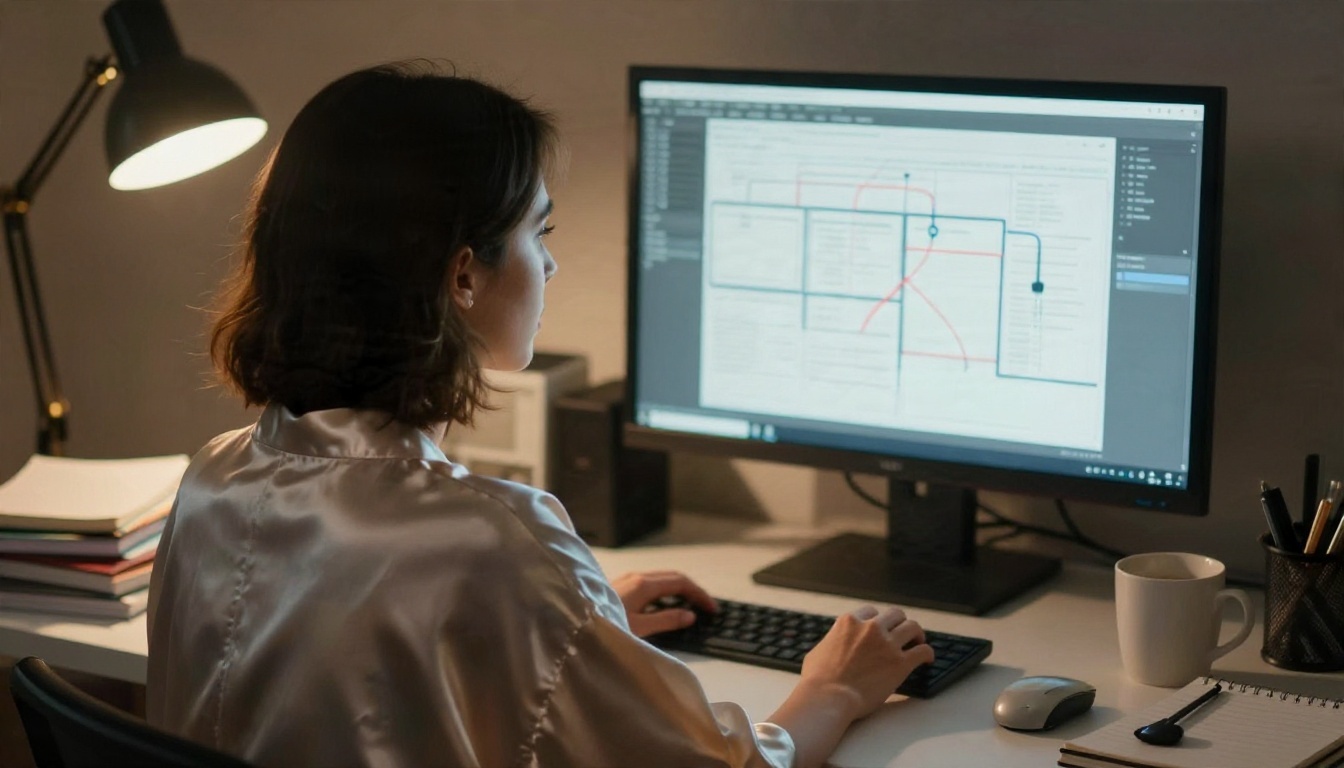
- "A woman in a satin robe at a desk turns from the monitor toward the camera with a relaxed half smile, static camera, soft lamp light."
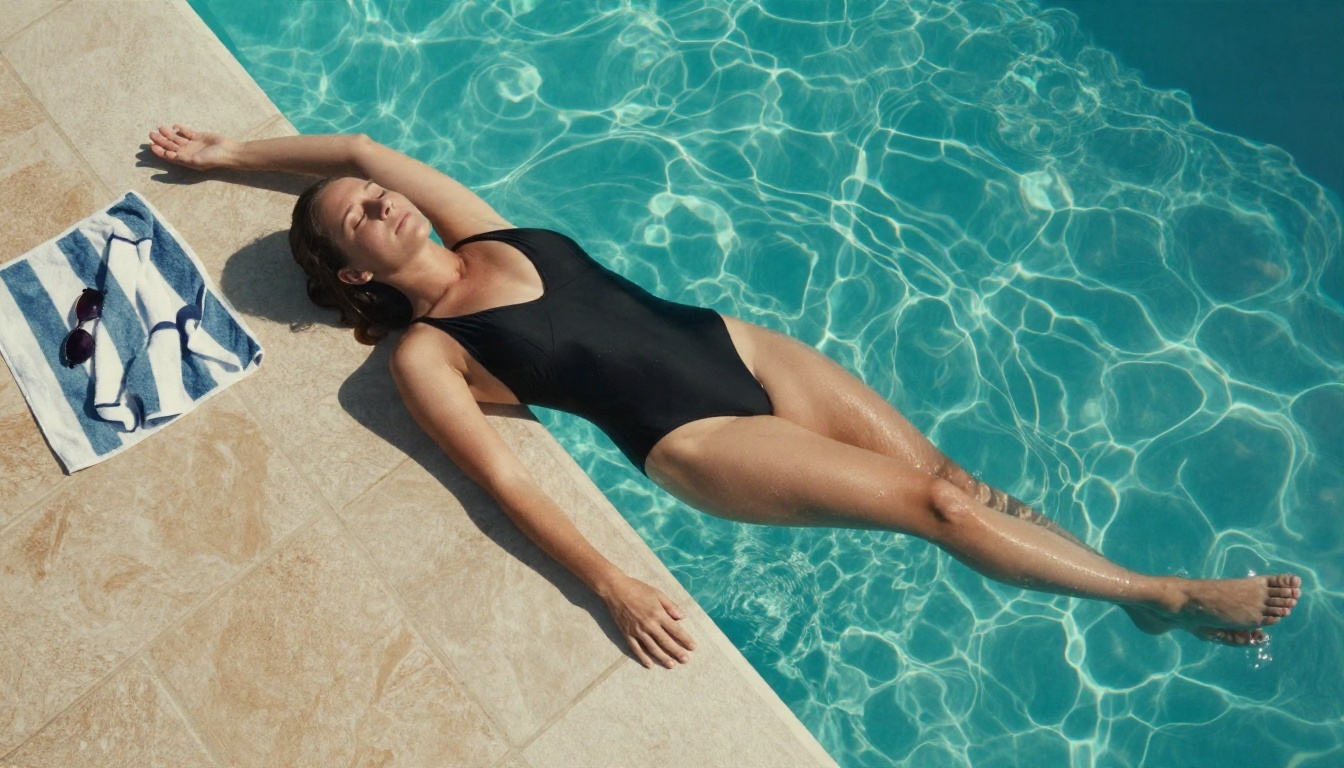
- "A woman in a black swimsuit lies by the pool edge, water ripples gently around her legs, slow overhead drift, bright midday sun."
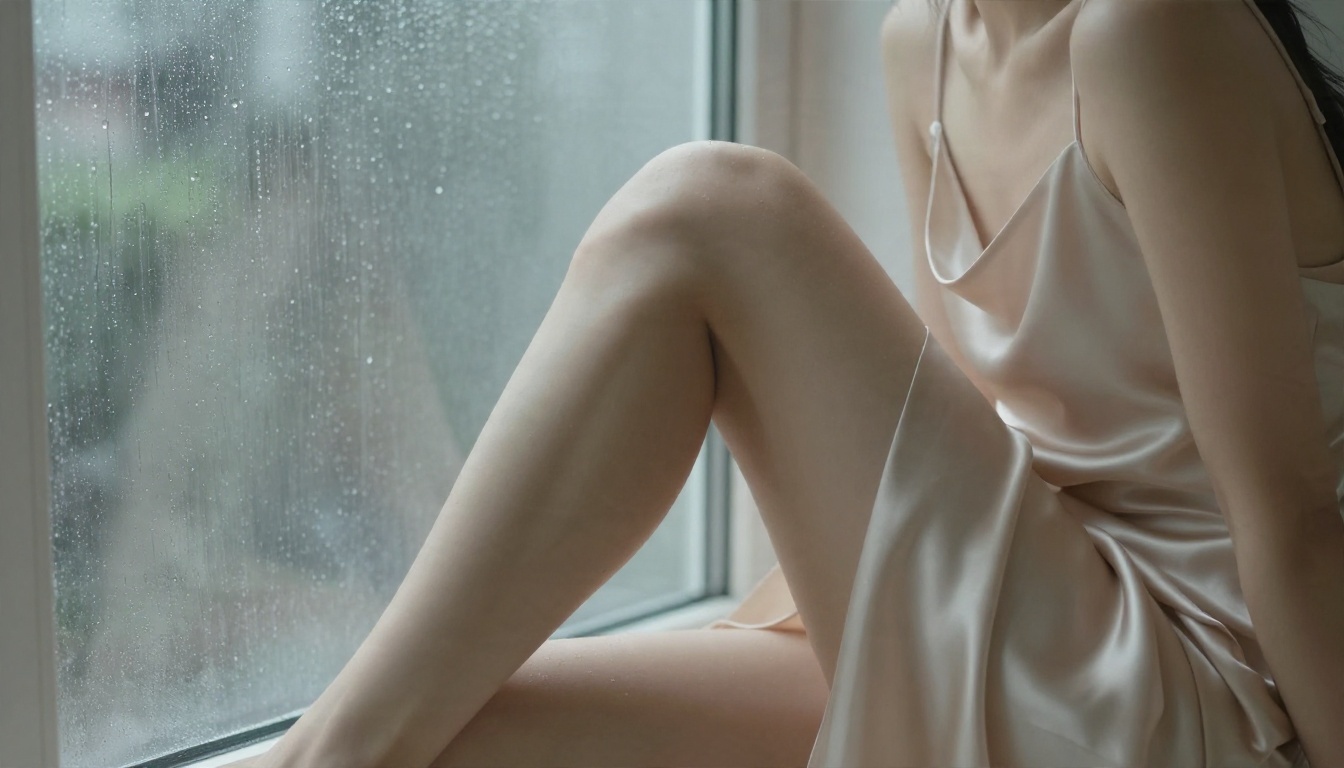
- "A woman in a champagne slip dress on a window sill rests her cheek against her knee and watches rain on the glass, subtle handheld sway, cool gray daylight."
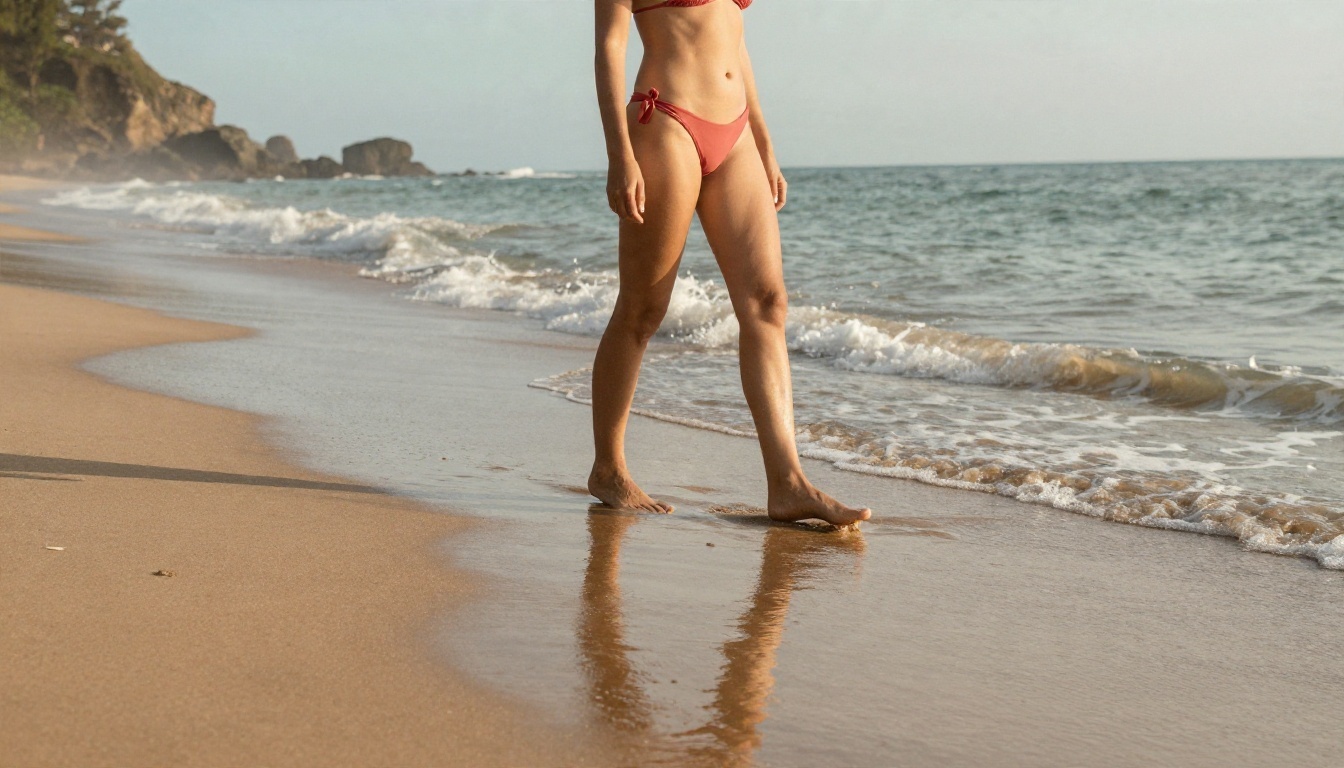
- "A woman in a coral bikini walks along the shoreline, foam washing over her ankles, camera tracks alongside at hip height, sunrise mist."
- "A woman in an oversized white shirt sits on linen sheets and glances up from a laptop, hair falling forward, slow push-in, soft morning light."
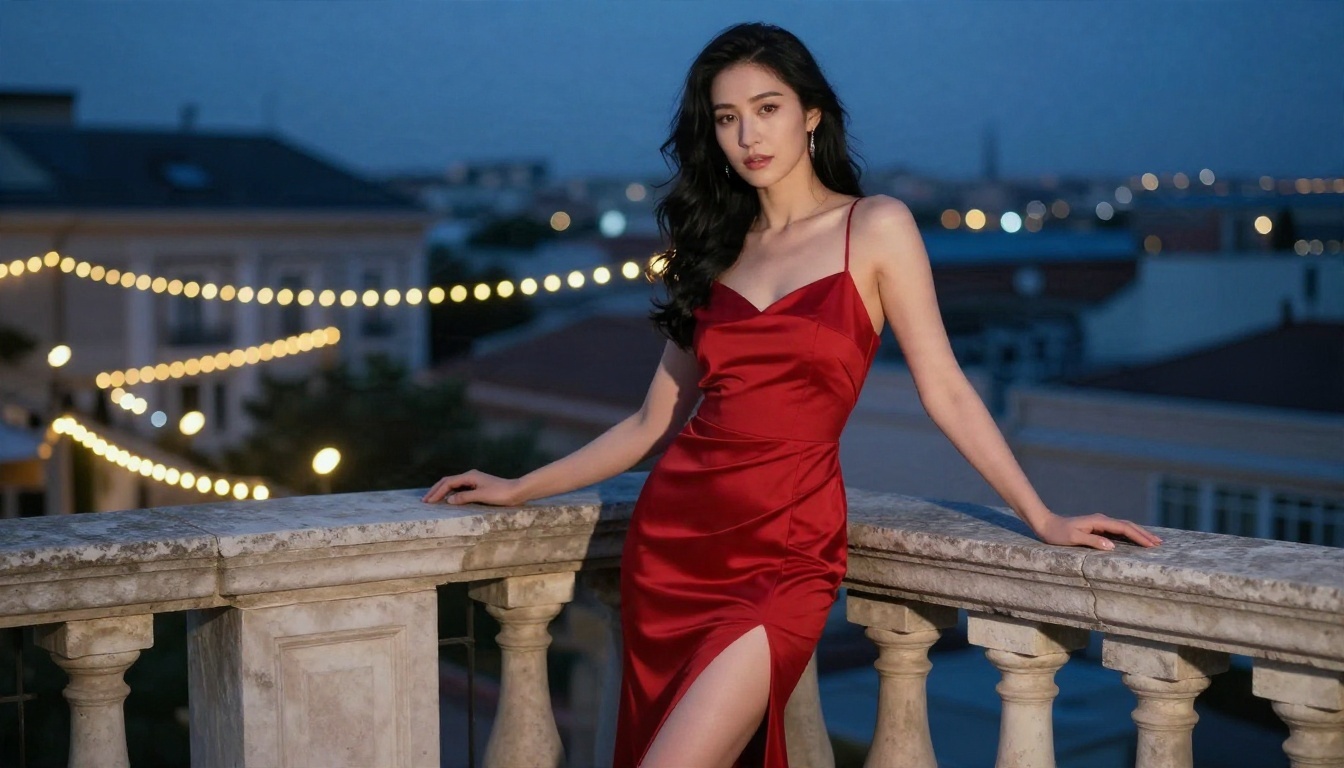
- "A woman in a red evening gown on a balcony looks over her shoulder, her dress shifts in the breeze, gentle orbit, blue hour sky."
- "A woman in a floral sundress spins once on a quiet street, skirt lifting, camera steady, late afternoon sun."
- "A woman in a knit crop top and shorts stretches by a sunlit window, slow tilt up, dust floating in the light."
- "A woman in a one-piece swimsuit steps out of a lake, water streaming from her hair, camera pulls back slowly, early morning fog."
Negative Prompt Basics
If your workflow has a negative prompt box, keep it short and practical: "extra fingers, distorted hands, flickering, blurry face, jitter, warped body, text, watermark". Long negative lists rarely help and sometimes flatten the motion. Note that some model variants, including the faster distilled ones, ignore negative prompts altogether.
Real Examples and What Went Right
Good first frames matter more than clever prompts. A sharp, well-lit still with a clear subject gives the video model something stable to follow. Here are the stills in this article, and the reason each one animates well.
| First frame | Why it works | Best motion to ask for |
|---|
| Terrace in golden light | Strong backlight, simple background | Hair and breeze, slow dolly-in |
| Pool from above | Water gives natural movement | Ripples, slow overhead drift |
| Window sill in rain | Quiet pose, soft contrast | Tiny head turn, subtle sway |
| Beach at sunrise | Waves add built-in motion | Walking, tracking shot |
| Balcony at blue hour | Fabric reacts to wind | Dress movement, gentle orbit |
Why Background Simplicity Wins
Cluttered backgrounds produce shimmer, because every object competes for the model's attention. A wall, sky, water or blurred bokeh keeps the subject locked. If your still has a busy street behind it, blur or simplify it before animating.
Faces Need Room
Frames where the face fills a quarter of the image or more keep identity stable for five seconds. Tiny faces in a wide shot drift. If you want a wide shot, use a close-up still and let the camera move away.

Length Limits Explained
This is the part nobody states clearly. Most open video models are trained on short clips. Wan 2.2 was trained on sequences of up to about 81 frames, and at 16 frames per second that works out to roughly five seconds. ComfyUI's default is 81 frames for this reason. It is a property of the model's training, not a slider you can push.
The 81-Frame Ceiling
Frame counts in these workflows usually follow a "multiple of four, plus one" pattern, so 81 is valid and 80 is not. Some workflow pages offer 121 frames or more. The model will often produce output at that length, but motion tends to slow, loop or drift, and faces lose consistency in the last second or two.
| Frames | Approx. length at 16 fps | Typical outcome |
|---|
| 49 | 3 seconds | Very stable, good for loops |
| 81 | 5 seconds | The native sweet spot |
| 121 | 7.5 seconds | Quality drops late in the clip |
| 161 and above | 10 seconds | Drift, repeated motion, identity change |
Chaining Clips Past Five Seconds
The reliable way to get 10 or 15 seconds is to chain segments. Generate clip one, take its last frame, use it as the first frame of clip two, and repeat. Each new segment adds slightly fewer frames than it contains because the shared frame is dropped. Community extension nodes automate this inside ComfyUI, and some of the loop nodes require a recent ComfyUI release.
Chaining has two traps. First, small errors compound: a soft face in segment one becomes a softer face in segment two. Second, the prompt must continue the motion, not restart it. If clip one ends with her turning left, clip two should begin with her already turned.
Memory and Resolution Trade-offs
Longer clips and higher resolution both eat VRAM. If a run crashes, reduce the resolution before you reduce the frame count. A 480p clip at 81 frames usually looks better than a 720p clip forced down to 49 frames, because motion quality depends on frame count.
💡 Tip: For a loop, generate 49 frames, then play the clip forward and reversed. Ping-pong loops hide the length limit and suit social posts well.
How to Get Similar Results on PicassoIA
If you want the output without maintaining a node graph, this is the shortest path. It starts with a strong still, because as shown above, the first frame decides everything.
Step 1: Build the First Frame
Seedream 4.5 is the model to open first for this kind of glamour work. It produces sharp, photoreal stills with believable skin and fabric, and it responds well to lighting and lens language like "85mm f/1.8, soft window light from the left". Write your prompt as a photograph, not as a list of tags. Ask for a simple background and a face that is large enough in frame.
If you already have a photo that needs adjusting, PicassoIA Image Editor Pro handles edits with unlimited generations, so you can retouch lighting, outfits or backgrounds as many times as you want before animating. That matters for iterating: you can fix the still ten times for the cost of none.
Step 2: Animate With Wan 2.2
Open Wan 2.2 I2V A14B and upload your still.
- Paste a motion prompt that follows the four-part formula above.
- Keep the duration at the default of about five seconds. It matches the native length of the model.
- Choose 720p when the model offers it, but test at lower resolution first.
- Generate, watch for jitter in the hands and hair, then adjust the prompt rather than the seed.
- For longer scenes, save the last frame of the result, upload it as the next first frame and continue the motion.
For speed, Wan 2.5 I2V Fast returns clips quickly and is a good drafting tool. Wan 2.2 5B Fast is a lighter option for quick tests.
Other Models Worth a Test
If you already have a ComfyUI workflow you like for stills, Any ComfyUI Workflow lets you run one on PicassoIA for images without installing anything.
Common Mistakes to Avoid
Most failed clips share the same few causes. Fix these and your success rate jumps.
- Too many actions. One motion, one camera move. Anything more produces warped anatomy.
- Low-quality source image. A blurry, compressed still gives a blurry, jittery clip. Start sharp.
- Forcing long durations. Asking a five-second model for ten seconds in one pass gives drift. Chain two clips instead.
- Ignoring the host's rules. Free hosts enforce content policies. Read them before you invest an evening in a workflow they will block.
- Chasing seeds. If the same prompt fails three times, change the prompt or the first frame, not the seed.
- Skipping the last-frame check. Always inspect the final frame before chaining. A bad last frame ruins the next segment.
A Short Pre-Flight Checklist
- Is the still sharp, well lit and simple in the background?
- Does the prompt contain exactly one subject action and one camera move?
- Is the duration at the model's native length?
- Have you tested at low resolution first?
Try It Yourself Today
You do not need a 24 GB graphics card or an evening of node debugging to make a good suggestive clip. Start with one strong still in Seedream 4.5, refine it in PicassoIA Image Editor Pro with unlimited generations, then bring it to life with Wan 2.2 I2V A14B. Copy one of the ten prompts above, swap in your own scene and watch how much a single clean motion changes the result.
Want to compare more options? Browse every image and video model at picassoia.com/en/all-models and run your own tests. Pick a prompt, make your first clip, and see how far five good seconds can go.


