You found a ComfyUI image to video workflow, downloaded twelve gigabytes of checkpoints, and then a red node threw an error you could not read. That is the usual story. ComfyUI is a powerful, open, node based tool, and plenty of people use it to animate glamour and NSFW stills. But the price is a strong graphics card, patient troubleshooting and a lot of evenings. If your goal is simply to turn a still photo into a short, good looking clip, there are much easier routes that run in a browser tab.
This article breaks down what ComfyUI really asks of you, why online tools win for most creators, and which options on PicassoIA give you the same kind of motion without any install. Everything here is about non-explicit, adults-only glamour content: bikinis, lingerie style fashion, boudoir lighting and tasteful sensuality.

What ComfyUI Actually Demands
ComfyUI works by connecting small blocks, called nodes, into a pipeline. One node loads a model, another reads your image, another samples the motion, another decodes frames into a video file. It is flexible, and that flexibility is exactly why it is hard for newcomers.
The Hardware Bill
Image to video is one of the heaviest jobs you can give a home computer. Community tests of recent open video checkpoints show a wide spread in memory needs. Lighter 5B class models can squeeze onto 8GB cards when ComfyUI offloads idle weights to system memory, and quantized versions of larger models can run on similar cards with shorter clips and lower resolution. Full quality 14B class models at 720p generally want a 24GB card or a rented cloud GPU.
System memory matters too. Offloading shifts the burden to RAM, and guides for low VRAM setups often recommend 32GB or more.
💡 Quick reality check: If your card has less than 12GB of VRAM, expect short clips, reduced resolution and long waits. Many users report several minutes per five second clip even with speed LoRAs.
The Node Maze
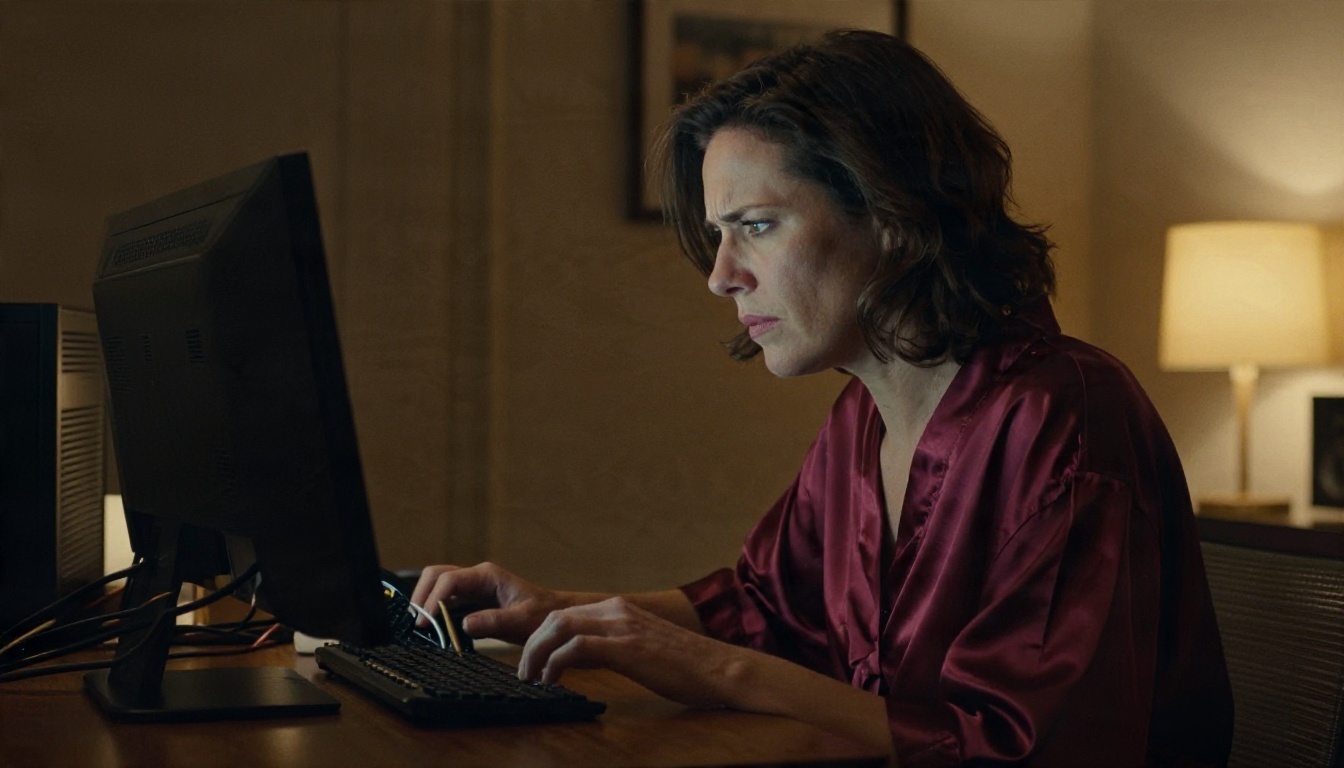
A basic image to video graph might need a model loader, a text encoder, a VAE, a CLIP vision node, a start image node, a sampler, a scheduler and a video combine node. Add a LoRA for speed, another for style, and a custom node pack for frame interpolation, and you have a canvas of thirty boxes where one wrong connection gives you a black video.
Many shared workflows also depend on custom nodes that break after an update. You fix one, and another one fails.
Model Files and Updates
Each workflow wants its own set of files: a high noise model, a low noise model, a text encoder, a VAE and often one or two LoRAs. Put a file in the wrong folder or pick the wrong precision, and ComfyUI either fails silently or runs out of memory halfway through. Then a new release lands and you repeat the whole process.
Why Online Beats Local for Most People
Local setups have real strengths: privacy on your own disk, total control and no per clip fees once the hardware is paid for. If you generate hundreds of clips a day and love tinkering, they make sense. For everyone else, the math looks different.
Speed to First Clip
With a browser tool you can have a finished clip in the time it takes ComfyUI to finish loading its models. There is nothing to install, no driver version to match and no folder structure to remember.
Cost Without the GPU
A card that runs 720p video comfortably costs far more than most people spend on a year of online generation. Add power, cooling and the cost of your own time, and the "free" local route stops being free.
Consistent Quality
Online platforms keep their video models tuned and updated. You get the same quality on a laptop, a tablet or a phone, and you do not troubleshoot a broken node pack the night before you want to publish.

The Best Online Alternatives
ComfyUI is not on PicassoIA, and it is not a model but a workflow tool, so there is nothing to link to. The good news is that what people use ComfyUI for, a strong still image followed by an image to video model, is easy to reproduce here. For similar results today, these are the tools to try, in the order I would use them.
Seedream 4.5 for the Still
The quality of your clip starts with the quality of your first frame. Seedream 4.5 produces sharp, photorealistic images with natural skin texture and believable fabric, and it handles glamour subjects like swimwear, lingerie style fashion and boudoir lighting without the heavy blocking you meet on stricter models. Generate your still here, and you have a strong source for animation.
PicassoIA Image Editor Pro for Fixes
PicassoIA Image Editor Pro offers unlimited generations, which matters when you are iterating. Use it to change an outfit color, fix a hand, adjust the background or clean up lighting before you animate. Every flaw you correct in the still is a flaw you will not see in motion.
Image to Video Models That Animate It
Once the still is ready, pick an animator:
| Model | Best for | Link |
|---|
| Wan 2.5 I2V | Natural body and fabric motion with a cinematic feel | Wan 2.5 I2V |
| Wan 2.5 I2V Fast | Quick test clips while you tune a prompt | Wan 2.5 I2V Fast |
| Wan 2.7 I2V | Newer motion model with sharper detail | Wan 2.7 I2V |
| PicassoIA Video | Free, unlimited text or image to video | PicassoIA Video |
| P Video Animate | Simple photo to video with minimal settings | P Video Animate |
| LTX 2.5 Fast | Fast generation when you need volume | LTX 2.5 Fast |
💡 Value tip: Start your tests on PicassoIA Video, since it is free and unlimited, then move the best stills to a higher end model for the final render.

How to Get Similar Results on PicassoIA
This is the browser version of a ComfyUI image to video pipeline, built on Seedream 4.5 for the still and Wan 2.5 I2V for the motion. It takes minutes, not an afternoon.
Step 1: Build the First Frame
Open Seedream 4.5 and write a prompt with five parts: subject and pose, outfit, setting, lighting and camera. A strong example:
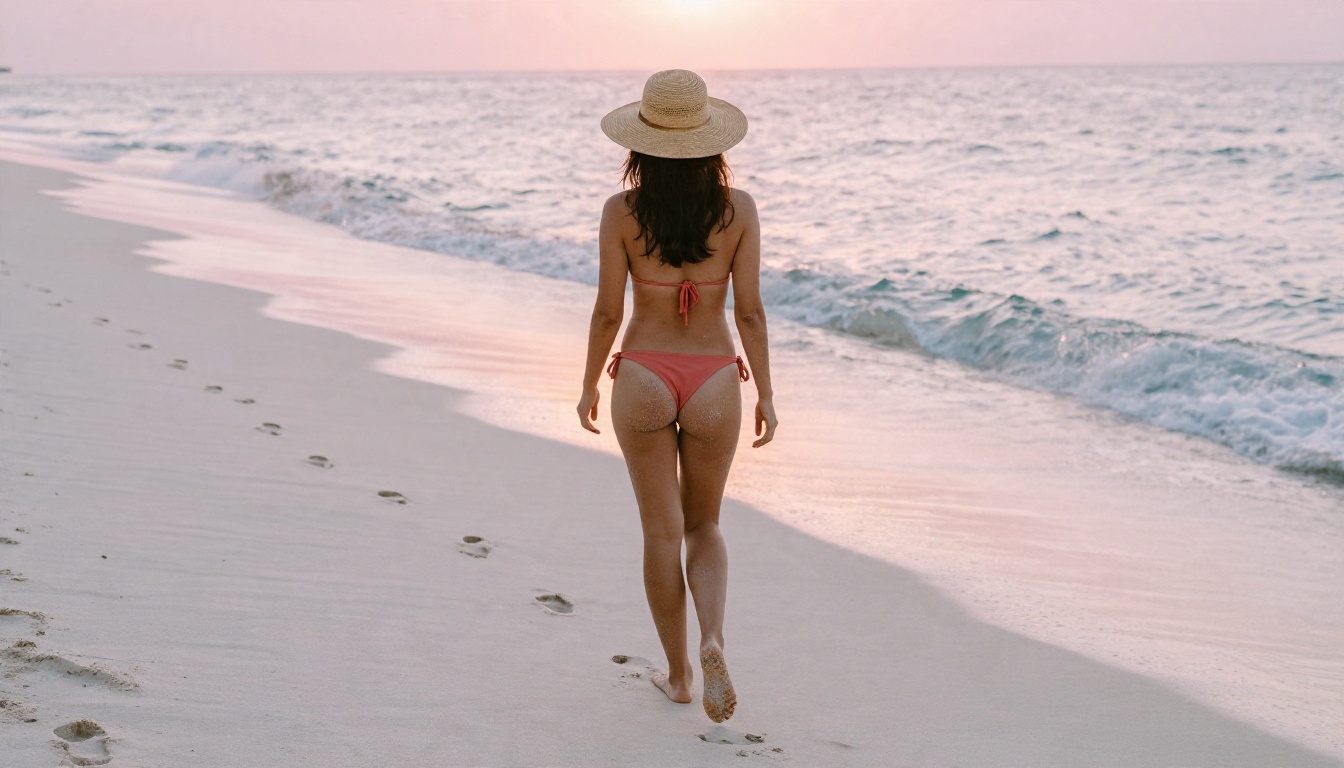
"Adult woman in a coral bikini and straw hat on a white sand beach at sunrise, soft pink and gold light from the horizon, 50mm lens, shallow depth of field, natural skin texture, film grain."
Keep the framing loose. If the subject touches the edge of the frame, motion models often invent odd limbs or cut-offs.
Step 2: Polish in Image Editor Pro
Bring the still into PicassoIA Image Editor Pro. Ask for specific fixes in plain language: "make the straw hat brim cleaner", "remove the extra shadow on the left arm", "warm up the sky". Because generations are unlimited, you can try as many versions as you like.
Step 3: Write the Motion Prompt
Open Wan 2.5 I2V, upload the still and describe only the motion. The image already tells the model what everything looks like, so your prompt should say what changes over the five seconds.
"She walks slowly toward the camera, waves foam around her ankles, wind lifts her hair, the camera glides back at a steady pace, soft sunrise glow stays constant."
Step 4: Pick Duration and Resolution
Choose 720p for the first pass. Short clips of five seconds stay more coherent than long ones. If a clip looks good, rerun it at a higher setting. If it drifts, shorten the movement in your prompt, not the clip.
Step 5: Iterate with the Fast Model
When you are unsure about a prompt, test it on Wan 2.5 I2V Fast first. Once the motion looks right, render the final with the full model, or try Wan 2.7 I2V for a different look.
Local vs Online at a Glance
| Factor | ComfyUI locally | Online on PicassoIA |
|---|
| Setup time | Hours to days | Minutes |
| GPU needed | 12GB to 24GB+ for good quality | None, any browser |
| Model files | Many, manual updates | None to manage |
| Time per clip | Minutes on a strong card, much longer on weak ones | Typically a short wait |
| Broken workflows | Frequent after updates | Not your problem |
| Glamour friendly | Depends on the checkpoint you find | Built for it with Seedream 4.5 |
| Cost | Hardware plus electricity | Pay as you go, with free unlimited options |
💡 Rule of thumb: If you spend more time fixing your pipeline than creating clips, move the work online.
Motion Prompts That Work
Motion is where most image to video attempts fail. A few patterns make results far more reliable.
Keep Movement Small and Natural
The best glamour clips use subtle actions: a slow turn of the head, hair moving in the wind, a hand brushing hair behind the ear, fabric swaying, waves rolling in. Big actions, such as running, spinning or dancing, push the model to invent details, and faces or hands start to warp.
Name the Camera Move
Models respond well to a single, clear camera instruction: slow dolly in, gentle pan left, slight handheld drift, or a locked off frame. Pick one. Stacking three camera moves in one sentence usually gives you mush.
Describe the Light
Say what the light does. "Golden light flickers through palm leaves" or "soft window light stays steady on her shoulder" helps the model keep exposure consistent from the first frame to the last.
Sample Prompts by Scene
| Scene | Motion prompt |
|---|
| Poolside | "She lifts her sunglasses and smiles, water ripples behind her, slow push in, bright midday sun." |
| Bedroom | "She stretches slowly on white sheets, curtains breathe in the window light, camera drifts right." |
| Studio window | "She tucks her hair behind her ear and turns toward the camera, soft overcast light, locked frame." |
| Boat deck | "Wind lifts her curls, she laughs and glances at the horizon, gentle handheld movement." |
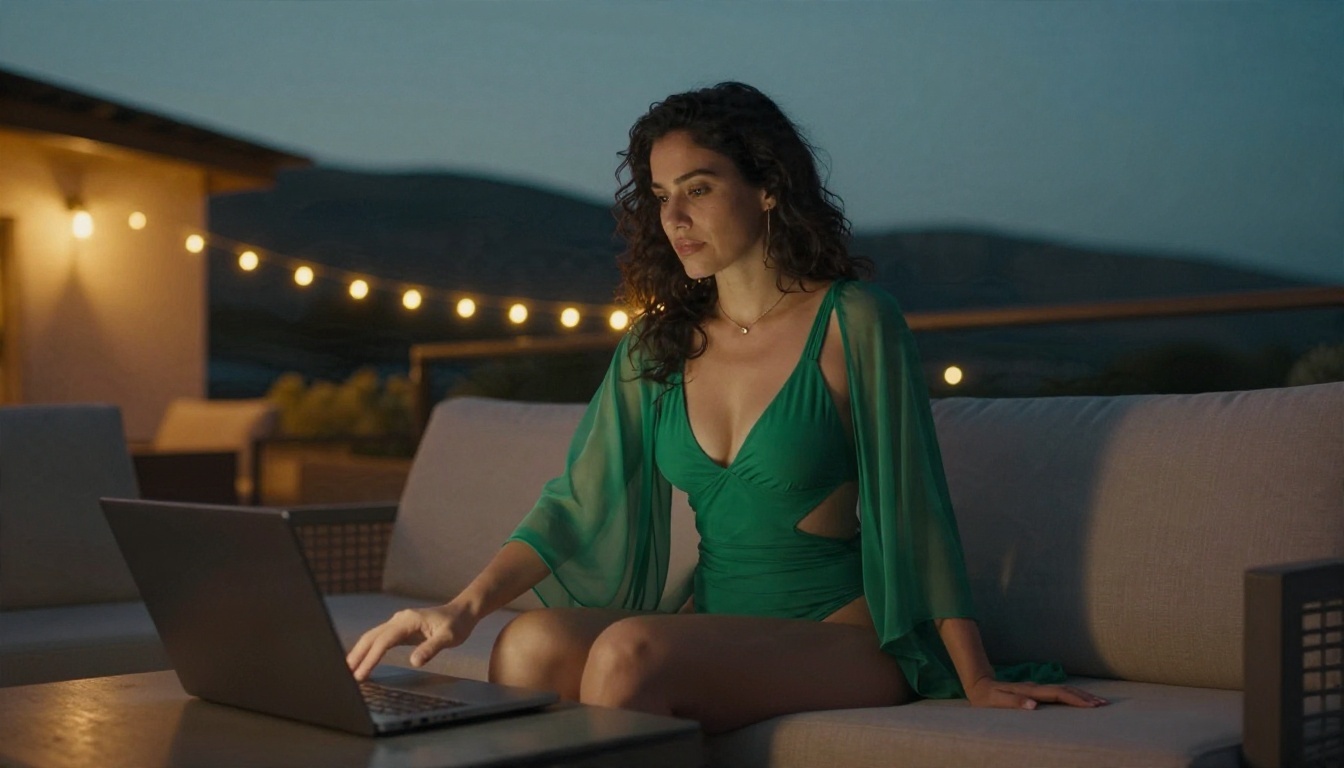
| Terrace dusk | "String lights flicker softly, she crosses her legs and looks over her shoulder, slow orbit." |
Mistakes to Avoid
Starting with a Weak Still
A blurry or mis-posed first frame cannot be rescued by animation. Spend more time on the still than on the video.
Overloading the Prompt
Long prompts that mix several actions confuse the animator. One subject action, one camera move, one lighting note. That is enough.
Ignoring Image Ratio
If you want a vertical clip for social platforms, generate a vertical still. Cropping a horizontal clip afterward loses detail and framing.
Skipping the Fast Test
Rendering every idea on a high end model burns time and credits. Test on a fast model, then commit.
💡 Content note: Keep your content to adult, fictional subjects, and never animate real people without their consent. Non-explicit glamour is the target here: suggestive and attractive, never pornographic.

A Simple Weekly Workflow
If you publish regularly, a repeatable routine saves hours.
- Monday: Generate 20 stills in Seedream 4.5 across two or three themes, such as beach, studio and terrace.
- Tuesday: Fix the best eight in PicassoIA Image Editor Pro.
- Wednesday: Run quick motion tests on Wan 2.5 I2V Fast.
- Thursday: Render the winners on the full model or on Wan 2.7 I2V.
- Friday: Pick your favorites, trim and publish.
That is a full content week with no downloads, no driver updates and no node graphs.
Try It Yourself
You do not need a monster GPU or a weekend of troubleshooting to animate a glamour photo. Create a still with Seedream 4.5, refine it in PicassoIA Image Editor Pro, and bring it to life with Wan 2.5 I2V or the free PicassoIA Video. Your first clip can be ready in the time ComfyUI would take just to load.
Open a tab, write your first prompt and see how far a single photo can go. When you want more options, browse every model at picassoia.com/en/all-models and try the ones that match your style.


