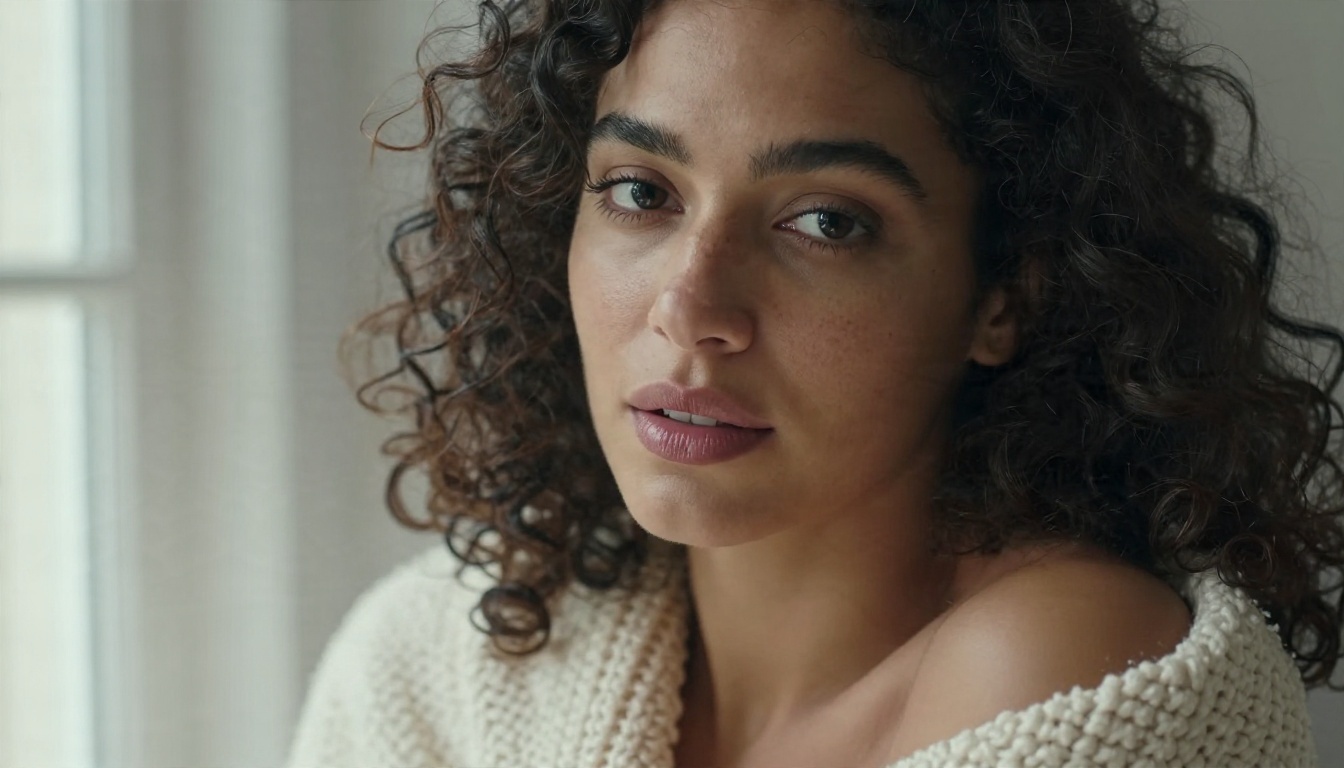
Copy-ready ComfyUI prompts for suggestive, photorealistic glamour portraits, with the negative prompts, sampler settings and seed habits that fix warped anatomy and plastic skin, plus online alternatives that skip the GPU and install.
Most people who search for a ComfyUI NSFW prompt are not short on ideas. They are stuck on the same three problems: faces that look waxy, hands that look like bundles of sausages, and a workflow that eats an evening before it produces one usable picture. The wording of your prompt matters, but it is only one part of the picture. This article gives you copy-ready templates for suggestive, non-explicit glamour photography, the negative prompts that actually fix common defects, and the sampler settings that decide whether the result looks like a photograph or a plastic doll. It also shows how to get the same look online when you do not want to babysit a local install.
💡 Scope note: every template here targets adult subjects, tasteful glamour, boudoir and swimwear photography. Nothing below is written for explicit output, and you should only ever generate fictional adults, never a real person's likeness without their consent.
What a ComfyUI NSFW Prompt Really Does
ComfyUI is a node-based interface: you connect a checkpoint loader, a text encoder, a sampler and a decoder with wires, and the graph produces an image. Your prompt is one text box feeding one node. That is why the same sentence can give a magazine-quality portrait on one checkpoint and a mess on another.
Positive and negative prompts
The positive prompt describes what you want: subject, clothing, pose, setting, light, lens. The negative prompt lists what the sampler should steer away from: extra fingers, blur, text, watermark. Both are encoded into the same latent space, so they push against each other during every sampling step.
A good positive prompt reads like a photographer's shot list. A bad one reads like a pile of tags with no structure. Structure helps newer models, which follow natural sentences, and it still helps older tag-based models because order influences weight.
The checkpoint matters more than the wording
Here is the uncomfortable truth: a perfect prompt cannot rescue a checkpoint that was never trained on the look you want. Base releases from large labs are usually filtered, so people use community fine-tunes of SDXL or Flux-style models, which are published with their own licenses and terms. Check each model's terms before you use it commercially, and keep your outputs in the tasteful, non-explicit lane if you plan to publish them anywhere.
Model family
Prompt style
Negative prompt works?
Typical strength
SDXL community checkpoints
Short tags plus a sentence
Yes, strongly
Huge style variety, light on VRAM
Flux-style dev models
Long natural sentences
Only with extra nodes
Hands, skin and lighting realism
SD 1.5 legacy checkpoints
Tag lists
Yes, essential
Speed, huge LoRA library
Newer transformer models
Natural language
Varies
Prompt following, text rendering
💡 If you use a Flux-style workflow at its default guidance, the negative prompt box is effectively ignored. Put your "avoid" instructions into the positive prompt as positive descriptions instead, such as "clean skin, sharp focus, natural hands".
Free ComfyUI NSFW Prompt Templates
Copy these, then swap the bracketed parts. Each template is built the same way: subject, wardrobe, pose, setting, light, camera, texture. That order works because the first few words of a prompt carry the most weight.
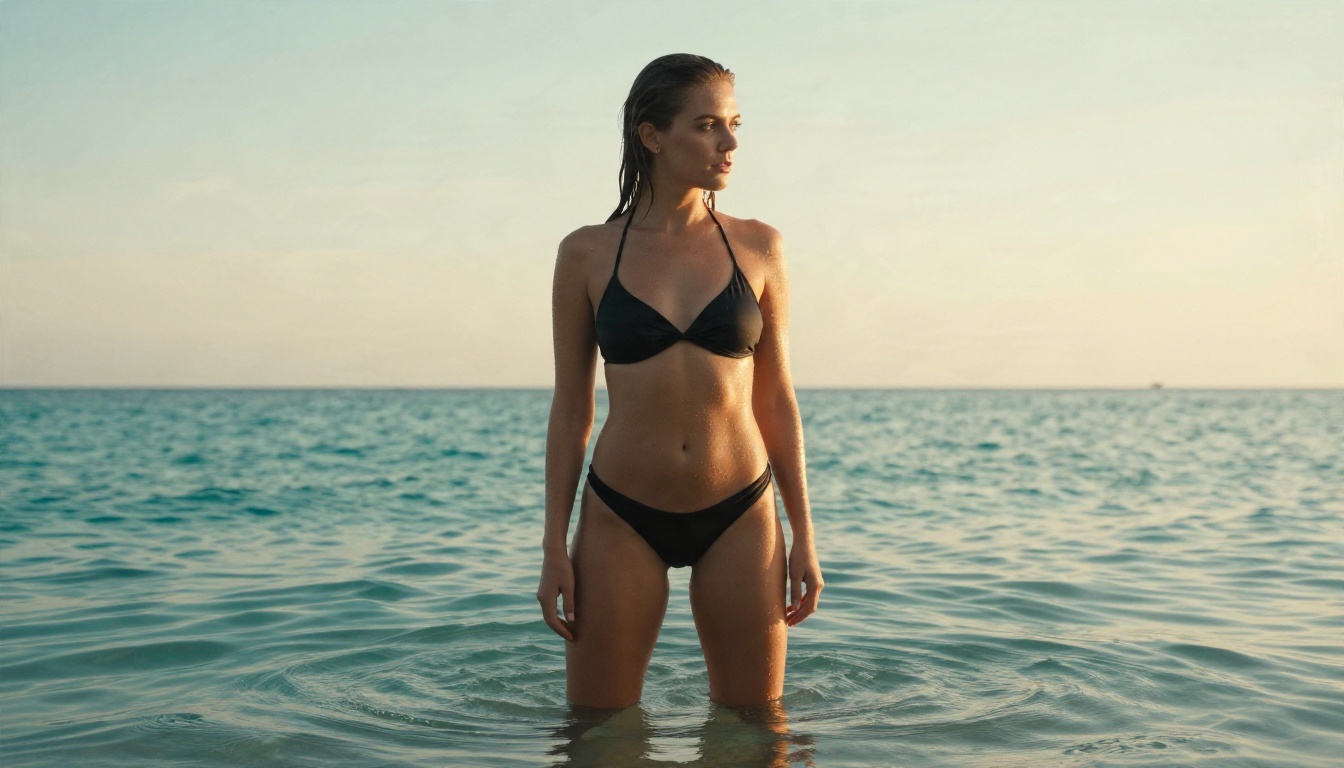
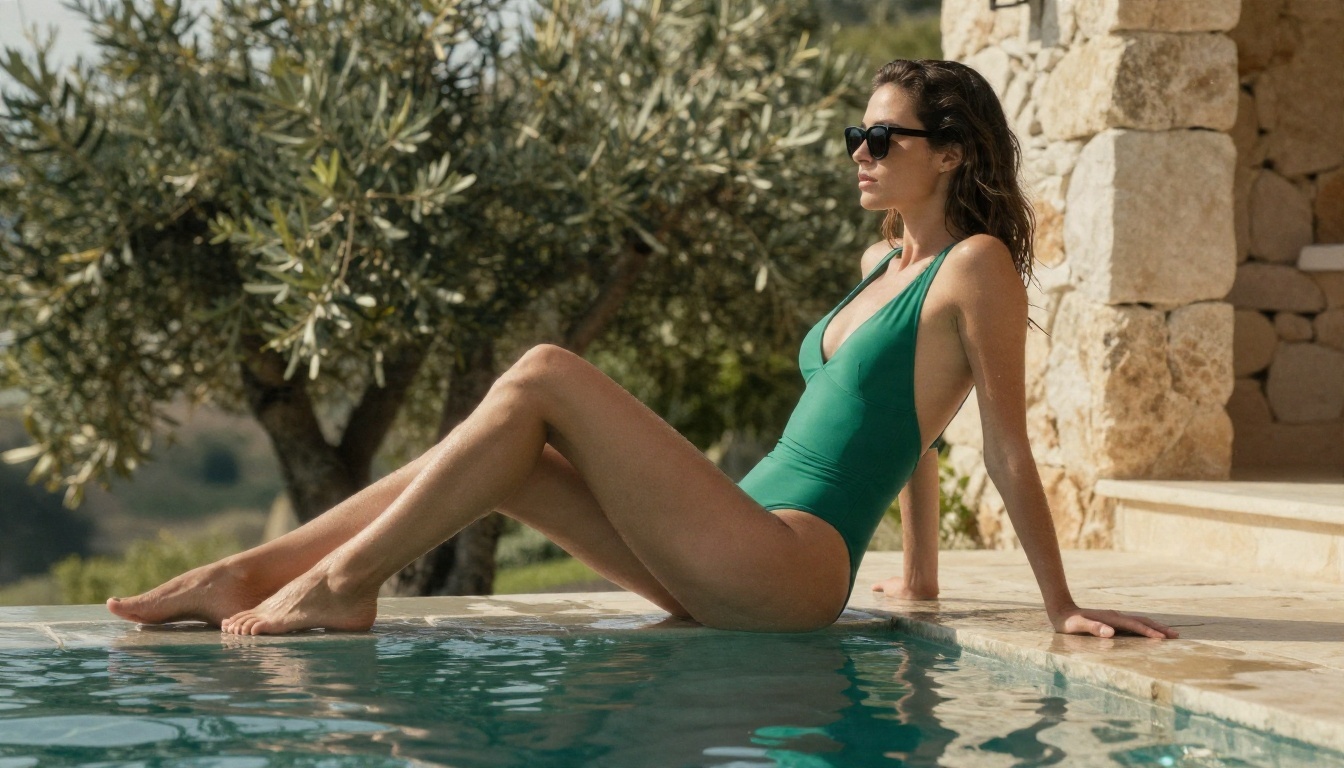
Beach glamour template
RAW photo, adult woman, [hair description], black two-piece bikini,
standing knee-deep in turquoise shallow water, looking over her shoulder,
quiet beach at golden hour, warm backlight with rim light on skin,
water droplets on shoulders, fine sand texture, low-angle shot,
50mm f/1.8 lens, shallow depth of field, Kodak Portra 400 film grain,
natural skin texture, photorealistic
Why it works: "RAW photo" and the film stock push the model toward photographic grain instead of airbrushed gloss. The light direction is explicit, which stops the flat, front-lit look.
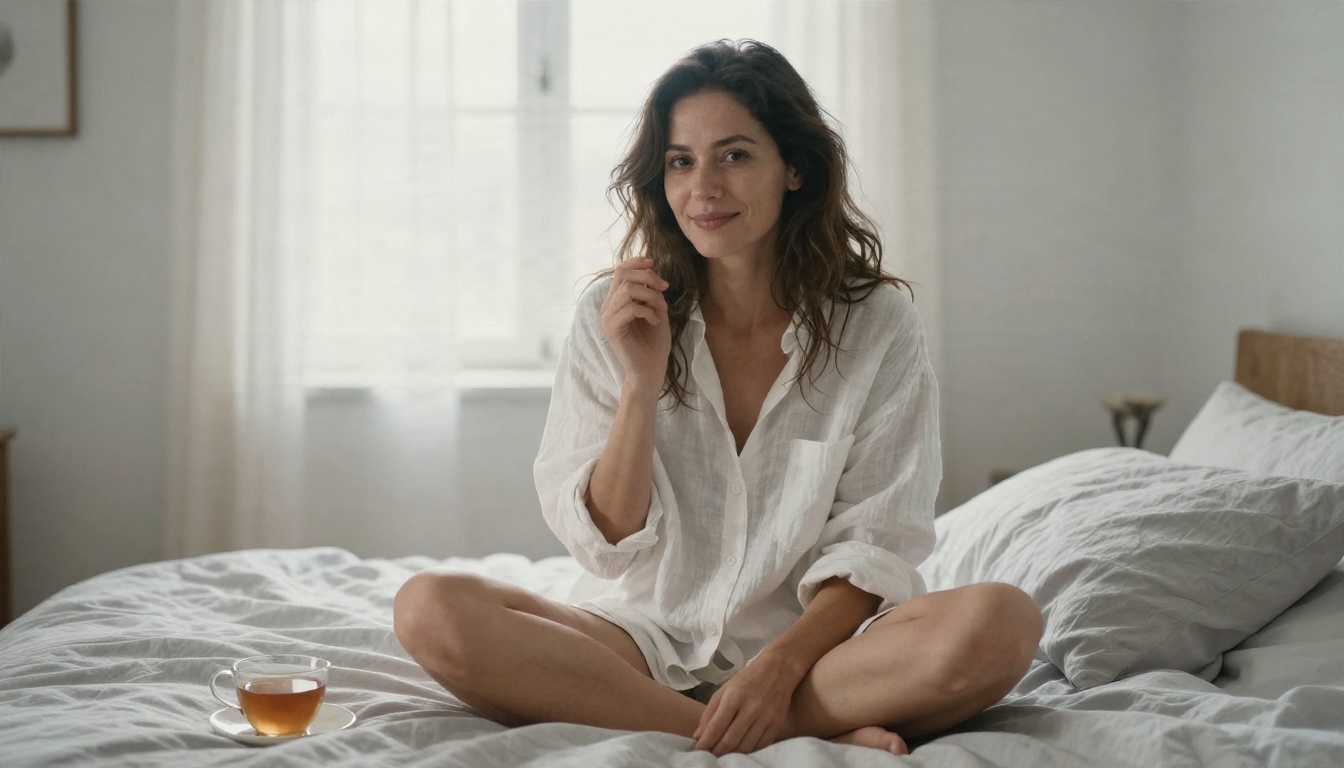
Boudoir editorial template
RAW photo, adult woman in her late twenties, long wavy chestnut hair,
ivory silk robe over champagne satin lingerie, sitting on the edge of a
rumpled linen bed, one knee drawn up, calm confident expression,
boutique hotel suite, sheer curtains, soft golden morning light from the left,
85mm f/1.8 lens, creamy bokeh, visible skin pores, fabric folds,
suggestive but tasteful, photorealistic
The phrase "suggestive but tasteful" is not decoration. It keeps the composition editorial, and it is what most online generators with moderation will accept.
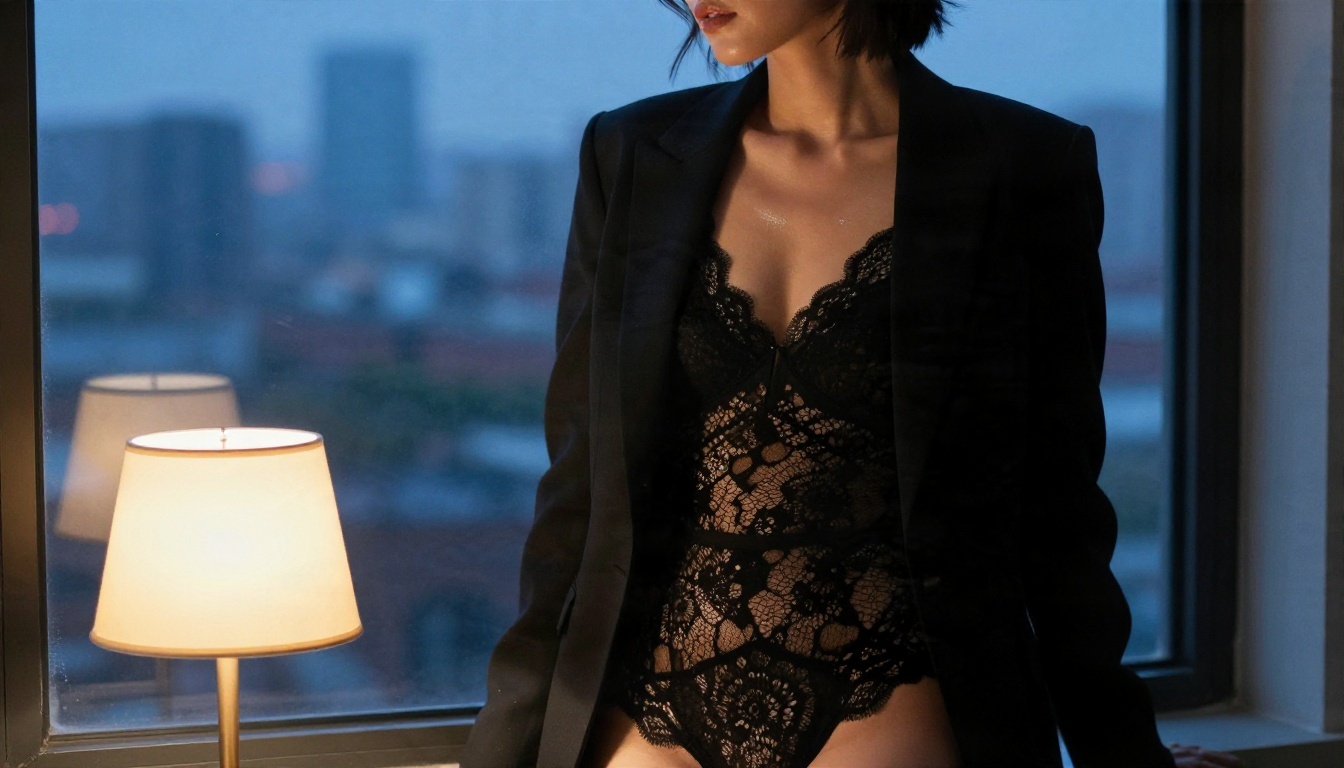
Fashion loft template
RAW photo, adult woman, black lace bodysuit under an open tailored blazer,
standing at a loft window at dusk, city skyline softly blurred,
warm lamp light from the left mixed with cool window light,
confident gaze, subtle skin sheen, 85mm f/1.8 lens,
film grain, fashion editorial, photorealistic
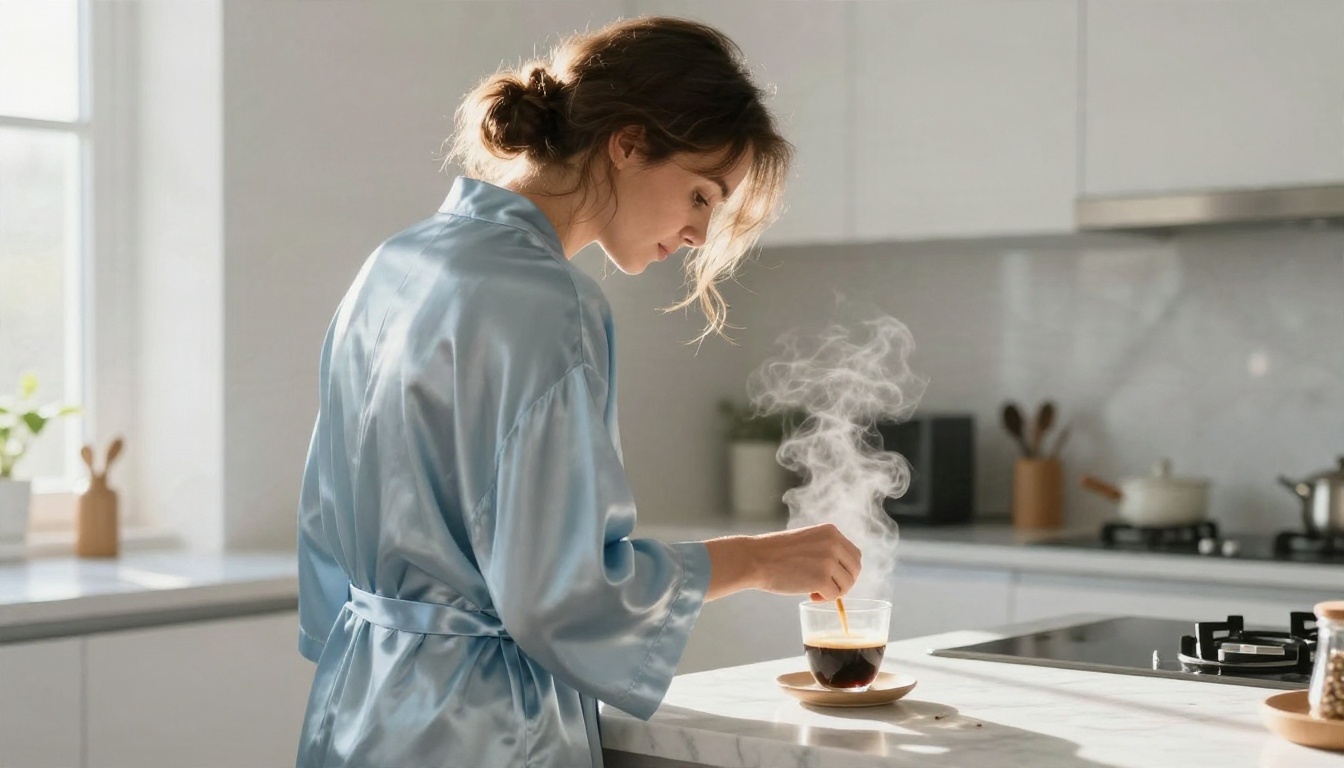
Candid lifestyle template
candid photo from behind, adult woman in a pale blue silk robe pouring coffee,
bright minimalist kitchen, morning sunlight from a side window,
long soft shadows, steam rising, marble countertop, loose bun with stray strands,
35mm f/2.8 lens, slight low angle, film grain, natural, photorealistic
How to adapt any template
Use this short checklist before you press Queue:
Lock the subject first. Age, hair and wardrobe go in the opening words.
Name the light direction. "Soft window light from the left" beats "good lighting".
Add one lens. A single focal length such as 35mm, 50mm or 85mm changes perspective more than ten adjectives.
Ask for texture. "Visible skin pores", "fabric weave" and "film grain" fight the plastic look.
Cap the prompt. Past roughly 75 tokens, older SDXL-style encoders start ignoring the tail.
Negative Prompts That Fix Bad Output
A long negative prompt is not better than a short one. Every term you add also pushes the image away from things you may actually want. Start small and add terms only when you see a specific defect.
Anatomy fixes
extra fingers, missing fingers, fused fingers, deformed hands,
extra limbs, bad anatomy, distorted proportions, long neck,
asymmetrical eyes, cross-eyed
These target the classic failures. If hands still break, lower the number of subjects, keep hands visible but simple (resting on a knee, in hair), or run a hand-focused detail pass instead of lengthening the list.
Skin and quality fixes
plastic skin, airbrushed, waxy, oversmoothed, cartoon, illustration,
3d render, painting, blurry, lowres, jpeg artifacts, watermark, text, logo
"Plastic skin" and "waxy" are the two terms that earn their place in almost every portrait workflow. Pair them with positive terms like "natural skin texture" for a stronger effect.
Over-negating is a trap
Mistake
What happens
Better move
80+ negative terms
Washed-out, low-contrast image
Keep it under 30 terms
Negating "dark" or "shadow"
Flat, shadowless lighting
Describe the light you want instead
Repeating the same term five times
Odd color shifts
One mention is enough
Negating "nsfw" by habit
Model suppresses the look you chose
Remove it and control content in the positive prompt
💡 Test one change at a time with a fixed seed. If you change the prompt, the sampler and the seed together, you will never learn what fixed the problem.
Settings That Change the Result
Prompts get all the attention, but sampler settings quietly decide the final texture. These ranges are common starting points for community SDXL-style checkpoints. Always check the model page for the creator's recommended values, because fine-tunes differ.
Setting
SDXL-style starting point
Flux-style starting point
Steps
25 to 35
20 to 30
CFG / guidance
5 to 7
2.5 to 4
Sampler
DPM++ 2M with Karras scheduler
Euler with simple scheduler
Native resolution
1024 x 1024 or 832 x 1216
Around 1 megapixel
Clip skip
Default unless the model says otherwise
Not used
Resolution and upscaling
Generate near the model's native size, then upscale. Asking an SDXL-style model for a huge 16:9 canvas in one pass tends to duplicate subjects and stretch bodies. A two-stage graph works better: sample at native size, upscale the latent by about 1.5x, then run a second low-denoise pass (0.3 to 0.45) to add pore-level detail.
Seeds and consistency
Fix the seed when you are testing a prompt and randomize it when you are producing variations. If you want the same look across a set, keep the seed pattern, the wardrobe words and the lens identical, and change only the setting. That is how a series of portraits ends up feeling like one photoshoot.
A short photographic vocabulary
Light: "soft window light from the left", "golden hour backlight", "overcast diffused light"
ComfyUI is powerful, and it is also a hobby in itself. The problems people hit most often are practical, not creative.
Hardware and install friction
SDXL-style models are comfortable on a mid-range graphics card, but larger transformer-based models want a lot of VRAM, and a failed run on a small card can crash the whole session. Then there are custom nodes, Python dependencies and version conflicts. Many workflows you download from forums break because one node was renamed or one dependency moved.
Checkpoint hunting and licenses
Finding a checkpoint that fits your look means browsing community sites, reading comment threads, and checking whether commercial use is permitted. Files are large, and a wrong download can waste an hour. Safety also matters: only download model files from sources you trust and prefer the safer tensor format.
The time cost
If you want ten good images, you may spend two hours on setup, one hour on tuning and thirty minutes on the actual generation. For many creators that is the wrong trade, especially when the goal is a clean, suggestive portrait set rather than a technical project.
💡 A reasonable rule: if you enjoy building graphs, stay local. If you want images, go online and keep ComfyUI for the cases where you need a very specific custom node.
Online Alternatives on PicassoIA
If the node graph is not the point for you, a web-based generator removes the install, the VRAM limits and the checkpoint hunt. Here is the order I would try them in for glamour and adult-themed photography, keeping to non-explicit output.
Seedream 4.5 first
Seedream 4.5 is the model I would reach for first. It produces sharp 2K or 4K images from a text prompt, follows long natural-language descriptions well (which is exactly what the templates above are), and includes a safety-checker option that, when disabled, relaxes input moderation so that only illegal content is blocked. Use it responsibly and keep your work in the tasteful, adult-only lane. It also accepts reference images, so you can keep a wardrobe or a look consistent across a series.
PicassoIA Image Editor Pro for iteration
PicassoIA Image Editor Pro is where you refine. Upload a generated image and describe the change in plain language: swap the robe color, change the background, soften the light. It is unlimited, with no per-edit cap and no daily quota, so you can try dozens of variations without watching a counter. Most edits finish in a few seconds.
Run your own workflow online
If you already have a ComfyUI graph you like, Any ComfyUI Workflow lets you upload a workflow exported in API format and run it in the cloud, choosing WebP, JPG or PNG output and a quality level from 0 to 100. Seeds randomize automatically, so every run gives a fresh result. It is a practical bridge: design locally if you like, run anywhere.
Layered control similar to a ComfyUI ControlNet graph
💡 Each model reads prompts differently. Write one strong template, run it across two or three models, and keep the one whose skin texture and lighting match what you pictured.
How to Get Similar Results on PicassoIA
This is the workflow I would use to turn a ComfyUI-style template into a finished image with Seedream 4.5.
Open the model page and paste your prompt into the prompt field. It accepts up to 4,000 characters, so you can keep the full photographer's shot list from the templates.
Choose the size. Pick 2K for fast drafts or 4K when you want a print-ready final. The model does not support 1K.
Set the aspect ratio. Use 16:9 for wide editorial frames, 3:4 or 2:3 for portraits, or 1:1 for social posts.
Move your negatives into the positive prompt. Instead of a negative box, write "natural skin texture, sharp focus, five fingers on each hand, clean background, no text or watermark".
Try batch mode. Set sequential generation to auto and raise the maximum images to get a set of related shots, up to 15 in one run.
Add references when you need consistency. Upload one to fourteen images to keep a look, outfit or setting across a series.
Refine in Image Editor Pro. Send your favorite result to PicassoIA Image Editor Pro and adjust details with plain-language edits.
Use one lens per prompt and one light direction per prompt.
If an image looks too smooth, add "visible skin pores, film grain" and remove words like "flawless" or "perfect".
If hands are weak, pose them simply and let the framing hide complicated finger positions.
Do your testing in 2K, then regenerate the winner in 4K.
Quick comparison with a local ComfyUI run
Task
Local ComfyUI
Online on PicassoIA
Setup
Install, nodes, checkpoints
Open a page
Hardware
GPU with enough VRAM
None
Negative prompt
Dedicated box on most SDXL graphs
Written as positive descriptions
Iteration
Re-queue the graph
Unlimited edits in Image Editor Pro
Custom graphs
Full control
Upload API-format JSON to Any ComfyUI Workflow
Mistakes That Waste Your Time
A few errors show up again and again in forum threads and screenshots.
Copying a prompt from a different model family. A tag list tuned for SD 1.5 gives muddy output on a natural-language model.
Stacking five LoRAs at full strength. Keep each between 0.4 and 0.8 and add them one at a time.
Skipping the second pass. One sampling pass at native size rarely has pore-level detail.
Ignoring wardrobe physics. "Silk" and "satin" with no light description often render as flat color. Mention the sheen and the light together.
Mixing styles in one prompt. "Photorealistic" and "anime" in the same line produce neither.
Try Your Own Prompts Today
You now have four templates, a short negative prompt that actually earns its place, sampler ranges to start from and a faster route for people who would rather make images than maintain a node graph. Pick one template, change the setting and the light, and run it three times with different seeds. Keep the best result, then refine it in an editor instead of rewriting the whole prompt.
If you want the quickest path, open Seedream 4.5, paste the boudoir or beach template, and generate a 2K draft. Then bring the result into PicassoIA Image Editor Pro for unlimited edits. When you are ready to try more styles, browse every available model at picassoia.com/en/all-models and see which one gives your prompts the look you had in mind.