Something changed when GPT Image 2.0 arrived. Text-to-image generation stopped feeling like a guessing game and started feeling like having a conversation with a production-grade art director. You describe a scene once, in plain language, and the model returns something that matches your intent with a precision that most generators simply cannot hit. No cryptic prompt syntax, no fighting with style tokens, no five rounds of trial and error to get the background color right. This article covers exactly what GPT Image 2.0 does differently, how to run it on PicassoIA, and how to take those outputs from "good" to genuinely production-ready.
What GPT Image 2.0 Actually Does
The name "GPT Image 2.0" is how most people search for OpenAI's latest image model, GPT Image 1, the successor to DALL-E 3 that shipped with native multi-modal understanding baked in. It is not simply a generative diffusion model with extra steps. Because it shares an architecture backbone with GPT-4o, it reads your prompt the same way it reads any natural language input: with context, intent, and reference to the whole sentence rather than just individual keywords.
That distinction is bigger than it sounds. Older image generators tokenize prompts into keywords and weight them independently. GPT Image 2.0 reads the sentence as a unit. "A ceramic mug on a wooden table, morning light from the left, no shadow on the right side" produces exactly that. Every clause lands.
Precision That Older Models Missed
The headline capability is instruction-following accuracy. Ask the model to place an object in the upper-left quadrant of the frame, and it places it there. Ask for a transparent background with an opaque object, and you get a clean cutout. Request that text appears in the image, and the letters are legible, not blurry approximations.
This matters most in commercial work. A product shot where the packaging text is unreadable is useless. A brand asset with a background that will not key cleanly costs time in post. GPT Image 2.0 removes both problems from the equation by treating spatial and structural instructions as first-class requirements rather than soft suggestions.
💡 Tip: When you need text inside an image, write it in quotes within your prompt. The model treats quoted strings as literal copy to render, which dramatically improves accuracy.
Three Quality Tiers That Actually Differ
GPT Image 1 on PicassoIA exposes three quality settings: low, medium, and high. These are not cosmetic labels.
| Setting | Best For | Rendering Detail | Speed |
|---|
| Low | Concept drafts, rapid iteration | Basic composition, simple textures | Fastest |
| Medium | Social media, blog headers, presentations | Good detail, clean edges | Balanced |
| High | Print, product catalogs, client deliverables | Fine texture, hair, micro-detail | Slower |
Running on low during ideation and switching to high for your final pick is the smartest workflow. You burn through variations fast, then invest render time only on the winner.
How to Use GPT Image 1 on PicassoIA
PicassoIA makes GPT Image 1 accessible without any code. You bring your own OpenAI API key, and the platform handles the rest. Here is the step-by-step flow.
Setting Up Your First Generation
- Navigate to the GPT Image 1 model page on PicassoIA.
- Paste your OpenAI API key into the Openai Api Key field. PicassoIA does not store keys between sessions.
- Write your prompt in plain English. No special syntax required.
- Choose your aspect ratio: 1:1 for social posts, 3:2 for landscape headers, 2:3 for portrait formats.
- Set quality based on your use case (low for drafts, high for finals).
- Select output format: PNG for transparent-background assets, JPEG or WebP for photos and backgrounds.
- Set number of images between 1 and 10. Running 5 to 10 at once is the fastest way to compare compositions before committing.
- Click generate and review your batch.
💡 Tip: Use background: transparent when generating product assets or logos. You get a clean PNG with no background removal step needed afterward.
Parameters Worth Knowing
Beyond the basics, two parameters separate casual use from professional output:
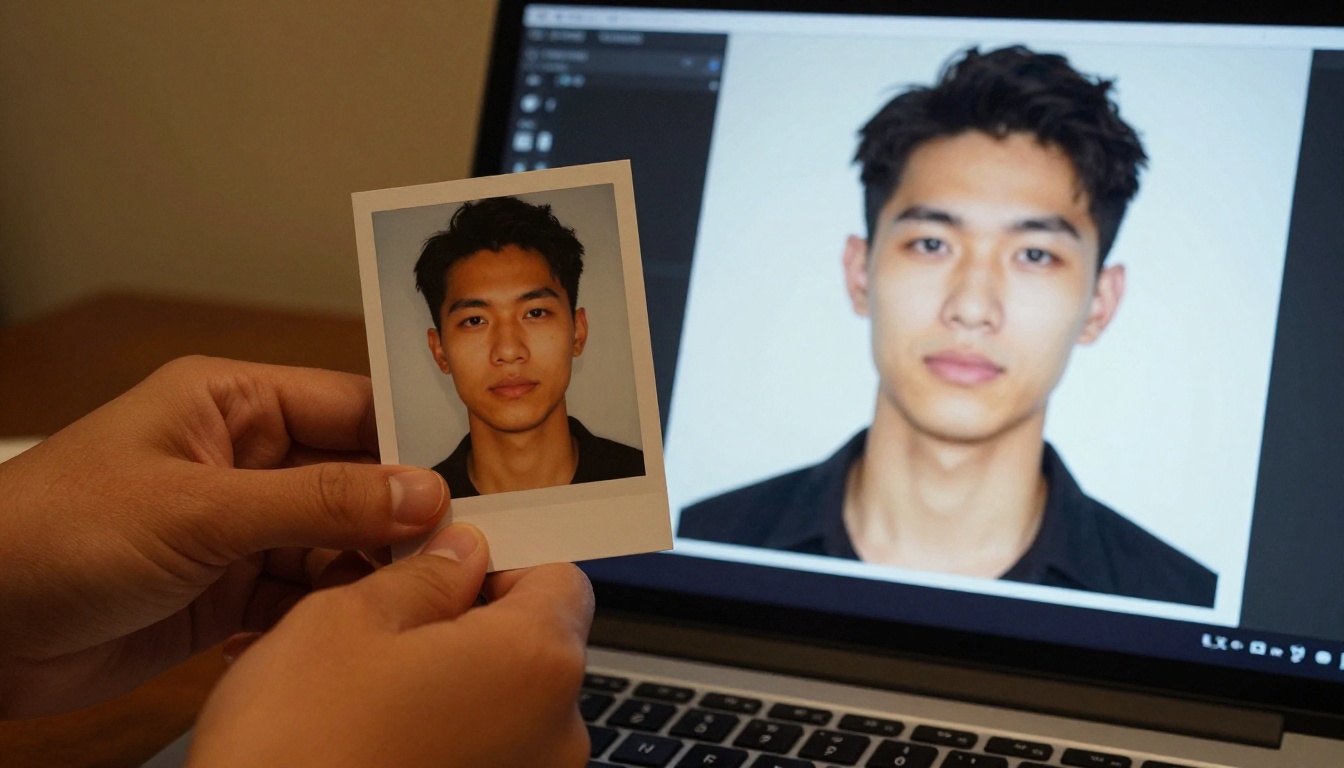
Input Images. You can feed one or more source images to the model as reference. Use this to match a specific visual style, replicate a color palette from a brand photo, or generate a new portrait that mirrors the facial features of a reference shot. Set input fidelity to high when you need the generated face to closely resemble the original.
Output Compression. Controls file size on WebP and JPEG exports. 90 is the default and gives excellent quality at a manageable file size. Drop to 70 for web pages where loading speed matters. Keep it at 100 for print-ready exports.
Writing Prompts That Work
GPT Image 2.0's prompt-following precision is an asset only if your prompts are specific. Vague inputs still produce vague outputs. The good news: you do not need to learn a special syntax. You need to write clearly.
Short vs. Long Prompts
Short prompts work when the subject is self-explanatory: "A red apple on a white plate, soft natural light, top-down view." The model fills in reasonable defaults for everything you leave unspecified.
Long prompts work when you have strong opinions about composition, lighting, or detail: "A glass of iced coffee on a dark walnut café table, condensation on the glass, late afternoon golden light entering from the upper left, shallow depth of field with background chairs blurred, seen from a slight low angle as if the viewer is seated across the table."
Both approaches are valid. The pattern to follow is: subject + environment + lighting + camera angle + mood. Hit all five and your images will consistently land closer to your intent.
Using Reference Images
Reference images are one of the most underused features in GPT Image 1. They let you anchor the generation to a visual source rather than describing everything in words.
Practical applications:
- Style matching: Feed a brand photoshoot as a reference and generate new scenes that maintain the same color grading and mood.
- Face consistency: Use a portrait as input to generate the same person in different settings.
- Object replication: Feed a product photo and ask the model to place the product in a new environment.
💡 Tip: When using multiple reference images, describe the contribution of each in your prompt. "Match the lighting from the first image and the product shape from the second" gives the model clear direction instead of letting it average across all inputs.
GPT Image 1 vs Flux Schnell
For most users, the practical choice on PicassoIA comes down to two models: GPT Image 1 and Flux Schnell. They serve different purposes.
Speed or Precision
Flux Schnell generates in under 5 seconds with no API key required and no usage caps. It supports 11 aspect ratios and delivers clean, usable images fast. It is the right tool for rapid iteration, placeholder assets, and any workflow where volume matters more than micro-detail.
GPT Image 1 takes longer and requires your own API key, but it delivers something Flux Schnell cannot: granular instruction-following, readable in-image text, transparent backgrounds, and multi-image reference input. It is the right tool for production assets, client work, and anything going to print.
Which One to Pick
The practical workflow many creators use: prototype with Flux Schnell, finalize with GPT Image 1.
Real Results: What You Can Build
The capability gap between GPT Image 2.0 and previous generations closes the distance between "AI-generated" and "production-ready" in several specific domains.
Product Photography
Traditional product photography requires a physical setup, a photographer, lighting equipment, and post-processing time. With GPT Image 1, you describe the product in context and generate the shot.
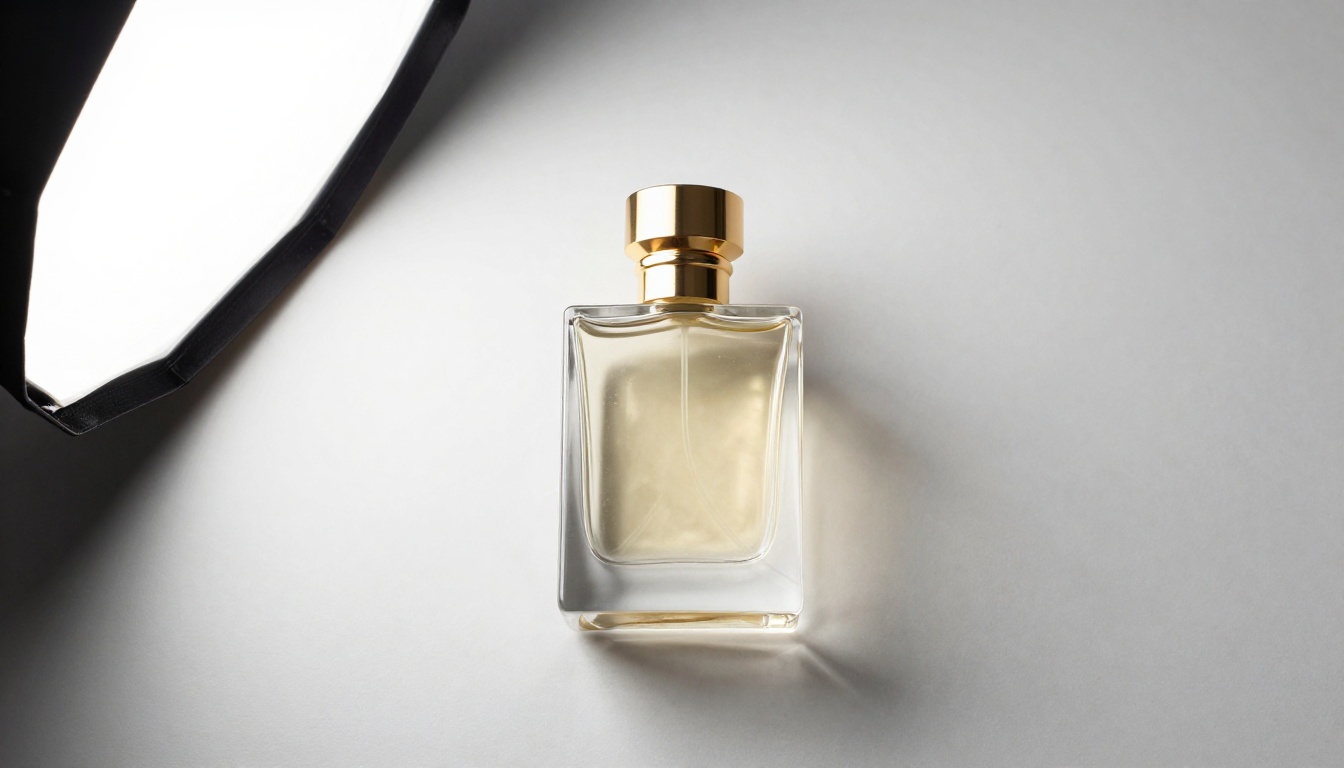
For e-commerce, the transparent background feature is particularly valuable. Generate the product isolated on nothing, export as PNG, and it drops directly into any page layout without masking work. Batch generate 10 variations: different angles, surfaces, lighting setups. Pick the three that work and discard the rest. The whole process takes minutes, not days.
What works well for product shots:
- Describing the surface material (marble, wood, linen, concrete)
- Specifying the light source direction and quality (softbox from upper left, window light, rim light)
- Requesting no background or a specific solid color
- Using a reference image of the actual product when available
Campaign Visuals
Marketing teams spend a significant portion of budget on custom photography for campaigns. GPT Image 2.0 does not replace a photographer for hero lifestyle shots where brand identity depends on authenticity, but it covers a large portion of the secondary visual work: scene-setting headers, supporting graphics, social post backgrounds, and email banner imagery.
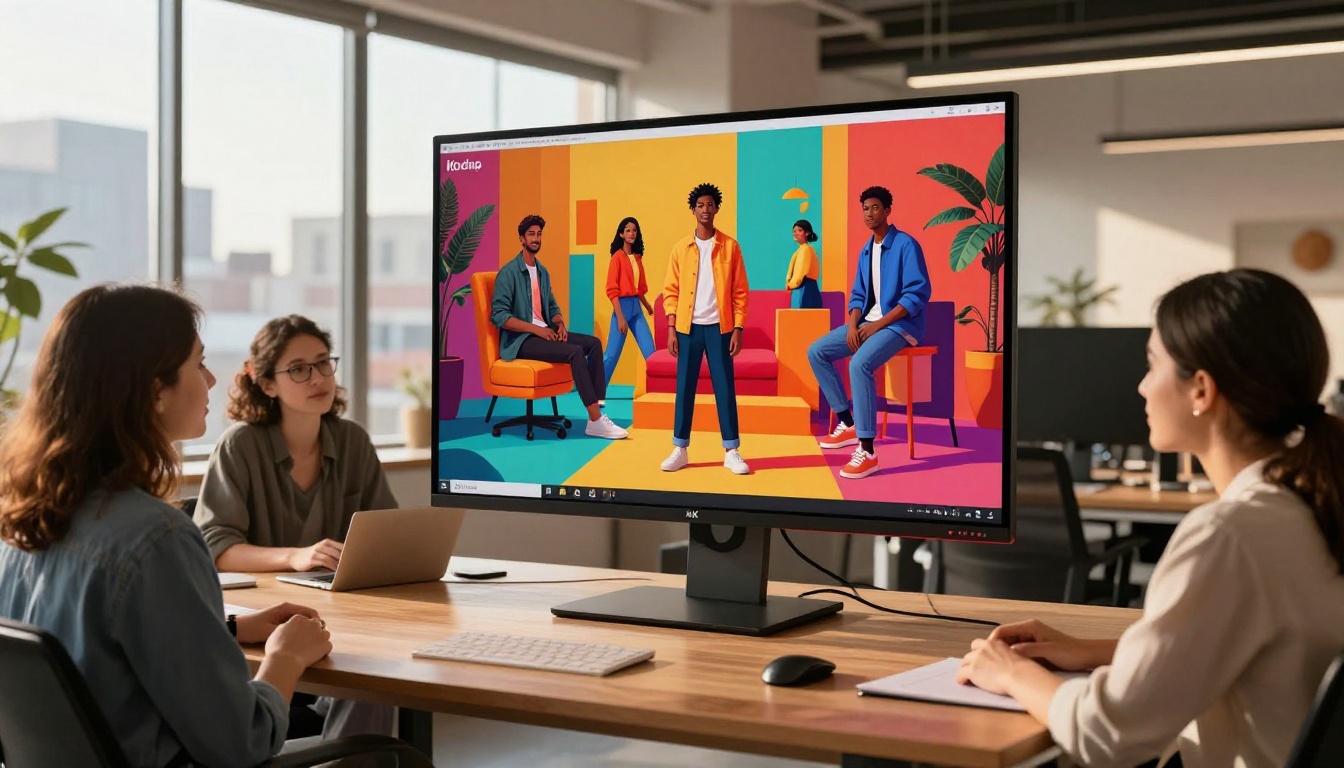
The ability to request specific color palettes, moods, and compositional ratios without a shoot makes iteration across A/B variants fast. Write one master prompt describing the scene and mood, then vary a single element (background color, model clothing, time of day) across batches. You get 10 variations per run and can run as many times as the task demands.
Concept Mockups and Prototypes
For designers, art directors, and product teams, GPT Image 2.0 fills the gap between wireframe and polished visual. You can mockup a UI inside a device frame, visualize a packaging concept before sending to print, or test a spatial layout for a retail environment. The model handles architectural interiors, branded environments, and stylized still-life compositions with equal facility.
💡 Tip: For UI mockups inside device frames, describe the device (silver MacBook Pro, 14-inch, lid open at 110 degrees, on a white desk) and describe the screen content separately. The model composes both cleanly.
Upscaling Your Output
GPT Image 1 generates at a quality level that works well for digital use. For print, large-format display, or any context where pixel density matters, you will want to run your output through a super-resolution pass.
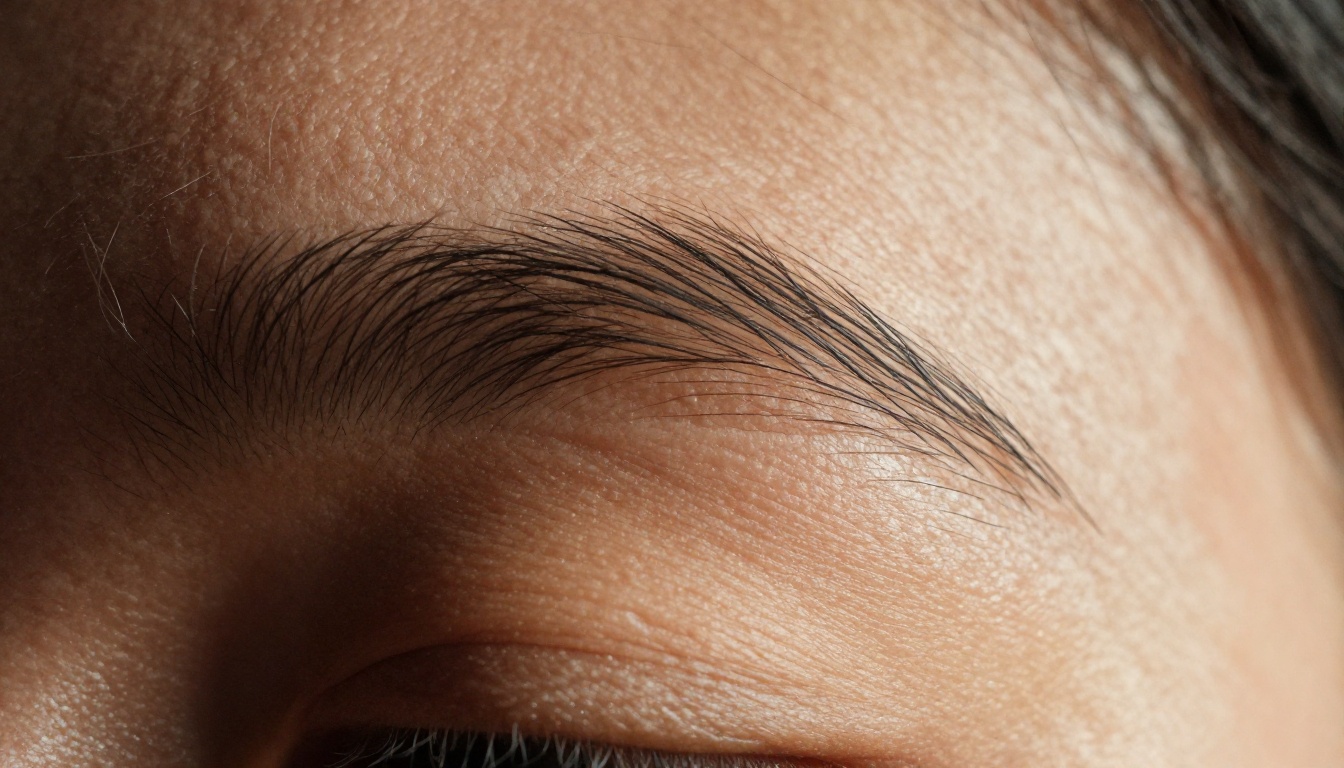
When to Upscale
Not every generated image needs upscaling. Social media posts, email imagery, and web headers typically do not require it. Upscale when:
- The image goes to print (brochures, posters, product packaging)
- It is displayed at large format (digital signage, banner ads above 1200px wide)
- Close inspection of fine detail matters (hair, fabric texture, text legibility)
- You are cropping into a portion of the image and need the source resolution to cover it
The Right Tool for Each Job
PicassoIA offers several super-resolution models, each suited to different needs:
Clarity Pro Upscaler by philz1337x is the go-to for photorealistic outputs. It adds genuine texture and detail during the upscale pass rather than just interpolating pixels, which means hair, skin, and fabric come out sharper than the source.
Image Upscale by Topaz Labs supports up to 6x magnification, the highest available on the platform. If you need extreme scale, start here.
Real ESRGAN handles 4x upscaling and is particularly good at recovering detail in compressed images. If you exported your GPT Image 1 output as a high-compression JPEG and lost some quality, Real ESRGAN recovers more of it than interpolation-based alternatives.
Recraft Crisp Upscale sharpens edges without introducing halos, which makes it a strong choice for product shots and graphics where clean lines matter more than organic texture.
P Image Upscale processes in about one second, making it the fastest option for light upscaling passes when speed matters more than maximum quality.
💡 Tip: For print work, the recommended flow is: generate at high quality in GPT Image 1, export as PNG at 100% compression, then run through Clarity Pro Upscaler at 2x. You get a clean, high-resolution file ready for the print vendor with no manual retouching needed.
Start Creating Your Own Images
The gap between what you can imagine and what you can actually produce closed significantly with GPT Image 2.0. Transparent backgrounds, legible in-image text, reference-image fidelity, batch generation of 10 variants per run: these are not incremental improvements. They are the features that turn a generator into a practical production tool.
The fastest way to see what it can do for your specific use case is to run it. Head to GPT Image 1 on PicassoIA, plug in your API key, describe one image you have been trying to create, and generate a batch of 5. Adjust the prompt based on what comes back. Most users land on something usable within two or three iterations.
If you want to compare outputs without a key, Flux Schnell is available immediately with unlimited generations and no setup. Use it to build your prompting instincts, then bring those prompts into GPT Image 1 when precision matters.
Both models are live at picassoia.com/en/all-models, alongside 90+ other text-to-image options, every super-resolution tool listed above, and a full suite of video, audio, and editing models. One platform, every tool you need, no switching between services.


