A demo video used to mean a screen recorder, a borrowed microphone, a weekend of retakes and an editor who left the company before you needed a fix. Today you can create a demo video with AI in an afternoon: write a tight script, record the app once, generate a natural voiceover, add a talking presenter if you want one, and let text prompts handle the edits. The catch is that the market is crowded, pricing pages disagree with each other, and half the tools do only one part of the job. This article breaks the process into steps, shows which type of tool fits which step, and puts real numbers on what it costs.
What an AI Demo Video Actually Is
An AI demo video is a short film that shows how a product works, where at least one stage of production (script, voice, visuals, editing or translation) is handled by a model instead of a person. Most good ones are a hybrid: real screen footage of your app, plus AI voice and AI-assisted editing on top.
Three Types of Demo
Not every demo needs the same ingredients. Pick the type before you pick a tool.
| Demo type | Best for | Main ingredients | Typical length |
|---|
| Screen walkthrough | SaaS, mobile apps, dashboards | Screen recording, AI voiceover, captions | 45 to 120 seconds |
| Presenter demo | Sales outreach, onboarding | Talking avatar or lip-synced presenter, screen inserts | 60 to 90 seconds |
| Concept teaser | Launches, ads, app store previews | AI-generated video clips, music, short voice line | 15 to 30 seconds |
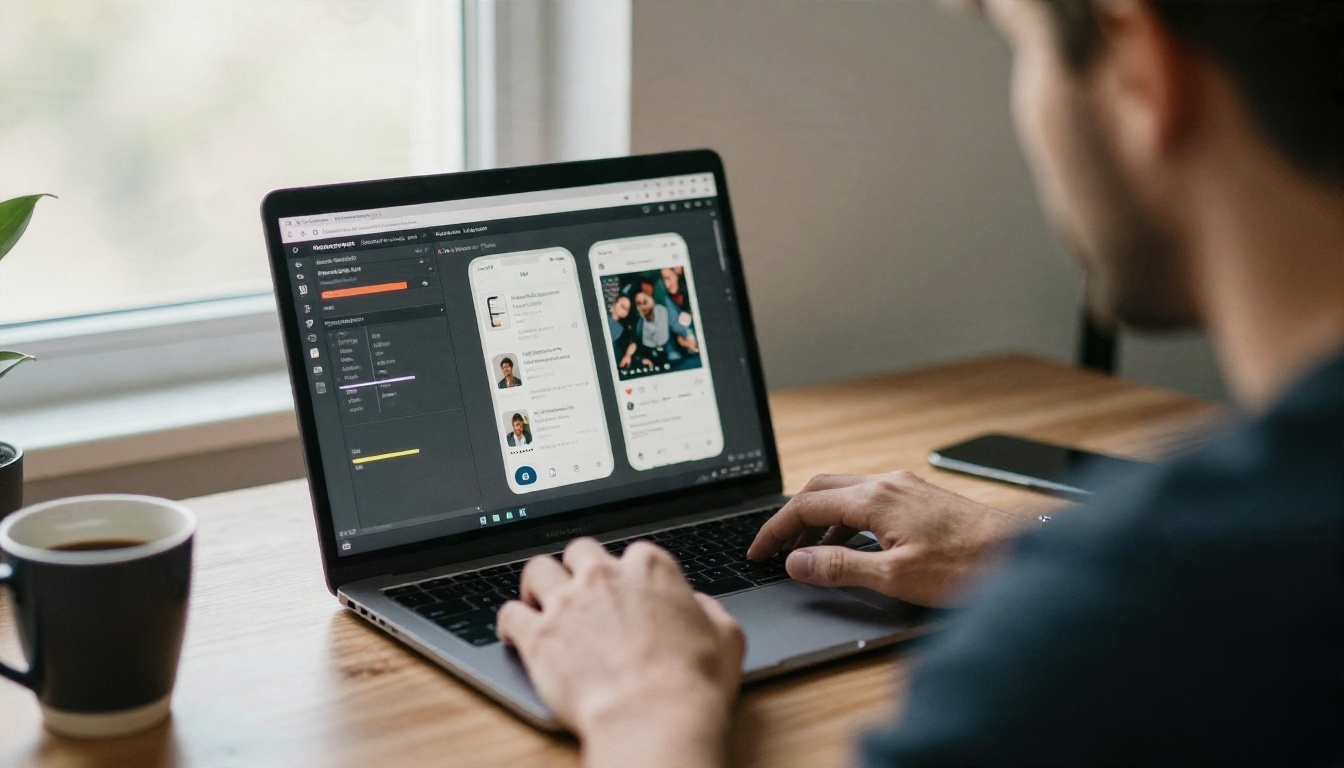
A screen walkthrough is the workhorse. If your product has a user interface, viewers want to see that interface, not a stock clip of someone typing. Generated video is best used around the edges: an opening scene, a scene that sets up the problem, or a closing shot.
Who Benefits Most
- Solo founders who need a landing page video before the product has a marketing budget.
- Support and success teams who answer the same "how do I do this" question twenty times a week.
- Agencies producing demos for clients in several languages.
- Freelance developers who want a portfolio piece that looks like a real launch.
💡 Tip: The best demo video is rarely the longest. A viewer who gets one clear outcome in 60 seconds will watch more than a viewer who gets a tour of every menu in five minutes.
Write the Script First
Every AI tool in the pipeline is sensitive to input quality. A rambling script produces a rambling voiceover, and no model can rescue it. Spend your first twenty minutes on words, not visuals.
Structure That Holds Attention
A reliable demo script has four beats:
- The problem in one sentence, in the viewer's words, not yours.
- The outcome you promise, stated early so people know why to keep watching.
- The path: three or four screens that show the outcome being reached.
- The next step: one clear action, such as "start a free trial" or "book a call."
Write at roughly 150 words per minute of spoken audio. That is the pace most text-to-speech models handle well, and it leaves room for pauses while the viewer's eyes follow the cursor.
A Sample 60-Second Outline
| Seconds | On screen | Voiceover purpose |
|---|
| 0 to 8 | Short generated opening clip or app home screen | State the problem |
| 8 to 20 | Main feature in action | Show the outcome |
| 20 to 40 | Two supporting features | Prove it is easy |
| 40 to 52 | Result screen, report or export | Show the payoff |
| 52 to 60 | Logo and call to action | Tell viewers what to do next |
You can use a language model from the large language models section to tighten a draft, cut filler and keep each sentence under 20 words. Paste in your rough notes, ask for a 140-word script written for the ear, then read it aloud once yourself. If you stumble on a sentence, the voice model will too.
Record the App Screen
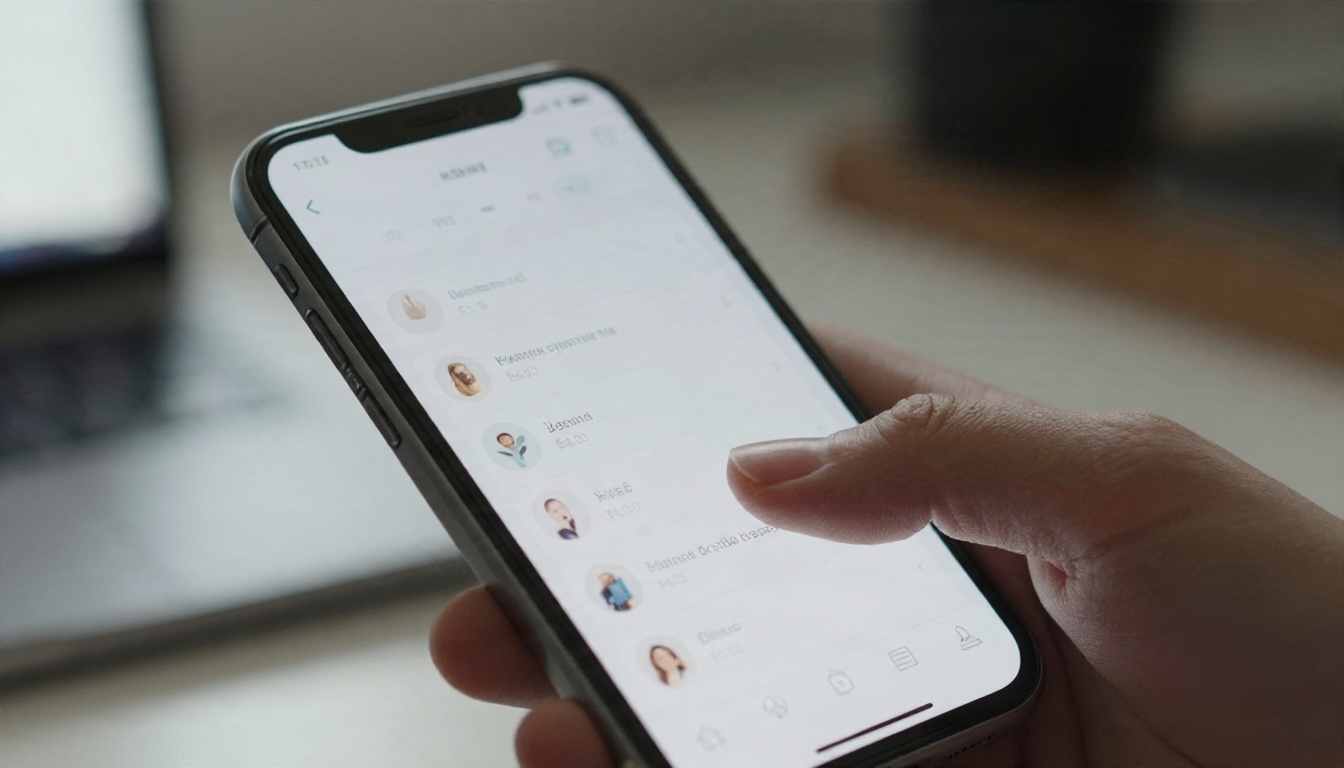
The screen recording is the part AI should not replace. Real footage proves the product exists and works.
Clean Up Before Recording
Small preparation steps save hours of editing:
- Use demo data that looks realistic: real-sounding names, believable numbers, no "test test" entries.
- Close notifications and hide bookmarks, personal tabs and unrelated icons.
- Set the resolution to 1920 by 1080 for desktop or record the phone natively at its highest setting.
- Move the cursor slowly. AI editors can add zooms and highlights later, but they cannot fix a cursor that darts around.
- Record in short takes, one per script beat, so you can swap a single beat without redoing everything.
Generate B-Roll With AI Video
Where AI video models shine is the material around the product. Instead of a stock clip, generate a short scene that matches your story: a founder frustrated with a spreadsheet, a field technician checking a tablet, a shop owner reading a notification.
Models worth testing on PicassoIA for this job:
- Kling v3 Video for cinematic motion and strong prompt adherence.
- Veo 3.1 Fast when you want clips with built-in native audio.
- Sora 2 for scenes with synced sound and natural character movement.
- Seedance 2.5 for longer clips, which helps when one scene needs more than a few seconds.
- Wan 2.5 I2V Fast to animate a still image, such as a product screenshot placed in a realistic setting.
💡 Tip: Keep generated clips short, two to six seconds each. Short clips hide small visual imperfections, cost less to produce and keep the pace brisk.
Add Voiceover Without a Studio
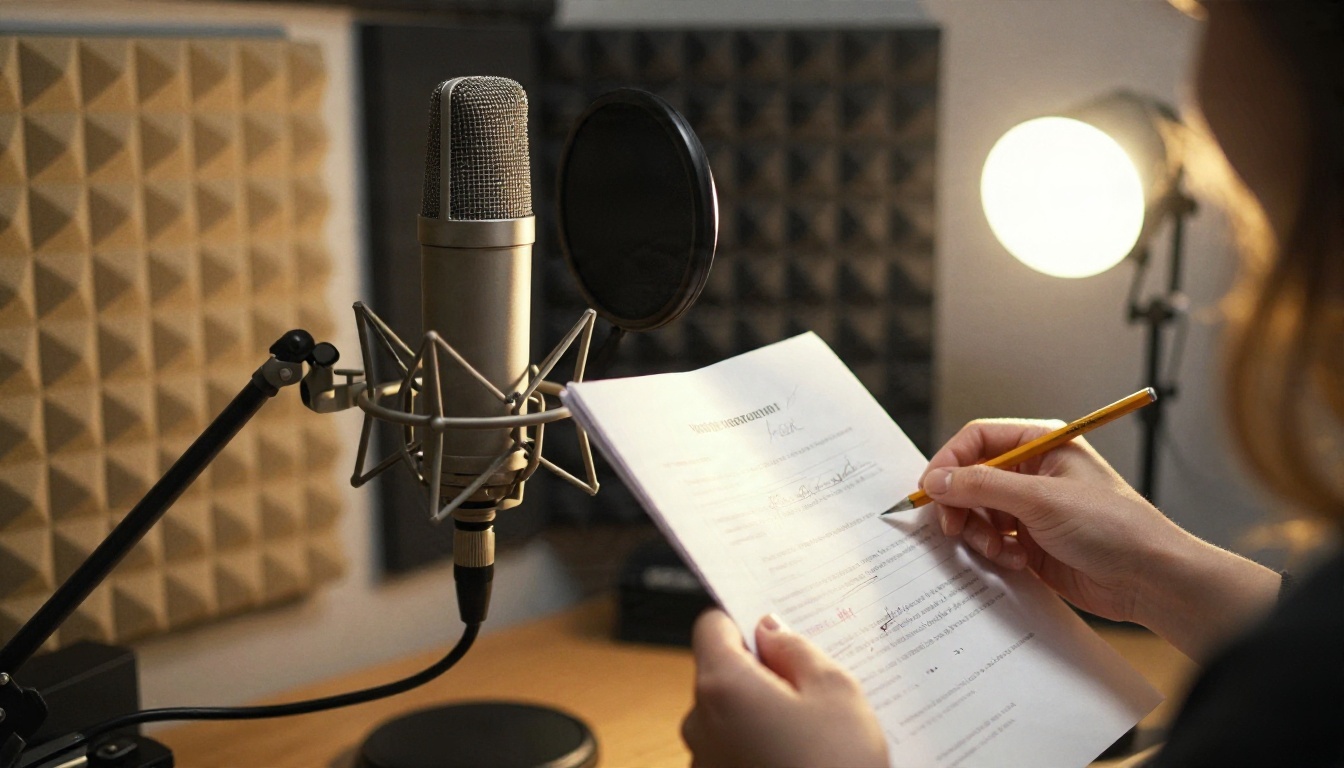
A good voice is what separates a demo that feels professional from one that feels like a school project. It is also the cheapest upgrade, because modern text-to-speech is very good.
Pick the Right Voice Model
Different voice models suit different demos. Here is a quick comparison of options available in the text-to-speech collection.
| Model | Good for | Notes |
|---|
| Speech 2.8 HD | Polished, studio-style narration | Best when audio quality is the priority |
| Speech 2.8 Turbo | Fast drafts and quick revisions | Good for testing script changes |
| ElevenLabs V3 | Expressive, emotional delivery | Suits launch and story-driven demos |
| ElevenLabs v2 Multilingual | Multiple languages from one script | Handy for localized versions |
| Gemini 3.1 Flash TTS | Wide choice of voices and languages | Useful when you want to audition many voices |
| Realtime TTS 2 | Natural-language direction of tone | Describe how the line should sound |
Three habits make AI voiceover sound human:
- Write numbers and product names the way you say them. If the brand name is unusual, spell it phonetically in the script.
- Add punctuation for breath. Commas and periods are your pause controls.
- Generate each script beat as its own audio file. If one sentence sounds off, you regenerate ten seconds, not the whole track.
Sync a Talking Presenter
Some demos work better with a human face, especially outreach videos where trust matters. You do not need a camera: a single portrait photo and an audio file are enough for several lip-sync models.
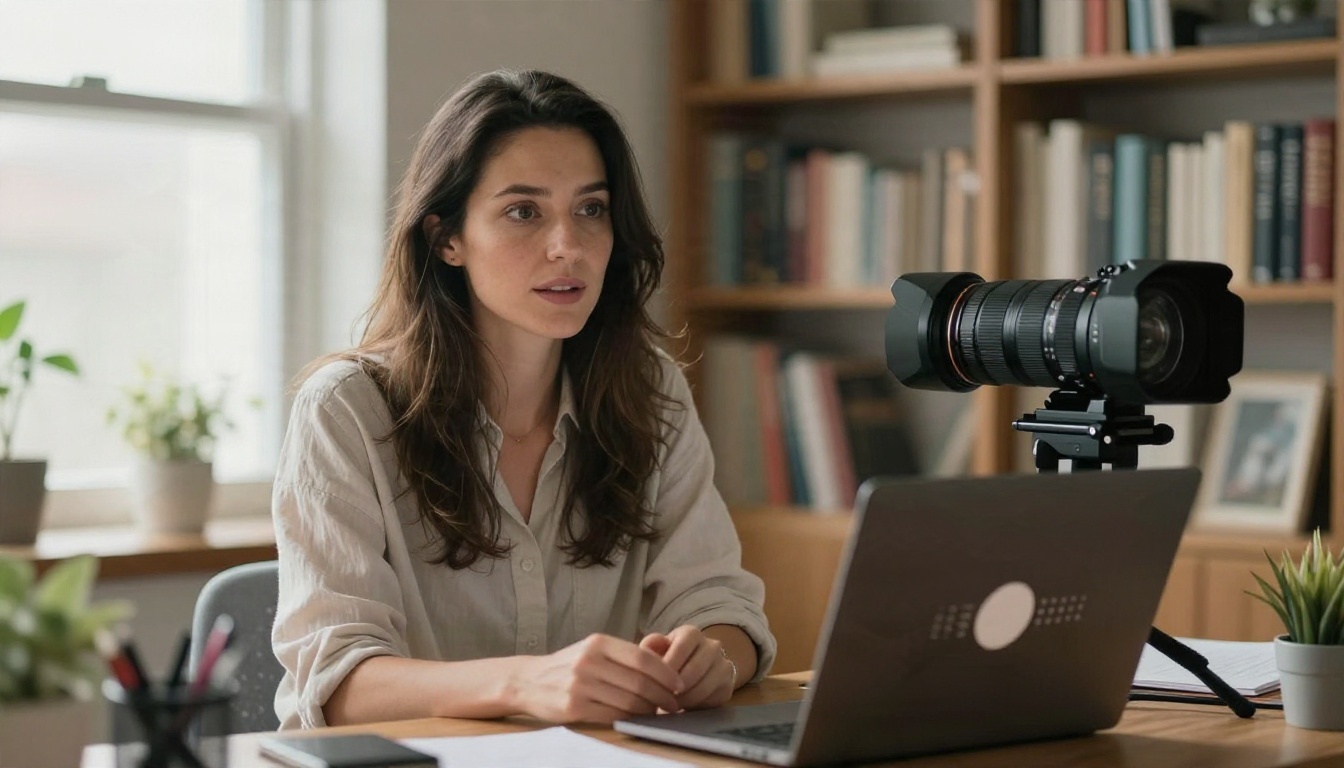
- Omni Human 1.5 turns a photo plus your voice track into a realistic talking video.
- Fabric 1.0 makes a still photo talk with natural mouth and head movement.
- P Video Avatar is built for talking avatar clips.
- Lipsync Precision and Lipsync Speed re-sync the mouth of an existing video to a new audio track, which is ideal when you re-record a line.
- React 1 adds realistic lip movement to any video clip.
Only use a presenter for the first and last ten seconds. The middle of the demo belongs to the product screen.
💡 Tip: Only animate a photo of yourself, or of someone who has agreed to it. Using a real person's likeness without permission can cause legal and trust problems that no demo is worth.
Edit and Polish the Cut
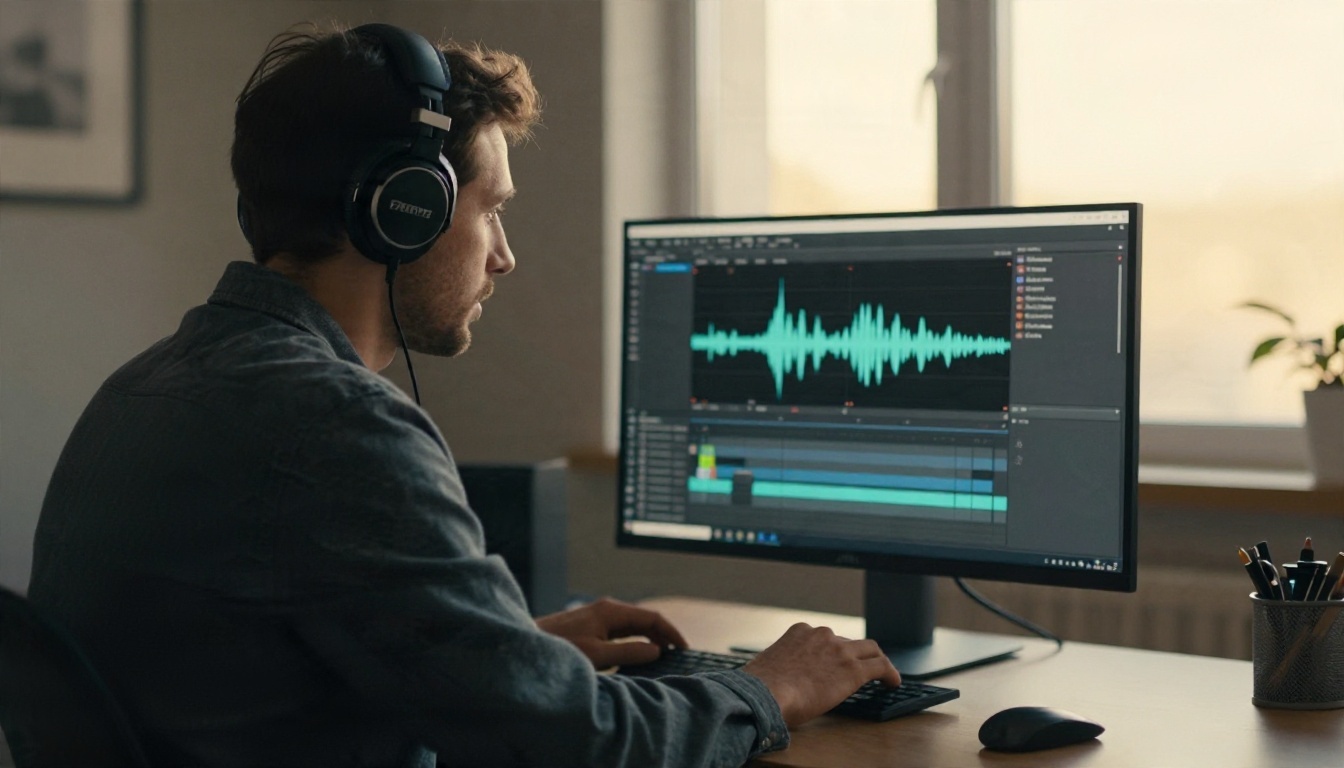
Editing is where AI saves the most time, because the old workflow of scrubbing a timeline frame by frame is replaced by describing what you want.
Fix Mistakes With Text Edits
Text-driven video editors let you upload a clip and ask for a change in plain language, such as removing a distracting object, changing the background, or restyling the look.
- P Video Edit edits a video with a simple text prompt.
- Lucy Edit 2 handles text-based changes to existing footage.
- Wan 2.7 Videoedit is another option for prompt-based editing.
- Video Erase Object removes a stray notification, a personal tab or a passing person from a clip.
- Video To Sfx v1 adds synced sound effects, like soft clicks and whooshes, to match on-screen movement.
A practical order of operations: cut the footage to the script first, drop in the voiceover second, fix visual problems third, and add sound effects and music last. Doing it in a different order means redoing work.
Reframe for Every Platform
One demo rarely lives in one place. The landing page wants 16:9, social feeds want 9:16 or 1:1, and app store previews have their own rules. Reframe Video changes the aspect ratio while keeping the important part of the frame in view, so you export once and publish everywhere.
If you sell internationally, Video Translate and Dubbing can produce translated versions of the same demo. That is often the single best return on a finished video: one production effort, five markets.
The Real Cost of Demo Videos
Pricing is where most articles go vague. The honest answer is that costs depend on three things: how many videos you make, how long they are, and whether you pay per seat or per output.
Price Comparison Table
These are ballpark figures based on what vendors and comparison sites were showing at the time of writing. Published numbers disagree with each other and change often, so treat them as a range and check each vendor's current pricing page before you commit.
| Approach | Typical cost per finished video | What you get |
|---|
| Traditional studio | About $2,000 to $7,500 | Scripted, filmed, edited by a crew |
| Freelancer | About $300 to $1,000 | One editor, one voice artist, a few revisions |
| Subscription AI demo tool | Roughly $18 to $60 per month, per seat | Screen recording, AI voice, captions, limited exports |
| Avatar-led video platform | Roughly $20 to $30 per month at entry level, more for teams | Presenters, templates, translation, usage caps |
| Pay-as-you-go AI models | Cents to a few dollars per clip or voice file | Full control, no seat fees, you assemble the pieces |
One editor's estimate put an AI-assisted finished video at around $30 to $300 once you count your own time and the tools, which is a fraction of freelancer pricing.
Hidden Costs
The monthly fee is not the whole bill. Watch for:
- Watermarks on free tiers that force an upgrade the day you want to publish.
- Minute caps on voice or avatar generation that run out mid-month.
- Per-seat pricing that triples the cost when a teammate needs access.
- Export limits at 720p or 1080p, with 4K locked behind the top plan.
- Your own time. A tool that is $20 cheaper but costs three extra hours is not cheaper.
💡 Tip: Make one real demo during a free trial before you subscribe. Use the finished export, not the pretty preview, to judge quality.
Dedicated online demo tools bundle the steps above into one interface. They are convenient, but they trade flexibility for speed. Here is how the main categories compare.
| Category | Examples | Strength | Weakness |
|---|
| Screen-recording led | Arcade, Descript | Built around real product UI, easy zooms and captions | Little generative video, limited presenter options |
| Avatar led | Synthesia, HeyGen | Fast presenter videos in many languages | Product screens are secondary, caps on minutes |
| Generative video | Runway and similar | Striking visual scenes and effects | Not designed for walkthroughs of software |
| Model-by-model on PicassoIA | Text-to-speech, lip-sync, video and editing models in one place | Pick the best model per step, pay for what you use | You assemble the workflow yourself |
Several comparison pages written by vendors claim their own category wins for software demos, so read them with that in mind. The pattern that holds across independent opinions is simple: if your demo is mostly UI, start with a screen recording and add AI voice; if it is mostly a person talking, start with an avatar; if it is mostly mood and story, start with generated video.
When a Single Platform Makes Sense
Choose an all-in-one tool if you make fewer than five videos a month, work alone, and value a quick learning curve more than control. Choose a model-by-model workflow if you make many versions, need several languages, or want to swap the voice, the presenter or the editor without leaving the pipeline.
A Simple Test Before Paying
Run the same 45-second script through two options. Compare the voice naturalness, how clean the cursor and zoom motion looks, and how many manual fixes each needed. The tool that needed fewer fixes will always win in real use, whatever the feature list says.
A Workflow You Can Repeat
Here is a repeatable routine that fits in a single afternoon:
- Draft the script (30 minutes). Four beats, 140 to 160 words.
- Record the screen (30 minutes). One short take per beat, with demo data.
- Generate the voice (15 minutes). Audition two voices, then export each beat as its own file.
- Generate b-roll or a presenter (30 minutes). Two or three short clips at most.
- Assemble and edit (45 minutes). Cut to the voice, fix problems with prompt-based editing, add sound effects.
- Reframe and translate (20 minutes). Export the shapes and languages you need.
- Watch it once as a stranger (10 minutes). Mute, then unmute, and note every moment you got bored.
Three Common Mistakes
- Starting with the logo. Viewers leave before the product appears. Show the problem or the outcome first.
- Reading the feature list. Describe what the viewer can do, not what the product contains.
- Skipping captions. A large share of viewers watch with sound off, so captions are not optional.
Make Your First Demo Today
You do not need a studio, a crew or a month of free time. You need a sharp script, one clean screen recording and the right model for each step. On PicassoIA you can generate AI video scenes, record a voice with Speech 2.8 HD, make a presenter talk with Omni Human 1.5, and polish the cut with P Video Edit, all without leaving one platform.
Start small. Pick one feature of your app, write a 45-second script, and produce a first version tonight. Then browse everything available at picassoia.com/en/all-models, swap in a different voice or video model, and see how far one afternoon of experimenting can take you.


