Floating text in video used to be the signature of big-budget productions. Kinetic typography, animated word overlays, levitating captions that drift across the screen in sync with a beat. All of it required After Effects, motion tracking software, and someone who actually knew how to use them. That barrier is gone. AI models can now generate videos with floating text baked in from a single prompt, or add animated text overlays to footage you already have, in minutes.
This article walks through exactly how it works, which models to use, and what to write in your prompts to get results that actually look professional.
Why Floating Text Has Taken Over Social Video
The psychology behind motion text
Text that moves commands attention differently than static captions. When words float, scale, or drift across a frame, the eye tracks them instinctively. That is not a stylistic quirk. It is a cognitive response. Motion signals importance. Floating text animation exploits the same visual reflex that makes us look up when something moves in our peripheral vision.
The result? Viewers stay on screen longer. They absorb the message at a rhythm you control. That is why kinetic typography has become the default grammar of short-form content on every major platform. Studies on social video retention consistently show that animated text overlays improve watch-through rates compared to static captions, particularly in the first three seconds of a clip.
Where creators actually use it
Floating text effects show up across a surprisingly wide range of content formats:
- Short-form social content: Captions and callouts that float over talking-head videos, word by word, timed to speech
- Product highlights: Animated text overlays that label features as the camera pans across a product
- Music and lyric videos: Synced word animations that match the beat and emotional arc of a track
- Real estate walkthroughs: Room specs and dimensions that appear as floating labels over footage
- Educational content: Terms and definitions that drift in as a concept is explained on camera
- Brand reels: Taglines and campaign phrases that move through cinematic b-roll footage
The demand for this effect has grown because it works across every niche, at every budget level. And now it takes the same amount of time whether you have motion graphics training or none at all.
What AI Actually Does to Text in Video
From static captions to animated overlays
There are two ways AI creates floating text in video, and understanding the difference saves you real frustration.
The first approach is generative: you write a text prompt that describes the video you want, including floating or animated text as part of the scene itself. The AI model renders the entire video, text motion and all, from scratch. This works best for abstract, artistic, or cinematic text effects where the text is a core visual element of the scene rather than something layered on top later.
The second approach is additive: you take an existing video clip and use an AI tool to layer animated captions, subtitles, or text overlays on top of it. This is what tools like Autocaption do. The AI detects speech, transcribes it, and renders animated floating subtitle text synchronized with the audio automatically.
Both methods produce floating text in video. Which one you need depends on whether you are starting from scratch or working with footage you already shot.
AI vs. traditional motion graphics
| Method | Time Required | Skill Level | Typical Cost |
|---|
| After Effects manually | 4-8 hours per minute of video | High | Software subscription |
| Motion graphics template | 1-2 hours | Medium | Template purchase |
| AI generative (text in prompt) | 2-5 minutes | None | Per-generation credit |
| AI additive (text on footage) | Under 1 minute | None | Per-generation credit |
The speed difference is not marginal. What used to be a half-day project for a trained motion designer is now a five-minute task for anyone.

The Best AI Models for Floating Text Effects
Not all video AI models handle text the same way. Some are built for fluid motion and photorealism but struggle to render legible words consistently. Others are specifically trained for caption-style overlays and do it in seconds. Here is where each category excels.
For generating videos with built-in text motion
When you want the floating text to be part of the generated scene itself, these models produce the most reliable results:
Kling v3 Video is currently one of the strongest options for prompts that include specific text rendered inside the frame. Its spatial understanding of text placement, where in the frame text should float, at what angle, and in what motion path, is more reliable than most competing models at this resolution class.
Veo 3 handles complex multi-element scenes with exceptional coherence, including text that appears alongside dynamic camera movement. Its native audio generation also means you can sync floating text motion with generated narration in a single output without any additional editing step.
Seedance 2.0 is notable for cinematic output quality and its ability to render short animated text sequences that feel intentional rather than accidental. For music-adjacent content where floating lyrics or words are the primary visual, Seedance consistently produces strong results.
Pixverse v5.6 handles motion at 1080p with solid text legibility when you specify placement precisely in your prompt. It is fast, which makes it practical for rapid iteration across multiple text prompt variations.
Wan 2.7 T2V generates full 1080p video from text with high motion fidelity, giving you a premium base scene to work from if you plan to layer text in a second editing step.
For adding text to existing footage
Autocaption is the most direct route for this workflow. Upload your video and it auto-generates animated floating subtitle text synced to your audio. The output is not static bottom-bar subtitles. It produces the kind of animated, word-by-word floating captions that now define social video across every major platform.
Lucy Edit 2 takes a different approach. You describe the edit you want in natural language and it modifies the video accordingly. Instructions like "add floating white text that says 'Limited Time' in the upper right corner fading in after two seconds" are exactly the kind of input it responds to with precision.
Wan 2.7 Videoedit provides text-driven video editing that modifies visual elements of a clip based on a written description, including adding text motion effects to footage you already have.
How to Use Kling v3 for Floating Text Video
Kling v3 Video is the model to start with if you want AI-generated floating text that feels cinematic and intentional. Here is how to get the most out of it.
Setting up your text prompt
Being explicit is what separates strong floating text output from random results. Most people write vague prompts and wonder why the text placement looks accidental. Specify three things clearly: what the text says, where it appears in frame, and how it moves.
Weak prompt: "A video with floating text"
Strong prompt: "Aerial slow-motion shot of a city at dusk, white serif text reading 'RISE' slowly drifts upward from the bottom-center of the frame, fading in over two seconds, cinematic depth of field, 4K, photorealistic"
The more detail you provide about the text's entry point, position, and movement path, the closer the output will match what you are visualizing.
Getting the right motion style
Floating text in video is not one effect. It is a family of effects. These are the main motion types you can prompt for with Kling v3 Video:
- Drift: Text moves slowly in a direction, upward, sideways, as if weightless in the frame
- Reveal: Text fades or slides in from a position and holds steady
- Pulse: Text subtly scales up and down to match a rhythm or heartbeat
- Parallax: Text moves at a different speed than the background, creating spatial depth
- Scatter: Individual words appear from different points in the frame and converge to center
Naming the motion type in your prompt makes a measurable difference in output quality. Kling v3 Video responds well to natural language descriptions of motion physics, for example: "words appear as if dropped gently from above, each letter landing at a slightly different time before settling."
Parameters that make a difference
💡 Tip: Match your aspect ratio to the destination platform. 9:16 for Reels and TikTok gives text more vertical space to float through. 16:9 for YouTube suits horizontal drift effects better.
- Duration: Longer clips give floating text more room to animate fully. 6-10 seconds is the sweet spot for text motion sequences that feel complete.
- Resolution: 1080p minimum. Text legibility degrades visibly at lower resolutions, especially for serif fonts with thin strokes.
- Style descriptors: Adding "cinematic", "photorealistic", and "shallow depth of field" consistently improves the surrounding visual quality that makes floating text look deliberate rather than pasted on.
Autocaption: Instant Floating Subtitles in Seconds
If you already have video with voiceover, narration, or dialogue, Autocaption is the fastest path to professional-looking animated floating text. No prompt engineering required.
What Autocaption actually does
It is not a basic subtitle tool. The model transcribes your audio, segments it intelligently, and renders word-by-word animated captions in the style of floating, bouncing text that now defines viral social video. The positioning, timing, and animation are all handled automatically. The output is a full video file with the animated text baked in, ready to post without any additional editing.
Step-by-step walkthrough
Step 1: Open Autocaption on PicassoIA.
Step 2: Upload your video file. The model accepts MP4 and MOV in both vertical and horizontal formats.
Step 3: The AI transcribes your audio and segments it into animated floating caption blocks. Each word or phrase group gets its own timed floating text animation synchronized precisely with speech.
Step 4: Preview the output. The captions float over the video in sync with the audio, word by word.
Step 5: Download your video. The floating animated text is rendered directly into the clip, ready for any platform.
The entire process takes under two minutes for a 60-second clip.
💡 Tip: Autocaption produces its best transcription on clear audio. If your clip has significant background noise, run it through a noise reduction process before uploading to get cleaner word-level synchronization.
Prompt Writing That Gets Real Text Motion
The biggest bottleneck for most creators is not the model. It is the prompt. Generative AI models need specific, directional language to render floating text correctly and consistently. Here is what actually produces strong results.
What to include in your prompt
Every strong floating text video prompt has these five components:
- Scene context: Where is the video set, what is happening visually, what is the overall mood?
- Text content: What exactly does the text say? Keep each floating element short, three to five words maximum.
- Text position: Upper-third, center frame, lower-left, foreground near camera, specific quadrant of frame.
- Motion description: How does the text move? Drift, reveal, float upward, pulse, materialize letter by letter?
- Style anchors: Cinematic, photorealistic, minimal, bold, elegant, warm, cold, high-contrast.
5 prompts that work right now
These are production-ready starting points you can adapt directly:
Product launch: "Close-up of a perfume bottle on a marble surface, the word 'PURE' floats horizontally from left to right in thin white sans-serif letters, volumetric light from above, 4K, photorealistic, cinematic"
Motivational content: "Aerial view of a mountain peak at sunrise, the words 'KEEP GOING' appear letter by letter drifting upward in bold white text, slow motion, cinematic depth of field, 8K, film grain"
Real estate: "Interior of a modern kitchen, clean white floating labels with room names appear near each surface as the camera slowly pans, bright natural light, photorealistic, 1080p, minimal style"
Fashion editorial: "A woman in a white dress walks through a wheat field at golden hour, the word 'SUMMER' drifts softly from bottom to top in thin serif letters, Kodak Portra film grain, 85mm lens perspective"
Social callout: "Overhead shot of a coffee cup and open notebook on a wooden desk, the text 'READ THIS' pulses gently in the center of the frame twice before fading, warm natural window light, photorealistic, minimal"
4 Mistakes That Kill Your Text Animation
Even with the right model and a solid prompt, these four errors consistently produce weak output. Avoiding them is straightforward once you know what to watch for.
Overcrowding the frame
More text is not more impact. A floating text animation with five simultaneous words competing across the frame reads as visual noise, not communication. One strong phrase, floating clearly with room to breathe, lands every time. Treat floating text like a headline in print. One per scene, maximum two if they appear in sequence rather than simultaneously.
Ignoring motion direction
Random motion is visually jarring and undermines the message. Text that floats upward reads as aspirational. Text that moves left to right follows the natural reading direction and feels comfortable and authoritative. Text that drifts toward the camera creates urgency and intimacy. Match your motion direction intentionally to the emotional tone of the content and it reinforces rather than distracts.
Wrong font weight for video
Thin, delicate fonts disappear against complex or moving backgrounds. For floating text that needs to read clearly in motion over real footage or generated scenes, bold or semi-bold weights perform significantly more reliably. When prompting generative models like Kling v3 Video or Seedance 2.0, specify the font weight explicitly: "bold sans-serif", "heavy serif", "thick block letters."
Skipping the preview step
Every model produces variation between generations. Running a single generation and posting directly is how you consistently publish content that almost works. Generate two or three versions, preview them at the actual resolution and format where viewers will watch, and choose the strongest output. The extra two minutes of comparison time pays back immediately in content quality.

Beyond Floating Text: What Else AI Can Do to Your Video
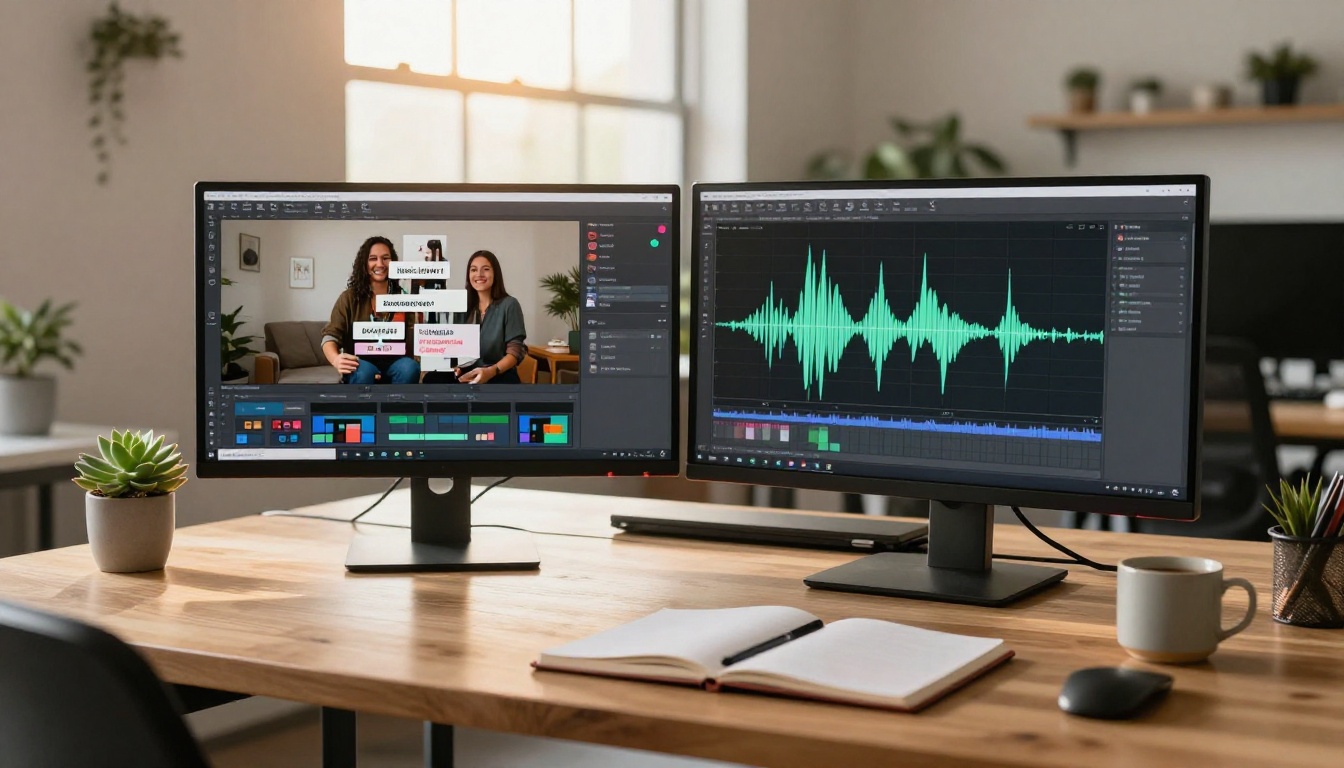
While floating text animation is a specific effect, the AI video editing ecosystem on PicassoIA extends significantly further. Once you have a text-animated video, there are complementary tools that complete a full production workflow.
Gen4 Aleph by Runway lets you recut and restyle existing footage using text descriptions, which pairs well with floating text workflows where you need to first reshape the underlying clip before adding overlay elements.
LTX 2 Pro generates 4K video from text prompts with high motion fidelity, giving you premium base footage to apply floating text on top of in a second step without resolution limits.
ControlVideo lets you restyle an entire video with a text description while preserving its underlying motion structure, which means you can change the visual style of footage while keeping your planned floating text elements and timing intact.
For audio that completes the video, MMAudio adds contextually appropriate AI-generated sound to any clip, and Thinksound analyzes what is happening in your video to generate matching ambient audio automatically, no description needed.
If you want to take generated footage to higher resolution, the Video Increase Resolution tool upscales to 8K, which is particularly useful when floating text legibility is a priority and source resolution is limiting.
Try It on Your First Video Today
The skill barrier for floating text animation in video is now effectively zero. The tools exist, they are fast, and the output from models like Kling v3 Video, Veo 3, and Autocaption is production-ready on the first or second try for most use cases.
The only way to know which approach fits your specific content is to test it directly. Pick one of the five prompts from this article, run it through Kling v3 Video or Seedance 2.0, and compare the output against what you would have spent four hours building in traditional motion graphics software. The difference is immediate and the iteration speed means you can produce multiple versions in the time it used to take to set up a single After Effects project.
PicassoIA puts all of these models in one place. No account juggling. No switching between six platforms to find the right tool for each step. If you have footage and want floating text on it today, Autocaption is your fastest move. If you are generating fresh video with floating text as a core visual element, start with Kling v3 Video.
Open any of the models linked in this article and run your first prompt. The floating text effect that used to require a motion designer is now a five-minute task for anyone with an idea and a prompt.


