Looping background videos are the difference between a forgettable stream and one people screenshot. Static images sit flat. Looping videos breathe, move, and hold attention without ever demanding it. The problem: until recently, creating them meant owning expensive stock footage licenses, running dedicated video loop software, or spending hours in After Effects you probably don't have. AI changed that equation completely.
Why Looping Backgrounds Matter Now
The demand for seamless looping background video has exploded across every content format. Streamers, virtual presenters, corporate video producers, and social media creators all need dynamic backgrounds that feel alive without pulling focus from the subject.

From Green Screens to AI Backgrounds
Green screens work. But they require a separate physical space, even lighting across the entire backdrop, and software chroma key processing that degrades at hair edges and fine details. AI-generated looping backgrounds skip all of that. You describe what you want, the model generates it, and you get a perfectly tiled, infinitely repeating clip that never betrays an edge.
The shift is practical: a creator working from a small apartment can now place themselves in front of rolling mountain fog, a sun-dappled forest, or slow-drifting abstract motion, with zero physical setup.
3 Real Problems with Static Backgrounds
| Problem | Static Image | AI Looping Video |
|---|
| Feels lifeless on camera | Yes | No |
| Visible freeze at repeat point | Yes | No |
| Hard to match shifting ambient light | Yes | Consistent by design |
| Requires stock license purchase | Often | No |
A static backdrop tells viewers the scene is artificial. A subtle, slowly moving looping background animation does the opposite. It signals production quality without announcing itself.
What Makes a Video "Loop" Perfectly
Not all video loops are equal. A bad loop jumps visibly at the repeat point. A good loop is something your viewers could watch for an hour without noticing it's cycling.
Tiling vs. Boomerang vs. Seamless Loop
Three distinct approaches exist:
- Tiling loop: The video is generated as a spatially repeating tile. When one cycle ends, the next begins from an identical frame. Zero visible cut.
- Boomerang loop: The video plays forward then reverses. Works for motion-heavy content like ocean waves or fire, provided the motion is symmetrical.
- Seamless temporal loop: The last frame interpolates directly into the first, creating continuous flow. The most cinematic result, and the hardest to achieve manually.
AI models like Tile Morph are built specifically to solve the seamless loop problem. The model generates spatially tiling video content where edges connect without visible seams, making it the most direct tool available for this specific task.
Why AI Gets This Right
Traditional video loops required frame-by-frame manual matching or expensive software plugins. AI models trained on temporal consistency understand that the first and last frame need to share the same motion trajectory. They don't just generate video; they generate cyclically stable video.
💡 When prompting for looping backgrounds, include phrases like "continuous motion," "steady flow," or "repeating cycle." These signal to the model that temporal consistency is a priority.
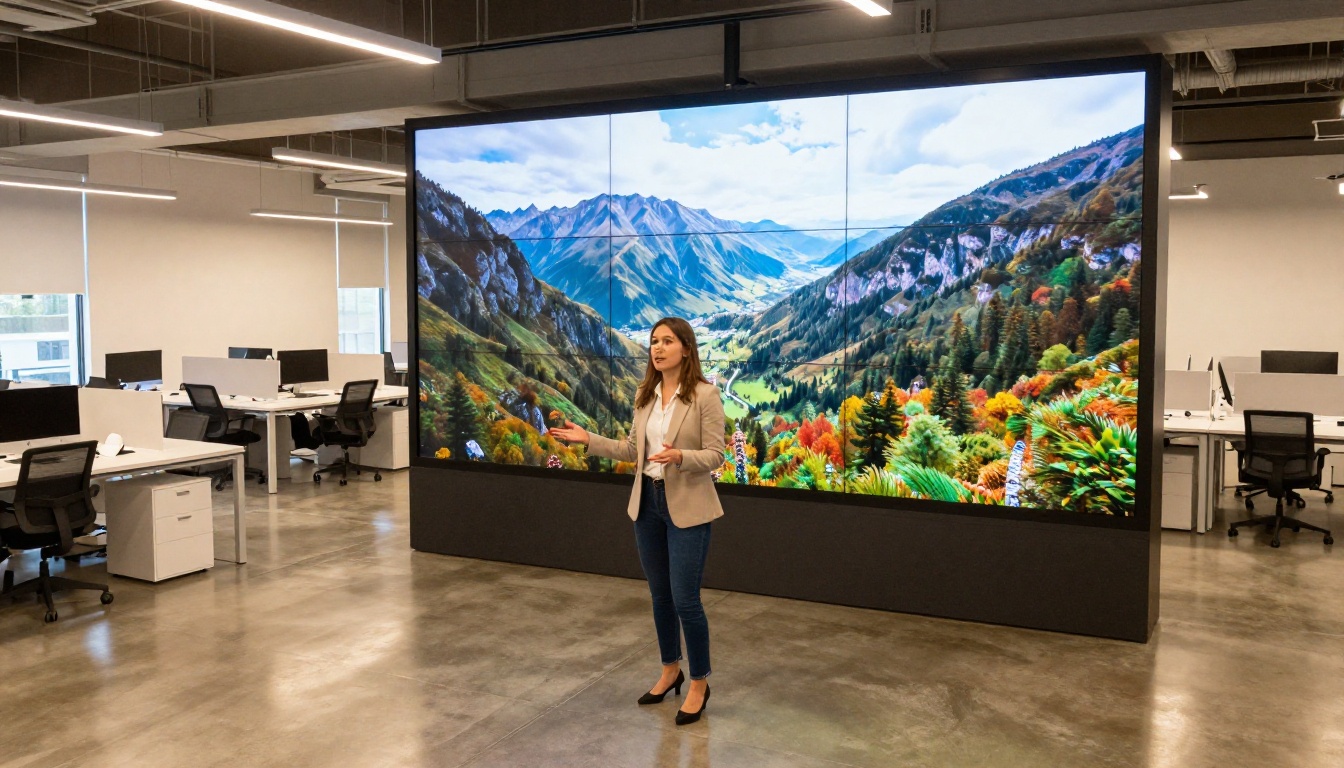
Best AI Models for Looping Background Videos
Several AI video generation models can produce loops, but they differ in how well they handle the seamless repeat point. Here's what works, and when to use each one.
Tile Morph: Built for Loops
Tile Morph is the most direct tool for this specific task. Its architecture is optimized around generating video content that tiles both spatially and temporally. Feed it a text prompt describing your desired scene, and it outputs a clip designed to loop without any visible cut.
This is the model you want for:
- Streaming backgrounds with slow atmospheric motion
- Presentation backdrops with subtle environmental life
- Ambient loops for waiting screens, retail displays, or event backgrounds
Beyond Tile Morph, several other models on the platform offer strong results with a short manual trim workflow. AnimateDiff Prompt Travel animates smooth visual transitions between prompts. When the start and end prompts are identical, the result is a natural looping animation with controlled, stylistic motion.
Wan 2.7 T2V generates 1080p video from text with strong temporal consistency. Its output quality is high enough that with a quick trim and blend, you get broadcast-quality background loops. Pair it with Trim Video to isolate the perfect loop window from a longer generated clip.
For cinematic streaming backgrounds, Kling v3 Video produces some of the most polished motion available. The visual quality it outputs reads as high-production even on a consumer monitor.
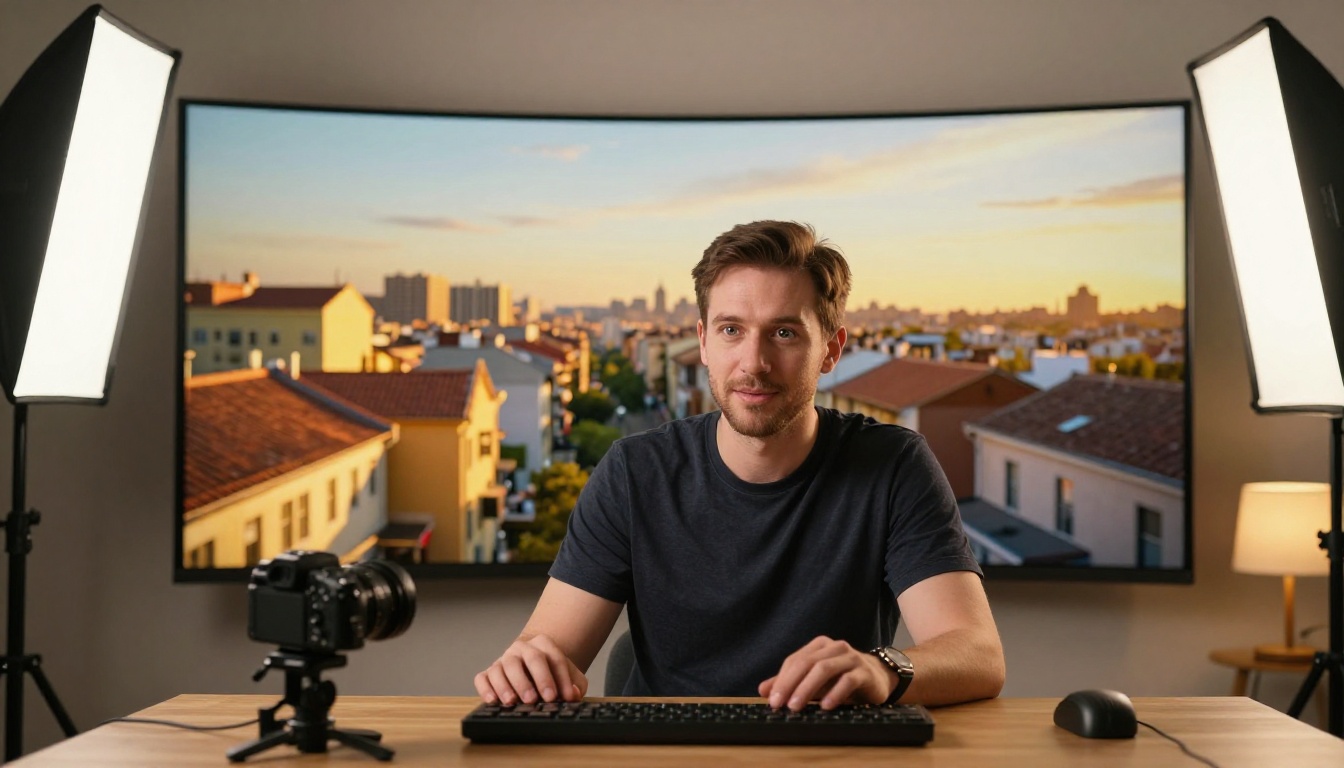
How to Use Tile Morph on PicassoIA
Tile Morph is available directly on PicassoIA with no local installation or GPU required. Here's how to go from nothing to a seamless looping background in minutes.
Step 1: Write a Scene Prompt
Open Tile Morph on PicassoIA. The prompt is your primary input, so make it specific. Instead of writing "forest," write:
"Dense pine forest in morning mist, slow-moving fog drifting left, dappled sunlight through branches, soft wind motion in leaves, continuous motion, atmospheric loop"
Specificity directly drives output quality. Include:
- Subject: What fills the background (forest, ocean, city skyline, abstract pattern)
- Motion type: Slow drift, gentle sway, flowing water, rippling surface
- Lighting: Time of day, quality of light (golden hour, overcast, midday)
- Continuity cue: "continuous motion," "seamless flow," "looping cycle"
Step 2: Adjust Parameters
Tile Morph offers control over key output settings:
- Duration: Shorter clips (3-5 seconds) loop more seamlessly than long ones. For backgrounds, 4 seconds is the sweet spot
- Resolution: Match your output format. 1920x1080 for most streaming and video call platforms
- Motion intensity: Lower values produce subtle atmospheric loops; higher values create dramatic motion that can break visibly at loop points
💡 Keep motion intensity at 30-50% for background use. You want the background present, not dominant. The subject should always command attention.
Step 3: Export and Deploy
Once generated, download the clip. Most streaming software, including OBS, Streamlabs, and vMix, has a media source option with loop enabled by default. Drop your clip in, toggle loop on, done.
For video calls, virtual background support in Zoom, Teams, and Google Meet accepts video files directly. Check that your clip is under 15MB for Zoom's file size limit before importing.
Pro Tips for Seamless Results
- Start simple: Begin with low-contrast backgrounds (fog, calm water, abstract gradient) before attempting complex environments with many moving elements
- Avoid hard edges in motion: Moving tree branches that cross frame edges create visible loop artifacts at the boundary
- Test at normal speed: Always preview the loop at 1x speed before using it live. What looks seamless at half speed may jump at normal playback
- Add a micro-crossfade: In video software, place the same clip twice end-to-end and apply a 3-5 frame crossfade at the join point for extra smoothness on longer clips
Removing Backgrounds for Clean Loops
Creating a looping background is only half the workflow. If you're compositing yourself over an AI background in post-production rather than using a live virtual background, you need your original footage properly extracted from its environment.
Video Remove Background
Video Remove Background by Bria on PicassoIA isolates the subject in each frame without requiring a green screen. It uses AI segmentation to produce a clean alpha channel export, ready to composite over any looping background.
The practical workflow for pre-recorded content:
- Record your talking-head clip against any plain background
- Run the clip through Video Remove Background
- Generate your looping scene with Tile Morph
- Composite subject over the loop in any video editor
No green screen. No special lighting requirements. No physical setup changes needed.
Robust Video Matting
For footage with fine hair detail, semi-transparent clothing, or fast subject motion, Robust Video Matting delivers cleaner edge quality. It's specifically trained on difficult matting cases where standard segmentation tools lose detail.
Use it when:
- Your subject has complex hair or beard structure
- There's motion blur from fast movement near frame edges
- The original background is similar in color or tone to the subject's clothing
Both tools on the same platform means the full pipeline, from background extraction to loop generation, runs without switching between applications.

Where to Use Your AI Looping Backgrounds
Streaming and Live Video
Streaming is the highest-traffic use case for looping video backgrounds. A well-designed loop makes a small apartment setup look like a dedicated broadcast studio. The most effective streaming backgrounds:
- Move slowly (less than 15% of the frame per second)
- Use warm, neutral tones that don't compete with the subject for visual attention
- Contain no visible text, logos, or branded elements that break scene immersion
For maximum cinematic quality on stream, Kling v3 Video generates 1080p atmospheric clips with the kind of motion smoothness typically reserved for broadcast production. Generate the clip, apply a manual trim to find the cleanest loop window, then deploy in OBS.
Video Calls and Presentations
Virtual meeting backgrounds have specific requirements. The loop needs to work within platform file size limits, not distract during active conversation, and read as professional rather than novelty.
Soft bokeh environments, slowly shifting natural light, or abstract organic motion perform best. Avoid anything with readable text, fast motion, or high contrast elements that pull the eye during a conversation.
💡 For Teams and Zoom, export your AI loop as MP4 H.264 at 720p. Most platforms downscale to this resolution anyway, and the lower file size means faster loading and fewer call disruptions.
Social Media and Reels
Short-form video benefits from looping backgrounds when the primary content is relatively static: product showcases, text-on-screen sequences, or interview-style clips. A looping background adds depth and motion that increases scroll-stop rate without competing with the main message.
LTX 2 Pro generates 4K output, giving you extra resolution to pan or zoom within the background in post-production for additional motion variety from a single generated clip.
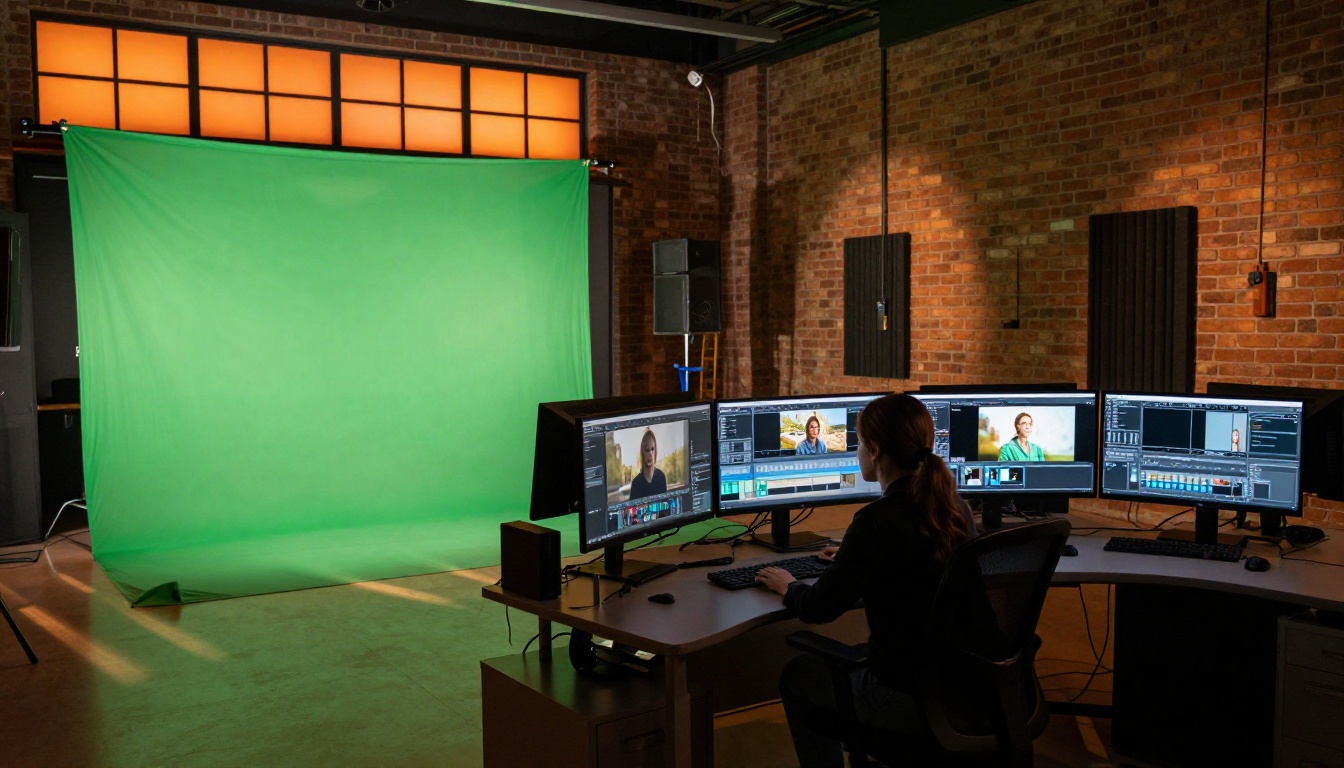
Comparing AI Video Loop Models
Each model has a distinct strength. For pure looping without post-editing work, Tile Morph is the fastest path. For maximum visual quality where you're willing to do a quick trim, Wan 2.7 T2V or Kling v3 Video produce more polished output that holds up at large display sizes.
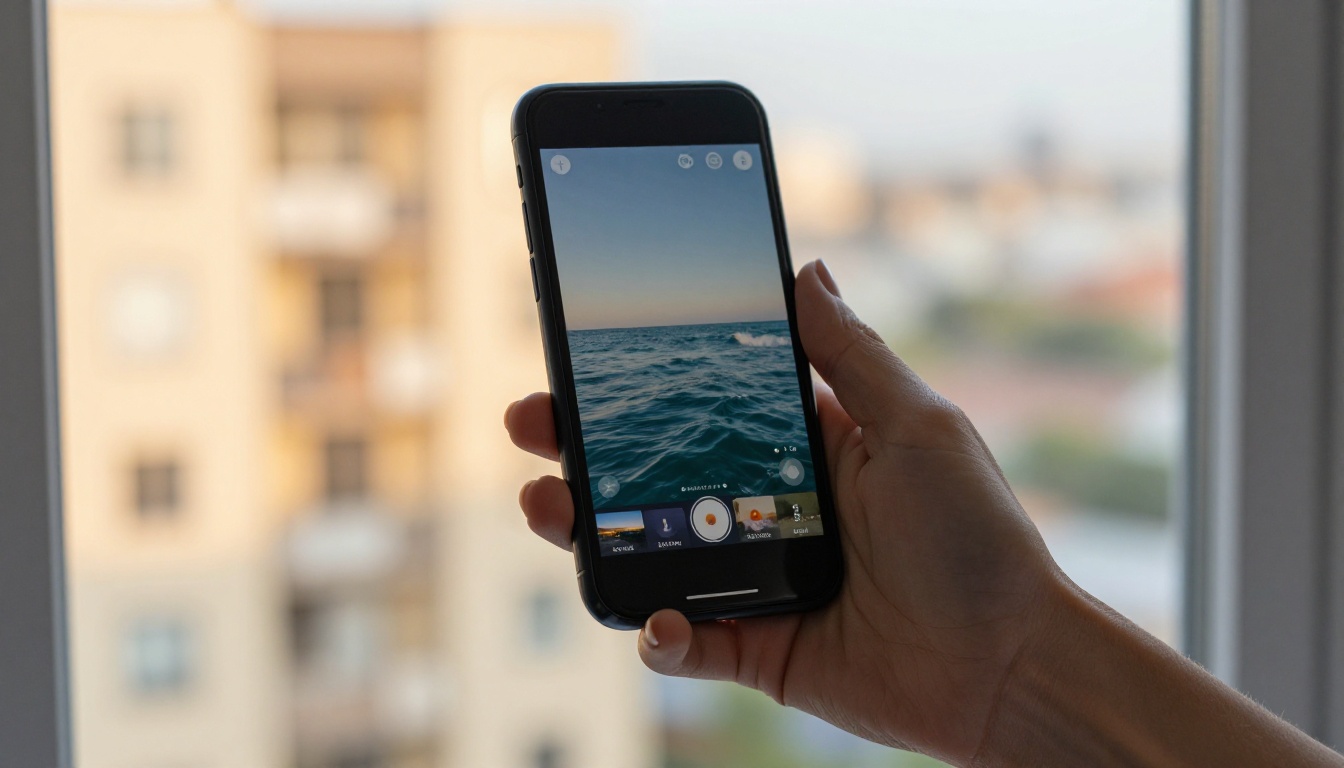
Different platforms have different technical requirements. A loop that works perfectly in OBS may be rejected by Zoom or flicker in Teams without the right export settings.
File Format by Platform
- OBS / Streamlabs: MP4 H.264 recommended for performance. Most formats accepted
- Zoom: MP4, max 15MB, 1280x720 recommended for fastest load
- Microsoft Teams: MP4, max 32MB, 1920x1080 supported
- Instagram Reels: MP4 H.264, max 30fps, 9:16 aspect ratio for vertical feed
Frame Rate and Color
Always match your loop's frame rate to your stream or recording output. A 30fps loop running inside a 60fps OBS scene creates stutter at every cycle boundary. Generate at the frame rate you'll use, not the highest available setting.
AI-generated video defaults to sRGB color profile. If your video workflow uses Rec.709 for broadcast output, convert before compositing. Mismatched color profiles create a subtle but visible inconsistency between subject and background that reads as low production value.
💡 Use Video Increase Resolution on PicassoIA to upscale any loop to 4K or 8K if you need it at display sizes larger than your original generation resolution.
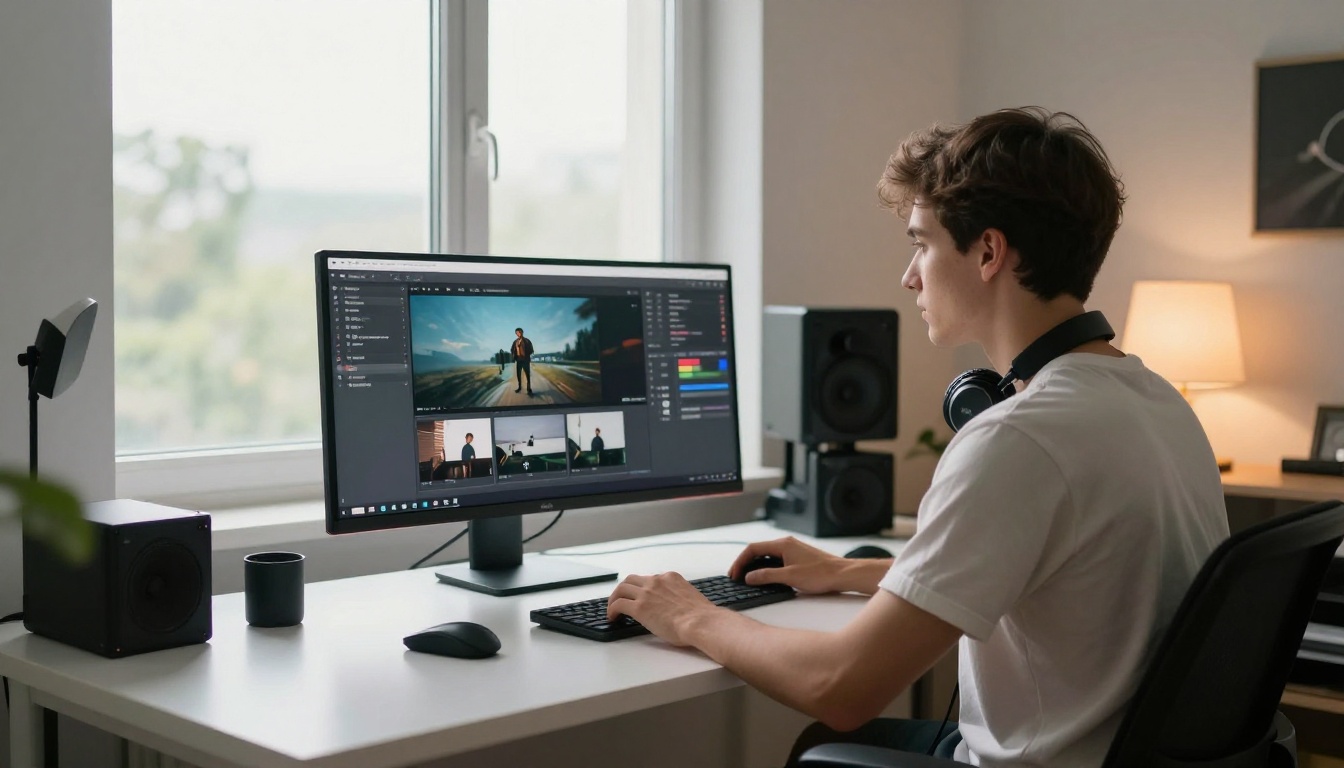
The Old Workflow vs. the New One
The availability of background removal and loop generation on the same platform collapses what used to be a multi-tool, multi-software process into something anyone can run from a browser.
Old workflow: Record with green screen, key in DaVinci Resolve, export ProRes, composite in Premiere, render final. Minimum 3 applications, significant render time, green screen required.
New workflow: Record anywhere, remove background with Video Remove Background, generate loop with Tile Morph, composite and export. One platform, browser-based, no physical setup.
The practical effect: the production quality floor for independent creators has risen substantially. What required a professional post-production pipeline 18 months ago now takes a PicassoIA account and a text prompt.
💡 For the cleanest compositing results, shoot your original footage against a light neutral wall. Robust Video Matting performs best when there's contrast between subject and background, even if the background is just a white wall rather than a dedicated green screen.
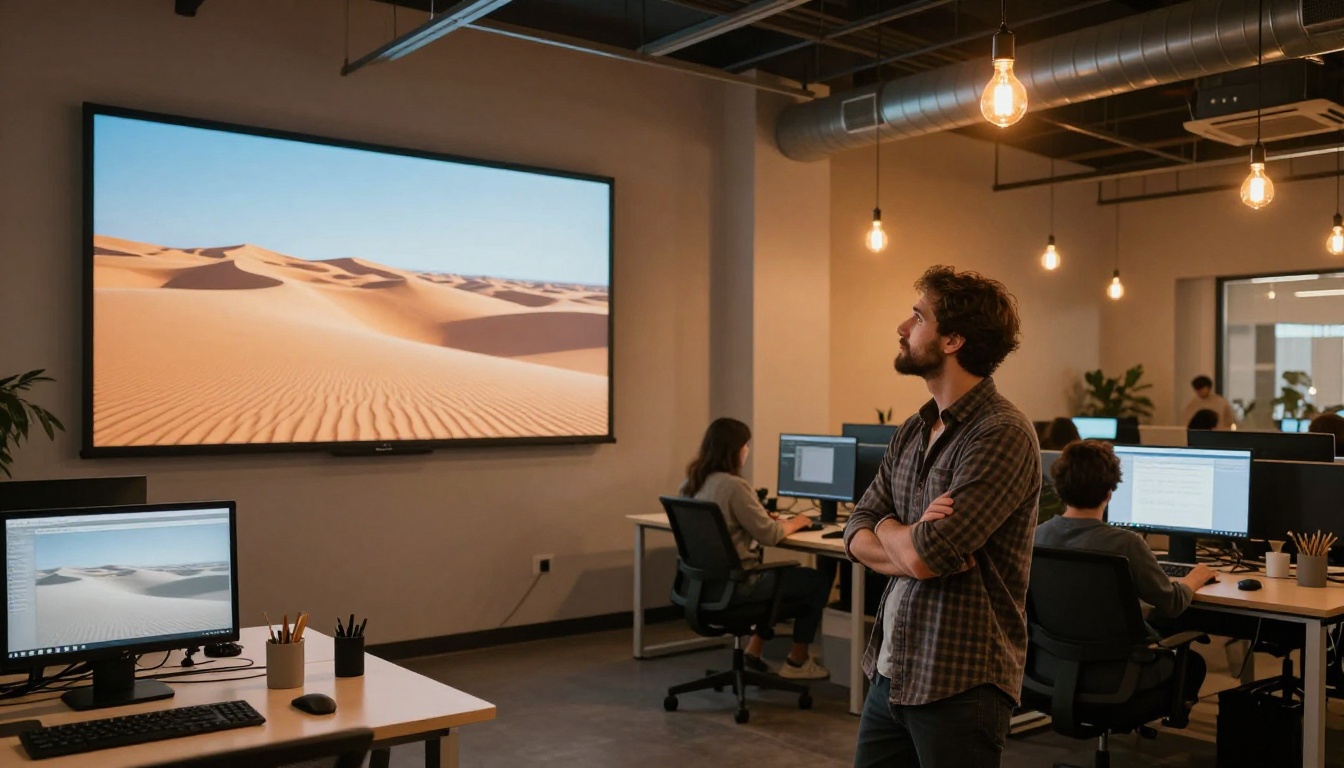
Your Next Looping Background Starts Now
The barrier to professional looping background videos is gone. Text prompt, model, download, deploy. The same visual quality that used to require an After Effects license and an afternoon now takes a few minutes on PicassoIA.
Start with Tile Morph for a looping scene that requires no post-processing at all. When you want more cinematic output, move to Wan 2.7 T2V or Kling v3 Video and do a quick trim. For AI background removal without a green screen, Video Remove Background and Robust Video Matting handle the extraction side completely.
Whether you're upgrading a streaming setup, building a more polished video call presence, or adding motion to social content, every tool you need to create looping background videos with AI is already on the platform. Open the model, write a prompt, and ship the background your content deserves.


