There is a moment every photographer and content creator knows well. You have hundreds of stunning photos from a trip, a product launch, or a wedding, sitting in a folder on your hard drive. They deserve to be seen. But a static carousel gets three seconds of attention on most feeds, and a manually edited video takes hours you simply do not have. That gap is exactly where AI video models now step in, and in 2027, the results are genuinely impressive.
Creating slideshows with AI video is no longer a workaround or a compromise. It is a legitimate production method used by marketers, travel bloggers, real estate agents, and social media managers to produce cinematic content at a fraction of the traditional cost and time. The models available today do not simply shuffle photos between fades. They add organic motion, simulated depth, and fluid transitions that feel crafted by a skilled editor.
This article breaks down which tools deliver the best results for slideshow creation, how to use them step by step, what to watch out for, and where to start if you have never tried AI video generation before.
Why Static Slideshows No Longer Cut It
The reach problem in 2027
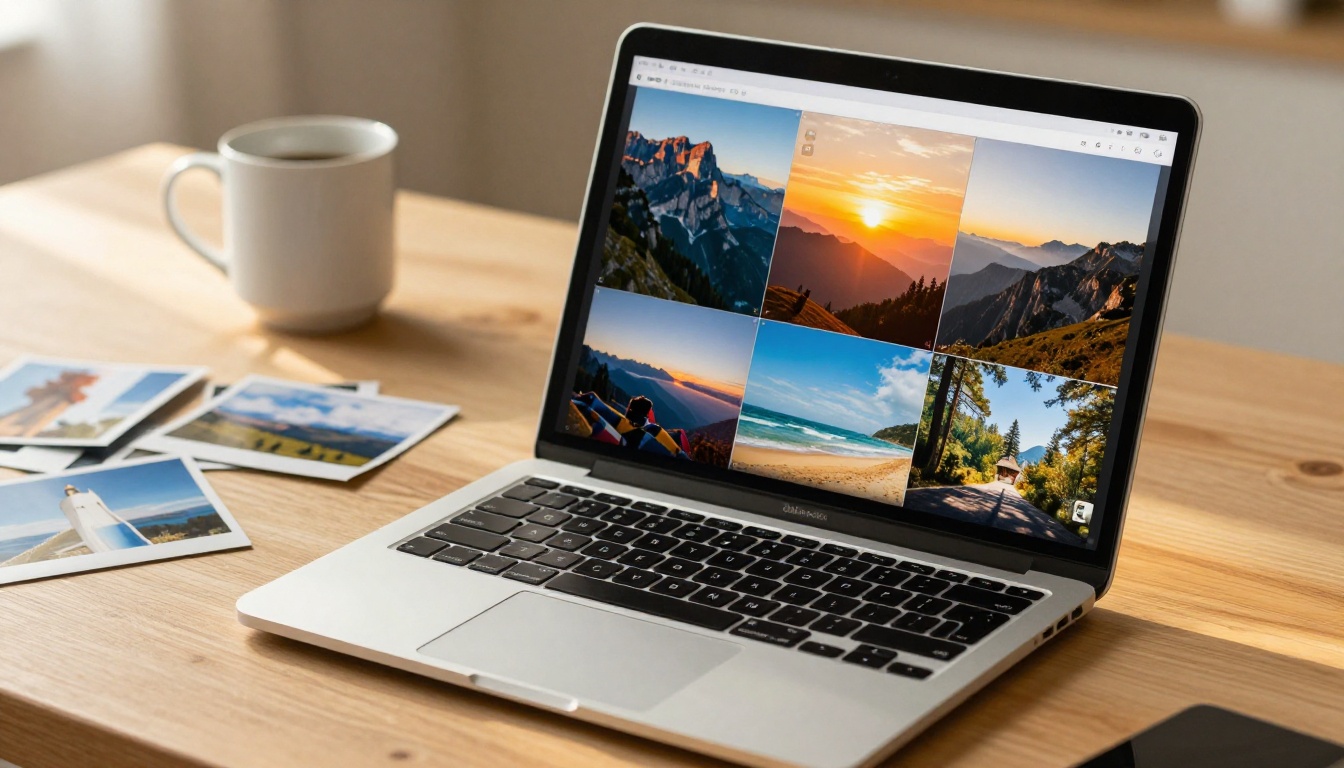
Social media algorithms actively suppress static photo content in favor of video. Instagram Reels, TikTok, and YouTube Shorts all report significantly higher organic reach for video compared to photo posts across similar audience segments. Research consistently shows that video posts receive up to 3x more engagement than static image posts across major platforms. Pinterest, LinkedIn, and even email newsletters show similar patterns when video thumbnails are available.
The problem is not that your photos are bad. The problem is the format. A single photo stops a scroll for two seconds at best. A well-crafted video slideshow with smooth transitions and implied motion holds attention for 15, 30, even 60 seconds. That difference in watch time compounds into dramatically higher reach, profile visits, and conversions over time.
What AI video actually does to your photos
Traditional slideshow software simply cuts or cross-fades between images. AI video models do something fundamentally different. They analyze each image, infer depth and perspective, and generate synthetic motion that makes static photos feel alive. A mountain photo gains subtle cloud movement and a gentle camera push-in. A portrait gains a cinematic slow zoom with natural bokeh shift. A product photo gets a smooth rotation around the subject.
This is not a filter or a preset. It is generative video synthesis built on diffusion model architectures trained on millions of hours of real-world footage. The difference in perceived production quality between a traditional slideshow and an AI-animated one is immediately obvious to any viewer.
When AI slideshows make sense
AI video slideshows work best for content that benefits from visual momentum: travel, lifestyle, real estate, fashion, food, and event recaps. For most commercial and social use cases, they are a clear and meaningful upgrade over static alternatives. They are less suitable for documentation or editorial contexts where precise, unaltered imagery is required.
The Best AI Models for Photo Slideshows
Image-to-Video: The right approach
When creating slideshows from existing photos, image-to-video (I2V) models are almost always the right choice over text-to-video. I2V models use your actual photograph as a conditioning input, preserving the specific colors, composition, and subjects in the original image. Text-to-video generates entirely new footage from a written description. For slideshow work, you want your specific photos animated, not replaced with AI-generated approximations.
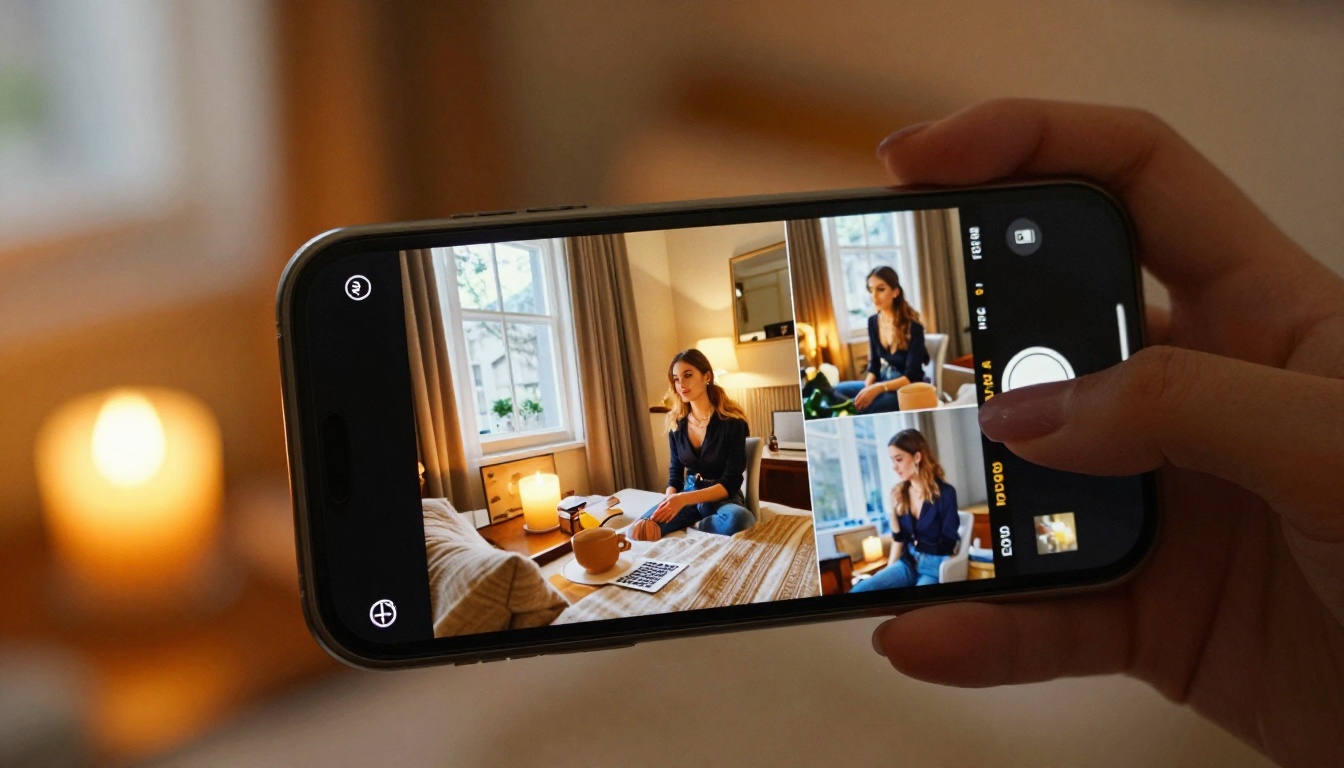
The top I2V models for slideshow creation, ranked by use case:
The purpose-built option: Video Morpher
For slideshows specifically, one model stands out as uniquely suited to this workflow: Video Morpher. Unlike standard I2V models that animate a single photo into a short clip, Video Morpher takes multiple photos and generates fluid morphing transitions between them, creating a continuous video sequence that flows from image to image. It is the closest thing to a dedicated AI slideshow creator in the current model ecosystem.
💡 Video Morpher vs. individual I2V models: Use Video Morpher when you want smooth, organic transitions between photos as a single continuous output. Use individual I2V models when you want precise control over each photo's motion and plan to assemble clips yourself in a video editor.
How to Use Video Morpher on PicassoIA
PicassoIA's Video Morpher is one of the most direct paths to a finished AI photo slideshow because its entire purpose is to transition between a set of photos with generative motion.

Step 1: Curate and prepare your photo set
Select 3 to 6 photos that share a visual theme. Consistent lighting and color tone produce the smoothest, most convincing morphs. Before uploading, crop all images to the same aspect ratio. 16:9 works best for widescreen slideshows, while 9:16 is ideal for Reels and TikTok content.
Photo sets that work well:
- Travel photos from the same location or trip
- Product shots from the same studio session under consistent lighting
- Portrait series with a consistent background or setting
- Architectural or real estate shots in similar natural light conditions
What to avoid in your source set:
- Photos with wildly different white balance or exposure levels
- Subjects that appear in one photo but are entirely absent in the next
- Very dark photos mixed with very bright photos
- Images shot at very different focal lengths (wide angle next to telephoto)
Step 2: Upload and configure the morph
Upload your selected photos in sequence on the Video Morpher model page. The model reads the visual content of each image and generates interpolated motion frames between them.
Key parameters to configure:
- Frames per transition: Higher counts produce smoother, slower morphs. Use 48+ frames for cinematic pacing. Use 24-32 frames for fast-paced social content.
- Morph strength: Controls how liberally the AI interpolates between images. Values of 0.6-0.75 preserve subject integrity while still feeling fluid. Higher values produce more artistic, painterly transitions.
- Duration per image: 2 to 3 seconds per source photo is the sweet spot for most slideshow content. Shorter feels rushed; longer risks losing viewer attention.
Step 3: Review, refine, and export
Download the generated video and review it in full before exporting. Watch for:
- Unnatural warping of faces or architectural lines during transitions
- Sections where the AI appears confused by dissimilar source images
- Pacing inconsistencies where one transition feels noticeably slower or faster than the rest
If any of these appear, adjust the problematic source images (crop more tightly, correct exposure) and regenerate. Outputs typically improve significantly on a second or third run.
💡 Export formats: MP4 at 30fps is universally compatible. For Reels and TikTok, re-export at 9:16. For YouTube, LinkedIn, and presentations, keep the native 16:9 output.
Choosing the Right Model for Your Content Type
Not every use case calls for the same model or approach. Here is a practical breakdown based on content type and distribution channel.
Travel and lifestyle slideshows
For travel content, you want motion that respects the natural physics of outdoor scenes. A slight parallax effect on a coastal photo, clouds drifting across a mountain shot, subtle light shimmer on water. Models like Wan 2.7 I2V and Wan 2.5 I2V consistently produce the most physically plausible motion for natural and outdoor scenes.

For the transitions between animated clips, use a standard video editor (CapCut, DaVinci Resolve) and add dissolve transitions manually. This hybrid approach gives you the quality of AI animation with the precision of manual editing.
Business and corporate presentations
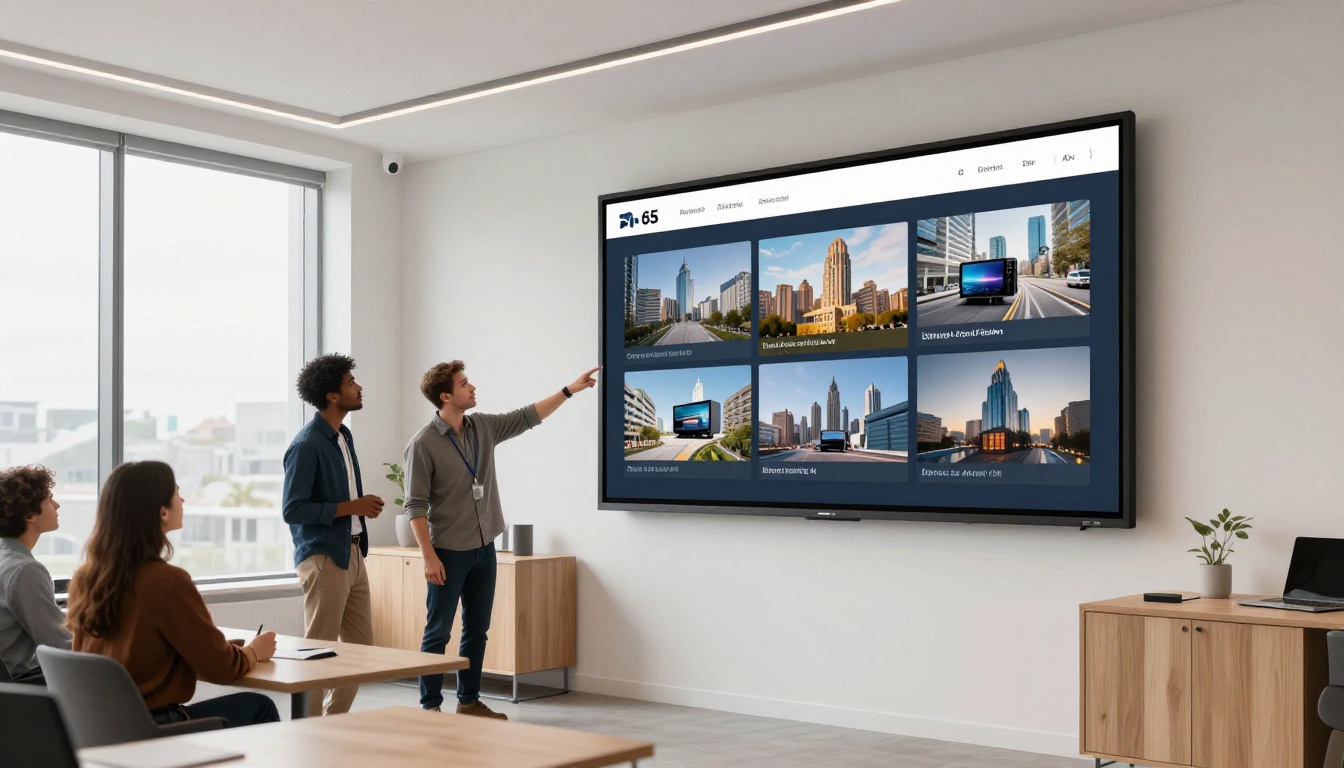
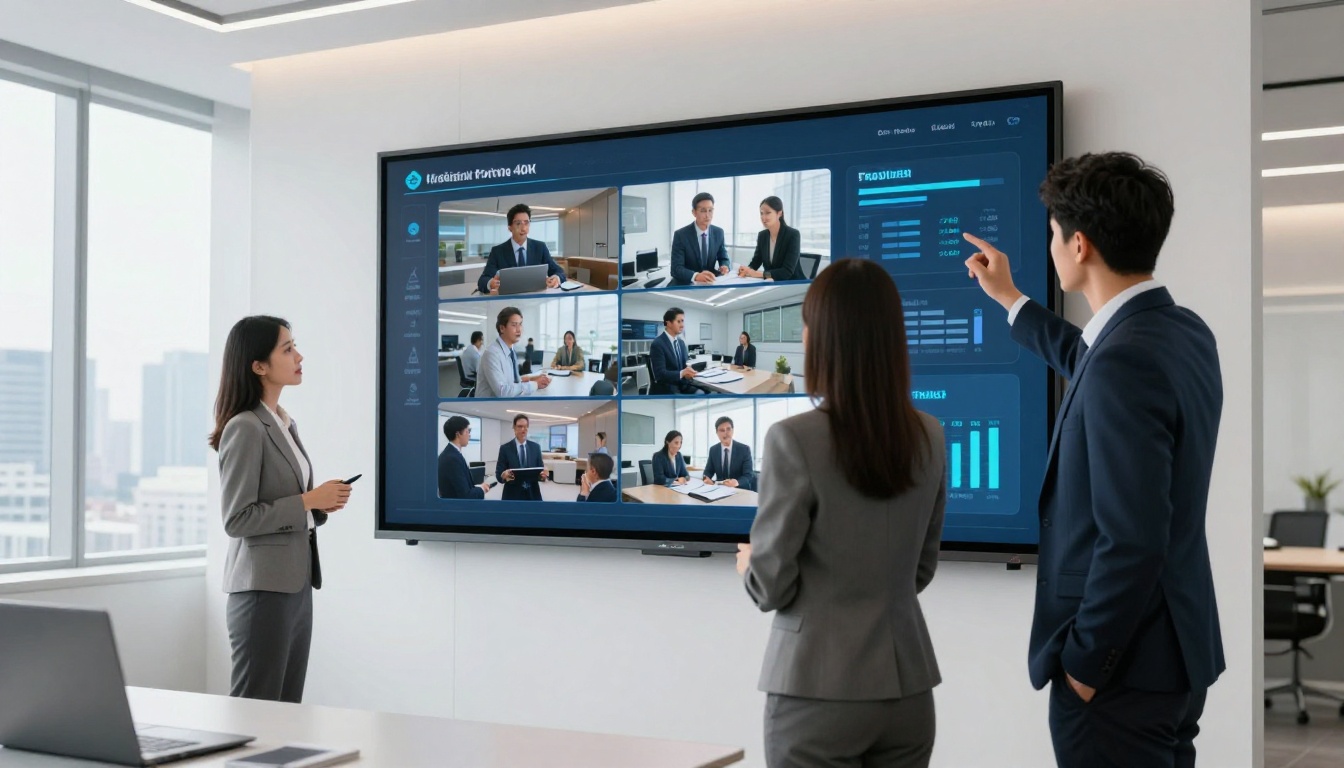
Corporate slideshows need controlled, dignified motion. Kling v3 Video is an excellent choice here. Its cinematic quality holds up on large conference room screens, and it handles product photography and architectural shots with clean, steady camera movements. Avoid models that introduce too much organic warp or turbulence, as this reads as unprofessional in boardroom settings.
LTX 2.3 Pro generates true 4K output, which means even when projected on a large display or used in a broadcast context, quality holds without compression artifacts. It is worth the additional processing time for any professional deliverable.
Social media reels and short-form content
Speed matters for social content iteration. Pixverse v5.6 delivers 1080p video quickly and handles the high-contrast, vibrant imagery typical of lifestyle social content well. Seedance 2.0 is the top choice if you also want a built-in audio track, since it generates synchronized ambient sound alongside the video, removing one step from your post-production workflow.
💡 Reel production workflow: Generate individual animated clips from each source photo using an I2V model, then sequence them in CapCut with a trending audio track. This gives you far more control over pacing and timing than relying on a single long morph generation.
What Makes an AI Slideshow Actually Work
There is a real difference between an AI slideshow that impresses viewers and one that just looks generated. These are the elements that separate the two.
Motion that follows the subject
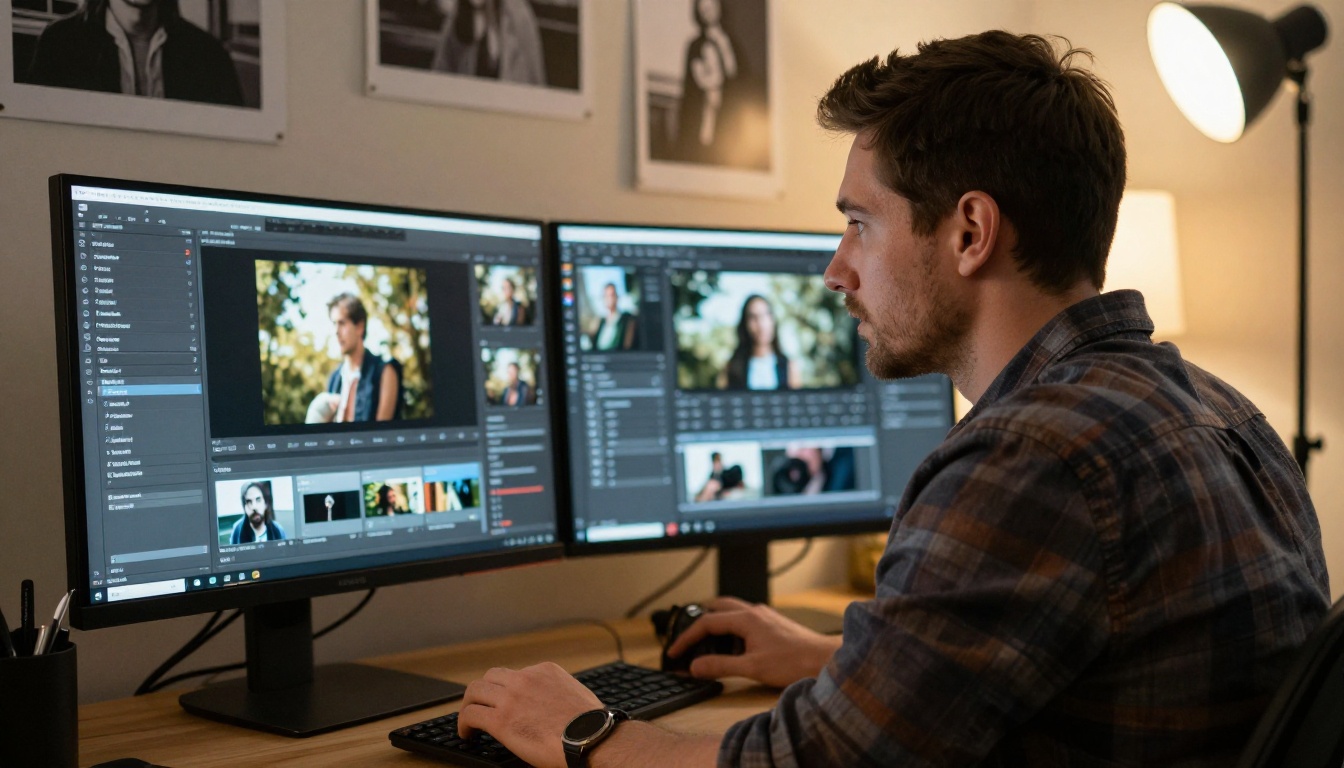
Good AI motion respects the natural physics of a scene. A portrait should produce a gentle push-in toward the face, not chaotic swirling. A landscape should drift slowly or tilt upward to reveal sky. When evaluating models for your specific use case, test them first with a single representative image and evaluate whether the generated motion makes visual sense for that subject before committing to a full run.
Models like Kling v2.6 and Hailuo 02 tend to produce more semantically aware motion than earlier generation models. They appear to have a stronger internal understanding of what the subject is and how it should realistically move within its environment.
Transitions that feel earned
The transition between clips is where most amateur AI slideshows fall apart. Hard cuts between wildly different animated clips feel jarring. Cross-dissolves between clips that share similar motion direction feel intentional and smooth.
Practical rules for sequencing your clips:
- Match the end motion direction of one clip to the start motion of the next
- Use 0.5-second cross-dissolves as your default transition type
- Avoid jump cuts unless the content is fast-paced and energetic by design
- Do not mix portrait and landscape orientation clips in the same sequence
Pacing and rhythm
Pacing determines how a slideshow feels to watch. A slideshow that lingers too long on each photo becomes slow and unengaging. One that cuts too fast feels frantic and unprocessed. As a baseline, 2-3 seconds per animated clip works for most content types. Once you add a music track, adjust clip duration to align with the audio's natural beat points. This single step dramatically improves perceived production quality.
The audio layer
A slideshow without audio is half a product. Seedance 2.0 generates ambient audio natively alongside each video output. For all other models, PicassoIA's AI music generation tools can produce a custom backing track matched to your content's mood, length, and pacing, with no copyright concerns for commercial use.
Common Mistakes That Kill the Result
Mismatched source images
The single biggest quality killer in AI slideshows is feeding the model photos that do not belong together visually. A high-contrast street photo sitting next to a soft pastel interior shot will never morph cleanly or feel cohesive as a sequence. Curate your images into visually consistent groups before generating. This step takes five minutes and has the largest single impact on output quality of anything you can do.
Wrong aspect ratio on input
Every model performs differently at different input dimensions. If your source photo is 4:3 but the model expects 16:9, it either crops or stretches the input. Both options degrade output quality in ways that are difficult to recover from. Always resize and crop your source images to the target output ratio before uploading. This is a two-minute step in any photo editor and dramatically improves results.
Settling for the first generation
AI video generation is probabilistic. The same input can produce noticeably different results across multiple runs due to the stochastic nature of diffusion sampling. If your first generation looks off or the motion feels wrong, run it again. In practice, two or three runs almost always produces at least one strong result. Do not publish the first output by default.
A weak opening shot
The first five seconds of any video slideshow determine whether it gets watched in full. Start with your strongest image, the one with the most visual interest and clearest subject, and make sure its AI-generated motion is compelling. A flat, slow, or stuttering opener kills viewer retention regardless of how strong the rest of the video is. Your best photo goes first, every time.
Your Photos Are Ready to Move
The workflow is simpler than most people expect. Pick your best photos, curate them into a visually consistent set, select a model that fits your output goal, generate, refine, and share. The entire process from photo selection to exported video can take under 20 minutes for a standard 30-second slideshow.

PicassoIA gives you access to every model covered in this article. Start with Video Morpher for multi-photo morphing in a single continuous output. Use Wan 2.7 I2V or Kling v3 Video when you want precise control over each animated clip. Add built-in audio with Seedance 2.0. Scale to 4K with LTX 2.3 Pro. All of it is in one place, without juggling multiple tools or accounts.
Your photos already tell a story. AI video gives that story motion, rhythm, and reach. Pick your best shots and see what happens when they start to move.


