Talking photos used to require a full animation studio and weeks of work. Today, a single still image and an audio clip are all you need.
AI lipsync models have reached a point where the mouth movements in a generated video are nearly indistinguishable from real footage. The timing, the subtle jaw tension, the way the lips press together at the end of a word — all of it is calculated in real time by models trained on millions of hours of human speech. And you do not need a green screen, a camera, or any video editing experience to get there.
This article covers everything: what talking photos actually are under the hood, which AI models are worth your time, a full step-by-step tutorial using one of the most accurate models available, and the practical use cases people are already building with this technology.
What a Talking Photo Really Is
The term "talking photo" gets used loosely, so it is worth being precise about what is actually happening.
Beyond simple animation
Early versions of this technology were little more than wobble effects applied to a face. Mouth regions were subtly distorted in a loop to simulate speech. The result looked artificial within seconds. What changed was the introduction of generative lipsync: the model does not animate a photo at all. It generates new frames from scratch, conditioned on both the original image and the audio waveform.
The difference is substantial. Rather than warping pixels that were never designed to move, the model synthesizes the face in motion while preserving identity: bone structure, skin tone, hair, eyes. The photo acts as a reference, not a canvas.
How the lip sync layer works
Modern AI talking photo systems combine two distinct processes working in sequence.
The first is audio analysis: the model breaks the speech signal into phoneme-level segments, identifying every distinct sound and its precise timing. The second is facial synthesis: a diffusion or transformer-based architecture generates the facial region frame by frame, guided by phoneme data and anchored to the identity in your original photo.
The result is a video where the mouth, jaw, and subtle facial muscles move in a way that matches the audio without ever looking like a face was pasted onto moving footage.
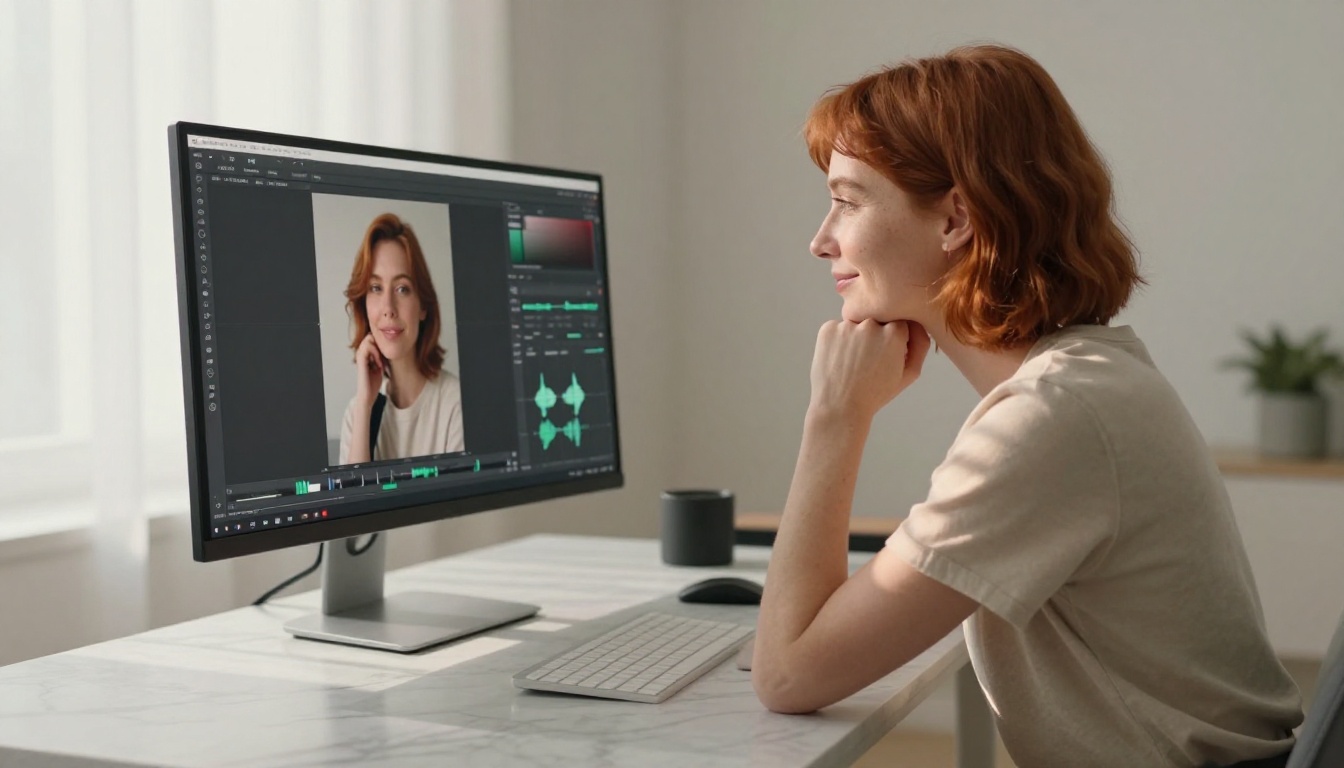
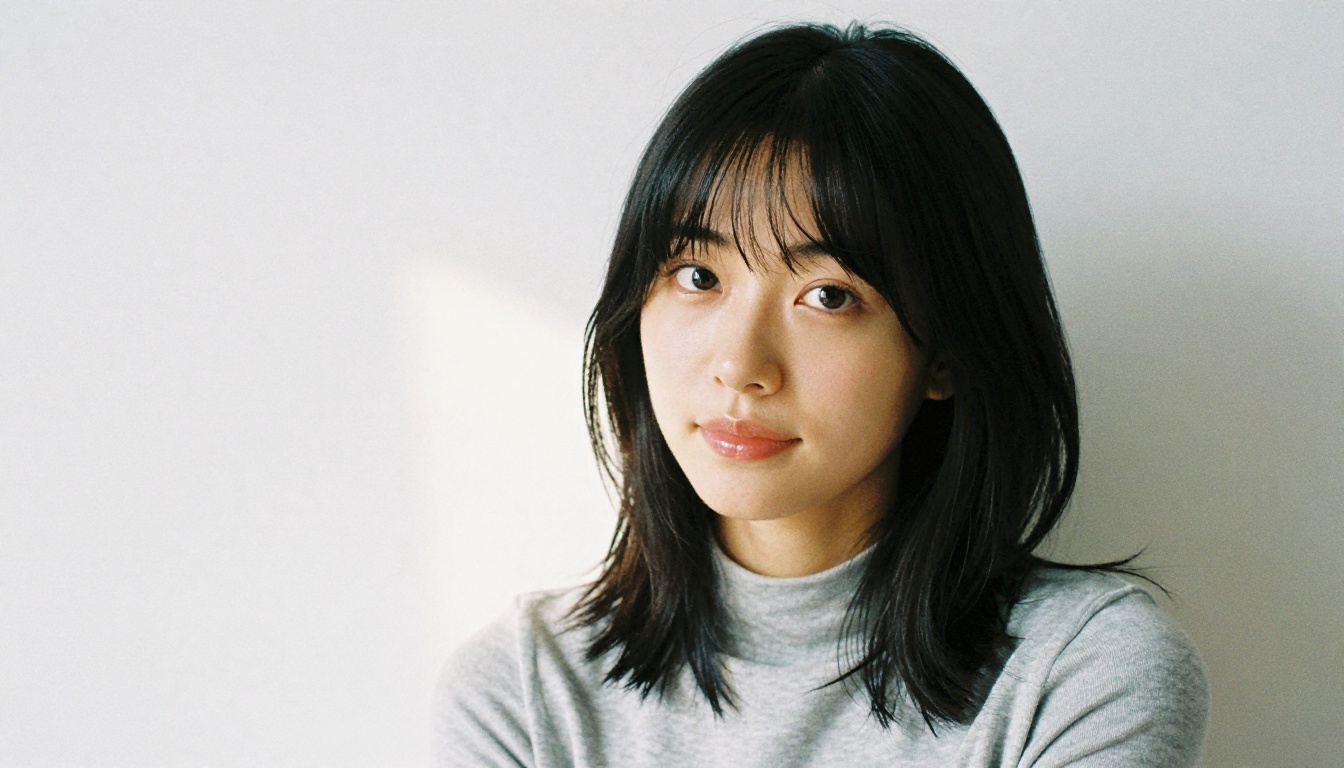
💡 The quality of your source photo matters a lot. A well-lit, front-facing portrait with clear facial features will produce significantly sharper results than a blurry or filtered selfie.
The Best AI Models for Talking Photos
Not all lipsync models are equal. Some prioritize speed, others accuracy, and a few are built specifically for portrait-to-video workflows. Here are the ones worth knowing.
Omni Human 1.5 by ByteDance
Omni Human 1.5 is currently one of the most technically sophisticated options for creating talking photos from a single portrait. ByteDance built it with a dual-stream architecture that handles both full-body motion and isolated facial animation. The result looks like the person in the photo is actually speaking, not just having their mouth animated.
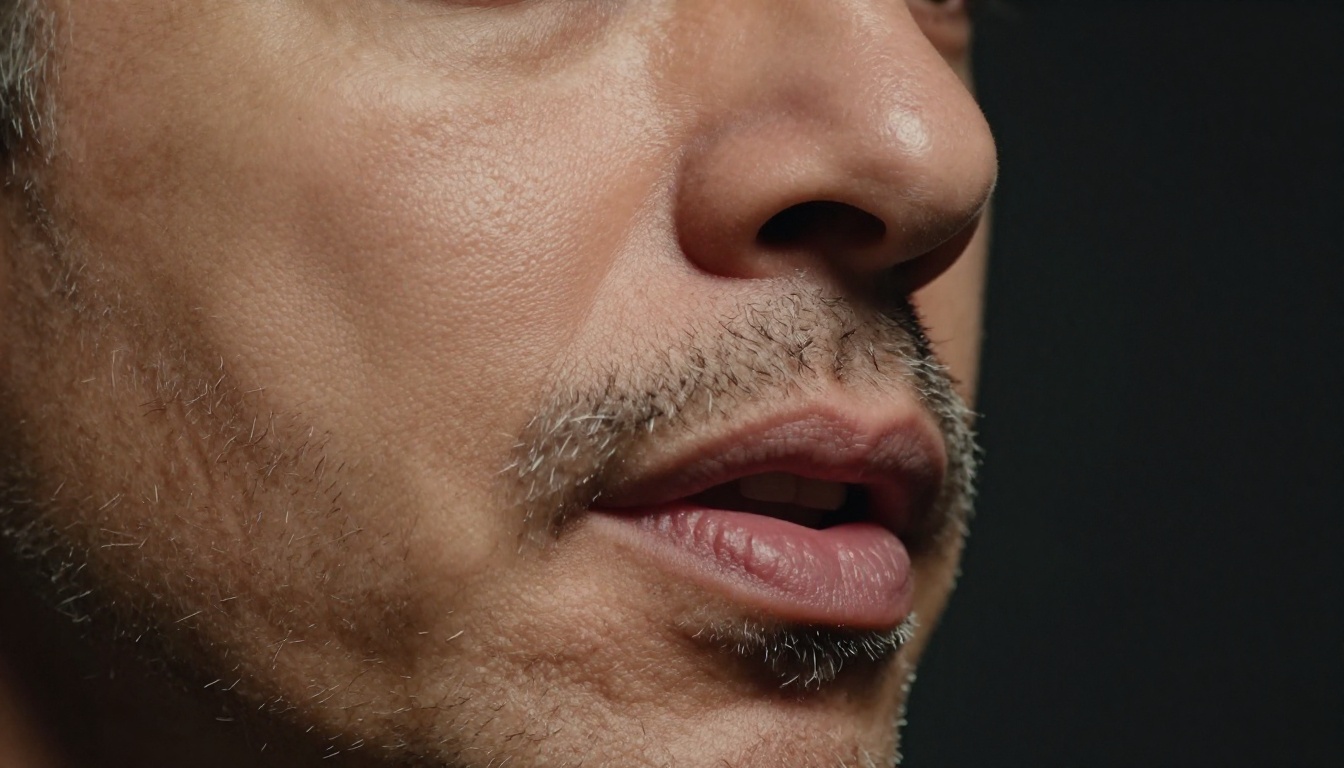
The realism on close-up portraits is exceptional. Jaw movement, lip compression, and even subtle cheek muscle activation are all present. This is the model to use when quality is the primary requirement.
Fabric 1.0 by VEED
Fabric 1.0 is designed specifically around the "make a photo talk" use case. Where many lipsync models expect you to start with a video, Fabric 1.0 accepts a still image directly and generates the talking video end-to-end.
It handles a wide range of portrait styles well: studio photos, casual selfies, illustrated profile pictures. The model is particularly strong on maintaining identity consistency across longer audio clips, which is one of the most common failure points in this category.
P Video Avatar
P Video Avatar takes a slightly different approach by building the concept of a reusable avatar into the workflow. You create the talking portrait once, and the result can be re-driven with new audio without regenerating from scratch. This makes it especially useful for anyone who needs to produce multiple pieces of content featuring the same face.
Lipsync 2 Pro by Sync
Lipsync 2 Pro comes from Sync.so, a team focused almost entirely on accurate lip synchronization. The Pro version significantly outperforms its predecessor on fine-grained phoneme accuracy, particularly for languages other than English. Its sibling Lipsync 2 is also available for faster, lighter outputs.
Kling Lip Sync by Kwai
Kling Lip Sync comes from the team behind the Kling video generation platform. It inherits Kling's strength in temporal consistency, meaning the face does not flicker or drift across frames the way older models do. It works well on portraits with complex lighting conditions where maintaining skin tone accuracy is important.
React 1 by Sync
React 1 is Sync's model for adding realistic lipsync to existing video content, but it also handles still-photo-to-video workflows through an intermediate generation step. Its strength is re-syncing a face to completely new audio, making it a powerful tool for dubbing or voice replacement scenarios.
How to Use Omni Human 1.5 on PicassoIA
The clearest way to create talking photos with AI is to walk through it with a specific model. Omni Human 1.5 is the recommended starting point for most use cases given its balance of realism and ease of use.
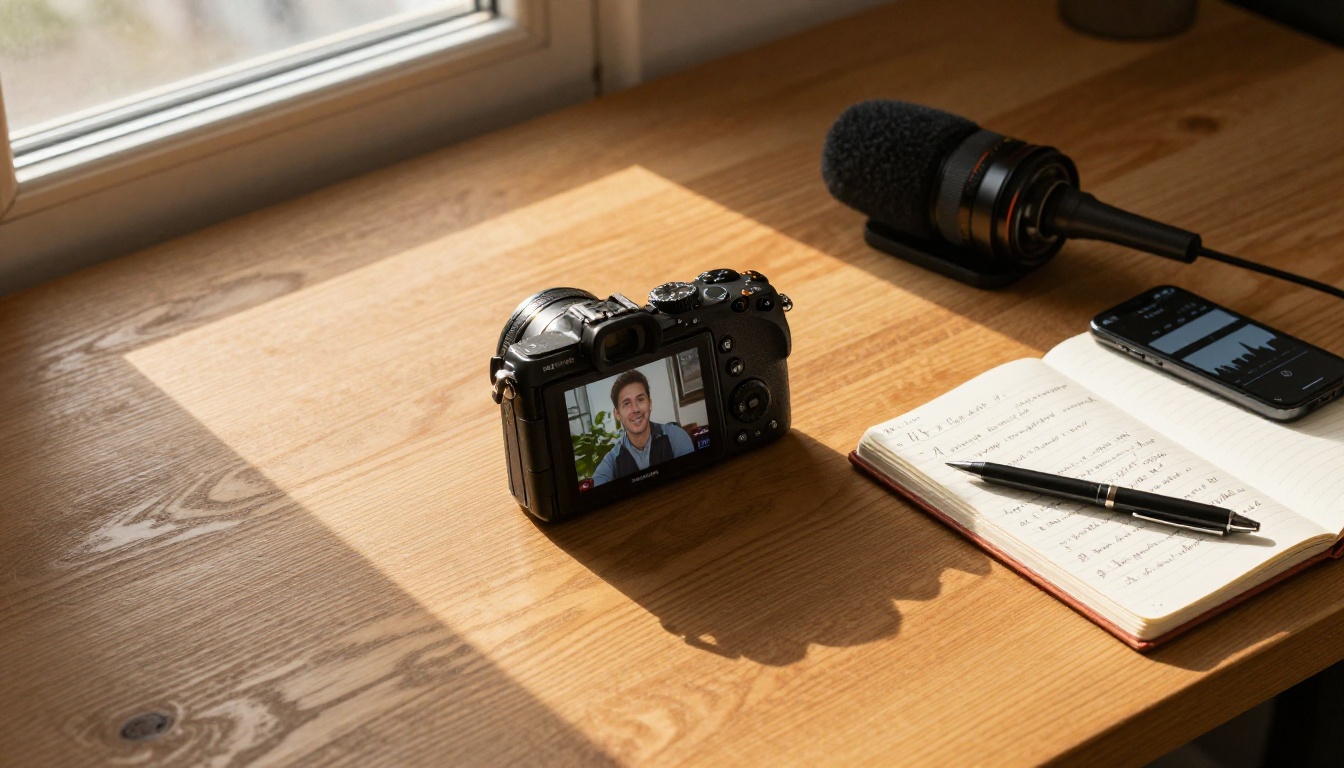
Step 1: Pick the right photo
Your source image is the foundation of output quality. Follow these rules to maximize results:
- Resolution: Use an image at least 512x512 pixels. Higher is better.
- Face angle: Front-facing or slight three-quarter profile. Avoid full side profiles.
- Lighting: Even, diffused lighting. Avoid harsh shadows crossing the face.
- Expression: Neutral or slight smile. Heavily animated expressions in the source photo can interfere with synthesis.
- Background: Simple or blurred backgrounds help the model isolate the face more accurately.
Step 2: Prepare and upload your audio
The audio clip drives the entire animation. Quality here matters as much as the photo.
- Format: MP3 or WAV. Keep the clip under 60 seconds to start.
- Voice clarity: Clean recordings with minimal background noise produce sharper lip movements.
- Pacing: Normal conversational pace works best. Very fast speech can cause the model to compress phonemes.
On PicassoIA, open Omni Human 1.5, upload your portrait in the image field, then upload your audio clip. The model accepts both a voice recording and a text-to-speech generated clip, so you do not need a pre-recorded voice if you are working from a script.
Step 3: Generate and review
Processing typically takes 30 to 90 seconds depending on audio length. When the output appears:
- Watch the full clip before downloading to check for frame-level artifacts.
- Pay close attention to transitions between words, particularly stop consonants like "P", "B", and "M", which require full lip closure.
- If the mouth movements feel off, try re-uploading with a higher-resolution source photo or a cleaner audio file.
💡 Pro tip: Use PicassoIA's Text to Speech models to generate the audio clip first, then feed it directly into Omni Human 1.5. This end-to-end workflow takes you from a typed script to a finished talking portrait without recording a single word.
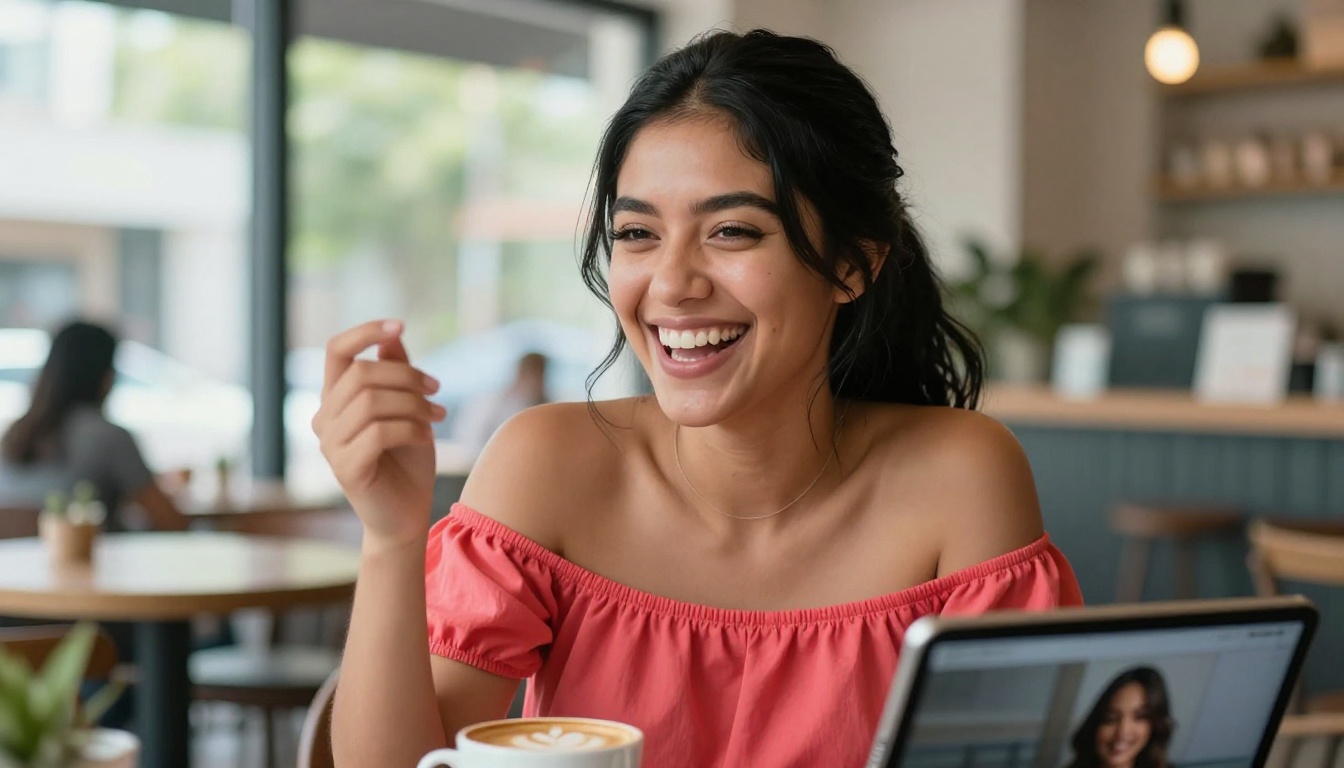
Model Comparison at a Glance
5 Real Use Cases Right Now
People are already building real workflows around talking photo AI. Here is where it is actually showing up.
1. Personal branding videos: Instead of filming a new talking-head video every time you want to share a message, creators upload a single portrait photo and generate a new video from a script. The face stays consistent across all content.
2. E-learning and training materials: Instructors are creating presenter avatars from a single professional headshot and recording their course narration separately. The result is a consistent on-screen presence without the cost of repeated video shoots.
3. Multilingual content: Using Video Translate alongside a talking photo, content creators are producing the same presentation in multiple languages with accurate lipsync, avoiding the jarring mismatch that comes with standard dubbed video.
4. Historical and archival storytelling: Journalists and documentary makers are using these tools to animate historical portrait photographs, giving voice to figures captured only in still images.
5. Social media shorts: Short-form talking portrait clips perform well as attention-grabbing hooks for product announcements, testimonials, and opinion pieces where showing a face adds credibility without requiring a camera crew.
4 Tips for More Realistic Results
Getting consistent quality comes down to controlling the inputs. These four habits will noticeably improve every talking photo you generate.
1. Match the audio environment to the photo: A close-mic, intimate voice recording pairs naturally with a soft-lit portrait. A wide-angle outdoor photo with a room recording will feel disconnected to the viewer's eye and ear.
2. Use a neutral expression as the base: Models that start from a relaxed, neutral face have more freedom to generate the full range of phoneme-driven expressions. Starting from a wide smile or a frown constrains what the synthesis can produce.
3. Keep your first clips short: Clips of 15 to 30 seconds let you iterate quickly. Once you find settings that produce clean results, apply them to longer audio.
4. Run the output through Super Resolution: After lipsync generation, putting your video through a Super Resolution model sharpens fine details that get slightly softened during synthesis, particularly around the lips and eyes.
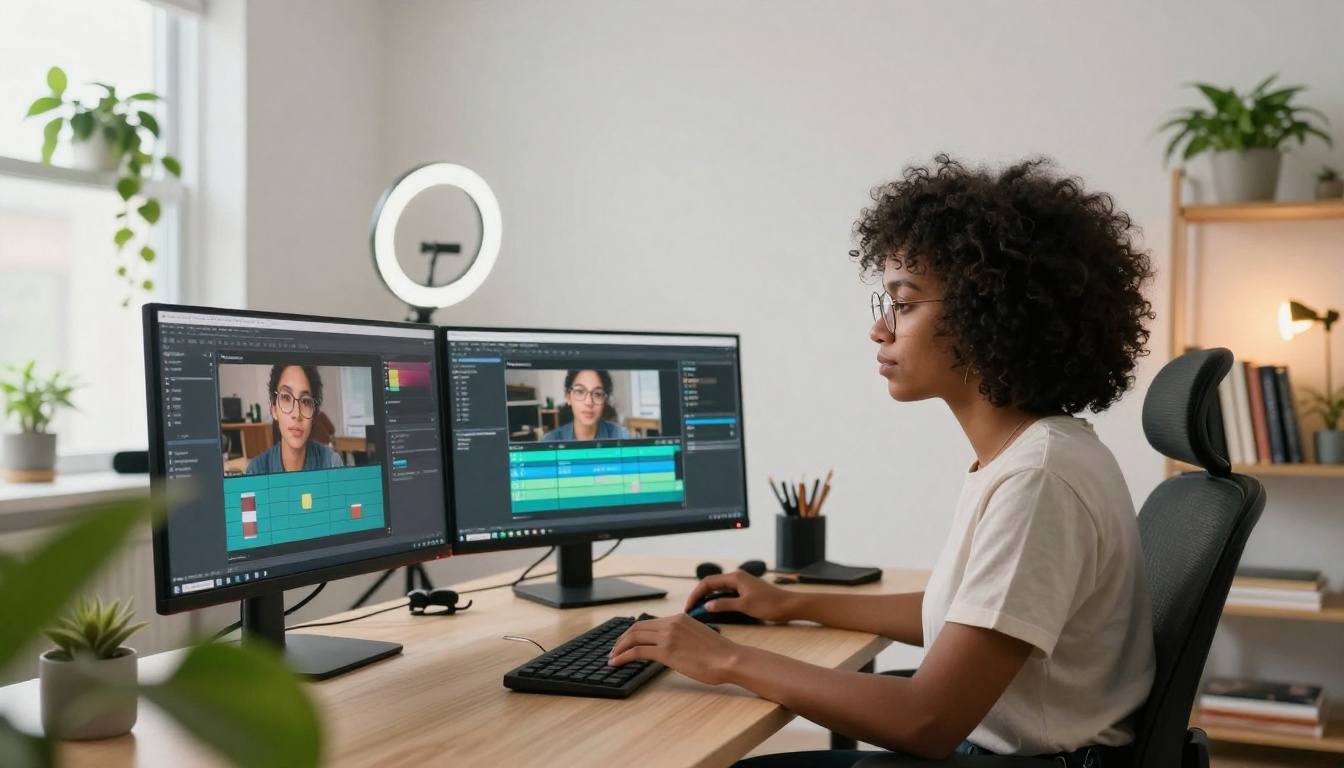
Talking photos rarely live in isolation. They are most effective when combined with other AI capabilities.
Text to Speech: PicassoIA's Text to Speech models generate the audio input from any written script without requiring you to record your own voice. This is ideal for creating talking portraits of people who cannot or do not want to provide audio directly.
AI Music Generation: Adding a subtle background track from AI Music Generation transforms a raw talking portrait clip into a polished, production-ready video.
Background Removal: Before uploading your portrait, running it through Background Removal to place the face against a clean, solid-color background often produces cleaner lipsync output and makes compositing into other footage much easier.
Lipsync Speed: For high-volume workflows where you need to process many clips quickly, this model by HeyGen prioritizes throughput without sacrificing core lip movement accuracy.
Lipsync Precision: When accuracy is more important than speed, this companion model from HeyGen is optimized for phoneme-level precision on demanding audio content.
Start Creating Right Now
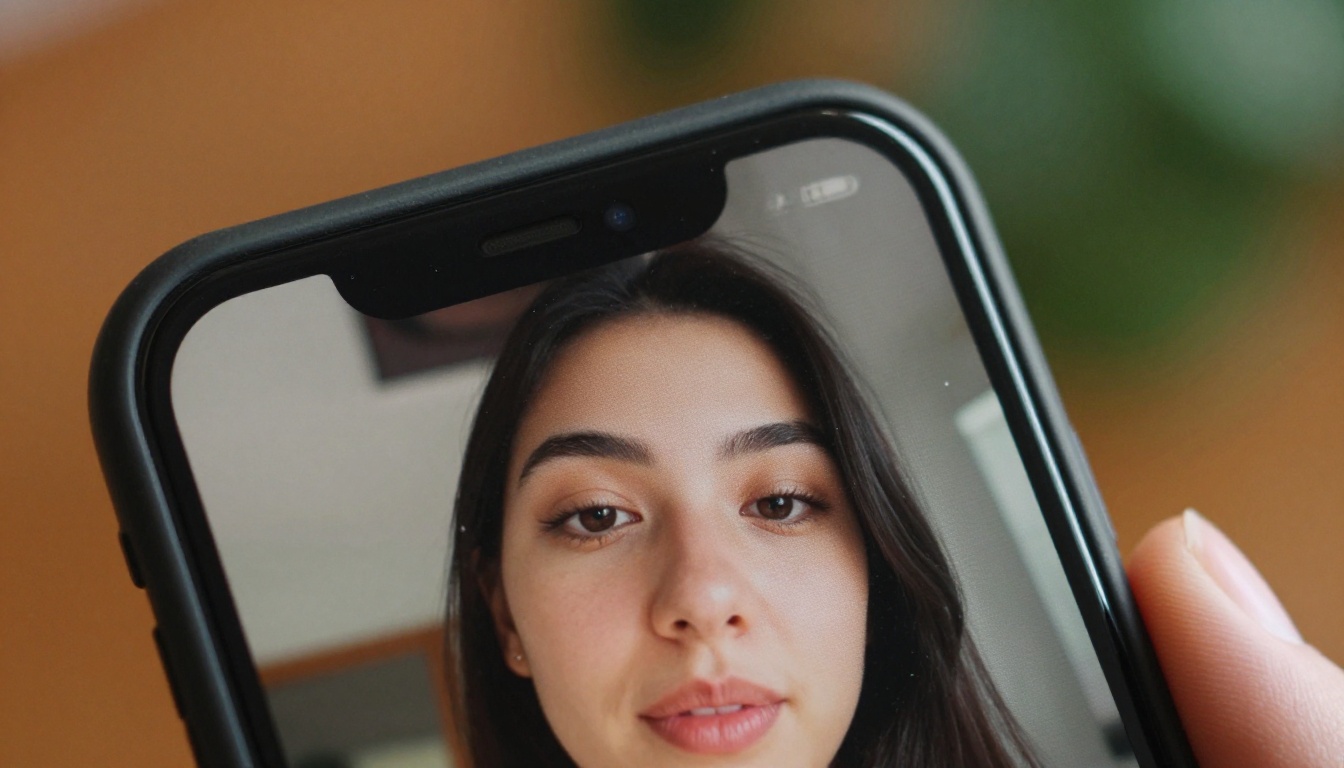
The barrier to creating a talking photo with AI is now a single portrait and a single audio clip. No studio, no camera crew, no post-production pipeline.
Whether you are building a personal brand, producing educational content, experimenting with historical animation, or just curious about what the technology can do, the models on PicassoIA are ready to use.
Start with Omni Human 1.5 if you want the highest-fidelity output from a portrait. Use Fabric 1.0 if you want the fastest path from still photo to finished talking video. Try Kling Lip Sync if temporal consistency across longer clips is the priority.
Pick any photo. Record or generate 30 seconds of audio. Upload both and see what comes back. The first time a still portrait opens its mouth and speaks, the possibilities become obvious fast.
💡 Browse the full lipsync model collection on PicassoIA to see every available tool for talking photos, voice-to-video sync, and multilingual dubbing in one place.


