Time-lapse used to cost you a full day of setup, a specialized camera rig, and at least 8 hours of raw footage just to produce 30 seconds of video. Today, you can type a single sentence and get a cinematic AI time-lapse result in under two minutes. That gap is not an exaggeration. AI video models have reached a point where motion, lighting transitions, and time compression happen at the prompt level, with no physical camera required.
This article covers what is actually happening inside these models when they simulate time-lapse motion, which AI models produce the best results for specific scenarios, how to write prompts that work consistently, and a step-by-step walkthrough for creating your own time-lapse videos starting right now.
What AI Time-Lapse Actually Does
Before jumping to tools, it helps to understand what you are actually generating. A real time-lapse works by capturing frames at long intervals, then playing them back at normal speed. The result is the illusion of fast motion for slow processes: cloud movement, plant growth, city traffic, tides rising and falling.
AI does not capture frames. It predicts them.
Speed vs. Interpolation
Traditional time-lapse compresses time by removing frames. AI time-lapse generates motion from scratch, predicting how light, objects, and atmosphere would naturally change over a given duration. This is closer to frame interpolation than simple speed adjustment, but far more sophisticated. The model does not just speed things up. It synthesizes what the intermediate states would look like, based on the physics of motion it has absorbed from millions of hours of video training data.
What AI Adds to the Mix
The real advantage of AI time-lapse over traditional shooting is control. You are not at the mercy of weather, location, or equipment. You can specify the exact lighting transition you want (sunrise to noon to dusk), the subject behavior (clouds dispersing, flowers opening, cities lighting up), and the camera movement (slow pan, static, orbit) all from a single text prompt.
This means you can create a time-lapse of a sunset over a coastal mountain range without leaving your desk, or simulate 12 hours of cloud movement in a 6-second cinematic clip. The creative ceiling here is your prompting ability, not your gear budget.
Where AI Time-Lapse Falls Short
AI video models perform best on atmospheric and natural subject matter. Precise mechanical motion, like the hands of a clock or a machine assembly line, is harder because the model must maintain exact spatial consistency across many frames. For these scenarios, hybrid approaches work better: generate an AI background time-lapse, then composite real footage on top. But for landscapes, cityscapes, botanical subjects, and sky sequences, AI is now the fastest route to a usable result.
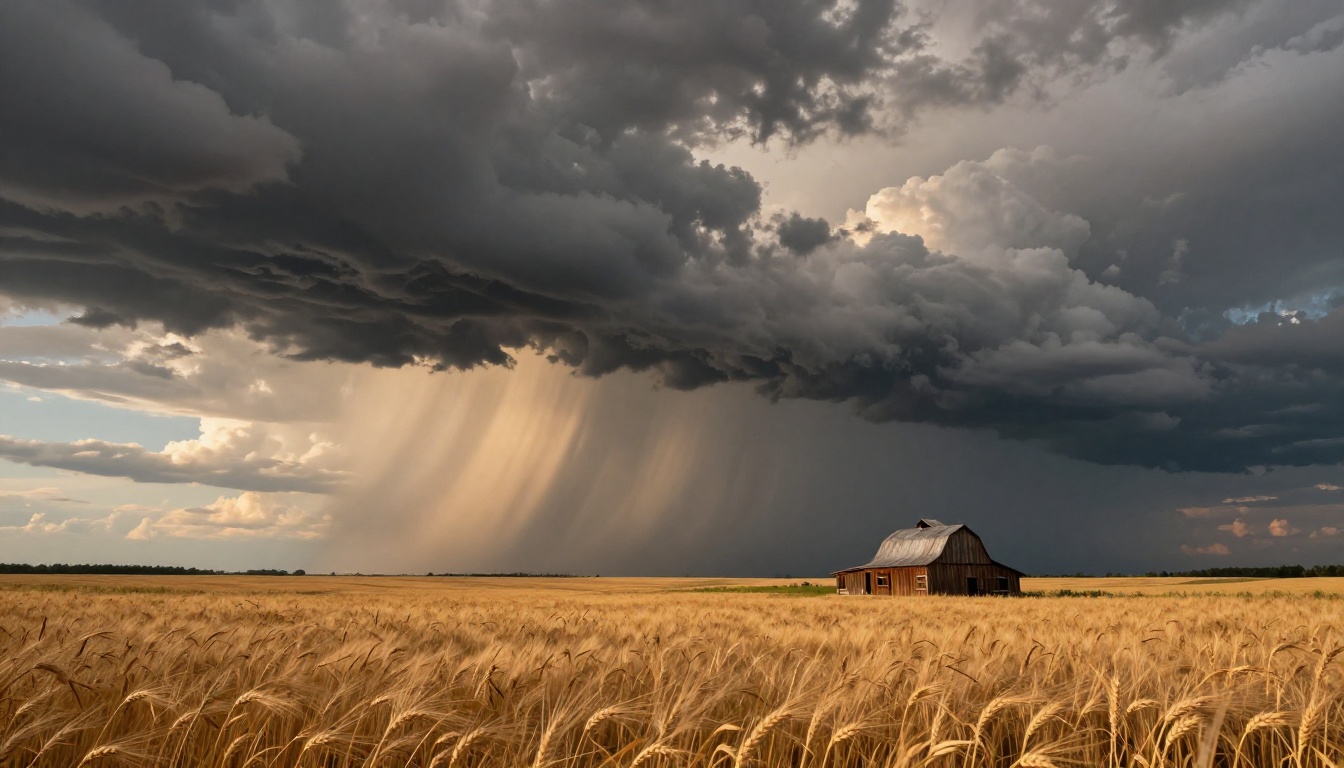
5 AI Models That Deliver Real Time-Lapse Results
No dedicated time-lapse button exists in most AI video platforms, but several models handle motion, lighting transitions, and atmospheric change in ways that consistently produce excellent results. These are the ones worth knowing by name.
Seedance 2.0 by ByteDance
Seedance 2.0 stands out for its handling of complex scene transitions. When you prompt it with cloud movement, city traffic, or natural light cycling, it produces smooth, physically plausible motion that holds up at full frame. The native audio generation also means your sky time-lapse can ship with ambient wind sound without extra post-production steps.
Best for: Cloud and sky scenes, urban traffic flows, natural atmospheric motion with synchronized audio.
Kling v3 Video by Kwaivgi
Kling v3 Video excels at cinematic output at 1080p. Its motion control features let you specify camera behavior alongside subject movement, which is critical for a convincing time-lapse. Static background with fast-moving clouds in the foreground is exactly the kind of layered motion this model handles with precision.
Best for: Cinematic nature shots, controlled camera with atmospheric motion, portrait-orientation time-lapse subjects.
Wan 2.7 T2V by Wan Video
Wan 2.7 T2V generates at 1080p with strong consistency across long-form motion sequences. For a star-trail style time-lapse, where the background must remain perfectly stable while stars arc across the sky, this model maintains spatial coherence better than lighter-weight alternatives. It is the right choice when technical accuracy matters more than speed.
Best for: Star trails, long-duration simulated motion, technically demanding multi-element sequences.
Veo 3 by Google
Veo 3 brings native audio generation together with high-quality cinematic motion. For a city time-lapse, this means you get traffic noise that matches the visual density on screen, without any separate audio work. The model responds well to temporal language in prompts, meaning phrases like "from dawn to dusk" or "over 8 hours" produce coherent, gradual lighting progressions rather than abrupt shifts.
Best for: Full-day lighting transitions, city scenes with matching ambient audio, polished final output for professional use.
LTX 2 Pro by Lightricks
LTX 2 Pro outputs at 4K, which matters when your time-lapse is the centerpiece of a professional project. The detail in slow-motion plant growth or water movement holds up at large display sizes where compressed alternatives fall apart. If you are delivering for a commercial client or high-resolution display, start here.
Best for: Professional output, 4K nature footage, commercial projects where quality at scale is non-negotiable.
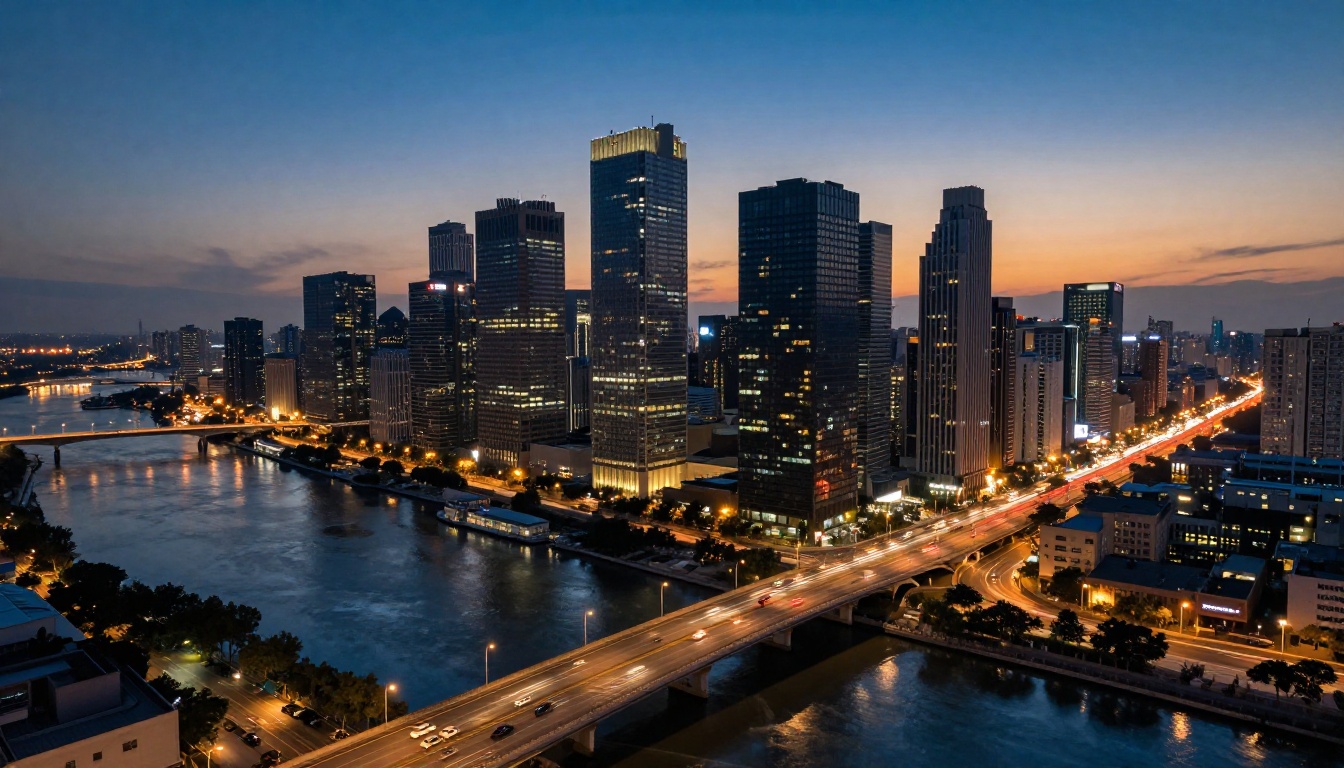
How to Use Seedance 2.0 for Time-Lapse on PicassoIA
Since no model has a dedicated time-lapse preset, the prompt is your primary tool. Here is a repeatable workflow using Seedance 2.0 on PicassoIA that consistently produces cinematic results.
Step 1: Set the Scene and Time Span
Navigate to Seedance 2.0 on PicassoIA and begin your prompt with the subject, location, and time span. The time span is the signal that tells the model to simulate compression. Without it, you get regular motion video, not a time-lapse effect.
Prompt structure to follow: [Subject] in [location], time-lapse from [start state] to [end state], [camera behavior], [lighting quality]
A working example: Mountain landscape time-lapse from sunrise to midday, static wide-angle camera, clouds racing across a fiery sky, golden volumetric light sweeping across the valley, cinematic, photorealistic, 8K
Step 2: Specify Motion Type for Your Subject
Different subjects require different motion descriptors. Specific language produces far better outputs than generic terms like "fast" or "moving."
| Subject | Effective Motion Descriptors |
|---|
| Clouds | "racing across sky", "dispersing rapidly", "building into storm" |
| Flowers | "unfolding from bud", "petals opening slowly", "blooming in real time" |
| City traffic | "flowing light trails", "swarming pedestrians", "streaming headlights" |
| Ocean | "tide receding rapidly", "waves accelerating", "surf rushing in" |
| Stars | "arcing overhead", "trailing across sky", "rotating around north star" |
| Forest | "leaves falling in cascades", "canopy shifting season", "shadows racing" |
Step 3: Add Camera and Quality Modifiers
After your core description, append camera and quality information. This pushes the output toward the visual conventions of documentary cinematography rather than a generic AI-rendered aesthetic.
Append to your prompt: photorealistic, film grain, Kodak Portra 400, natural lighting, Sony A7R V, 24mm wide angle, 8K resolution
Tip: If your first output looks too smooth or artificially clean, add "slight motion blur, natural imperfections, real film grain" to the next run. This breaks the hyper-polished AI look and makes the result feel genuinely photographed.
Step 4: Iterate on the Light
The most common mistake in AI time-lapse prompting is under-specifying the lighting transition. Light is what makes time-lapse dramatic, not just subject motion. If your prompt does not describe how the light changes, the model defaults to flat or static lighting, and the result feels like speed-ramped video rather than a true time-lapse.
Add one of these lighting phrases to every prompt:
from warm golden sunrise light to cool blue middaysunset to night, city lights gradually ignitingovercast morning gradually breaking to direct afternoon sunfull day-to-night transition, stars emerging
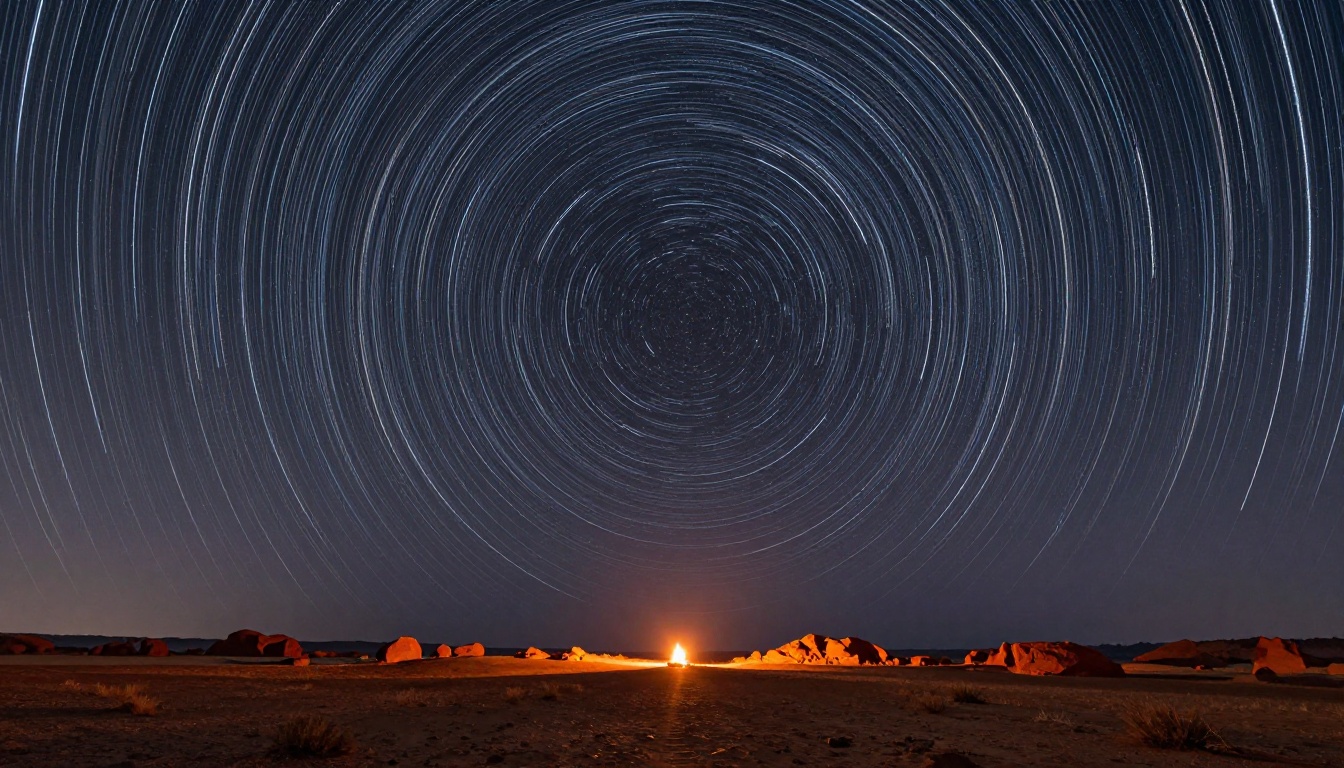
Best Subjects for AI Time-Lapse
Not every subject works equally well. Some scenes produce predictably excellent results because the models have absorbed vast quantities of similar footage during training. These subject categories have the highest output consistency.
Nature and Sky
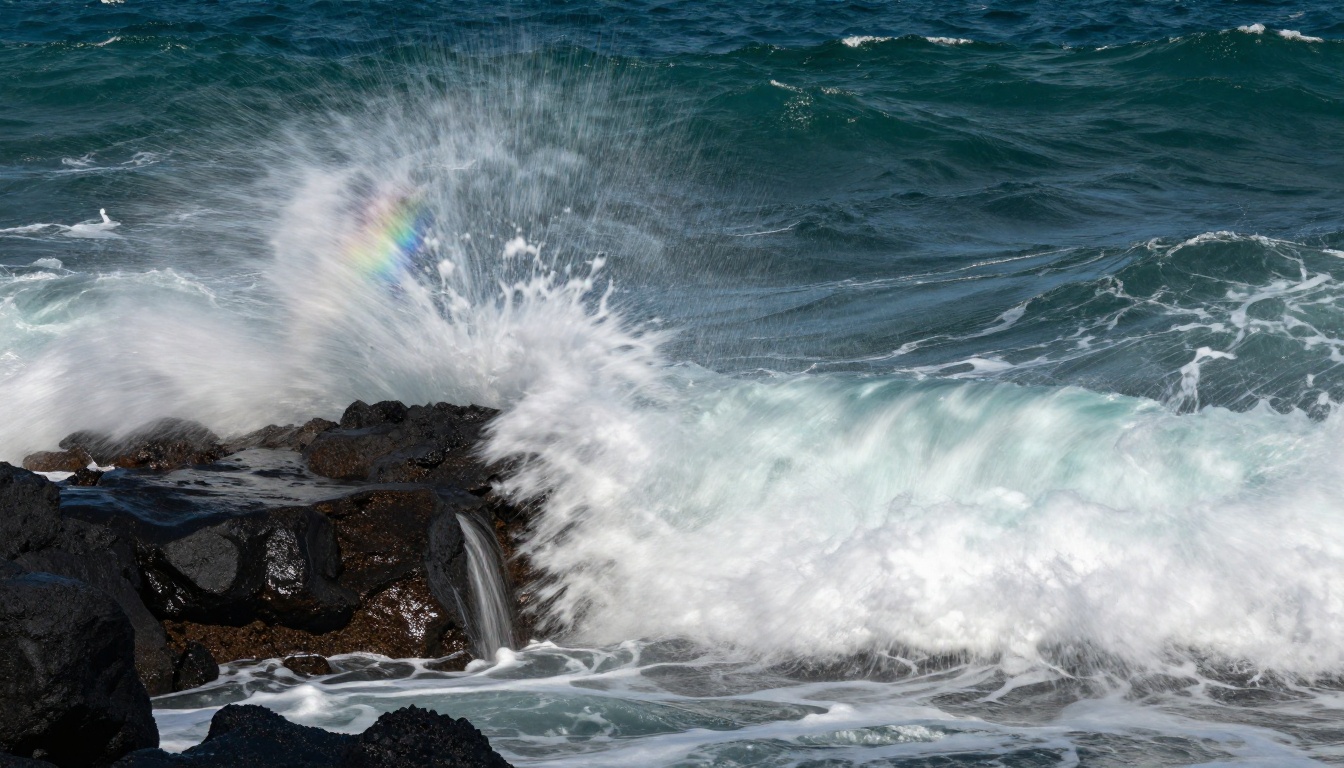
Sky time-lapse is where AI models perform at their ceiling. Cloud formation, storm development, sunset color transitions, and star trails all involve large-scale atmospheric motion that models have processed in enormous quantities. When you prompt a sky time-lapse, you are asking the model to reproduce a pattern it has refined from millions of similar frames.
The key is specificity. "A cloudy sky time-lapse" produces average results. "Cumulonimbus clouds building and dispersing over a rocky coastal cliff, from clear blue morning to dramatic storm dusk, static wide-angle shot, Kodak Portra 400 color profile" produces something worth publishing.
City and Urban Scenes
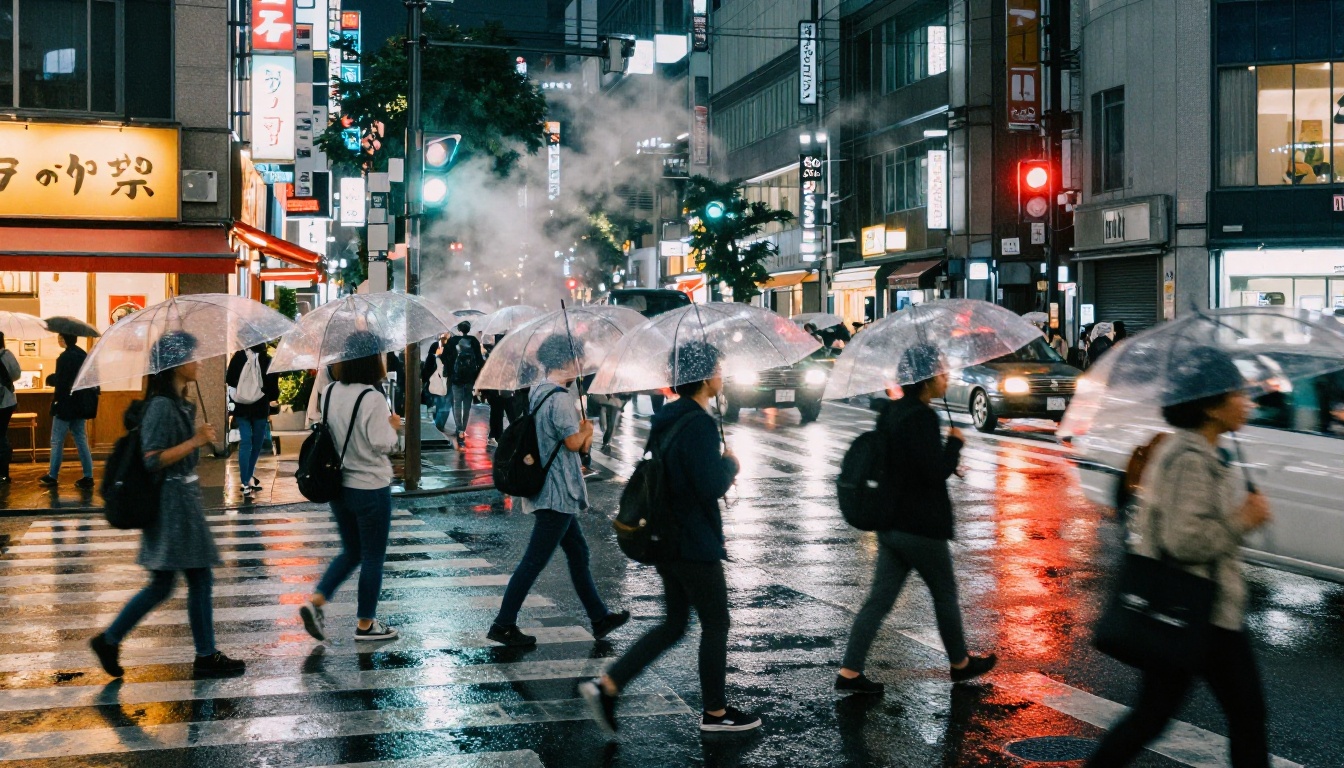
Urban time-lapse captures two things that AI handles particularly well: artificial light and human movement. City skylines transitioning from day to night, pedestrian crowds flowing through busy intersections, and traffic forming light trails are all well within what current models can synthesize convincingly. Veo 3 is the strongest choice for this category because its acoustic intelligence means the audio layer requires zero additional work.
Flowers and Plants
Botanical time-lapse is visually striking and technically demanding. A flower opening from bud to full bloom involves complex 3D shape transformation across time, not just simple linear motion. Models like Wan 2.7 I2V can take an existing photo of a flower bud and animate it through the blooming process, which is particularly valuable when you already have a source image to work from.
Tip: For botanical time-lapse, use image input rather than pure text prompts. Starting from a real photograph of a flower in its early state produces far more realistic petal texture and color continuity than generating everything from text alone.
Seasons and Long-Duration Change
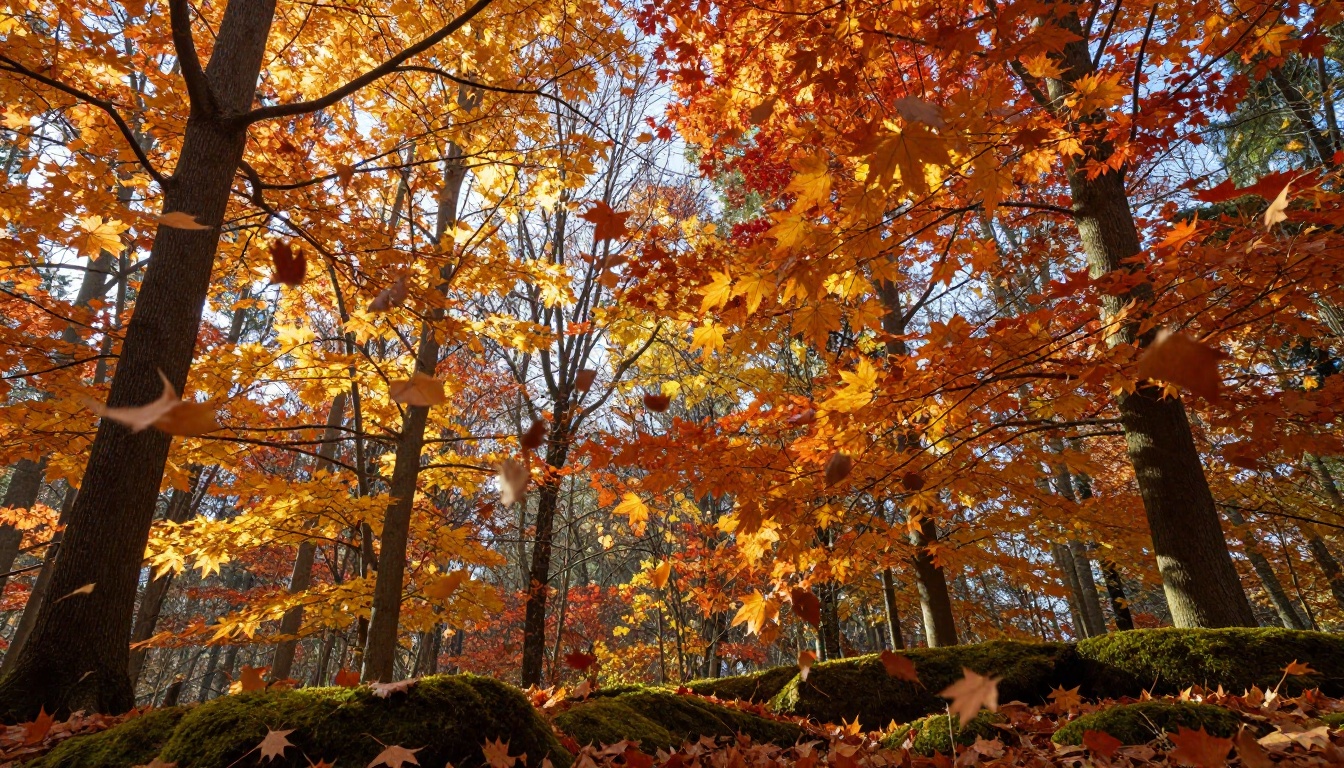
Simulating a full seasonal transition, a forest going from summer green to autumn gold to bare winter branches, requires the model to maintain spatial consistency across extreme visual change over a short clip duration. LTX 2 Pro and Kling v3 Video both handle this category with the necessary long-form coherence to keep the scene grounded as the visuals shift dramatically.
Prompts That Work vs. Prompts That Waste Time
The difference between a mediocre and a cinematic AI time-lapse is almost entirely in the prompt. A few specific habits produce consistently better output across all models.
The Four-Part Prompt Formula
Every high-performing time-lapse prompt includes four components:
- Subject and location: What is happening and where it is set
- Time compression signal: "time-lapse", "from X to Y", "across 8 hours", "fast-forward motion"
- Camera specification: Angle, lens type, camera behavior (static, slow pan, orbit)
- Quality anchors: Film stock reference, lighting quality, resolution target
A prompt missing any one of these four parts tends to produce generic motion video rather than a convincing time-lapse. Missing the quality anchors in particular will give you the distinctive flat, clean look that reads immediately as AI-generated.
Words That Consistently Help
Use these in your prompts: time-lapse, hyperlapse, fast motion, racing clouds, streaming traffic, from dawn to dusk, across 12 hours, photorealistic, film grain, natural light, static camera, wide angle, cinematic, documentary style
Words That Hurt Output Quality
Avoid: animated, illustration, cartoon style, loop, seamless, stylized, artistic, digital art
These terms push the model toward non-photorealistic output, which undermines the goal of a convincing time-lapse.
Why Lighting Transitions Are the Secret
The most visually impressive element of any time-lapse is not subject movement, it is the light changing. A static mountain scene with racing clouds and a full day-to-night transition is more dramatic than a busy scene with flat, unchanging lighting. Always include a lighting transition in your prompt. Even "warm morning light shifting to cool blue evening" is enough to signal to the model that it should produce the color and shadow movement that makes a time-lapse feel authentic.

After Generation: Finishing Your Output
A raw AI time-lapse video is often very good but rarely perfect on the first run. A few finishing steps take it from a solid output to a professional deliverable.
Upscaling the Resolution
If your model output is at 720p or 480p, Real ESRGAN Video on PicassoIA can upscale it to 4K while adding detail rather than simply enlarging pixels. This is especially important when you need footage for high-resolution displays, commercial presentations, or social media platforms that reward high-quality uploads with better reach.
Adding Ambient Sound
A city time-lapse without audio feels incomplete. Veo 3 handles audio natively, but for models that produce silent video, PicassoIA's audio tools let you add a contextually appropriate soundscape that matches the visual environment without any manual sync work.
Adjusting Playback Speed
If the generated motion is not fast enough to read clearly as a time-lapse, the trim and speed tools available in PicassoIA's video editing section let you push the playback rate without re-generating from scratch. Start with a 1.5x or 2x speed increase and check how the motion holds up before going further.
Combining Clips for Full Story Arc
A single 6-second AI time-lapse clip is a visual moment. Three clips stitched together, morning to noon to night, become a complete narrative. Use the video merge tools available on PicassoIA to combine outputs from multiple generation runs into a single continuous sequence.
Start Creating Right Now
The barrier to creating a time-lapse video used to be equipment, location scouting, and weeks of planning. With AI, it is a well-written sentence and two minutes of generation time.
Start with something specific. Pick a subject you have always wanted to capture but could not: clouds building over a mountain range, a city skyline transitioning from afternoon to midnight, a garden going from bare soil to full bloom compressed into six seconds of video. Write a prompt that includes all four components above, load up Seedance 2.0 or Kling v3 Video on PicassoIA, and run it.
The first result will teach you something about your prompt. The second or third will be exactly what you pictured.
PicassoIA has over 100 video models available right now, covering every style and subject type. Whether you are after a 4K nature documentary shot using LTX 2 Pro, a fast urban hyperlapse from Wan 2.7 T2V, or a star-trail sequence generated from a single text description with Veo 3, the tools are already there. The only thing missing is your first prompt.


