Your voice is already there. What AI does is make it work for you at scale, without a microphone every single time.
That sentence is what changed everything for content creators, marketers, podcasters, and e-learning producers in the last two years. The ability to create voiceovers in your own voice with AI has gone from a research novelty to a genuinely practical workflow. You record a few seconds of clean audio, feed it to an AI model, and suddenly you have a synthetic version of yourself that reads any script you type, in your tone, your cadence, your vocal character.
No studio booking. No retakes for mispronounced words. No consistency issues between episodes recorded months apart.
This is not text-to-speech as you knew it. The robotic, flat-sounding voices of five years ago are gone. What we have now is indistinguishable from the real thing, and the best models are pulling away fast.
Why Your Voice Actually Matters
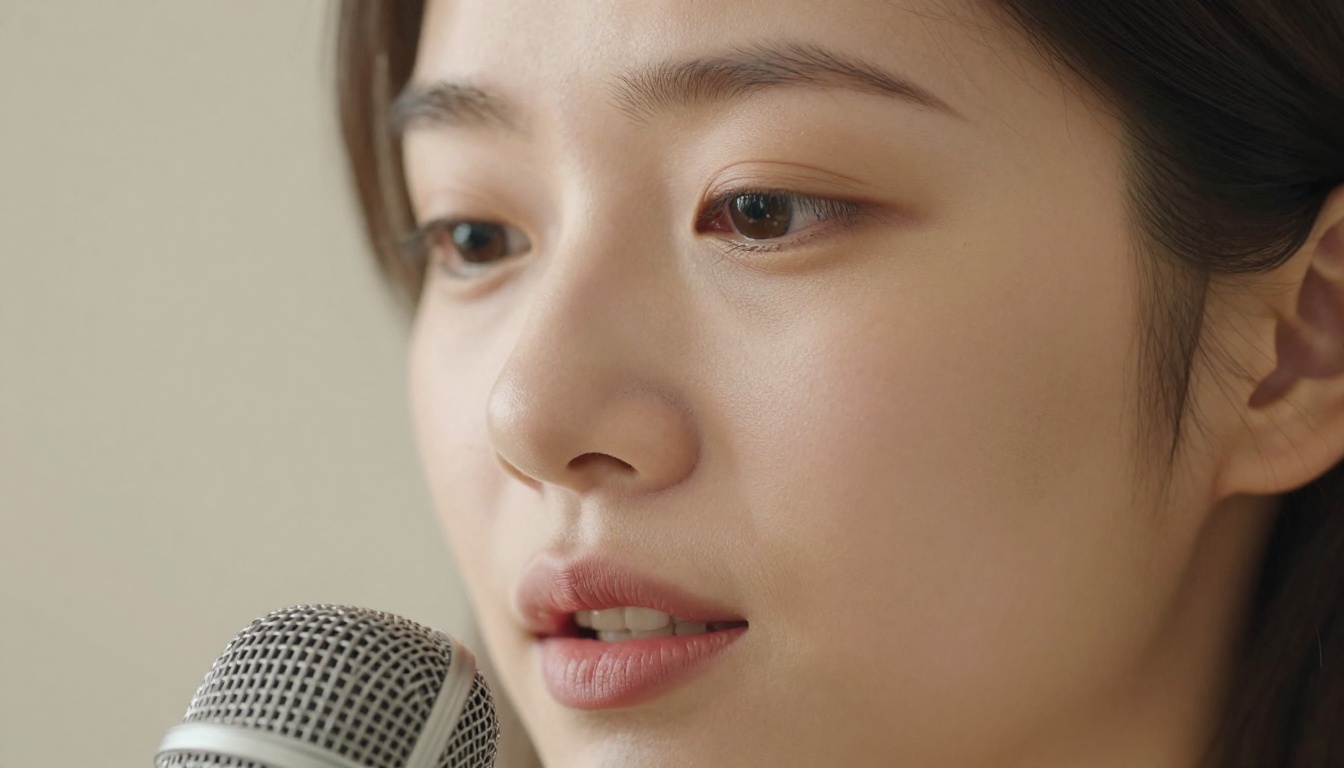
There is a reason audiences connect differently with creators who use their real voice compared to those who use generic TTS voices. It comes down to vocal identity: the subtle combination of pitch, rhythm, breathiness, and micro-pauses that makes someone's voice theirs.
Generic AI voices, no matter how polished, carry no identity. They feel like a press release read aloud. Your voice, on the other hand, carries trust. Listeners who already know your voice from previous videos or podcasts recognize it immediately. That recognition builds loyalty.
AI voice cloning preserves this. When you clone your own voice with a tool like Chatterbox or Minimax Voice Cloning, the output does not sound like "an AI reading your script." It sounds like you. The difference in audience reception is measurable.
The Creators Already Doing This
- YouTubers who produce content in multiple languages without hiring translators or re-recording everything
- Podcasters who batch-produce intros, ad reads, and mid-roll sponsorship messages once per month
- Course creators who update curriculum sections without re-entering a recording booth
- Marketers producing personalized video narrations at scale
The use case that surprises people most is voice preservation. Voice actors, public figures, and people who know their vocal health may decline are using AI cloning to archive their voice now, for use later.
How AI Clones Your Voice
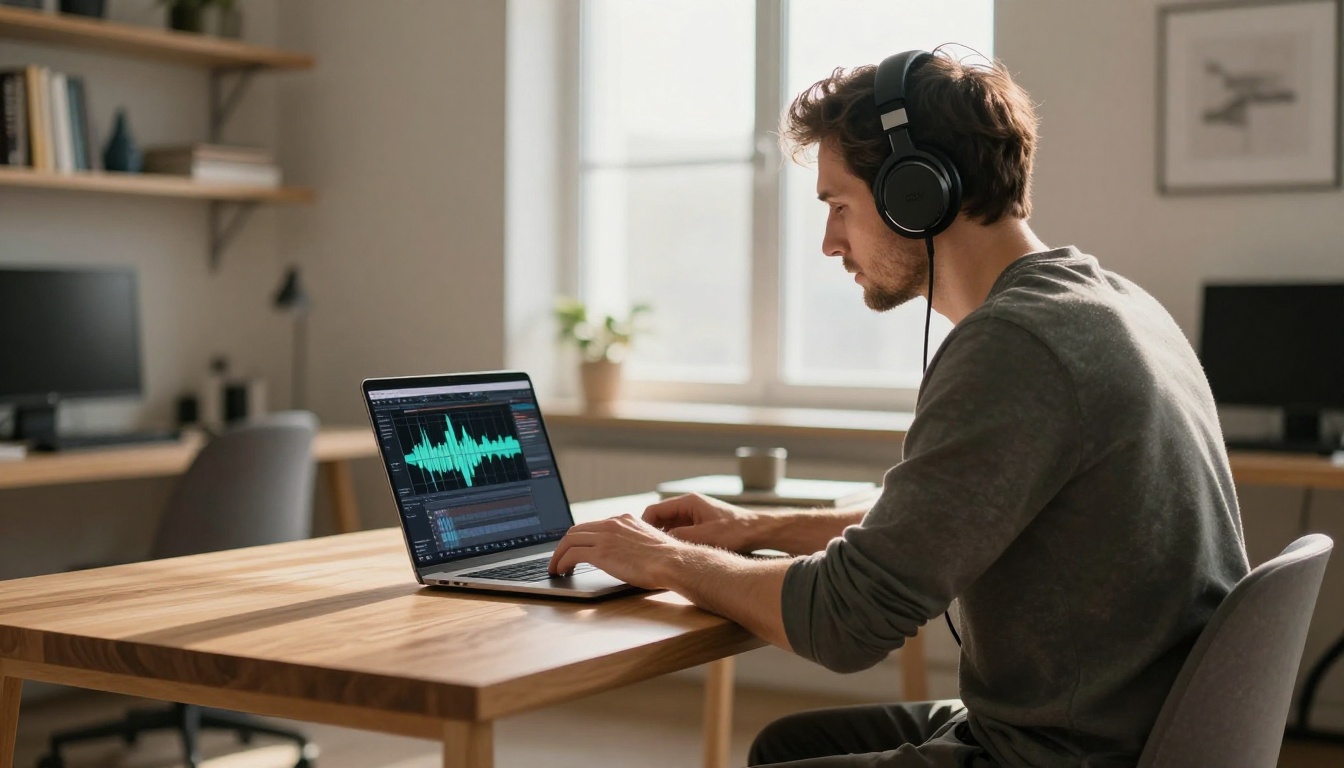
The process is simpler than most people expect. Here is what actually happens under the hood:
Step 1: The Reference Sample
You provide a short audio clip of your voice, typically 15 seconds to 3 minutes of clean speech. The model extracts a voice embedding: a mathematical representation of your vocal characteristics. This is not a recording copy. It is a set of acoustic parameters that describe how your voice sounds.
Step 2: The Synthesis Engine
When you type new text, the model runs that text through a text-to-speech synthesis pipeline, but instead of using a default voice profile, it applies your vocal embedding. The result is new speech in your voice saying words you never actually recorded.
Step 3: Emotion and Prosody
The best models in 2027 go beyond tone matching. They model prosody: the rise and fall of pitch that makes speech sound natural, not robotic. ElevenLabs v3 and Chatterbox Pro both offer emotion control, meaning you can specify whether the output should sound excited, calm, authoritative, or conversational, without re-recording.
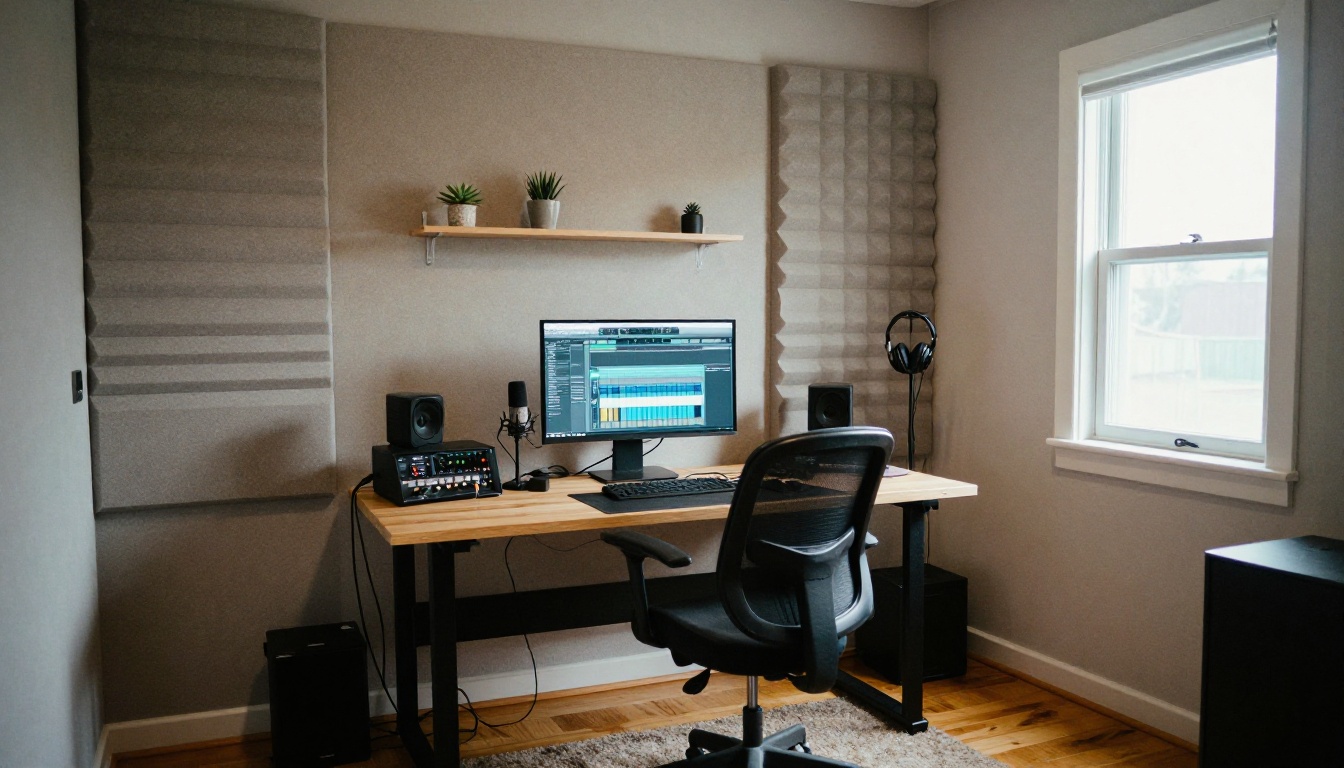
💡 The quality of your reference clip matters more than its length. A 30-second sample recorded in a quiet room outperforms a 5-minute recording with background noise. Use a cardioid microphone, or at minimum record in a closet with clothes absorbing reflections.
The Best Models for Voice Cloning in 2027
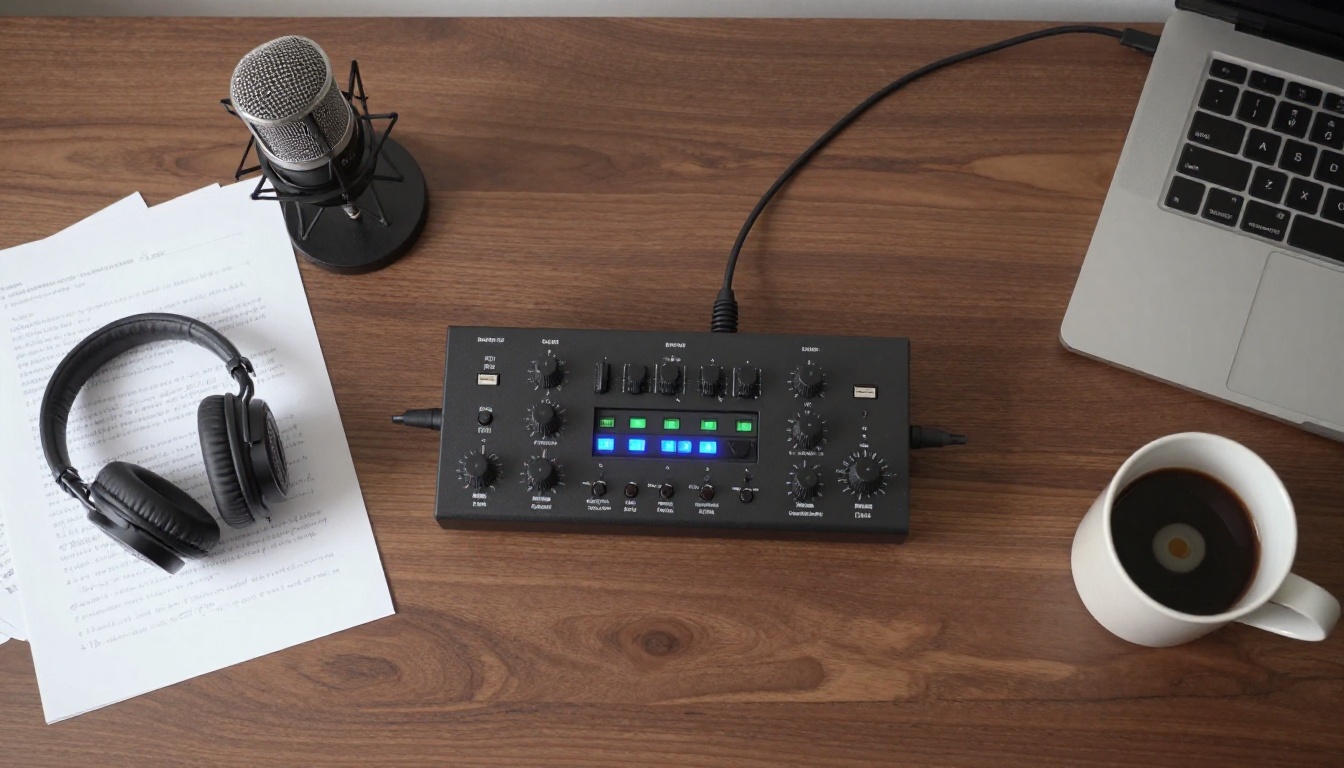
Not all voice cloning models are equal. Here is a breakdown of what each major model does best:
When to Choose Chatterbox
Chatterbox from Resemble AI is the standout choice when the emotional quality of the output matters most. It handles dialogue-heavy scripts particularly well, where the voice needs to shift between informational, warm, and emphatic registers within a single paragraph.
For faster production where you need many audio files quickly, Chatterbox Turbo keeps quality competitive while cutting generation time significantly.
When Multilingual Output is the Priority
If you create content in more than one language, ElevenLabs v2 Multilingual is the clearest choice. It clones your voice and then outputs in 30+ languages, preserving your vocal characteristics even when the language changes. Your Spanish-language audience hears content in your voice, not in a generic localized voice.
Gemini 3.1 Flash TTS from Google covers 70+ languages, making it the widest net for international creators.
How to Use Chatterbox on PicassoIA
PicassoIA gives you access to Chatterbox directly in your browser, no installation required. Here is how to produce your first AI voiceover in your own voice:
Step 1: Record Your Reference Audio
Record 30 to 60 seconds of natural speech. Read a paragraph from a book, narrate a short story, or simply talk about your day. The goal is clean, uninterrupted audio with minimal background noise.
What to avoid in your reference clip:
- Music or background noise of any kind
- Heavily processed audio (no reverb, no compression artifacts)
- Whispered or shouted delivery, record at your normal speaking volume
- Audio with long pauses between sentences
Step 2: Open Chatterbox on PicassoIA
Go to Chatterbox on PicassoIA. You will see two input areas: one for your reference audio file and one for the text you want to synthesize.
Step 3: Upload Your Reference Sample
Click the audio upload field and select your recorded reference clip. The model accepts WAV, MP3, and M4A formats. Files under 10MB work best. Do not compress the audio aggressively before uploading.
Step 4: Write Your Script
Type or paste the text you want converted to speech in the text input area. Chatterbox handles punctuation naturally: commas create short pauses, periods create slightly longer ones, and question marks adjust the pitch upward at the end of a sentence.
💡 Formatting tip: Write your script the way you actually speak. Use contractions ("you're" instead of "you are"), short sentences, and commas where you naturally pause. The model reads punctuation as breathing instructions.
Step 5: Adjust the Emotion Settings
Chatterbox includes an exaggeration slider that controls how dramatically the emotional tone is expressed. For narration, keep it at 0.3 to 0.5. For ad reads where energy matters, push it to 0.6 to 0.8. For calm, professional explainers, set it closer to 0.2.
Step 6: Generate and Download
Click Generate. Most outputs are ready in under 30 seconds. Listen through your headphones before downloading. If the output cuts words or sounds rushed, break the script into shorter segments and merge the audio files afterward.
Step 7: Fix Problem Phrases
Certain words or names may come out mispronounced. The fastest fix is phonetic spelling: write "Criss-tee-AHN" instead of "Cristián," or break compound words into separate syllables. The model reads what you write, so spelling adjustments are the most reliable correction method.
Real Workflows: How Creators Use AI Voiceovers
The Podcast Batch Method
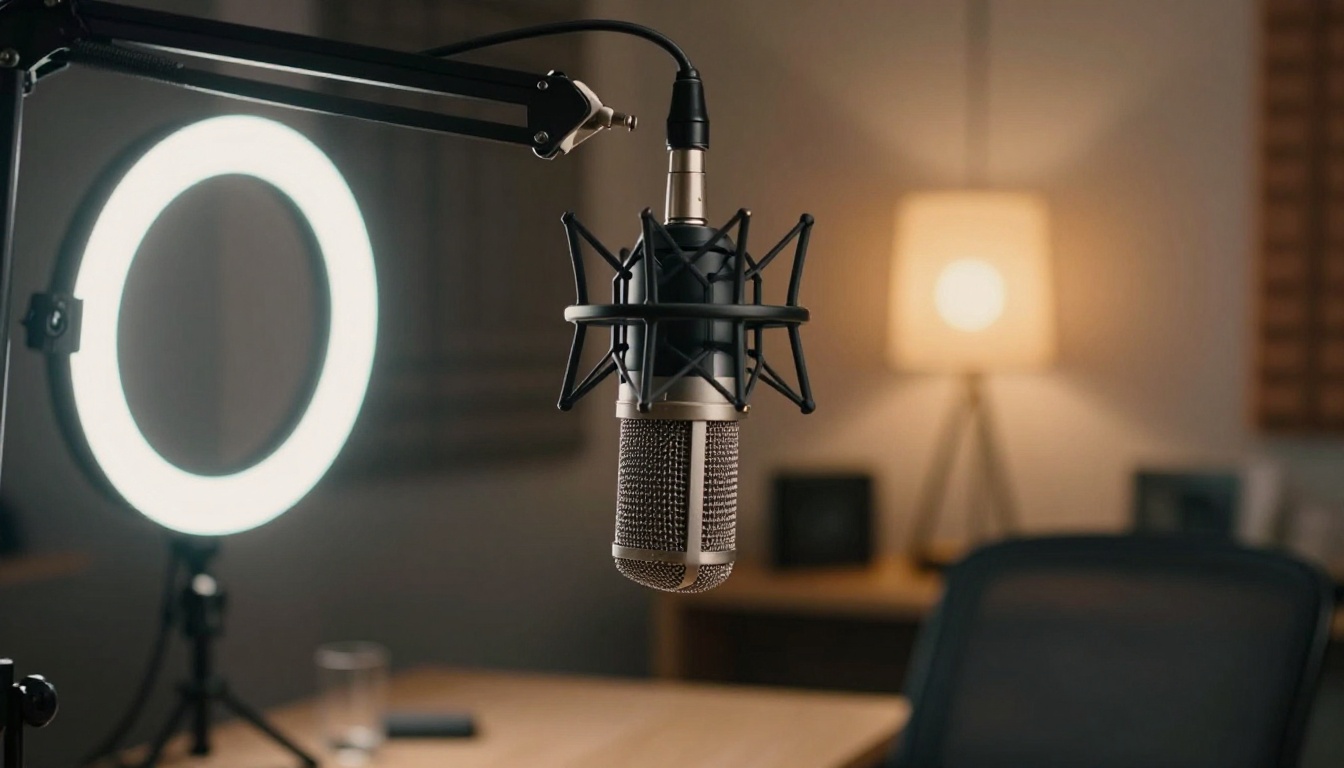
Instead of recording every week, some podcasters use this workflow: record one 3-minute reference session monthly, then use Chatterbox Pro to synthesize all intros, outros, ad spots, and episode summaries for the entire month in a single afternoon. The listener experience is consistent because the voice is always theirs.
The YouTube Localization Pipeline
A solo creator with an English-language channel uses ElevenLabs v2 Multilingual to produce Spanish, French, and Portuguese versions of every video. The translated script goes into the model, the original voice sample is the reference, and the output audio is dubbed back over the original video. Three language versions of every video, with no additional recording time.
The E-Learning Update Loop
Course creators face a specific pain: content updates. When a statistic changes or a process step is updated, re-recording the entire lesson is expensive. With Speech 2.8 HD, creators can swap out individual sentences without re-recording an entire module. The AI voice matches the original close enough that splicing is seamless.
The Personal Brand Voice Archive
Marketers and executives who do frequent video content are using Minimax Voice Cloning to create a permanent voice profile they can use for any script. Instead of scheduling recording sessions, they approve scripts, generate audio, and review the output. The total time per video narration drops from an hour to under five minutes.
3 Mistakes That Kill Voiceover Quality

Even with excellent models, output quality depends on inputs. These three errors account for most bad results:
1. Noisy Reference Audio
The model cannot separate your voice from background sound in the reference clip. Air conditioning hum, street noise, and keyboard clicks all get embedded into the voice profile. Record in the quietest environment you have, even if that means recording inside a car or a closet full of clothes.
2. Scripts That Are Too Long Per Generation
Feeding a 2000-word script as a single input often produces output with degraded consistency in the second half. Break long scripts into 200 to 300 word segments, generate each separately, and join them in any basic audio editor. The quality per segment stays high throughout.
3. Ignoring the Speed Parameter
AI models default to a neutral speaking pace that often feels slightly slower than natural conversation. Most models include a speaking rate control. Set it 5 to 10% faster than default for YouTube narration, and keep it at default for e-learning material where clarity matters more than pace.
Comparing Speed Across Models
For creators who produce high volumes of audio, generation speed is a real variable in workflow planning. Here is how the main models compare on a 500-word script:
For batch workflows where you are generating 20 or more audio files, turbo-class models save hours per week without sacrificing output that listeners can distinguish from premium models in blind tests.
What to Do With Your Audio After Generation

The audio file is just the start. Here is what the best creators do after downloading their AI voiceover:
For video content:
- Sync audio to a video timeline in your editor of choice
- Add subtle room tone under the AI audio to make it blend with ambient footage
- Use EQ to match the tonal character of the AI audio to any other recorded audio in the project
For podcasts:
- Add light compression to even out dynamics
- Apply a high-pass filter at 80Hz to clean sub-bass rumble
- Normalize to -16 LUFS for streaming platforms
For e-learning:
- Add chapter markers that align with the audio timestamps
- Export in both MP3 for streaming and WAV for mastering flexibility
💡 Post-processing note: AI-generated speech is often cleaner and more dynamically consistent than human recordings. This means you need less processing, not more. Over-compressing AI audio makes it sound artificial in a different, harder-to-fix way.
Try It: Your Voice, Right Now
The barrier to producing professional-quality voiceovers in your own voice has dropped to almost nothing. You need a quiet space, a few minutes of reference audio, and access to the right model.
PicassoIA puts all of this in one place. Chatterbox, Chatterbox Pro, ElevenLabs v3, Minimax Voice Cloning, Qwen3 TTS, and more than a dozen other AI audio models are available directly in your browser. No installation. No separate subscriptions. No technical setup.
Whether you are building a YouTube channel, running a podcast, producing online courses, or narrating branded content, your voice is the asset. AI voice cloning means you only have to build that asset once.
Record your reference. Pick a model. Type your script. Your voice, at scale, starting now.


