Getting a logo with a truly clean transparent background is one of those tasks that sounds simple until you actually try it. The old workflow involved Photoshop's magic wand tool, hours of manual selection refinement, and still ending up with a faint white fringe around every edge. AI changed that. Now you can cut out logos for transparent files in seconds, with edge precision that rivals professional manual masking.
This article covers everything: why transparent files matter, how AI actually processes logo edges, what file types you need, and how to get results on PicassoIA without any software installation.
Why Transparent Logo Files Actually Matter
Most people only realize they need a transparent logo the moment they don't have one. You drop a logo onto a dark website header and suddenly there's an obvious white rectangle around it. You send a logo to a print shop and the product comes back with a ghost box. You try to overlay a logo on a photo and it looks like a badly cut newspaper clipping.
A transparent PNG is not just a "nice to have." It's the baseline requirement for professional logo deployment across every medium.
PNG vs. JPG for Logos
JPEG compresses images by blending pixel colors together, which is why it works beautifully for photos but fails completely for logos. The compression creates color artifacts around sharp edges, and more critically, JPEG cannot store transparency data at all. Every JPEG has a solid background, period.
PNG uses lossless compression and supports an alpha channel, which is the data layer that stores transparency information. When a pixel's alpha value is 0, it's fully transparent. When it's 255, it's fully opaque. Values in between give you semi-transparency, which is how AI tools create smooth, antialiased edges that blend naturally onto any background.
| Format | Supports Transparency | Edge Quality | File Size |
|---|
| PNG | Yes (alpha channel) | Crisp, lossless | Larger |
| JPG | No | Artifacts at edges | Smaller |
| SVG | Yes (vector) | Infinite scale | Smallest |
| WebP | Yes | Excellent | Smallest raster |
When White Backgrounds Ruin Everything
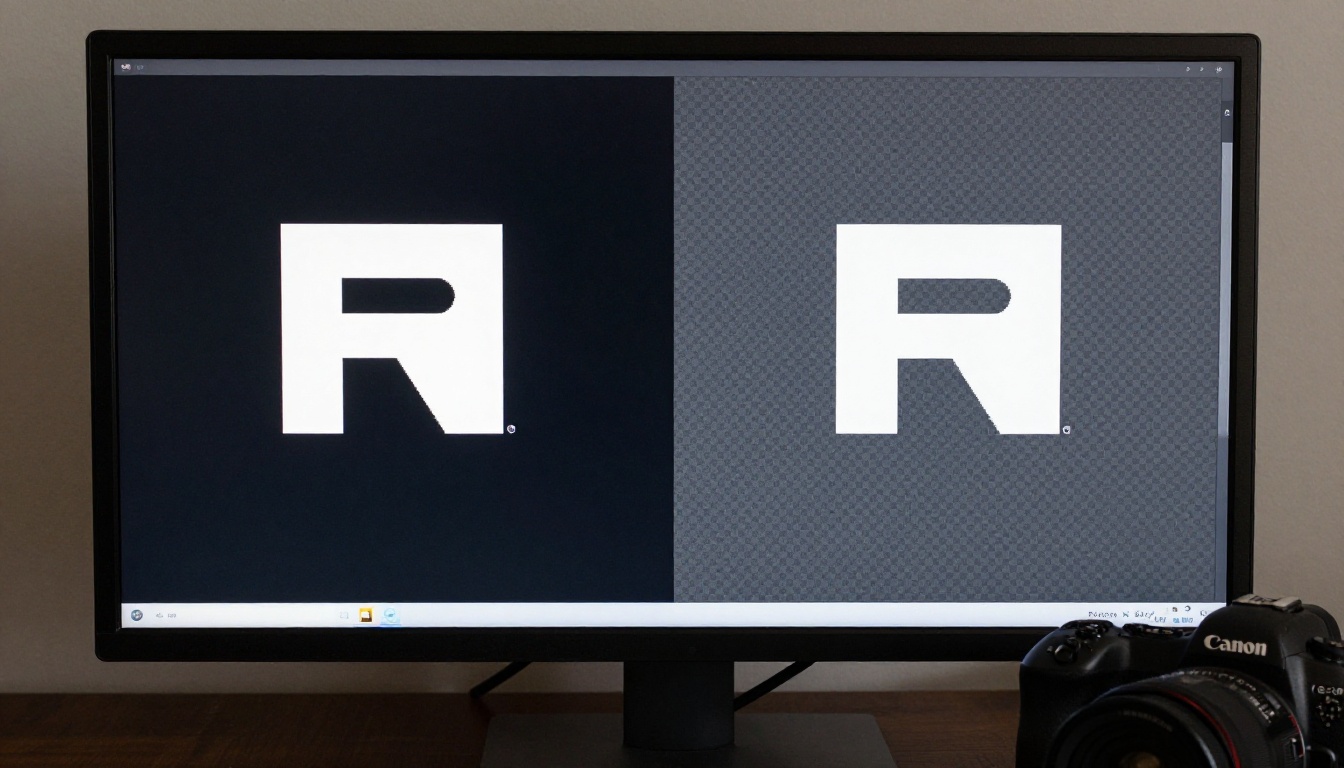
The classic scenario: a logo file saved as PNG but with a white background baked in. It looks fine on white websites. The moment you put it on anything else, the problem is immediately visible. A white box appears around the logo, completely breaking the visual integration.
The other version of this problem is the "near-white" background. The logo was saved on a very light gray or cream background that's almost transparent. In dark mode interfaces or on colored print materials, it becomes obvious instantly.
Both problems have the same fix: cut out the logo so only the actual logo pixels remain, with everything else replaced by true alpha-channel transparency.
What AI Does to Your Logo Edges
The reason manual background removal was so tedious is that logos often have complex boundaries. Rounded corners, drop shadows, gradient fills, thin letterforms, and fine details in icon marks all require pixel-level precision. A single missed pixel cluster at 100% zoom becomes a visible artifact when the logo is displayed at scale.
AI background removal models work differently from simple color selection. They don't just look at the background color and try to select everything that matches. Modern models use semantic segmentation, which means they identify what is foreground subject and what is background based on the entire image context, not just color values.
How the Algorithm Sees Edges
The AI is trained on millions of image-subject pairs and has learned to predict which pixels belong to a subject and which belong to the background. For logos, this works particularly well because logos have defined visual boundaries. The model outputs a probability map for each pixel: how likely is this pixel to be part of the logo versus the background.
This probability map is then converted to an alpha channel. Pixels with high "is foreground" probability get high alpha values (fully opaque). Pixels at the very edge of the logo get intermediate probabilities, which translate to semi-transparent alpha values. That's how you get smooth antialiased edges without manual feathering.
💡 For best results: Submit your logo at the highest resolution available. AI models work with more data per edge pixel at higher resolutions, producing cleaner anti-aliasing. A 2000px logo will give you better edge quality than a 200px thumbnail.
Vector vs. Raster: What AI Handles Best
AI background removal is designed for raster images (JPEG, PNG, WebP). If your original logo is a vector file (AI, EPS, SVG), the correct approach is to export a high-resolution PNG from the vector file first, then run it through background removal. You don't need transparency in the AI/EPS because you can set the export background to match what you're removing.
For completely flat logos on solid white or solid dark backgrounds, results are near-perfect. The bigger challenge comes with logos that have outer glow effects, drop shadows, or semi-transparent design elements built into them. In those cases, the AI has to make judgment calls about which semi-transparent pixels are intentional design elements versus background bleed.
How to Cut Out Logos on PicassoIA
PicassoIA's Remove Background model handles logo cutouts without requiring any account setup or software installation. The process takes under 30 seconds from upload to download.
Upload Your Logo File
Go to the Remove Background tool and drop your logo image directly into the upload zone. The tool accepts JPEG, PNG, and WebP formats. If your logo exists only as a PDF or vector format, export it first as a high-resolution PNG (at least 1000px on the shortest side) before uploading.
Supported input formats:
- PNG (with or without existing transparency)
- JPEG (any background color)
- WebP
- Maximum recommended size: 10MB for fastest processing
Let AI Do the Heavy Work
Once uploaded, the AI processes the image automatically. There are no parameters to configure and no selections to draw. The model analyzes the full image, identifies the logo as the foreground subject, and generates a precise alpha channel mask for every edge pixel.
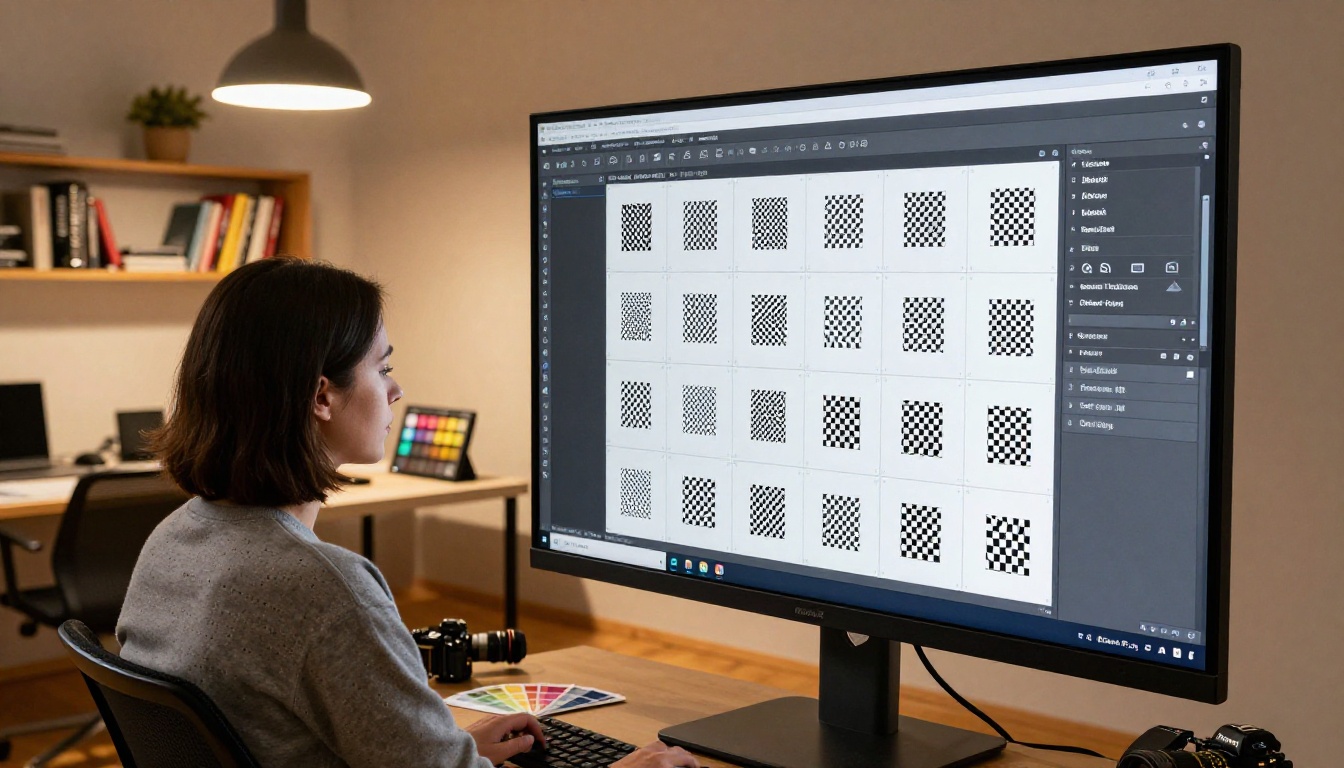
Processing typically completes in 3 to 15 seconds depending on image size and server load. The result preview shows the logo against a checkerboard pattern, which is the standard visual indicator for transparency in image editing software.
💡 Quality check: Zoom into the preview at the edge of any letterform or icon detail. Clean edges should show a smooth gradation into transparency with no visible stepping or fringing. If you see a white or dark halo around the logo in the preview, the input file may have had a colored background that requires a second pass or slight manual refinement.
Download Your Transparent PNG
The output file is always a PNG with a proper alpha channel. Download it and verify it in any image viewer that shows transparency. The transparent areas will appear as white, checkered, or colored depending on your viewer's background color setting.
AI Results vs. Manual Editing
The honest comparison: AI removal is faster than manual editing in 95% of real-world logo cases. Where manual editing still has an edge is in extremely complex scenarios, such as logos with fine hair-like strokes, logos with intentional outer glows, or logos photographed in non-ideal conditions.
| Scenario | AI Result | Manual Result | Winner |
|---|
| Logo on solid white or black | Excellent | Excellent | AI (speed) |
| Logo on gradient background | Very Good | Good | AI |
| Simple icon with solid fills | Perfect | Perfect | AI (speed) |
| Text logo with thin strokes | Very Good | Excellent | Manual |
| Logo with drop shadow | Good | Excellent | Manual |
| Batch processing 50+ logos | Excellent | Impractical | AI |
| No software required | Yes | No | AI |
The practical reality for most use cases: AI wins. Batch processing a company's full logo library, converting old assets from JPEG to transparent PNG, or quickly adapting logos for new brand materials are all scenarios where spending hours in Photoshop makes no sense when AI delivers equivalent results in minutes.

Best Logo Types for AI Cutouts
Not all logos respond identically to AI processing. Knowing which types work best helps you set accurate expectations and prep your files correctly.
Complex Multi-Color Logos
Logos with intricate color patterns, multiple icon elements, or detailed illustrations are where AI tools truly prove their value. Manual selection of every edge on a multi-element icon would take significant time. AI processes the entire boundary simultaneously and typically produces accurate results as long as there's reasonable contrast between the logo and background.
Prep tip: If your complex logo has elements that are close in color to the background (for example, a light blue icon on a light gray background), try converting the background to pure white or black before processing. This increases contrast at the edges and improves AI accuracy.
Simple Icon-Based Logos
Clean geometric icons on solid backgrounds are the easiest case for AI. Results are essentially perfect every time. These are the logos where the AI model's output is indistinguishable from painstaking manual work. If you have a library of icon-based logos that need transparent versions, batch process them without any hesitation.
Text Logos and Wordmarks
Pure text logos present an interesting challenge: the letterforms themselves are the logo, and the spaces within letters (counter spaces like the inside of "O", "A", "D") need to remain either transparent or filled depending on the design intent.
AI handles this correctly in most cases. The counter spaces inside letters are part of the font design, and the model typically preserves them as transparent when they should be. However, if a wordmark has tight letter spacing or overlapping characters, double-check the processed file at high zoom to confirm the interiors are handled correctly.
💡 For wordmarks: Process at the highest available resolution. Fine letterform details, especially on serif fonts with thin hairline strokes, benefit significantly from more pixels per character.
Where to Use Your Transparent Logo
Once you have a clean transparent PNG, the use cases open up immediately. Every context that previously required design software workarounds now works correctly out of the box.
Website Headers and Favicons
Website headers are the most common deployment point for logos. Transparent logos work on any header background: solid colors, gradients, full-bleed photography, or dark and light mode switching. Without transparency, every background color change requires a new logo export. With a transparent PNG, the logo adapts automatically.
For favicons (the small icon in browser tabs), a transparent PNG at 32x32 or 64x64 pixels is the recommended format. The transparency ensures the favicon blends naturally with the browser's tab bar regardless of the user's operating system theme.
Social Media Profiles
Every major platform handles profile images differently. Instagram shows profile images in a circle crop. LinkedIn shows them as rounded rectangles. Twitter uses circular crops. A transparent PNG works as the base file for all of them because the platform applies its own shape mask over the image.
Platform-specific sizes:
- Instagram profile: 110 x 110px (displays at 320 x 320)
- LinkedIn company logo: 300 x 300px minimum
- Twitter/X profile: 400 x 400px recommended
- YouTube channel icon: 800 x 800px
Print and Merchandise
Print production requires vector formats for large-format printing, but for many digital print applications (stickers, business cards, branded merchandise), high-resolution transparent PNG is accepted and works perfectly. A 300 DPI transparent PNG for a logo printed at 3 inches wide needs to be at least 900 x 900 pixels.
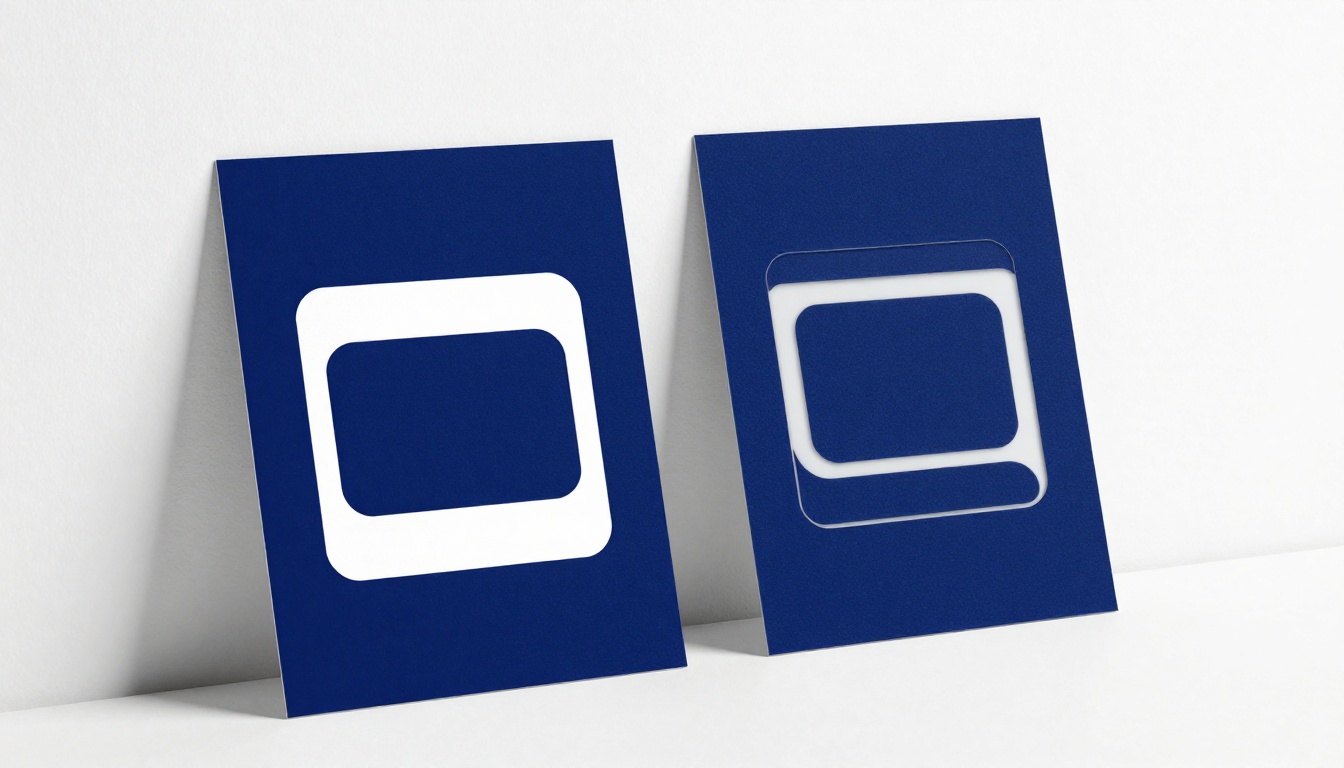
For merchandise like mugs, apparel, and bags, the transparent background is essential. Print-on-demand platforms overlay the logo directly onto product renders, and any white background becomes a visible rectangular patch on the final product.
3 Common Mistakes to Avoid
Even with AI doing the heavy lifting, a few predictable errors show up repeatedly in logo transparency workflows.
Mistake 1: Saving the output as JPEG.
Some workflows automatically re-save downloaded images as JPEG, stripping all transparency data in the process. Always verify the output file extension is .png before placing it in production. A JPEG named "logo-transparent.jpg" is still a JPEG with a solid background.
Mistake 2: Using the thumbnail preview instead of the full resolution download.
Web interfaces often show a preview image that's significantly smaller than the actual processed output. Always use the full-resolution download link, not a right-click save on the preview thumbnail.
Mistake 3: Not checking the output against colored backgrounds before delivery.
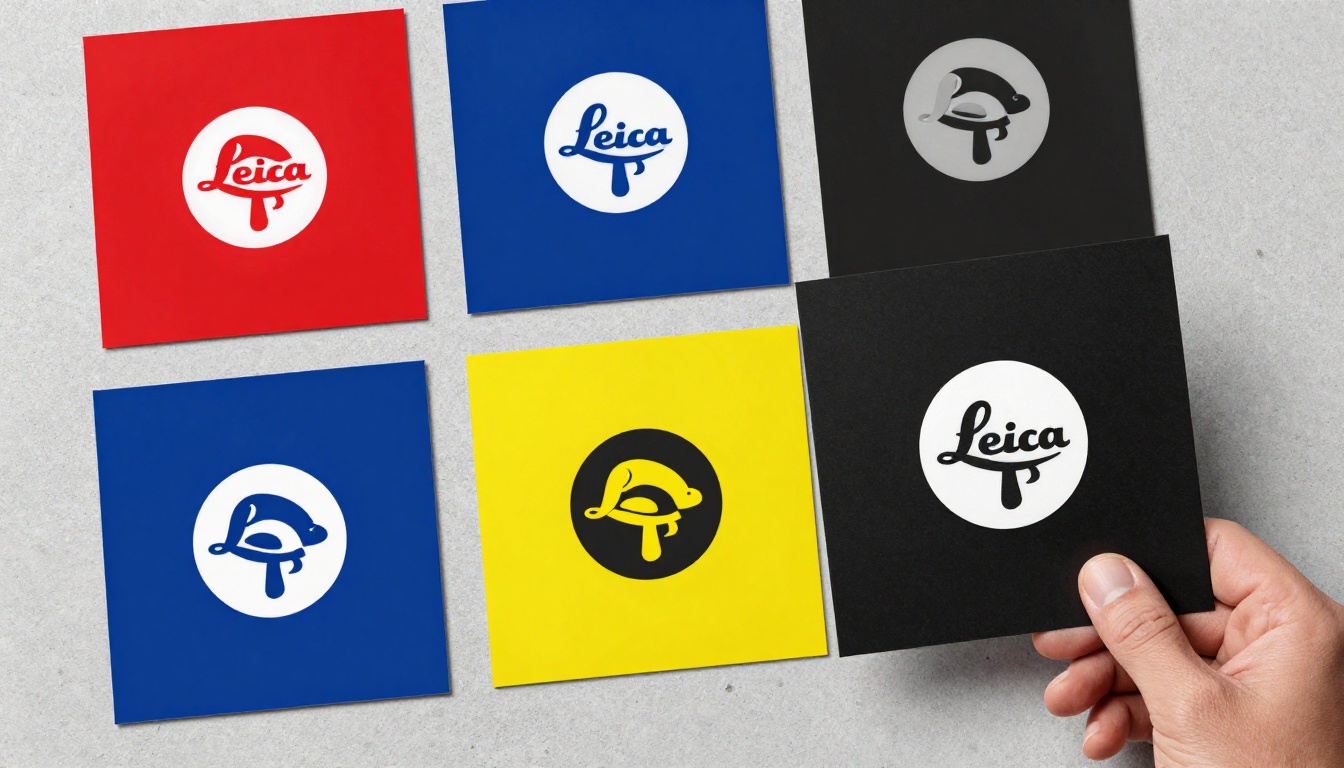
The most reliable quality check is dropping the transparent PNG onto a strongly colored background: dark navy, bright red, and mid-gray are good test cases. Any remaining white fringe or background artifact that wasn't visible on white will immediately become obvious against these colors.
The Difference AI Makes at Scale
For individual files, the time savings from AI are measured in minutes. For brand libraries, the math becomes much more significant. A company rebranding with 40 logo variants, each needing transparent versions at three different resolutions, would represent days of manual Photoshop work. AI processes that same workload in under an hour.
The quality floor has also risen. Previously, the difference between a properly masked logo and a rushed cutout was obvious to any trained eye. AI processing consistently delivers results good enough for production use without manual review of every individual file.
Background removal is often just one step in a larger logo asset workflow. PicassoIA offers additional tools that connect naturally to the transparent file creation process.
Super Resolution is the next logical step after getting a clean transparent PNG from a low-resolution source. If you're working with a logo that only exists as a small JPEG, running it through background removal and then super resolution gives you a high-resolution transparent PNG suitable for large-format applications.
AI Image Restoration helps when the source logo has visible compression artifacts, noise, or blur from being resaved multiple times. Cleaning the image before background removal improves the edge quality of the final transparent output.
Both capabilities are available directly on PicassoIA, making the full workflow accessible without jumping between multiple services.
Start Creating Transparent Logo Files Now
The technical barrier to clean transparent logo files has effectively disappeared. What used to require a licensed copy of Photoshop, hours of precision work, and significant design experience now takes under a minute on any device with a browser.
PicassoIA's Remove Background tool processes logos instantly and delivers production-ready transparent PNG files without any signup required. Drop in your logo, get your transparent file, and start using it across every platform and medium without compromise.
Whether you have one logo to convert or an entire brand asset library to process, the workflow is the same: upload, process, download, deploy. No manual selection, no Photoshop subscription, no edge cleanup required.