You typed a perfectly reasonable prompt, a woman in a silk robe by a hotel window, hit generate, and got a red warning instead of a video. If that sounds familiar, you probably want a straight answer to one question: does PixVerse allow NSFW content? The short version is no. PixVerse prohibits sexually explicit material, runs automated moderation on prompts and uploaded images, and no paid plan switches that off. What is less obvious is where the line sits, why some harmless prompts get blocked anyway, and what you can do about it.
This article lays out how the filters behave, what the free credits and daily limits look like, and which alternatives make more sense when your project leans toward glamour, boudoir or swimwear aesthetics. Everything here stays on the suggestive, non explicit side, because that is the realistic territory where creators actually get good results.
💡 Quick take: PixVerse is built for mainstream short video. If your goal is tasteful, suggestive imagery that you then animate, plan your workflow around tools with looser moderation for the image step, and use video models only for motion.
The Short Answer: Mostly No
PixVerse is a general purpose AI video app. Its terms and community rules ban sexually explicit content, and that applies to the web app, the mobile app, the API and anything you post to the public feed. Reports from third party reviewers also point out that non consensual sexual content and anything involving minors are hard bans with no appeal path in practice.
What PixVerse Actually Blocks
The safest way to think about it is in three layers:
- Explicit sexual acts and nudity. Not allowed, in prompts or in uploaded reference photos.
- Non consensual or exploitative scenarios. Blocked, and a fast route to a suspended account.
- Anything that could involve minors. Blocked without exception, including ambiguous wording about age.
Beyond those, there is a gray zone: lingerie, swimwear, sheer fabrics, suggestive poses. Some of it passes, some of it does not, and the outcome can change from one day to the next because the moderation models are updated quietly.
What Still Gets Through
In practice, people report that fully clothed fashion shots, swimwear on a beach, evening dresses and standard portraits pass without trouble. Slow camera moves, fabric motion, hair in the wind and walking shots are the bread and butter of the platform, and they work well.
| Content type | Typical result on PixVerse |
|---|
| Fashion portrait, dress, evening wear | Usually passes |
| Swimwear on a beach or pool | Often passes, sometimes flagged |
| Lingerie or sheer clothing | Frequently flagged |
| Nudity, even artistic | Blocked |
| Explicit acts | Blocked, may lead to a ban |
How the Filters Really Work
PixVerse does not publish its moderation rules in detail, but the behavior is consistent with a layered system: a text check on the prompt, an image check on any upload, and a final check on the generated frames.
Prompt Checks
The first gate reads your text. Certain words trigger an instant refusal even when the context is innocent. Words describing body parts, undressing or intimate situations are the usual culprits. A prompt that never uses those terms but implies the same thing can pass the text gate and still fail later.
Image Checks on Uploads
If you use image to video, your starting frame is scanned before generation. A photo with a lot of exposed skin, a low cut outfit or a revealing pose can be rejected before the model ever sees your motion prompt. This catches many people off guard, because the image looked perfectly fine to them.
The False Positive Problem
Reviewers keep mentioning the same annoyance: safe prompts blocked by oversensitive filters. A gym photo, a yoga pose, a bathing suit at a family beach, even a close shot of a shoulder can trigger a warning. The usual fix is to rephrase, crop differently or use a less revealing starting frame.
💡 Tip: If a prompt keeps failing, remove adjectives about the body first. Describe the setting, the light and the camera move instead. Moderation models react to the body language of a prompt more than to the scene.
Free Credits and Daily Limits
Most creators first meet PixVerse through its free tier, so the credit system matters as much as the filters. Numbers change often and third party sources do not fully agree, so treat the figures below as a snapshot and check the in-app plan page before you budget anything.
What Sign Up Gives You
Several reviews describe a one time bundle of roughly 90 credits at registration, plus around 60 credits that refresh each day. Daily credits reset instead of piling up, so unused ones simply disappear. How far that goes depends on the model and the resolution you pick. Estimates for a single short clip range from about 25 to about 35 credits, which works out to one or two free clips a day.
Watermarks and Resolution Caps
Free exports usually carry a watermark and a lower maximum resolution, commonly cited as 540p or similar. Paid plans remove the watermark and raise the resolution and speed limits. Some pricing pages list a smaller daily allowance for the basic plan, which is one more reason to check the live numbers.
| Feature | Free tier (reported) | Paid plans (reported) |
|---|
| Signup credits | About 90, one time | Monthly allowance |
| Daily credits | About 30 to 60, no rollover | Included in plan |
| Watermark | Yes | Removable |
| Max resolution | Low (about 540p) | Higher, up to 1080p |
| Moderation | Same rules | Same rules |
Does a Paid Plan Loosen the Rules?
No. This is the single most common misunderstanding. Upgrading buys you credits, speed and quality, but the content policy is identical for every tier. If a prompt is blocked on the free plan, paying will not make it work.
Why Creators Hit the Wall
The frustration is not really about explicit material. Most people asking this question want something much simpler: a glamorous character, a swimwear campaign, a boudoir mood, a fashion reel with a sensual feel. These are legal, common and commercially valuable, yet they sit right in the gray zone where PixVerse is most cautious.
Account Risk Is Real
Repeated moderation hits can lead to warnings or suspension. That matters if you have paid credits sitting in the account or a public profile you care about. Testing the limits with provocative prompts is a poor use of a valuable account.
Workarounds That Waste Time
You will find forum threads full of prompt tricks: swapping words, adding negative terms, cropping the starting frame. Some work for a day. Most stop working after the next moderation update, and you spend more credits retrying than you would have spent on a proper alternative.
Better Alternatives for Suggestive Content
If your project is glamour oriented, the smartest move is to split the job in two. Create the still image with a model that handles suggestive, non explicit aesthetics well, then animate it with a video model for the motion. That way a strict video filter never sees a prompt it dislikes.
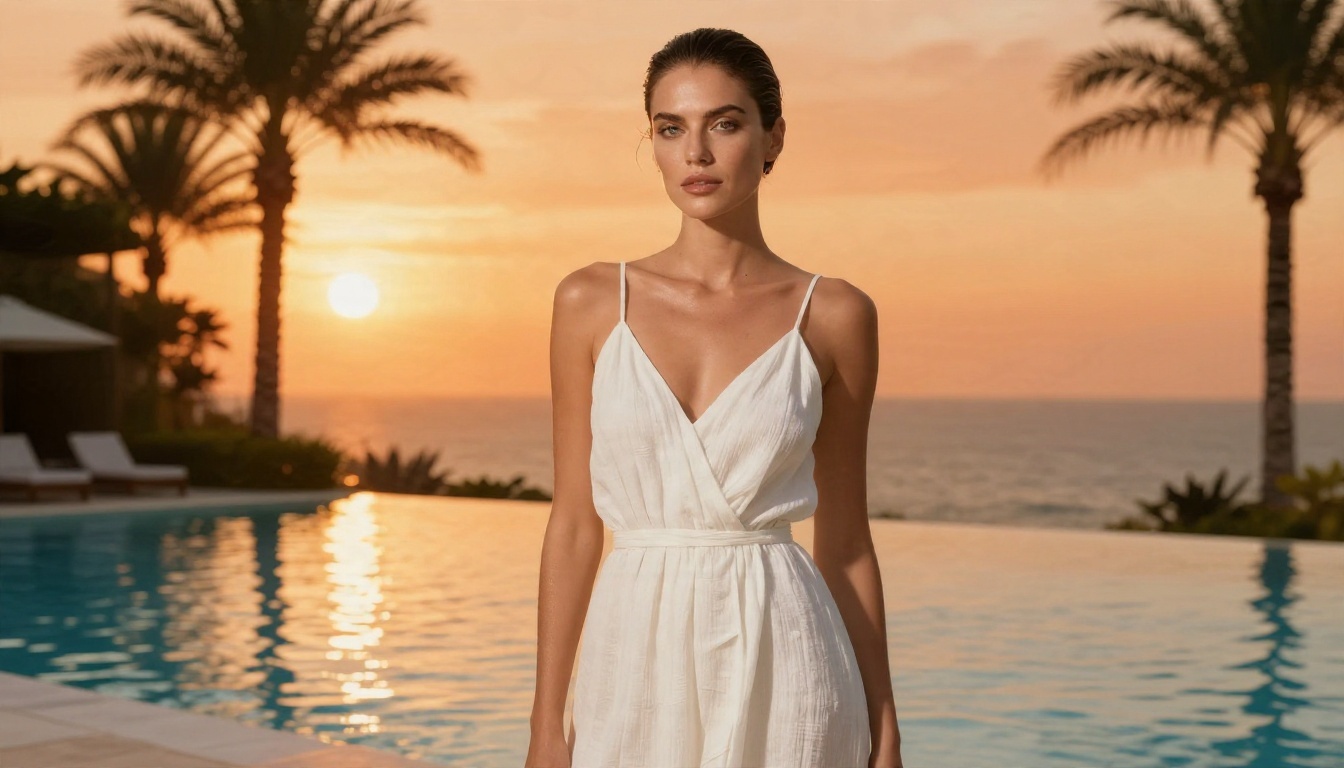
Seedream 4.5 for the Image Step
Seedream 4.5 is the first model to try. It produces sharp, photorealistic images up to 4K, handles skin texture, fabric and lighting convincingly, and is far more relaxed with glamour, swimwear and boudoir styling than a mainstream video app. It is also fast, which matters when you are iterating on poses and outfits.
PicassoIA Image Editor Pro for Edits
The PicassoIA Image Editor Pro is the second tool to keep open. It offers unlimited generations, so you can change outfits, adjust lighting, fix hands and refine expressions without watching a credit counter drop. For people who iterate a lot, that unlimited quality is the real value.
Video Models for the Motion
Once you have a strong still, animate it. Several video models on PicassoIA suit this step, and moderation behavior differs from one model to the next, so test with a modest prompt first:
💡 Note: The PixVerse models on PicassoIA are mainstream video models. Keep their prompts to fashion, travel and lifestyle scenes, and use the image models above for anything more suggestive.
How to Use Seedream 4.5 on PicassoIA
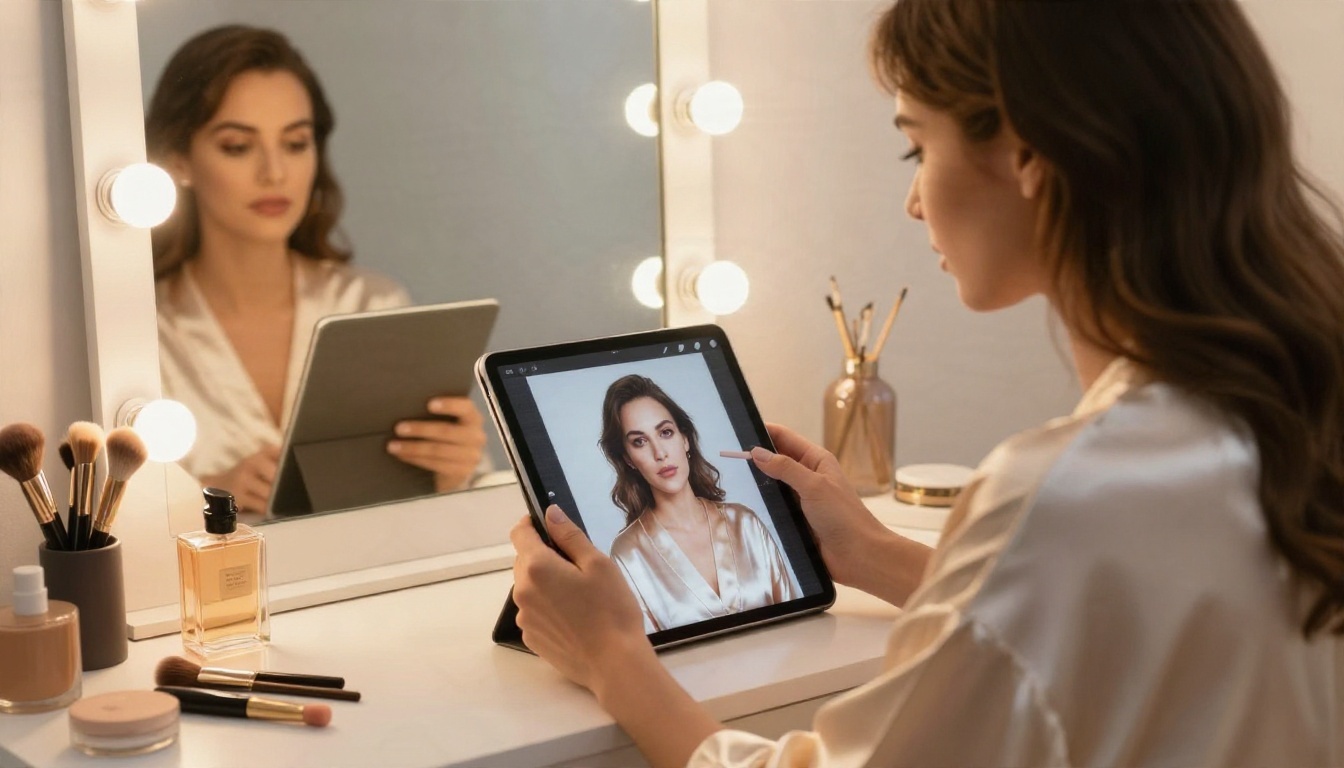
Here is a simple workflow that gets you a polished glamour still ready for animation.
Step 1: Open the Model
Go to the Seedream 4.5 page and open the generator. You do not need any setup beyond an account.
Step 2: Write a Visual Prompt
Describe the scene the way a photographer would: subject, outfit, setting, light and lens. For example: "A woman in a champagne silk robe by a sunlit hotel window, soft morning light from the left, 85mm lens, shallow depth of field, film grain." Photographic language produces more natural skin and fabric than vague adjectives do.
Step 3: Set the Output
Choose a 16:9 aspect ratio if the still will become a video, so the frame matches the clip. Generate several variations and pick the one with the best hands, face and posture, since those are what a video model will exaggerate.
Step 4: Refine in Image Editor Pro
Open the result in Image Editor Pro to adjust clothing, background or lighting. Because generations are unlimited, you can make as many passes as you like.
Step 5: Animate
Take the final still to a video model such as Kling v3 Omni Video or Wan 2.5 I2V Fast. Keep the motion prompt simple: a slow dolly in, hair moving in a breeze, a soft turn of the head.
Prompt Tips That Work Anywhere
Whichever tool you use, a few habits save credits and reduce refusals.
Describe Light, Not Skin
Words like "golden hour rim light", "soft window light" and "warm lamp from the right" give the model a mood to build on. They also keep your prompt focused on photography rather than on the body.
Keep Motion Gentle
Video models struggle with fast, complex movement. Slow camera pushes, a breeze, a slow walk and a turn of the head look natural and survive the compression of a short clip.
Pick Locations With Atmosphere
Hotel suites, balconies, poolside terraces, beaches at sunrise and vanity mirrors all give the scene context. A strong setting does more for a glamour clip than any extra descriptor.
Check Rights and Consent
If you use a real person's likeness, you need their permission. If you create original characters, keep the subjects clearly adult. Platforms and clients are strict about this, and so should you be.
Quick Comparison
Try It Yourself on PicassoIA
PixVerse is a fine tool for mainstream clips, but it is not the place to push glamour content, and no subscription changes that. The practical path is to build your stills with a model that suits the style, retouch them without limits, and animate the result with whichever video model gives you the motion you want.
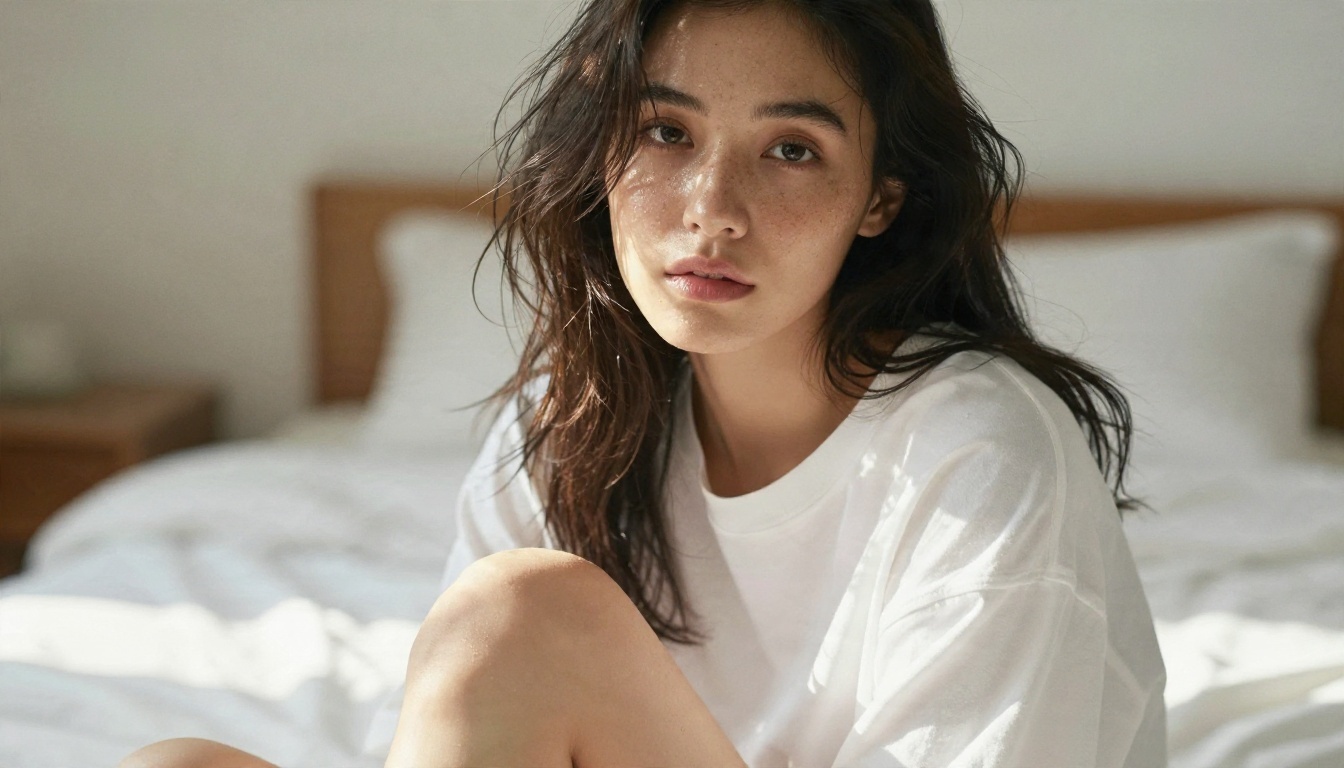
Start with Seedream 4.5, polish the result in the PicassoIA Image Editor Pro, then bring it to life with a video model. Write a few prompts, compare the outputs and see how much faster the process feels without constant refusals. To see everything available, browse the full catalog at picassoia.com/en/all-models and build your own set of images and clips today.


