You type a perfectly normal prompt into an AI video tool, wait a minute, and get a refusal instead of a clip. If that has happened to you with ByteDance's newest video model, you are probably wondering whether the problem is your prompt or the model itself. The honest answer to "does Seedance 2.5 have restrictions?" is yes. It has several layers of them, some obvious and some surprisingly picky. Some are about safety, some are about copyright, and some are plain technical caps on length, resolution and inputs.
This article sorts those layers out so you can predict what will pass, what will fail, and what to do when a generation gets blocked. You will also see which options give you more freedom, including a free route on PicassoIA and a few alternatives when you need a different tool for the job.
💡 Quick note on sources: ByteDance has not published one clear policy page that lists every rule for the 2.5 release. Much of what is known comes from platform documentation, developer notes and user reports, so treat the finer details as observed behavior rather than official law.
The Short Answer
Seedance 2.5 is a moderated model. It is not a free-for-all, and it is not locked down to the point of being useless. Think of it as a filter with three gates: one that reads your text, one that inspects any image or video you upload, and one that looks at the finished clip.
What Usually Gets Blocked
Reports from creators and platform documentation point to the same handful of categories:
- Explicit sexual content and graphic nudity
- Graphic violence and gore
- Real, recognizable people, especially celebrities, politicians and other public figures
- Copyrighted characters and branded franchises when the prompt names them directly
- Uploaded photos of real faces without the verification the platform requires
What Passes Without Trouble
The large majority of everyday creative work goes through with no friction at all: product shots, landscapes, travel scenes, fictional characters, stylized action, dialogue scenes, music-driven clips and cinematic storytelling. If your idea is original and your subjects are invented, you will rarely see a refusal.

How the Filters Actually Work
Moderation on a model like this is not a single switch. It runs in stages, and understanding where your request fails tells you how to fix it.
Prompt Checks
The first gate reads your text. Prompts that describe explicit acts, extreme violence or named real people tend to be stopped before any rendering starts. This is the cheapest check for the platform to run, so it is also the most aggressive. Context matters less than you would hope: a prompt describing a historical battle scene for a documentary can still trip a violence filter if the wording is too graphic.
Image and Face Checks
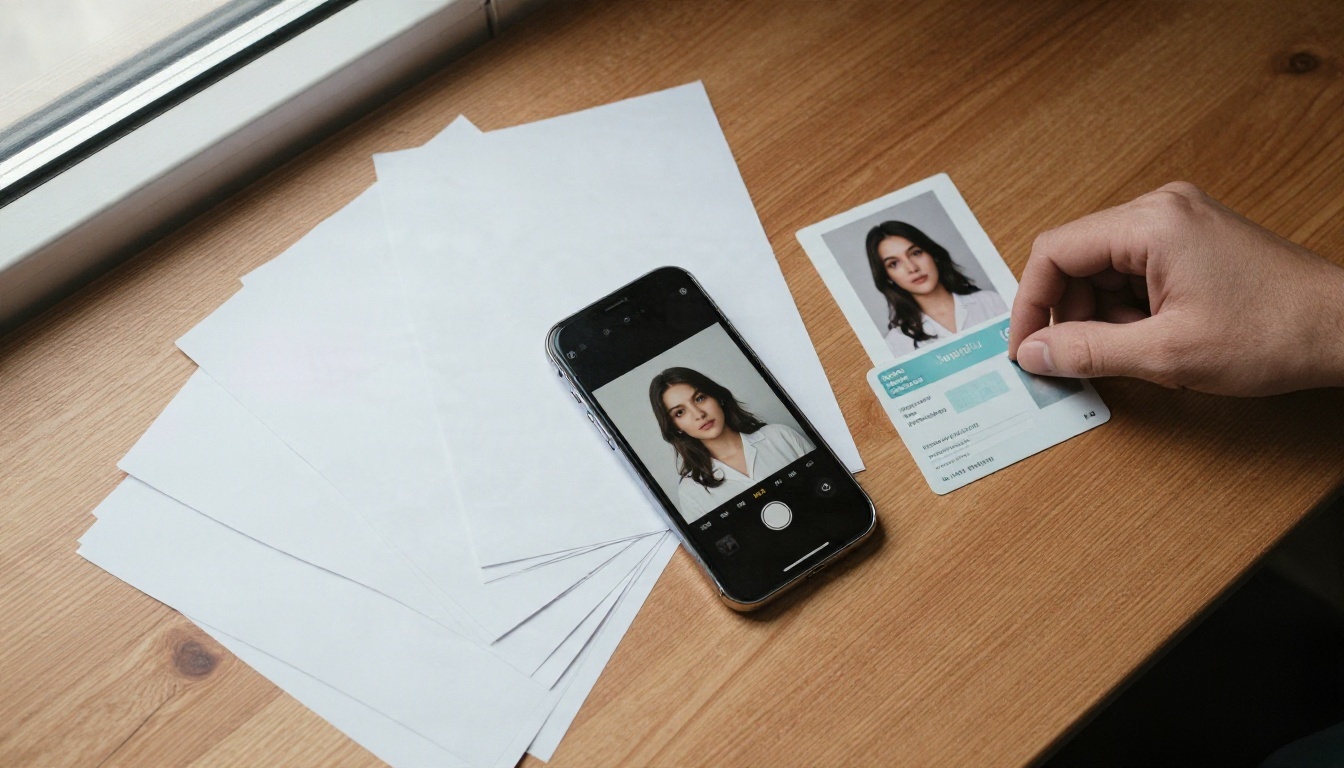
The second gate matters most for image-to-video and reference-based work. When you upload a photo or a clip, the system inspects it. Platform documentation and developer notes describe technical controls that restrict generating video from images or footage containing real faces, and real-person faces generally need verification by the person involved. Public figures are screened by a likeness check, and a match fails the job with a likeness error.
Copyright and Public Figures
The third gate is about intellectual property. Since the wider rollout of the previous generation, ByteDance has faced heavy pressure from studios and rights holders, and that pressure shaped how strict the newer release is. If you name a famous superhero, an animated franchise character or a well-known actor, expect either a refusal or a result that quietly drifts away from the character you asked for.
| Gate | What it inspects | Typical outcome when triggered |
|---|
| Prompt filter | Your written text | Immediate refusal or error message |
| Image and face check | Uploaded photos and clips | Job fails with a likeness or real-face error |
| Copyright screen | Named characters, brands, public figures | Refusal, or a generic lookalike result |
| Output review | The generated clip | Clip withheld or flagged after rendering |

Hard Limits Beyond Censorship
Not every "restriction" is about content. Some are simply what the model can physically do. If you were hoping to produce a feature-length scene in one click, these caps are the ones you will bump into.
Duration and Resolution
The headline feature of Seedance 2.5 is a single-pass clip of up to 30 seconds, double what the previous generation managed. That is a real strength, because you no longer have to stitch several short segments together and hope the character still looks the same in each one. Resolution is murkier. Some marketing pages mention 4K and even longer durations, while other official pages cap standard output at 720p. On PicassoIA the model runs at 480p or 720p, so plan your projects around 720p as the real ceiling.
Reference Input Caps
When you want a character to stay consistent across shots, you feed the model reference material. The limits here are generous but firm:
- Up to 30 reference images for faces, outfits, products and scenes
- Up to 10 reference videos, with a combined duration of 30 seconds
- Up to 10 reference audio files, also capped at 30 seconds combined
- A prompt of at most 2,000 characters
Reference images cannot be mixed with first-and-last-frame images in the same request, which trips up many first-time users.
Audio and Lip Sync Rules
The model generates dialogue, sound effects and music in the same pass as the picture. For spoken lines, you write the words in double quotes inside the prompt, and the character's mouth follows the audio. Audio-driven generation needs at least one reference image or video to anchor it. This is a technical rule rather than a censorship rule, but it explains a lot of confusing error messages.
The Gray Areas Creators Hit
Most frustration does not come from clearly forbidden requests. It comes from the fuzzy middle, where a harmless prompt gets refused for reasons that are not obvious.
Suggestive Versus Explicit
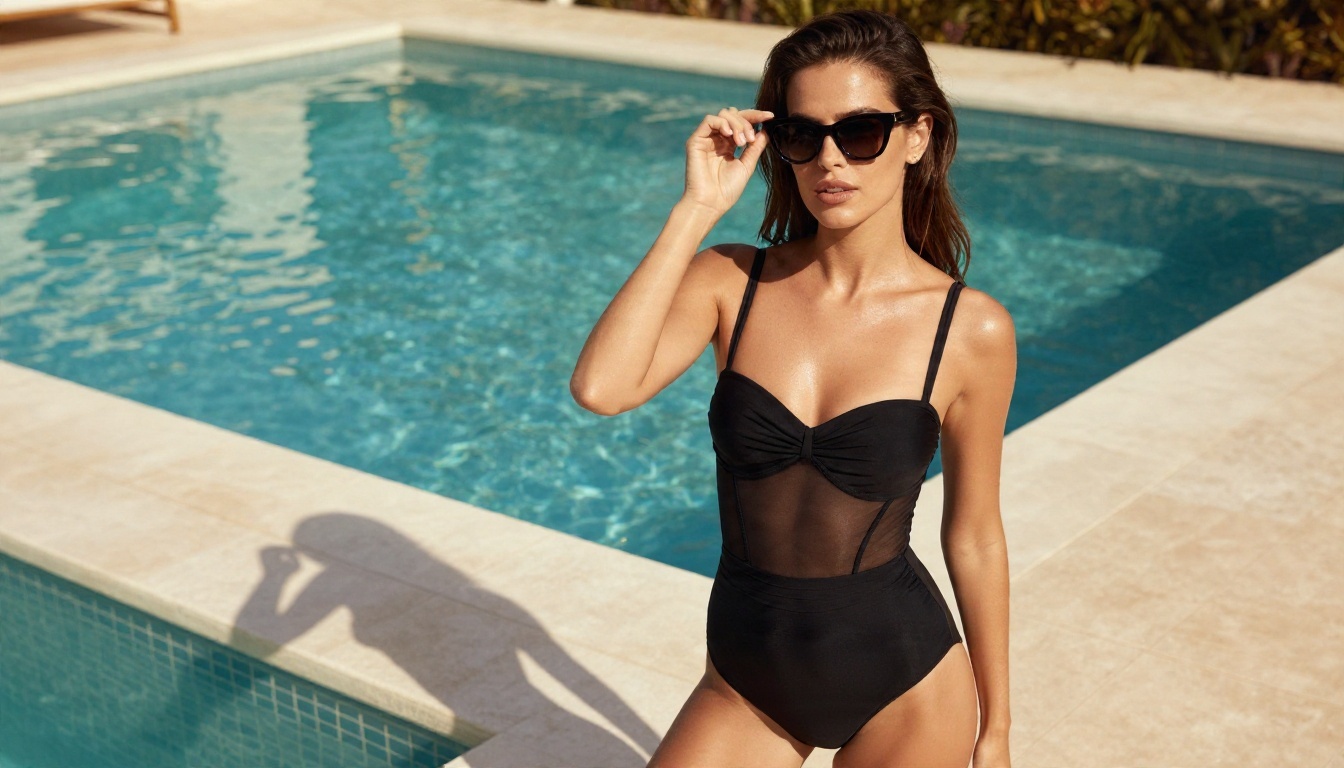
Seedance 2.5 draws a line between suggestive and explicit, and it draws it conservatively. A fashion shoot, a beach scene or a glamour portrait is usually fine. Anything that reads as sexual in the prompt, or that shows heavy nudity, is not. If your work involves swimwear, lingerie campaigns or sensual but non-explicit storytelling, the safest route is to word the prompt like a photographer would: describe the wardrobe, the light, the location and the mood, and leave the rest to the viewer.
Why Fictional Faces Get Flagged
One of the most common complaints is that an AI-generated portrait, a face that does not belong to anyone, gets rejected as if it were a real person. This has been reported inside at least one major creative app that offers the model. The reason is that the safety system judges the pixels, not your claim. If a generated face is photorealistic enough, the detector may treat it as a real human. Saying "this is AI-generated" in the prompt does not change the verdict.
💡 Workaround that often helps: use a slightly stylized or less photographic character reference, or build the character from several angles and let the model infer the face, rather than uploading one very realistic close-up.
Prompts That Name Real Brands
Even harmless references can cause trouble. "A sneaker in the style of a famous brand" may be refused or rewritten. Describe the object instead: its shape, colors, materials and the way it moves.
Uncensored Options That Work Today
If your project needs more freedom than a heavily moderated video model allows, you have a few practical routes. None of them involve breaking rules or hunting for exploits. They are simply different tools with different boundaries.
Image First, Then Animate
For tasteful adult-oriented or glamour content, the most reliable workflow is to build the still image in a tool that is built for it, then animate it. On PicassoIA, lead with Seedream 4.5 for photorealistic portraits and fashion scenes, then refine with PicassoIA Image Editor Pro, which offers unlimited generations and is fast enough to iterate on dozens of variations in a single sitting. Keep everything non-explicit: suggestive, attractive and artistic is the target, not pornographic.
Once you have a strong still, you can bring it to life with a video model. This also sidesteps a big chunk of the reference-upload friction described earlier, because you are working from your own generated image.
The Free Route: Seedance 2.5 Lite
If what you actually want is volume without a counter ticking down, try Seedance 2.5 Lite. It is the lightweight edition of the same family: clips of 5 or 10 seconds, 480p and 720p, text-to-video or image-to-video, with synchronized audio on by default. Elite and Infinite members can run it with no per-clip cost, which makes it ideal for iterating on prompts until you find wording that passes cleanly. It is lighter than the full model, so you give up the 30-second length and the heavy multi-reference workflows.
| Option | Max length | Resolution | Best for |
|---|
| Seedance 2.5 | 30 seconds | 480p, 720p | Long scenes, dialogue, multi-reference consistency |
| Seedance 2.5 Lite | 10 seconds | 480p, 720p | Unlimited iteration and quick social clips |
| Seedance 2.0 Mini | Short clips | Lower tiers | Cheap drafts and prompt tests |
| Kling v3 Video | Short clips | Up to HD | Cinematic motion and camera work |
| Wan 2.6 I2V | Short clips | HD | Animating a photo you already have |
A Word on "Unfiltered" Hosts
You will see third-party sites advertising a hosted version of the model with no prompt filter and a switch that skips moderation. Treat those claims carefully. Even if a host removes its own prompt screening, the face and likeness checks reported on the upstream model are a separate matter, and a host's marketing page is not a guarantee of how any particular request will behave. Rules around adult material, real people and copyright also still apply to you as the person making and publishing the content.
How to Use Seedance 2.5 on PicassoIA
Here is the quickest way to run the model and avoid the most common blocks. Open the Seedance 2.5 page and work through these steps.
Step by Step
- Pick your mode. Text-to-video needs only a prompt. For image-to-video, upload a first-frame image. For consistent characters, add reference images instead of a first frame.
- Write a chronological prompt. Describe the subject, the action over time, the camera move and the light. Keep it under 2,000 characters.
- Put dialogue in double quotes. The model renders spoken lines with matching lip movement.
- Set duration. Choose a number of seconds, or set
-1 and let the model pick the best length.
- Choose resolution and ratio. 720p is the sharpest option. Use 16:9 for landscape, 9:16 for vertical, or
adaptive to let the inputs decide.
- Leave audio on. Synchronized sound is generated by default, so the clip arrives ready to post.
- Generate, review, and adjust. If a result is refused, rewrite the prompt using the fixes in the next section.
Parameter Tips
- Seed: lock it once you like a result, then change only one detail at a time.
- First and last frame: these require the
adaptive aspect ratio and cannot be combined with reference images, videos or audio.
- Reference audio: needs at least one reference image or video next to it.
- Watermark: off by default, so you only get one if you switch it on.
- Output format: MP4 by default, with MOV available if your editor prefers it.
💡 Tip: Draft your idea first in Seedance 2.5 Lite at 480p, confirm the prompt passes and the motion works, then run the final version on the full model at 720p.
Fixing a Blocked Generation
When a request fails, resist the urge to resubmit the same text five times. The filters are deterministic enough that repeating a flagged request rarely helps. A small, deliberate rewrite does.
Rewrite Like a Cinematographer
Replace labels with visual description. Instead of naming a famous person, describe an original character: age, build, hair, wardrobe, expression. Instead of a brand, describe the product's shape and finish. Instead of a vague "intense fight," describe the movement: a shove, a stumble, a camera pushing in on a worried face. Concrete visuals pass more often than loaded words, and they usually produce better footage too.
3 Common Mistakes
- Naming franchises and celebrities. This is the single most common cause of refusals, and it also invites copyright trouble if the clip gets through.
- Uploading a hyper-realistic face as a reference. Even a fictional one can be read as a real person. Try a more stylized reference or build the character gradually.
- Mixing incompatible inputs. Reference images plus first-and-last-frame images in one request will fail for technical reasons that look like moderation errors.
When to Switch Models
Sometimes the right fix is a different tool. If you need smooth cinematic camera work, Kling v3 Video is a strong choice. If you already have a photo and just want it to move, Wan 2.6 I2V handles that cleanly. Each model has its own moderation behavior, so a prompt that fails on one may pass on another, as long as the content itself is something you are allowed to make and publish.
Start Creating Your Own Videos
Seedance 2.5 does have restrictions, and knowing where they sit saves you hours of wasted generations. Original characters, invented scenes and carefully worded prompts pass almost every time. Real people, famous franchises and explicit material do not, and no clever phrasing should be expected to change that.
The practical move is to stop fighting the filter and build around it. Create your stills with Seedream 4.5 and PicassoIA Image Editor Pro, draft your motion for free in Seedance 2.5 Lite, and run your best idea on Seedance 2.5 for the full 30 seconds with synchronized audio.
Open Picasso IA, pick a model, and test your own prompts today. Try the same idea on two or three different models and compare the results side by side. When you want to see everything available, browse the full catalog at picassoia.com/en/all-models.


