Video editing used to be a bottleneck. Trim here, color grade there, drag a caption file in, export, wait, repeat. For every 60 seconds of polished footage, you might spend 20 minutes in a timeline. That equation is changing fast, and the change is not subtle. AI tools now handle entire layers of the editing process automatically, turning multi-step workflows into single clicks. If you are still editing the way you did three years ago, you are spending time you do not need to spend.
This piece breaks down the specific tools that actually work, what each one does well, and where they fit into a real editing workflow.

Why Most Editors Are Still Too Slow
The problem is not effort. Most video creators work hard. The problem is that traditional editing software was built for one thing: manual precision. Every cut, every caption, every audio sync requires a deliberate action. That made sense before AI could help. It no longer makes sense.
The 4 Biggest Time Wasters in Video Editing
Track where your editing hours actually go and most of them fall into four categories:
- Cutting and trimming footage to remove dead air, mistakes, and filler
- Adding captions manually or syncing subtitle files frame by frame
- Fixing visual quality on footage shot in suboptimal conditions
- Changing aspect ratios when repurposing content across platforms
Every single one of these can now be handled by AI in seconds. The catch is knowing which tool fits each task.
What Changes When AI Takes the Repetitive Work
When AI handles the repetitive layers, editors shift from operators to directors. Instead of spending 40 minutes adding captions to a 10-minute video, you spend 2 minutes reviewing what the AI generated and fixing the three words it got wrong. Instead of manually resizing clips for Instagram, TikTok, and YouTube, you define the subject and let AI reframe automatically.
The mental energy you save compounds. Decisions about pacing, storytelling, and tone require creative focus. Dragging caption boxes does not.
Text-Based Editing Is the Biggest Shift Right Now
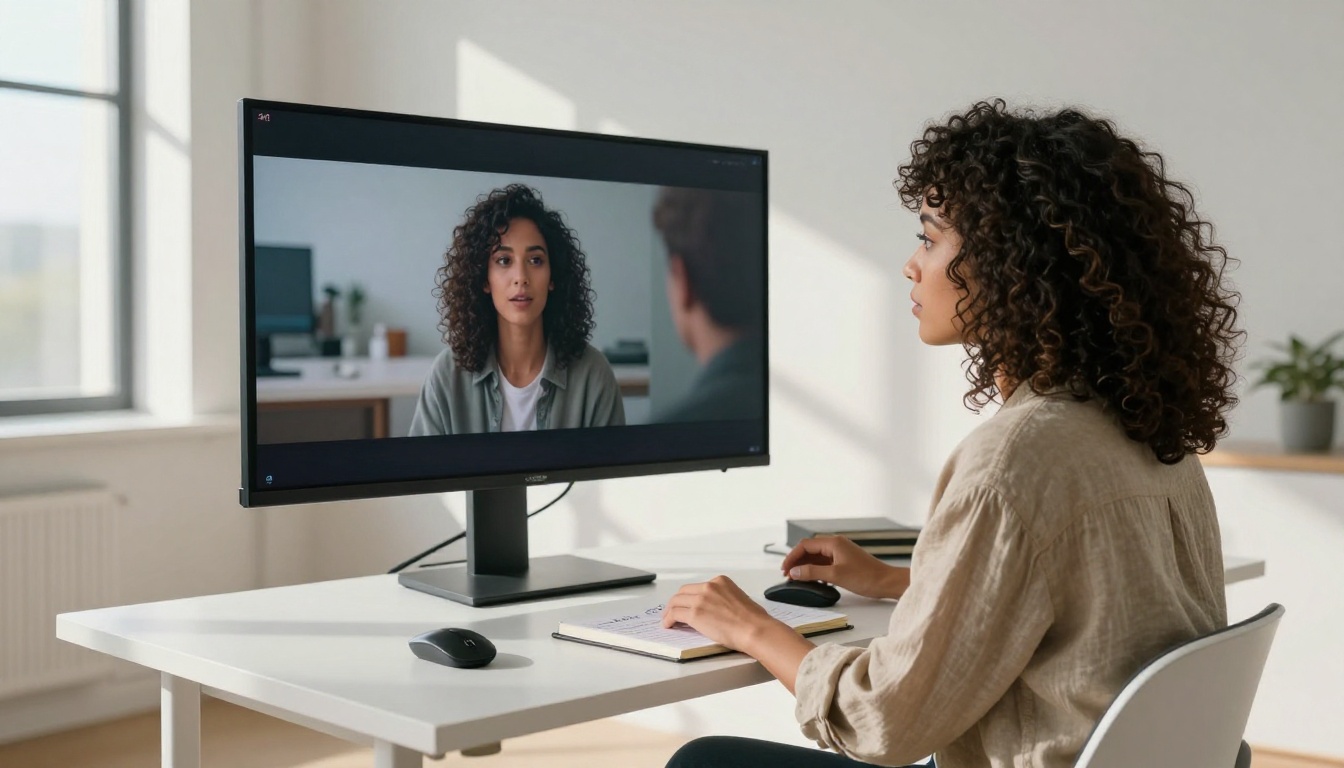
Of all the AI video editing developments in recent years, text-based editing is the most disruptive. The concept is straightforward: you describe what you want the video to look like, and the AI rewrites it. No timeline scrubbing. No frame-by-frame adjustments. Just a prompt.
How Lucy Edit 2 Rewrites Video from a Text Prompt
Lucy Edit 2 by Decart is one of the sharpest tools in this category. You upload a video clip, type what you want changed, and the model processes it. Want the background to shift from a city street to a beach? Type it. Want the subject in a different outfit? Type it.
What separates Lucy Edit 2 from earlier text-based tools is temporal consistency. Earlier models produced frame-level edits that flickered or broke continuity. Lucy Edit 2 maintains motion coherence while applying the transformation, which makes the result usable rather than just impressive in a demo.
Practical use: Use it when you have interview footage or talking-head content where you want a different background without reshooting. The tool handles subject isolation and environment swapping in one pass.
Wan 2.7 Videoedit for Instant Scene Changes
Wan 2.7 Videoedit approaches text-based editing from a different angle. Where Lucy Edit 2 focuses on visual transformation, Wan 2.7 is built for structural edits. You can describe changes to scene composition, lighting mood, or stylistic treatment, and the model applies them across the entire clip.
For brand content creators, this is a significant time saver. Shooting once and generating multiple visual variations through text prompts is dramatically faster than reshooting or doing manual compositing.
Kling o1 from Kwaivgi handles more aggressive rewrites, including full visual style overhauls from a single text instruction. If you need to go from raw phone footage to something that looks like a produced commercial, Kling o1 is built for that kind of heavy transformation.
Cut, Trim, and Split Without Thinking
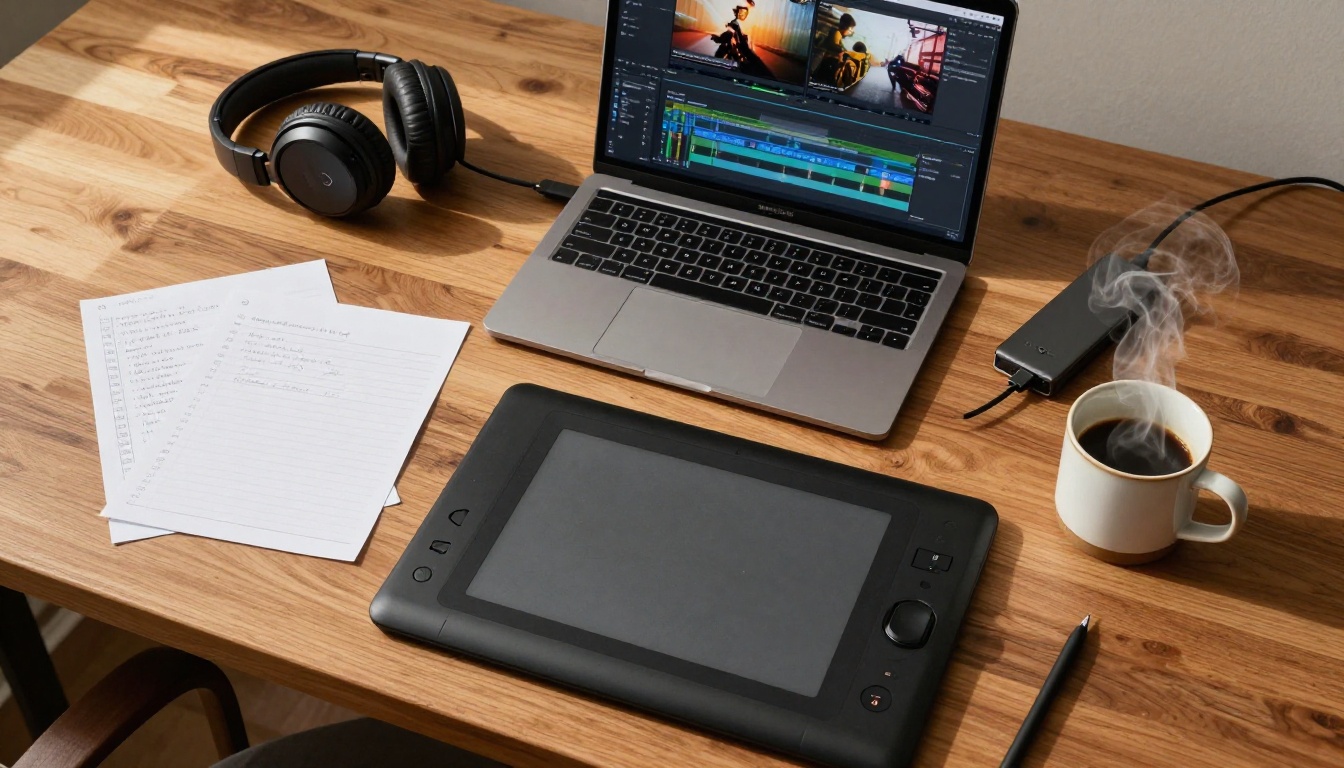
The most time-consuming part of any edit is often the first pass: going through raw footage and cutting out the parts that do not belong. AI handles this faster than any human because it does not get bored or lose focus.
Trim Video for Precise Length Control
Trim Video from Lucataco gives you exact-length control without pulling up a full editing suite. Specify a start time, an end time, and the output format. That is it. For short clips, social media cuts, or isolating a specific moment from longer footage, this tool removes the friction entirely.
The practical speed gain: what used to require opening a desktop editor, importing footage, scrubbing to the right timestamps, and exporting now happens in a browser in under a minute.
Video Split for Batch Clip Organization
Video Split automates the process of breaking a long video into timed segments. Instead of manually cutting a 45-minute recording into 10 chapters, you define the intervals and let the tool generate the clips automatically.
For podcast editors, course creators, and anyone working with long-form content, this removes one of the most mechanical steps in the entire workflow. Combine it with Video Merge to reassemble clips in a different order after reviewing, and you have a non-linear editing loop that does not require a single keyboard shortcut.
Workflow tip: Run Video Split on your raw recording first. Review the segments and select which to keep. Merge the keepers with Video Merge. You have skipped the scrubbing phase entirely.
Remove What Does Not Belong
Object removal used to mean rotoscoping: frame-by-frame masking that could consume an entire workday for a 30-second clip. AI has made that calculation obsolete for most practical use cases.
Erase Objects from Video in One Click
Video Erase Object from Bria identifies and removes unwanted elements from a video clip while filling in the background realistically. Logos, microphone stands, crew members, power lines, distracting objects in the background: the model handles these with a single selection.
The fill quality holds up well for moving backgrounds. Where traditional inpainting tools struggle with motion, Bria's approach maintains temporal consistency so the erased area does not flicker as the camera moves.
Video Background Removal Without a Green Screen
Video Remove Background from Bria eliminates the need for green screen setups entirely. Upload a video with a person or subject, and the model removes the background and outputs a clean transparent layer ready for compositing.
For small studios, solo creators, and mobile filmmakers, this changes what is possible with minimal equipment. A video shot in a living room can be placed against any background in post, with no chroma key lighting setup required.
Note: For best results, shoot with even, consistent lighting and avoid clothing that closely matches background colors. The model handles most real-world conditions well, but contrast between subject and background improves accuracy.
Also worth using for related tasks: LTX 2 Retake from Lightricks lets you isolate and re-edit specific sections of a video without touching the rest of the clip. If you have a 3-minute video where only 10 seconds need to change, LTX 2 Retake handles the targeted edit without requiring a full re-render.
Sound and Captions on Autopilot
Audio and captions are two areas where manual work genuinely adds up. A 10-minute video can take 45 minutes to caption manually. Adding synced sound effects to a montage takes time and audio editing knowledge that most video creators simply do not have. AI eliminates both problems.
Add Auto Captions with Autocaption
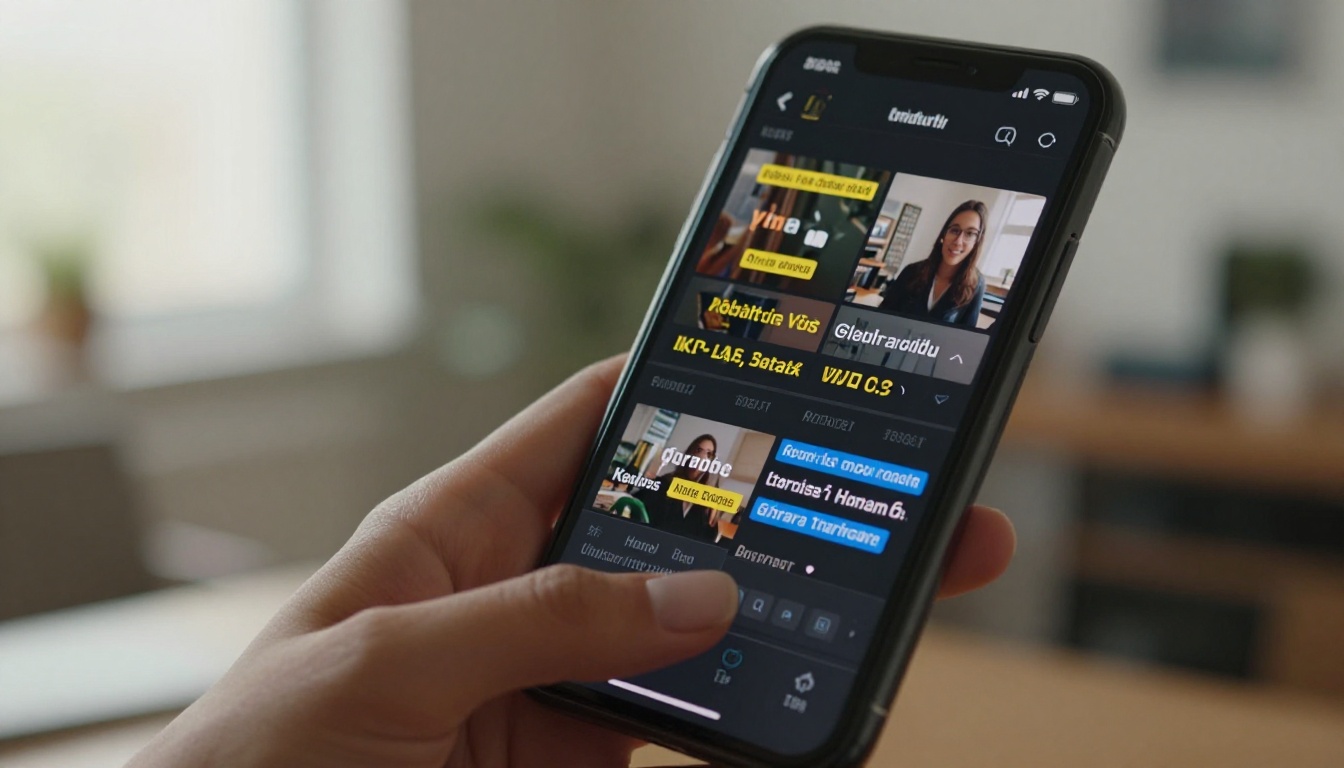
Autocaption from Fictions AI transcribes speech from your video and burns styled captions directly onto the footage. The output is not a separate subtitle file you have to sync and style separately: it is captions baked into the video with formatting options that match modern social media aesthetics.
For short-form content, this is one of the highest-value AI tools available. Captioned videos perform significantly better on platforms where audio autoplay is off by default, and Autocaption handles the entire process in a single upload.
Video to SFX for Synced Sound Effects
Sound design is one of the most underrated parts of video production, and also one of the hardest to do well without experience. Video To SFX v1.5 from Mirelo analyzes your video content and generates contextually appropriate sound effects synchronized to the action on screen.
For product videos, action sequences, nature footage, or any content where ambient sound improves the feel, this tool generates effects that match what is happening frame by frame. Thinksound and MMAudio are two additional options for AI audio generation, each with different strengths in effect style and synchronization method.
For full control over the audio layer, Video Audio Merge from Lucataco lets you replace or blend soundtracks directly, whether you are adding a music track, swapping the original audio, or mixing multiple sources together.
Bad footage does not have to stay bad. Whether you shot on a phone in low light, sourced archival footage, or recorded at a lower resolution than your final deliverable requires, AI upscaling tools can recover significant quality without touching the original footage.
Real ESRGAN Video for 4K Upscaling
Real ESRGAN Video from Lucataco applies the Real-ESRGAN super-resolution model to video footage, increasing resolution by up to 4x while sharpening detail and reducing compression artifacts. The model is particularly effective on faces and fine textures, which are the areas where low-resolution footage looks worst.
For creators repurposing older content, archivists digitizing legacy footage, or anyone working with footage shot below 1080p, this tool recovers quality that would otherwise require a reshoot.
Crystal Video Upscaler for Cinematic Quality
Crystal Video Upscaler by Philz1337x goes beyond basic upscaling. The model applies processing passes that sharpen micro-detail, correct color saturation, and add a cinematic texture to the output. For YouTube creators or anyone delivering to 4K displays, the difference is visible and significant.
Two additional options in this category: Video Upscale by Topaz Labs delivers 4K output with frame rate interpolation up to 120fps, useful for slow-motion sequences or sports footage. Upscale v1 by Runwayml provides an alternative path to 4K with Runway's proprietary sharpening pipeline.
Video Increase Resolution from Bria targets up to 8K output, making it the highest-resolution option in this group. For footage that starts at 1080p, the output quality is consistently strong across a wide range of source material.
Publishing the same video across multiple platforms used to mean separate edits for each aspect ratio. A YouTube video is 16:9. A TikTok is 9:16. An Instagram Story is 9:16 with different safe zones. A LinkedIn post might be 1:1. Manually creating four versions of the same edit is four times the work. AI collapses that into one workflow.
Luma Reframe Video for Aspect Ratio Changes
Reframe Video by Luma takes any video and intelligently reframes it to a new aspect ratio, tracking the primary subject to keep it centered throughout. The AI identifies what matters in each shot and adjusts the crop accordingly, rather than applying a static center crop that cuts off action at the edges.
For talking-head content, the subject tracking is reliable even with movement. For wider shots with multiple subjects, you can define which subject takes priority. The output is ready to post without manual frame-by-frame adjustment.
Gen 4 Aleph for Visual Restyling
Gen 4 Aleph from Runwayml handles something different: visual style transfer at the clip level. You can recut existing footage and apply a completely new visual treatment, whether that is a color palette shift, a tonal restyle, or a more dramatic change to the visual mood of the piece.
Luma Modify Video works similarly, allowing you to apply visual instructions to an existing clip and generate a restyled version. The combination of these tools means a single piece of raw footage can produce completely different-looking versions for different audiences or platforms without additional shooting.
The Workflow That Ties It All Together
These tools are most powerful when used in sequence rather than in isolation. Here is how a practical AI-assisted editing workflow looks for a short-form content creator:
- Record the raw video on any device
- Trim to the right length with Trim Video
- Remove background if needed with Video Remove Background
- Apply text edits for scene or style changes with Wan 2.7 Videoedit or Lucy Edit 2
- Upscale to 4K with Real ESRGAN Video or Crystal Video Upscaler
- Add captions with Autocaption
- Add sound effects with Video To SFX v1.5
- Reframe for each platform with Luma Reframe Video
Eight steps that would have taken hours in a traditional workflow now take minutes. Each step is a browser-based tool with no software installation and no technical expertise required.
Time estimate: A 60-second polished, captioned, upscaled, and reframed video from raw footage takes roughly 15 to 20 minutes with AI tools. The same workflow manually: 2 to 4 hours depending on skill level.
Start Creating on PicassoIA Right Now
All the tools covered in this article are available directly on PicassoIA. No subscriptions to 12 different services. No desktop software to install. The video editing collection includes tools for trimming, splitting, merging, captions, object removal, background removal, upscaling, restyling, audio, and reframing, all accessible from a single platform.
If you have a video project sitting unfinished because the editing felt like too much work, the tools are already there. Upload your footage, pick the task, and run it. The first edit takes less time than reading this article.
Start with one tool that solves your biggest bottleneck. Try Autocaption if captions are where you lose time. Try Luma Reframe Video if cross-platform repurposing is the issue. Try Real ESRGAN Video if footage quality is the gap. Once you see how quickly one tool changes your output, adding the rest becomes obvious.


