Your first steps with Nano Banana Pro feel instant. Type a description, press generate, and a sharp image appears in seconds. There is no installation, no complex setup, and no waiting room. The model is live on PicassoIA and produces output at resolutions up to 4K — wide enough for billboard crops, detailed enough for magazine covers. Once you know how to write prompts it handles well, you will stop treating image generation as a production bottleneck.
What Nano Banana Pro Does
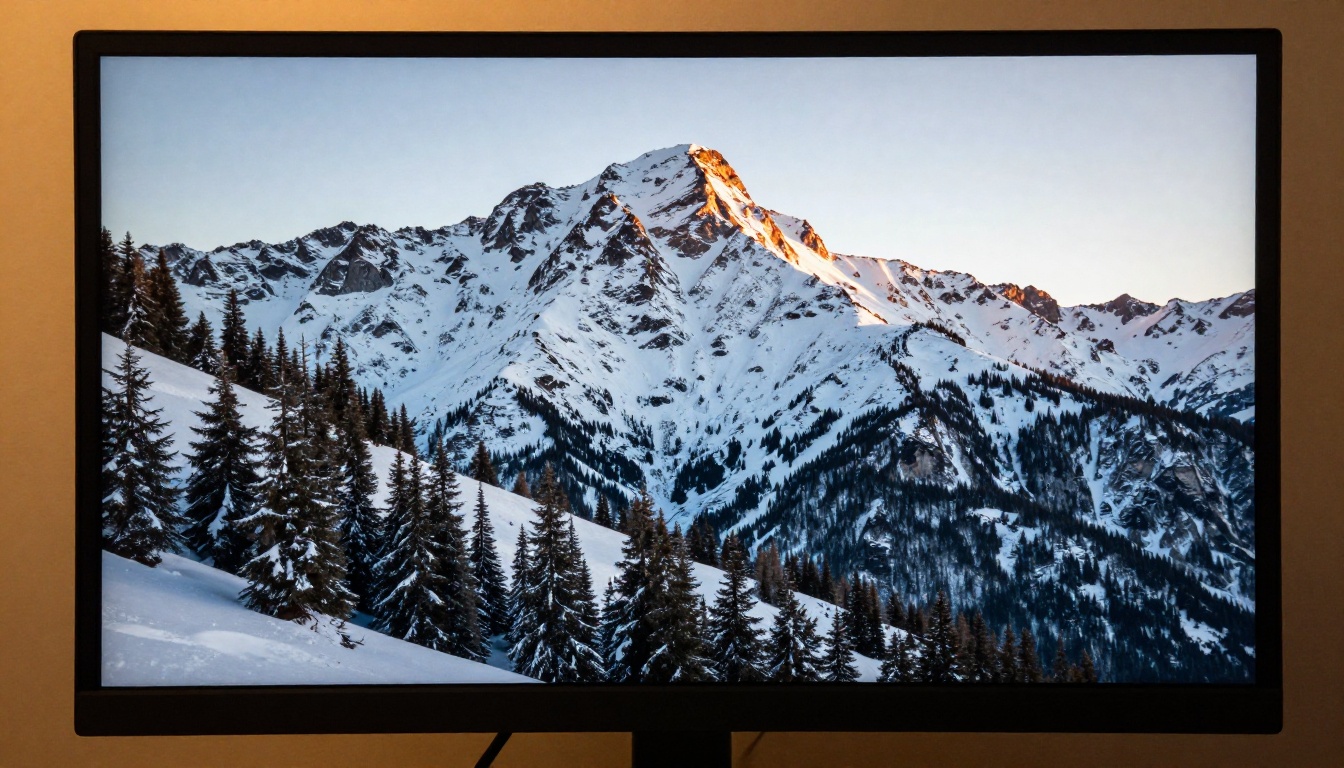
Nano Banana Pro is a text-to-image model built by Google and available directly on PicassoIA. You describe what you want in plain language and the model renders it as a finished image. Output resolution scales from 1K through 2K up to 4K, with no watermark on any tier and no hidden export fees.
What separates it from most browser-based generators is the combination of high-resolution output and multi-image reference support. You are not limited to pure text prompts. You can feed up to 14 photos alongside your description to steer the output toward a specific look, style, or composition — without writing novel-length prompts or memorizing special syntax.
Resolution That Holds Up at Print Size
Most text-to-image models are optimized for screen display. Output tends to fall apart above 1080p because the model was never trained to hold fine detail at larger dimensions. Nano Banana Pro generates at 4K natively, meaning the file you download is large enough for print use without additional processing. Detail holds at the pixel level — surface textures, hair strands, fabric weave — without the soft smearing that appears when a smaller model output is stretched.
For creatives who move outputs into print templates or large-format designs, this matters more than almost any other spec. The 4K setting adds generation time (expect one to two minutes for complex scenes), but the 2K default stays fast for iteration sessions.
Reference Images as Visual Input
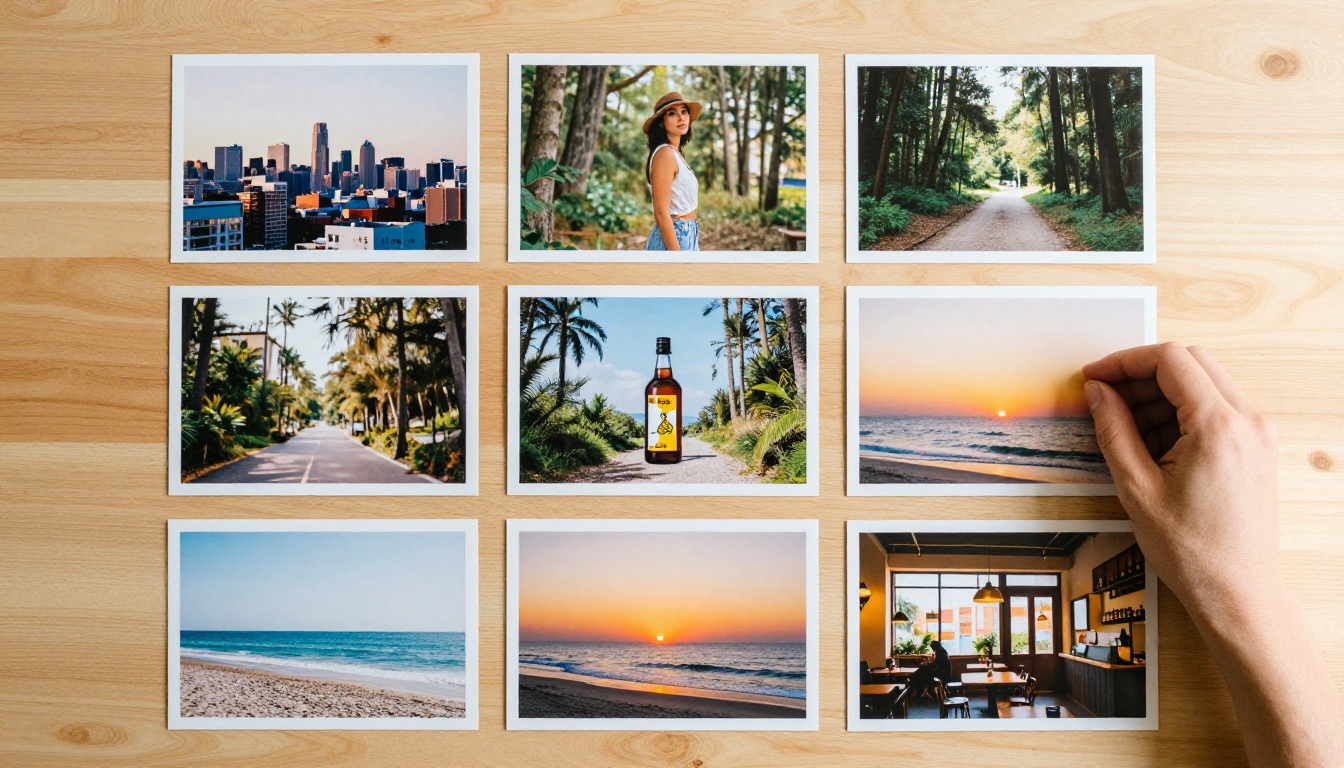
Most generators apply reference images so loosely that the output barely connects to the input. Nano Banana Pro treats reference images as genuine context. When you attach a photo of a room and prompt "a living room styled like this with warmer tones," the output preserves the spatial arrangement and reinterprets the palette correctly.
You can attach up to 14 reference images at once — useful for crowd scenes, group portraits with multiple subject inputs, or building composite references for complex scenes. More on this later in the article.
Your First Prompt
The most common mistake with text-to-image models is treating the prompt like a search query. "A sunset" works, but "a sunset over terracotta rooftops in southern Spain, warm amber light, long shadows, 35mm film look" works better and produces something usable on the first run.
Prompt Specificity Beats Creativity
Creative prompts are fun but vague. Specific prompts produce repeatable results. If you are generating for a defined brief — a product campaign, a presentation slide, a social post — treat the prompt like a shot list written for a photographer.
Include these elements in every prompt:
- Subject: What is the main element and what is it doing?
- Environment: Where does the scene take place? Interior, exterior, season, time of day?
- Lighting: Direction, quality, and color temperature of the light source.
- Perspective: Camera angle and lens compression. Wide, tight, aerial, or eye-level?
- Mood: What emotional register should the image occupy?
💡 Tip: If you can brief a photographer with a single sentence, Nano Banana Pro can work from it. If you need a full paragraph, break the task into smaller prompts and generate multiple images you can choose between.
What to Include in a Prompt
Here is a working framework that produces consistently clean results:
| Prompt Element | Example |
|---|
| Subject and action | "A woman reading a paperback book" |
| Environment | "in a sun-filled café with exposed brick walls" |
| Lighting | "soft afternoon window light from the left" |
| Lens and depth | "85mm f/1.8 shallow depth of field" |
| Style | "photorealistic, natural film grain, warm color palette" |
Stack these in sequence and the model has enough context to render something close to a properly briefed creative. You do not need every element in every prompt — but having at least four of the five produces noticeably stronger results than a two-word description.
How to Use Nano Banana Pro on PicassoIA
The full workflow takes about three minutes from opening the model to downloading your output. Here is what each step involves.
Step 1: Open the Model
Go directly to Nano Banana Pro on PicassoIA. No installation required. The model runs in the browser and is accessible immediately after signing in.
Step 2: Write and Submit Your Prompt
The prompt field accepts plain language descriptions. There is no required syntax, no magic words, and no command structure to memorize. Write what you want to see and include the elements from the framework above.
Once you have written your prompt, press generate. The model begins processing immediately. For standard 2K outputs, results typically appear within 20 to 60 seconds depending on scene complexity and current server load.
Step 3: Choose Resolution and Format
Before generating, set your resolution:
- 1K: Fast iteration. Good for testing prompt variations before committing to a final version.
- 2K (default): Solid for web use, social media, digital presentations, and most commercial briefs.
- 4K: For print work, large-format display, or any output that will be cropped significantly.
For format, choose between JPG and PNG. JPG produces smaller files and loads faster on web. PNG preserves quality for assets that will be layered in design software.
Step 4: Add Reference Images

Click the image upload area and attach your reference files. You can add up to 14 images. These can be your own photos, stock images, screenshots of styles you want to reference, or previous outputs from any generator.
The model reads these alongside the prompt and uses them to anchor the output. A strong text prompt with a single well-chosen reference image often outperforms a long, detailed prompt with no image input. This is especially true for lighting quality, surface texture, and color tone.
Step 5: Download Your Output
When the image appears in the results panel, click download. The file saves in your chosen format with the full resolution intact. No watermarks are added. No credit prompt appears before the download. The file is yours immediately.
Aspect Ratio Presets and When to Use Each
Nano Banana Pro supports 11 aspect ratio presets. Choosing the right one before you generate saves time and removes the need for cropping or resizing afterward.
| Ratio | Best For |
|---|
| 1:1 | Profile photos, Instagram posts, avatar images |
| 16:9 | Desktop wallpapers, YouTube thumbnails, presentations |
| 9:16 | Instagram Stories, TikTok thumbnails, mobile banners |
| 4:3 | Blog headers, standard web images, e-commerce product pages |
| 3:4 | Pinterest posts, vertical social cards |
| 21:9 | Ultra-wide desktop banners, cinematic headers |
| 4:5 | Instagram feed portrait posts, vertical ad units |
Set the ratio before writing the prompt, and mention the framing in the description if composition matters. "Wide 16:9 shot of a forest path at dawn with the path centered" will produce a more accurate layout than simply selecting 16:9 with a short prompt. The model interprets framing cues in the text alongside the ratio setting.
When Reference Images Change Everything
Prompt writing has a ceiling. At a certain level of detail, adding more descriptive words produces diminishing returns. Reference images break that ceiling by showing the model things that are genuinely difficult to put into words.
Steering Style Without Keyword Tricks
Certain visual qualities resist verbal description. A specific color grading style, the exact quality of light in a particular photograph, or the texture of a specific material surface — these are easier to show than to write. Attach a photo that captures what you are after and include a brief text note pointing the model toward what you want it to take from the reference.
For example: attach a photo of a rainy Tokyo street at night and prompt "a café window scene with this exact lighting quality and color temperature." The model reads what makes the reference image distinctive — the color cast, the reflection quality, the atmospheric depth — and carries those properties into a new output with the specified subject.
Multi-Image Inputs for Complex Outputs
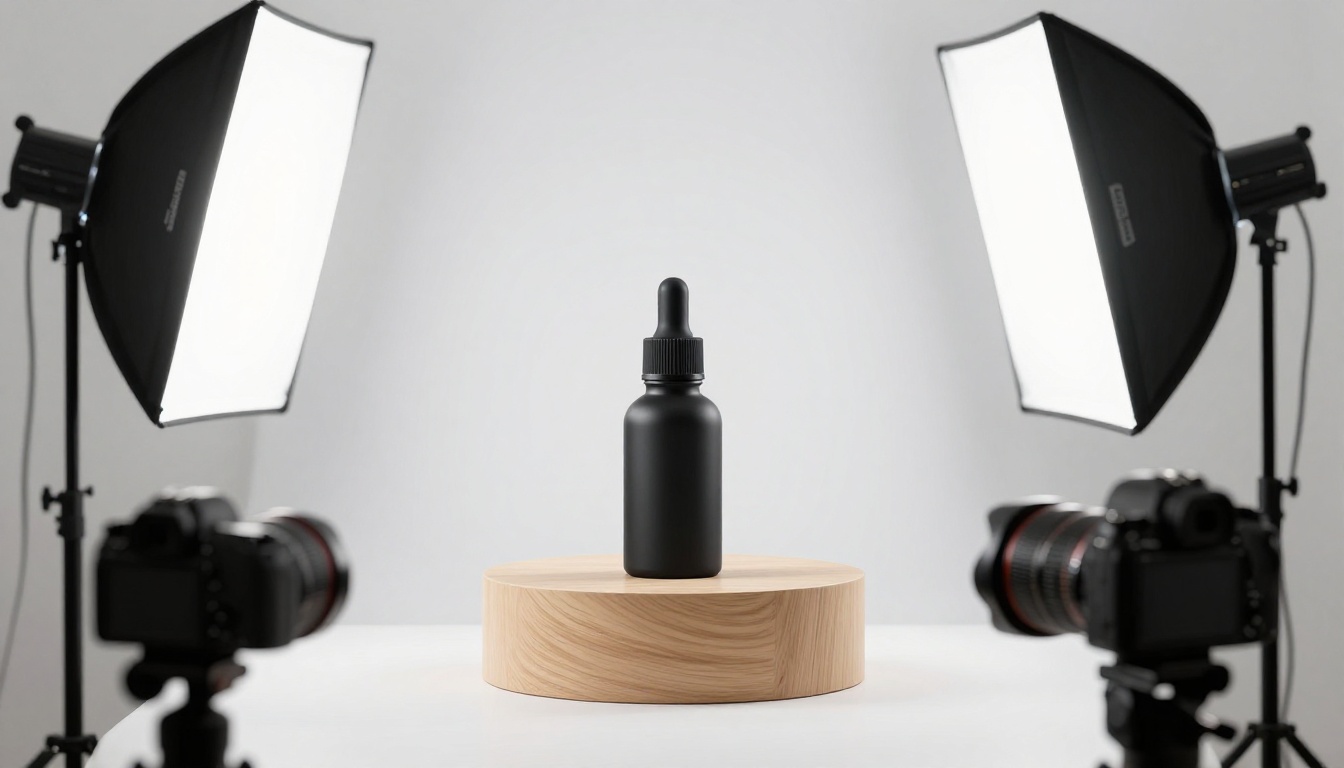
Group portraits are one of the clearest use cases for multi-image input. Attach photos of five people and prompt "a professional office team photo, everyone relaxed and smiling, outdoor terrace setting, afternoon light." The model synthesizes the faces and builds a scene that would be impractical to describe in text alone.
This also works for product contextualization. Attach a product image plus three environment photos and prompt "this product placed naturally in a lifestyle setting." The output typically places the product accurately in a scene that matches the visual language of your reference photos — without requiring Photoshop compositing or manual placement.
Pairing With Upscalers
4K is the ceiling for Nano Banana Pro, but it is not the ceiling for what you can do with its outputs. Pairing the model with a dedicated upscaler on PicassoIA adds resolution, sharpens micro-detail, and prepares files for use cases that demand more than 4K native output.
When 4K Is Not Enough
Large-format printing, billboard preparation, and extremely detailed crops all benefit from going beyond 4K. An upscaler takes the already-clean output from Nano Banana Pro and doubles or quadruples the pixel count while adding or restoring fine detail at the new resolution.
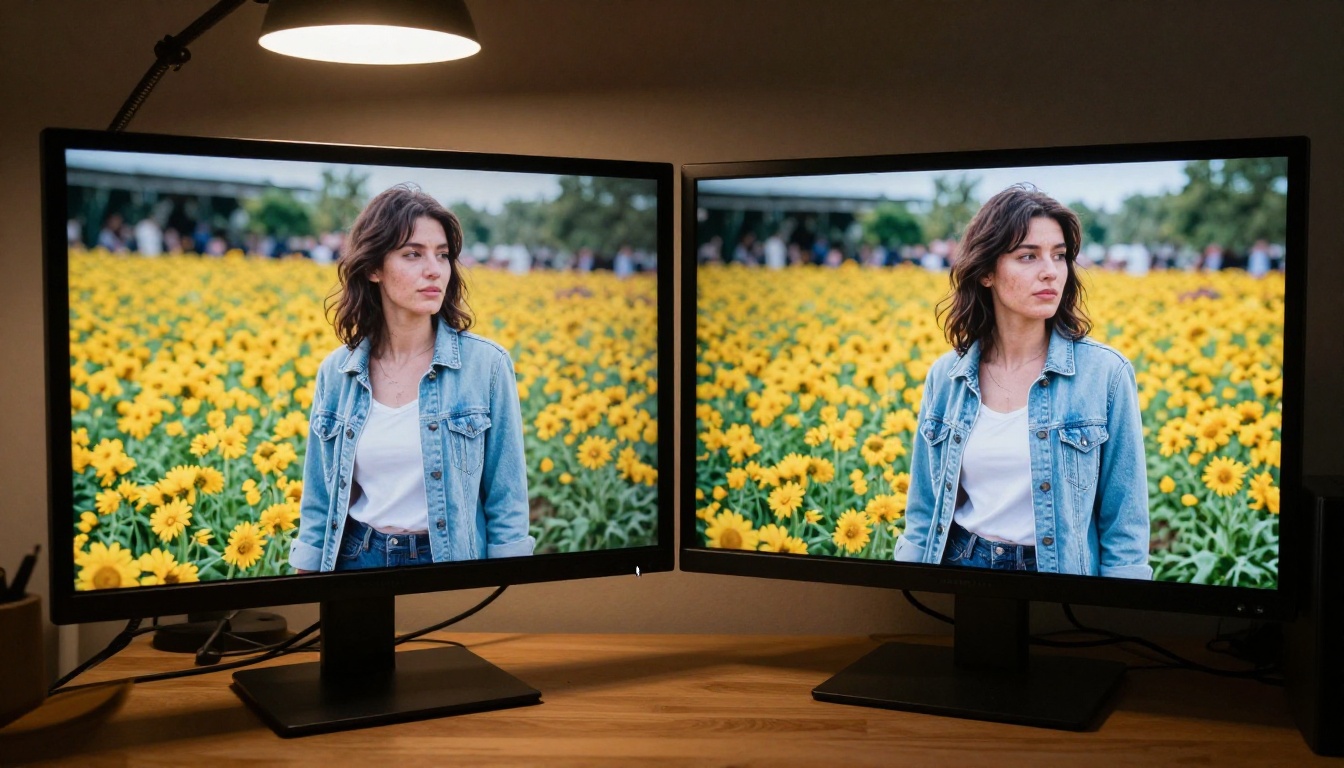
Which Upscaler for Which Job
PicassoIA has several upscaling options, each tuned for different output types:
The workflow is two steps: generate with Nano Banana Pro, then open an upscaler, upload the output, and run. Most upscalers on PicassoIA process in under two minutes. The result is a file that is larger, sharper, and ready for any production use.
💡 Tip: For portraits and people, Crystal Upscaler preserves facial detail better than general-purpose models. For landscapes, architecture, and products, Clarity Pro Upscaler handles surface texture and edge sharpness particularly well.
Real-World Use Cases
The prompt-to-image pipeline works across a wider range of production scenarios than most people initially expect. Here are three that come up regularly for creative teams using Nano Banana Pro.
Product Mockups
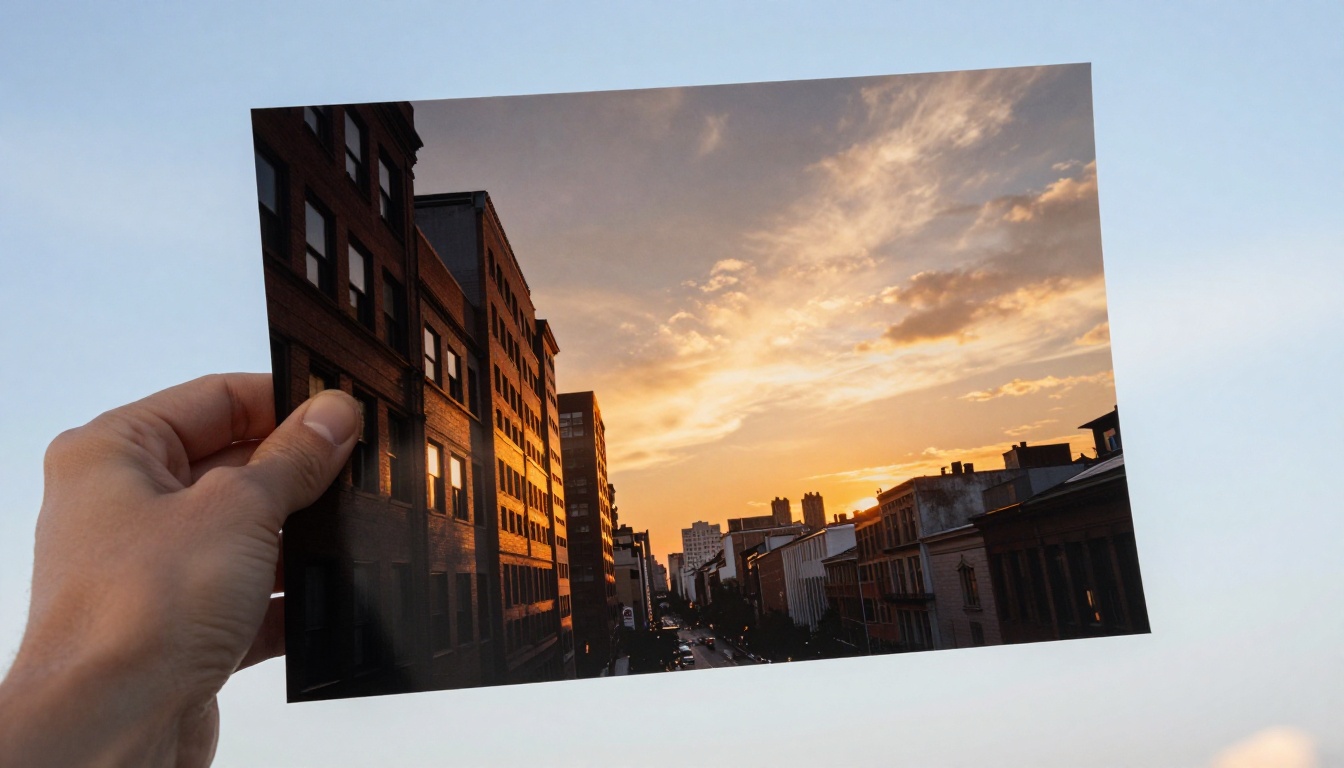
Product photography is expensive to set up and slow to iterate. With Nano Banana Pro, you can generate product placement images by attaching a product photo as a reference image and describing the target environment in the prompt. "This bottle on a marble countertop with natural morning light and a clean white background" renders a usable mockup without booking a studio.
The 4K output is large enough for e-commerce product listings, digital ads, and printed packaging inserts. Generate several variations in a single session by adjusting the environment description between runs while keeping the product reference image consistent.
Social Media Banners
Different platforms require different dimensions and proportions. Set the aspect ratio to 9:16 for Stories, 16:9 for YouTube headers, or 4:5 for Instagram portrait posts. Write a prompt that matches the campaign concept, generate, and download a file that is already sized and proportioned for its target platform.
This removes the resize-and-crop step from the workflow. What you generate is close to what you publish.
Presentation Backgrounds
Slide decks regularly need background images that are thematically appropriate but not visually distracting. Generate backgrounds with prompts like "soft bokeh forest at dusk, low contrast, desaturated warm tones" or "clean white marble surface, even diffused light, no shadows." Download at 16:9 in 2K or 4K and the output drops directly into presentation software with no further editing required.
Settings That Actually Matter
Most settings in Nano Banana Pro can stay at their defaults on the first run. Two are worth understanding before you go deeper into the model.
Safety Filter Levels
The model offers three safety filter levels:
- block_low_and_above: Strictest. Blocks content that approaches sensitive territory even indirectly.
- block_medium_and_above: Moderate. Allows more creative latitude while still restricting a wide range of content types.
- block_only_high (default): Most permissive setting. Blocks only explicitly problematic prompts and works well for most creative, commercial, and marketing use cases.
For standard professional work — product shots, lifestyle imagery, editorial visuals, presentation backgrounds — the default setting is appropriate and will not interfere with typical prompts or subject matter.
Output Format: JPG vs PNG
JPG is the right call for:
- Web publishing and blog images
- Social media uploads
- Presentation inserts
- Any context where file size and load speed matter
PNG is better when:
- Outputs will be layered in Photoshop or Figma
- The image is going to be composited with other assets
- Archival or print-prep requires maximum quality preservation
When in doubt, use JPG. At 4K, the quality is high enough for most professional uses, and the smaller file size reduces upload and download times across the board.
Try It Right Now

You have the information you need to produce a strong image on the first session. Open Nano Banana Pro on PicassoIA, write one clear prompt using the five-element framework — subject, environment, lighting, lens, mood — set your resolution to 2K for the first run, and press generate.
The first output will not be perfect. The second will be closer. By the fifth iteration you will have a clear picture of what kinds of prompts the model handles well and where you want to add reference images to steer the output more precisely.
Once you have a strong output, take it directly into one of PicassoIA's upscalers. Clarity Pro Upscaler is a solid starting point for most images. Run the upscale, download the result, and compare the detail in full-resolution view against the original. The difference at 100% zoom is immediate.
The pipeline from prompt to print-ready file takes less than five minutes when the workflow is clear. Start with one image, one prompt, and one reference photo if you have one that fits. That is all it takes to see what the model can actually do for your specific work.
If you want to browse every text-to-image model available on PicassoIA alongside Nano Banana Pro, the full catalog is at picassoia.com/en/all-models. You will find models tuned for different styles, output types, and creative briefs — all running in the same browser-based interface.


