Shaky footage ruins good moments. A perfectly timed sunset, a spontaneous street scene, a once-in-a-lifetime concert shot, all reduced to unusable blurry mess because of a shaky hand or a camera without optical stabilization. And low resolution? Even worse, because once the pixels are gone, traditional tools cannot bring them back.
AI changes both of those problems completely.
Modern AI video enhancement models have reached a point where they can analyze motion across frames, reconstruct missing detail, suppress noise, and output footage that looks professionally shot, even when the original was recorded on a phone in bad lighting. This article covers exactly how that works, which tools produce actual results, and how to run them without any technical experience.
The 3 Main Culprits
Most video quality problems fall into three categories, and each needs a different approach to fix:
1. Shake and unwanted camera motion occurs when filming handheld without a gimbal, running while recording, or mounting a camera on an unstable surface. The entire frame shifts between each recorded frame, making motion appear jittery or nauseating to viewers. Even small tremors are amplified at high zoom levels.
2. Grain and digital noise appears in low-light conditions when camera sensors amplify signal to compensate for darkness. The result is a speckled, textured look that obscures fine detail and makes the footage feel cheap regardless of the subject matter. High-ISO settings on any camera, from smartphones to DSLRs, produce this effect.
3. Low resolution and compression blur make footage that looked fine on the original recording device appear soft and inadequate on modern 4K screens. Older clips shot at 720p or early 1080p often look visibly degraded today. Compression artifacts from aggressive video encoding add another layer of degradation: blocky edges, banded colors, and smeared textures.
What Poor Video Quality Costs You
Bad quality is not just a visual annoyance. On social media platforms, shaky or blurry footage gets lower completion rates, which means the algorithm shows it to fewer people. On YouTube, video quality directly affects watch time and audience retention. For content creators, videographers, brands, and anyone building an audience through video, quality is not optional.
The hidden cost is in the footage that never gets published. Hours of recorded content sitting on hard drives because it is "not good enough" represents real value that never reaches an audience.
💡 AI video enhancement has made "not good enough" footage publishable again. Clips you dismissed years ago may be recoverable today.
How AI Video Stabilization Works
Motion Analysis Across Frames
Traditional stabilization tools work by cropping the edges of a frame and compensating for large movements. They are fast but crude. The cropping reduces field of view, and the compensation is limited to gross horizontal and vertical shifts.
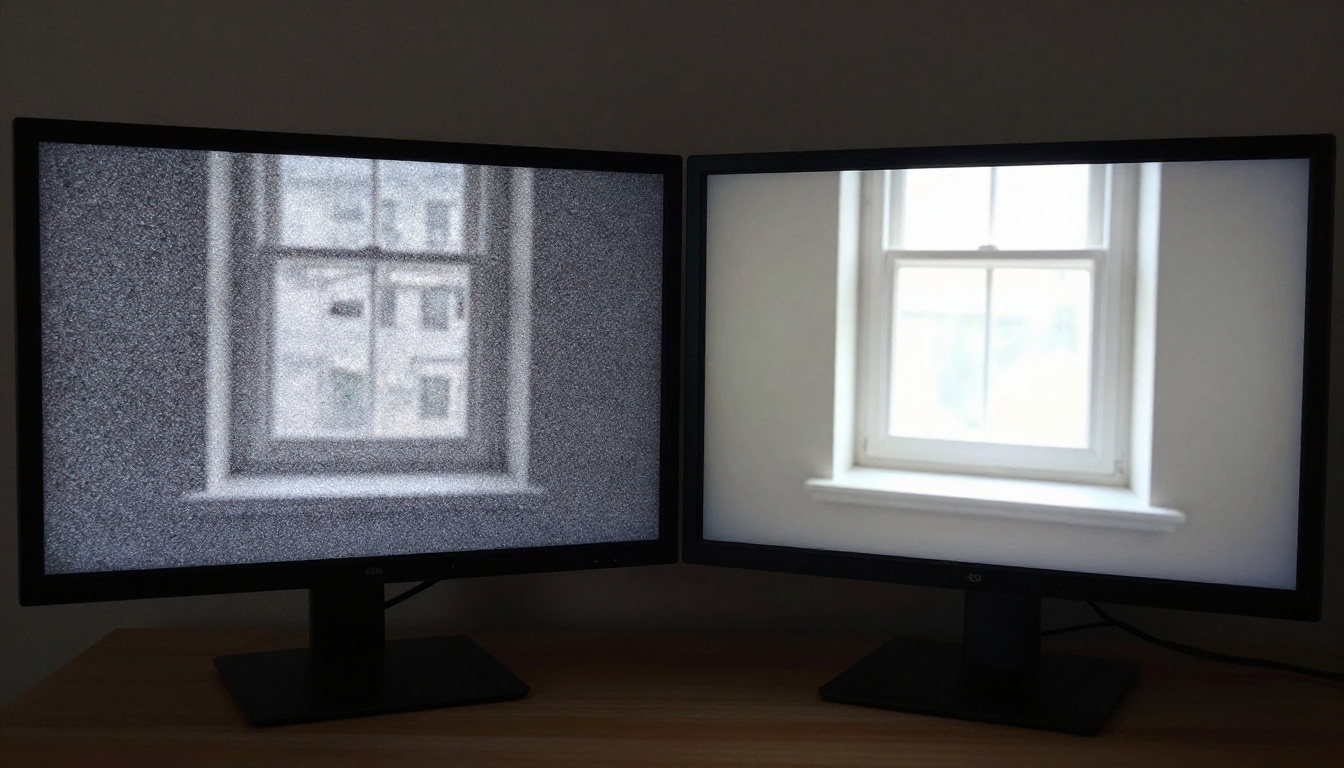
AI stabilization is fundamentally different. Models trained on millions of video clips learn to detect the actual motion trajectory of a camera across a full sequence of frames. Instead of simply cropping and shifting, they warp and redistribute pixel data to create smooth, continuous motion that mimics a professionally gimbal-stabilized shot.
The result is stabilization that works on extreme shake without sacrificing field of view, and that handles complex movements like camera roll and perspective distortion that traditional tools cannot address.
Optical Flow and Sub-Pixel Tracking
| Method | Quality | Field of View Loss | Handles Complex Motion |
|---|
| Traditional crop and shift | Basic | High (up to 20%) | No |
| Optical flow algorithms | Good | Medium (10-15%) | Partial |
| AI temporal analysis | Excellent | Very Low (2-5%) | Yes |
AI models calculate optical flow at a sub-pixel level. They track not just large objects but individual pixel clusters across frames, building a motion map that distinguishes intentional camera movement (a deliberate pan or tilt) from unwanted shake. Only the unwanted motion is corrected, leaving natural camera movements intact.
This is why AI-stabilized footage feels more natural than traditionally stabilized footage. The algorithm preserves the character of the shot while removing the instability.

The Best AI Models for Video Enhancement
Several strong AI models are available for different types of video quality problems. Each specializes in a slightly different area.
Crystal Video Upscaler
Crystal Video Upscaler by philz1337x is one of the most reliable options for pushing standard-definition or 1080p footage to 4K. It uses a multi-pass upscaling approach that first reconstructs edge detail, then recovers fine surface texture, and finally applies targeted sharpness enhancement.
The output retains natural film grain rather than adding the artificial smoothing that cheaper upscalers produce. This makes the result look like it was actually shot at higher resolution rather than artificially inflated. Best used for:
- Old recordings from early smartphones or consumer camcorders
- Archive footage from events, travel, or family memories
- Any clip that looks soft or low-fidelity on a modern 4K display
Topaz Video Upscale
Video Upscale by Topaz Labs is the professional-grade option. Topaz Labs has been building AI media enhancement tools for years, and their video model reflects that depth of experience. It handles both upscaling and temporal consistency, meaning objects in the video do not flicker or shift between frames during the enhancement process.
It supports up to 4K output at 120fps, making it the right choice for sports footage, action videos, and fast-moving subjects where temporal artifacts would be most visible. If your footage has fast motion in it, this is the model to use.
Video Increase Resolution by Bria
Video Increase Resolution from Bria pushes output to 8K, making it the highest-resolution option currently available. It is particularly strong on close-up detail, skin texture in portrait footage, and natural landscape shots where fine texture is what separates good video from great video.
Runwayml Upscale v1
Upscale v1 by RunwayML is the fastest option for quick results without extensive configuration. It handles the most common upscaling cases cleanly and is a good starting point if you want to see what AI enhancement can do before committing to a longer processing job.
💡 For most users, Crystal Video Upscaler or Topaz Video Upscale will produce the best visible results. The 8K output from Bria is most useful when delivering to high-end commercial or cinema contexts.
AI Noise Reduction vs. Manual Filters
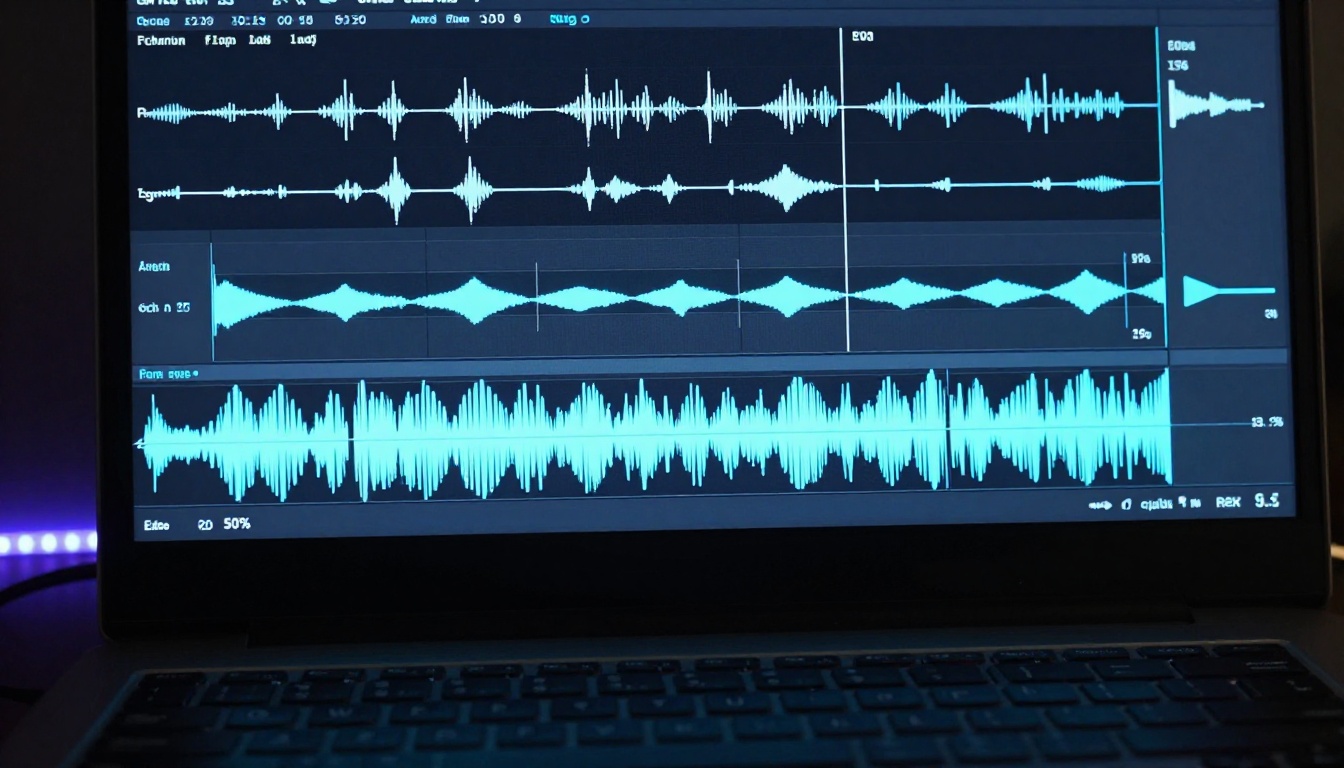
Manual noise reduction works by blurring pixels together to obscure the grain pattern. This reduces visible noise, but it also reduces sharpness. The result often looks like footage shot through a thin fog: technically less grainy, but also less sharp and less real.
AI noise reduction works the opposite way. Because the model has seen millions of examples of clean and noisy footage, it can reconstruct what the scene should look like rather than just blurring out what it should not look like. The difference in output quality is not subtle.
- Manual filter: averages adjacent pixels, removes noise but destroys edge detail
- AI model: predicts original pixel values from context, preserves edge detail while removing noise
The practical difference is visible in textures. Manual denoising turns grass, fabric, hair, and skin into smooth, featureless surfaces. AI denoising reconstructs those textures while eliminating the noise hiding them.
Real ESRGAN Video
Real ESRGAN Video applies the Real-ESRGAN super-resolution architecture to video frames in sequence, then re-assembles them with temporal smoothing to ensure consistency between adjacent frames. It handles:
- Compression artifacts: the blocky patterns that appear when video is saved at too-low a bitrate
- Digital grain: the high-ISO speckle from cameras pushed past their clean ISO range
- JPEG-like banding: the visible gradient steps that appear in low-bitrate video
- Optical softness: blur from slow shutter speed, poor focus, or cheap lenses
The model runs well on most video types and produces a significant visible improvement even on heavily degraded source material. It is particularly effective on archive footage that was digitized from older tape formats like VHS, Hi8, or MiniDV.
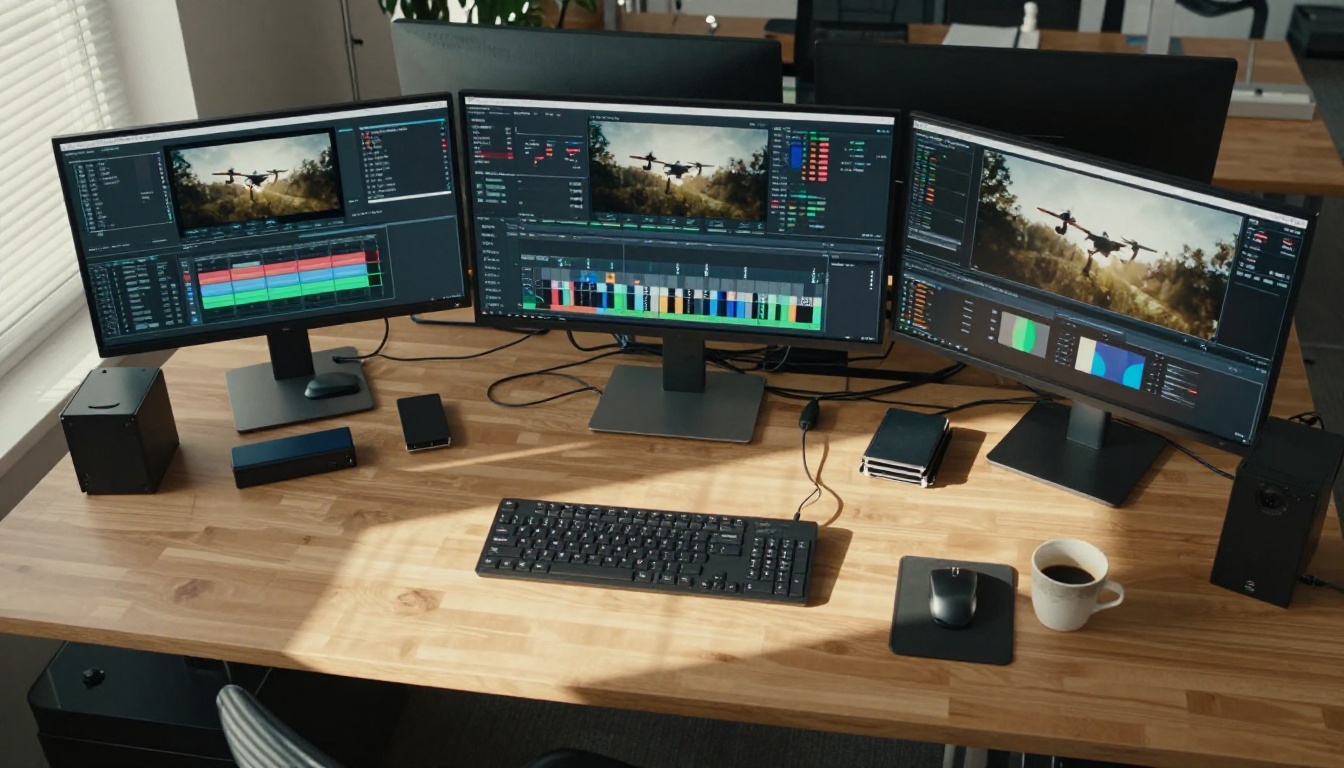
How to Use Crystal Video Upscaler on PicassoIA
Crystal Video Upscaler is the most beginner-friendly option, with a clean interface and reliable output. Here is the full workflow:
Step 1: Open the Model Page
Go directly to Crystal Video Upscaler on PicassoIA. You will see an upload area on the left and configuration options on the right panel.
Step 2: Upload Your Video File
Click the upload button and select your video. The model supports MP4, MOV, and AVI formats. For best results, keep the source file under 500MB per session. If you have a longer clip, trim it to the sections you actually need before uploading.
💡 Never upload an already-processed clip as your source. Always start from the original file to get the best output.
Step 3: Set Your Target Resolution
Choose your output resolution. For most use cases, 4K (3840 x 2160) is the right choice and produces a clear improvement on any modern screen. If your source is already clean 1080p and you only want sharpness refinement, a 1440p upscale is faster and still visibly better.
Step 4: Configure Enhancement Parameters
Crystal Video Upscaler includes a sharpness slider and a denoising option. Recommended settings by footage type:
| Footage Type | Denoising Level | Sharpness |
|---|
| Old smartphone or camcorder | High | Medium |
| Low-light footage | Medium-High | Low |
| Clean 1080p footage | Low | Medium |
| Archive or digitized tape | High | Low |
Step 5: Run the Enhancement
Click the generate button. Processing time is typically 2 to 5 minutes for a 60-second clip at 4K output. Once complete, preview the result in the built-in player before downloading. The difference at full resolution is usually immediately apparent.
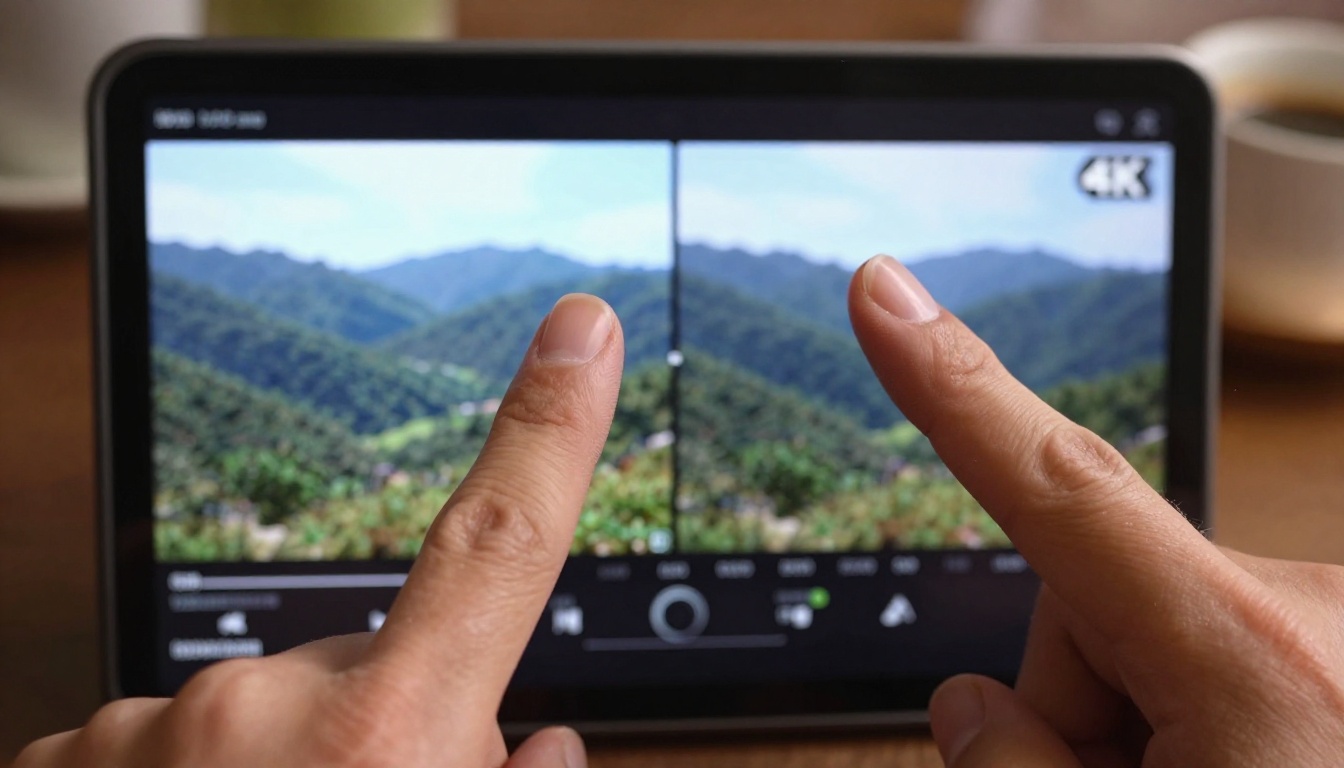
Before and After: What to Expect
Here is what real AI video enhancement achieves across different source problems:
| Problem | Original State | After AI Processing |
|---|
| Shaky handheld footage | Jittery, jarring motion | Smooth, gimbal-like movement |
| Grainy low-light video | Speckled, noisy textures | Clean natural detail |
| 720p or 1080p on 4K screens | Soft, visibly low-res | Sharp and detailed |
| Compressed social media clip | Blocky edges, banded colors | Smooth gradients and clean edges |
| Digitized VHS or tape footage | Faded, blurry, degraded | Restored color and recovered clarity |
| High-ISO noise | Distracting grain overlay | Natural texture without grain |
The improvement is most dramatic on older footage. A video recorded on a 2012 smartphone goes from barely watchable to genuinely presentable in a single processing pass. For more recent footage, the gains are subtler but consistently visible at full resolution on modern displays.

3 Common Mistakes When Fixing Video Quality
1. Processing Already-Enhanced Footage
If you have already run a video through one AI enhancement model, running it through a second model does not stack improvements. The second model treats the already-processed output as a new source and tries to enhance detail that was reconstructed, not original. This often introduces artifacts. Always work from the original file.
2. Setting Maximum Denoising on Clean Footage
Maximum denoising settings on footage that does not have heavy noise will flatten natural texture throughout the video. Skin becomes plastic, fabric loses weave detail, and natural surfaces look artificial. Match the denoising level to the actual severity of the noise in your source, not to the maximum the slider allows.
3. Ignoring Temporal Consistency
Some upscaling tools process individual frames independently without considering their relationship to adjacent frames. This causes flickering, where reconstructed detail appears and disappears between frames. Models like Topaz Video Upscale and Upscale v1 by RunwayML handle temporal consistency automatically. If the model you choose does not, you will see this problem on any clip with fast movement.
When Stabilization Is Not Enough
Sometimes the shake in footage is so severe that even AI stabilization cannot fully compensate. Rolling shutter distortion, the "jello effect" visible in fast-panning footage shot on CMOS sensors, is particularly challenging for stabilization-only models. The frame warps rather than simply shifting, and compensating for that warp requires a different approach.
In these cases, combining tools works better than relying on a single model. Run Video Increase Resolution to first improve base quality, then apply stabilization on the enhanced output. The higher-resolution source gives the stabilization model more pixel data to work with, which produces better motion tracking.
For content recorded at 60fps or higher, AI enhancement has significantly more information per second to reconstruct and stabilize. If you are shooting new footage with the intention of enhancing it, recording at 60fps gives AI tools more raw material to produce better results.
💡 For removing unwanted objects or people from footage before upscaling, Video Erase Object handles this cleanly without visible artifacts, so your enhancement pass starts from cleaner source material.
The tools covered in this article are available right now on PicassoIA, with no software to install and no technical setup required. Whether you have travel footage from years ago that never got published, a content library sitting at 1080p that looks dated on modern screens, or recent clips shot in conditions that were less than ideal, AI video enhancement can produce results that were not accessible outside of professional post-production just a few years ago.
Upload a clip, run it through Crystal Video Upscaler or Topaz Video Upscale, and see what comes back. The before and after comparison makes the value immediately visible.
Bad footage is no longer a reason to delete a clip or leave it sitting on a hard drive. With AI, the raw material you already have is often enough to produce something worth publishing.