Free AI art sounds simple until you try it. You open a generator, type a sentence, and three images in you hit a wall: a credit counter at zero, a watermark across the corner, or a license that quietly bans commercial use. Free is real, but it comes in different shapes, and picking the wrong one wastes an afternoon. This article sorts the options by how they actually behave, gives you prompts you can paste right now, shows what realistic output looks like, and spells out the limits so nothing surprises you later.
What "Free" Really Means
Almost nothing in this space is unlimited and unconditional. Providers pay for GPU time, so a free tier is a trade: you get a taste, and they hope you upgrade. Knowing the trade helps you pick a tool that fits your habits.
Daily Credits and Refills
The most common model is a daily allowance that refills every 24 hours. Reports in 2026 put Leonardo AI at roughly 150 daily tokens on its free plan, and Bing Image Creator offers a set of fast "boosts" each day before slowing down. Playground AI has been described as allowing a batch of images every few hours. Chat assistants are looser: ChatGPT and Google Gemini both let free users generate a handful of images per day, but neither publishes a number you can plan around, and sources disagree on the exact counts.
💡 Tip: Limits change often. Treat any number you read, including the ones here, as a rough guide and check the tool's own pricing page before you build a workflow around it.
Watermarks and Licenses
A free image is not always a usable image. Some tools stamp a visible mark on free outputs. Google Gemini adds a visible watermark plus an invisible SynthID signal to images from its free tier. Kling AI gives daily free credits, but outputs are watermarked and limited to non-commercial use. If you want a thumbnail for a client or a product page, read the license line first.
| Free tier trait | What it means for you | Check before using |
|---|
| Daily credits | Good for steady, light use | Refill time and credit cost per image |
| Visible watermark | Fine for drafts, not for publishing | Whether a paid tier removes it |
| Non-commercial license | Personal projects only | Terms of service wording |
| Queue priority | Free users wait longer at peak hours | Typical wait in the evening |
| Resolution cap | Small files, soft detail | Maximum free export size |
Run It on Your Own Machine
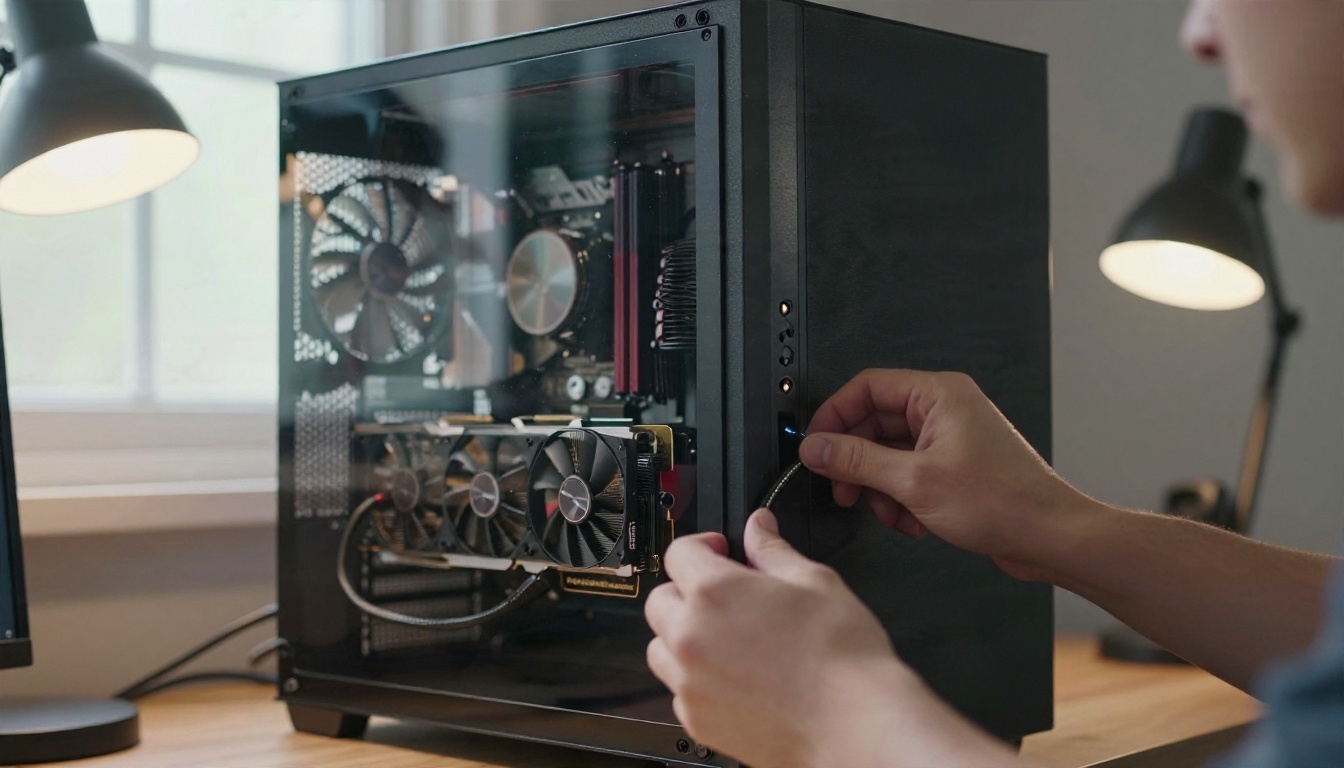
The only truly unlimited route is open source software on your own hardware. Stable Diffusion and its relatives run locally with no daily cap, no watermark and no account. The price is the hardware itself: a modern graphics card with enough memory, plus an evening of setup. If your laptop has no capable GPU, a hosted tool is the saner choice.
Tools fall into three buckets. Here is how each one behaves in practice.
Browser Based Generators
These are the closest thing to "open a tab and go." Leonardo AI, Bing Image Creator, Playground AI and Kling AI all fit here. They give you a prompt box, a style menu and a gallery. Strengths: fast, no install, decent presets. Weak spots: credit counters, watermarks on some tiers, and queues at busy hours.
Chat Assistants With Image Output
ChatGPT and Gemini let you describe an image in plain conversation and refine it by replying. That back and forth is excellent for fixing small things such as "make the sky warmer" or "remove the person on the left." The trade is a tight daily cap on free accounts and less control over technical settings like aspect ratio and seed.
Open Source and Local Models
Stable Diffusion variants, Flux models and Qwen Image style models are open or open weights releases. You get deep control and zero per-image cost, at the price of setup time and hardware. Many hosted sites run these same models, so you can try them without installing anything.
Free Models on PicassoIA
PicassoIA hosts a large catalog of text to image models in one place, which makes side by side comparison easy. These are the ones worth testing first for free style experiments:
Free access and allowances on any platform can change, so open the model page to see the current options before you plan a large batch.
Prompts That Actually Work
A free tier has few attempts, so each prompt has to count. Vague prompts burn credits on generic results. Specific prompts get you close on the first or second try.
The Five Part Formula
Build every prompt from five pieces, in this order:
- Subject and action: who or what, and what they are doing.
- Setting: the place, time of day and small background objects.
- Light: direction and quality, such as "soft window light from the left."
- Camera: lens, distance and angle, such as "85mm, f/1.8, low angle."
- Texture and mood: film grain, skin detail, fabric, weather.
Photographic wording pulls models toward realistic results. Words like "35mm," "natural light" and "film grain" do more for realism than the word "realistic" itself.
10 Prompts to Copy
Paste these as they are, then swap the subject.
| # | Prompt |
|---|
| 1 | A fisherman mending nets on a wooden pier at sunrise, 50mm lens, soft golden light from the right, weathered skin texture, film grain |
| 2 | A mountain lake at dawn with mist on the water, low angle from the shore, 24mm lens, cool blue shadows, pine needles in the foreground |
| 3 | A woman reading in a sunlit cafe window seat, 85mm f/1.8, shallow depth of field, steam from a cup, knit sweater texture |
| 4 | A rainy city street at night with warm shop windows reflecting on wet asphalt, 35mm lens, candid pedestrian with an umbrella |
| 5 | A ceramic coffee mug on a oak table, overhead shot, soft side light, visible glaze and wood grain, 50mm macro |
| 6 | An elderly baker dusting flour over dough, 70mm lens, warm kitchen light, flour in the air, deep skin lines |
| 7 | A red bicycle leaning on a brick wall in a quiet alley, morning light, 35mm lens, peeling paint detail |
| 8 | A child holding a paper boat beside a puddle after rain, low angle, 50mm lens, overcast soft light |
| 9 | A desert road at golden hour with a lone car, wide 24mm shot, long shadows, heat haze, dust on the asphalt |
| 10 | A chef plating a dish in a busy kitchen, 85mm lens, shallow focus, steam, stainless steel reflections |
💡 Tip: Change one thing per attempt. If you change the subject, lens and light all at once, you will never know which edit helped.
Fixing Weak Results
If an image looks flat, add a light direction. If it looks plastic, add a texture word such as "pores," "fabric weave" or "grain." If the composition feels random, name the camera angle. If the model keeps adding objects you did not ask for, shorten the prompt rather than lengthen it.
Examples: What Free Can Produce
Seeing results sets honest expectations. A well written prompt on a good model gets close to photography in a few attempts.
Landscapes and Interiors
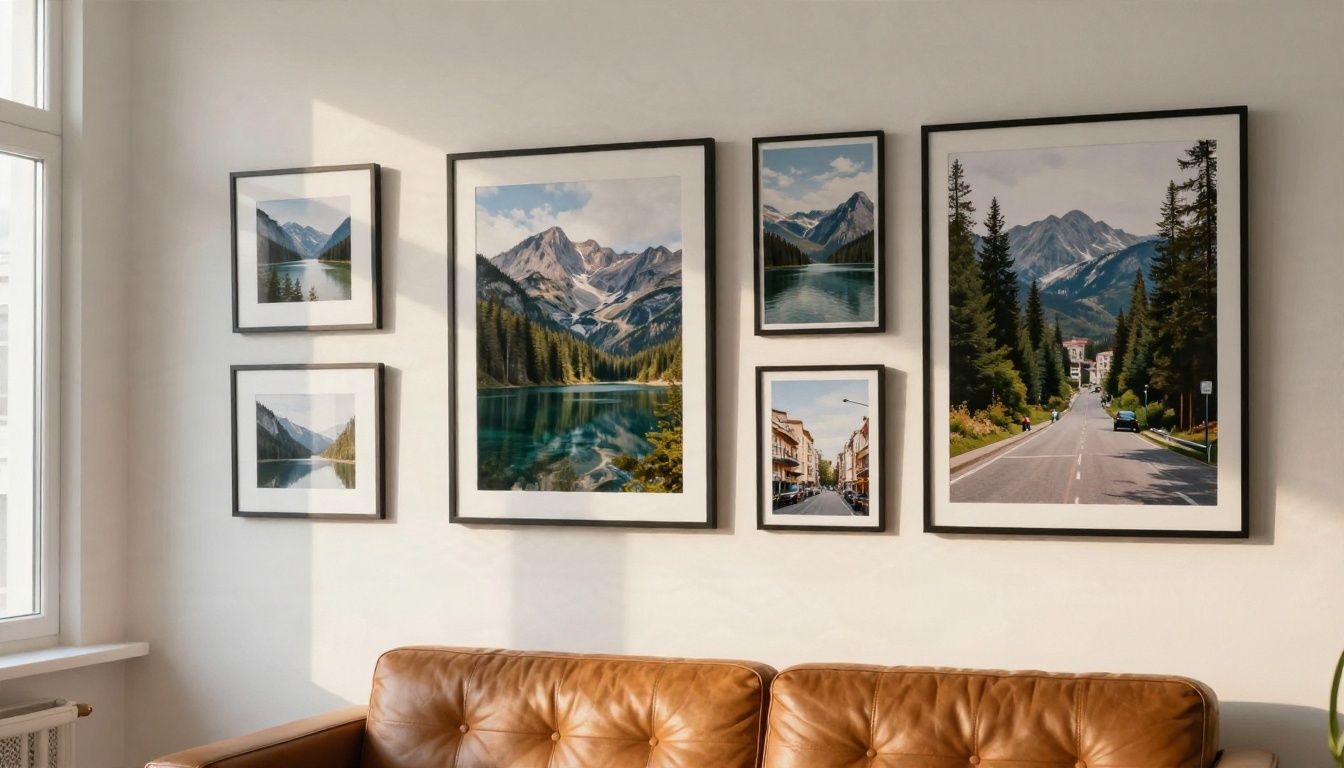
Landscapes are the easiest win. Water, sky and trees forgive small errors, so even quick models like Flux Schnell produce wall worthy results. Many people print their favorites at home and frame them, which is a cheap way to decorate a room. Interiors work well too, as long as you describe light direction and a few specific objects.
Portraits and Faces
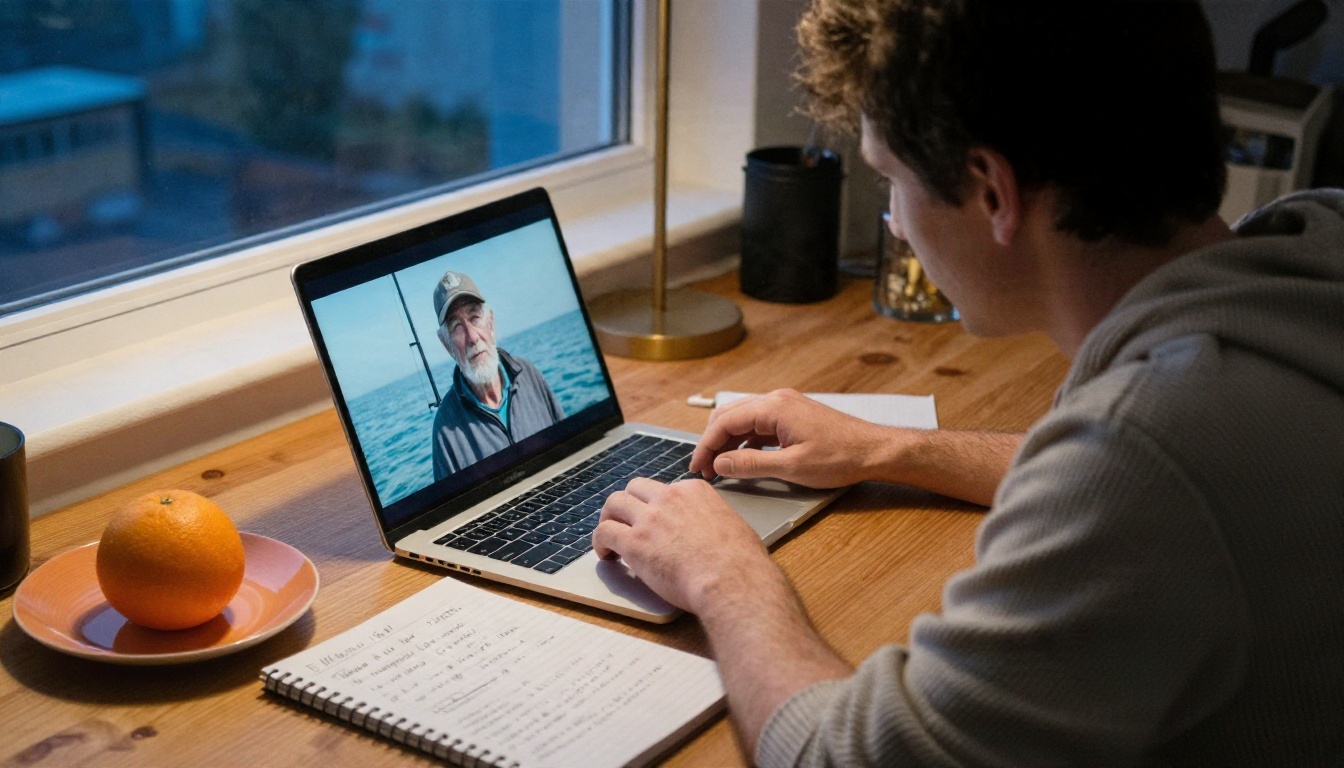
Portraits are where model choice matters most. Skin, eyes and hands reveal weak models fast. Z Image Turbo and Qwen Image 3 handle faces convincingly, and Nano Banana Pro is strong when you want to edit an existing image rather than start over. Review portraits at full size before you trust them: small flaws hide in thumbnails.
Sharing and Comparing
The fastest way to improve is to run the same prompt through two or three models and compare. One model nails the light, another nails the face. Keep a note of which model wins for which subject, and you will spend fewer credits next time.
Limits You Will Hit
Every free tier has edges. Here are the ones that trip people up.
Resolution Caps
Free exports are often small, sometimes around one megapixel. That looks fine on a phone and soft in print. Some paid models reach 4K, but a free plan may restrict you to a lower size. The fix is covered below: upscale afterwards instead of paying for a bigger generation.
Hands, Text and Consistency
Even strong models still stumble on three things. Fingers can come out wrong, especially when hands hold objects. Long text inside an image often breaks, so keep any text to one or two words. And keeping the same character across several images is hard without a tool built for it, such as a LoRA trained on your subject.
Commercial Use Rules
| Situation | Usually safe on free tier? | What to do |
|---|
| Personal wallpaper or mood board | Yes | Nothing special |
| Social posts for your own brand | Depends | Read the license |
| Client work or products for sale | Often no | Confirm commercial rights in writing |
| Printing and selling posters | Often no | Check terms and any watermark rule |
💡 Tip: When in doubt, screenshot the license page on the day you generate. Terms change, and a dated record protects you.
Fix Weak Results for Free
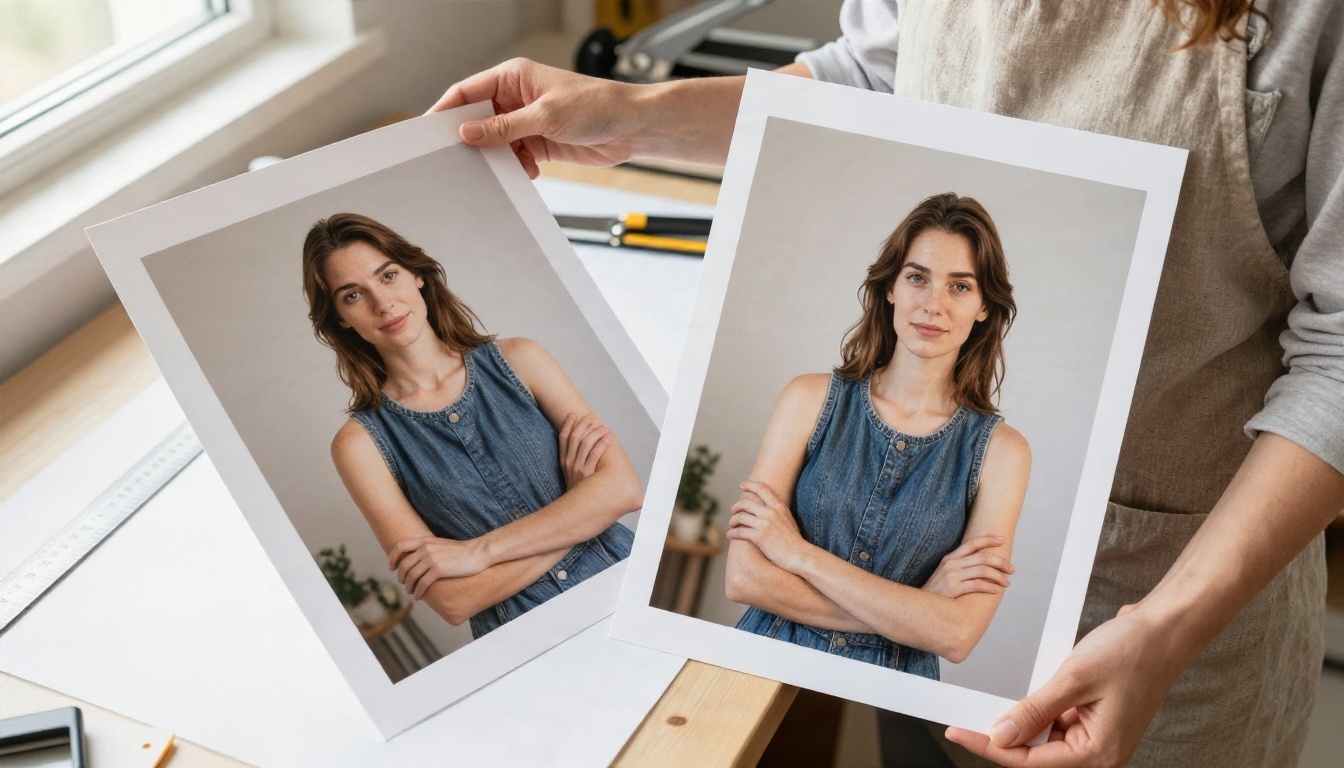
A so-so image is often one step away from good. Two small tools do most of the repair work.
Upscale Small Images
Real ESRGAN enlarges images up to four times while keeping edges clean, which turns a modest free export into something printable. For portraits and skin, Crystal Upscaler is worth a try, and Clarity Pro Upscaler adds fine texture to landscapes and products.
Clean Up Backgrounds
If the subject is good and the background is messy, Remove Background gives you a clean cutout you can drop onto a new scene or a plain color. This is a cheap trick for product images and profile pictures.
Try Flux Schnell on PicassoIA
Flux Schnell is a good first stop because it is quick, so you can test a prompt several times without waiting.
- Open the Flux Schnell page and find the prompt box.
- Paste one of the ten prompts above and keep the aspect ratio at 16:9 for landscapes or 1:1 for portraits.
- Generate, then look at the image at full size, not as a thumbnail.
- Change one detail in the prompt, such as the light direction, and generate again.
- When one result is close, send it to an upscaler to get a larger file.
Parameter tips:
- Short, concrete prompts of 30 to 60 words work best on fast models.
- Reuse a seed when you want to test only one change.
- Put the camera and light details near the end, after the subject.
Once you know what Flux Schnell does well, try the same prompt in Z Image Turbo and Seedream 4.5 and see which one you prefer.
Make Your First Image Today
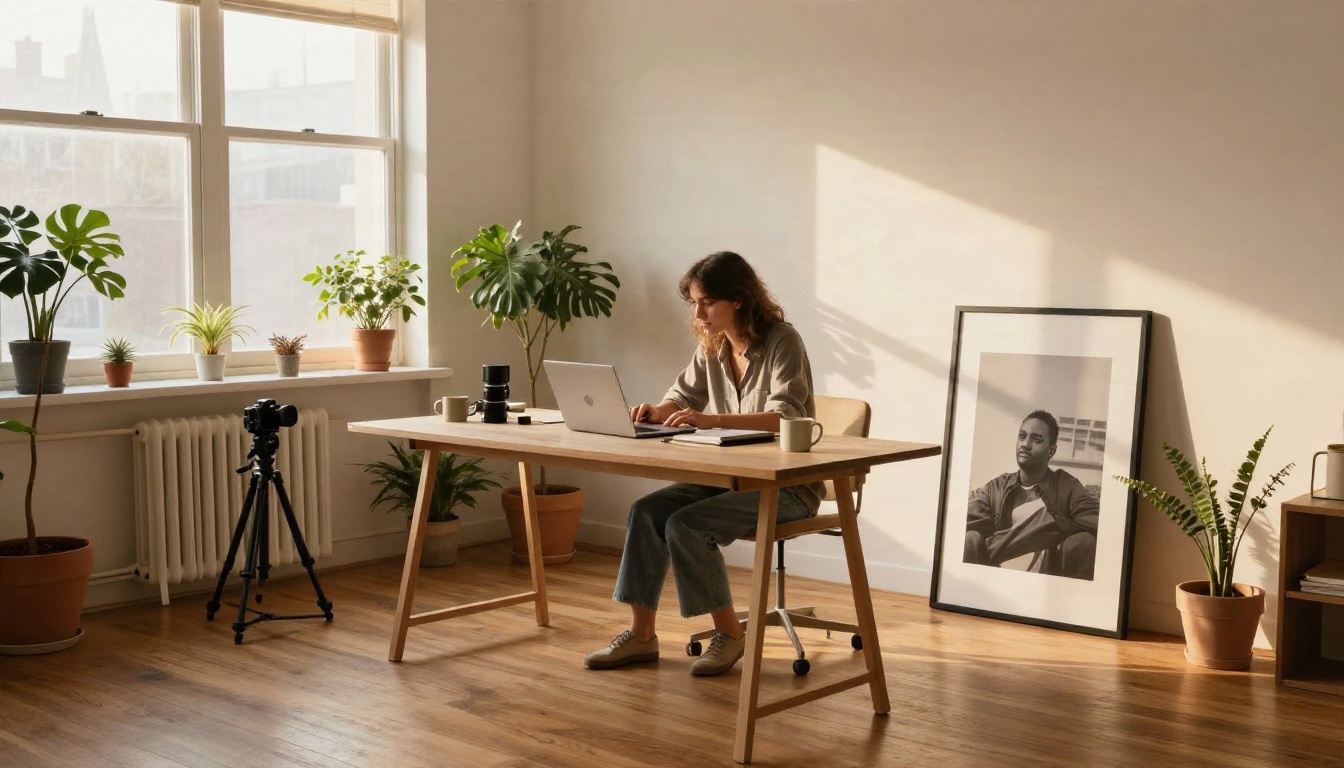
You do not need a perfect plan. Pick one prompt from the list, run it on a fast model, and look at what comes back. Then change the light, run it again, and compare. Ten minutes of that teaches you more than an hour of reading.
PicassoIA puts dozens of image models, upscalers and background tools in one place, so you can test, compare and polish without hopping between sites. Open the catalog at picassoia.com/en/all-models, choose a model, and generate your first image now. Save your best prompts, build a small set of your own, and watch your results improve with every round.


