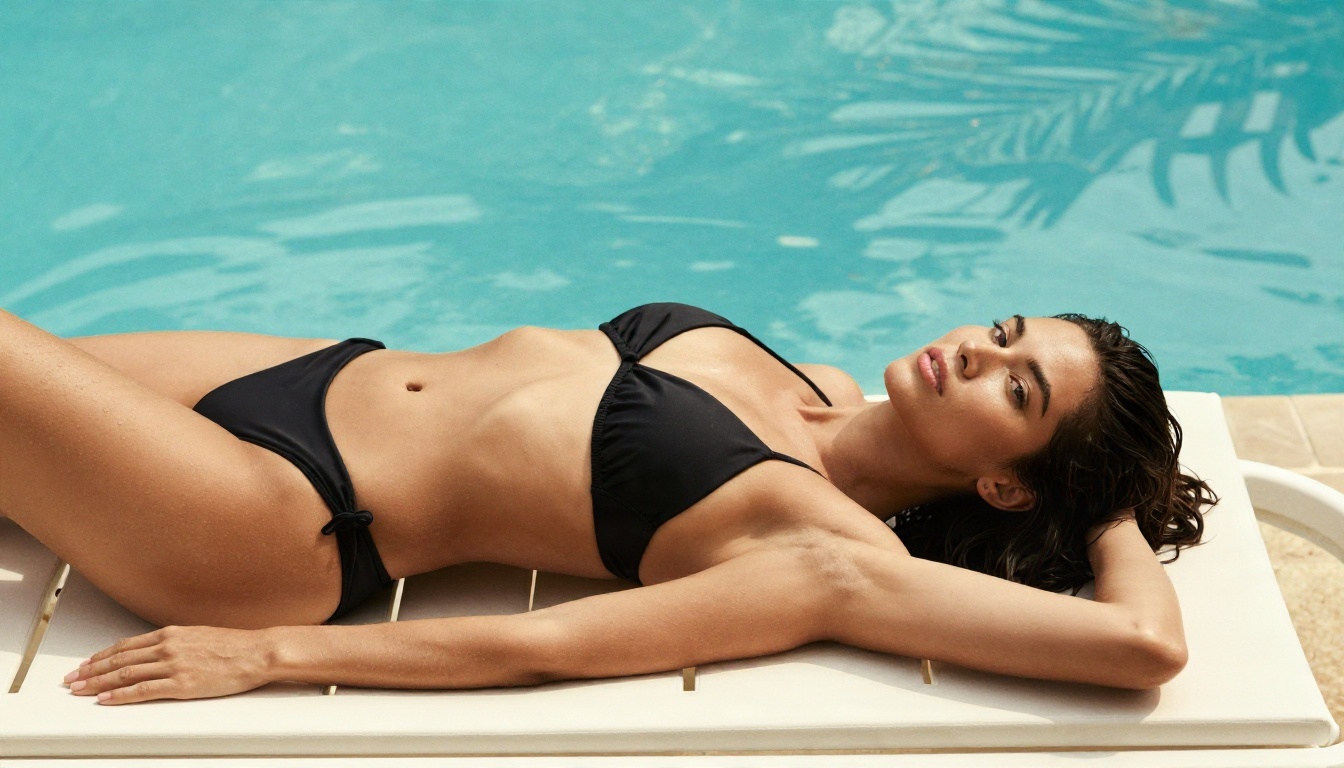
You have a photo you love. A woman by a pool, golden light on her shoulders, a pose that already feels like the first frame of a film. You want it to move: hair lifting in the breeze, water rippling, a slow turn toward the camera. And you want it free, ideally without creating yet another account. That search is where most people lose an hour to watermarked previews, "free" buttons that lead to paywalls, and tools that quietly blur anything remotely suggestive.
This article sorts the reality from the marketing. You will see what "free" and "no sign up" tend to mean in practice, which generator options are worth your time, the hard limits on clip length, resolution and filters, and a simple workflow that produces smooth, tasteful, non-explicit adult clips from a single still image.
💡 Scope note: everything here is about suggestive, glamour-style content (swimwear, boudoir, evening looks) with adult subjects and consent. Nothing in this article is about explicit material, and the images shown are all non-explicit.
What "Free" Really Means Here
The word free is stretched further in AI video than almost anywhere else. Rendering motion costs real GPU time, so somebody always pays. Knowing who pays tells you what you will give up.
Free, free trial, or unlimited
Three very different things hide behind the same label:
- Free trial: a handful of credits, then a paywall. Fine for testing, useless for experimenting.
- Free with limits: daily or monthly caps, slower queues, lower resolution, or a watermark burned into the corner.
- Free and unlimited: rare, and usually tied to a specific model or tier rather than the whole platform.
If a page promises "unlimited" and "no limits" in the same breath, read the fine print. Look for per-day caps, queue priority rules and what happens to your uploaded image.
The no sign up trade-off
A generator that needs no account is convenient, but convenience has a price. Typical compromises include:
- Watermarks that cannot be removed without paying.
- Long queues, since anonymous traffic gets the lowest priority.
- No history, so a clip you forgot to download is gone.
- Shorter, lower resolution output, often 480p or less.
- Unclear data handling, because there is no account tying your upload to a privacy policy you agreed to.
None of that makes no-sign-up tools bad. It means you should use them for quick tests, and move to an account-based tool when you care about quality or privacy.
Quick comparison
| Option type | Sign up needed | Typical resolution | Watermark | Best for |
|---|
| Anonymous web demo | No | 480p or lower | Often | One-off tests |
| Free account, capped | Yes | 480p to 720p | Sometimes | Regular light use |
| Unlimited tier on a platform | Yes | 720p and up | Rarely | Experimenting freely |
| Paid credits | Yes | 720p to 1080p | No | Final quality clips |
How Image to Video Works
Before comparing tools, it helps to know what is actually happening when you upload a photo.
One still, a few seconds of motion
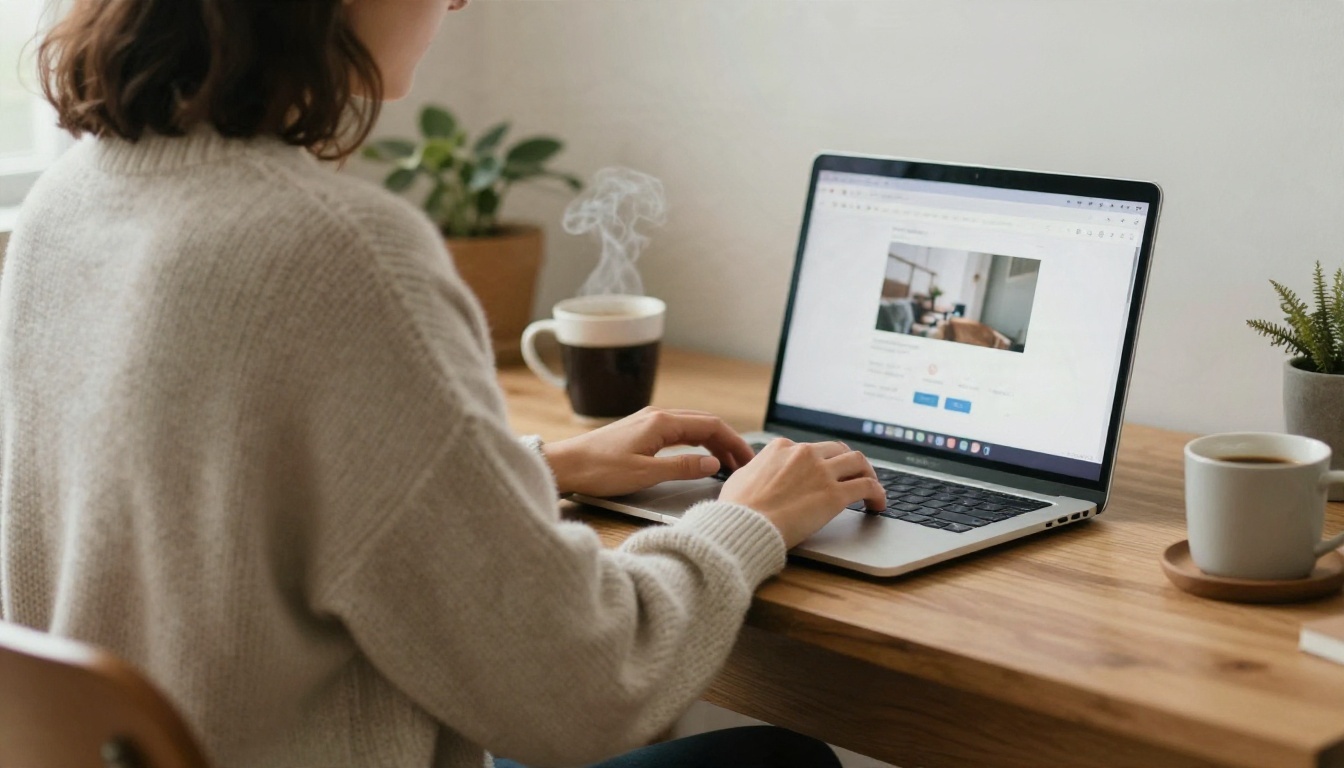
An image to video model treats your photo as the first frame. It then predicts what the following frames should look like, guided by your text prompt. Most current models produce clips of roughly 5 to 10 seconds, because errors pile up the longer the model has to invent motion. Some models also generate synchronized audio, such as ambient water or fabric rustle.
The model is not "bringing the photo to life" in a magical sense. It is inventing plausible motion, which is why simple movements (hair in wind, a slow head turn, ripples on water) look convincing and complicated ones (a full dance routine, hands doing detailed tasks) often fall apart.
Why the source image decides everything
A sharp, well-lit source gives the model clean information about skin, fabric and background. A blurry or over-smoothed source gives it mush to animate. Three things matter most:
- Resolution and sharpness of the face and hands.
- Clear lighting direction, so shadows can move believably.
- A pose with room to move, not a frozen, stiff stance.
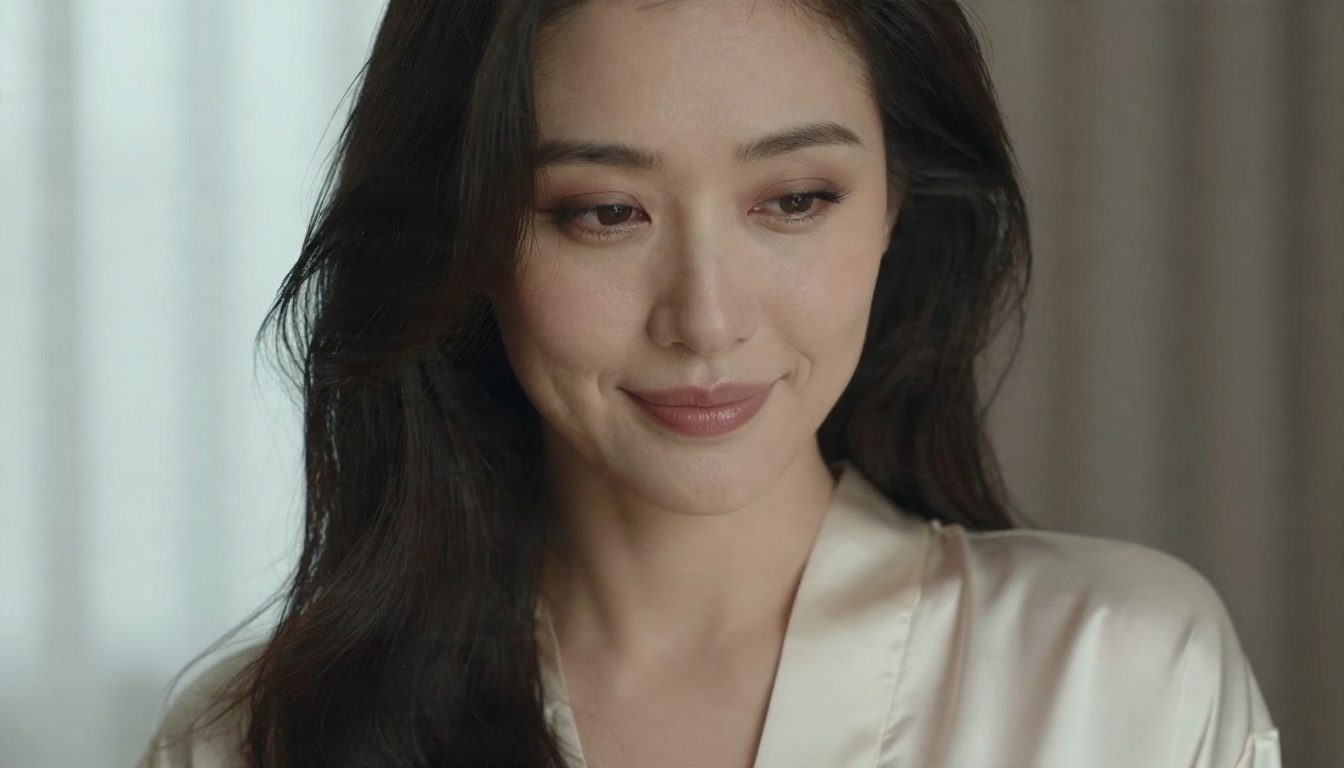
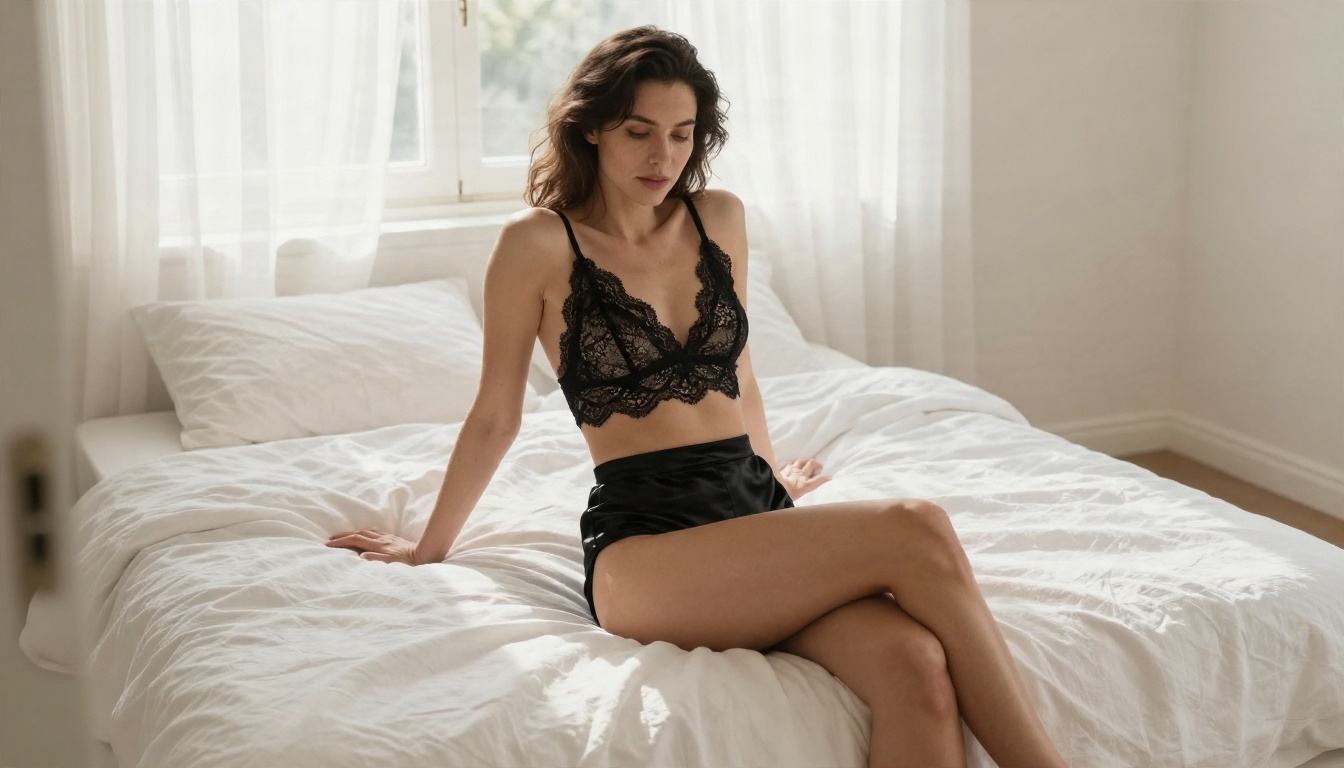
Portraits like the one above, with visible skin texture and soft directional light, are the sort of source that animates cleanly.
Generator Options Worth Trying
Think of the process as two stages: make a strong still, then animate it. Mixing a good image model with a good video model beats any single "NSFW video" button.
Stage one: build the source image
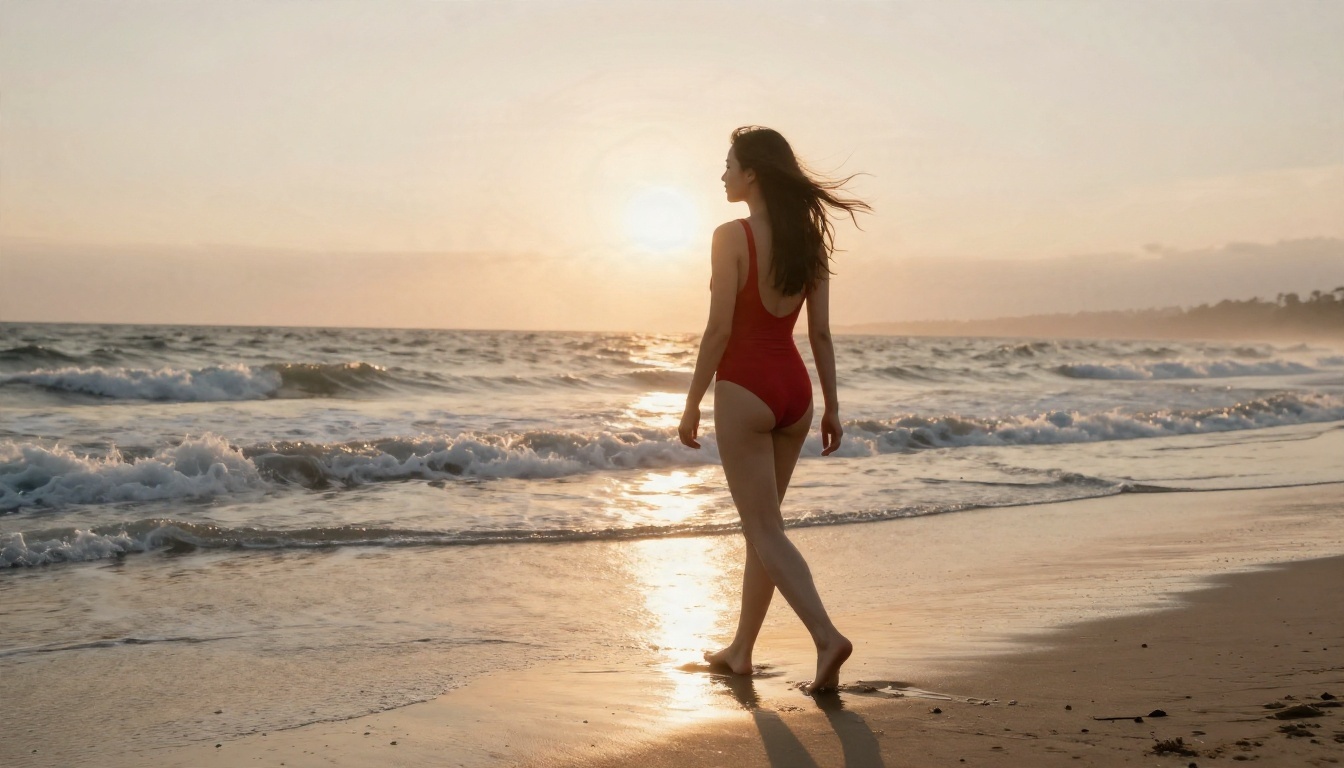
For suggestive adult stills, start with Seedream 4.5. It produces sharp, photorealistic skin, fabric and lighting, which is exactly what a video model needs as a first frame. It is the model to reach for when you want glamour, swimwear or boudoir looks that hold up at full size.
Next, use PicassoIA Image Editor Pro when you already have a photo and want to adjust it: change the outfit, fix the lighting, clean the background or correct small flaws. It is positioned as an unlimited editor, so you can iterate as many times as you like without watching a credit counter. That matters, because the best source image is usually the fifth or sixth attempt, not the first.
If you want a different look to compare, Qwen Image 3 Pro is another photorealistic option worth testing against your first results.
Stage two: animate the image
Once the still is ready, these image to video models are good places to start. Each has its own page on PicassoIA:
💡 Moderation varies by model. Each video model has its own content rules, and they change over time. If a clip is refused or blurred, try a different model rather than rewording the same prompt ten times.
Fast versus quality tiers
Most families come in two flavors. Fast variants (like Wan 2.5 I2V Fast) trade a little detail for speed, which makes them ideal for testing motion prompts. Standard and Pro variants cost more time or credits but hold fine detail better. A smart pattern: draft on fast, finish on quality.
Limits You Will Hit
Every generator, free or paid, has ceilings. Knowing them upfront saves frustration.
Clip length and resolution
Expect about 5 seconds per clip on most models, occasionally up to 10. Resolution on free tiers often sits at 480p or 720p, while 1080p tends to be reserved for paid options. If you need longer sequences, generate several short clips from related stills and join them in a video editor.
Content filters
Even on platforms that allow suggestive content, filters usually draw a line at explicit material. Swimwear, lingerie-style glamour and implied artistic looks are generally the zone where results are most consistent. Prompts that push toward explicit content tend to be refused, blurred or silently altered, and that is the right outcome for this kind of tool.
Watermarks, queues and daily caps
| Limit | What it looks like | Workaround |
|---|
| Watermark | Logo in a corner | Use a tier that does not add one |
| Queue wait | Minutes to hours at peak times | Generate off-peak or use a fast model |
| Daily cap | A fixed number of clips per day | Plan your best images first |
| Resolution cap | 480p on free plans | Upscale afterward with a super resolution model |
| Audio | Silent output | Pick a model that generates audio |
💡 If a clip looks soft, a super resolution or video enhancement pass can sharpen it after generation, so a lower resolution draft is not a dead end.
A Four Step Workflow
Here is a repeatable process that works whatever generator you pick.
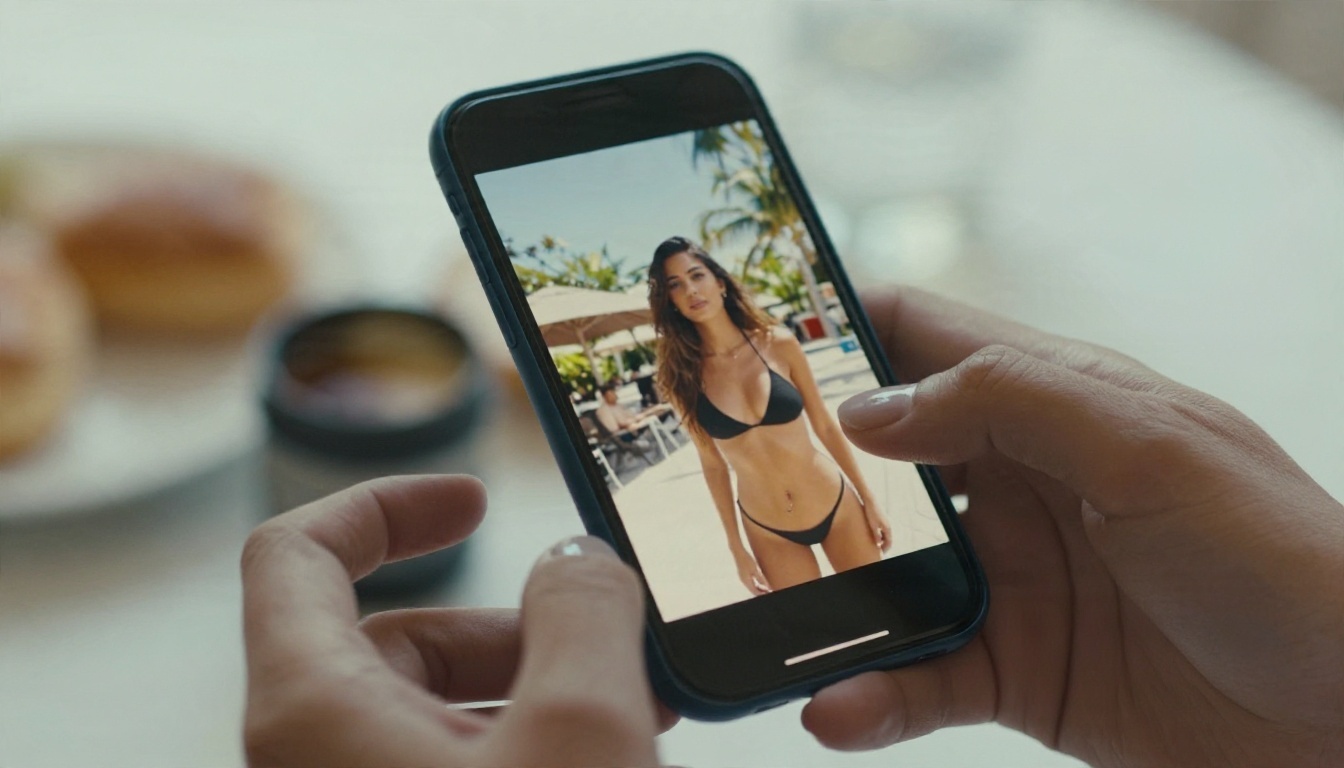
Step 1: Generate or pick a clean still
Write a detailed photographic prompt: subject, outfit, setting, light direction, camera lens and mood. Mention "natural light" and "film grain" for believable skin. Make sure the image is sharp, hands look normal and the face is clear. Fix problems with an editor before you animate, since flaws get worse in motion.
Step 2: Keep the motion simple
Pick one subject movement and one camera movement. For example: "she slowly turns her head toward the camera while a gentle breeze moves her hair; slow dolly in." Stacking five actions is the quickest way to get warped limbs.
Step 3: Write the motion prompt chronologically
Describe what happens from the first second to the last:
- Start: the pose in the source image.
- Middle: the subject's motion and what the environment does.
- End: where the camera settles.
- Atmosphere: light and sound, such as "warm sunset light, soft waves".
Step 4: Draft, judge, then upgrade
Run a fast draft first. If the motion is right, re-run on a higher quality model. If the face drifts or the body distorts, simplify the prompt, not lengthen it.
Motion prompt examples that work
| Scene | Motion prompt idea |
|---|
| Pool lounger | Water ripples softly, she shifts her gaze to camera, slow push in, warm late sun |
| Beach shoreline | She walks forward, wind lifts her hair, waves wash around her ankles, gentle tracking shot |
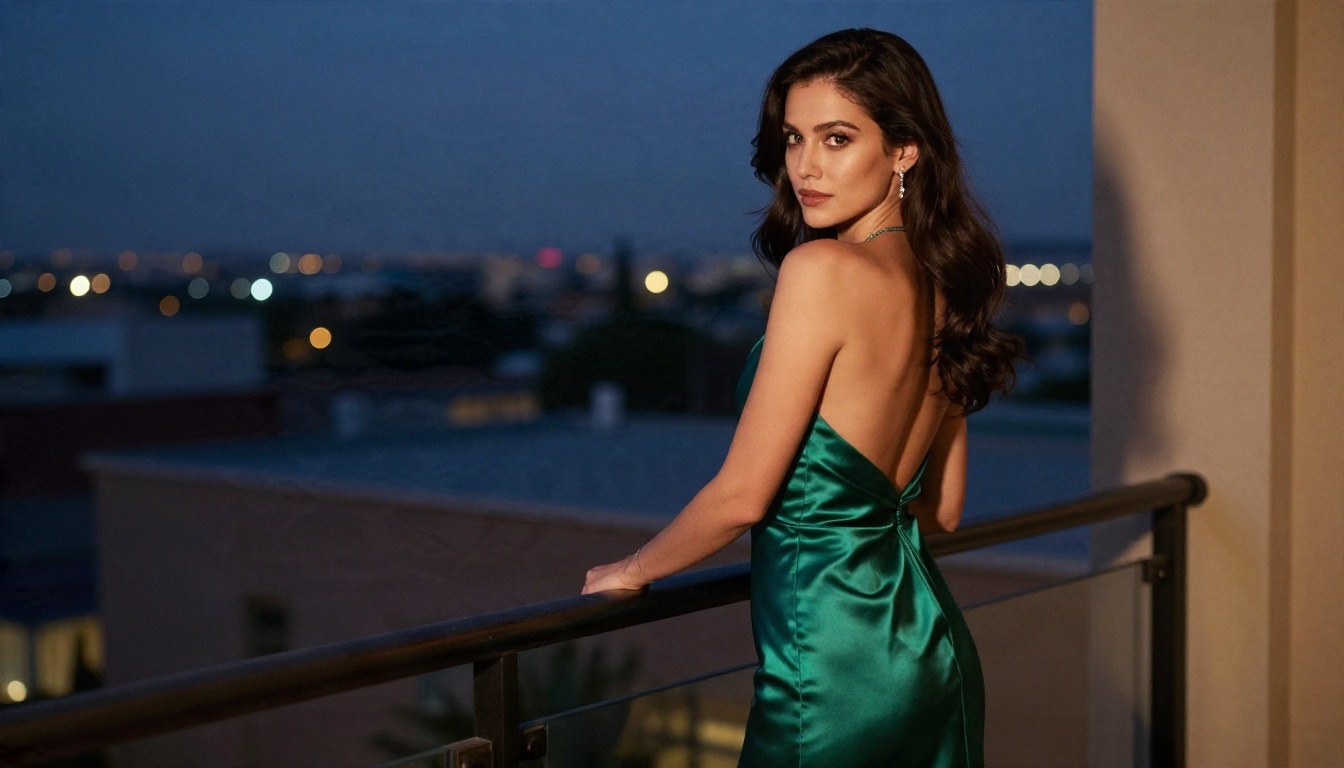
| Balcony at dusk | She glances over her shoulder, satin catches the light, city lights flicker softly behind |
| Boutique bedroom | Curtains drift in a light breeze, she exhales and smiles, subtle handheld feel |
Staying Safe and Legal
Adult content tools carry responsibilities that casual image apps do not.
Adults and consent only
Only create content that depicts fictional adult characters or people who have given clear permission. Never animate photos of real people without their consent, and never create anything involving minors. Most platforms ban this outright, and in many countries it is illegal.
Privacy with upload tools
When you upload a photo to any generator, you are sending it to someone else's server. Before you do:
- Check the privacy policy for how long images are kept.
- Avoid uploading photos that contain identifying details such as documents, house numbers or unique tattoos.
- Prefer tools with accounts when the image matters to you, since they come with clearer terms.
- Download and delete your results if the platform offers deletion.
Common Mistakes
- Starting with a weak image. A soft, over-smoothed still will never become a crisp video.
- Overloading the prompt. One subject action plus one camera move beats a paragraph of instructions.
- Chasing "no limits" claims. Every platform has limits. Check the real caps before you invest time.
- Ignoring aspect ratio. Match the video to your source image so the model does not crop faces or limbs.
- Giving up after one refusal. Filters differ between models, so try another one with a calmer, more suggestive prompt.
- Skipping the draft step. Fast models exist so you can fail cheaply.
Try It Yourself
The best way to find your ideal setup is to run one image through two or three models and compare. Start by creating a sharp still with Seedream 4.5, polish it in PicassoIA Image Editor Pro where you can iterate without a credit counter, then animate it with PicassoIA Video or Wan 2.7 I2V. Keep the motion simple, keep your subjects adult and consensual, and save your favorite prompts for next time.
Ready to build your own clips? Browse every image and video model at picassoia.com/en/all-models and see which one gives your photo the movement you had in mind.


