You have a sharp photo, an empty afternoon and one simple question: can Gen 4.5 animate that photo without a bill at the end? The honest answer is "partly." Free access to image to video exists, but it comes with credit caps, watermarks and a model tier that is not always the one you hoped for. This article lays out what free really means, which settings produce clean motion, which prompts work, where the limits sit, and which alternatives let you keep animating when the credits run dry.
💡 Quick answer: Runway's free plan has been reported to include a small one-time credit pool that works with Gen-4 Turbo for image to video, while Gen-4.5 itself usually sits behind a paid plan. You can run Gen 4.5 on PicassoIA with an optional starting image, and test free options like Seedance 2.5 Lite for unlimited practice.
What Gen 4.5 Actually Does
Image to video in one sentence
You give the model a still picture as the first frame, add a short text prompt, and it generates a 5 or 10 second clip that starts from your picture and moves forward. The subject stays recognisable, the camera can drift, and the light can shift. That is the whole idea, and it is why photographers, shop owners and social media editors like it: your own picture stays the anchor, so you avoid the lottery of pure text to video.
On PicassoIA, Gen 4.5 accepts a prompt, an optional image, a duration of 5 or 10 seconds, six aspect ratios (16:9, 9:16, 4:3, 3:4, 1:1 and 21:9) and a seed. If you leave the image empty it works as plain text to video. If you add one, it pins the first frame and animates from there.
Where it sits among Runway models
Runway has released several video models, and the names confuse people. Gen-4 Turbo is the faster, cheaper image to video model. Gen-4.5 is the newer flagship with stronger motion, sharper detail and closer prompt following. On PicassoIA you will find Gen4 Turbo for quick drafts and Gen 4.5 for final takes.
| Model | Best for | Typical role |
|---|
| Gen4 Turbo | Fast image animation | Drafts and tests |
| Gen 4.5 | Cinematic motion, prompt accuracy | Final clips |
| Gen4 Aleph | Recutting existing video | Editing, not animation |
Is Gen 4.5 Really Free?
The free plan numbers
Here is what third-party pricing breakdowns reported when I checked in November 2026. Treat these as a snapshot and confirm on Runway's own pricing page before you plan a project around them.
- The free plan comes with about 125 credits, and they are described as a one-time allowance that does not renew each month.
- Free credits work with Gen-4 Turbo for image to video. Several sources say Gen-4.5 needs a paid plan, starting with the Standard tier at roughly $15 per month for 625 credits.
- Gen-4.5 is priced around 12 credits per second, while Gen-4 Turbo costs around 5 credits per second.
- Free outputs carry a watermark and the model list is limited.
Some blogs disagree on whether Gen-4.5 image to video was open to free accounts, and a couple of them mix up the dates of its image to video rollout. That disagreement is the reason to check the live pricing page instead of trusting any single article, including this one.
Watermarks and credit math
The arithmetic is simple and a little sobering. With 125 credits at 5 credits per second, you get about 25 seconds of Gen-4 Turbo footage. That is five clips of 5 seconds, total. At 12 credits per second for Gen-4.5, those same 125 credits would stretch to roughly 10 seconds, which is two short clips. Neither number leaves room for experimenting with prompts.
| Scenario | Credits per second | Seconds from 125 credits |
|---|
| Gen-4 Turbo image to video | about 5 | about 25 |
| Gen-4.5 image to video | about 12 | about 10 |
| Ten 5 second retakes of one idea | n/a | 50 seconds needed |
💡 Rule of thumb: Never spend premium credits on a prompt you have not tested. Draft the motion cheaply, then run the winning prompt on the best model.
Best Settings for Image to Video

Duration: 5 or 10 seconds
Pick 5 seconds for almost every test. Shorter clips cost less, finish sooner and keep the subject stable. Motion models tend to drift the longer they run: faces soften, hands change shape, and backgrounds begin to wander. Choose 10 seconds only when the scene is calm, such as a landscape with moving clouds or a slow push toward a still subject.
Aspect ratio should match the image
If the starting image is 16:9, ask for 16:9. Forcing a different ratio makes the model crop or invent edges, and invented edges are where odd artefacts appear. A quick map:
| Platform or use | Ratio | Notes |
|---|
| YouTube, websites | 16:9 | Default, safest choice |
| Reels, Shorts, TikTok | 9:16 | Prepare a vertical source photo |
| Instagram feed | 4:3, 3:4 or 1:1 | Square works for product shots |
| Cinematic banners | 21:9 | Needs a wide, uncluttered image |
Seed for repeatable results
Set a seed once you like a motion. Reusing the same seed with a small prompt change lets you compare tweaks fairly. Without it, every run is a new roll of the dice, and you cannot tell whether the prompt or the luck made the difference.
Choose a Source Image That Animates Well
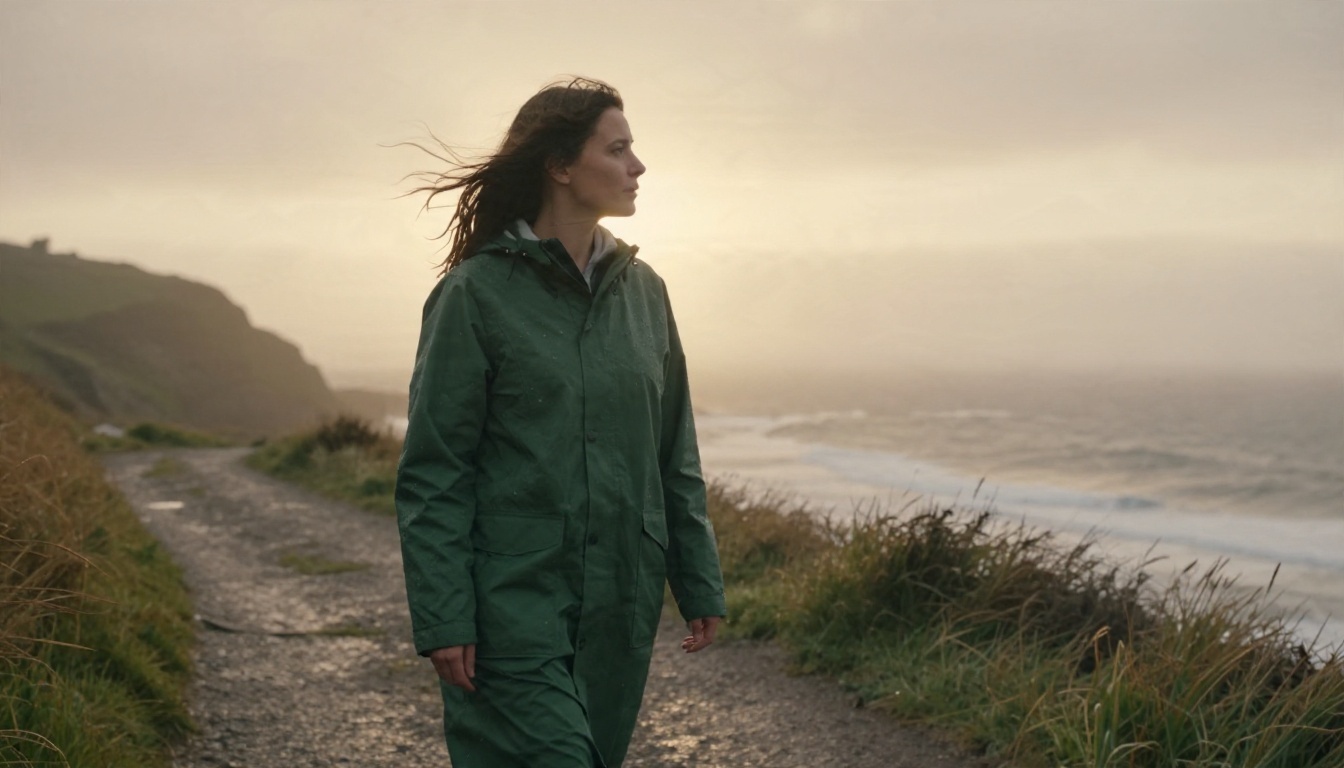
The photo matters more than the prompt. Strong source images share a few traits:
- A clear subject with room around it, so the camera can move without cropping the face.
- Natural light with a visible direction, which gives the model cues for shadows and highlights.
- Elements that can move naturally: hair, grass, waves, fabric, steam, clouds, traffic.
- High resolution and no heavy compression, because blur turns into mush once things start moving.
- No text, logos or tiny details that the model might warp.
If you do not own a suitable photo, make one first with Gen4 Image or Gen4 Image Turbo, then pass the result into the video model. Using one family for both steps keeps the look consistent.
Prompts That Move Your Image
A simple prompt formula
Because the image already shows the subject, your prompt should describe motion and camera only. Repeating what is visible wastes words and sometimes confuses the result. Use this order:
- Subject motion: what the person or object does.
- Camera movement: dolly, pan, tilt, orbit or locked-off.
- Environment motion: wind, water, light, background movement.
- Mood and pace: slow, gentle, steady.
Five prompts to copy
Paste these into the prompt box and adjust the nouns to fit your picture.
- Portrait: "She turns her head slightly toward the camera and smiles, hair moving in a light breeze, slow dolly in, soft natural light."
- Landscape: "Clouds drift slowly across the sky, water ripples gently in the foreground, camera glides forward at a steady pace."
- Product: "Steam rises from the cup, camera orbits slowly to the right, warm light shifts across the surface."
- Street scene: "People walk past in the background, a cyclist crosses left to right, camera stays still with a subtle handheld feel."
- Food and retail: "A hand reaches in to place a loaf on the counter, flour dust drifts through the window light, gentle push in."
Mistakes that ruin motion
- Asking for three actions at once. One clear action per clip is plenty.
- Stacking conflicting camera moves, such as a fast zoom with a slow orbit.
- Using vague words like "cool" or "epic" instead of describing what moves.
- Describing a different scene from the image. The first frame is fixed, so contradictions create jumps.
- Asking for fast action in a 5 second clip. Slow, believable motion looks more expensive.
💡 Tip: Write the prompt as if you are directing a camera operator. Short sentences, concrete verbs, one move at a time.
How to Use Gen 4.5 on PicassoIA
If you would rather skip the pricing maze, Gen 4.5 on PicassoIA runs in the browser with no setup. Here is the full workflow.
- Open the model page at Gen 4.5.
- Upload your starting image in the Image field. Use a clean, high resolution photo. This becomes the first frame.
- Write a motion prompt using the formula above. Keep it under two sentences for your first test.
- Set the duration to 5 seconds. Move to 10 only when the first result looks right.
- Match the aspect ratio to your image: 16:9 for landscape photos, 9:16 for vertical ones.
- Add a seed if you want to compare small prompt edits fairly.
- Run the model, watch the result, then change one thing at a time and run again.
| Parameter | Recommended first value | When to change it |
|---|
| Image | Sharp, uncluttered photo | Swap if motion looks muddy |
| Prompt | One action, one camera move | Add environment motion later |
| Duration | 5 seconds | 10 for calm scenes only |
| Aspect ratio | Same as the image | Change only for a platform |
| Seed | Any fixed number | Change to get a new variation |
For quick drafts, run the same image through Gen4 Turbo first. When the motion idea works, send the final version to Gen 4.5.
Free Limits You Will Hit
Credits run out fast
Even the cheapest settings burn through a free credit pool in an afternoon. Most people need four to eight attempts per usable clip, because motion models respond differently to small prompt changes. If one good clip costs eight tries, a 125 credit balance gives you a single finished shot, if that.
Short clips and quality caps
Free tiers usually restrict length, resolution and model choice. You may get watermarked output, slower queues during busy hours and no commercial usage rights. If the clip is for a client, a shop page or an ad, check the licence terms before you publish anything made on a free tier.
Face and hand artefacts
Every image to video model has weak spots. Fingers merge, teeth change shape, and fast head turns break likeness. The fix is cheap: choose a source image where hands are hidden or still, keep the head turn small, and ask for slower motion.
Free Alternatives Worth Testing
When your Runway credits are gone, these models on PicassoIA can animate a photo and are worth keeping in your rotation. Each one has a different personality, so test the same image across two or three.
Seedance 2.5 Lite for unlimited drafts
Seedance 2.5 Lite is the best place to burn through prompt experiments because its page lists it as free and unlimited. Run six or seven variations, pick the motion that works, and only then spend on a premium model.
Wan for faithful animation
Wan 2.7 I2V is built around animating a supplied image, which makes it a good match if your top priority is keeping the first frame intact. Wan 2.5 I2V Fast trades some polish for speed, perfect for testing five prompts in a row.
Kling and Veo for finishing
Kling v3 Video tends to handle camera movement and human motion with confidence. Veo 3.1 Fast is the pick when you want sound built into the clip. If you want a longer-form comparison across models, browse everything at picassoia.com/en/all-models.
A Cheap Workflow That Works
The cheapest route to a good clip is a three-step ladder:
- Draft with Seedance 2.5 Lite or Wan 2.5 I2V Fast until the motion idea is right.
- Refine the prompt with a fixed seed on Gen4 Turbo.
- Finish on Gen 4.5 with a 5 second clip, then extend to 10 seconds only if the scene is calm.
This way, the expensive model only sees prompts that have already proved themselves, and you waste almost nothing on dead ends.
Try Your Own Photo Today

Pick one photo you already love, a portrait, a street scene, a product shot or a landscape, and give it five seconds of life. Upload it to Gen 4.5 on PicassoIA, write one clear motion sentence, and press run. If the first result is close but not right, change a single word and run again with the same seed. Then try the same photo on Seedance 2.5 Lite and Kling v3 Video to see which motion style suits your picture best.
You do not need a film crew or a big budget. You need a good still image, a short prompt and a few minutes of patience. Open PicassoIA, animate your first photo, and see how far a single frame can travel.


