Type a sentence, wait a few minutes, and get a short clip where a chameleon's eye shifts color or a dog runs through tall grass with believable weight. That is the promise of Genmo Mochi 1, and it is one of the few video models that mostly delivers on it. It came out of an open release, it leans hard into realism, and you can now try it for free in a browser without touching a GPU.
This article walks through what Mochi 1 is, what it handles well, how it deals with image to video (spoiler: the answer is not what most people assume), and how to run it yourself with prompts that actually work. You will also find ready to copy examples and a short list of alternatives for the jobs Mochi 1 does not do.
💡 Quick answer: Mochi 1 is a text to video model. It does not take a starting image. If you need image to video, use one of the alternatives listed further down, and use Mochi 1 when you want fresh scenes from words alone.
What Is Genmo Mochi 1?
Genmo Mochi 1 is an open video generation model released by the AI lab Genmo in late 2024. The preview version has roughly 10 billion parameters and is built on an architecture called Asymmetric Diffusion Transformer (AsymmDiT). It was published under the permissive Apache 2.0 license, which means researchers and developers can download the weights and the code and build on top of them.
Three details explain why people paid attention at the time:
- Open weights. Most strong video models were locked behind paid APIs. Mochi 1 was one of the biggest open ones.
- Motion quality. The model focuses on how things move: weight, momentum, fluid behavior, fabric, fur and water.
- Prompt adherence. It stays close to what you write, which makes short, precise prompts effective.
The preview generates at 480p. Genmo announced a higher resolution variant for a later release, but the version most people use today is still the 480p preview. Genmo also open sourced a video VAE that compresses clips to a much smaller latent space, which is part of why the model is practical to run at all.
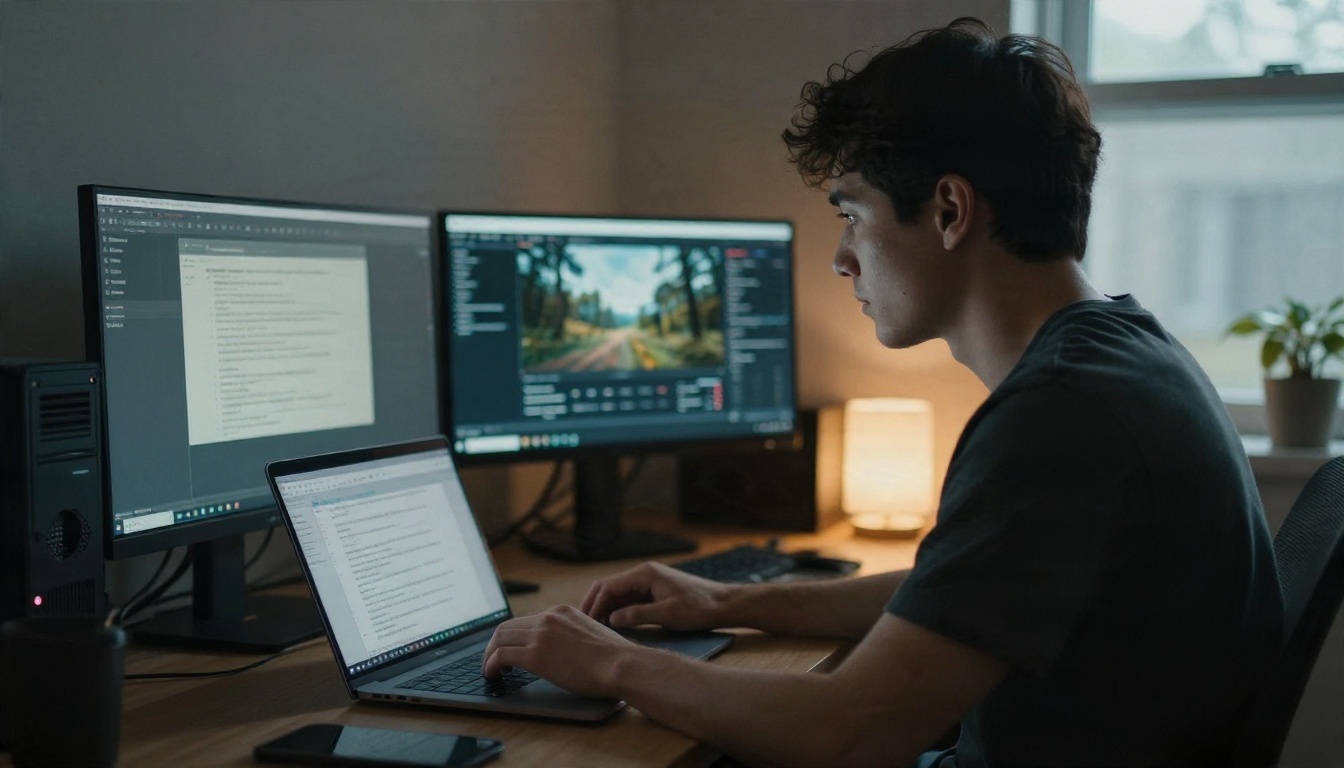
Where It Fits in 2027
Newer models now produce 1080p clips with native audio, and some run for ten seconds or longer. Mochi 1 is not trying to win that race. Its value is different: it is fast to try, easy to prompt, and good at grounded, photographic motion. For B-roll, product ideas, nature shots and moody atmosphere, it still holds up.
What It Is Not Good At
Be realistic about the limits. The model was tuned for photographic styles, so animated or cartoon looks are weak. Long, multi subject prompts also tend to fall apart. Text inside the frame, such as signs or captions, is unreliable. Knowing this saves you a lot of wasted generations.
Text to Video With Mochi 1
Text to video is the core feature, and the model rewards a specific prompting habit: describe one main subject, then add detail from coarse to fine.
A prompt that works usually follows this order:
- Shot type. "A close shot," "a medium shot," "a wide shot."
- Subject. One clear subject only.
- Action. One motion that unfolds over a few seconds.
- Setting and light. Time of day, weather, surface, color.
- Resolution cue. Ending with "high resolution 4k" helps reduce warping.
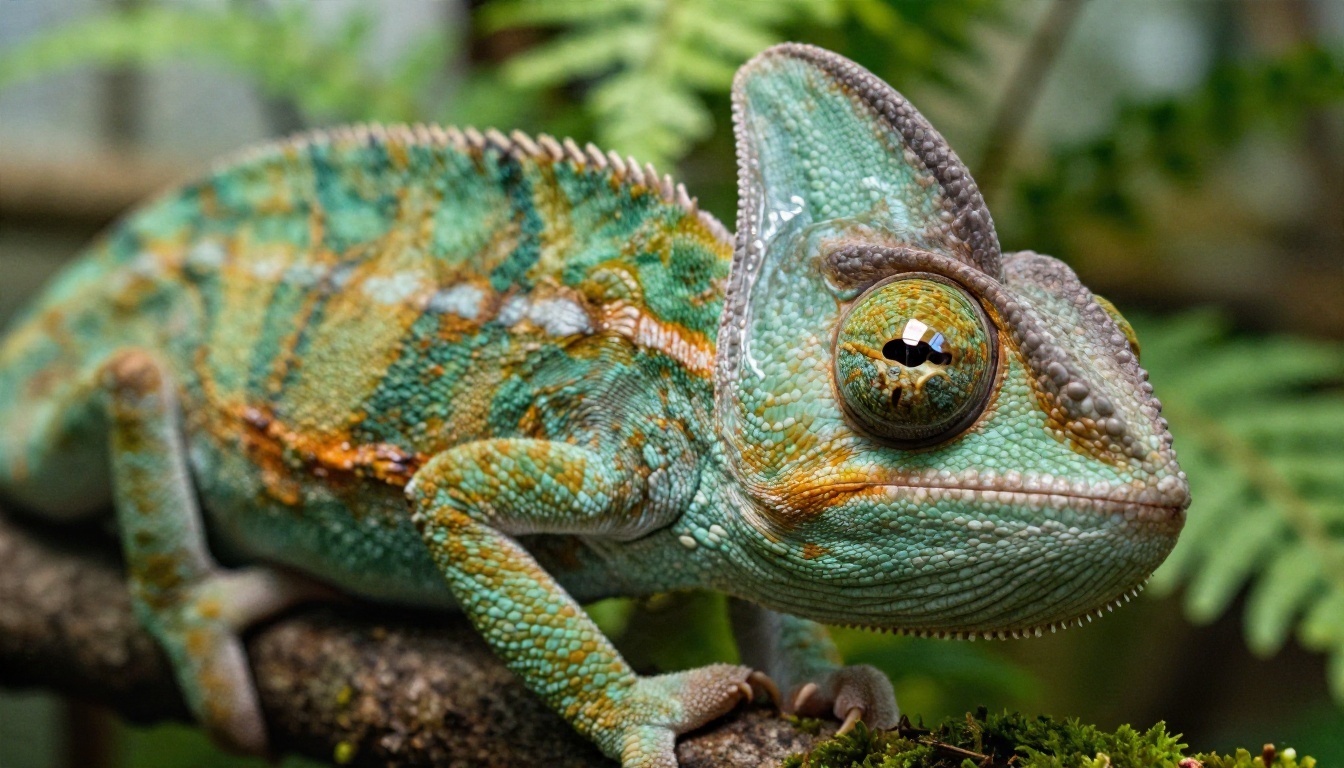
A Prompt That Shows the Strength
The default example on the model page is a good illustration: "Close-up of a chameleon's eye, with its scaly skin changing color. Ultra high resolution 4k." One subject, one action, one texture. The model has plenty of room to render fine scale detail and a smooth color shift, which is exactly the kind of motion it handles well.
Subjects That Work Best
| Subject type | Why it works | Example |
|---|
| Animals | Natural, repetitive motion is easy to read | A dog running through tall grass |
| Water and waves | Fluid physics are a strength | Waves rolling onto a sand beach |
| Macro details | One subject, rich texture | A bee on a lavender flower |
| Landscapes | Slow camera movement, low risk | Mist moving through a valley |
| Food and drink | Simple actions, appealing detail | Coffee poured into a ceramic cup |
| Crowds and hands | Many moving parts, higher failure rate | Use sparingly |
Mistakes That Waste Credits
- Stacking subjects. "A man, a dog, a car and a drone" will blur into mush.
- Asking for a story. A clip of five seconds holds one action, not a plot.
- Skipping the shot type. Without it, framing is random.
- Writing in cartoon terms. The model prefers real world language.
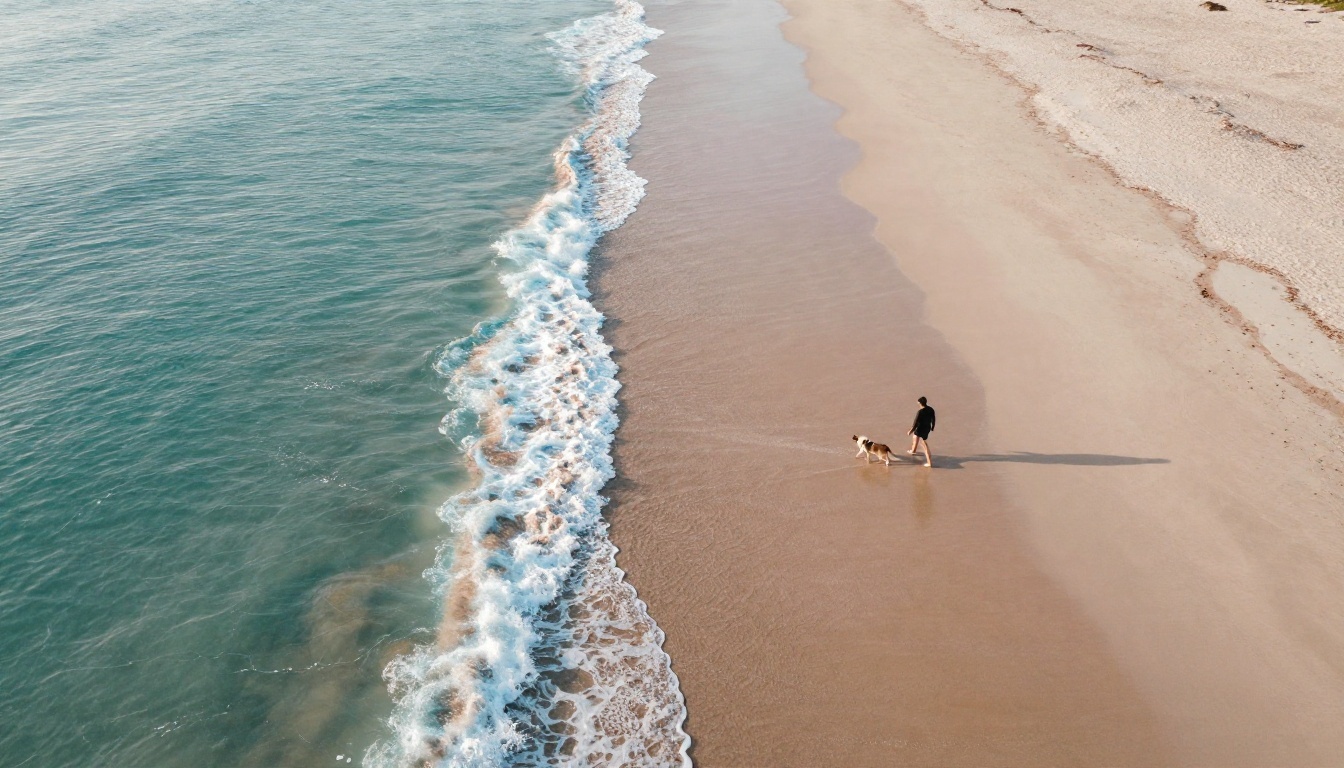
Image to Video: The Honest Answer
Search results love to promise "Mochi 1 image to video." Here is the straight version: the open Mochi 1 preview is a text to video model. The official release and the model on PicassoIA both take a text prompt as input, and neither accepts a starting frame. If you see a site claiming otherwise, it is usually wrapping a different model.
That does not mean you are stuck. There are two practical routes.
Route One: Describe the Image Instead
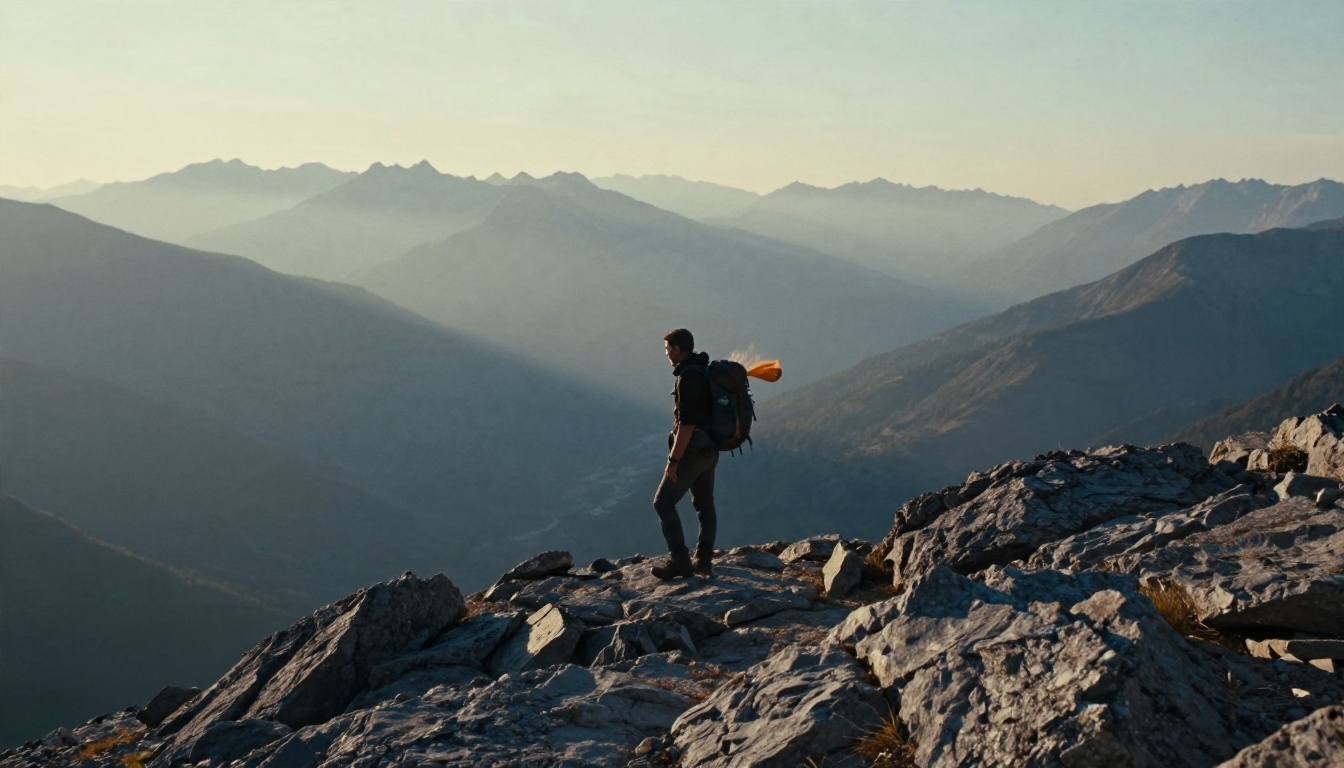
If you already know the frame you want, write it as a prompt. A photograph of a hiker on a ridge becomes: "A wide shot of a lone hiker on a rocky ridge above a misty alpine valley at sunrise, jacket moving in the wind, high resolution 4k." You will not get the exact same pixels, but you will get a similar composition with motion.
Route Two: Use a Model Built for It
When the first frame must match a photo, brand asset or product shot exactly, pick a real image to video model. These are on PicassoIA and are worth trying:
💡 Tip: A strong workflow is to generate a still with an image model, then animate it with an image to video model. Use Mochi 1 for scenes where you would rather start from a written idea.

Free Access to Mochi 1
There are two ways to get Mochi 1 for free, and they suit very different people.
Run It Yourself
Because the weights are open, you can download them and run Mochi 1 locally. This is real freedom, but it comes with a cost: the 10B model is heavy, needs a powerful GPU with a lot of memory, and takes setup time. It makes sense for developers, researchers, and anyone who wants to fine tune the model.
Use It in the Browser
For everyone else, the easier path is a hosted version. Mochi 1 on PicassoIA runs in the browser, with no install and no API setup. You write a prompt, press generate, and download the video file.
| Option | Setup time | Hardware needed | Best for |
|---|
| Local install | Hours | High memory GPU | Developers and researchers |
| Browser version | Seconds | None | Creators, marketers, testers |
How to Use Mochi 1 on PicassoIA
Here is the full process on the Mochi 1 page. It takes about a minute to set up, and the rest is waiting for the render.
Step 1: Open the Model
Go to the Mochi 1 page in the text to video collection. The prompt field is already filled with the chameleon example so you can run a test straight away.
Step 2: Write One Clear Prompt
Replace the default with your own idea. Follow the order from earlier: shot type, one subject, one action, setting and light, then "high resolution 4k."
Step 3: Set the Parameters
The model exposes six inputs. This is what each one does:
| Parameter | Default | What it does | Tip |
|---|
| Prompt | Chameleon eye | Your scene description | One subject only |
| Num Frames | 163 | Length of the clip | More frames means a longer, slower render |
| Fps | 30 | Frames per second | Keep 30 for smooth motion |
| Guidance Scale | 6 | How strictly the prompt is followed | Try 5 to 7, higher can look stiff |
| Num Inference Steps | 64 | Quality of detail | More steps reduce noise, but take longer |
| Seed | Random | Makes a result repeatable | Save seeds you like |
At the defaults, 163 frames at 30 fps gives a clip of roughly five and a half seconds.
Step 4: Generate and Review
Press generate and wait for the clip. Watch it twice: once for the main motion, once for edges and hands where warping tends to appear. If something is off, change the prompt in small steps rather than rewriting it.
Step 5: Reuse the Seed
When a result is close, keep the seed and edit one detail at a time, such as lighting or camera distance. That is the fastest way to turn a good clip into a great one.
💡 Tip: Run the same prompt with three different seeds before you judge a prompt. Text to video has a lot of variance, and one weak result does not mean the idea is weak.
Prompt Examples You Can Copy
These prompts follow the structure the model responds to. Paste them as they are, then adjust.
Nature and Animals
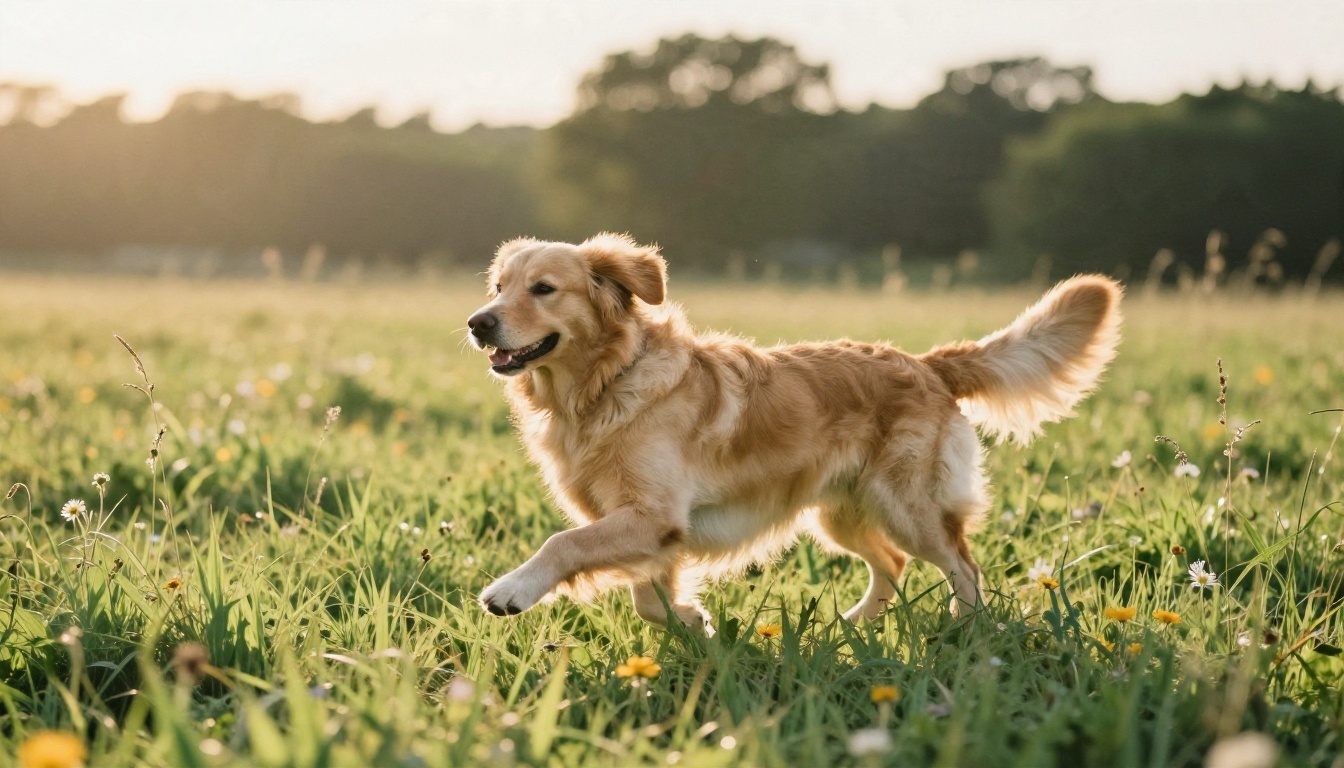
- A medium shot of a golden retriever running through a sunlit meadow of tall grass, ears flying, warm late afternoon backlight, high resolution 4k.
- A close shot of a bee landing on a purple lavender flower, wings vibrating, shallow depth of field, soft morning light, high resolution 4k.
Water and Landscape
- An aerial shot of turquoise ocean waves rolling onto a pale sand beach at sunrise, foam tracing the shoreline, high resolution 4k.
- A wide shot of mist drifting through a pine valley at dawn, slow movement, soft cool light, high resolution 4k.
Food and Lifestyle
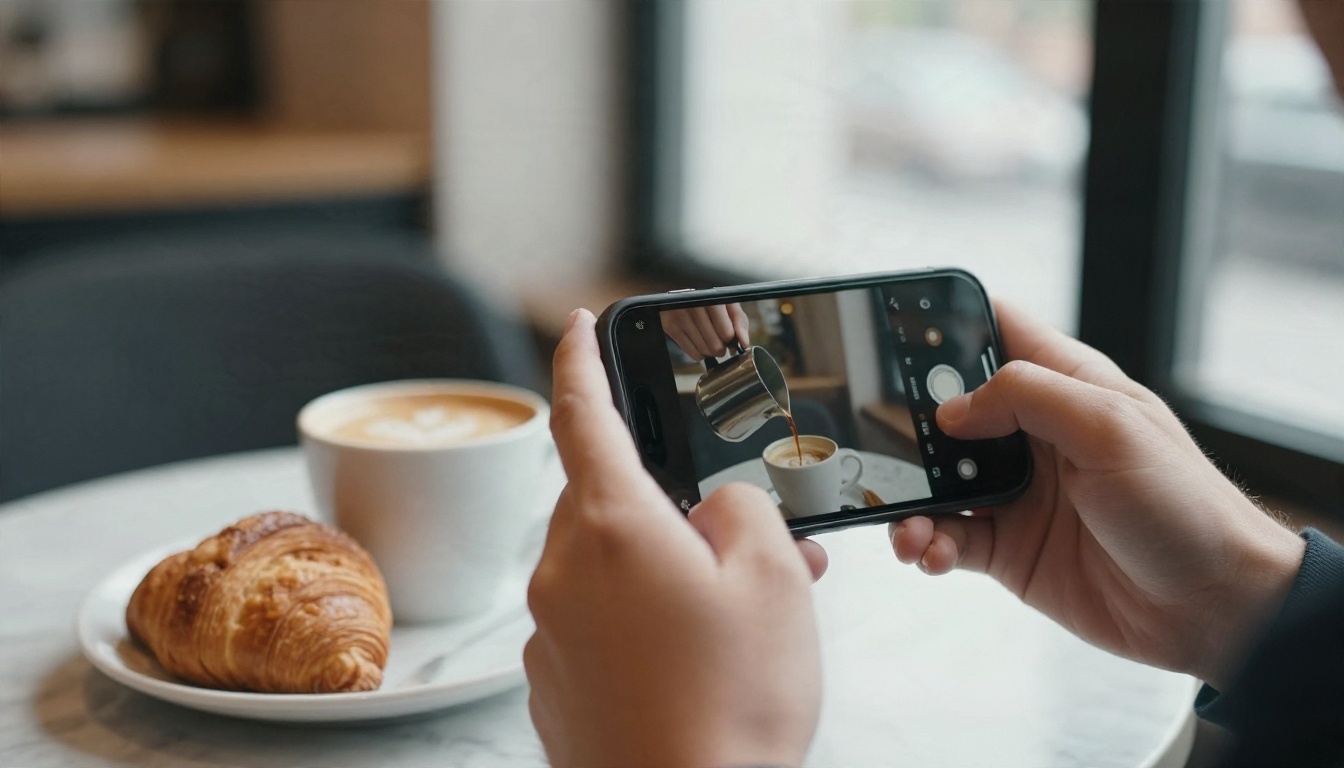
- A close shot of hot coffee being poured into a white ceramic cup on a marble table, steam rising, window light from the right, high resolution 4k.
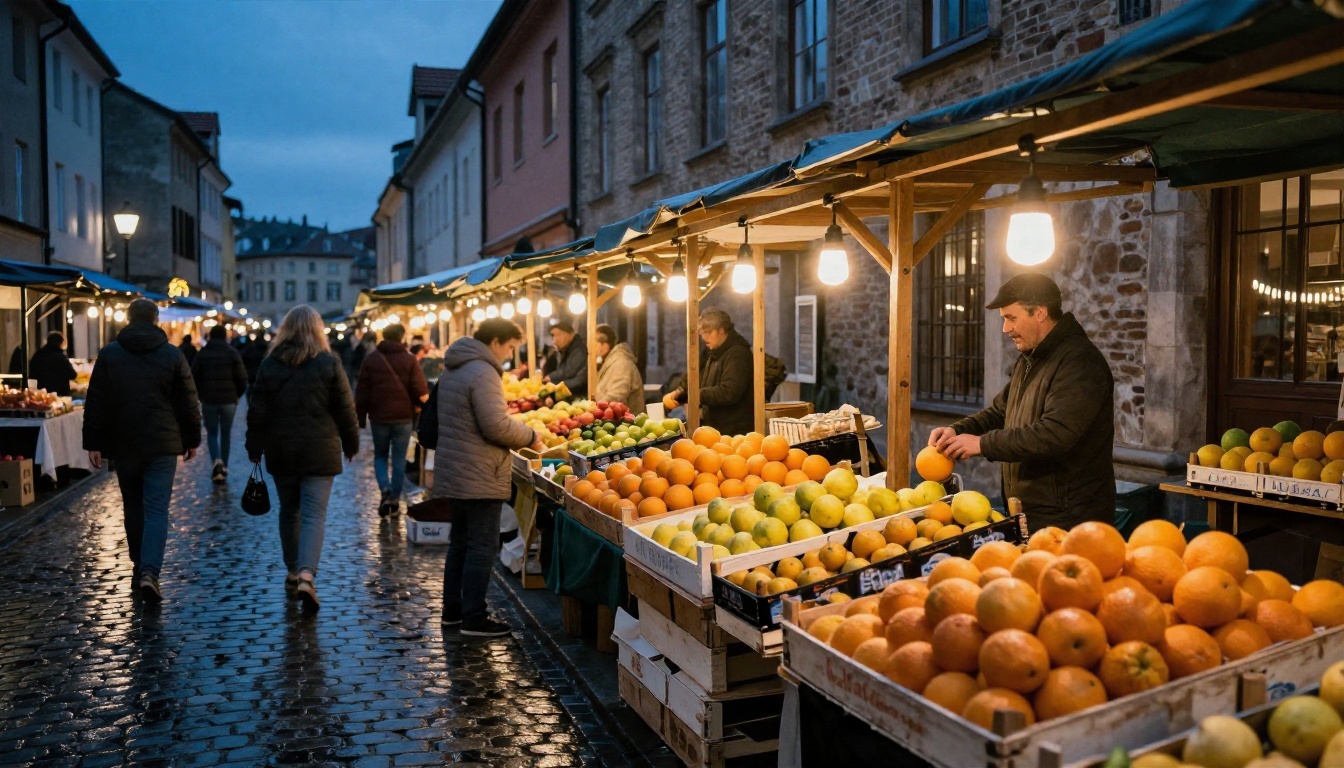
- A medium shot of a vendor arranging oranges in a wooden crate at an evening street market, string lights glowing, high resolution 4k.
Macro and Texture
- Close-up of a chameleon's eye, with its scaly skin changing color. Ultra high resolution 4k.
- A close shot of rain drops hitting a green leaf, water beading and rolling off, high resolution 4k.
Real Uses for Mochi 1 Clips
A five second clip is small, but small clips have a lot of jobs.
- B-roll. Fill the gaps in a video essay or a product walkthrough with nature or city shots.
- Concept testing. Check the mood of a scene before you commit to a shoot.
- Social content. Short, loopable moments perform well on vertical feeds.
- Storyboards in motion. Show a client how a sequence could feel, instead of a flat sketch.
- Backgrounds. Slow landscapes and textures work well behind titles.
Getting More Out of 480p
The preview resolution is modest. Two habits help. First, keep subjects simple so there is less fine detail to lose. Second, run the finished clip through an upscaler. PicassoIA has video enhancement tools in its all models page that can raise the resolution and sharpness of a clip after you generate it.
Mochi 1 vs Other Video Models
No single model wins every task. Here is how Mochi 1 compares to a few popular options on PicassoIA.
| Model | Input | Strength | Pick it when |
|---|
| Mochi 1 | Text | Natural motion, prompt accuracy | You want grounded, photographic scenes from words |
| Wan 2.5 T2V | Text | Balanced quality and speed | You need a general purpose option |
| Kling v2.5 Turbo Pro | Text and image | Cinematic polish | You want a premium look |
| Hunyuan Video | Text | Realistic, detailed output | Realism matters most |
| LTX Video | Text | Fast generation | You iterate quickly |
| Veo 3.1 Fast | Text | Native audio and 1080p | You need sound with your clip |
| Seedance 2.5 Lite | Text and image | Free, longer clips | You want length without cost |
A Simple Way to Choose
Ask three questions. Do you need sound? Pick a model with native audio. Do you need to start from a photo? Pick an image to video model. Do you just want a believable five second scene from a sentence? Mochi 1 is a solid, simple place to begin.
Troubleshooting Common Problems
The Motion Looks Warped
Simplify. Cut the prompt to one subject and one action, and add "high resolution 4k" at the end. Raising the inference steps can also clean up noise.
The Clip Ignores Part of the Prompt
Move the most important detail to the start of the sentence. If that fails, raise the guidance scale by one point and test again.
The Result Feels Stiff
Lower the guidance scale a little. Very high values keep the model close to the prompt, but they can flatten natural movement.
The Style Looks Wrong
If you asked for illustration or animation, switch to realistic wording or use a model built for stylized video. Mochi 1 is tuned for photographic results.
Try Your First Clip Today
Mochi 1 is the right kind of tool for a quick experiment: one sentence in, one believable clip out, no setup and no cost to try. Open the Mochi 1 page on PicassoIA, paste one of the prompts above, and watch what comes back. Keep the seed of any clip you like, change one detail, and run it again.
When you need a starting image, longer clips or sound, jump to one of the alternatives in this article or browse everything at picassoia.com/en/all-models. Pick a subject you already love, write it down in one clear sentence, and make your first video now.


